Lifestyle
PSToolset
PC
Windows 10 version 14316.0 or higher
English (United States)
For gamers and media enthusiasts seeking a seamless way to enjoy their PlayStation games without switching devices, XRemote - Remote Play for S/X Series offers a promising solution. This Windows application aims to bridge the gap between your PC and PlayStation 5 or Series X consoles, turning your computer into a versatile gaming hub. Developed by PSToolset, the app promises high-quality remote gameplay, simple setup, and a user-friendly experience, making it a noteworthy contender in the realm of remote gaming solutions.
The app's standout feature is its ability to stream your PlayStation console's gameplay directly to your Windows device. Thanks to optimized data transmission, it offers a smooth, lag-minimized experience, supporting high-definition streaming up to 1080p or even 4K depending on your setup. Whether you're relaxing on the couch or working at your desk, this function ensures your gaming feels natural and responsive, mimicking local play as closely as possible. It's akin to having your console right at your fingertips—even when it's tucked away in another room.
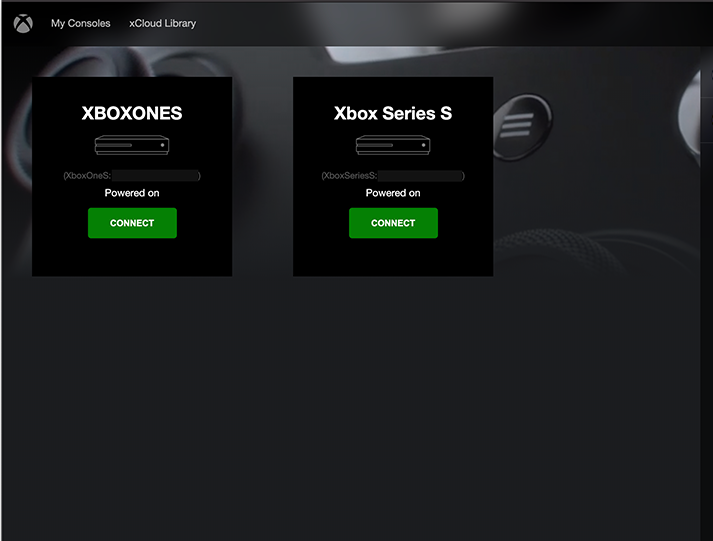
Connecting your PlayStation S/X Series to the app is surprisingly straightforward. The interface guides users through a few quick steps—like pairing devices in a dance—making the process accessible even for newcomers. Once paired, the app automatically detects your console on the same network, reducing the need for manual configurations or port forwarding. This hassle-free setup is especially appreciated by users who want to start gaming immediately, without fussing over complex settings.
The app isn't just a mirror of your console; it also offers customizable input controls. You can configure your gamepad to suit different titles, switch between touch controls and external controllers, and even tweak layout preferences. This flexibility caters to casual players and seasoned gamers alike, enabling an experience tailored to individual preferences. Imagine tuning your control scheme like adjusting camera angles—enhancing comfort and precision during gameplay.
The user interface strikes a balance between modern minimalism and functional clarity. It's like walking into a well-organized workspace—buttons and menus are logically arranged, and critical functions are just a click away. From the first launch, users can swiftly access connection settings, game controls, and streaming options. The app responds swiftly to input, with minimal latency reported during standard gameplay sessions, making the experience feel almost native.
Regarding learning curve, the app's guided setup and clear icons make onboarding smooth, even for users unfamiliar with remote play tech. Occasional documentation or in-app tips further reduce barriers, letting you enjoy your favorite titles with little delay. The application's stability and responsiveness contribute to a positive experience, comparable to using a dedicated gaming device rather than a makeshift setup.
While many remote play solutions exist, XRemote stands out with its focus on clarity and ease of use tailored specifically for S/X console owners. Unlike generic streaming apps, it emphasizes genuine content authenticity—offering high-quality, low-latency streams that preserve the gameplay experience. Its credibility is bolstered by PSToolset's expertise in gaming utilities, ensuring users receive reliable, professional-grade performance. Furthermore, the app's design caters to the lifestyle category—aiming to seamlessly integrate gaming into your daily routine—without the clutter of unrelated features or overly complex interfaces.
Overall, XRemote presents itself as a solid, user-centric remote play application for Windows users with PlayStation S/X consoles. Its core strengths—high-quality streaming, straightforward setup, and customizable controls—make it a valuable tool for anyone looking to enjoy console gaming on a PC. While it may not yet match the extensive feature set of larger remote solutions, its focus on core performance and usability is commendable. I recommend this app to dedicated gamers aiming for a reliable remote experience and for tech-savvy users eager to integrate their console gameplay into a flexible, multi-device environment. For casual users seeking simple, fuss-free gaming sessions, it's worth giving a try and seeing how it fits into your gaming lifestyle.
Seamless Remote Play Experience
User-Friendly Interface
Supports Multiple Devices
High-Quality Stream Options
Low Latency Input Response
Limited Network Optimization Features
Battery Consumption on Host Devices
Occasional Compatibility Issues with Certain Games
Lack of Advanced Customization Options
Performance Variability on Different Hardware
for Windows
 4.9
4.9

for Windows
4.8

for Windows
4.8

for Windows
4.8

for Windows
4.7
for Windows
4.2
for Windows
4.2

for Windows
4
for Windows
3

for Windows
3

for Windows
2.4

for Windows
2.3

for Windows
5

for Windows
5

for Windows
5

for Windows
5

for Windows
5

for Windows
5

for Windows
5

for Windows
5

for Windows
5

for Windows
5