Developer tools
PC
Windows 10 version 19041.0 or higher
Not specified
Afrikaans, Albanian, Amharic, Arabic, Armenian, Assamese, Azerbaijani, Bangla (India), Basque, Bosnian (Latin, Bosnia and Herzegovina), Bulgarian, Catalan, Chinese (Simplified), Chinese (Traditional), Croatian, Czech, Danish, Dutch, English (United Kingdom), English (United States), Estonian, Filipino, Finnish, French, French (Canada), Galician , Georgian, German, Greek, Gujarati, Hebrew, Hindi, Hungarian, Icelandic, Indonesian, Irish, Italian, Japanese, Kannada, Kazakh, Khmer, Konkani, Korean , Lao, Latvian, Lithuanian, Luxembourgish, Macedonian, Malay, Malayalam, Maltese, Maori, Marathi, Nepali, Norwegian (Bokmål), Odia, Persian, Polish , Portuguese (Brazil), Portuguese (Portugal), Punjabi (India), Quechua, Romanian, Russian, Scottish Gaelic, Serbian, Serbian (Cyrillic, Bosnia and Herzegovina), Serbian (Latin, Serbia), Slovak, Slovenian (Slovenia), Spanish (Mexico), Spanish (Spain), Swedish, Tamil, Tatar, Telugu, Thai, Turkish, Ukrainian, Urdu, Uyghur, Uzbek, Valencian, Vietnamese, Welsh
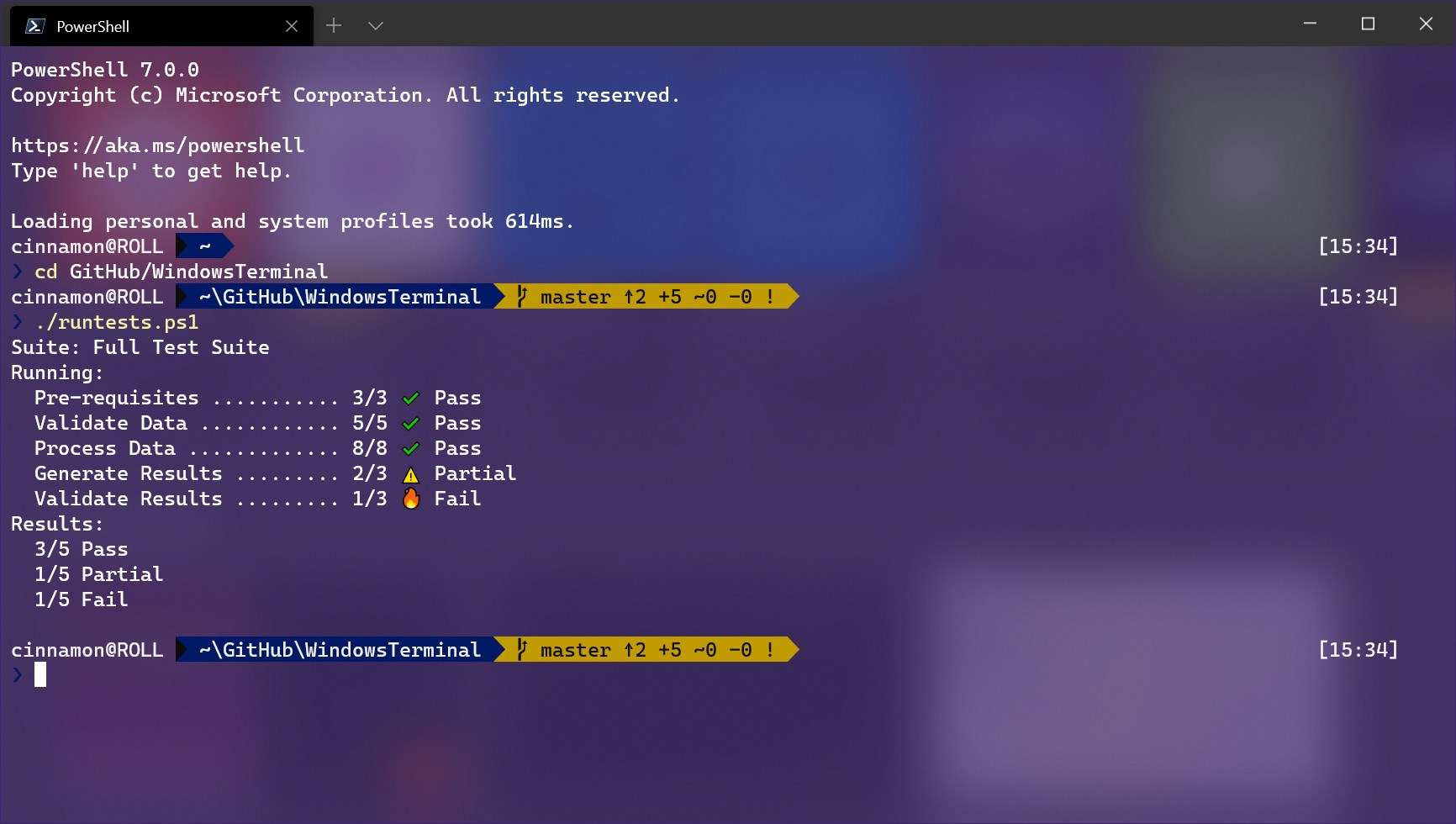
In the evolving landscape of developer tools, Windows Terminal stands out as a sleek, versatile terminal emulator designed to unify and modernize command-line experiences on Windows OS. Whether you're a seasoned developer, sysadmin, or enthusiastic hobbyist, this app aims to streamline your command-line workflows with a highly customizable interface and robust features.
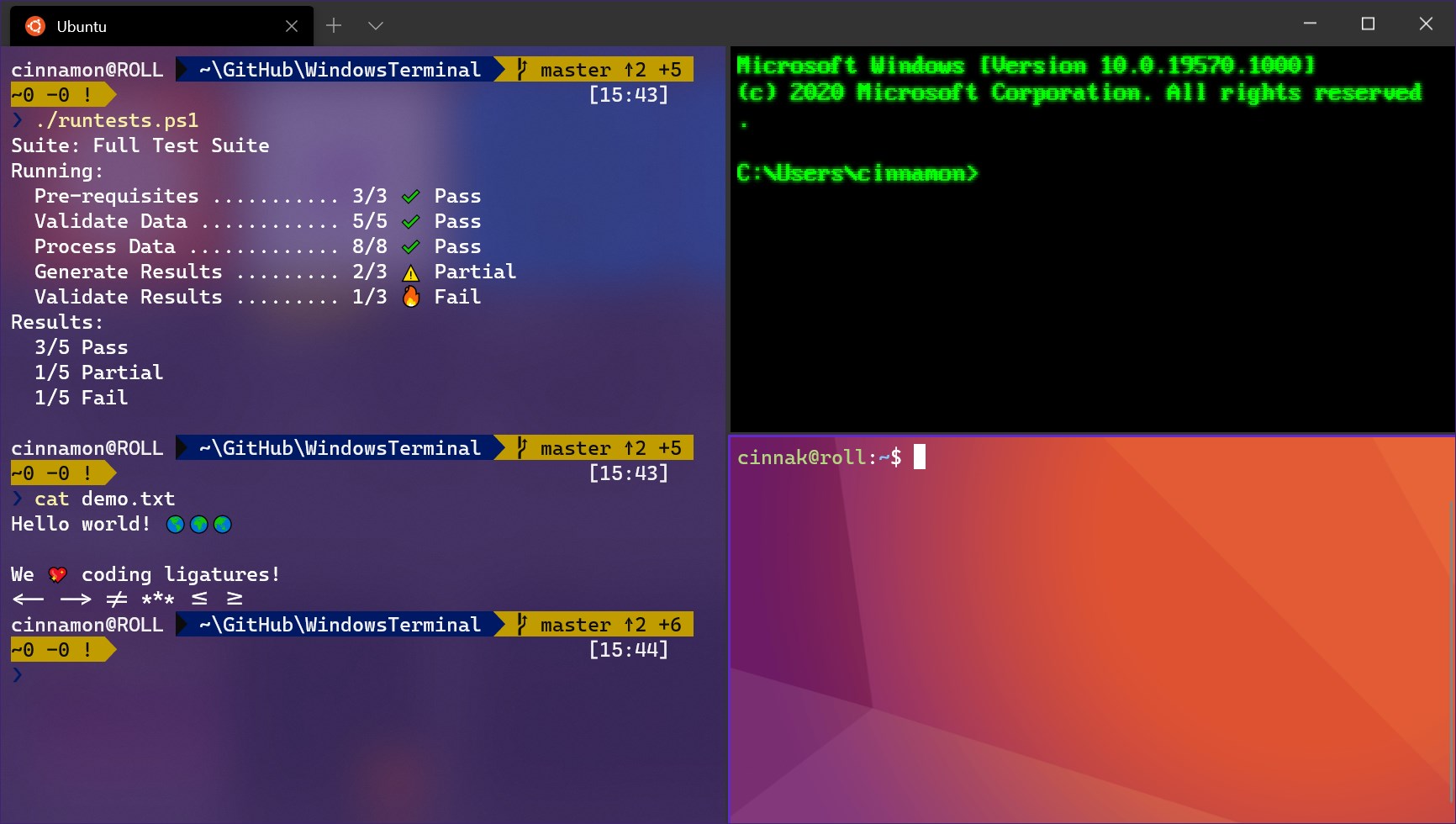
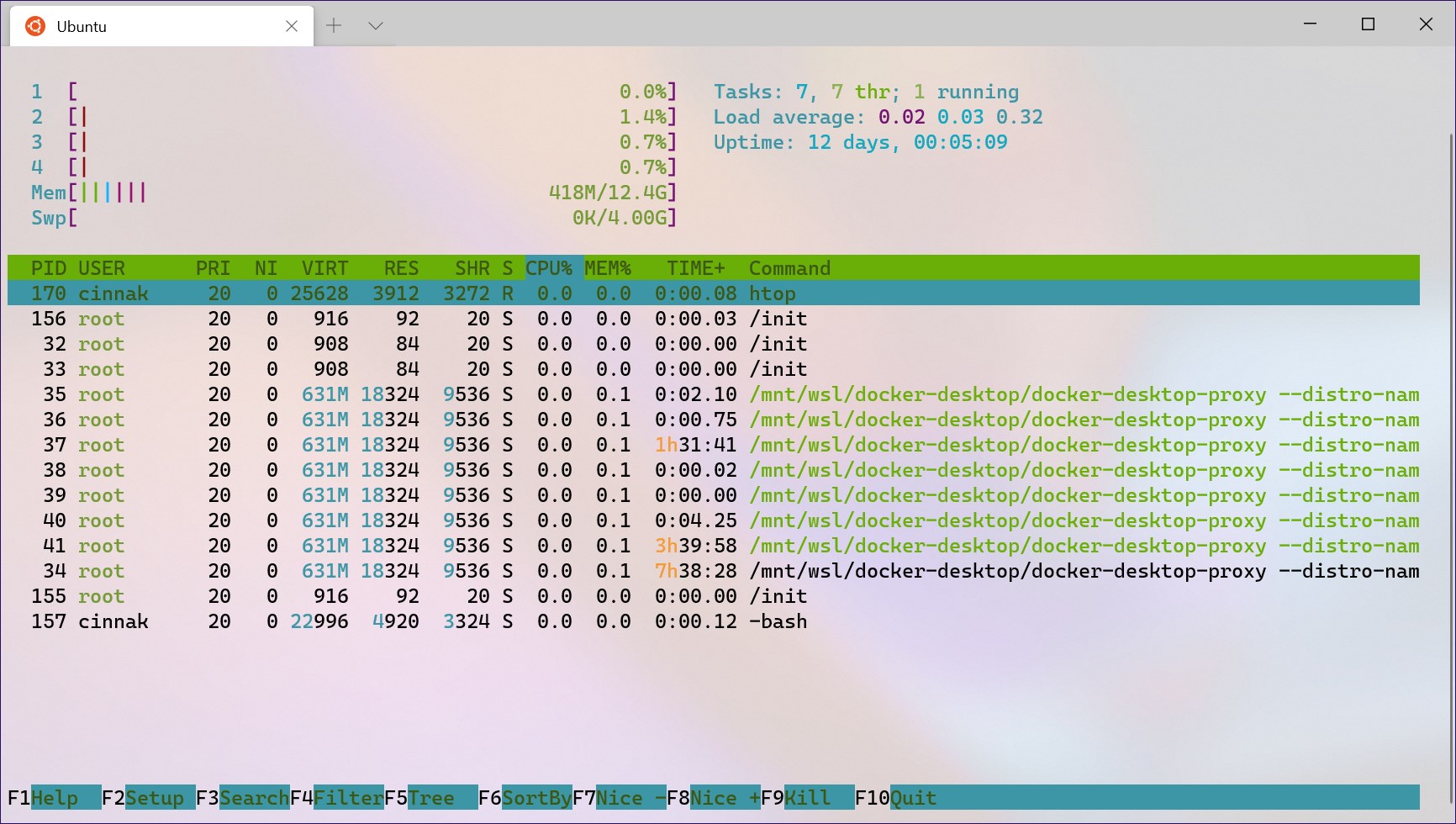
At first glance, Windows Terminal presents a clean, modern interface that feels both familiar and fresh—imagine replacing your old, cluttered command prompt with a stylish dashboard tailored to your preferences. The application's tabbed design allows you to run multiple shells—be it PowerShell, Command Prompt, or WSL distributions—side by side, reducing the hassle of juggling multiple windows. The interface adapts smoothly to your adjustments; you can tweak themes, fonts, and background images easily, transforming your terminal into a personalized command sanctuary. The high responsiveness and fluid transitions make interaction feel seamless, with no noticeable lag even when handling intensive tasks.
One of Windows Terminal's standout features is its advanced tab management system. Think of it as a command-line version of your browser—yet far more powerful. The ability to open multiple tabs, each with independent profiles, allows users to segment projects, switch contexts swiftly, and keep workflows organized. Moreover, the session management features let you save, restore, or clone working environments, saving time and reducing repetitive setup. This is particularly beneficial for developers juggling different environments or when conducting various system tests.
The application's true strength lies in its expansive customization options. Beyond just color schemes, Windows Terminal supports JSON-based profiles, letting users fine-tune key bindings, background images, font styles, and even transparency levels. Developers who enjoy tweaking their workspace will appreciate this freedom—a significant leap from traditional terminals that often hide their power behind limited options. Additionally, the support for custom actions and extensions fosters a thriving community ecosystem, enabling the terminal to evolve based on user needs.
Using Windows Terminal feels like upgrading from a basic toolkit to a Swiss Army knife. The interface's clean design lowers the learning curve for new users, while the flexibility appeals to power users seeking a tailored environment. The app's responsiveness ensures commands execute swiftly, and the overall fluidity inspires confidence during intensive tasks.
Compared to other developer tools, such as ConEmu or Terminus, Windows Terminal's integration with Windows, combined with its native support for multiple shells and high degree of customization, makes it particularly appealing. Its open-source nature also invites community-driven enhancements, ensuring that it remains relevant and adaptable. Notably, its rendering engine, based on GPU acceleration, provides smooth graphics and text rendering—boosting speed and visual clarity, even with complex themes and backgrounds.
Overall, Windows Terminal earns a strong recommendation for anyone looking to modernize their command-line experience on Windows. It's especially suitable for developers and system administrators seeking a flexible, efficient, and aesthetically pleasing terminal emulator. While it might require some initial setup to fully leverage its customization capabilities, the payoff is a streamlined, enjoyable workflow.
If your current terminal feels outdated or cumbersome, Windows Terminal offers a compelling upgrade that combines form and function effortlessly. Stay ahead in your command-line journey, and give this app a try—you might just find it becomes your new favorite workspace companion.
Customizable UI themes
Tabbed interface for multiple sessions
Fast and reliable performance
Support for modern Unicode characters
Open-source development with frequent updates
Limited customization options in default setup
Initial setup can be complex for beginners
Occasional rendering glitches with complex UIs
Limited support for legacy Windows versions
Some advanced features are still under development

for Windows
 5
5

for Windows
4.6

for Windows
4.6
for Windows
4.6

for Windows
4.5

for Windows
4.4
for Windows
4.4
for Windows
4.3
for Windows
4.3

for Windows
4.3

for Windows
4.3

for Windows
4.2

for Windows
5

for Windows
5
for Windows
5

for Windows
5

for Windows
5

for Windows
5

for Windows
5

for Windows
5

for Windows
5

for Windows
5