Social
PC
Windows 10 version 19041.0 or higher
Not specified
Not specified
Afrikaans, Albanian, Arabic, Azerbaijani, Bangla, Bulgarian, Catalan, Chinese (Simplified), Chinese (Traditional), Chinese (Traditional, Hong Kong SAR), Croatian, Czech, Danish, Dutch, English, Estonian, Filipino, Finnish, French, German, Greek, Gujarati, Hebrew, Hindi, Hungarian, Indonesian, Italian, Japanese, Kannada, Kazakh, Kiswahili, Korean, Latvian, Lithuanian, Macedonian, Malay, Malayalam, Marathi, Norwegian (Bokmål), Persian/Farsi, Polish, Portuguese (Brazil), Portuguese (Portugal), Punjabi, Romanian, Russian, Serbian (Latin) (Serbia and Montenegro (Former)), Slovak, Slovenian, Spanish, Swedish, Tamil, Telugu, Thai, Turkish, Ukrainian, Urdu, Uzbek, Vietnamese
WhatsApp for Windows brings your favorite messaging platform directly onto your desktop, offering a familiar yet enhanced experience for staying connected efficiently and securely. Designed to bridge the gap between mobile and desktop communication, it aims to make your conversations more accessible and integrated into your daily workflow.
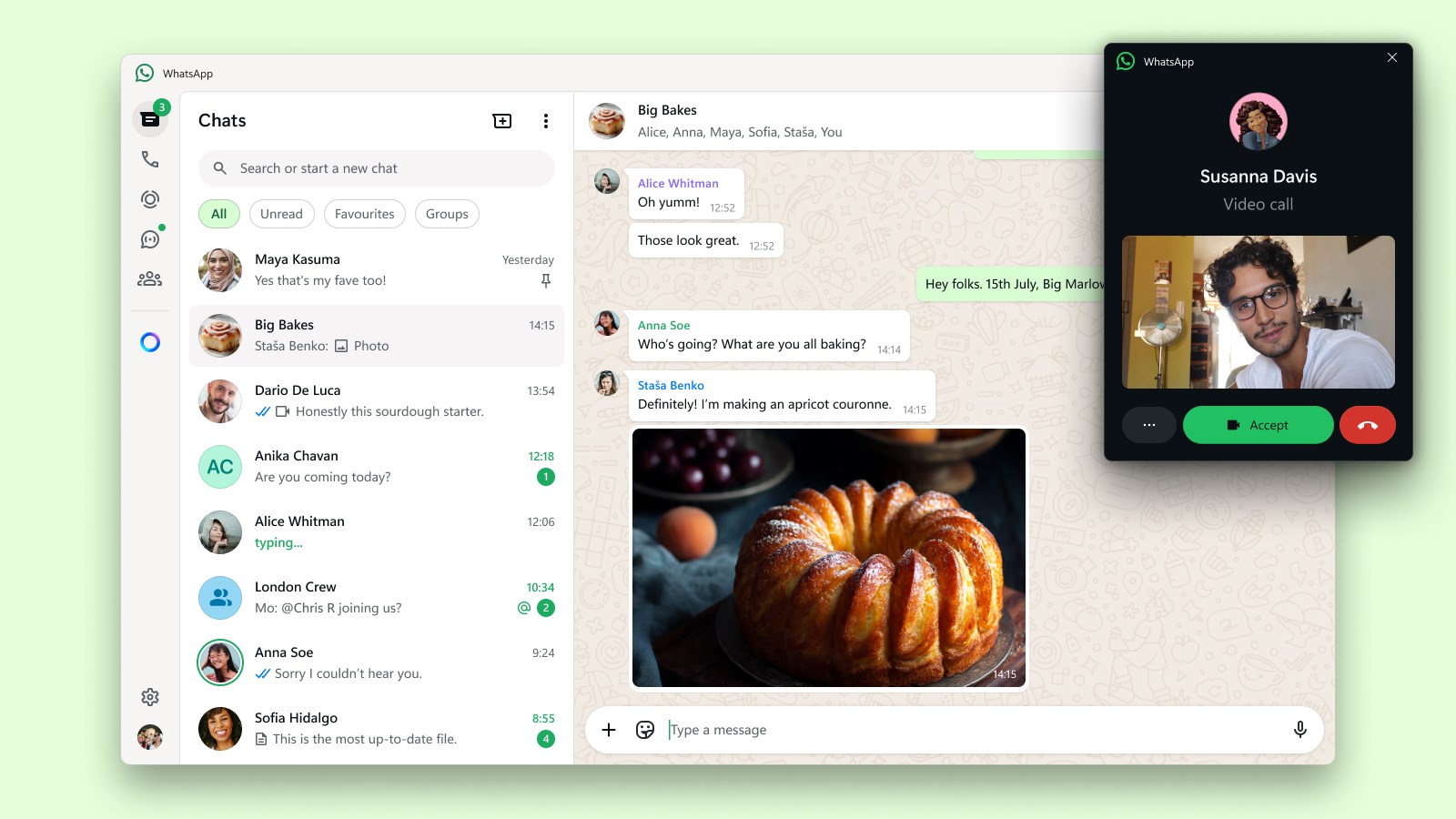
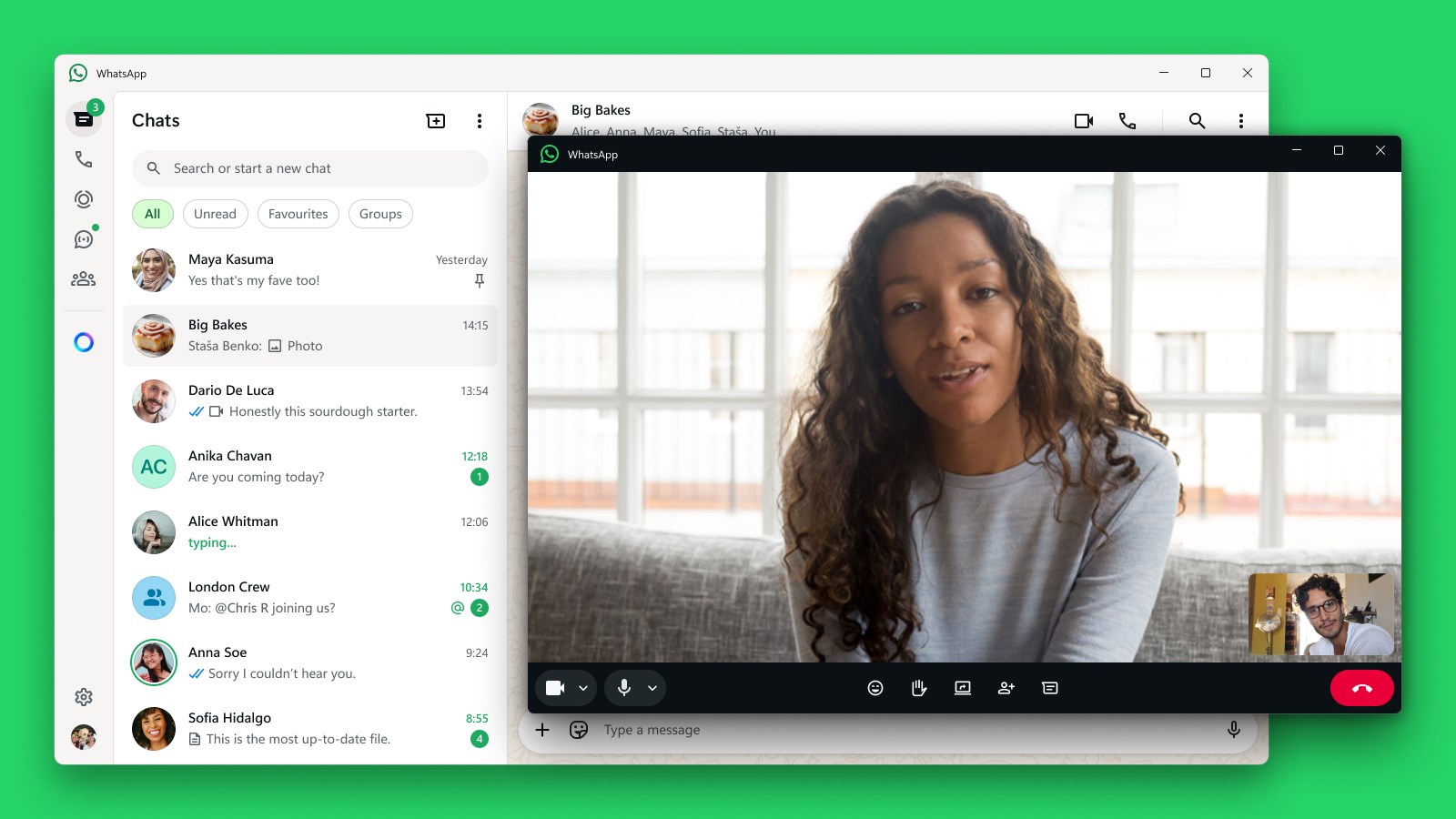
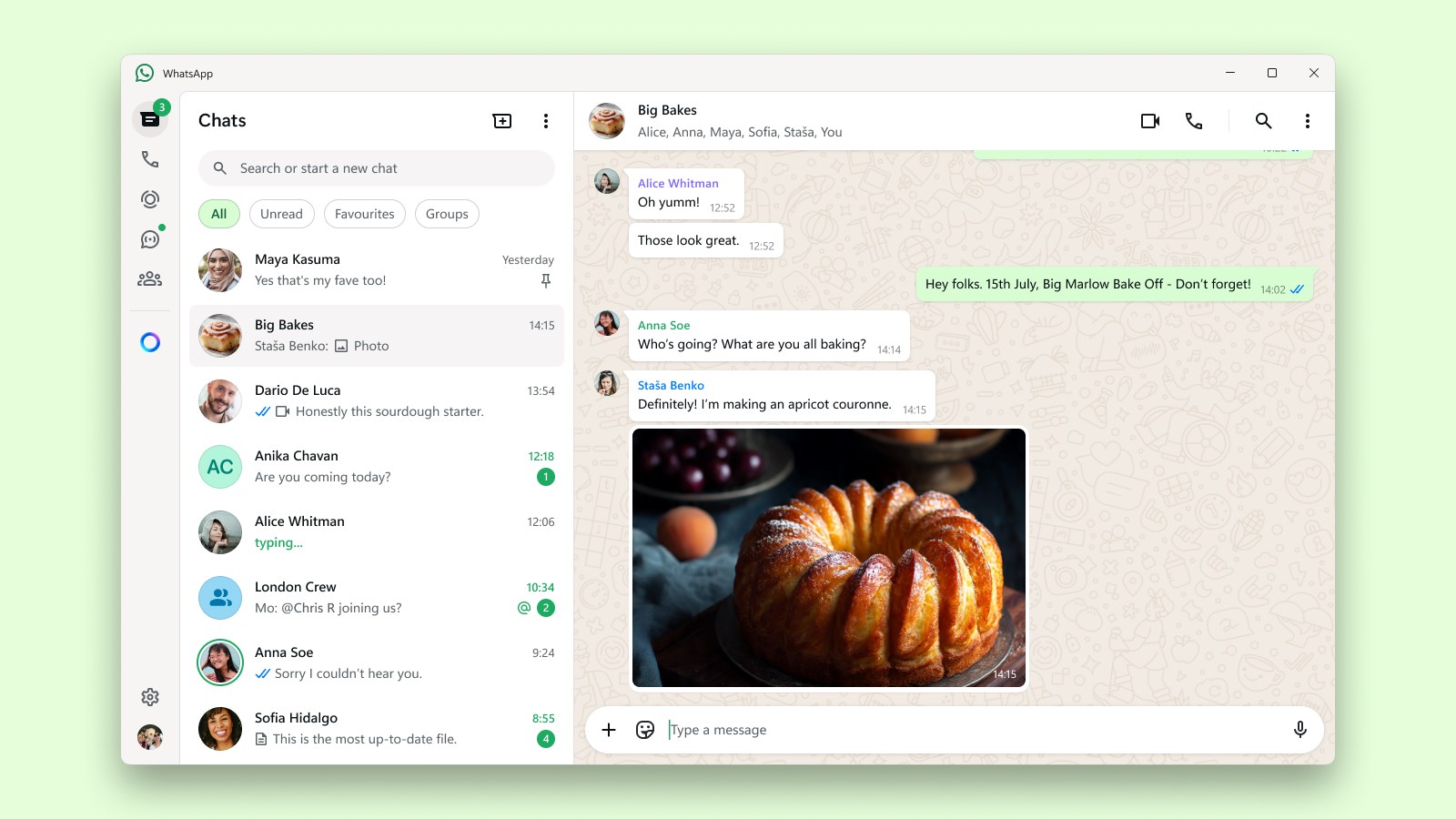
The app seamlessly syncs your chats from your mobile device, allowing you to pick up conversations right where you left off—no more hunting for your phone or switching devices. Its clean, intuitive interface mimics the mobile app's look and feel, making navigation straightforward even for new users. The design employs a simple sidebar layout, enabling quick access to your contacts, chats, and settings, which creates a familiar environment that minimizes the learning curve.
One of WhatsApp for Windows' standout features is how it leverages connection discovery—integrating your contact list to easily find friends and colleagues who are already on WhatsApp. Additionally, the app incorporates robust authenticity verification tools, such as QR codes and end-to-end encryption indicators, reassuring users about the security and legitimacy of their conversations. These features are particularly valuable in today's landscape of online privacy concerns, setting it apart from some competitors that lack such integrated verification measures.
The Windows version supports rich multimedia exchanges—allowing you to send photos, videos, voice messages, and documents effortlessly. Moreover, it offers personalized notification settings and customizable chat backgrounds, enabling users to create a more tailored experience. Unlike basic messaging apps, this level of personalization enhances user engagement and comfort, making each chat feel unique and secure.
The app's interface design emphasizes simplicity, making it easy for users of all tech levels to adapt quickly. Operation is smooth, with minimal lag and fast sync times that feel almost instantaneous—much like having your mobile chats displayed on an elegant, organized desktop dashboard. The learning curve is gentle; if you've used WhatsApp on mobile, you'll find the transition seamless. The app's responsiveness and clear visual cues foster a stress-free messaging environment, perfect for both casual chats and professional communications.
While many social messaging apps aim for broad compatibility, WhatsApp for Windows distinguishes itself through its emphasis on authenticity verification and connection discovery. These features cultivate trust by ensuring users know they are communicating with genuine contacts and that their data remains protected through end-to-end encryption. This focus on security and seamless contact integration means you spend less time troubleshooting and more time chatting, providing a more reliable and personalized user experience. Unlike some competitors that may require third-party plugins or additional steps, WhatsApp's built-in features make authentication and connection setup straightforward and secure.
I'd recommend WhatsApp for Windows to anyone who relies heavily on WhatsApp for daily communication—be it personal or professional. Its smooth performance, combined with key security features and user-centric design, makes it a valuable tool. If you often switch between your phone and PC or find yourself craving a desktop environment for your chats, this app fits beautifully into that workflow. However, if your messaging needs extend to more niche social networking features or multi-platform integrations beyond WhatsApp's ecosystem, you might want to explore additional options. For most users looking for a reliable, secure, and familiar desktop messaging solution, WhatsApp for Windows is certainly worth a try—your chats, finally, just got a new home on your computer.
User-friendly interface
End-to-end encryption
Multi-platform support
Rich media sharing
Group chat functionality
Limited customization options
Requires internet connection
File size restrictions
Limited message editing capabilities
Occasional sync delays

for Windows
 5
5

for Windows
4.9

for Windows
4.8

for Windows
4.7

for Windows
4.7
for Windows
4.6

for Windows
4.6

for Windows
4.5

for Windows
4.5

for Windows
4.5

for Windows
4.5

for Windows
4.4

for Windows
5

for Windows
5

for Windows
5

for Windows
5

for Windows
5
for Windows
5

for Windows
5

for Windows
5

for Windows
5

for Windows
5