Developer tools
Microsoft Corporation
PC
Windows 10 version 0.0 or higher
Integrated Keyboard
Integrated Mouse
4 GB
English, Chinese (Simplified), Chinese (Traditional Chinese), Czech, German, French, Italian, Japanese, Korean, Polish, Russian, Turkish, Spanish, Portuguese (Brazil)
As a developer seeking an all-in-one coding environment, Visual Studio Community for Windows stands out as a robust, comprehensive IDE tailored for individual programmers, students, and small teams. Developed and maintained by Microsoft Corporation, this software offers a rich suite of features that streamline the coding process and foster efficient development workflows.
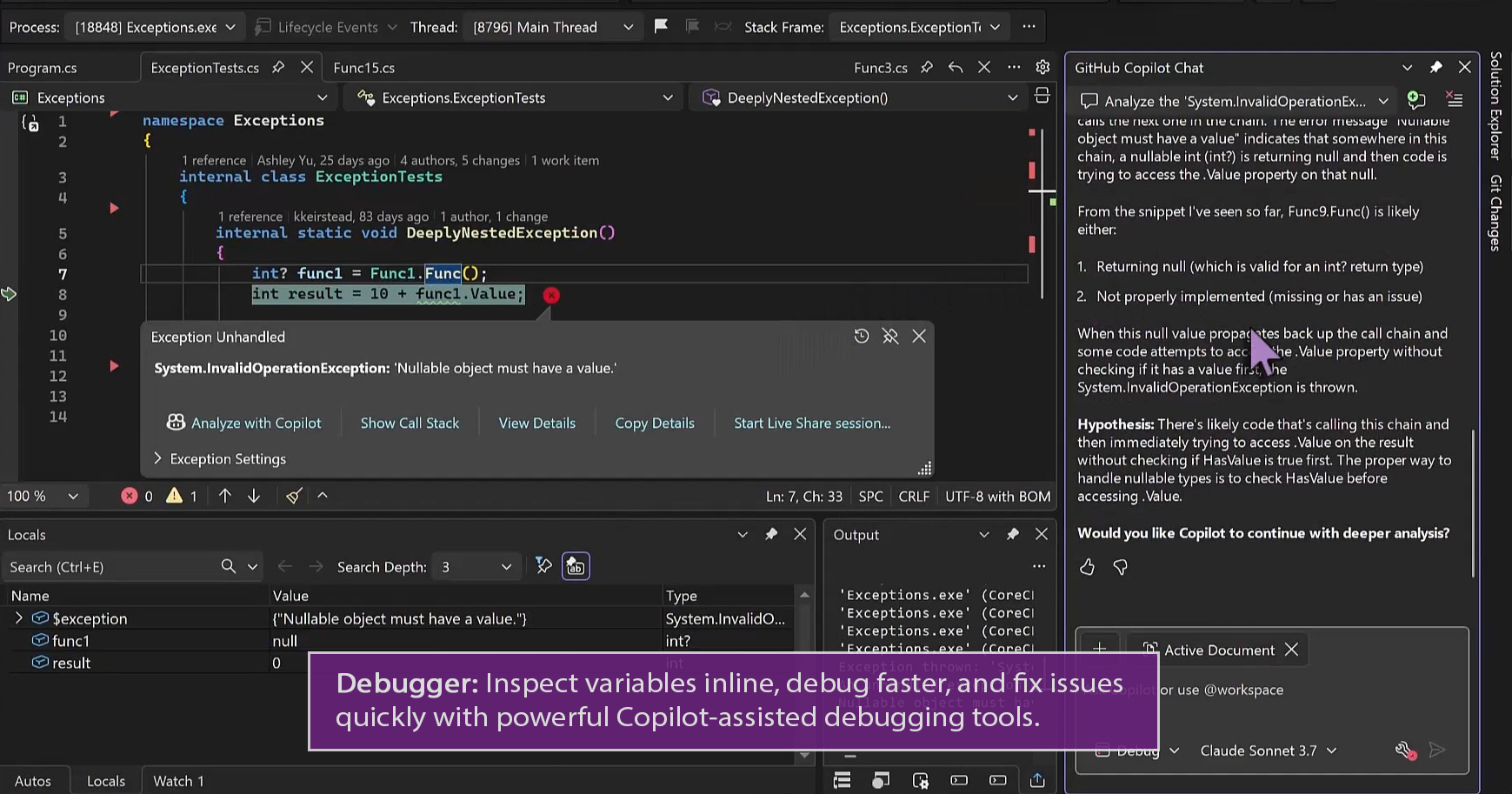
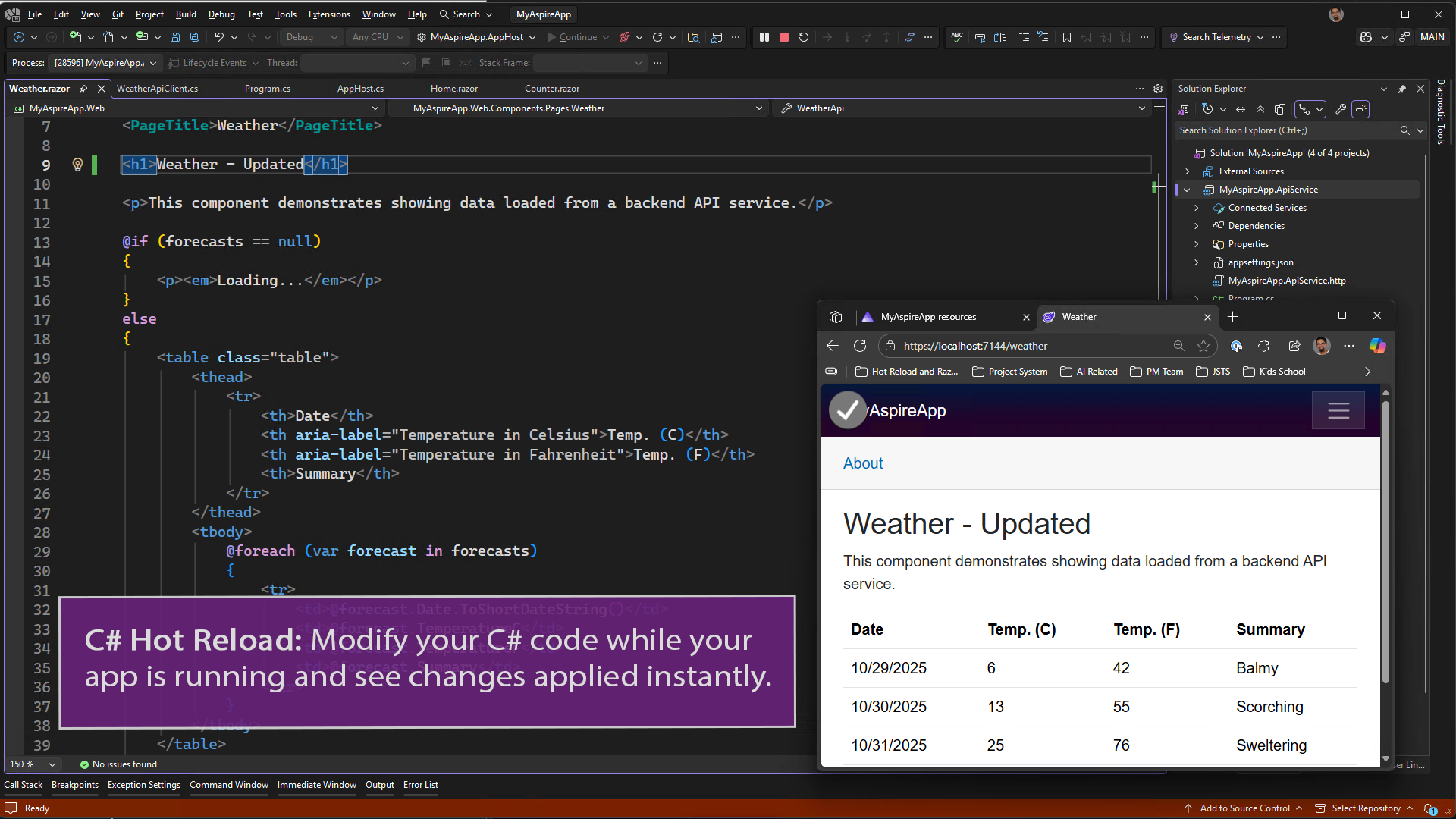
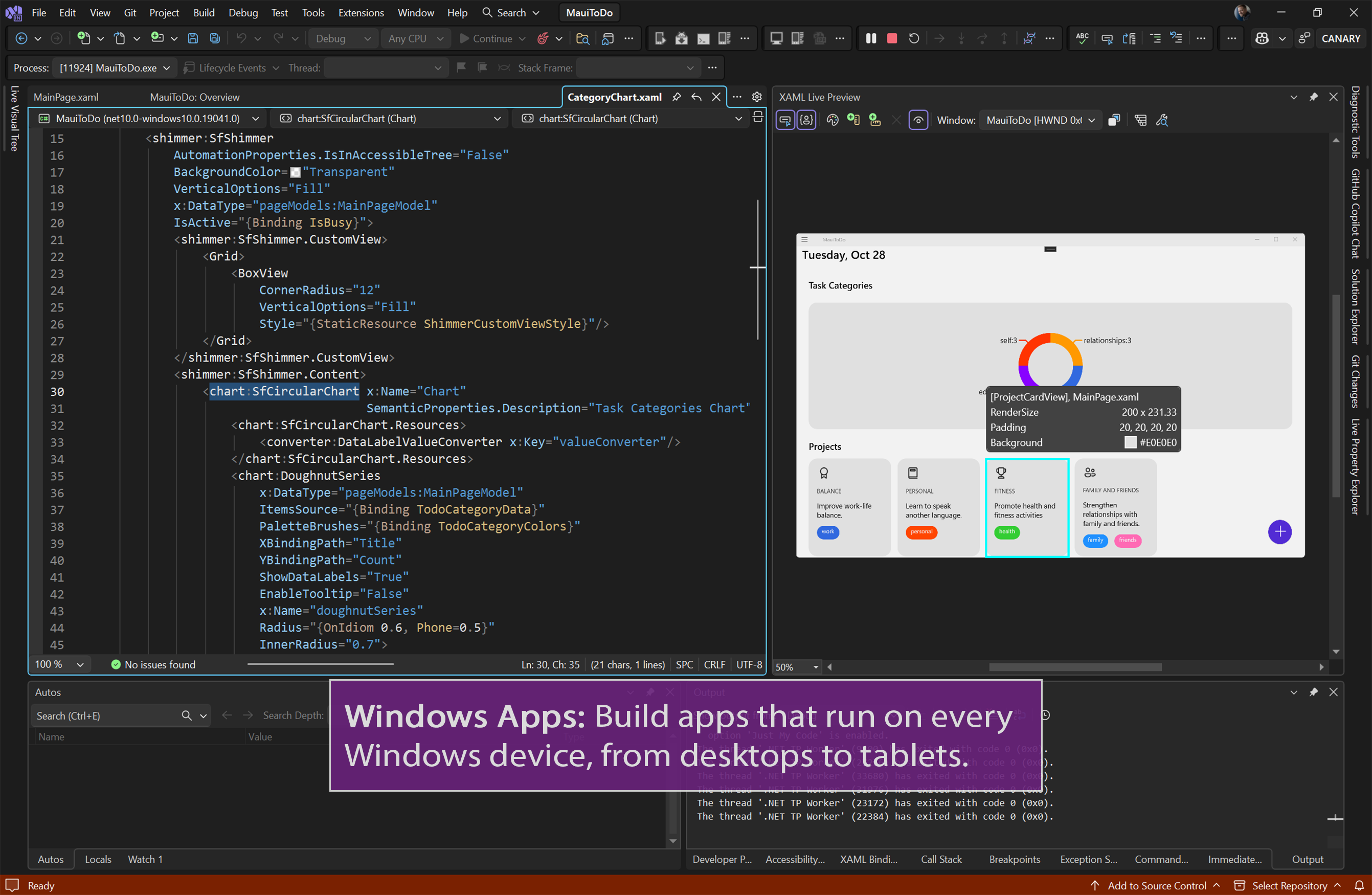
The Visual Studio Community provides advanced code completion via IntelliSense, which suggests code snippets and auto-completions in real time—imagine having a helpful co-pilot whispering suggestions as you type. Coupled with built-in debugging tools that allow breakpoints, variable inspection, and live code analysis, developers can identify and resolve issues swiftly, akin to having a seasoned mentor guiding you through complex logic.
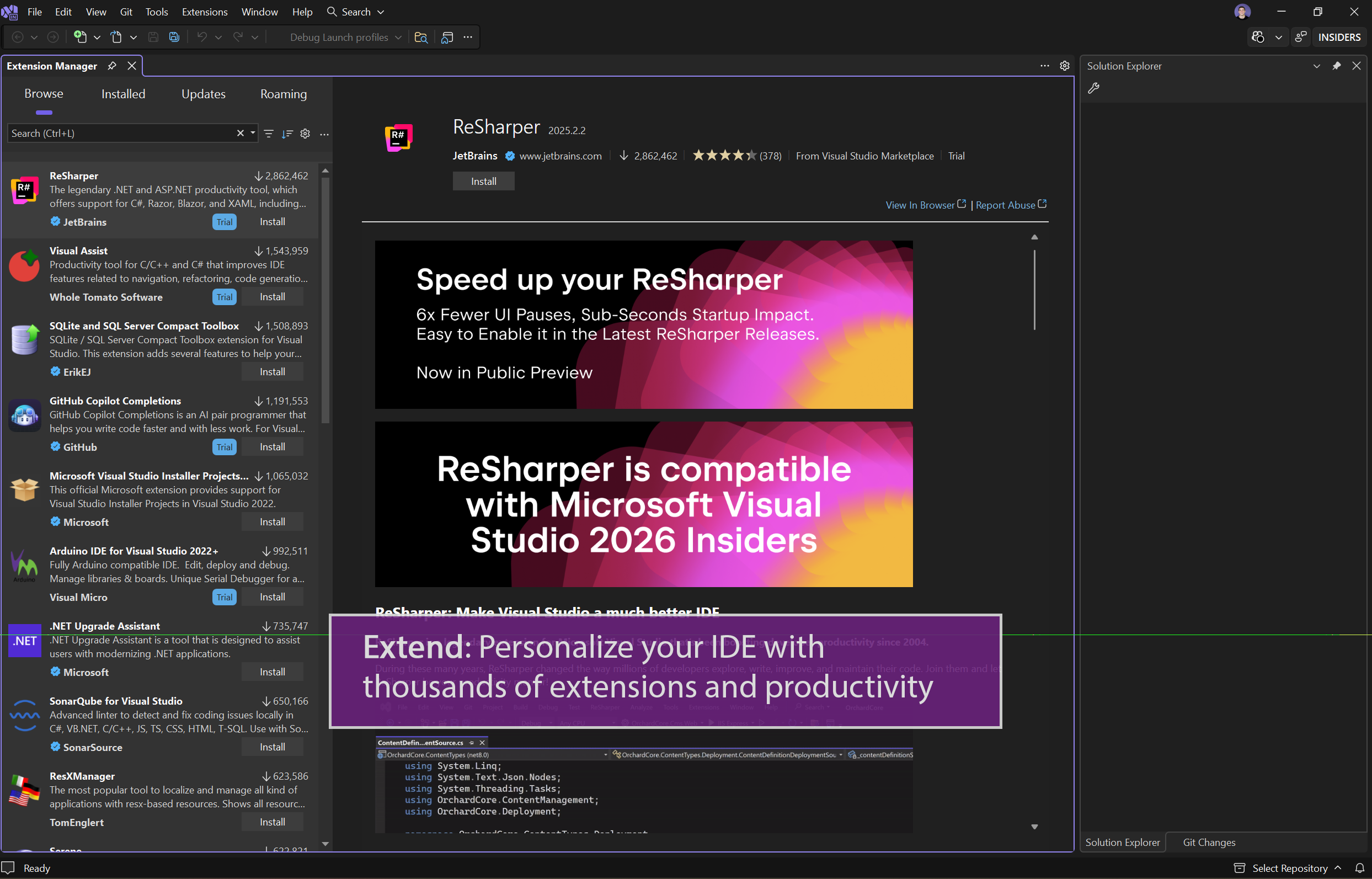
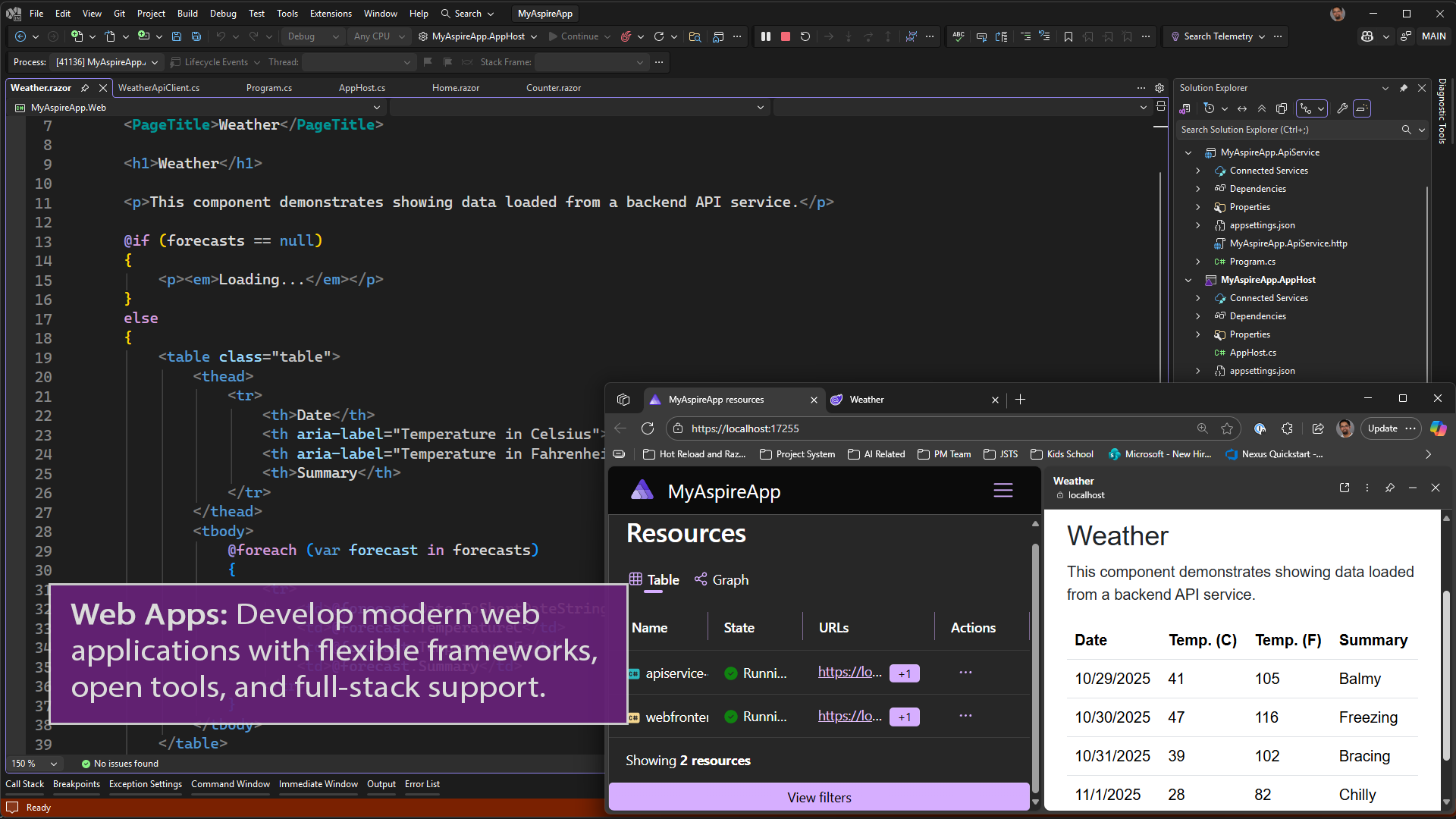
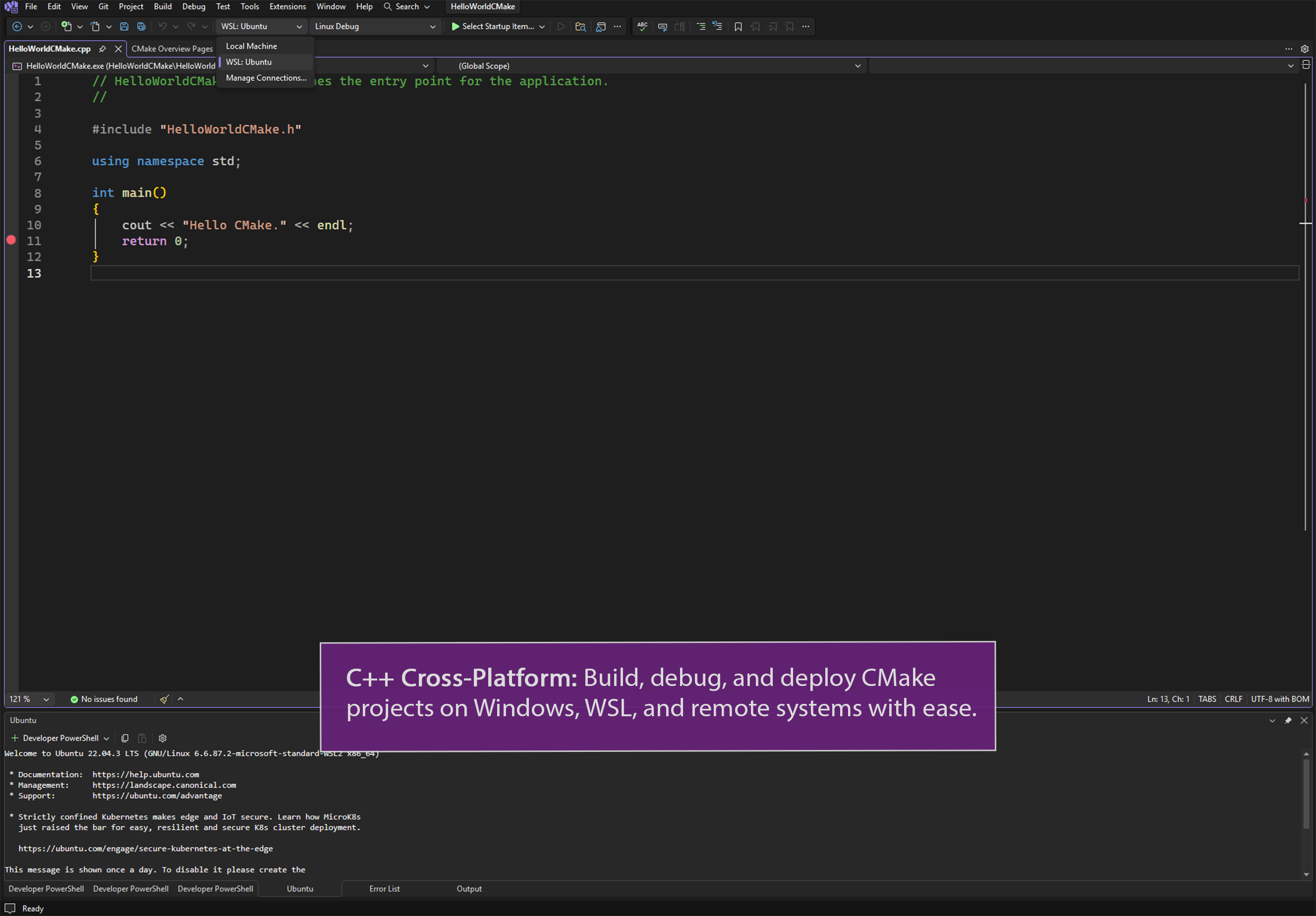
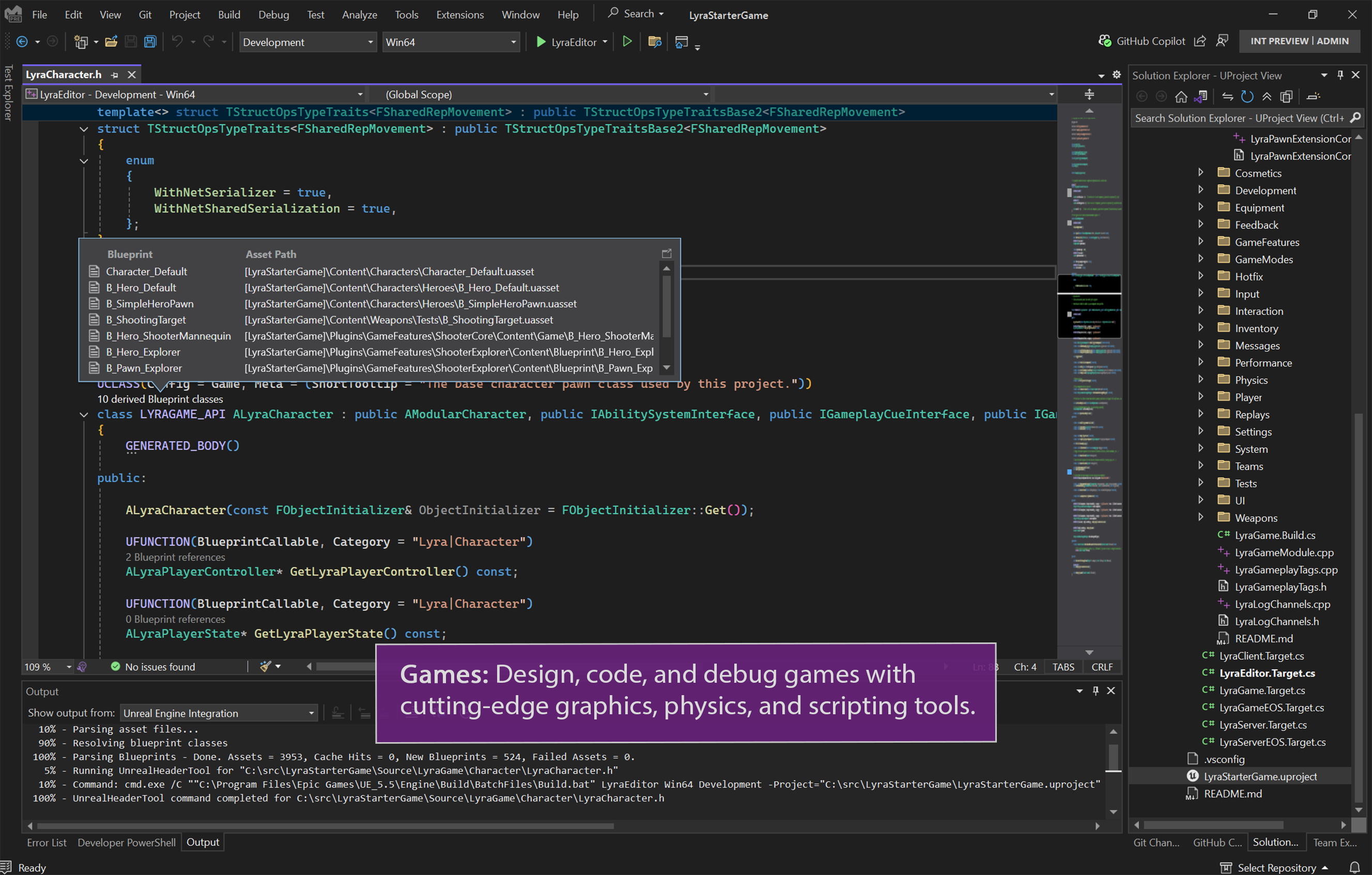
This IDE integrates smoothly with a multitude of frameworks, including .NET, C++, Python, and more. Its marketplace offers countless extensions to customize your workspace, transforming Visual Studio into a personalized workshop. Whether you're building web applications, mobile apps, or cloud services, the environment adapts gracefully to meet your project's needs, much like a Swiss Army knife that adjusts to various tasks.
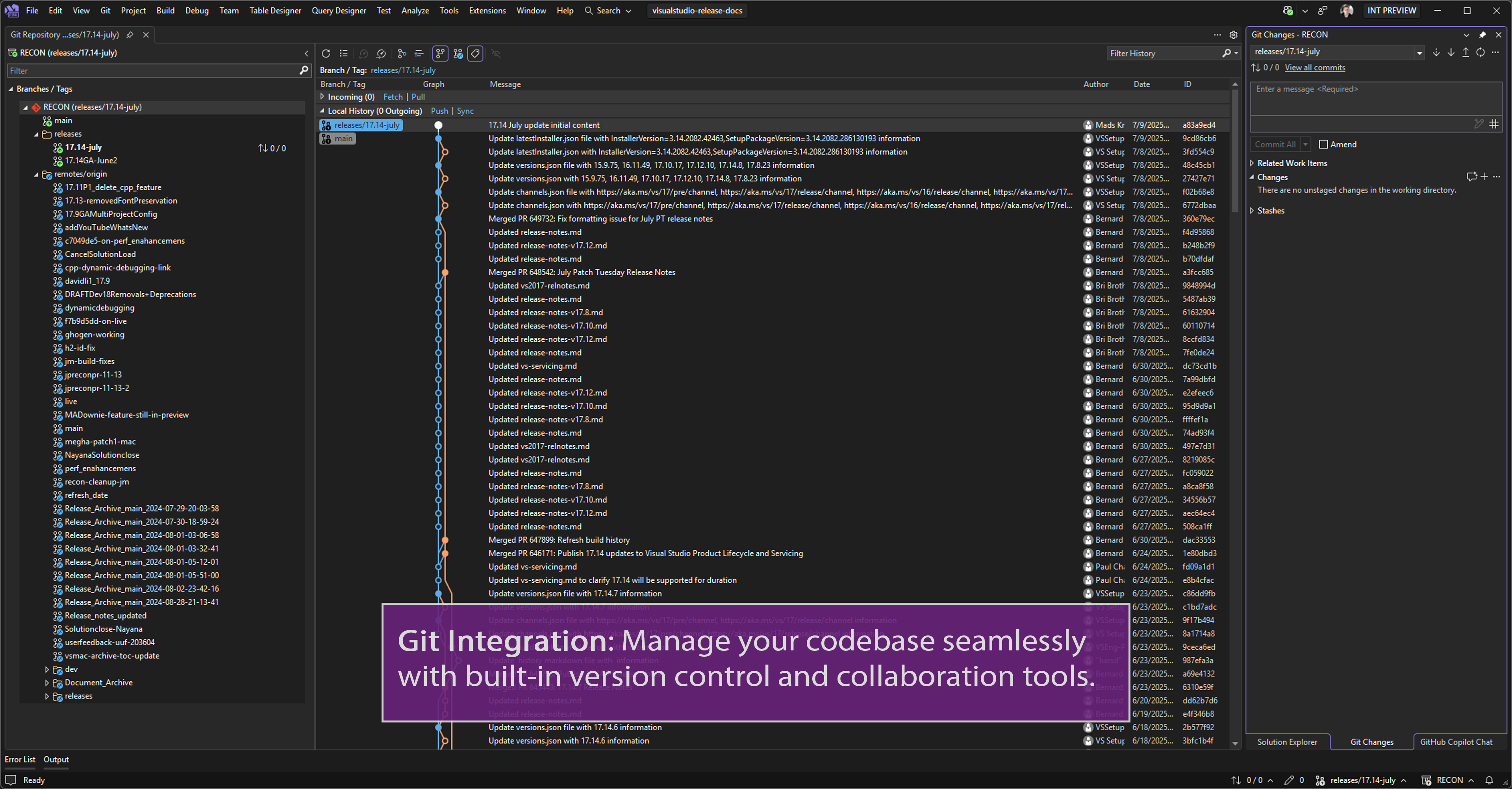
The design balances complexity and elegance, featuring an intuitive layout that helps newcomers get started quickly. The navigation pane and toolbars are thoughtfully organized, enabling you to focus on coding rather than hunting for functions. Additionally, features such as code snippets, live share collaboration, and integrated Git support facilitate a smooth, continuous workflow—think of it as having a well-organized digital atelier that accelerates your creative process.
Opening Visual Studio Community for the first time feels like stepping into a modern, organized workshop—familiar yet feature-rich. Its interface is clean, with customizable themes allowing you to create a comfortable coding atmosphere. The responsiveness of the environment is notable; even large projects load swiftly, ensuring your momentum isn't hindered by sluggishness.
For beginners, the learning curve is gentle: guided tutorials and extensive documentation act as friendly guides through the platform's capabilities. More experienced developers will appreciate the depth of customization and powerful debugging tools, making everyday tasks efficient like a well-oiled machine. Overall, the user experience is designed to be professional yet accessible, striking a good balance that caters to users at various skill levels.
While many IDEs aim to cover similar ground, Visual Studio Community's standout qualities are its deep integration within the Microsoft ecosystem and its free availability for individual developers. Its tight coupling with Azure, Azure DevOps, and other Microsoft services streamlines cloud deployment and collaboration, which is particularly advantageous for teams leveraging Microsoft's ecosystem.
Furthermore, the platform's focus on extensibility allows users to tailor their environment with productivity-enhancing plugins and tools. Compared to other open-source or lightweight editors, Visual Studio Community offers a more comprehensive solution right out of the box, which is particularly appealing for those who need a full-fledged, yet free, IDE that won't compromise on capabilities.
If you're looking for an IDE that balances power with ease of use—and you're invested or plan to invest in Microsoft's ecosystem—Visual Studio Community is highly recommended. Its rich feature set, especially the intelligent code completion and robust debugging tools, can significantly boost your productivity. For hobbyists, students, or small teams seeking a professional-grade environment at no cost, this platform is an excellent choice.
As with any complex software, there's a learning curve, but the well-designed interface and supportive community make the journey manageable. Dive in, explore its capabilities, and see how this digital workshop can elevate your coding projects to new heights—it's a tool that truly adapts to your needs, standing out among free IDE options.
Robust Integrated Development Environment (IDE)
Free for individual developers and small teams
Supports multiple programming languages, including C#, VB.NET, and C++
Extensive extension marketplace for customization
Regular updates with new features and improvements
High system resource consumption
Steep learning curve for beginners
Occasional stability issues or crashes
Limited project templates compared to other IDEs
Some advanced features require internet access or cloud services

for Windows
 5
5

for Windows
4.6

for Windows
4.6

for Windows
4.6

for Windows
4.5

for Windows
4.4

for Windows
4.4

for Windows
4.3

for Windows
4.3

for Windows
4.3

for Windows
4.3

for Windows
4.2

for Windows
5

for Windows
5
for Windows
5

for Windows
5

for Windows
5

for Windows
5

for Windows
5

for Windows
5

for Windows
5

for Windows
5