Photo & video
Video Converter
PC, Mobile, Xbox console, Surface Hub, HoloLens
Windows 10 version 14393.0 or higher
Arabic, Chinese (Simplified), Dutch, English (United States), French, German, Italian, Japanese, Korean, Portuguese, Russian, Spanish
Video Converter for Windows by FS Tech Media emerges as a notable tool tailored for users seeking a straightforward yet powerful solution to convert their video files effortlessly, all from the comfort of their Windows desktop.
Developed by FS Tech Media, this application aims to streamline the video conversion process with a user-friendly interface coupled with robust functionality. Its main features include fast conversion speeds, support for a broad range of video formats, and customizable output settings that cater to both casual users and enthusiasts. The app is primarily targeted at everyday users who need quick and reliable video format conversions, including content creators, students, and casual videographers.
Imagine a cluttered desktop filled with video files in countless formats, each screaming for compatibility with your favorite device or platform. Now, picture this chaos neatly organized, with a single tool transforming those videos smoothly from one format to another—quickly, accurately, and without fuss. That's exactly the promise Video Converter for Windows offers—a bridge from cluttered chaos to streamlined convenience, all with a few clicks. It's like having a savvy assistant who works tirelessly behind the scenes, ensuring your videos are perfectly ready for any device or platform.
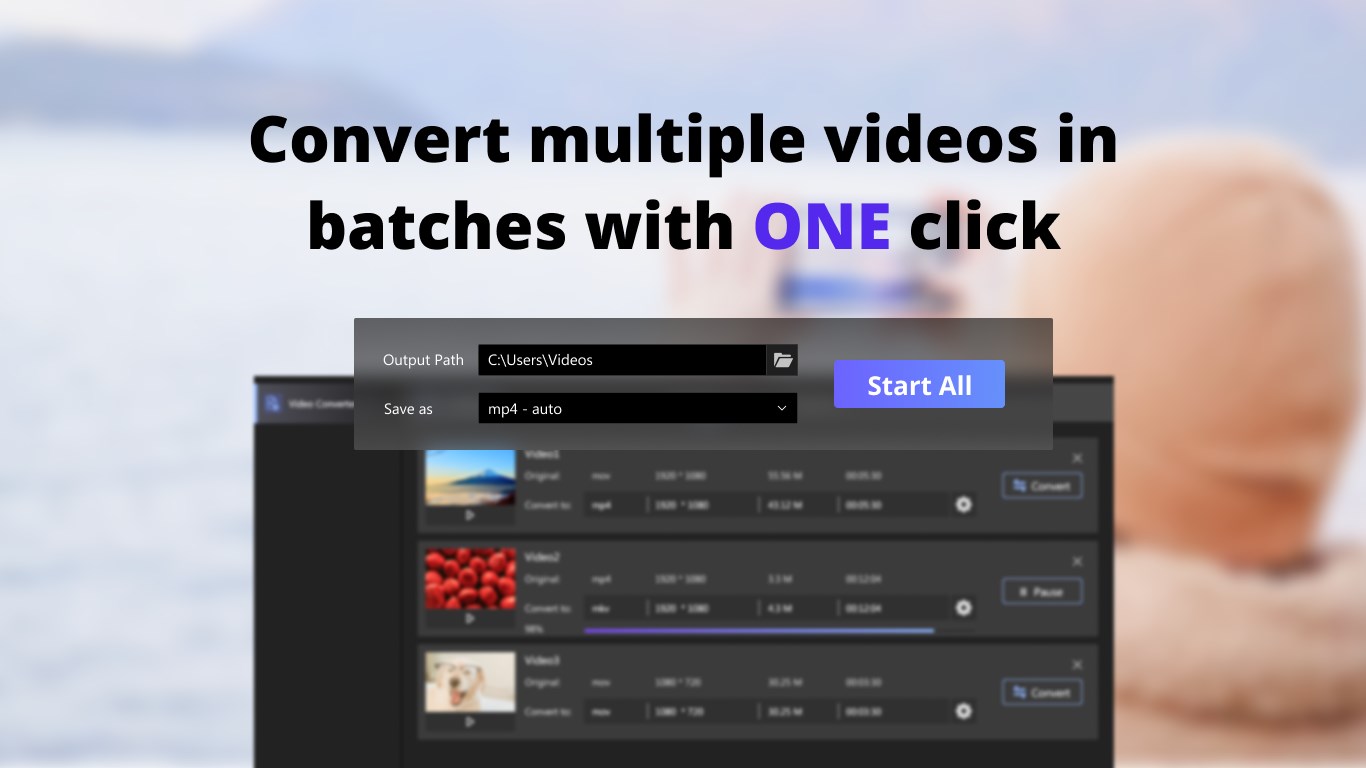
The app excels in delivering quick conversion times without sacrificing quality. Thanks to its optimized processing engine, it handles large video files—think of long movies or high-resolution clips—with surprising agility. Whether you're converting a batch of videos for a social media campaign or a family project, the software manages multiple files seamlessly, saving you valuable time.
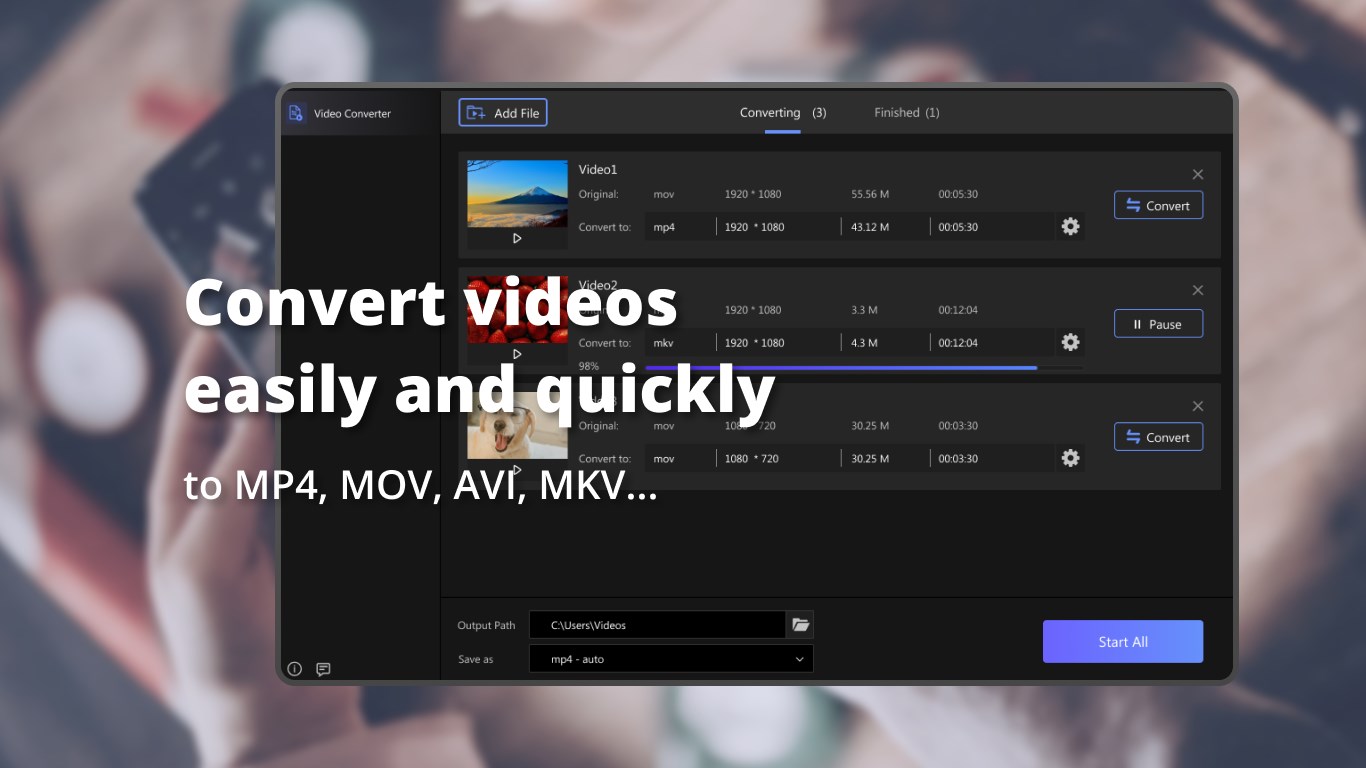
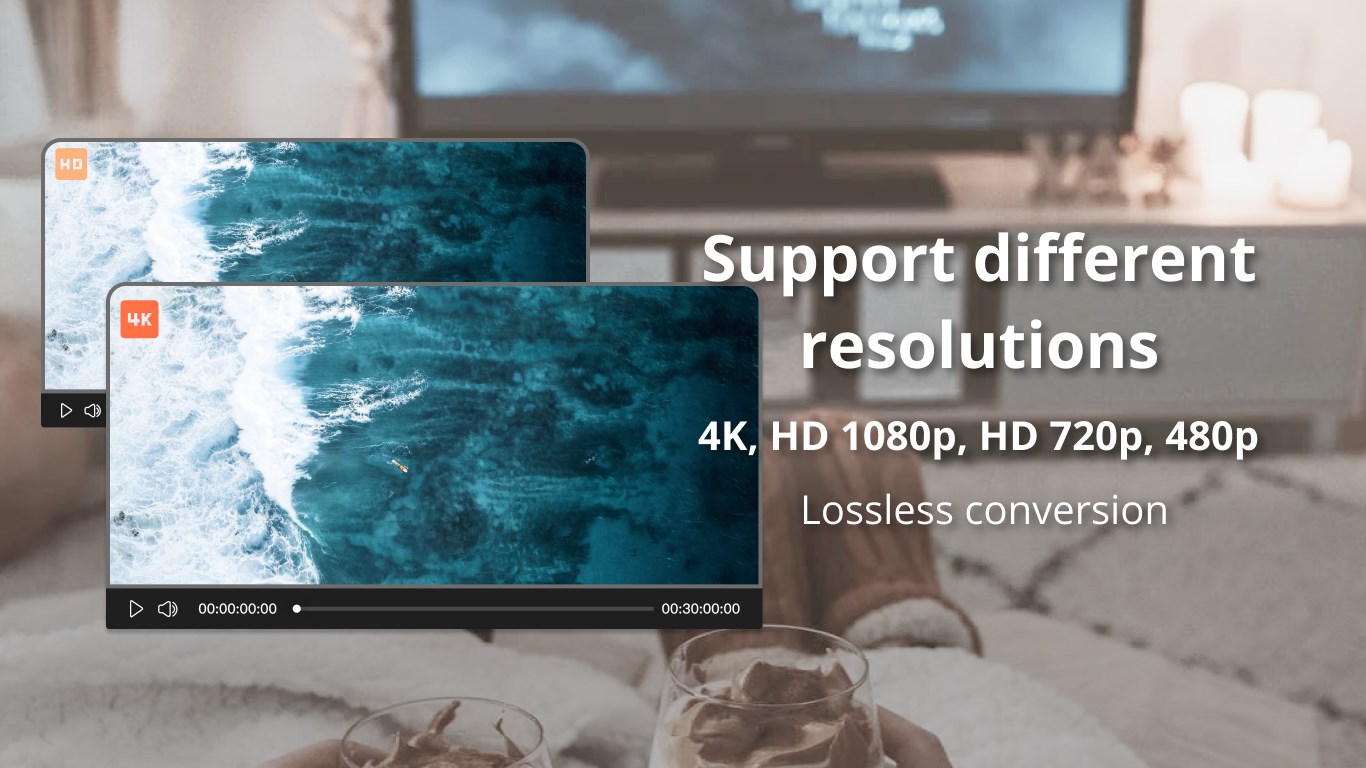
One of the standout features is its extensive format support—MP4, AVI, MKV, MOV, WMV, and more—covering nearly every conceivable media format. Additionally, users can tweak output settings: adjusting resolution, bitrate, frame rate, and even choosing specific codecs. This flexibility makes it suitable for those who need precise control over their video outputs, whether for professional presentations or casual sharing.
The software interfaces with a sleek, intuitive design resembling a well-organized toolkit—you don't need to be tech-savvy to navigate it. Drag-and-drop functionality, clear labels, and guided steps create a minimal learning curve. For beginners, it's a breeze to start converting videos, while experienced users appreciate the quick access to advanced options.
Compared to typical video converters that might emphasize feature overload, Video Converter for Windows focuses on core performance. Its most compelling strengths are its speed and broad format support, ensuring users spend less time waiting and more time enjoying their videos. Unlike some competitors that bombard users with unnecessary features or complex settings, this app adopts a straightforward philosophy—it's about getting the job done efficiently without fuss. This makes it particularly attractive for casual users who want reliable results without a steep learning curve.
Overall, Video Converter for Windows by FS Tech Media is a solid, no-nonsense tool that fulfills its promise of quick and easy video conversion. It's especially recommended for users who need reliable performance and support for a wide range of formats, without the complication of overly complicated interfaces. If you're looking for a lightweight solution that works seamlessly in your daily workflow, this app is definitely worth trying out.
User-friendly interface
Supports a wide range of video formats
Fast conversion speed
Batch processing capability
Built-in editing tools
Limited output customization options
Occasional stability issues on older systems
Basic watermarking in free version
Limited customer support options
Lack of advanced audio editing features

for Windows
 5
5

for Windows
4.9

for Windows
4.8

for Windows
4.8

for Windows
4.8

for Windows
4.7

for Windows
4.7

for Windows
4.7

for Windows
4.7

for Windows
4.7

for Windows
4.7

for Windows
4.7

for Windows
5

for Windows
5

for Windows
5

for Windows
5

for Windows
5

for Windows
5

for Windows
5

for Windows
5

for Windows
5

for Windows
5