Business
PC
Windows 10 version 14316.0 or higher
English (United States)
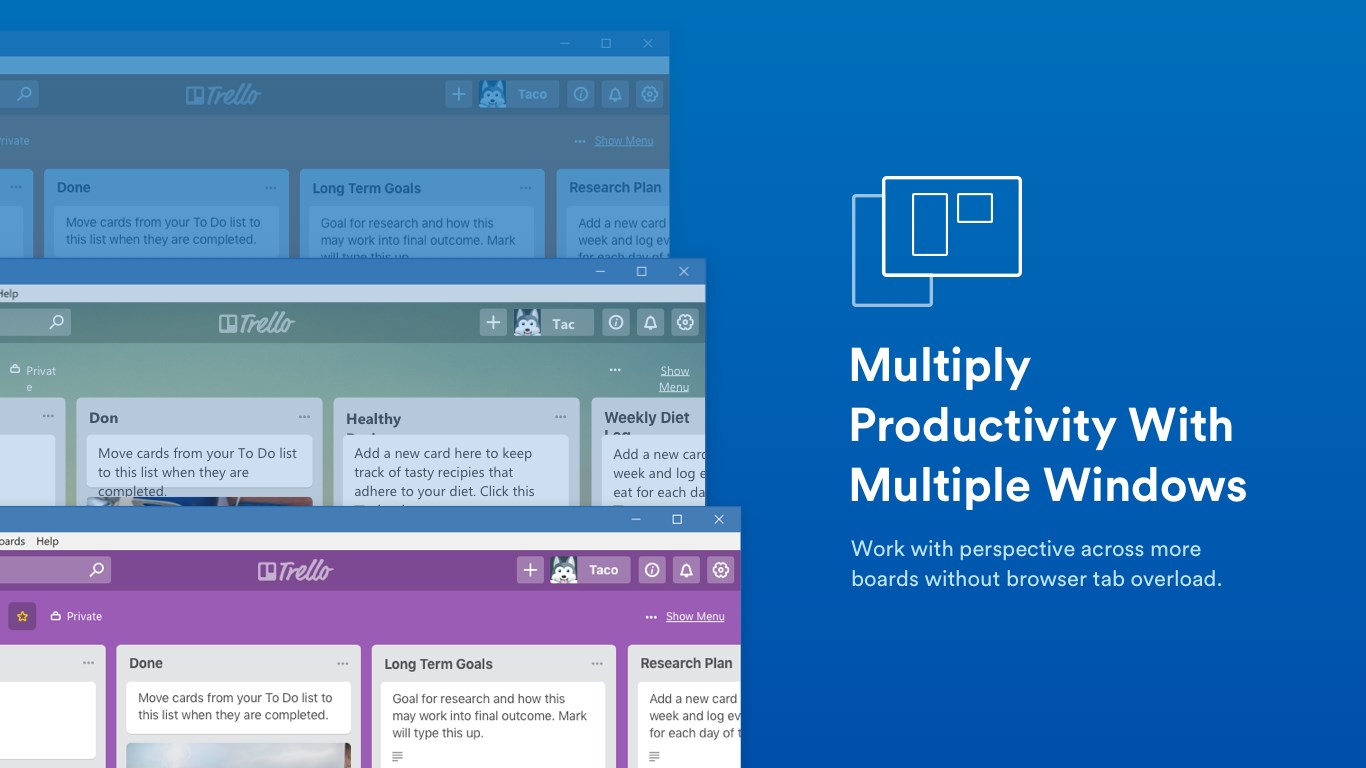
Trello for Windows offers a robust and intuitive project management tool designed to enhance collaborative workflows and task organization. With its familiarKanban-style interface, it provides a seamless experience for teams seeking to visualize their projects and coordinate efforts efficiently.
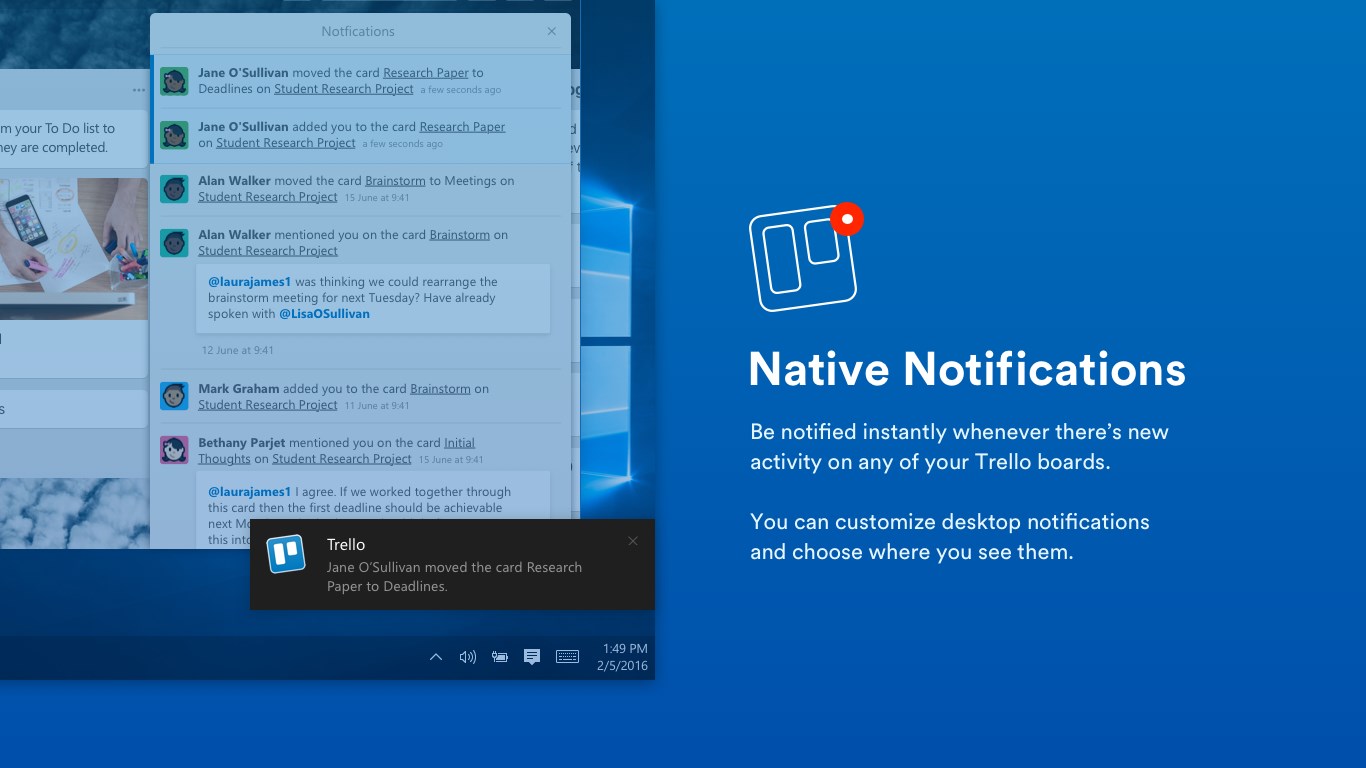
Developed by Trello, Inc., Trello for Windows positions itself as a versatile digital whiteboard tailored for team collaboration and task tracking. It stands out through features that combine simplicity with powerful organizational capabilities, making it accessible for users ranging from individual freelancers to large corporate teams. The app's hallmark features include easy board creation and customization, real-time synchronization across devices, and integrated notification systems to keep everyone on the same page. Its target audience primarily includes project managers, remote teams, educators, and anyone who values visual task management to boost productivity and clarity.
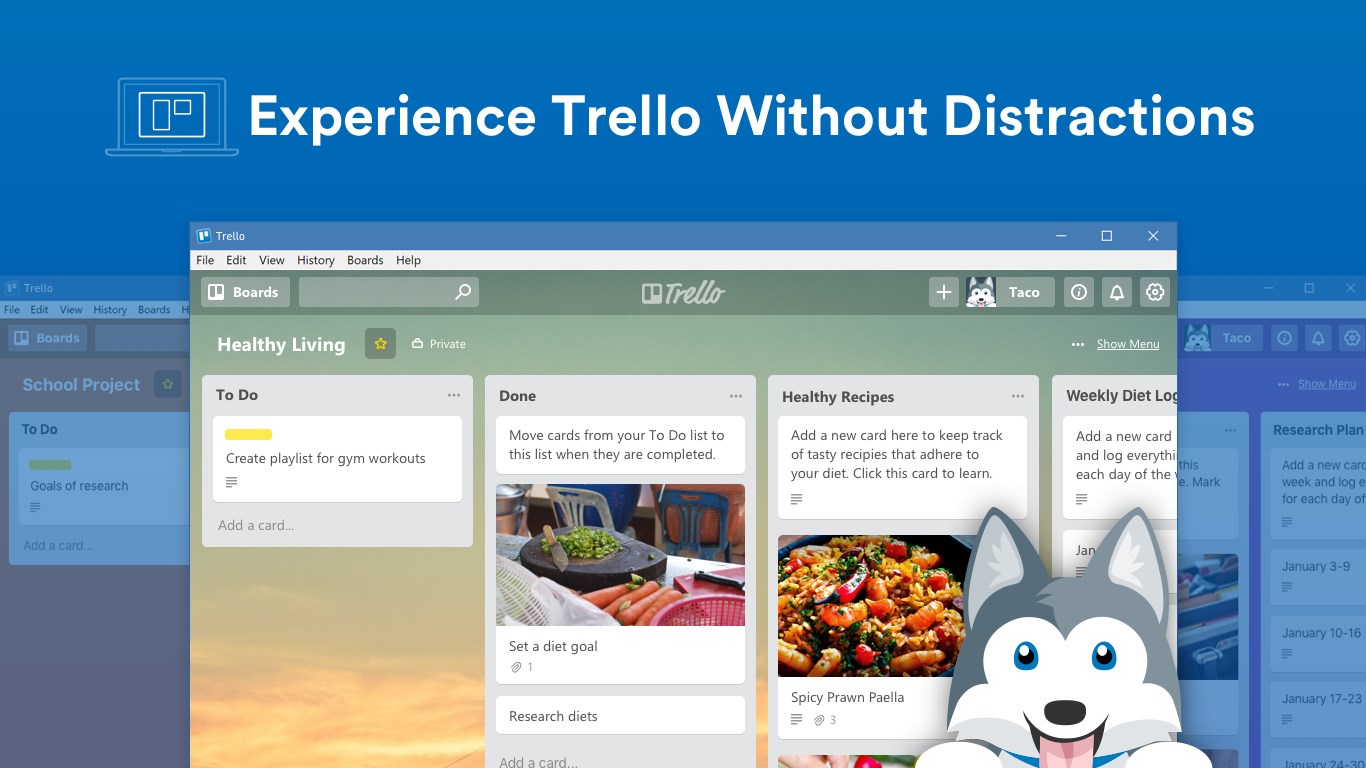
Imagine entering a well-organized workspace where each idea, task, or project is neatly represented on colorful boards—this is what Trello for Windows delivers. The first impression is one of freshness and simplicity, a breath of fresh air compared to cluttered project dashboards. Its visual nature makes it especially appealing for teams that thrive on clear, immediate overviews of their workload. Navigating through boards feels like flipping through a series of well-organized folders—intuitive, smooth, and engaging. The app's adaptive design ensures that users can manage their projects whether on a small laptop screen or a larger monitor, maintaining fluidity and responsiveness throughout.
The heart of Trello's strength lies in its card-based system. Cards are like digital sticky notes, which can be moved effortlessly between lists—representing stages or categories of a project. Adding detailed descriptions, attachments, checklists, and due dates to each card fosters comprehensive task management without overwhelming the user. What truly sets Trello apart, however, is its Power-Up system, allowing integrations with tools like Slack, Google Drive, and Jira, thus expanding its capabilities according to team needs. This modular architecture offers a flexible environment where teams can customize workflows to match their unique processes seamlessly.
In terms of usability, Trello for Windows excels with a clean and user-friendly interface that minimizes the learning curve for new users. Drag-and-drop functionality feels natural, and real-time updates mean all collaborators see changes instantaneously—like watching a shared whiteboard come alive with activity. Compared to other business apps, Trello's visual platform and focus on collaboration distinguish it from more traditional spreadsheet-like project tools. Its particularly strong features include comment threads within cards for contextual discussions and automation rules (Butler) that reduce repetitive tasks—making the workflow both dynamic and efficient.
All in all, Trello for Windows is a user-friendly yet powerful project management solution, especially suited for teams that value collaboration, visual clarity, and customization. It's highly recommended for small to medium-sized teams that desire an accessible platform to organize tasks, brainstorm ideas, and keep everyone aligned—all without sacrificing simplicity. While it may lack some advanced features of enterprise-focused tools, its core strengths make it an ideal choice for those who prefer a straightforward, visual approach to teamwork. For users seeking to streamline collaboration and enhance task transparency, Trello for Windows is definitely worth a try.
User-Friendly Interface
Collaborative Features
Flexible Board Customization
Integration with Other Apps
Free Basic Version
Limited Advanced Features in Free Version
Offline Mode is Limited
Mobile App Performance Issues
Customization Constraints for Power-Ups
Learning Curve for Complex Projects

for Windows
 5
5

for Windows
5
for Windows
4.9

for Windows
4.9

for Windows
4.9

for Windows
4.9

for Windows
4.8

for Windows
4.8

for Windows
4.8

for Windows
4.8
for Windows
4.7
for Windows
4.7

for Windows
5

for Windows
5

for Windows
5

for Windows
5

for Windows
5

for Windows
5
for Windows
5

for Windows
5

for Windows
5

for Windows
5