Utilities & tools
PC, Mobile, Surface Hub, HoloLens
Windows 10 version 14393.0 or higher
English (United States)
Transparent Taskbar+ is a utility designed to enhance your Windows experience by adding a customizable, transparent overlay to your taskbar, blending aesthetic finesse with practical functionality. Developed by Novelty Studio, this app aims to give users a cleaner, more modern desktop look while offering additional tools to streamline multitasking.
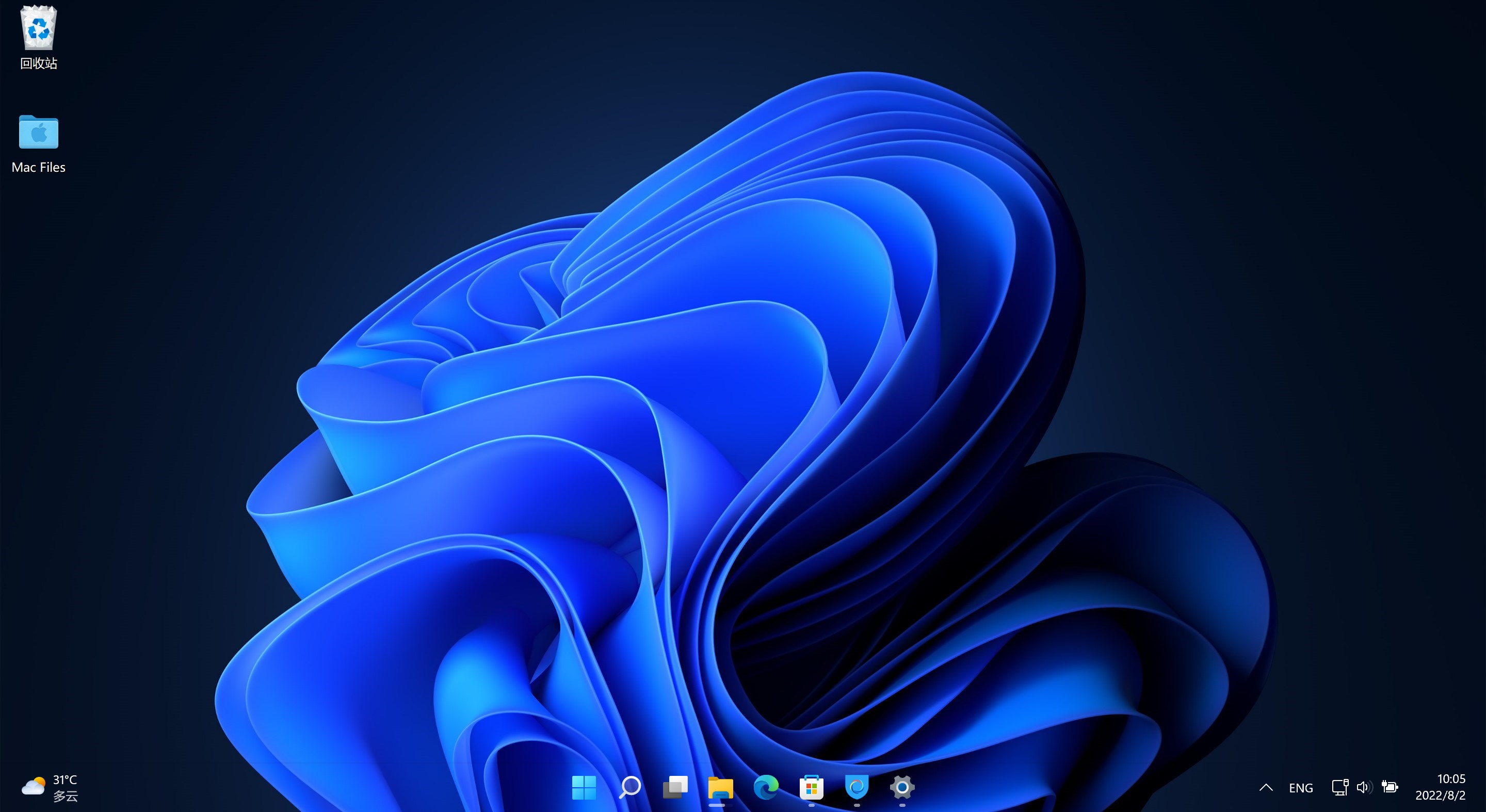
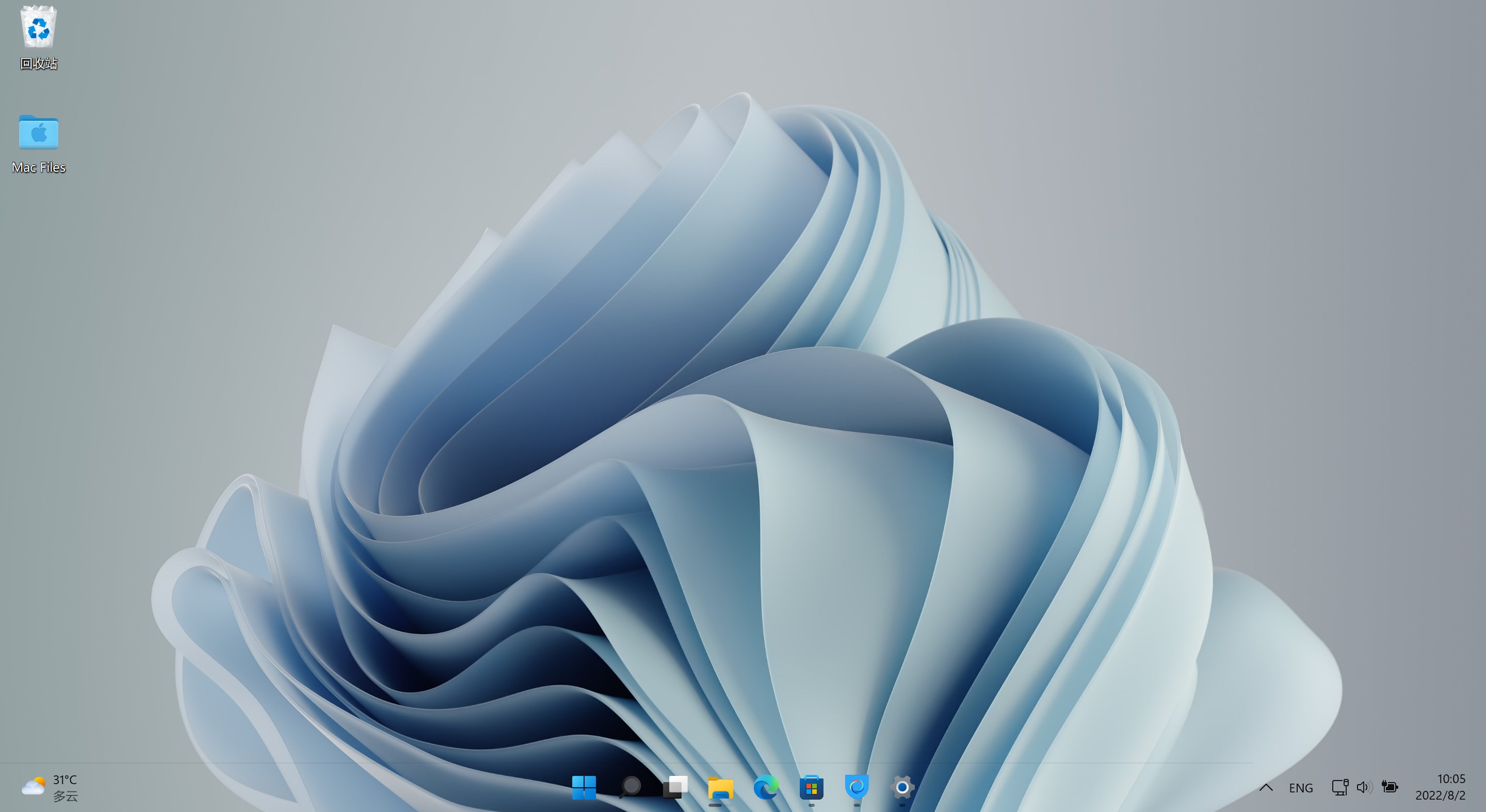
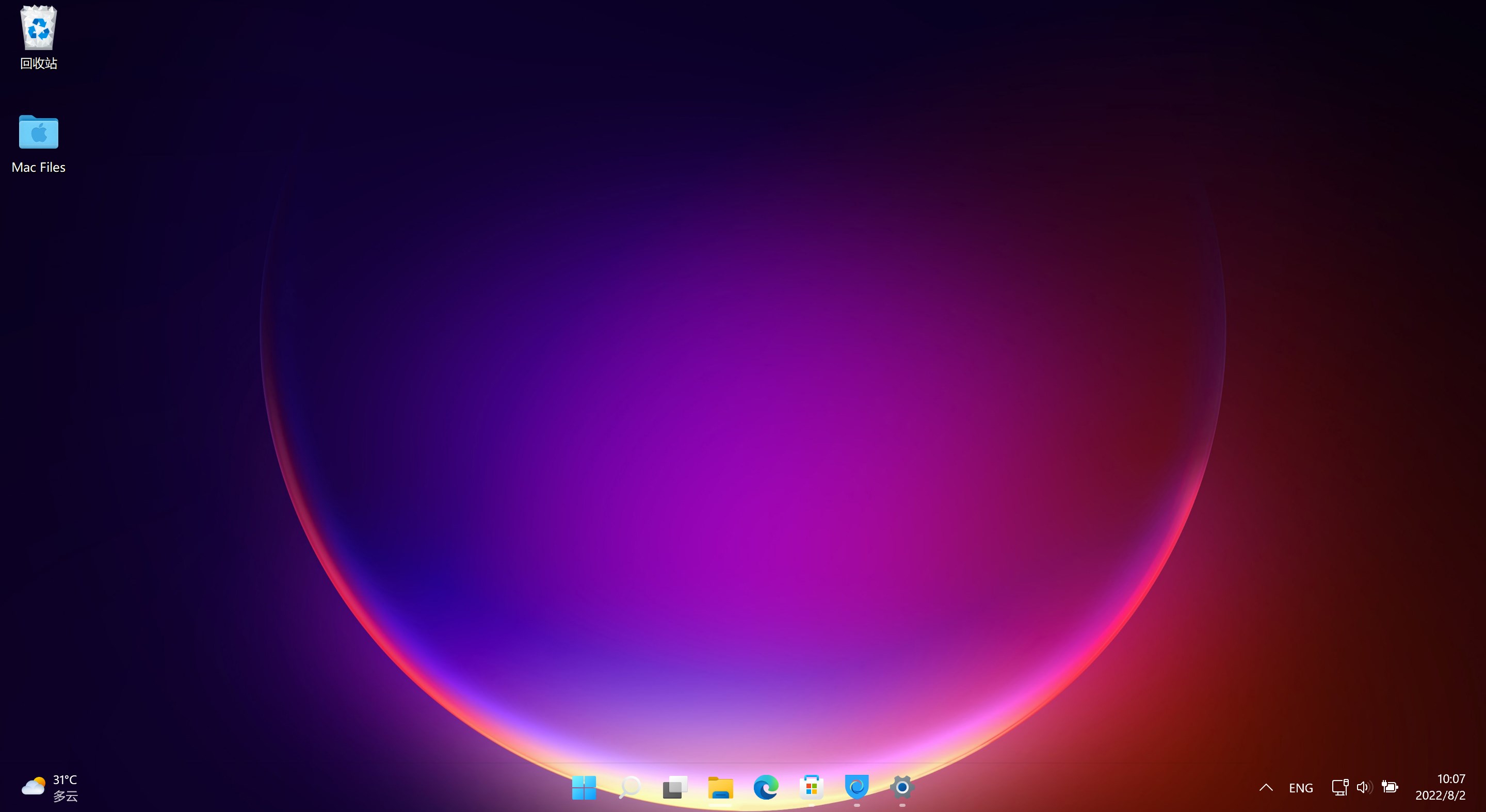
The standout feature of Transparent Taskbar+ is its ability to make the taskbar transparent, allowing your desktop wallpaper and background to shine through. This creates a harmonious visual effect that reduces clutter, especially on high-resolution screens where a traditional solid-colored taskbar can feel obtrusive. Users can adjust the transparency level precisely, from subtle hints to near-invisible overlays, ensuring that the taskbar complements their overall desktop aesthetic without compromising visibility or accessibility.
One of the application's most appealing attributes is its intelligent transparency feature. It can automatically toggle the taskbar's transparency based on the active application or screen mode. For instance, when gaming or watching videos, users might prefer a more transparent or hidden taskbar, while in productivity mode, a semi-transparent layout ensures quick access to taskbar icons without distraction. This dynamic adaptability enhances user experience by providing context-aware visual management, akin to a smart window dressing that adjusts to your mood or task at hand.
The interface of Transparent Taskbar+ embodies simplicity and elegance. With a minimalistic settings window, users can swiftly tweak appearance parameters—adjust transparency, color accents, or toggle features—without a steep learning curve. The design feels like a well-organized dashboard, where everything is at your fingertips and logically arranged.
Operation is smooth; despite its richness in customization options, the app responds instantly without noticeable lag, which is crucial for maintaining workflow fluidity. For those unfamiliar with detailed settings, the app provides preset modes—such as “Dark Mode” or “Light Mode”—that serve as convenient starting points. Users can fine-tune these presets to achieve their desired look, making the transition from novice to advanced user comfortably manageable.
Compared to other utilities—say, Windows customization tools or built-in transparency settings—Transparent Taskbar+ shines with its dedicated focus and user-centric design. It minimizes clutter and offers granular control without overwhelming, standing out as a neat, no-fuss utility tailored for modern desktop tastes.
The app's most distinctive features are its adaptive transparency behavior and the seamless integration with current Windows environments. Unlike generic tweaks that simply make the taskbar semi-transparent, this app offers dynamic adjustments that respond to your workflow, creating a more immersive and integrated desktop experience. Furthermore, its lightweight design prevents any system sluggishness, a common concern with feature-rich customization tools.
Compared to similar tools that may require complex configurations or have an outdated interface, Transparent Taskbar+ emphasizes ease of use and elegant visual results. Its ability to harmonize with various desktop backgrounds and themes without compromising performance underscores its thoughtful engineering.
Overall, Transparent Taskbar+ rates highly as a reliable, user-friendly utility for those seeking to modernize their Windows desktop. I would recommend it to anyone who values aesthetic finesse combined with functional flexibility—be it students, professionals, or casual users who want their workspace to look polished without sacrificing usability. It's particularly suitable for users who enjoy personalized setups and want a clean, distraction-minimized environment.
To get the most out of it, spend some time experimenting with transparency levels and adaptive settings. While the app is designed to be straightforward, fine-tuning it to your specific screen and workflow can significantly enhance your desktop experience. Remember, this is not just about looks—it's about creating a workspace that adapts seamlessly to your daily needs.
Enhanced Transparency
Customizable Transparency Levels
Lightweight Performance
Simple User Interface
Compatibility with Windows Updates
Limited Customization Options
Possible Overlap with Native Features
Occasional Compatibility Glitches
Lack of Advanced Customization
No Official Support for Dark Mode

for Windows
 5
5

for Windows
5

for Windows
5

for Windows
5

for Windows
5
for Windows
4.9

for Windows
4.9

for Windows
4.9

for Windows
4.9
for Windows
4.9
for Windows
4.9

for Windows
4.9

for Windows
5

for Windows
5

for Windows
5
for Windows
5

for Windows
5

for Windows
5

for Windows
5

for Windows
5

for Windows
5

for Windows
5