Social
PC
Windows 10 version 14316.0 or higher
Not specified
Not specified
English (United States)
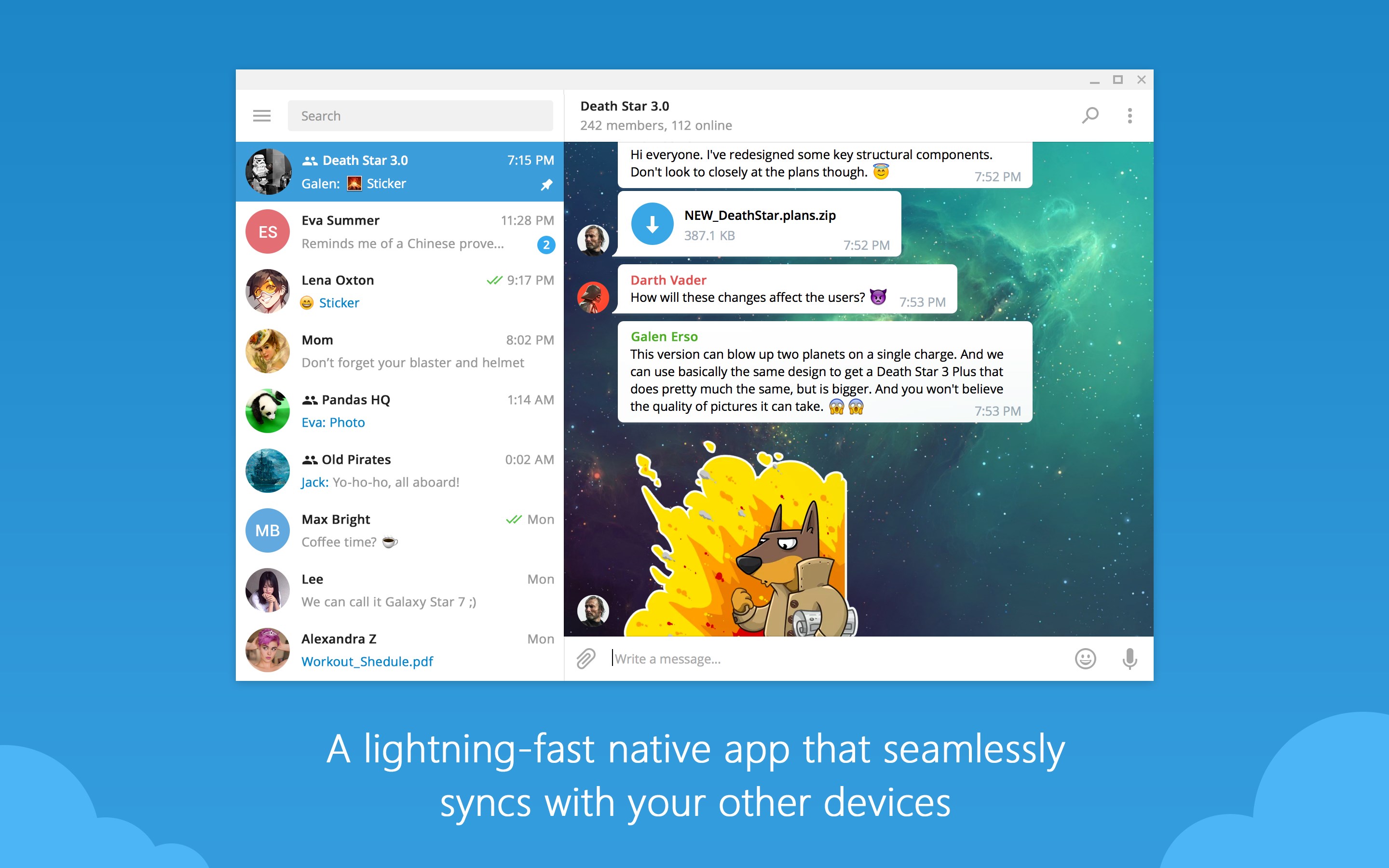
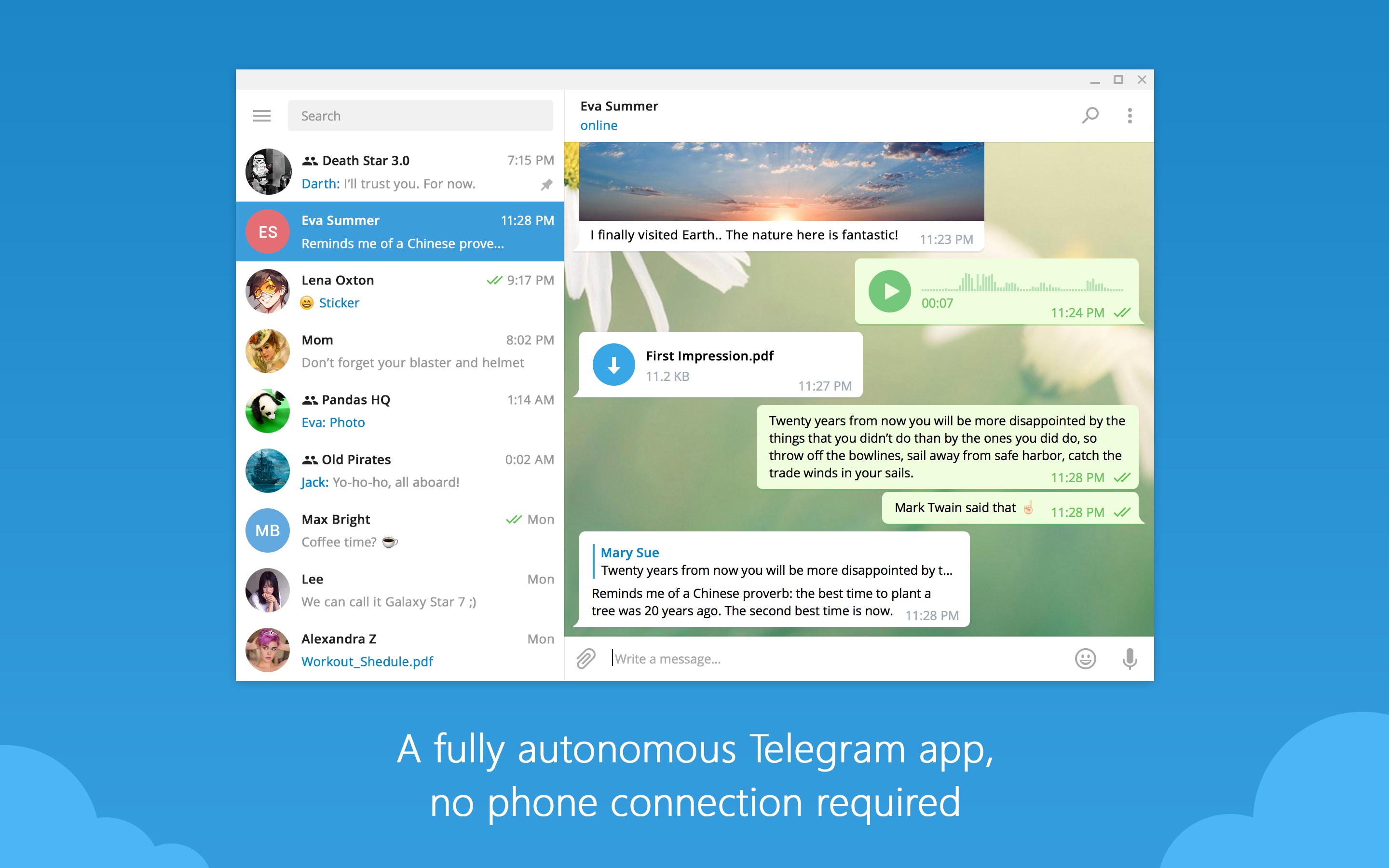
Telegram Desktop for Windows is a dedicated application designed to bring the powerful messaging features of Telegram directly to your desktop, ensuring seamless communication without relying solely on a mobile device. Developed by Telegram Messenger LLP, this app aims to cater to users who prefer typing on a full keyboard and managing their chats more efficiently.
Created by the team behind the globally popular Telegram messaging platform—Telegram Messenger LLP—the desktop app embodies the core philosophy of secure, fast, and versatile communication.
Imagine sitting at your desk, sipping coffee as your digital conversations unfold effortlessly on your large screen—Telegram Desktop transforms your workspace into a command center for instant messaging. The layout is familiar, yet thoughtfully optimized for desktop interaction, combining clean design with functional intuitiveness.
The app's messaging interface feels as smooth as gliding on ice—typing is responsive, emojis and stickers are just a click away, and media sharing is straightforward. Drag-and-drop support simplifies sending images, videos, or documents, making exchanges feel natural and efficient. The app also maintains a stable connection with minimal lag, even with large group chats or media-heavy conversations.
The interface design balances simplicity with depth. You can toggle between light and dark themes, customize chat backgrounds, and organize chats into folders—like personal folders in a filing cabinet, keeping your digital life tidy. The layout adapts seamlessly, and settings are easy to navigate, lowering the learning curve for new users.
What sets Telegram Desktop apart from other social apps are two standout features. First, its robust support for user profile customization—users can set profile pictures, bio text, and even experimental features like username aliases, fostering genuine identity expression. Second, the app excels in connection discovery, enabling users to find friends or colleagues via contacts, usernames, or QR codes—making the process of building or expanding groups feel almost like discovering hidden passages in a familiar building.
Moreover, with end-to-end encryption in secret chats and a focus on user authenticity verification, Telegram Desktop emphasizes privacy without sacrificing ease of use, ensuring your conversations remain secure and trustworthy.
Overall, Telegram Desktop for Windows is an excellent complement to the mobile experience, especially for those who prefer typing on a full keyboard and managing communications on a larger screen. Its focus on user control, privacy, and connection discovery makes it stand out among other messaging platforms. If you're someone who values flexibility, security, and the ability to personalize your online presence, this app deserves a spot on your desktop.
For casual users or busy professionals seeking a reliable, feature-rich desktop messaging solution, Telegram Desktop is highly recommended. Its straightforward design, combined with powerful core features, ensures a smooth and enjoyable chatting experience.
User-friendly interface
Cross-platform synchronization
Support for large groups and channels
End-to-end encryption for secret chats
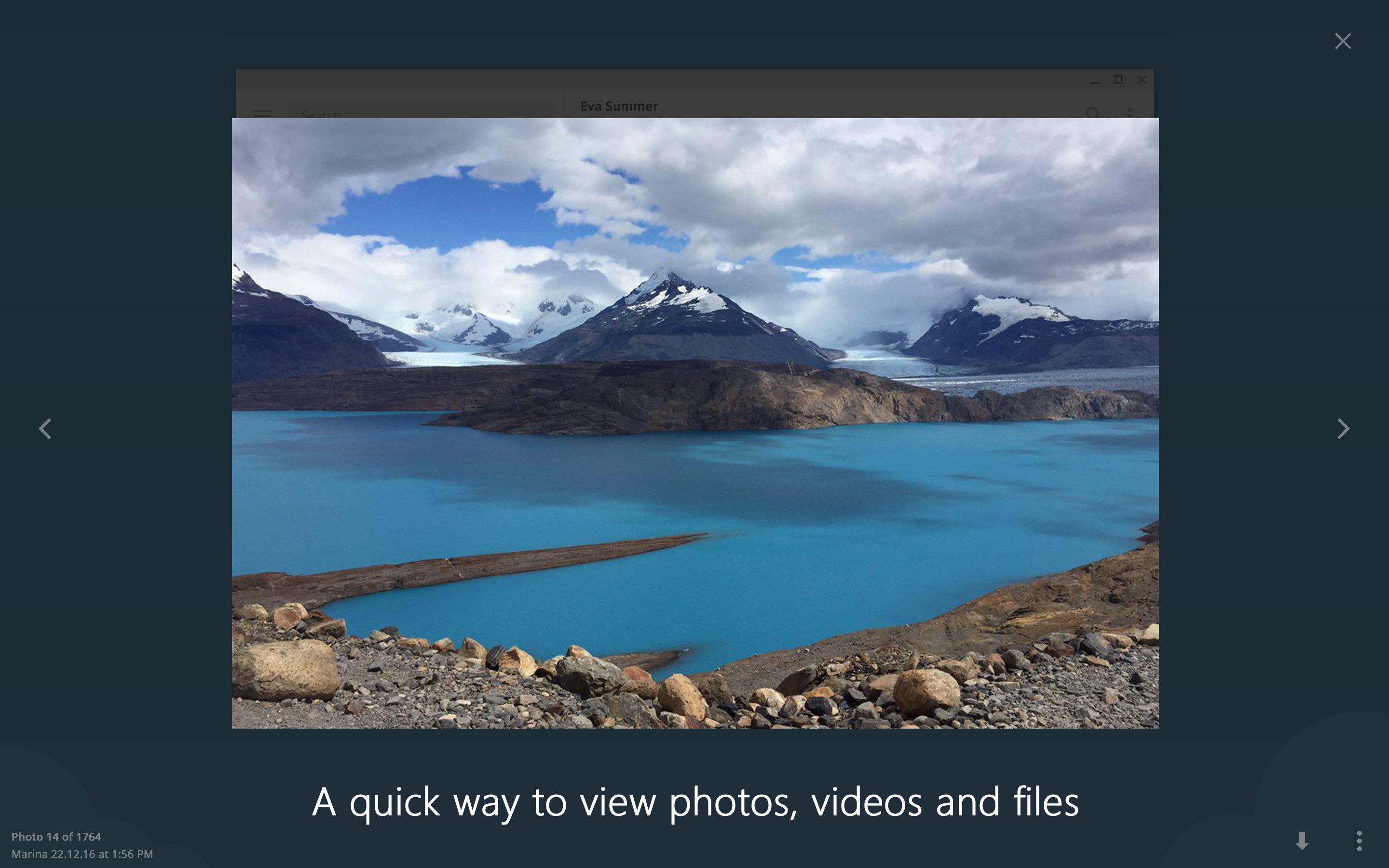
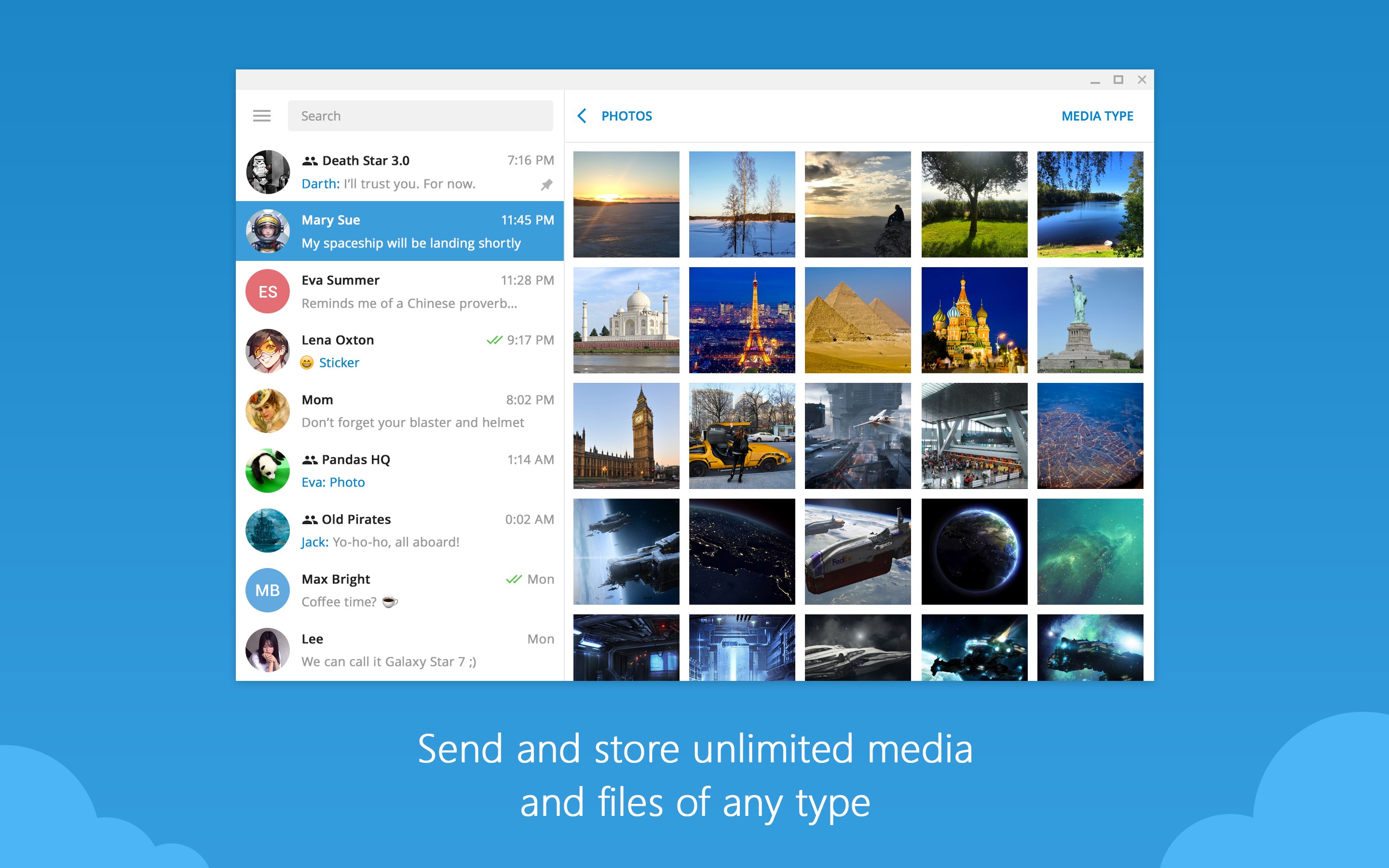
Rich media sharing capabilities
Occasional lag during media uploads
Limited customization options
Desktop notifications can be delayed
Some features are missing compared to mobile version
Requires consistent internet connection

for Windows
 5
5

for Windows
4.9
for Windows
4.8

for Windows
4.7

for Windows
4.7

for Windows
4.6

for Windows
4.6

for Windows
4.5

for Windows
4.5

for Windows
4.5
for Windows
4.5

for Windows
4.4

for Windows
5

for Windows
5

for Windows
5

for Windows
5

for Windows
5
for Windows
5

for Windows
5

for Windows
5

for Windows
5

for Windows
5