Books & reference
Labsii Ltd.
Xbox console, PC, Mobile, Surface Hub, HoloLens
Windows 10 version 18362.0 or higher
Arabic, Chinese (Simplified), Dutch, English (United States), French, German, Italian, Japanese, Korean, Portuguese, Portuguese (Brazil), Spanish, Spanish (Spain)
Imagine having a personal narrator at your beck and call, transforming text into clear, natural speech with just a few clicks. Speech Central: Voice Reader for Windows, developed by Labsii Ltd., aims to be that reliable voice companion for users seeking an accessible and efficient way to listen to written content. Whether you're a busy professional, a student with lots of reading material, or someone with visual impairments, this app offers a practical solution to keep information flowing effortlessly. With its emphasis on user-friendly design and powerful features, Speech Central strives to turn your Windows device into a portable audiobook generator.
The heart of Speech Central lies in its ability to convert a wide array of text formats—be it articles, e-books, emails, or even web pages—into lifelike speech. Its extensive language support, including multiple voices and regional accents, makes it a versatile tool for global users. The app's intelligent text segmentation ensures smooth, natural-flowing narration, making listening a pleasure rather than a mechanical experience.
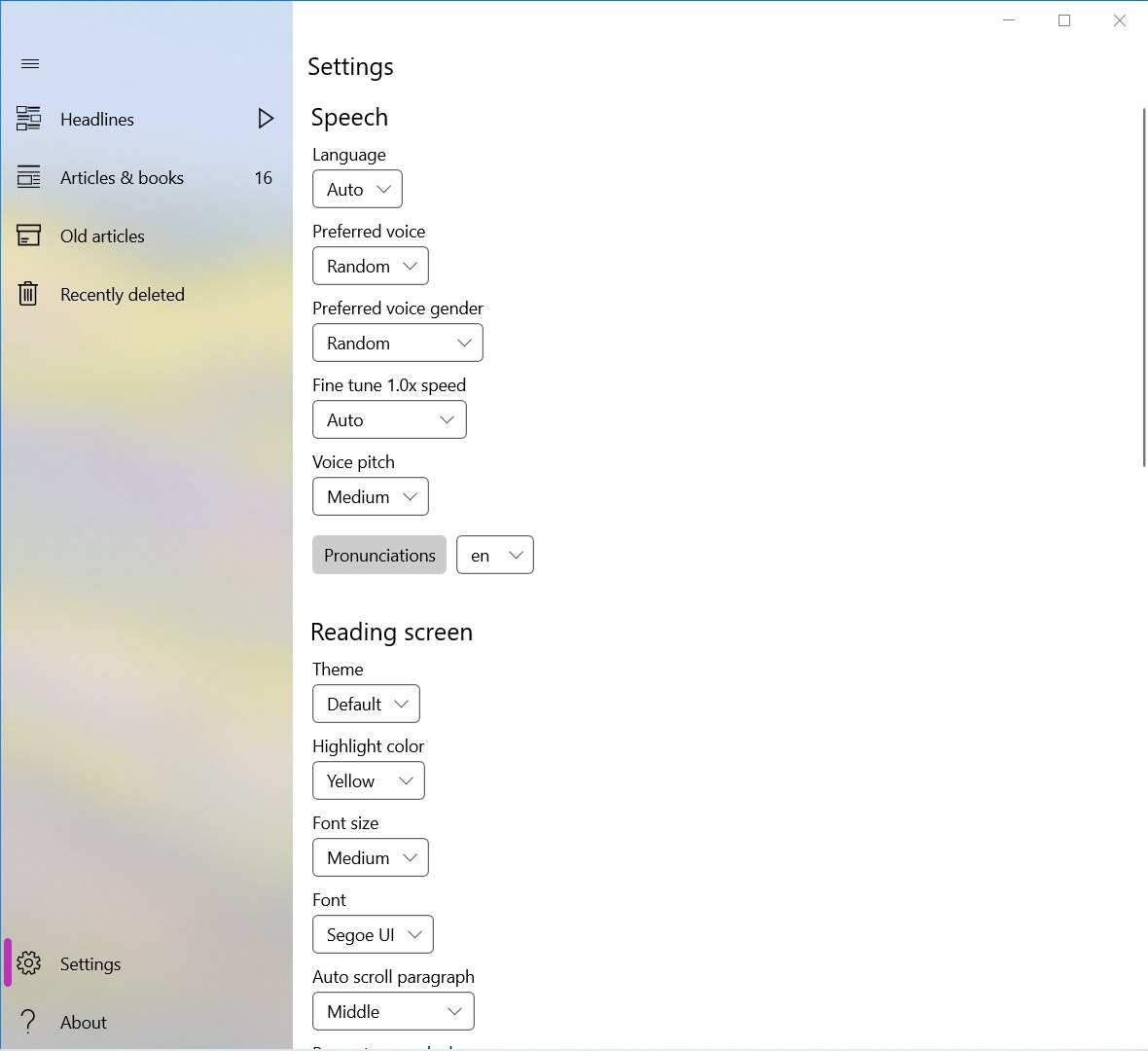
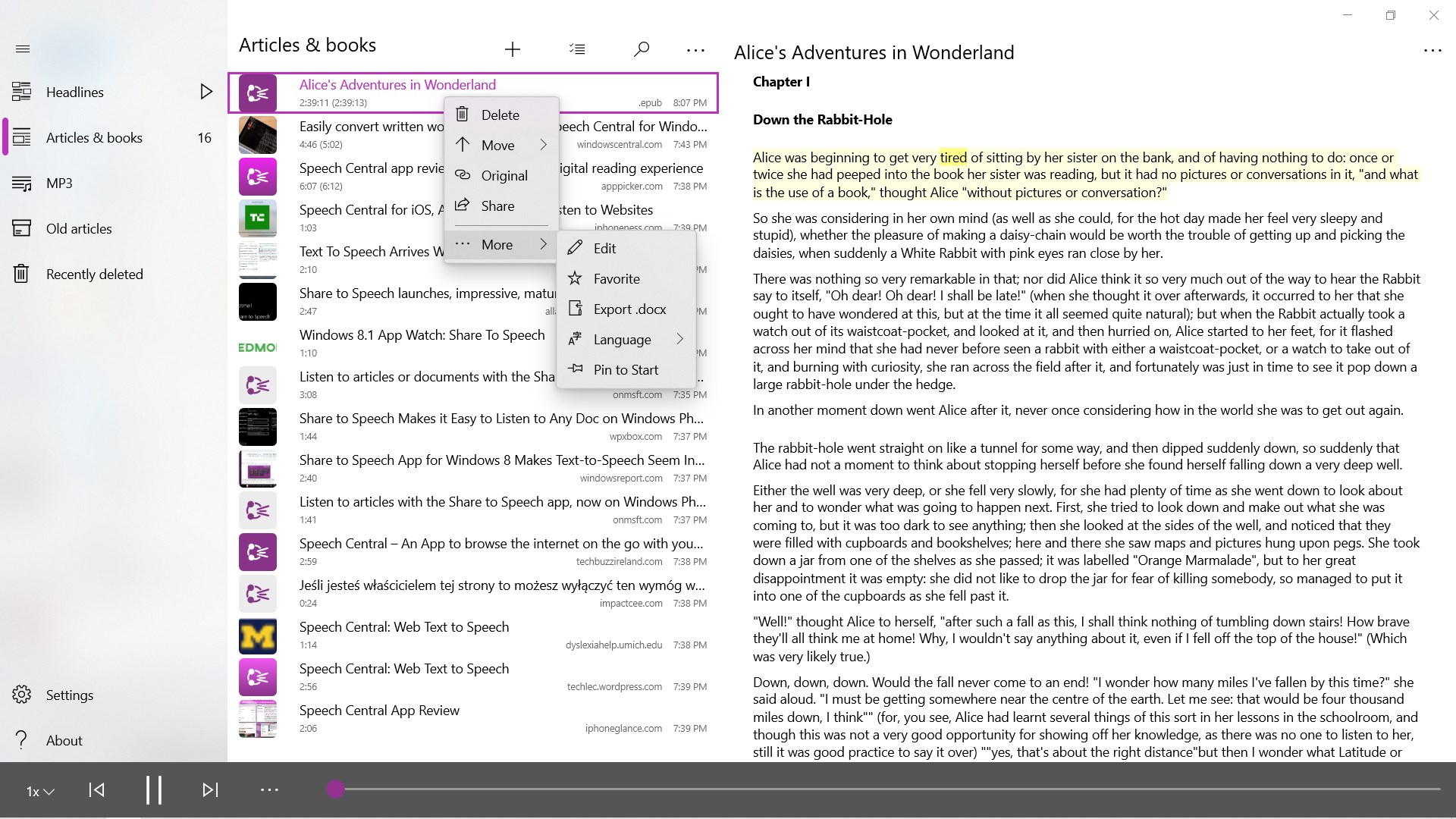
One of the app's strengths is its high degree of personalization. Users can adjust speech rate, pitch, and volume to suit their preferences. Furthermore, Speech Central offers bookmarking and playback speed controls, allowing listeners to pause, rewind, or skip sections easily. The ability to create playlists or queue multiple documents means you can set up your audio sessions just the way you want without constant interaction.
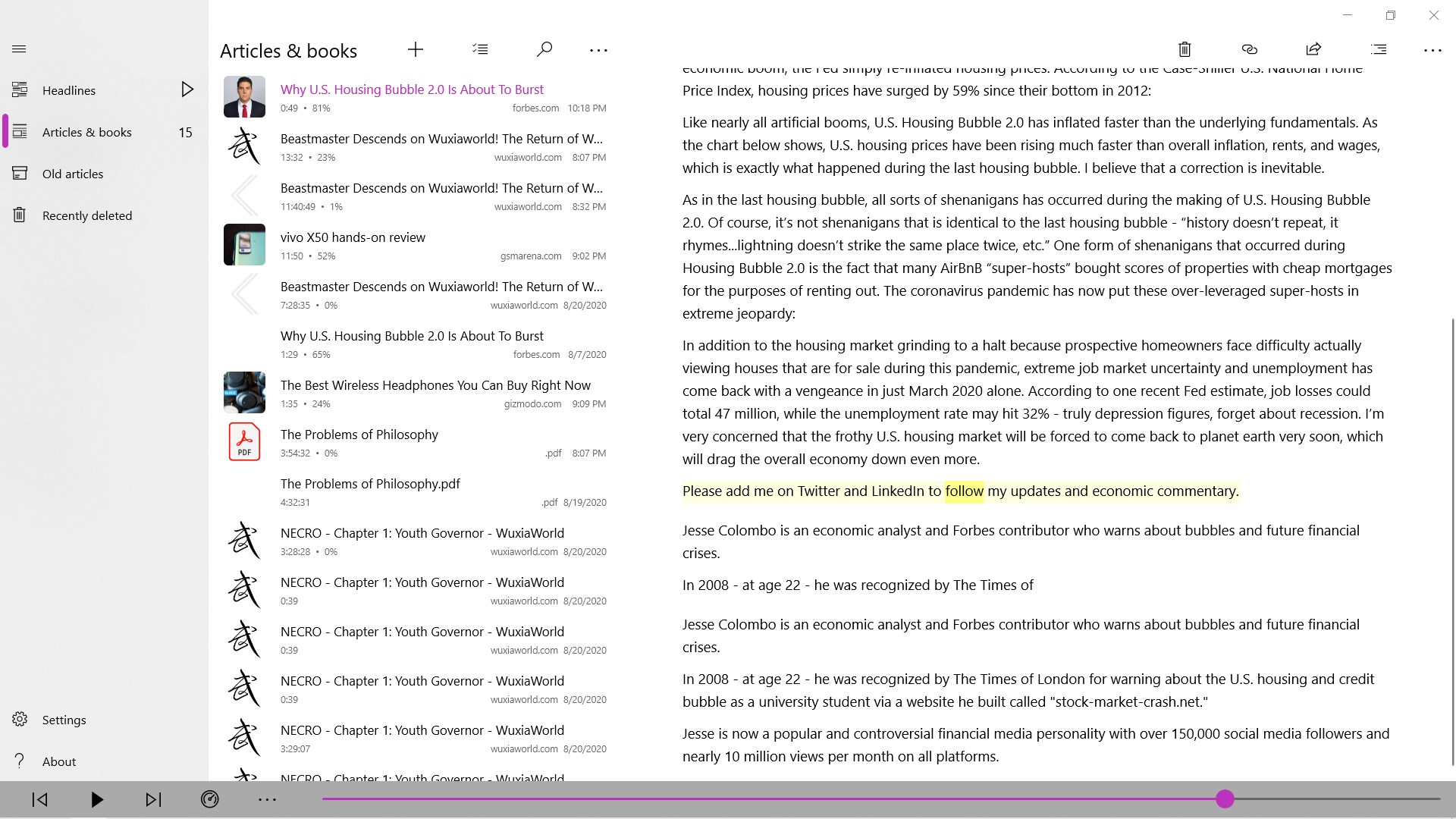
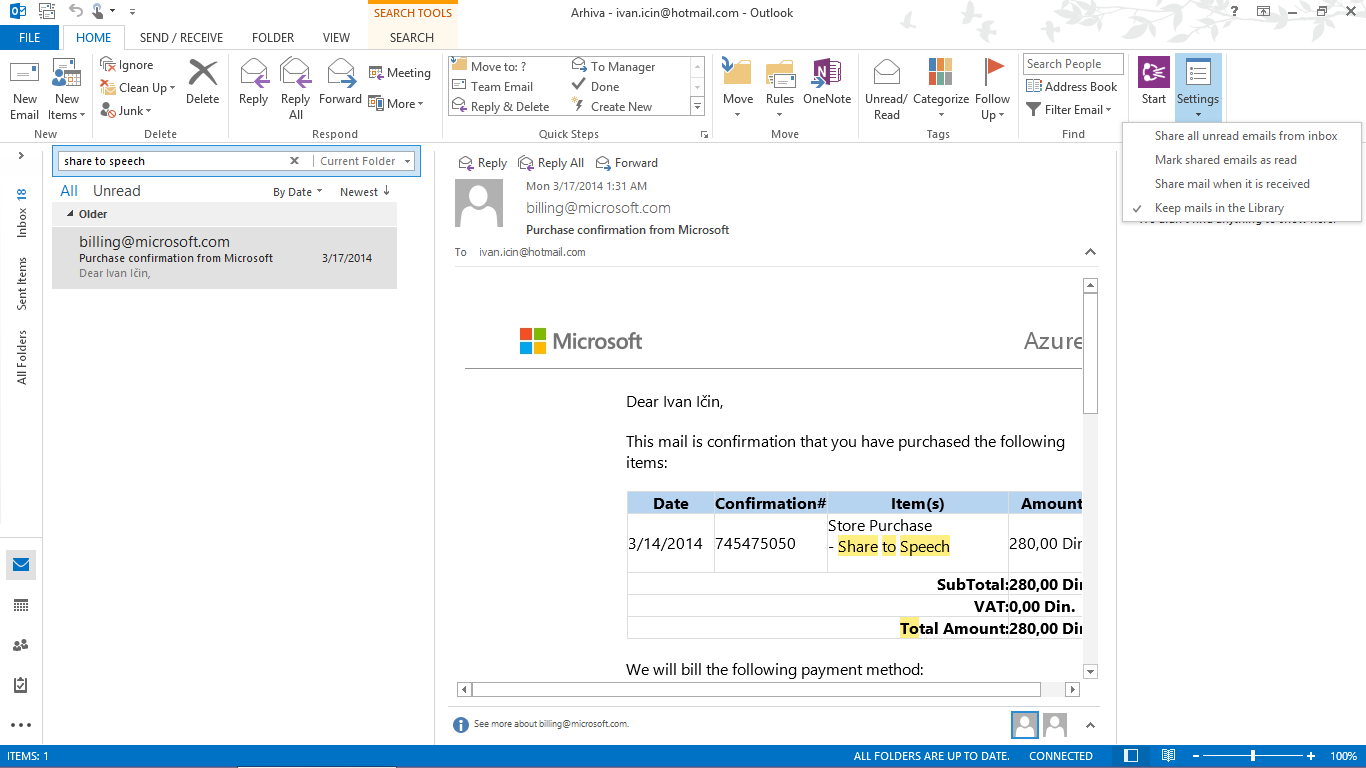
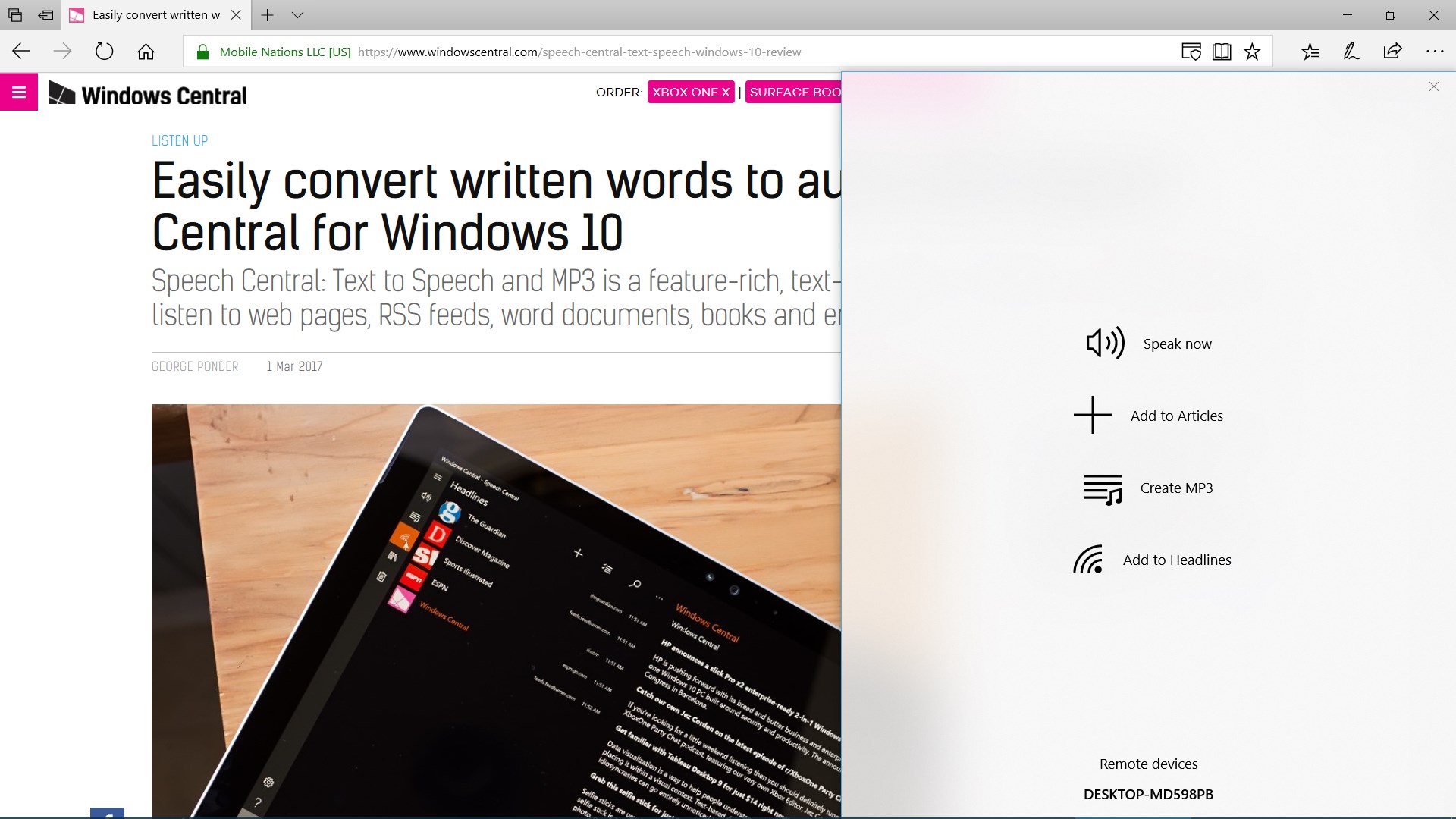
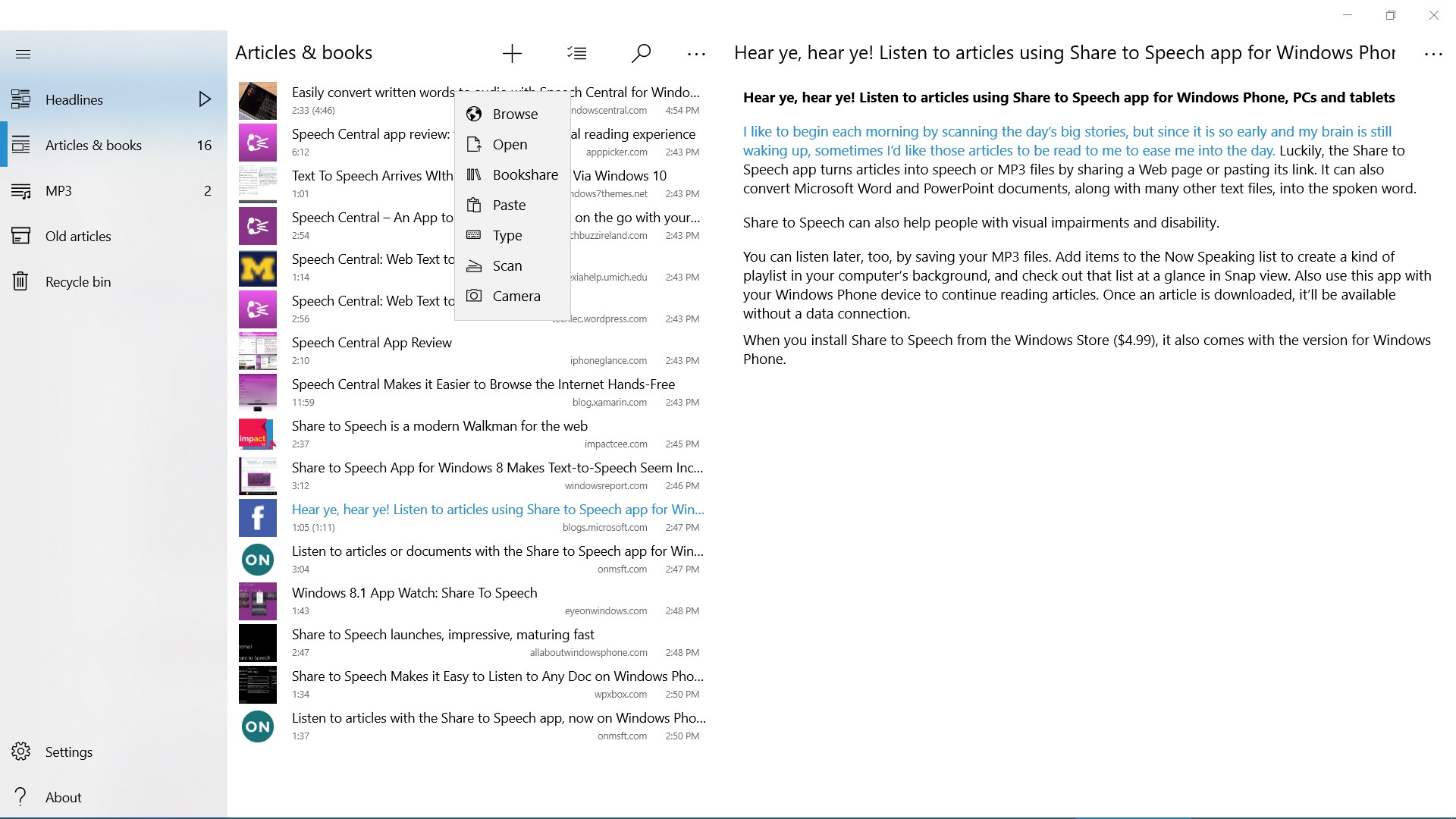
Designed with simplicity in mind, Speech Central's interface resembles a sleek, well-organized digital reading room. Navigating through documents, accessing playback controls, or altering settings feels intuitive—almost like chatting with a friendly librarian who knows your preferences. The app's smooth performance ensures minimal lag, and its integration with Windows features like the clipboard and file explorer facilitates quick importing of text. The learning curve is shallow, making it accessible even for users new to text-to-speech technology.
From the moment you launch Speech Central, you'll notice its clean, minimalistic layout. It's like stepping into a well-lit reading corner— inviting and straightforward. The main controls are prominently placed, and customization menus are logical, so tweaks to the reading experience require little more than a few clicks. The app performs with remarkable fluidity, smoothly processing and vocalizing lengthy documents without hiccups. This reliability stands out among many similar tools that can be sluggish or cluttered with unnecessary features. If you're unfamiliar with text-to-speech apps, you'll find the learning curve gentle thanks to clear instructions and accessible controls, making it a joy to explore.
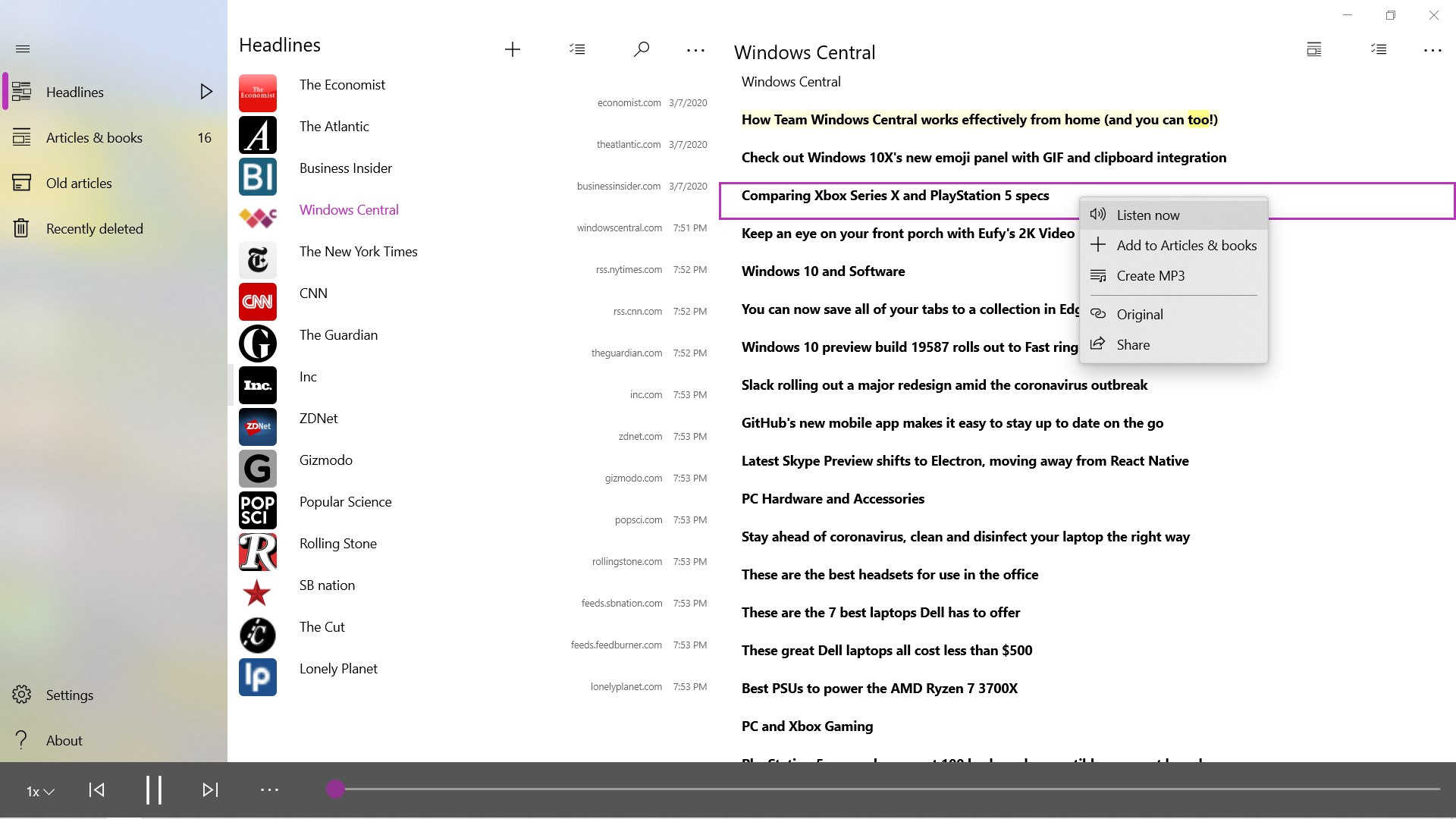
Unlike many of its competitors that focus solely on basic reading functionalities, Speech Central offers a distinctive feature: its ability to create and manage playlists of texts, turning your Windows device into a personalized audiobook station. This function, combined with the app's multi-language voice support and natural-sounding speech synthesis, positions it as a holistic listening companion. Its seamless integration with Windows system features also means you can quickly import content from various sources—web pages, documents, or clipboard snippets—making the workflow effortless and efficient.
Overall, Speech Central: Voice Reader for Windows is a thoughtfully crafted tool suitable for a broad range of users seeking a reliable TTS (text-to-speech) solution. Its standout features—particularly the playlist management and high-quality voice options—set it apart from many competitors. If you value customization, ease of use, and natural speech quality, this app is definitely worth trying. For those who need an accessible, flexible, and user-friendly reading aid or audiobook generator, Speech Central comes highly recommended. With its straightforward interface and powerful features, it's like having a personal storyteller right on your desktop.
High-quality voice synthesis
Wide format support
Customizable playback speed
Offline functionality
User-friendly interface
Limited customization options for voices
Occasional pronunciation inaccuracies
Lack of advanced OCR integration
Basic highlighting and note-taking features
Inconsistent formatting handling

for Windows
 4.9
4.9

for Windows
4.8

for Windows
4.8

for Windows
4.8
for Windows
4.1

for Windows
4

for Windows
2.7

for Windows
1.4

for Windows
0

for Windows
5

for Windows
5

for Windows
5

for Windows
5

for Windows
5

for Windows
5

for Windows
5

for Windows
5

for Windows
5

for Windows
5