Photo & video
PC
Windows 10 version 14393.0 or higher
Version 11
Chinese (Simplified), English (United States), French, German, Italian, Portuguese (Brazil), Russian, Spanish
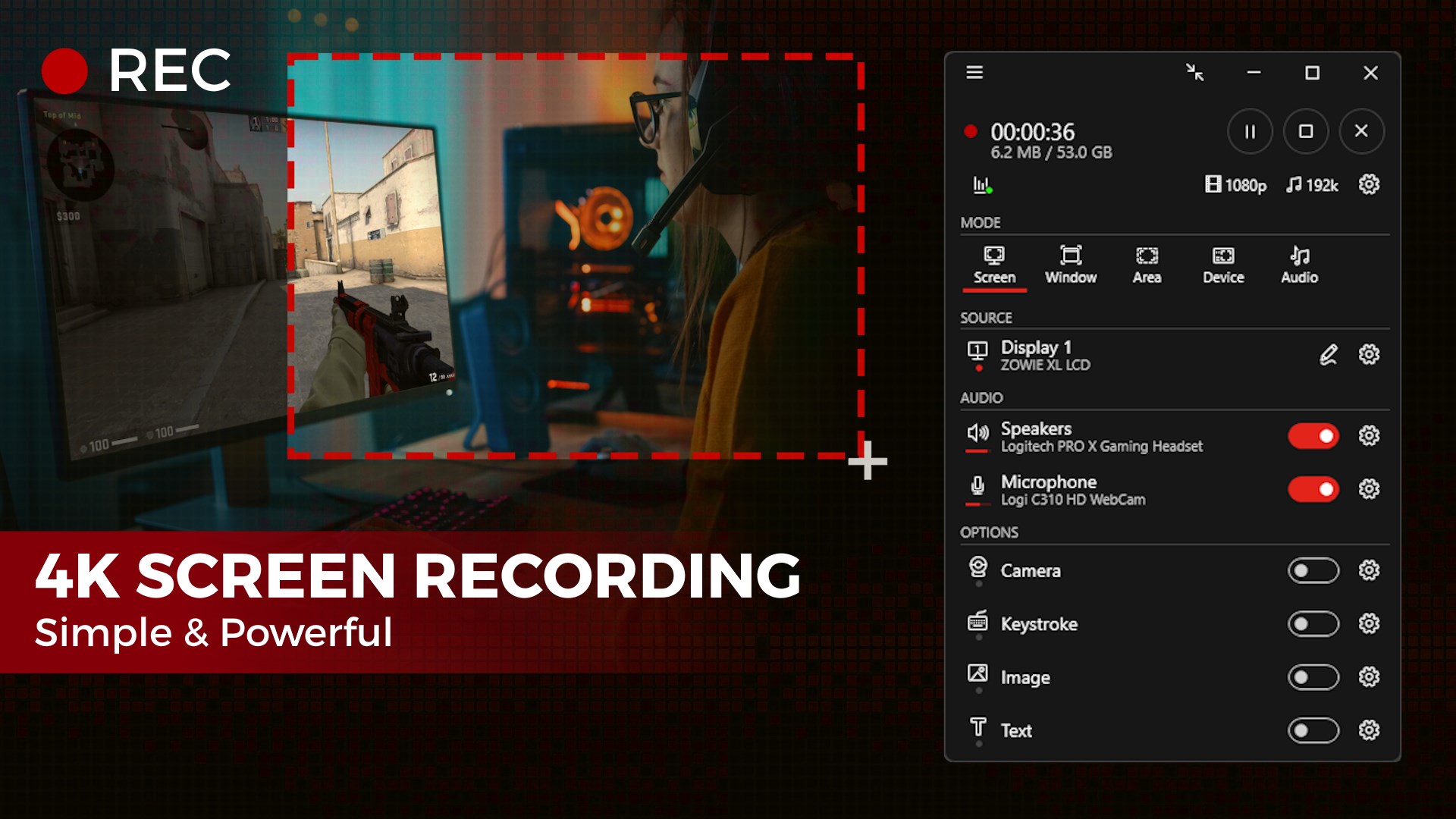
Screenbits - Screen Recorder for Windows, developed by Mehrzad Chehraz, stands out as a straightforward yet powerful tool designed to capture your screen activities with ease and clarity. Whether you're creating tutorials, recording gameplay, or preparing professional presentations, this app aims to simplify your recording needs without sacrificing quality.
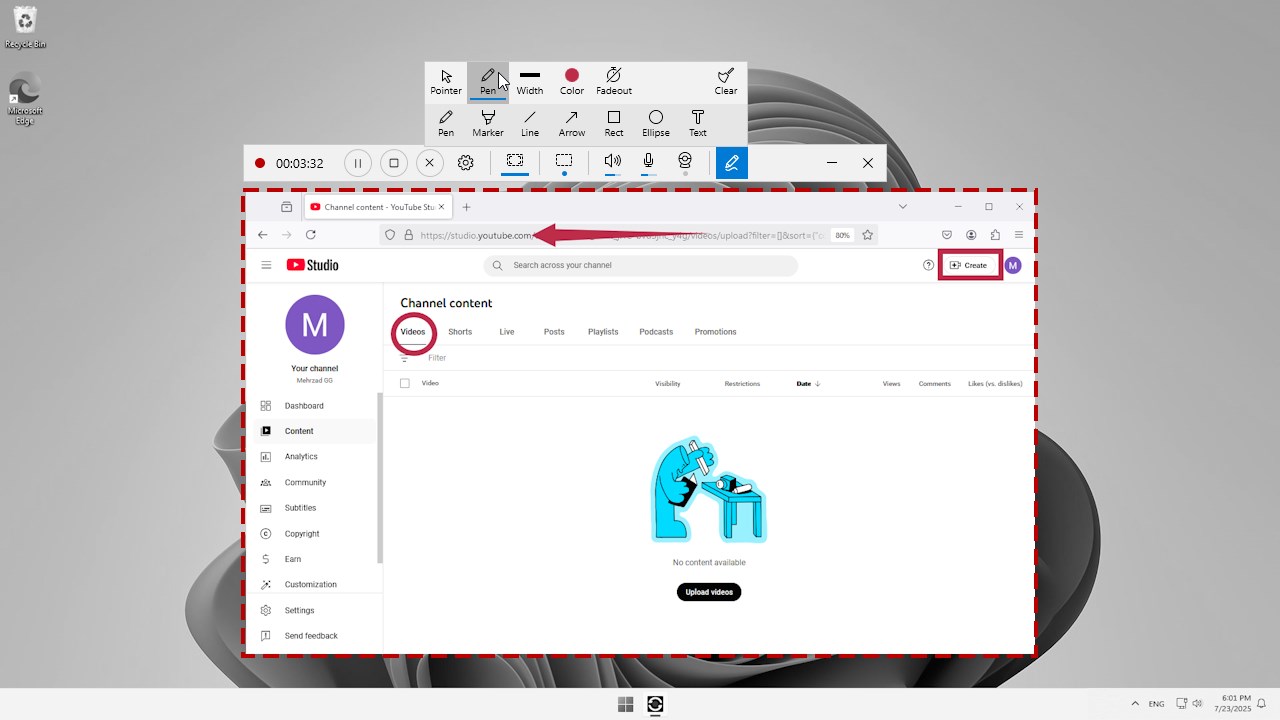
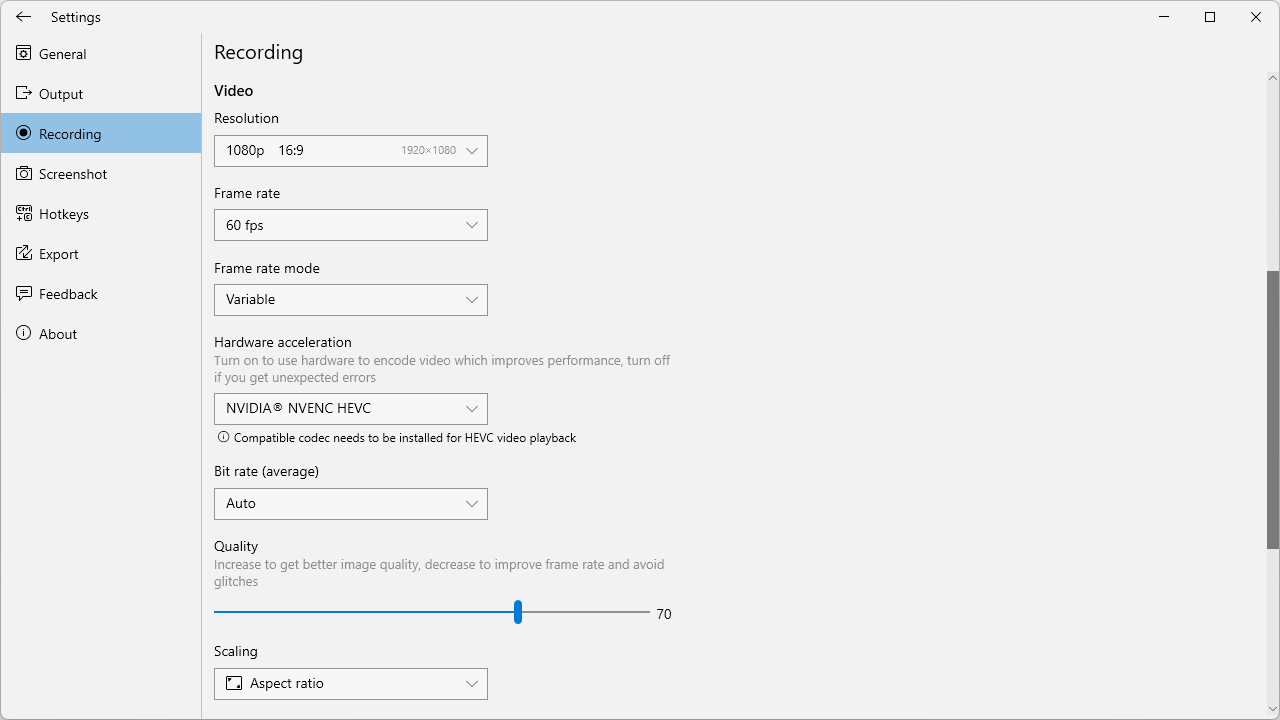
Screenbits offers users a range of options to tailor their recordings — from adjusting frame rates to selecting specific capture areas. The app emphasizes producing crisp, smooth videos, making it suitable for detailed tutorials and high-definition gameplay captures. Its adaptive recording settings allow users to balance quality and performance based on their hardware capabilities.
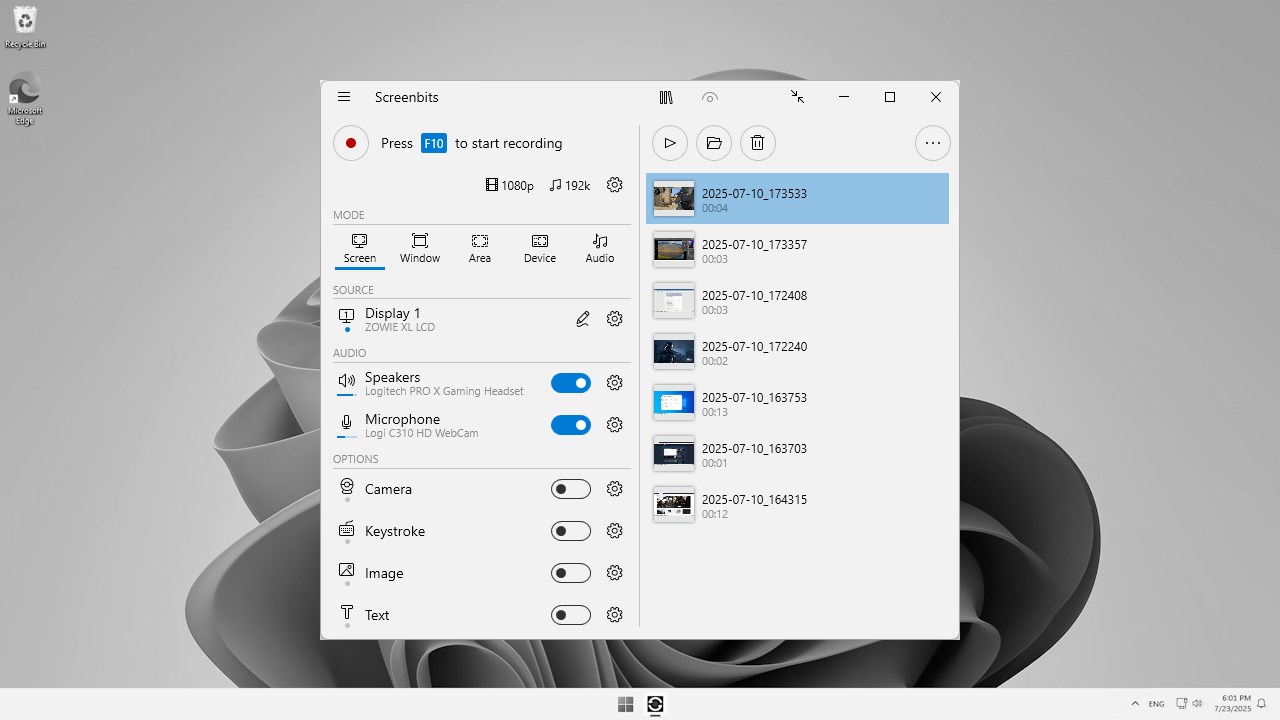
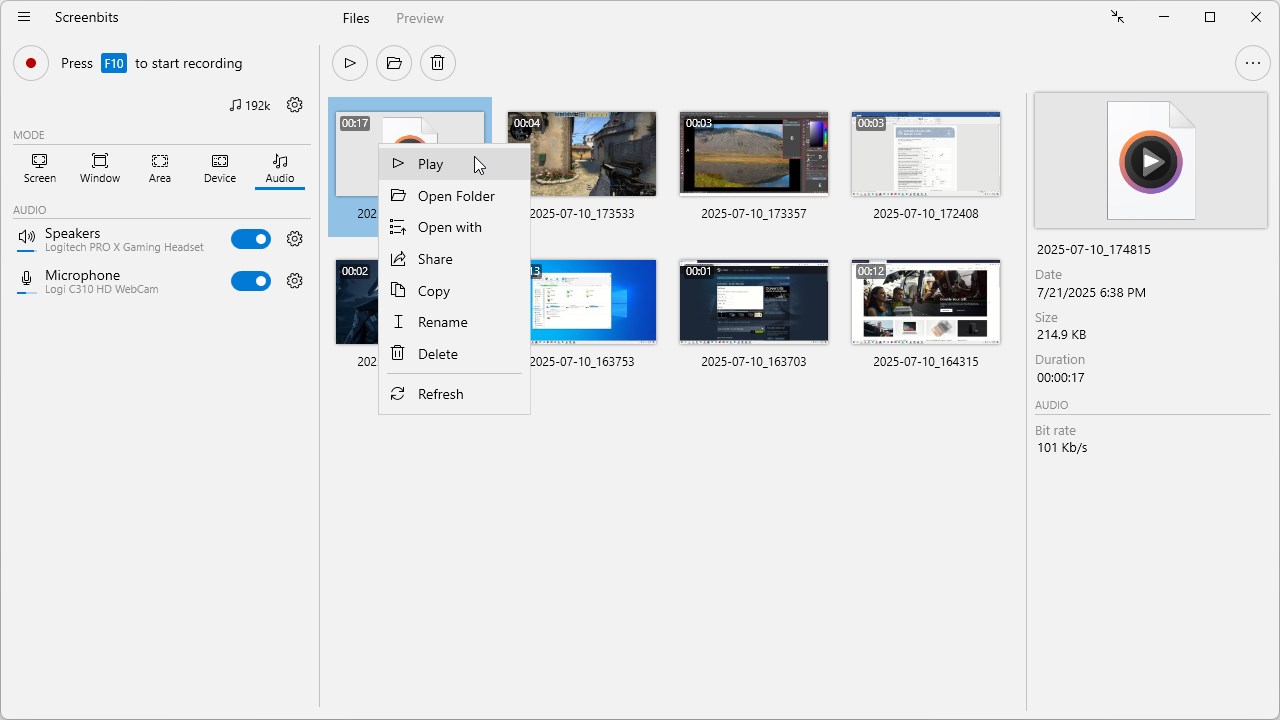
Designed with simplicity in mind, Screenbits presents a clean, user-friendly interface akin to peering into a well-organized control panel. Navigating through options and initiating recordings is intuitive, reducing the learning curve for new users. The interface's clarity ensures that even those unfamiliar with recording software can quickly set up and start capturing their screens, which is especially valuable for educators and professionals needing quick results.
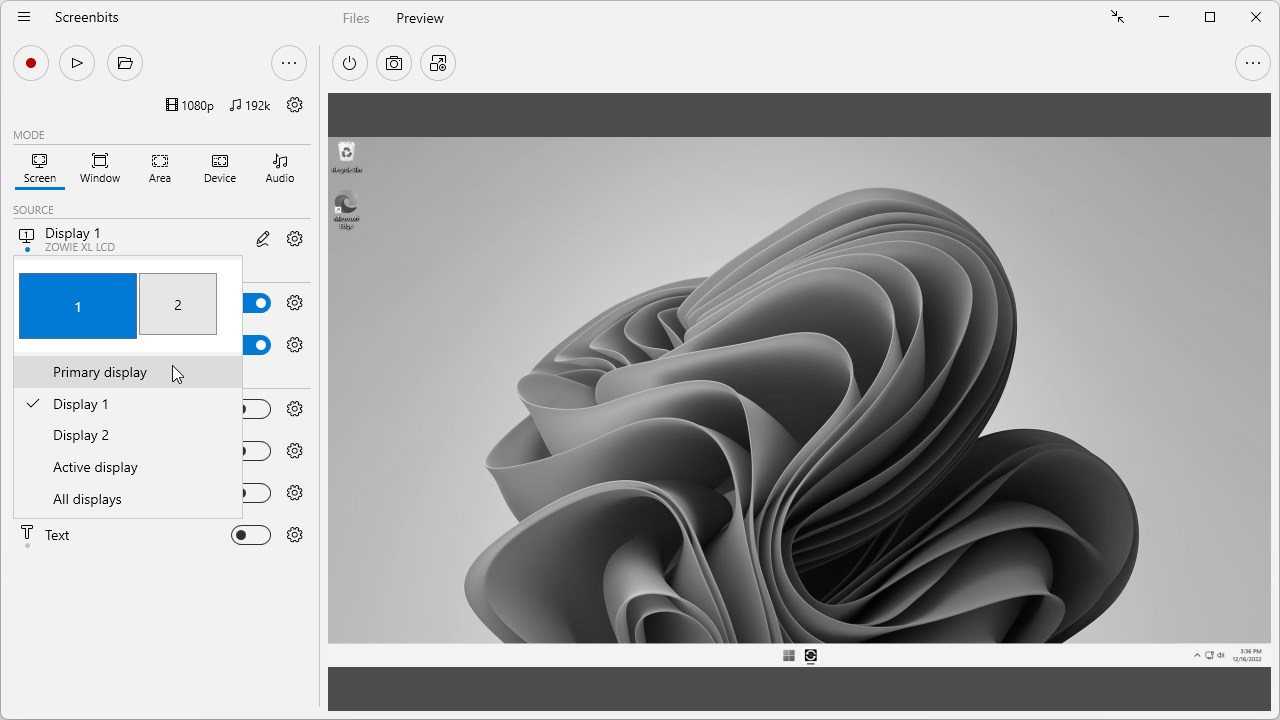
The standout feature of Screenbits lies in its versatile recording modes, including full-screen capture, window-specific recording, and custom region selection. This flexibility is particularly advantageous over other apps that restrict you to full-screen recordings. Moreover, exporting options are abundant—supporting popular formats like MP4, AVI, and GIF—allowing users to seamlessly integrate videos into various workflows or share them across platforms.
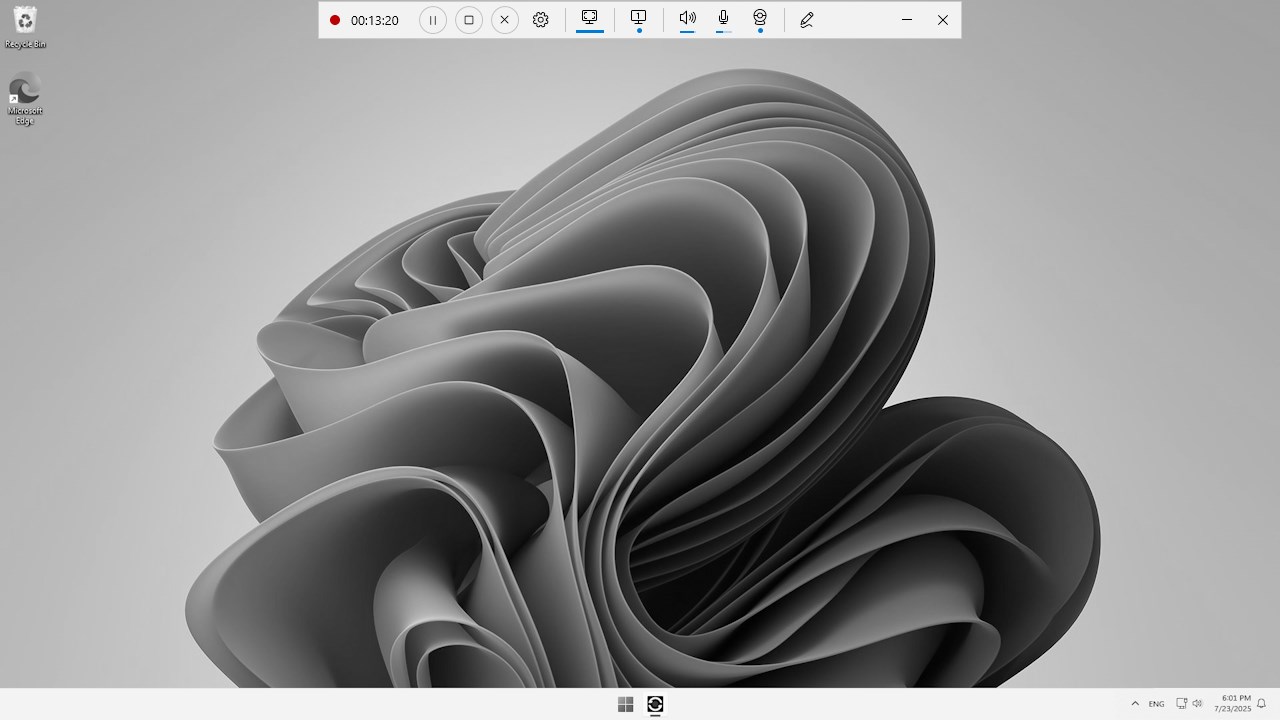
Upon launching Screenbits, you're greeted with a sleek, minimalistic interface that resembles a modern dashboard—functional yet inviting. Its straightforward layout minimizes distraction, enabling you to focus on your recording task. The app responds swiftly to user commands, with minimal lag during even high-resolution captures, showcasing a well-optimized performance tailored for Windows systems. Learning curve? Almost nonexistent—just a few clicks to master most functions, making it accessible to novices and seasoned users alike.
While many screen recording tools provide similar core functionalities, Screenbits distinguishes itself through its **custom region recording** and **multiple export formats**, which are highly valued for detailed content creation and professional presentations. Unlike some competitors that lock advanced features behind paywalls or clutter the interface with unnecessary options, Screenbits maintains a clean, focused experience that prioritizes flexibility and usability. Its capability to easily select specific screen areas and export in various formats makes it particularly attractive for content creators seeking precision and versatility in their recordings.
Overall, I recommend giving Screenbits a try if you're seeking a straightforward, dependable screen recording tool that doesn't overcomplicate things. It's especially suitable for educators, streamers, and professionals who need quick, high-quality captures with minimal fuss. For anyone tired of clunky, feature-bloat software, this app provides a refreshingly practical solution. While it may lack some advanced editing features found in more comprehensive suites, its core strengths—user-friendly design, flexible recording modes, and high-quality output—make it a reliable companion for your desktop recording needs.
High-Quality Recording
User-Friendly Interface
Multiple Recording Options
Real-Time Editing Features
Efficient Performance
Limited Output Formats
Occasional Export Failures
Watermark on Free Version
Basic Editing Tools
Audio Syncing Slight Delays

for Windows
 5
5

for Windows
4.9

for Windows
4.8

for Windows
4.8
for Windows
4.8

for Windows
4.7

for Windows
4.7

for Windows
4.7

for Windows
4.7

for Windows
4.7

for Windows
4.7

for Windows
4.7

for Windows
5

for Windows
5

for Windows
5

for Windows
5

for Windows
5

for Windows
5

for Windows
5

for Windows
5

for Windows
5

for Windows
5