Multimedia design
Wuhan Net Power Technology Co., Ltd.
PC
Windows 10 version 17763.0 or higher
Integrated Keyboard
Integrated Mouse
Version 11
4 GB
Chinese (Simplified), English, French, German, Japanese, Korean, Portuguese, Russian, Spanish, Thai, Vietnamese
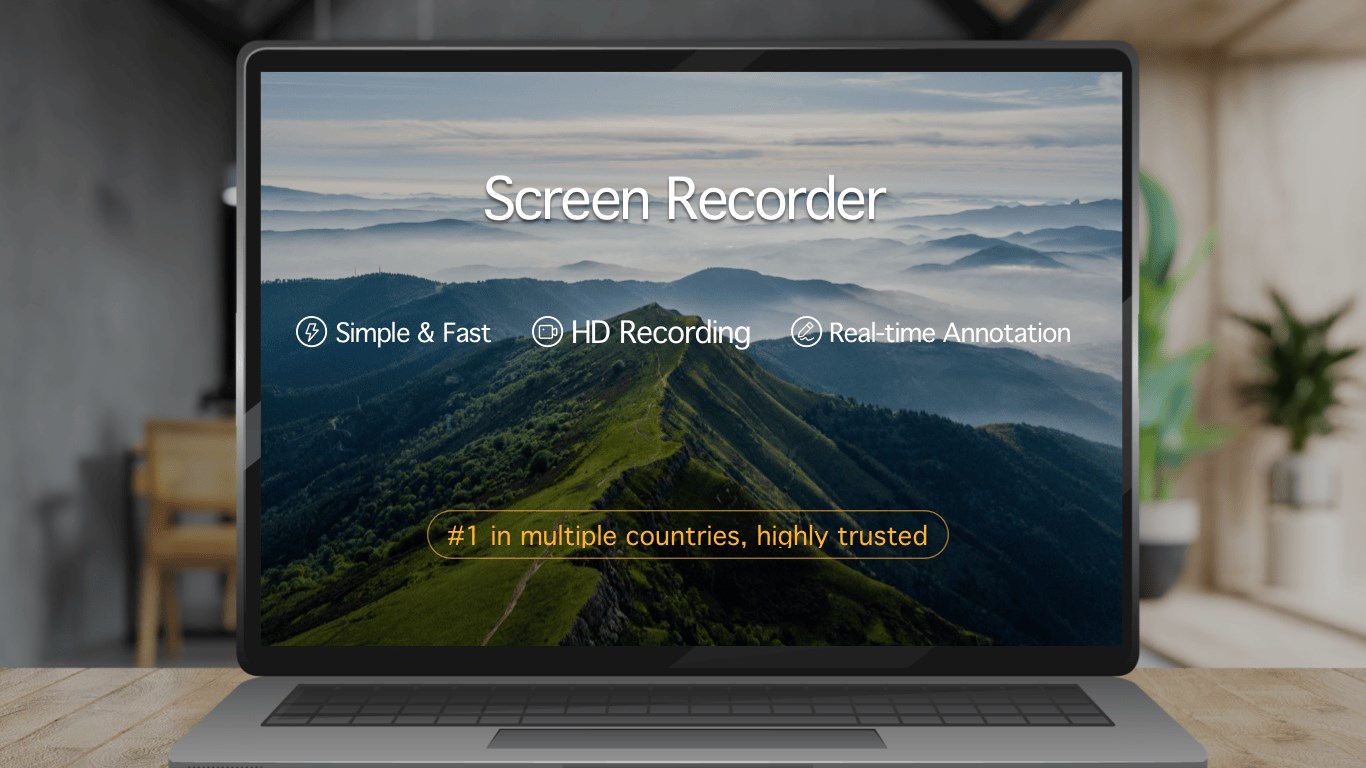
If you've ever felt frustrated trying to capture that perfect gameplay highlight or an important online tutorial, this app might just become your new best friend. "Screen recorder - Screen record & Screen capture for windows" by Wuhan Net Power Technology Co., Ltd. offers a straightforward yet surprisingly capable solution for Windows users seeking a reliable screen recording tool without the complexity of professional editing suites.
Developed by Wuhan Net Power Technology Co., Ltd., this application positions itself as an accessible recording tool tailored for users across various needs—from students and content creators to professionals conducting demos. While it doesn't aim to replace high-end editing software, its focus on core recording functionalities with a user-friendly interface makes it a handy companion for quick captures.
Key features include high-resolution recording, easy screen capture, and customizable recording regions, all neatly packaged within an intuitive interface. Its primary target audience encompasses online educators, gamers, remote workers, and anyone who needs to record their screen efficiently without a steep learning curve.
Imagine sitting at your desk, frustrated because capturing a quick montage or a troubleshooting walkthrough seems more complicated than launching a spaceship. Now, picture a tool so simple and responsive that starting a recording feels as natural as clicking "Play." That's the promise— and experience— "Screen recorder - Screen record & Screen capture for windows" aims to deliver. Its clean, straightforward design instantly welcomes new users and invites spontaneous captures, making it feel like a tech-savvy friend guiding you through the process.
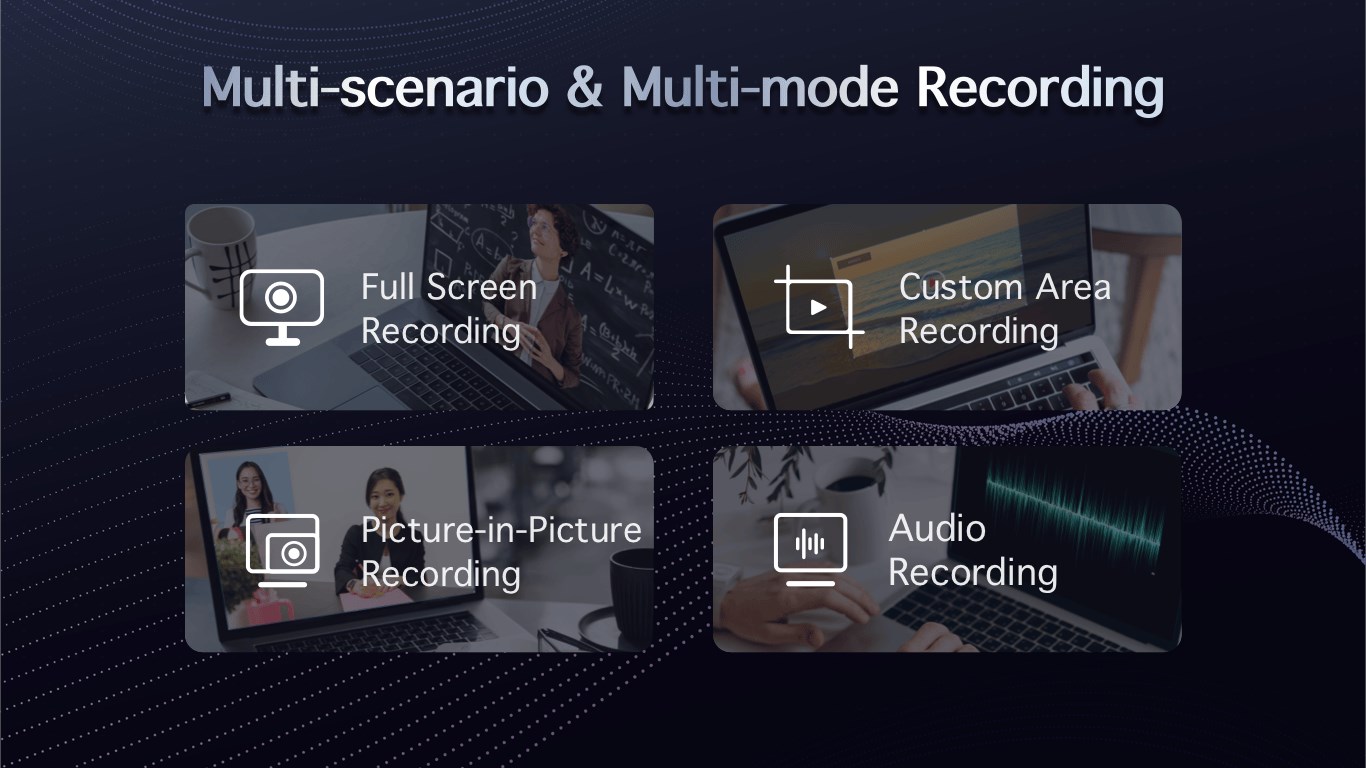
The app's standout feature is its versatility in recording modes. Users can choose from full-screen capture, window-specific recording, or custom-defined areas—think of it as having a versatile camera that can zoom in and out, focus on a tiny detail, or pan across a landscape. The high-definition output maintains clarity, making it suitable for professional presentations or sharing gameplays online without annoying pixelation.
Moreover, the app offers options to record system sounds and microphone input simultaneously, perfect for creating engaging tutorials or commentary videos. Its straightforward toggle options ensure that switching between different setups is hassle-free, appealing to users who prefer simplicity over complex configuration menus.
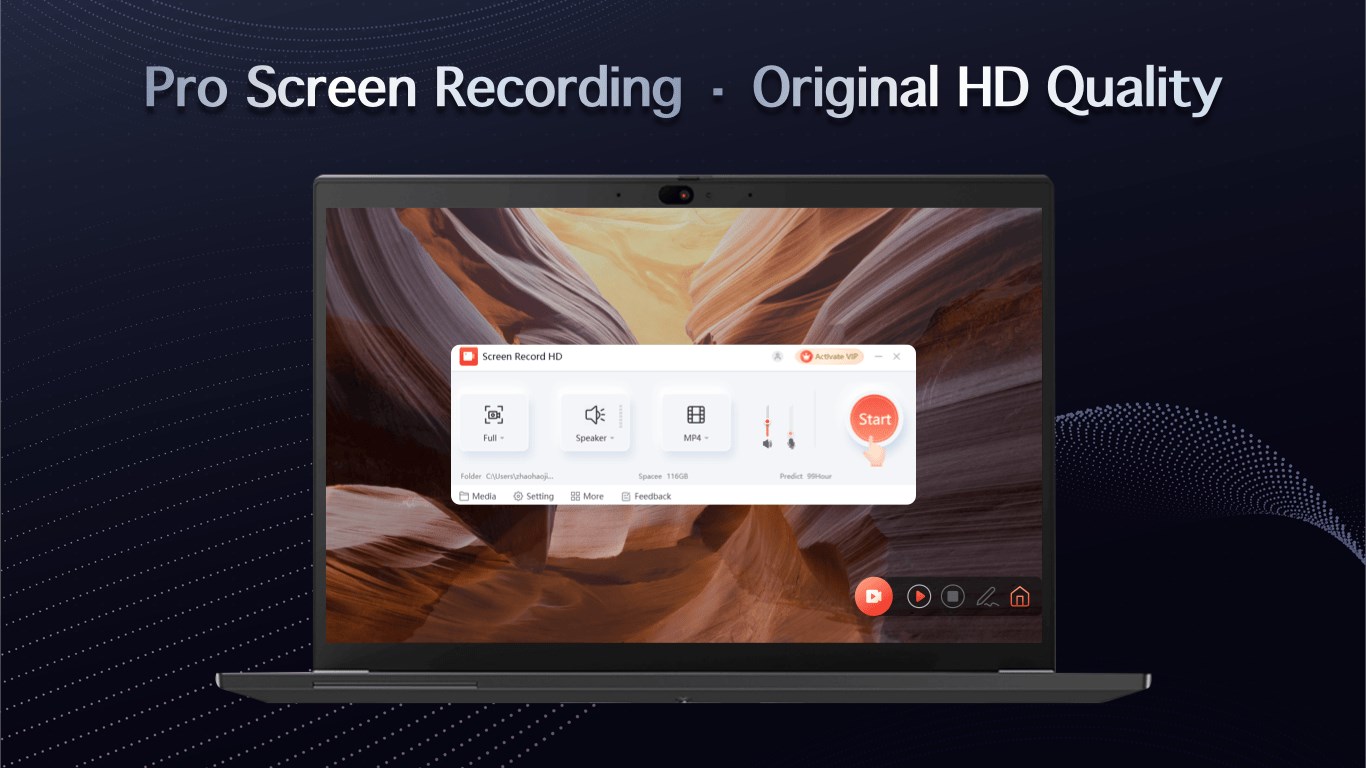
Designed with a minimal learning curve, the interface resembles a sleek control panel—big buttons for record, pause, stop, and snapshot, reminiscent of a classic recording device but with a modern touch. Starting a new recording is just a click away; no confusing menus or settings overload the screen. The app runs smoothly in the background, with minimal impact on system performance—think of it as having a diligent assistant that quietly takes notes while you focus on your task.
After capturing, both videos and images are stored automatically in organized folders, and users can quickly preview, trim, or upload their recordings directly from within the app. This fluid workflow minimizes interruption, ensuring efficient content creation or troubleshooting sessions.
Compared to other multimedia applications, this tool's most unique advantage lies in its emphasis on simplicity combined with reliable performance. Unlike some recording solutions that bombard you with advanced options and steep learning curves, this app offers just what you need—clean recording with straightforward controls. Additionally, its ability to capture your entire screen or selected regions without lag is noteworthy, especially for fast-paced gaming or dynamic demos where timing is critical.
Another aspect that sets it apart is its integrated screen capture function, allowing quick snapshots—think of it as a high-resolution camera shutter button—without switching apps or breaking your workflow. This dual feature reduces the need for multiple tools, streamlining your multimedia tasks with an all-in-one approach.
Overall, "Screen recorder - Screen record & Screen capture for windows" earns a solid recommendation for users seeking an uncomplicated yet effective screen recording solution. Its user-friendly design, flexible recording options, and seamless workflow make it suitable for everyday recording needs. While it may lack some advanced editing features found in high-end software, its core strengths make it an excellent choice for quick captures and sharing.
If you value straightforwardness, minimal setup, and reliability over bells and whistles, this app deserves a spot in your toolkit. Perfect for educators, marketers, gamers, or remote workers looking to produce professional-quality recordings without the fuss. So, if you want an unobtrusive, dependable, and easy-to-use screen recorder, give this application a try—you might find it becomes your go-to recording partner in no time.
High-quality screen recording
Easy-to-use interface
Multiple capture options
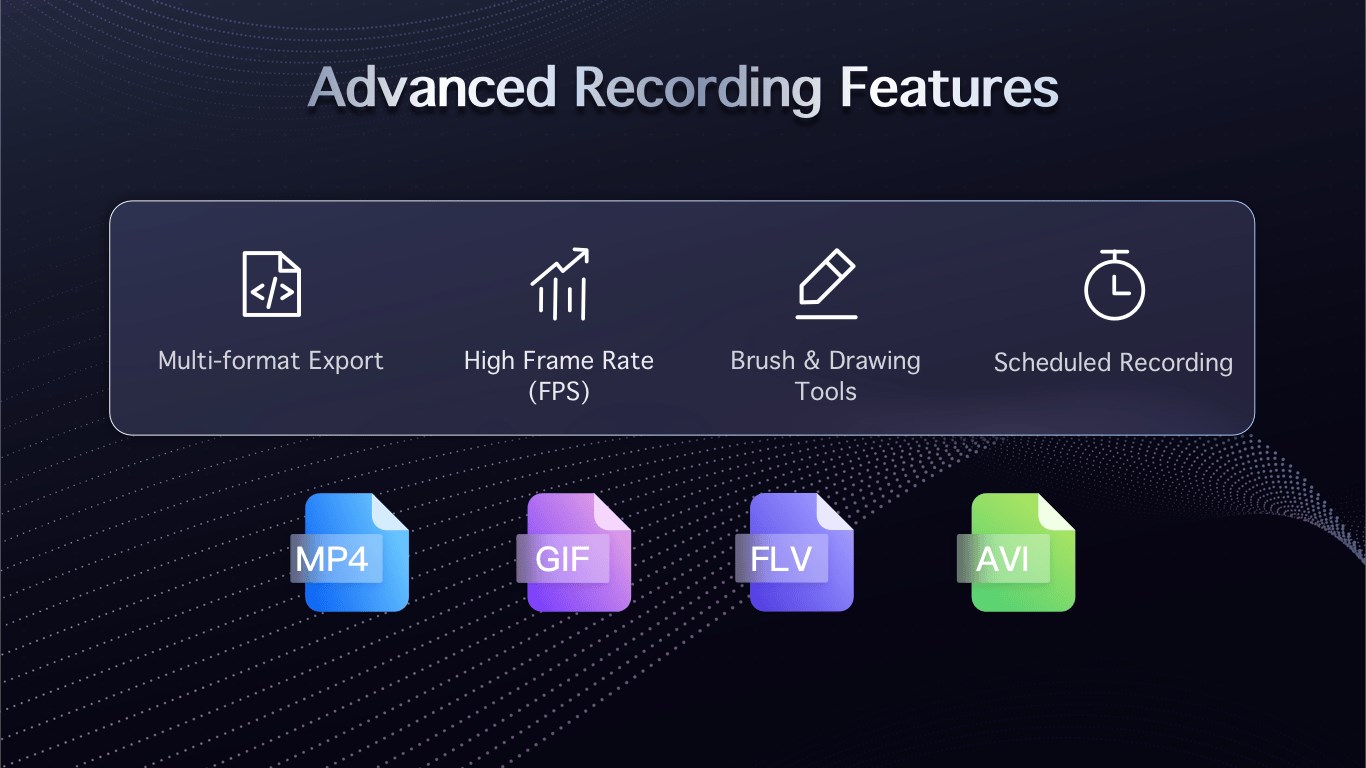
Real-time annotations
Fast sharing features
Limited editing tools
Watermark on recordings in free version
Occasional lag during high-resolution recordings
Limited audio editing options
Lack of cloud storage integration

for Windows
 4.8
4.8

for Windows
4.8

for Windows
4.7

for Windows
4.7

for Windows
4.6

for Windows
4.6

for Windows
4.6

for Windows
4.6

for Windows
4.5

for Windows
4.5

for Windows
4.5

for Windows
4.5

for Windows
5

for Windows
5

for Windows
5

for Windows
5

for Windows
5

for Windows
5

for Windows
5

for Windows
5

for Windows
5

for Windows
5