Multimedia design
Screen Record
PC
Windows 10 version 14393.0 or higher
English (United States)
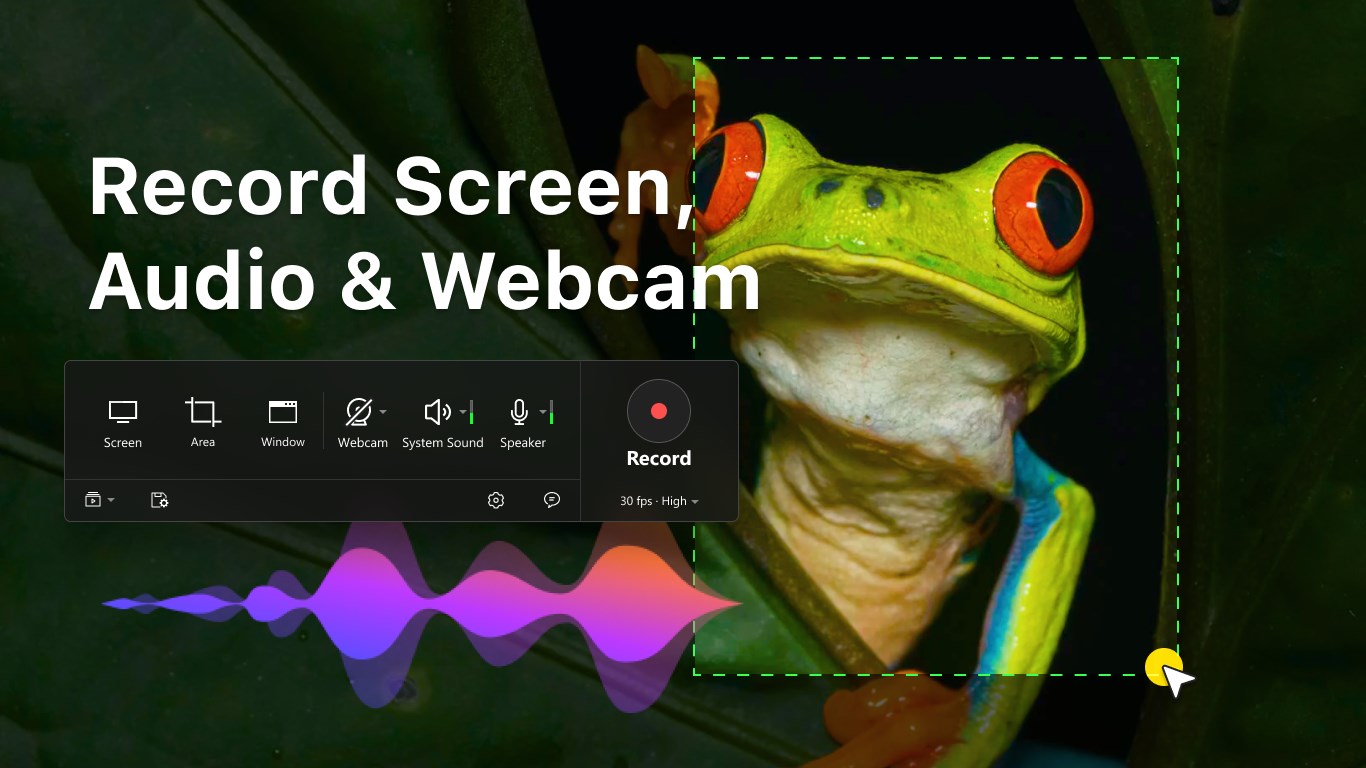
Meet "Screen Record for Windows," a user-friendly application designed to simplify capturing your screen activities with precision and ease. Ideal for content creators, educators, and professionals alike, this app aims to streamline the screen recording process without sacrificing quality or control.
The software is crafted by the dedicated team behind Screen Record, known for creating accessible and efficient multimedia tools. Their focus on user-centric design ensures that even those new to screen recording can get started quickly and produce polished results.
Imagine yourself in the middle of an online tutorial, eager to capture that perfect moment on your screen—perhaps a tricky software trick or a memorable gameplay highlight. "Screen Record for Windows" steps into such scenes effortlessly, offering a screen recording experience that's as straightforward as pressing 'Record' and letting the software do its magic. It's like having a reliable camera crew built right into your desktop—ready at a moment's notice, with no fuss, just results.
The core appeal of this application lies in its intuitive recording capabilities. You can choose to record your entire screen or select specific regions with a click—think of it like framing your shot—giving you full control over what's captured. The interface is clean and unobtrusive, allowing users to set up their recording parameters without jabbing at cluttered menus. The app's responsiveness ensures that even during high-motion recordings, performance stays fluid, with minimal lag or dropped frames. It's akin to filming with a steady hand, knowing your equipment can handle complex scenes without jittering or lag.
After capturing your footage, the app's integrated editing tools shine. Whether you're trimming out unnecessary parts or annotating important details with text or arrows, these features help refine your videos without switching apps. Imagine editing your video as tidying up a workspace: quick, easy, and all in one place. This seamless workflow helps content creators meet deadlines faster and prevents the frustration of juggling multiple platforms.
From a user experience perspective, "Screen Record" impresses with its minimal learning curve. First-time users often find the setup process straightforward, thanks to the clear instructions and organized layout. Its responsiveness keeps workflows smooth, even on slightly older hardware, which is often a concern in multimedia applications. Compared to other multimedia tools that often come bundled with complex editing suites, this app's focus on core recording and simple editing makes it stand out as a practical, no-nonsense choice.
A key differentiator is its ability to quickly export videos in various formats optimized for different platforms—be it for professional presentations, social media, or personal archives. Its lightweight design ensures that it doesn't hog system resources, making it suitable even for everyday use without slowing down your other tasks.
In a crowded market filled with feature-heavy multimedia software, "Screen Record for Windows" offers an appealing blend of simplicity, quality, and efficiency. It's particularly recommended for users who need reliable screen capturing with minimal fuss, such as educators, gamers, or remote workers. While it may not carry the extensive editing tools of larger suites, its core strengths—ease of use, customization, and quick output—are compelling reasons to give it a try. For those looking for a straightforward, effective recording app that gets the job done well, this is a solid choice worth considering.
User-friendly interface
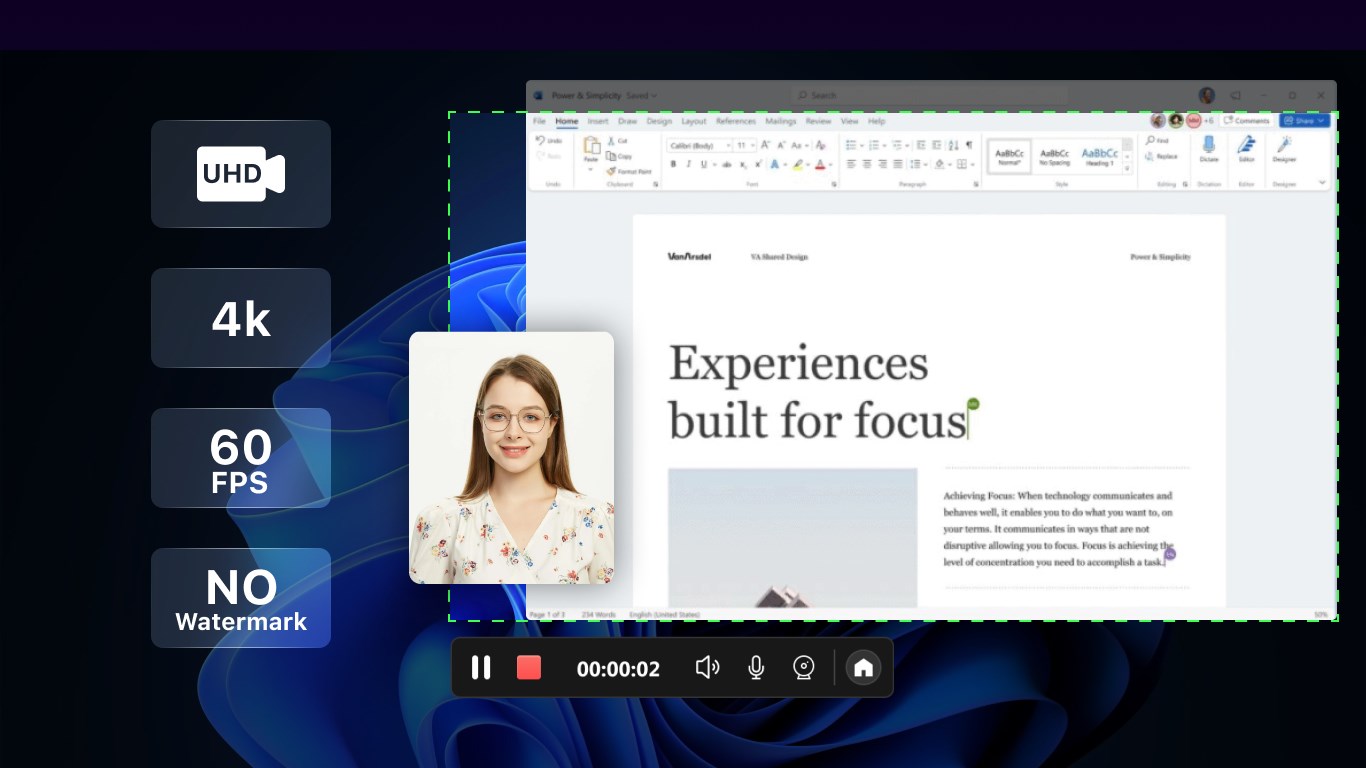
High-quality video output
Multiple recording options
Built-in editing features
No watermark or time limit
Limited advanced editing tools
Occasional recording glitches
Limited output formats
No built-in webcam recording
Requires permissions for screen capture

for Windows
 4.8
4.8
for Windows
4.8

for Windows
4.7

for Windows
4.7

for Windows
4.6

for Windows
4.6

for Windows
4.6

for Windows
4.6

for Windows
4.5

for Windows
4.5

for Windows
4.5

for Windows
4.5

for Windows
5

for Windows
5

for Windows
5

for Windows
5

for Windows
5

for Windows
5

for Windows
5

for Windows
5

for Windows
5

for Windows
5