Lifestyle
PC, Mobile, Surface Hub, HoloLens
Windows 10 version 16299.0 or higher
English (United States)
If you're tired of scrambling for your physical Roku remote every time you want to switch channels or adjust volume, this app offers a promising digital alternative. Developed by GoodmorningStudio, this Windows-based remote control app aims to bring the convenience of your Roku TV straight to your desktop, transforming your PC into a versatile remote in a seamless and user-friendly package.
The core appeal of this app lies in its ability to emulate a traditional remote with added modern features. Its main strengths include quick device discovery, intuitive control layout, and minimal setup requirements—making it accessible even for less tech-savvy users. These features work together to create a straightforward solution for managing your RokuTV directly from your Windows device, whether you're lounging on the sofa or working on your PC.
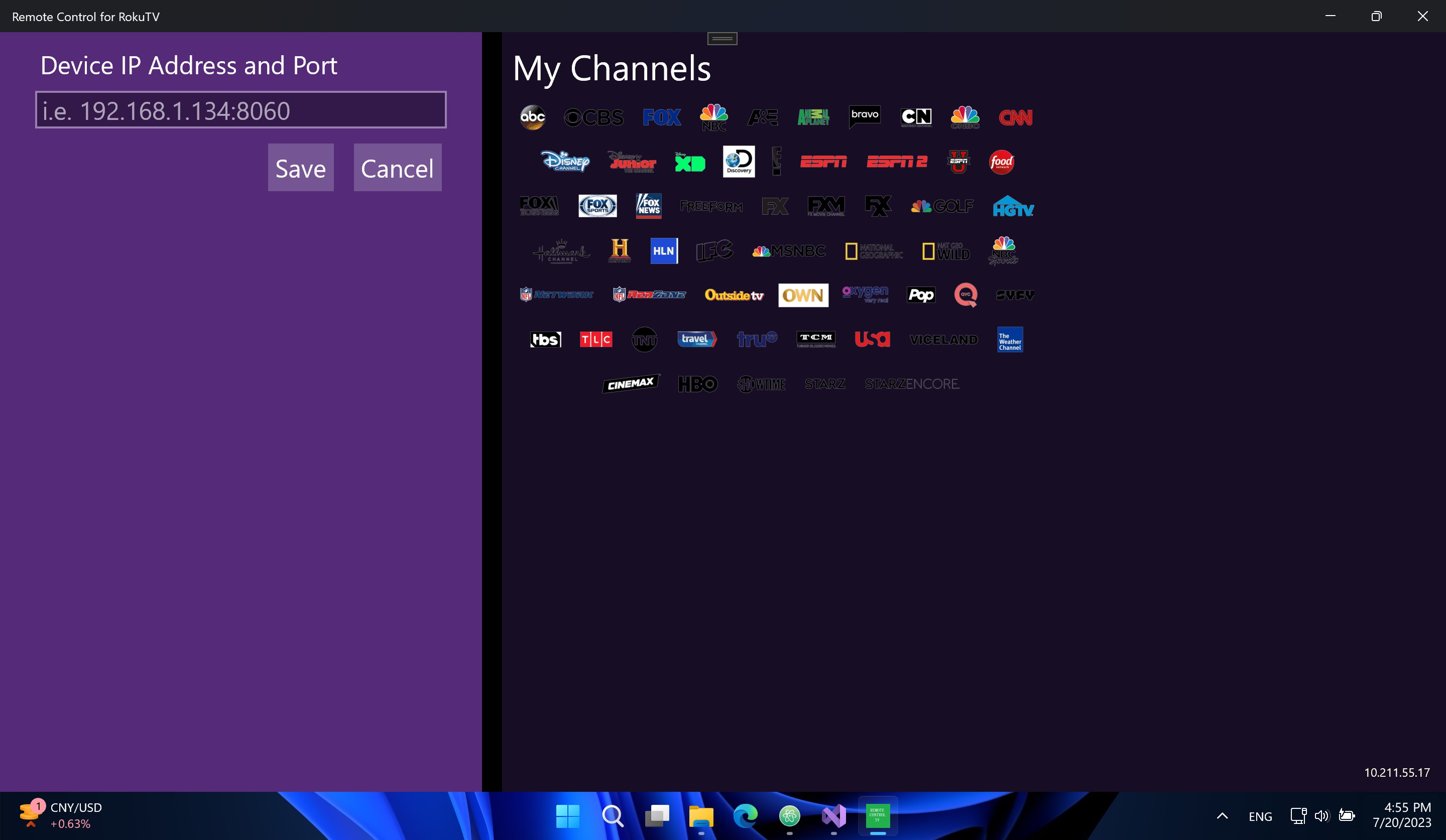
One of the app's standout features is its smooth device detection process. Upon launching, it automatically scans your local network for compatible RokuTVs, presenting a clear list of available devices. The connection process is rapid and stable, ensuring you can start controlling your TV without fuss. This feature excels in households with multiple Roku devices, simplifying the switching process and reducing the need for multiple remotes cluttering your space.
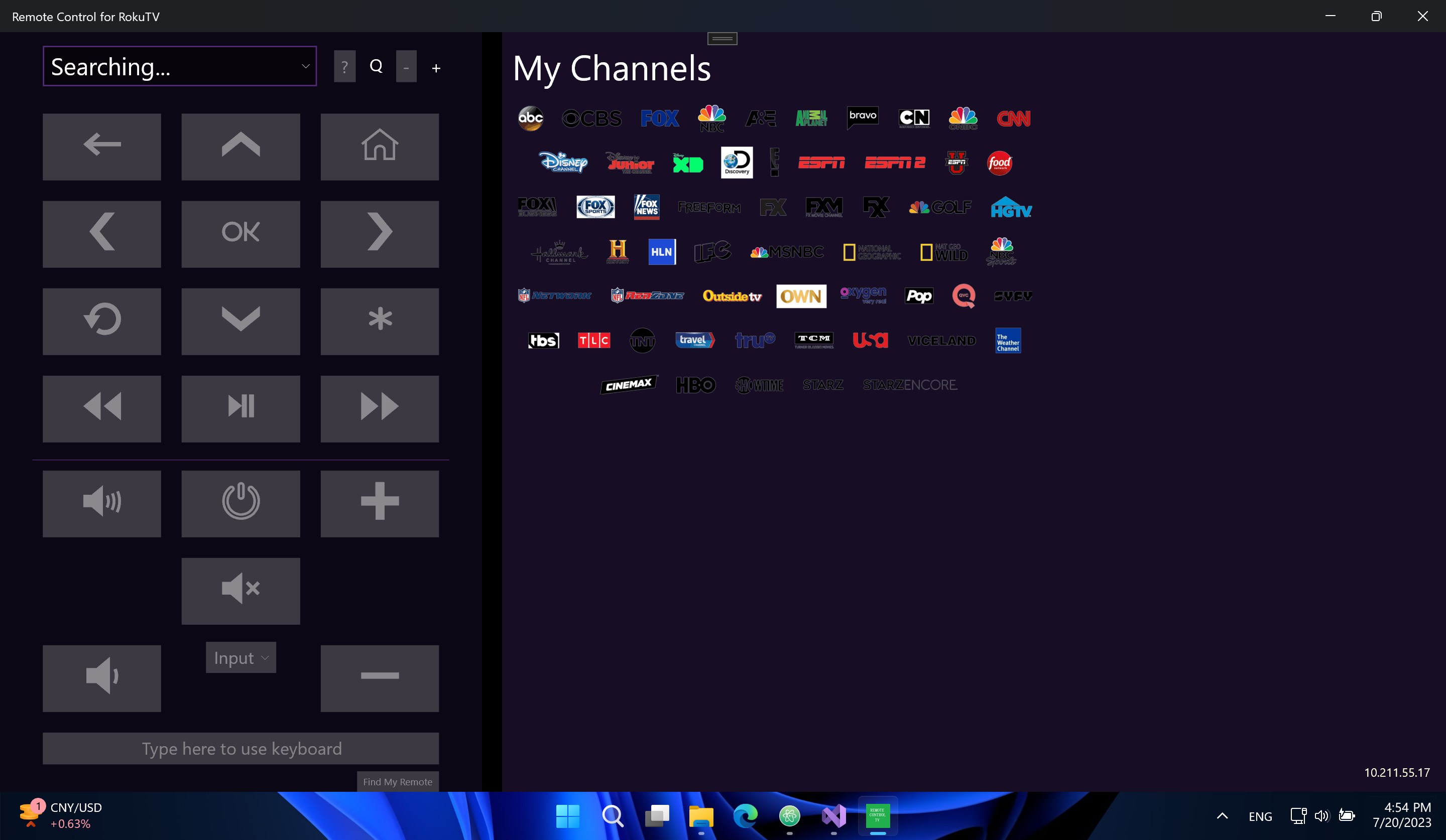
The app offers a comprehensive set of controls, including power toggling, volume adjustment, navigation buttons, and even media playback controls like play/pause and rewind. The interface resembles a classic remote, but with enhancements such as larger touch targets and customizable button layouts. The responsiveness is impressive—the commands register almost instantaneously, providing a fluid experience that feels natural and reliable. This makes browsing streaming apps or adjusting settings feel almost as effortless as using the physical remote.
The interface adopts a clean, modern layout with a dark theme that's easy on the eyes—ideal for late-night binge-watching sessions. The overall design is minimalistic yet functional, avoiding clutter while housing all essential controls in one accessible space. Setup is straightforward: once the app identifies your device, a single click connects it. During testing, the app demonstrated excellent stability and low latency, contributing to a satisfying and frustration-free user experience. The learning curve is gentle, making it suitable for users new to remote apps or those seeking a quick, reliable solution.
While many remote control apps target various smart devices, this app's primary differentiator is its focus on extending genuine content control with authenticity and credibility. It's designed specifically for RokuTV, meaning it leverages the device's native control protocols robustly, ensuring a more reliable and responsive experience. Moreover, its emphasis on minimal setup and automatic device detection sets it apart in the lifestyle control app category. Unlike generic universal controllers, this app's tailored approach means users experience fewer connection issues and better compatibility with Roku devices.
Based on its performance, ease of use, and dedicated focus on RokuTV control, I would recommend this app to anyone who frequently interacts with their Roku device via Windows. Whether you're a casual streamer tired of juggling multiple remotes or someone who prefers controlling everything from a centralized device, this app fits the bill. It's especially valuable in households with multiple Roku TVs, simplifying device management and enhancing the overall viewing experience.
However, note that this app is designed specifically for RokuTVs and Windows, so users expecting a universal remote solution across other device ecosystems might need to explore additional options. Overall, for Roku enthusiasts seeking a reliable, streamlined remote experience, this app is a noteworthy addition to your digital living room toolkit.
User-Friendly Interface
Wide Device Compatibility
Customizable Remote Layout
Additional Features
Fast Response Time
Occasional Connectivity Issues
Limited Customization Options
Battery Drain
UI Slightly Cluttered
Occasional Lag During Heavy Usage
for Windows
 4.9
4.9

for Windows
4.8

for Windows
4.8

for Windows
4.8
for Windows
4.7
for Windows
4.2
for Windows
4.2

for Windows
4
for Windows
3

for Windows
3

for Windows
2.4
for Windows
2.3

for Windows
5

for Windows
5

for Windows
5

for Windows
5

for Windows
5

for Windows
5

for Windows
5

for Windows
5

for Windows
5

for Windows
5