Utilities & tools
V3TApps
PC
Windows 10 version 17763.0 or higher
English (United States)
In an era where capturing moments on your screen isn't just for tech pros but for everyone—from gamers sharing epic wins to educators preparing tutorials—Record Screen - FREE for Windows by V3TApps positions itself as a straightforward yet powerful tool to meet these needs. Let's dive into what makes this app tick and whether it deserves a spot on your desktop.
Record Screen - FREE for Windows is a lightweight application designed for effortless screen recording. Developed and published by V3TApps, it targets users seeking a free, reliable way to capture their screen activities without complicated setups.
Imagine needing to whip up a quick tutorial or share your gaming victory without fuss. Record Screen - FREE simplifies that process. Its interface is intuitive enough to feel like chatting with a tech-savvy buddy—no steep learning curve. You open it, hit record, and voilà—your screen activity is captured in crisp detail.
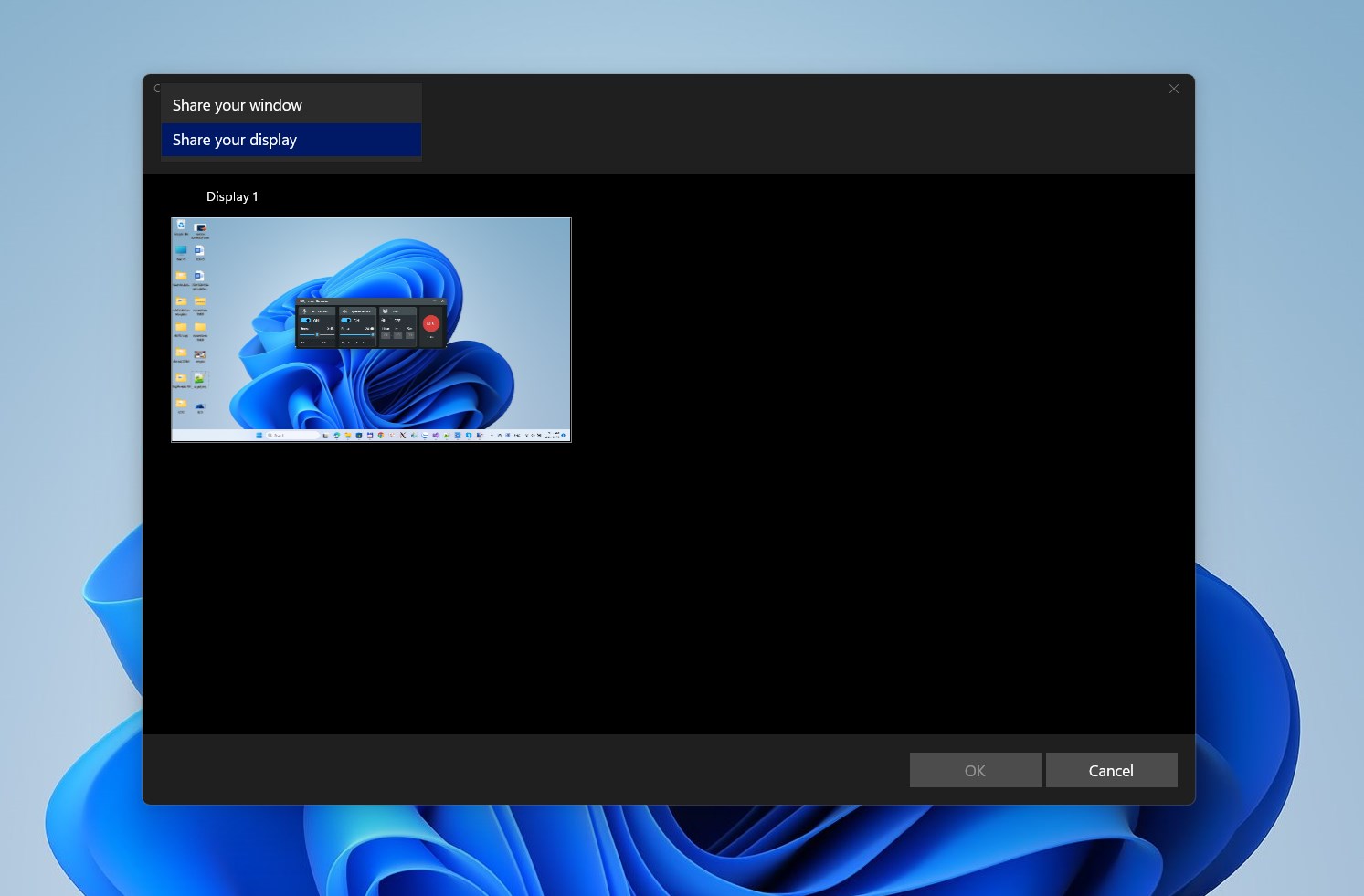
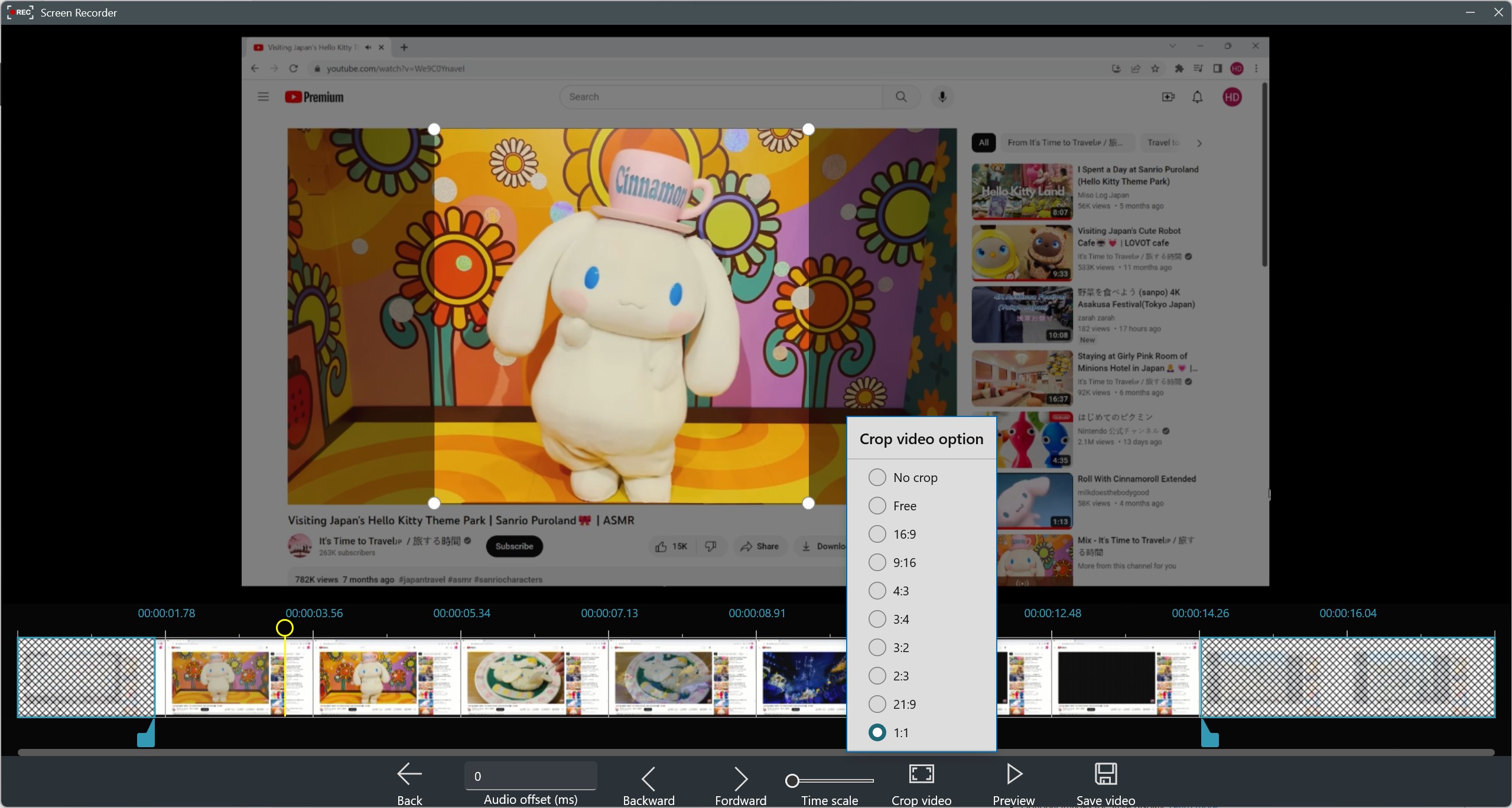
One of the app's shining features is its flexible recording modes. Whether you want to capture your entire desktop or just a slice—say, a specific window or a custom-sized area—it delivers with ease. The process feels as smooth as slicing through butter. You can toggle between full-screen recording and selected sections, making it adaptable whether you're recording a presentation or a gameplay highlight. It supports hotkeys for quick start and stop, which is a bonus for keeping the workflow seamless.
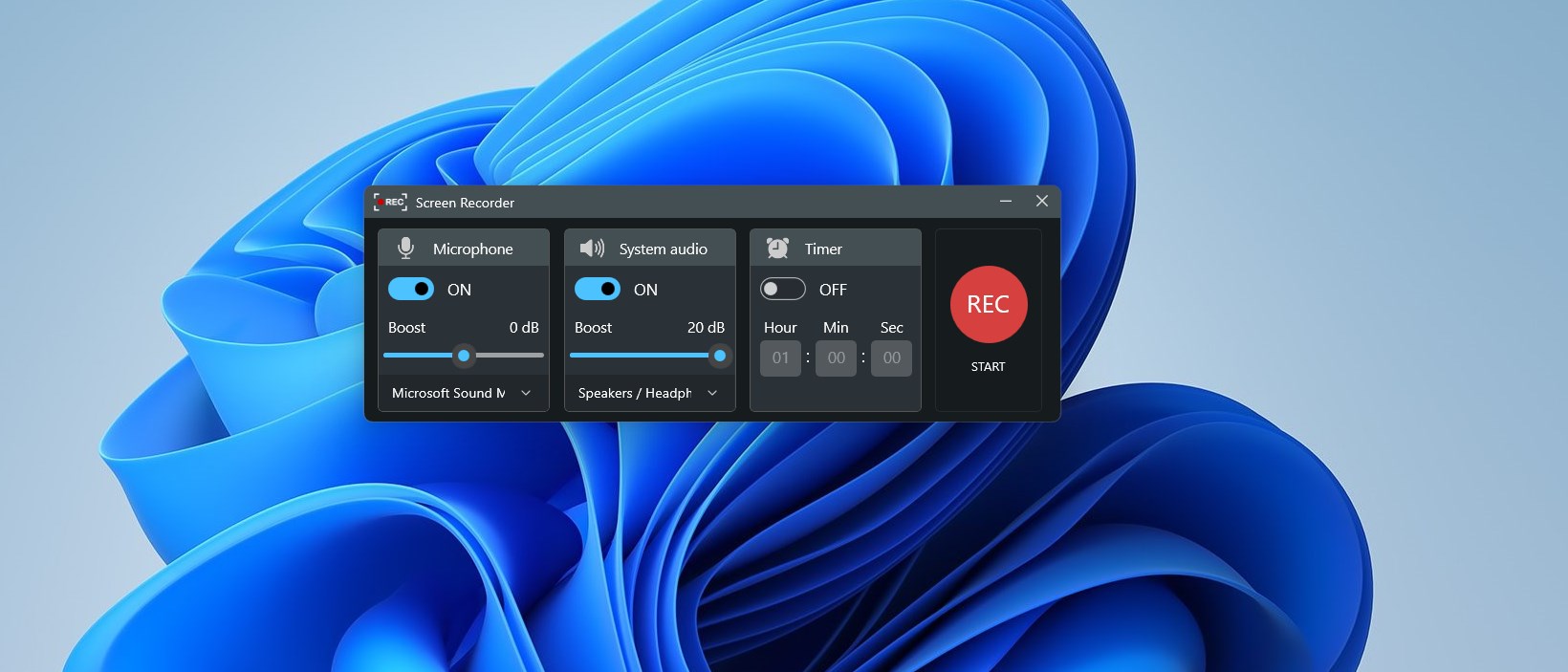
The app's interface resembles a friendly dashboard—minimalist, clean, and straightforward. From the moment you launch it, each button has a purpose, and the icons are familiar and uncluttered. Even if you've never used screen recording software before, you'll find it straightforward to create your first recording within minutes. The learning curve is gentle enough for absolute beginners but still offers enough options for more experienced users seeking quick customization.
During tests, Record Screen - FREE demonstrated commendable responsiveness. Launching the app and starting a recording feels instantaneous—there's no lag or stuttering. Recording a 10-minute session, even with high-resolution settings, remained smooth, with the app consuming a modest amount of system resources. Stopping and saving videos happens quickly, and exported files are usable immediately in common media players. This reliability makes it an appealing choice for professional or casual use alike.
While many screen recorders flood the market with complex features and high price tags, Record Screen - FREE distinguishes itself with its focus on simplicity and speed. Its main differentiator is the streamlined experience it offers—there are no overwhelming settings or unnecessary bells and whistles. Instead, it emphasizes essential functions that users need daily. Additionally, its ability to select specific recording areas sets it apart from one-size-fits-all options.
Another compelling point is its no-cost model—no watermarks or watermarks—making it ideal for professional projects or casual sharing without extra fuss. Compared to similar utilities, which can sometimes feel bloated or complicated, this app feels like a trusty toolkit—no clutter, just what you need.
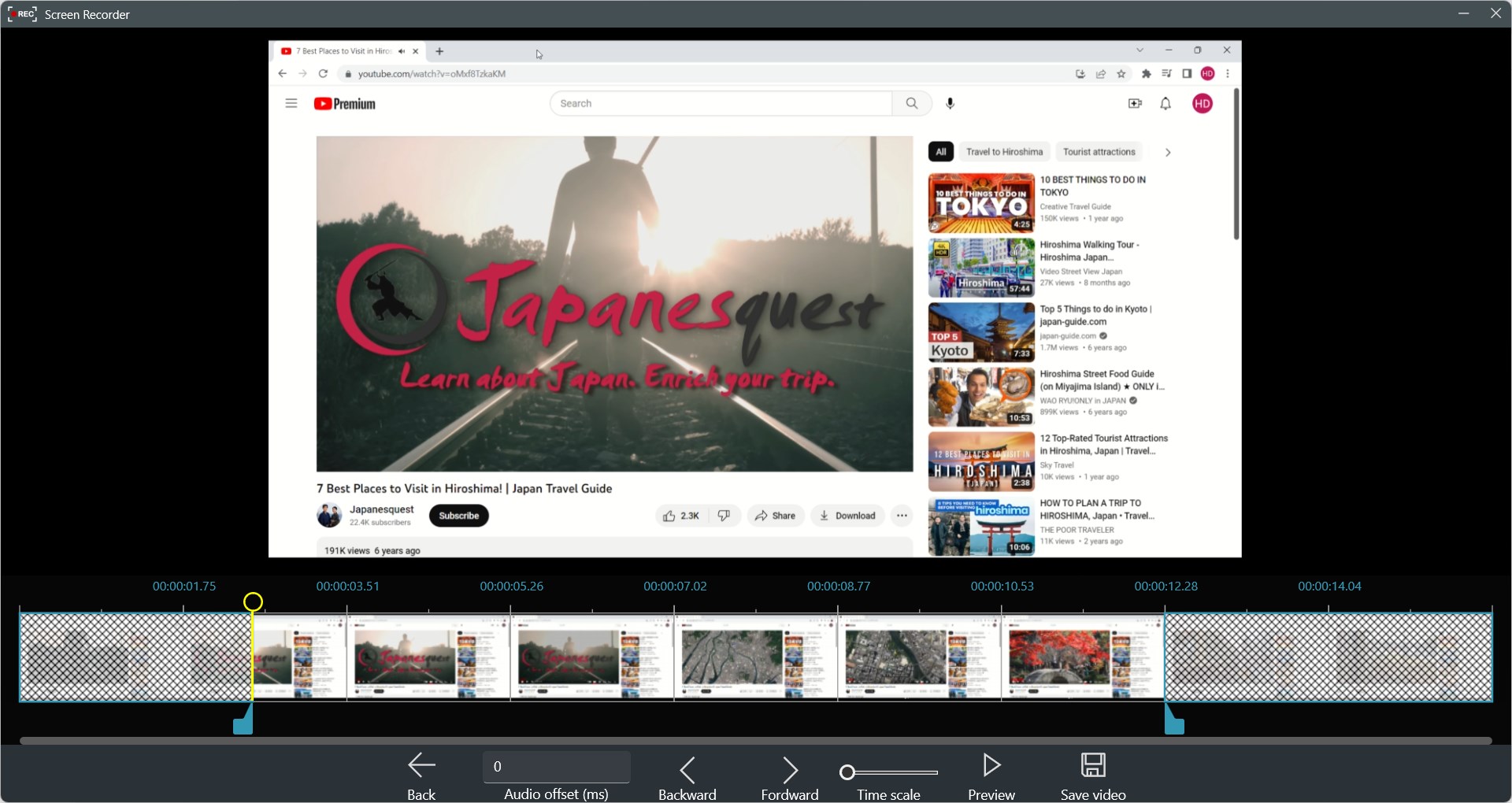
Ultimately, Record Screen - FREE for Windows offers a solid balance of simplicity, speed, and reliability. It's highly recommended for those who want a no-frills, free tool to capture their screen activities efficiently. It's perfect for quick tutorials, game clips, or casual recordings. While it may lack some advanced editing features, its core strength lies in being a straightforward recorder that gets the job done without fuss.
If you're searching for a lightweight, easy-to-use screen recording solution that won't overwhelm you with options or cost, this app deserves a strong look. Just remember—its simplicity means it's best suited for standard recording tasks, not complex editing workflows. Give it a try; it might just become your go-to recording companion.
User-Friendly Interface
Free of Charge
Basic Editing Features
High-Quality Recording
Quick Start
Limited Customization Options
No Audio Recording Support in Some Versions
Lack of Advanced Editing Tools
Possible Performance Delays on Low-End Devices
Limited Export Options

for Windows
 5
5

for Windows
5

for Windows
5
for Windows
5

for Windows
5

for Windows
4.9

for Windows
4.9

for Windows
4.9

for Windows
4.9

for Windows
4.9

for Windows
4.9

for Windows
4.9

for Windows
5

for Windows
5

for Windows
5
for Windows
5

for Windows
5

for Windows
5

for Windows
5

for Windows
5

for Windows
5

for Windows
5