Photo & video
Xiaoya Lab.
PC
Windows 10 version 17763.0 or higher
English (United States)
Real HEIC to JPG Converter for Windows by Xiaoya Lab offers a straightforward solution for users needing to convert HEIC images into more widely compatible JPG formats. Designed with simplicity and efficiency in mind, this app streamlines a common yet often frustrating task for Windows users and photographers alike.
Developed and published by Xiaoya Lab., this application targets users who frequently deal with HEIC images, such as photographers, graphic designers, or casual users sharing images across platforms. Its main highlights include rapid batch conversion, high-quality output, and an intuitive interface, all crafted to make the conversion process hassle-free. Additionally, the app supports multiple HEIC files simultaneously, saving time during larger projects.
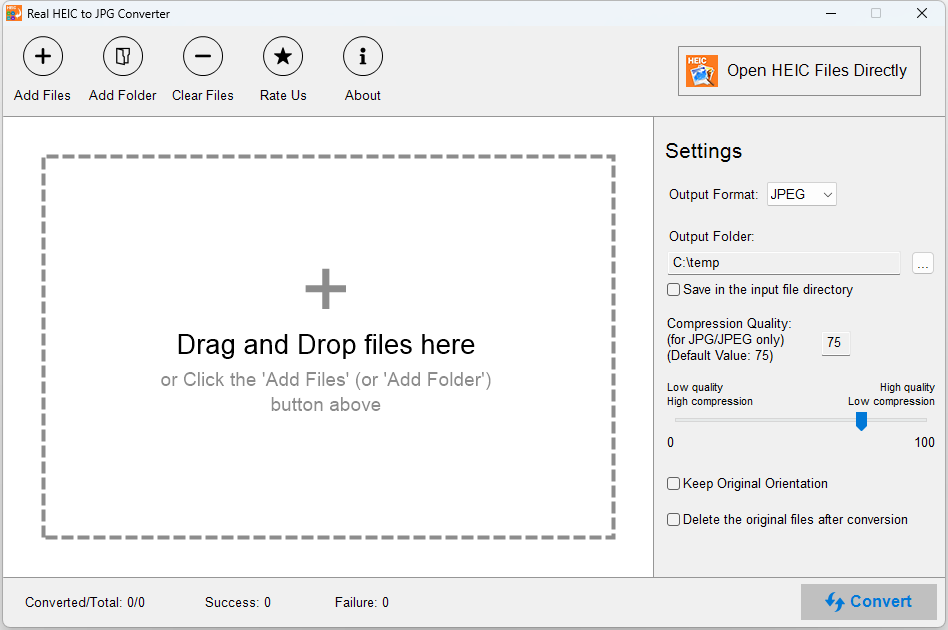
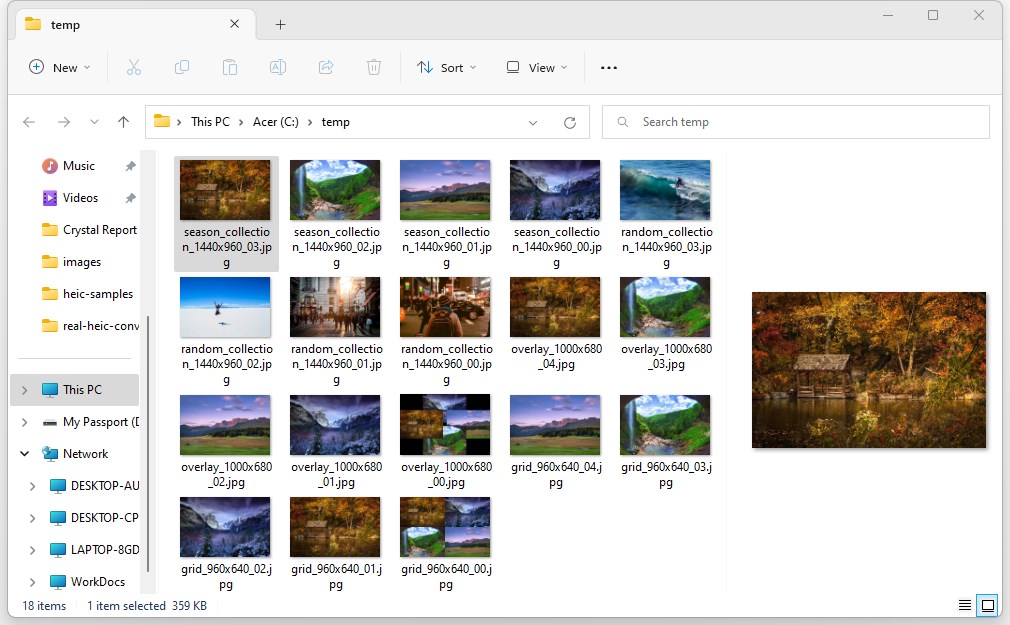
Imagine you've just snapped a stunning sunset on your iPhone, and now you're eager to edit or upload the image on your Windows PC. But alas, the HEIC format isn't as friendly as JPG or PNG for many third-party applications. This is where Real HEIC to JPG Converter becomes your reliable bridge. Opening the app feels like unlocking a straightforward gateway—clean layout, simple buttons, no confusing menus—perfect for those who prefer to keep things uncomplicated and effective.
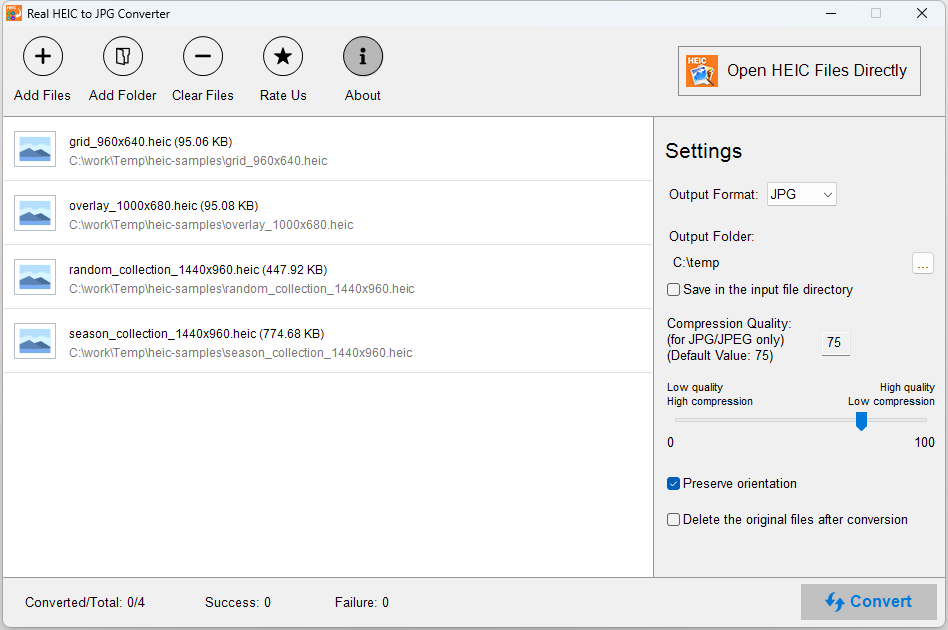
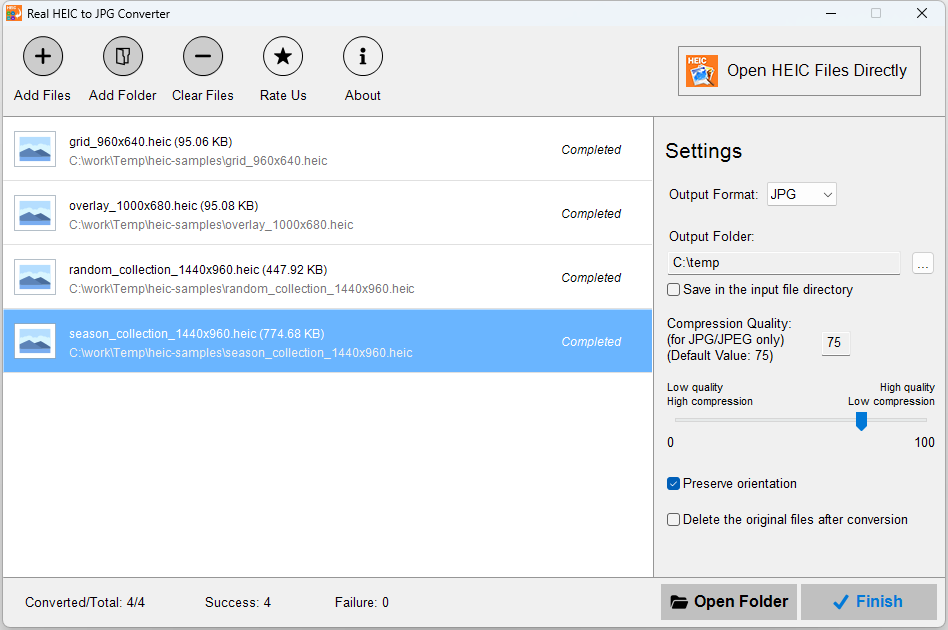
The standout feature here is its ability to process multiple HEIC files at once. Drag-and-drop your images into the interface, hit convert, and watch the magic happen in seconds—like a magic wand for your photo library. The conversion speed is impressive, even with large quantities, making it ideal for professional workflows or quick personal fixes.
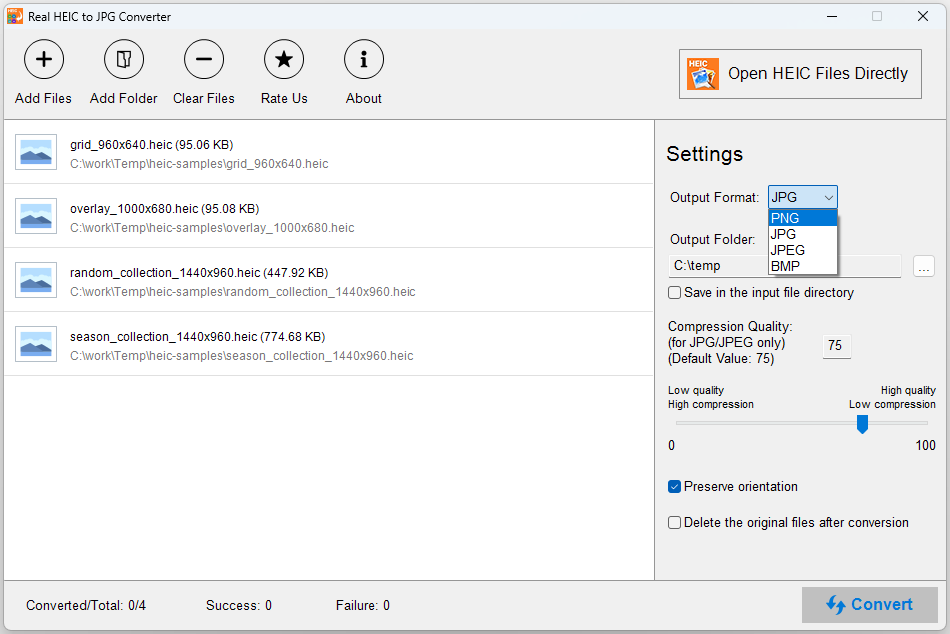
Quality matters when it comes to preserving the details of your precious images. This app ensures high fidelity in the JPGs it produces, with minimal compression artifacts. Users can also specify output folders, maintaining organized workflows. For those who want extra control, the app offers basic options like adjusting image resolution, catering to both novice and advanced users.
The interface is akin to a tidy workspace—minimal clutter, friendly buttons, and immediate accessibility. The learning curve is almost nonexistent: install, drag your HEIC files, and click convert. The operation flow feels like guiding a friend through a familiar path, with no detours or confusing steps. The app responds promptly, ensuring that users aren't left staring at a spinner for minutes on end. Small animations and clear labels add to the pleasant usability experience.
While many conversion tools exist, Real HEIC to JPG Converter distinguishes itself through its focus on speed and batch processing efficiency. Unlike more complex tools that might require extensive setup or lossless options with extra settings, this app emphasizes just getting the job done swiftly and reliably. Its straightforward interface, combined with high-quality output, makes it especially appealing for users who need quick conversions without overthinking settings.
Compared to other photo or video apps, which may bundle various editing features, this app's specialization is its strength. It acts like a precision tool rather than a Swiss Army knife, giving users confidence that their images will be converted correctly without unnecessary complexity.
If your goal is a reliable, fast, and easy way to convert HEIC images to JPG on Windows, Real HEIC to JPG Converter is a solid choice. It's particularly suitable for photographers or casual users juggling multiple images who value speed and simplicity over extensive editing features. For those frequently converting large image batches, its batch processing capability becomes a valuable asset.
While power users seeking advanced editing or format options might look elsewhere, for a straightforward conversion solution, this app provides a friendly and efficient experience. I would recommend giving it a try if you need a lightweight, dependable tool to unlock your HEIC images and make them accessible across all your favorite Windows applications. It's like having a reliable translator for your images—no fuss, just results.
User-Friendly Interface
Fast Conversion Speed
Supports Batch Conversion
High-Quality Output
No Registration Required
Limited Formats Supported
Basic Editing Features Missing
No Mobile Version
Occasional Compatibility Issues
Lacks Advanced Settings

for Windows
 5
5

for Windows
4.9

for Windows
4.8

for Windows
4.8

for Windows
4.8

for Windows
4.7

for Windows
4.7
for Windows
4.7

for Windows
4.7

for Windows
4.7

for Windows
4.7
for Windows
4.7

for Windows
5

for Windows
5

for Windows
5

for Windows
5

for Windows
5

for Windows
5

for Windows
5

for Windows
5

for Windows
5

for Windows
5