Productivity
Pkzoid (Akash Siddique)
PC
Windows 10 version 0.0 or higher
English, English (United States)
Quick Optimizer for Windows is a lightweight utility designed to enhance system performance and streamline workflows through simple yet effective optimization tools. Developed byPkzoid (Akash Siddique), this app aims to provide users with an accessible way to keep their Windows environment running smoothly, especially for those juggling multiple tasks daily.
Created byPkzoid (Akash Siddique), a developer with a focus on user-centric utilities, this application is part of a small but dedicated portfolio aimed at improving PC efficiency. Their approach emphasizes minimalism and user friendliness, making system optimization approachable even for non-technical users.
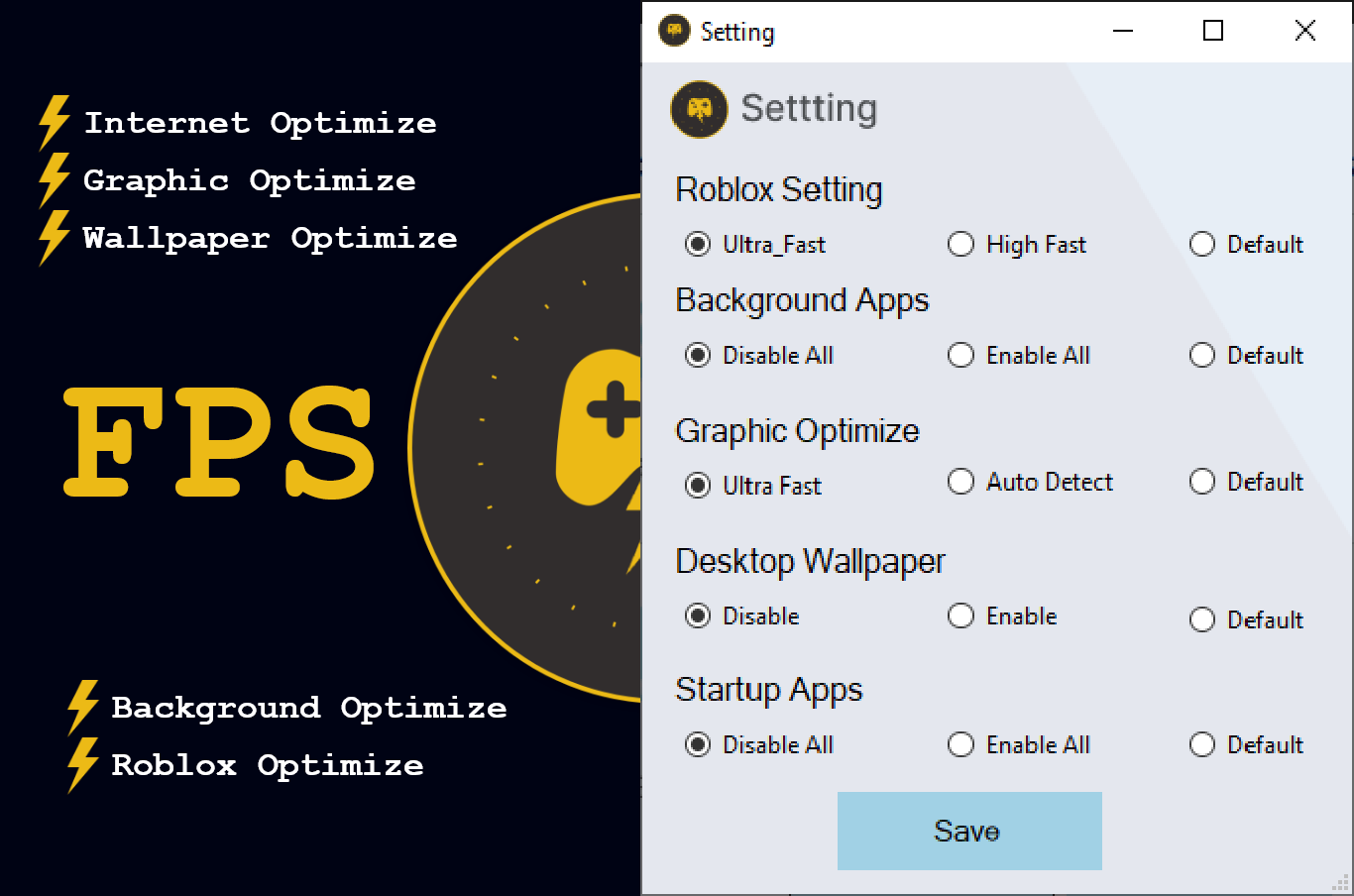
Imagine your computer as a busy highway; over time, traffic congestion (junk files, unnecessary background apps) slows everything down. Quick Optimizer transforms your system into a well-oiled machine with just a few taps. Its straightforward interface invites users to perform decluttering and tuning effortlessly—no technical jargon, no confusing menus. This ease of use makes it appealing not only for tech-savvy users but also for everyday folks seeking quick performance boosts.
First, the 'One-Click Optimization' feature acts like a digital spring cleaning service. When invoked, it swiftly scans and removes redundant files, temporary data, and system clutter—akin to tidying up a cluttered garage in minutes. The process is unobtrusive and swift, often completing in seconds, delivering an immediate feel-good boost in system responsiveness.
Secondly, the 'Startup Manager' helps declutter your digital life by managing what programs run as your computer boots. Think of it as trimming the fat from your morning routine—disabling unnecessary startups means your PC wakes up faster, and your workflow is smoother from the get-go. The interface displays a clear list of programs, allowing users to toggle options with ease. It's a strategic tool to reduce cognitive load and streamline system initialization.
Finally, resource monitoring presents real-time graphs of CPU, memory, and disk usage. It's like having a dashboard in your car—giving you instant feedback on system health and helping you identify resource hogs. This feature is particularly handy when troubleshooting slowdowns or planning upgrades.
The application's user interface adopts a clean and intuitive design, with clearly labeled buttons and minimal clutter—a breath of fresh air in a sea of complicated optimization tools. Navigating through features feels natural, akin to chatting with a tech-savvy friend rather than deciphering arcane settings. The learning curve is practically non-existent; most users can operate it confidently after a brief glance.
In terms of performance, Quick Optimizer is remarkably responsive. Tasks complete swiftly, and there's no noticeable lag or stutter—crucial factors for users seeking instant results without slowing down their work process. Its streamlined workflow focus reduces cognitive load: users don't need to sift through endless options; instead, they grasp the core functions quickly, making for a smooth experience.
Compared to many productivity or system optimization tools cluttered with features, Quick Optimizer's standout trait is its emphasis on **workflow integration efficiency**. Its one-click operation and scheduled maintenance eliminate the typical complexity that often overwhelms users. Unlike apps that drown you in options and metrics, this tool reduces feature overload, focusing on effective, targeted actions that truly impact performance.
Another unique angle is how it minimizes **cognitive load**—by automating routine cleanup and offering straightforward controls, it empowers users to keep their system optimized with minimal mental effort. The design philosophy strikes a balance: providing enough functionality to be useful without becoming a confusing maze of settings.
Quick Optimizer for Windows earns a friendly thumbs-up for users seeking an uncomplicated, efficient way to maintain their PC's health. Its most compelling feature—an effortless one-click optimization combined with intelligent startup management—serves as a game-changer for users tired of slow boot times or sluggish performance. If your goal is to keep your machine running smoothly without a steep learning curve or invasive tools, this app is worth adding to your toolkit.
We recommend this application for anyone from busy professionals to casual users looking for a stress-free performance boost. Keep in mind, while it's excellent for routine maintenance, it's not a substitute for more comprehensive diagnostics or hardware upgrades for persistent issues.
In essence, Quick Optimizer for Windows proves that sometimes, less really is more—simple, targeted solutions can deliver substantial benefits when thoughtfully executed.
User-Friendly Interface
Effective System Cleanup
One-Click Optimization
Real-Time Monitoring
Additional Tools
Limited Deep Cleaning Options
Occasional False Positives
No Advanced Customization
Potential for Over-Optimization
Performance Impact During Scans

for Windows
 5
5
for Windows
5

for Windows
4.9

for Windows
4.9

for Windows
4.9

for Windows
4.8

for Windows
4.8

for Windows
4.8

for Windows
4.8

for Windows
4.8

for Windows
4.8

for Windows
4.8

for Windows
5
for Windows
5

for Windows
5

for Windows
5

for Windows
5

for Windows
5

for Windows
5

for Windows
5

for Windows
5
for Windows
5