Developer tools
PC
Windows 10 version 17763.0 or higher
Integrated Keyboard
1 GB
Not specified
English (United States)
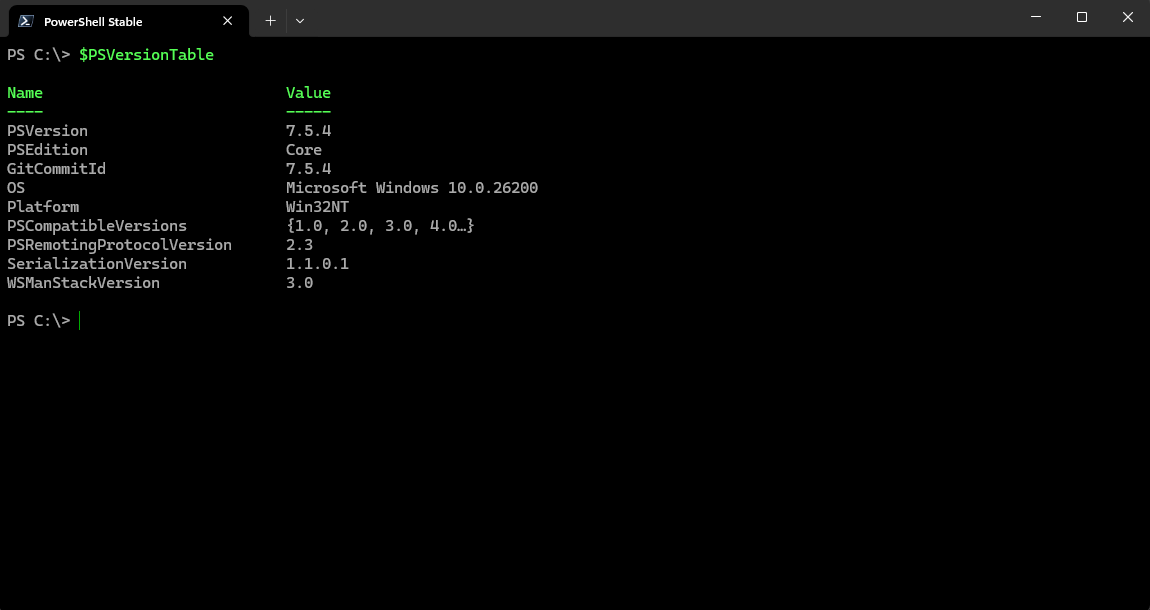
PowerShell for Windows is a comprehensive command-line scripting environment designed to optimize and streamline Windows management tasks, offering an enhanced experience for both advanced users and IT professionals.
Developed by Microsoft Corporation, PowerShell for Windows is positioned as a versatile automation and configuration platform tailored for system administrators, DevOps engineers, and tech enthusiasts seeking a powerful way to control and automate Windows systems.
Imagine having a Swiss Army knife for your Windows system—PowerShell for Windows is exactly that, combining complexity with accessibility to make tech tasks feel less like chores and more like crafting a curator's masterpiece. Whether you're automating routine tasks or digging into advanced configurations, this tool promises a smooth and empowering experience.
The heart of PowerShell for Windows beats in its scripting prowess. From simple automations like bulk file management to complex workflows integrating with Azure and other cloud services, this application transforms days of tedious manual work into minutes of clever scripting. Its extensive cmdlet library provides granular control over Windows components, making it a favorite for system administrators who need reliable, repeatable procedures.
This version's most compelling feature is its continuous expansion of modules. Imagine having a toolbox that updates itself automatically, always equipped with the latest tools for tasks like network diagnostics, security auditing, and system health monitoring.
PowerShell for Windows doesn't operate in isolation—it's tightly woven into the Windows fabric. Its deep integration with Windows Management Instrumentation (WMI), Common Information Model (CIM), and other Microsoft services ensures seamless management across devices and servers. Especially notable is its compatibility with Azure and Office 365, enabling hybrid cloud management from a single command-line interface.
This integration is akin to having a universal remote control for your entire digital infrastructure—powerful, intuitive, and ready to adapt as your environment evolves.
The interface feels both familiar and approachable for anyone used to Windows Command Prompt, yet it offers more clarity and organization. The command-line environment is responsive, with auto-completion and syntax highlighting that make scripting feel less like deciphering hieroglyphs and more like painting on a digital canvas. While there is a learning curve—particularly for those new to scripting—the abundance of tutorials, documentation, and community support makes the journey less daunting.
Compared to other developer tools, PowerShell's design emphasizes clarity and consistency, which is vital for complex tasks where clarity can save hours of troubleshooting.
The most remarkable feature of this application is its ability to unify diverse management tasks under a single, cohesive scripting environment, especially its integration with cloud services. While some competitors focus solely on local or cloud management, PowerShell's hybrid support makes it uniquely versatile. Additionally, Microsoft's commitment to open-source modules means this tool continues evolving with contributions from a global developer community, ensuring it stays relevant and forward-looking.
Overall, PowerShell for Windows deserves a solid recommendation for those who spend time managing Windows environments—whether it's for automation, troubleshooting, or integration with cloud services. It's best suited for users willing to invest some time in learning its syntax and capabilities to unlock its full potential.
If you're someone who enjoys turning complex tasks into simple scripts or managing multiple devices efficiently, this tool will be an invaluable addition to your software arsenal. For newcomers, a gradual learning approach coupled with the rich ecosystem of tutorials will ensure a smooth onboarding experience.
PowerShell scripting capabilities
Deep integration with Windows OS
Cross-platform support
Rich command library
Strong community and support
Steep learning curve
Performance issues with large scripts
Limited GUI options
Inconsistent command behaviors across platforms
Security restrictions for remote execution

for Windows
 5
5

for Windows
4.6
for Windows
4.6

for Windows
4.6
for Windows
4.5

for Windows
4.4
for Windows
4.4
for Windows
4.3

for Windows
4.3
for Windows
4.3

for Windows
4.3

for Windows
4.2

for Windows
5

for Windows
5
for Windows
5

for Windows
5

for Windows
5

for Windows
5

for Windows
5

for Windows
5

for Windows
5

for Windows
5