Utilities & tools
四川法尔考智能科技有限公司
PC
Windows 10 version 17763.0 or higher
Arabic, Chinese (Simplified), Chinese (Traditional Chinese), English, French, German, Hindi, Indonesian, Italian, Japanese, Korean, Portuguese, Portuguese (Brazil), Russian, Spanish, Thai, Vietnamese
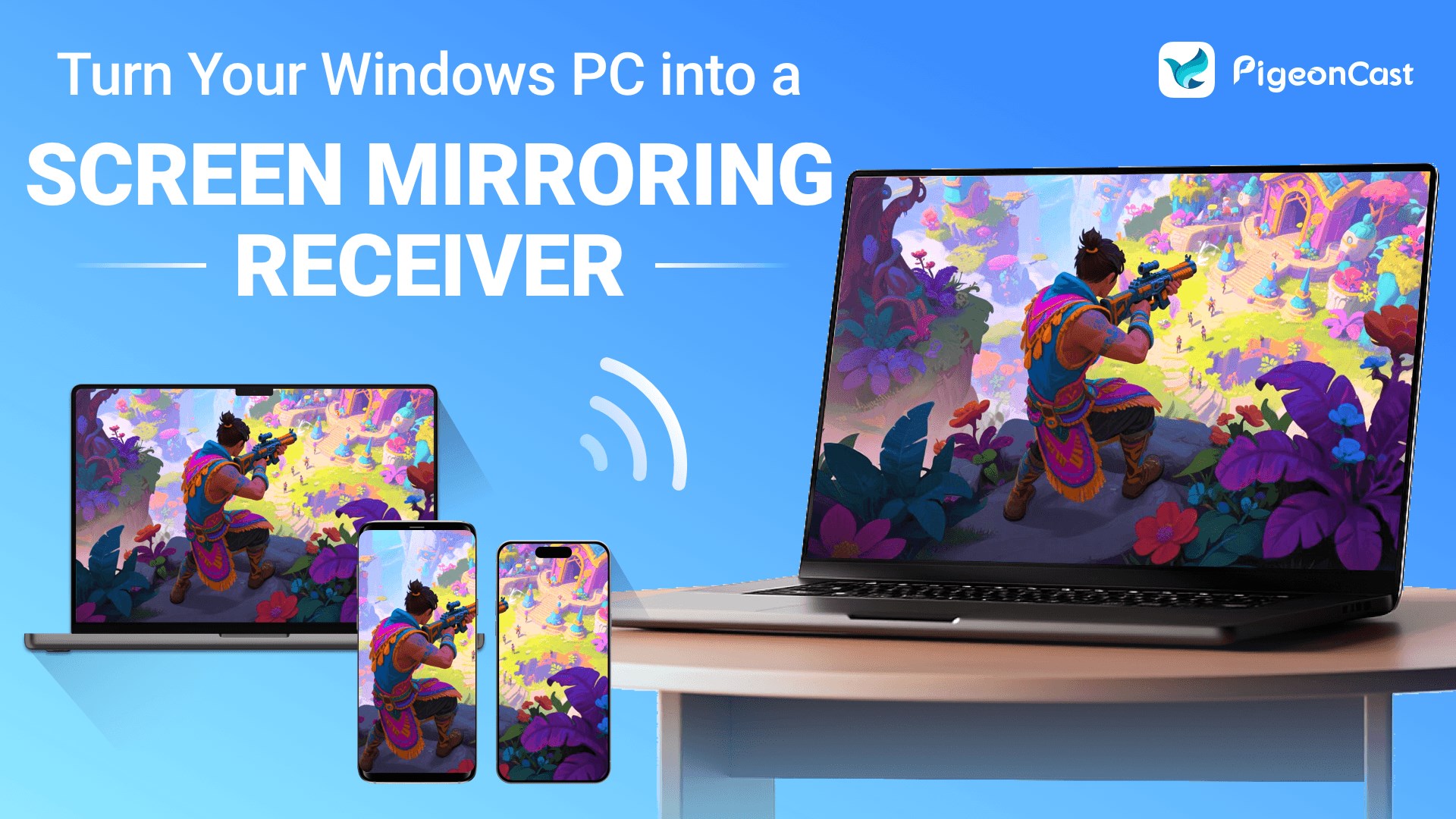
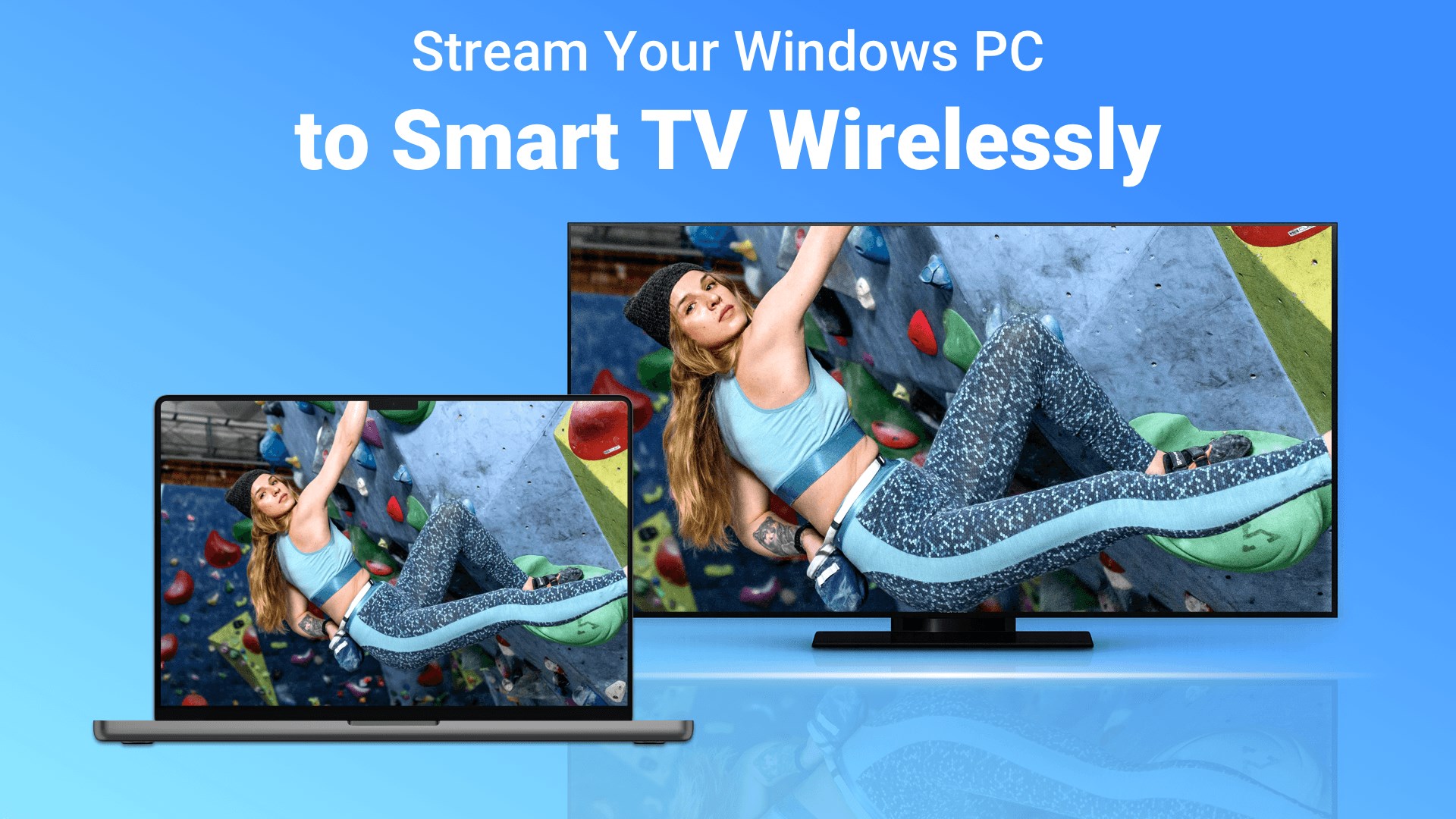
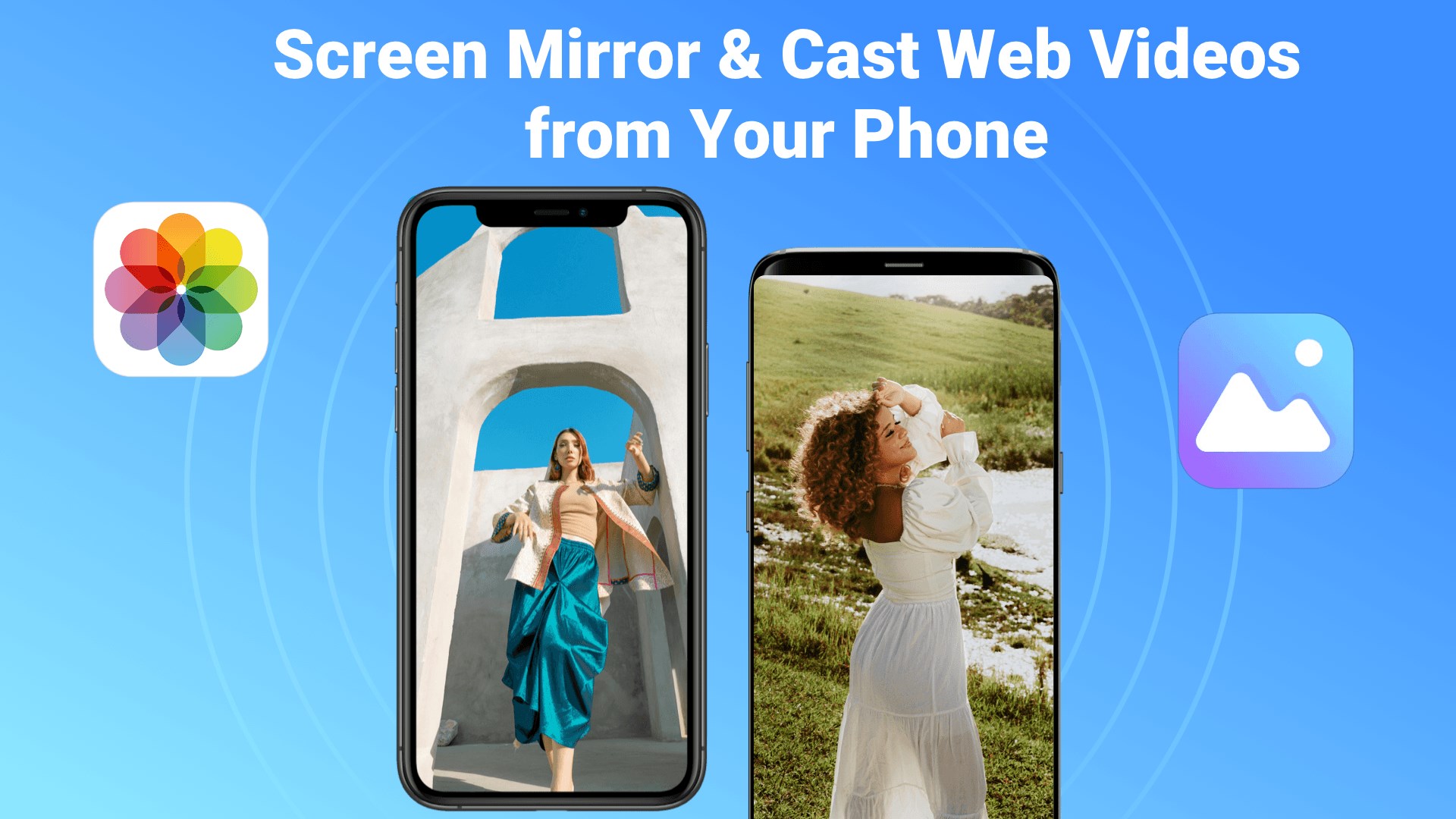
Ever tried to mirror your favorite videos or music from your mobile devices to your Windows PC but found the native support lacking? PigeonCast by 四川法尔考智能科技有限公司 offers a straightforward solution to cast media effortlessly via AirPlay and Google Cast, bridging the gap between your devices with ease.
Unlike many utilities limited to a single casting protocol, PigeonCast supports both AirPlay and Google Cast, making it a versatile tool capable of connecting with a wide range of devices—from Apple's ecosystem to Chromecast-enabled gadgets. This dual compatibility ensures users aren't constrained by device brands or ecosystems, transforming their Windows PC into a unified media hub.
The app sports a clean, minimalistic design reminiscent of a well-organized media control center. Navigating through its options feels natural and straightforward, even for those new to casting technology. The interface's layout prioritizes ease of use, allowing users to initiate casting sessions with just a few clicks, making the app approachable for both tech enthusiasts and everyday users.
One of the most critical aspects of any casting app is its stability. PigeonCast excels here by establishing consistent connections and maintaining high-quality streaming without frequent interruptions. The app's optimized performance minimizes lag, ensuring that your media plays smoothly, turning your Windows device into a reliable casting receiver akin to a trusted concert hall stage for your content.
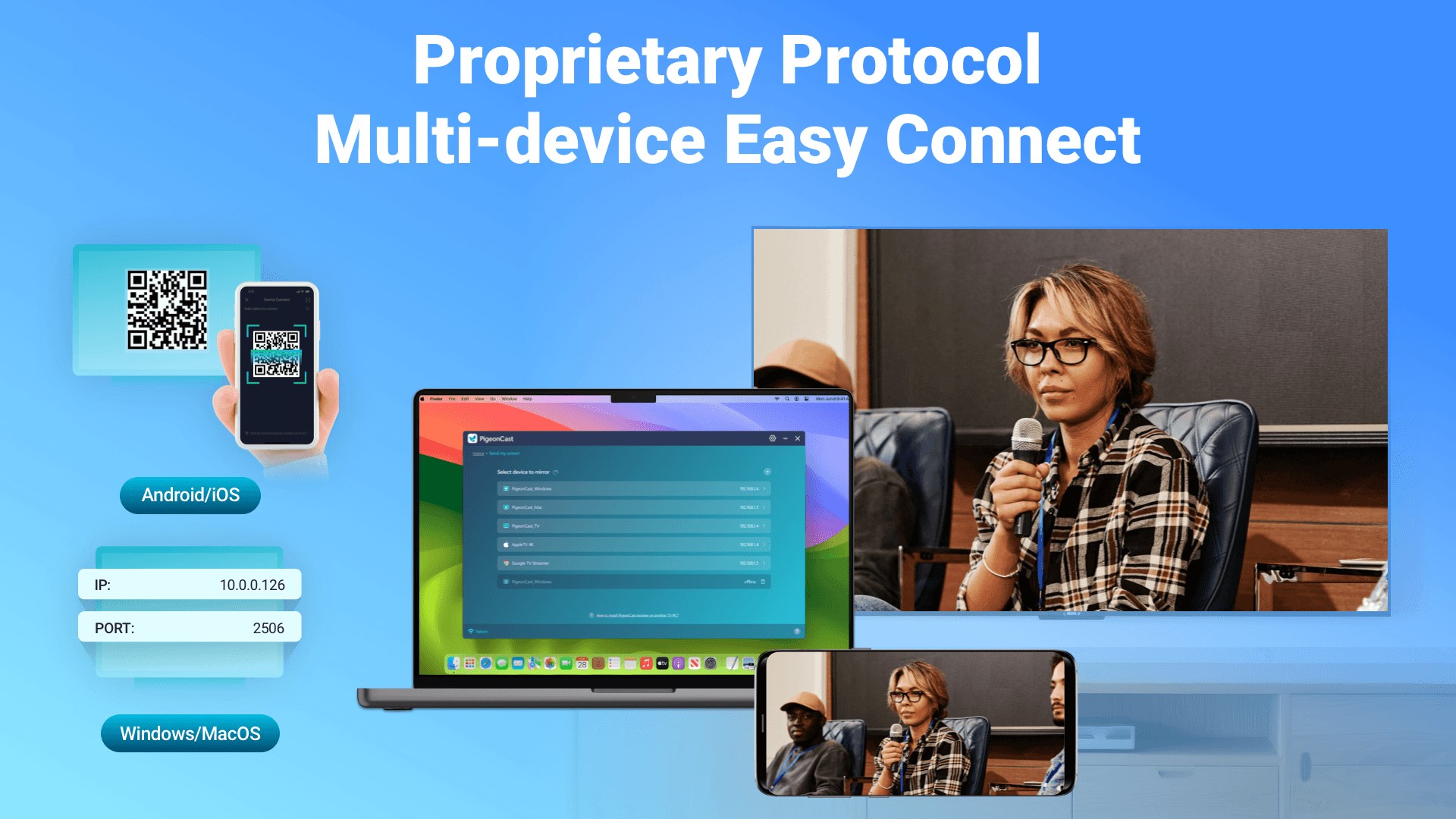
Imagine walking into a room where all your smart devices instantly recognize each other—it's akin to a social network of gadgets. PigeonCast automatically detects available AirPlay and Google Cast devices on your network, displaying them clearly within the interface. Connecting is just a matter of clicking the device name; no complex configurations or IP address inputs are required. This plug-and-play approach significantly reduces the setup time and frustration often associated with casting tools.
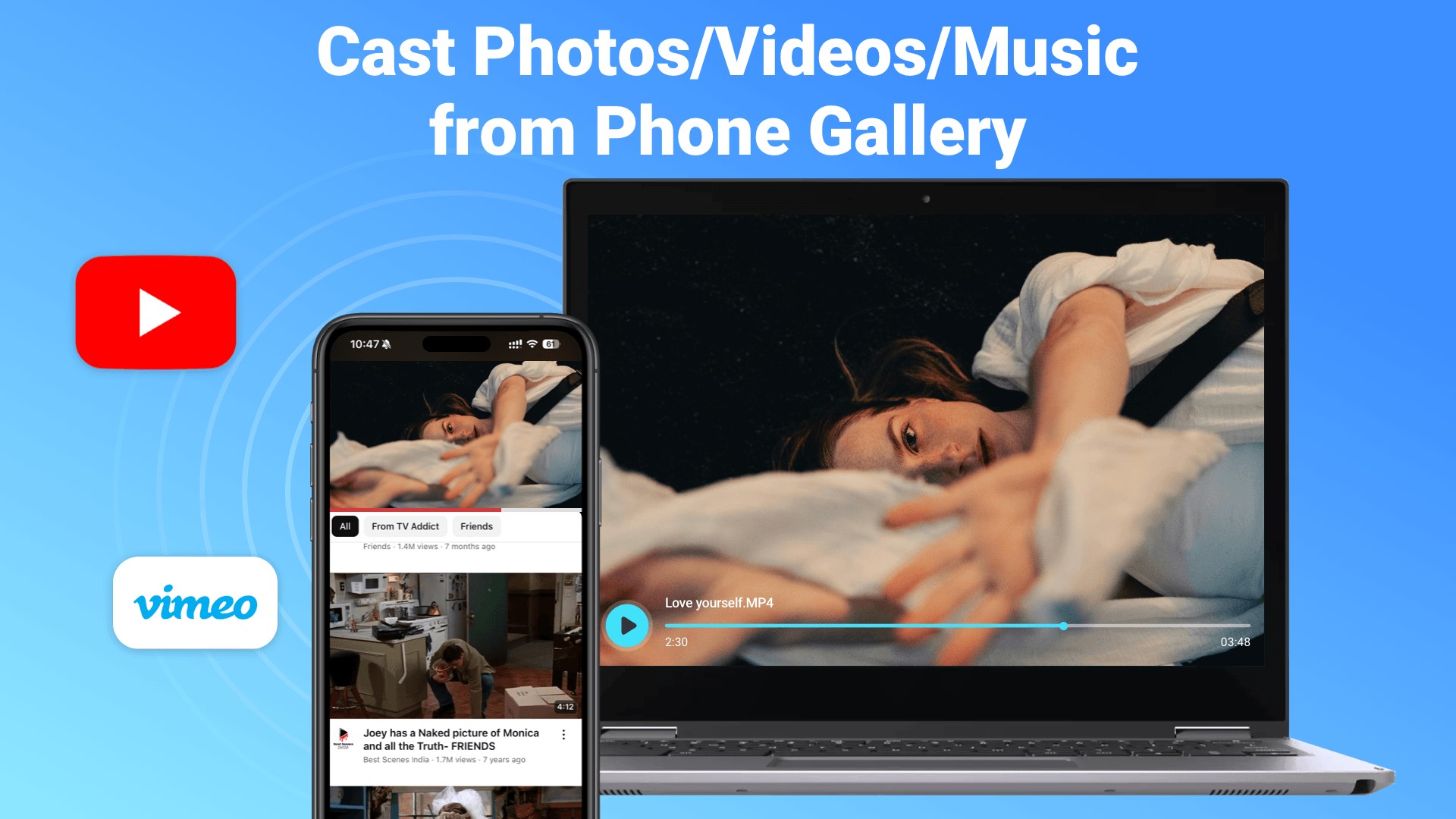
This app doesn't just mirror; it elevates your media management experience. Users can select media files from their PC to cast, or even mirror entire screens with minimal delay. Playback controls embedded within the interface allow pause, play, volume adjustment, and even disconnects effortlessly. Whether you're streaming a playlist or giving a presentation, PigeonCast keeps your media experience fluid and under control, as if directing a live performance.
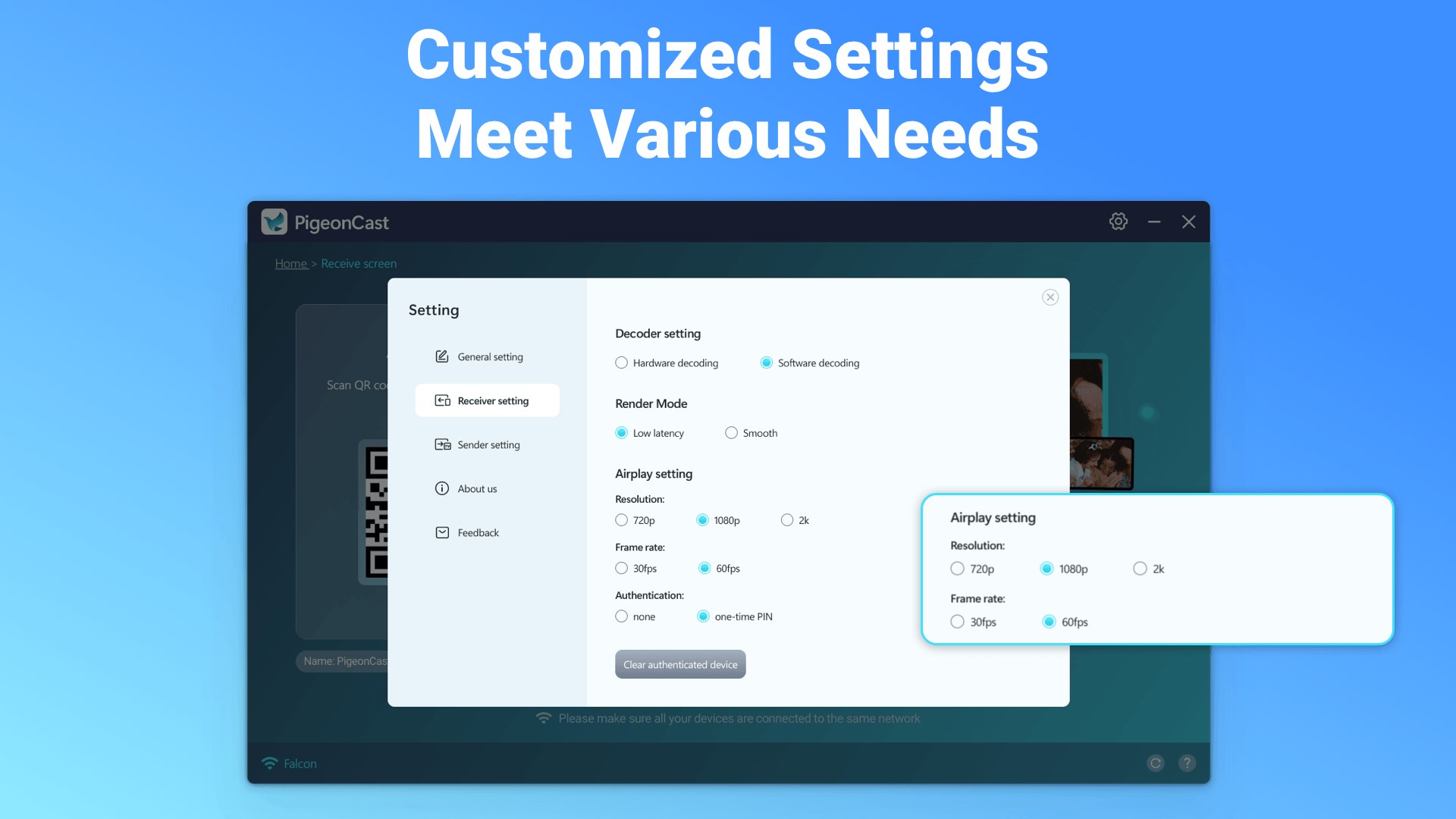
Advanced users will appreciate the app's configurable options—such as adjusting streaming quality, managing multiple device profiles, and setting default protocols. These settings provide a tailored experience, ensuring optimal performance aligned with your network conditions and device capabilities. It's like tuning an instrument until it's pitch-perfect, ensuring every cast is harmonious.
The layout and design of PigeonCast make it exceptionally approachable, reducing the typical learning curve that often deters casual users. Its stability and multi-protocol support create a compelling alternative to other casting utilities that sometimes require complex setups or only support one protocol. What truly sets it apart is the combination of ease of use with reliable performance—a rare pairing in the crowded world of media tools, which often sacrifice stability for simplicity or vice versa.
If you're seeking a free, efficient, and reliable way to cast media from your Windows PC to other devices via AirPlay or Google Cast, PigeonCast is worth trying. Its straightforward interface, robust stability, and dual-protocol support make it stand out from many similar utilities. For users who regularly switch between Apple and Chromecast devices or want a hassle-free solution for media sharing, this app offers a smart and practical choice.
While it might not replace dedicated casting hardware or advanced features found in premium apps, PigeonCast is an excellent tool for everyday media needs, blending simplicity with reliable performance. I recommend giving it a shot if you want to turn your Windows machine into a flexible casting receiver and enjoy a seamless multimedia experience.
User-friendly AirPlay and Google Cast support
Free to use
Compatible with multiple platforms
Simple interface with straightforward controls
Stable connection for daily streaming
Limited advanced features
Occasional buffering issues
No built-in media library
Limited customization settings
Requires compatible network setup

for Windows
 5
5

for Windows
5

for Windows
5
for Windows
5

for Windows
5
for Windows
4.9

for Windows
4.9

for Windows
4.9

for Windows
4.9
for Windows
4.9

for Windows
4.9

for Windows
4.9

for Windows
5

for Windows
5

for Windows
5
for Windows
5

for Windows
5

for Windows
5

for Windows
5

for Windows
5

for Windows
5

for Windows
5