Business
PDF Technologies, Inc.
PC
Windows 10 version 17763.0 or higher
Chinese (Simplified), Chinese (Traditional), English (United States), French, German
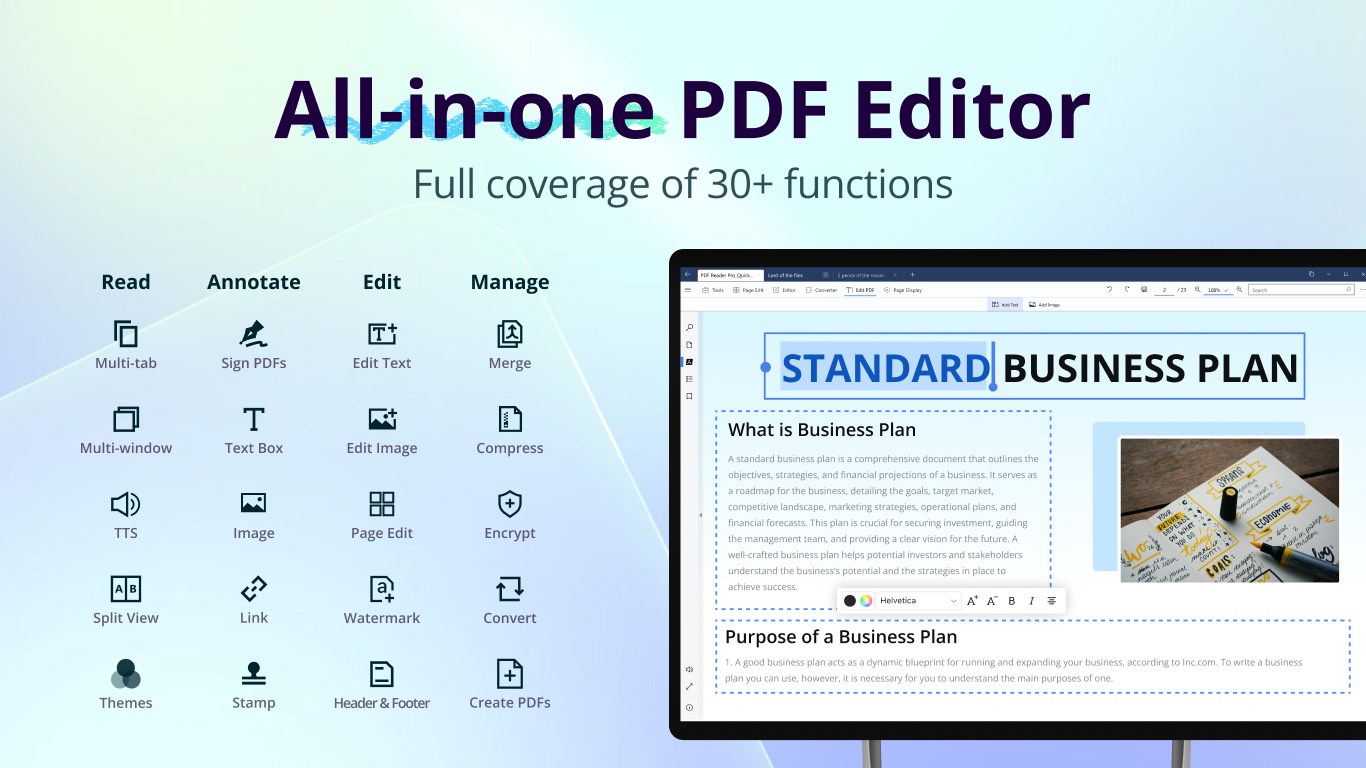
Navigating the world of digital documents can sometimes feel like wandering through a maze without a map. Enter PDF Reader Pro by PDF Technologies, Inc.—a comprehensive tool that transforms how professionals and casual users interact with PDFs on Windows devices. Designed to streamline editing, annotation, and sharing, this app aims to be your all-in-one PDF assistant, whether you're managing reports, contracts, or collaborative projects.
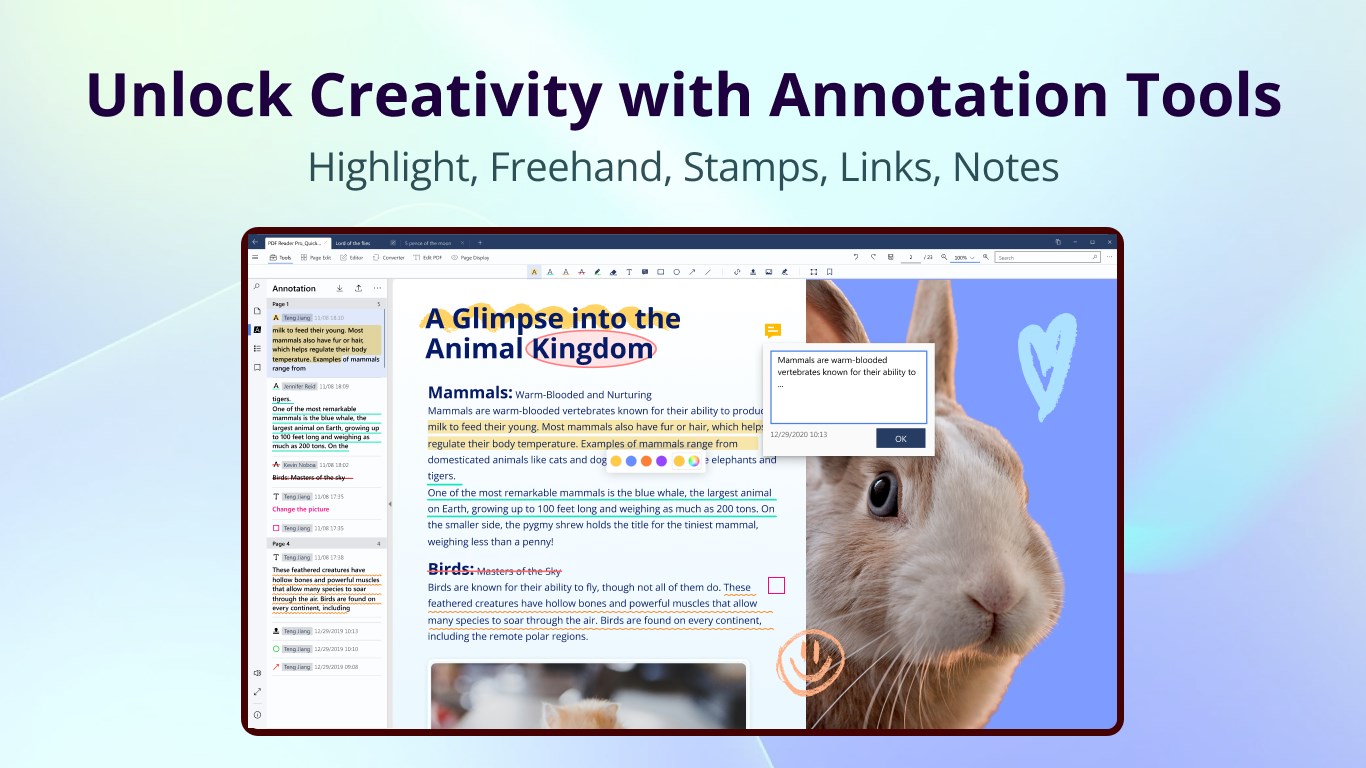
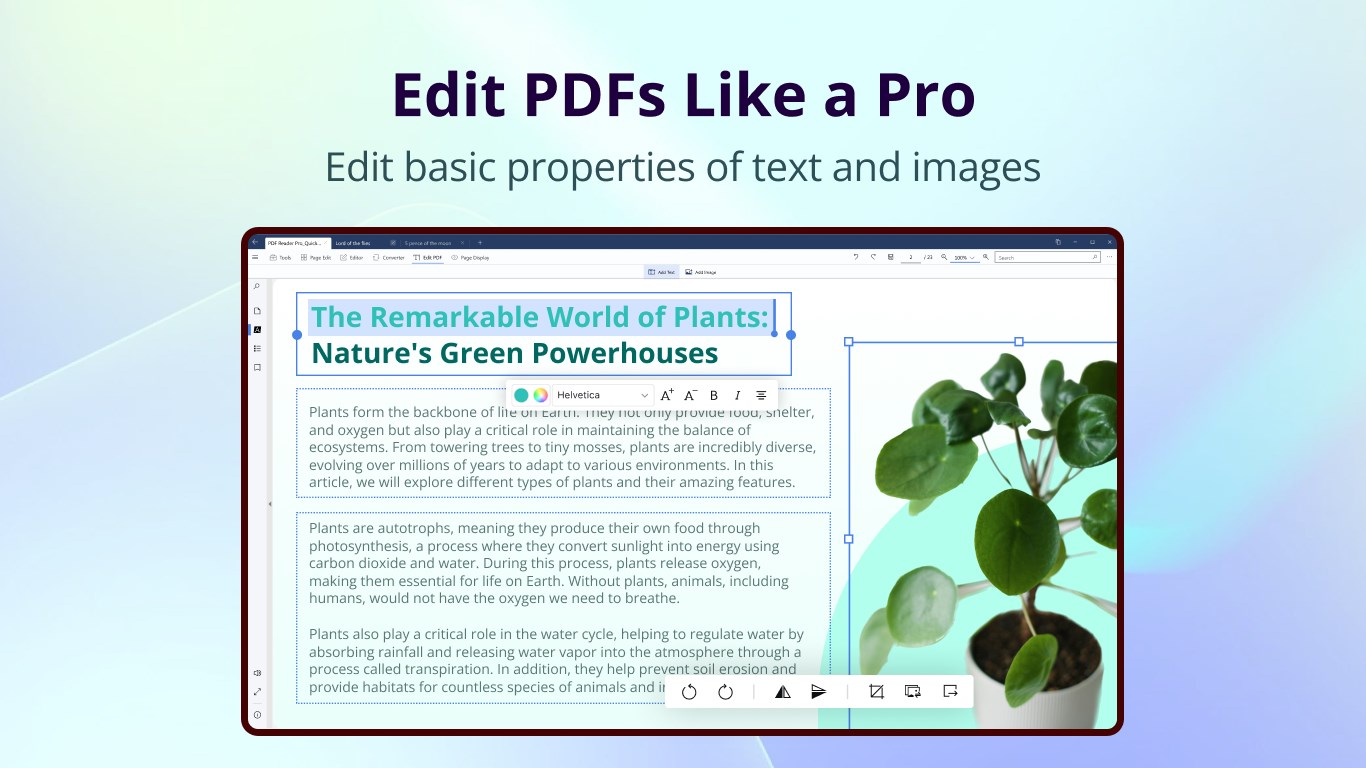
PDF Reader Pro offers a suite of editing features—from modifying text and images to highlighting, underlining, and adding sticky notes. Its user-friendly interface helps you effortlessly annotate PDFs as if you're jotting notes on a physical document. Whether updating a proposal or marking up a research paper, the editing tools are precise yet easy to use, catering to both newbies and seasoned professionals.
What truly sets this app apart is its focus on collaboration. Unlike many PDF tools that merely allow comments, PDF Reader Pro integrates task management features—assigning review tasks, tracking changes, and creating collaborative workflows within the PDF environment. This makes it especially valuable for team projects, legal reviews, or academic group work, where multiple stakeholders need to interact with the document efficiently and clearly.
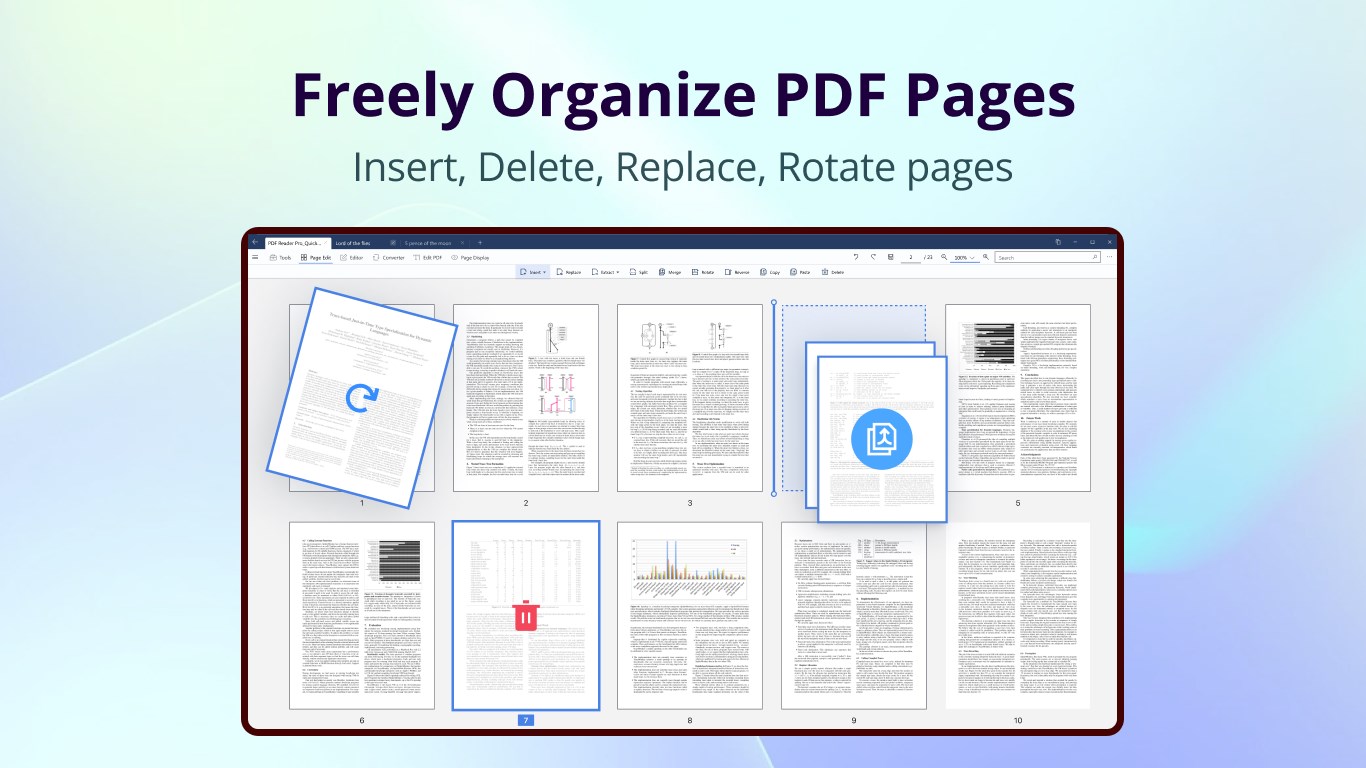
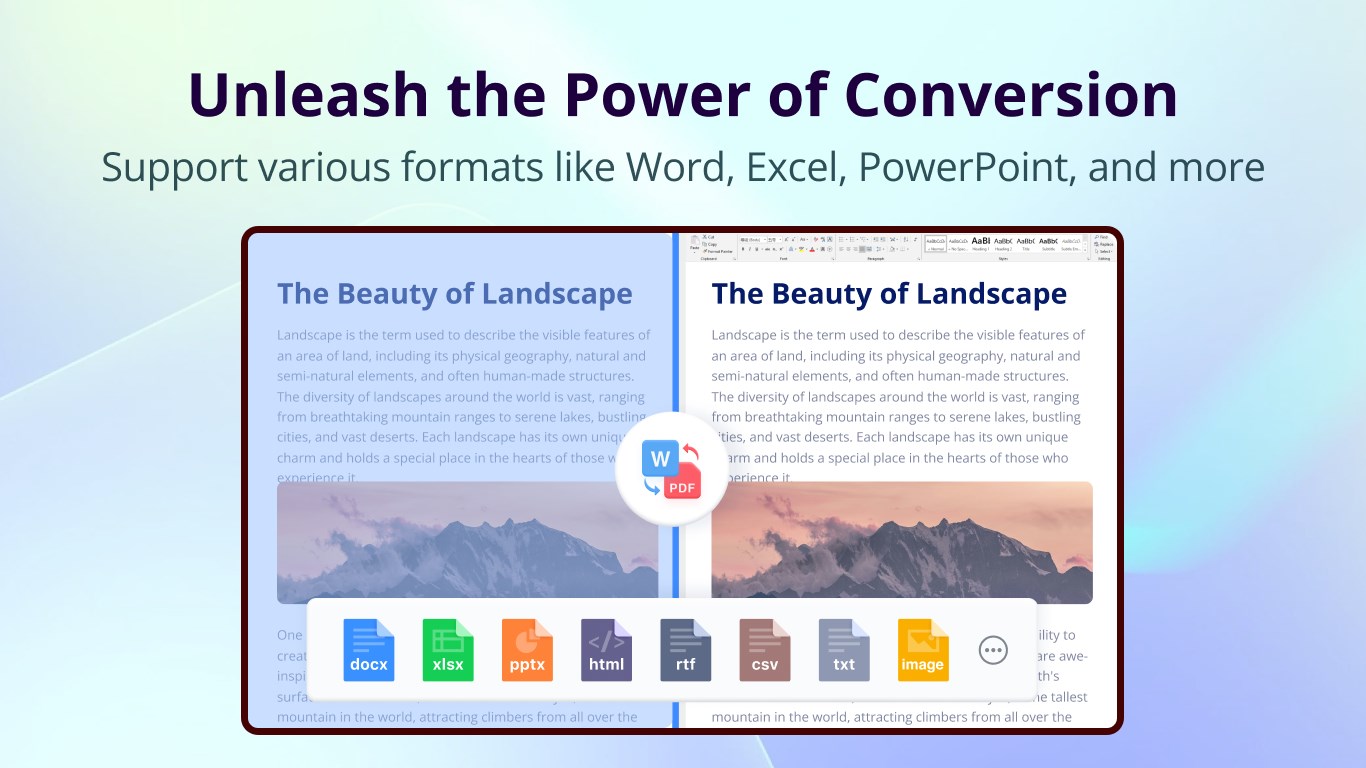
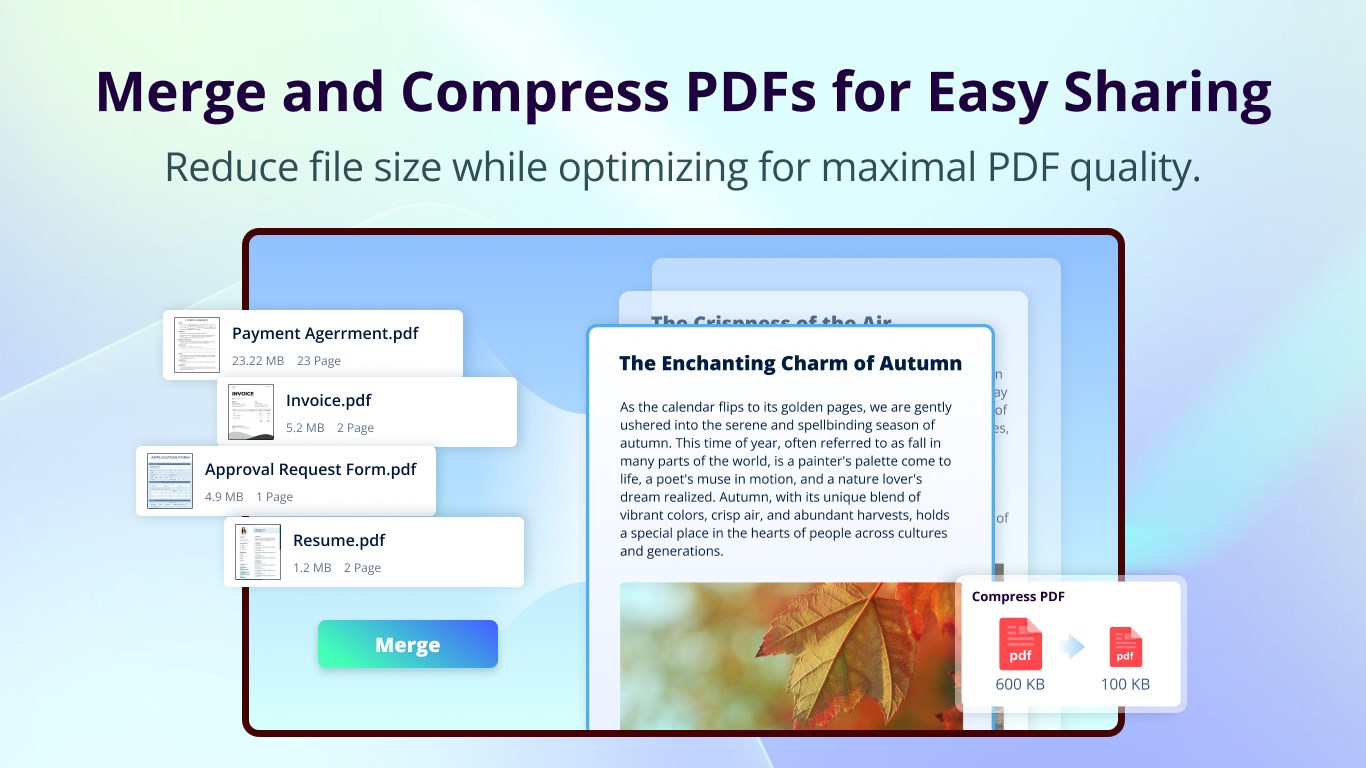
The app isn't just about editing; it excels at managing your PDFs. You can convert PDFs to editable formats like Word or Excel, reduce file sizes for easy sharing, or extract specific pages. This versatility ensures your documents are adaptable to various needs without requiring separate specialized software.
From the moment you open PDF Reader Pro, you're greeted with a clean, organized interface reminiscent of a well-arranged digital workspace—easy to navigate, with familiar icons and minimal clutter. The responsiveness is commendable, with smooth transitions and real-time updates that make editing and annotating a breeze. The learning curve is gentle; even first-time users can quickly get comfortable thanks to intuitive controls and helpful tooltips. It feels almost like having a competent assistant right at your fingertips, simplifying complex tasks into simple clicks.
While many PDF applications claim to serve collaborative needs, PDF Reader Pro uniquely emphasizes integrated task management within the PDF context. Its ability to assign review points, track revisions, and coordinate team feedback directly in the application creates a streamlined workflow that many competitors lack. This approach reduces the need to juggle multiple apps or use external project management tools, positioning it as a true all-in-one solution for teams that handle frequent PDF collaborations, such as legal firms, design teams, or academic research groups.
All in all, PDF Reader Pro stands out as a reliable, feature-rich PDF editing tool that caters to a broad audience—from individual users to collaborative teams. Its strongest suits are the collaborative work features and task management integrations, which provide a significant edge over more basic PDF viewers and editors. I'd recommend this app to professionals who regularly review and annotate documents as part of their workflow, especially if teamwork is involved. For personal students or casual users, it offers enough functionalities to worth exploring—but if collaboration is key, PDF Reader Pro might just become your go-to PDF partner.
User-friendly interface
Comprehensive editing tools
Supports multiple file formats
Cloud integration
Fast performance
Limited free features
Occasional app crashes
Basic annotation tools
Limited offline functionality
File size limitations

for Windows
 5
5

for Windows
5
for Windows
4.9

for Windows
4.9

for Windows
4.9

for Windows
4.9
for Windows
4.8

for Windows
4.8

for Windows
4.8

for Windows
4.8
for Windows
4.7
for Windows
4.7

for Windows
5

for Windows
5

for Windows
5

for Windows
5

for Windows
5

for Windows
5
for Windows
5

for Windows
5

for Windows
5

for Windows
5