Lifestyle
Initially
PC
Windows 10 version 14316.0 or higher
English (United States)
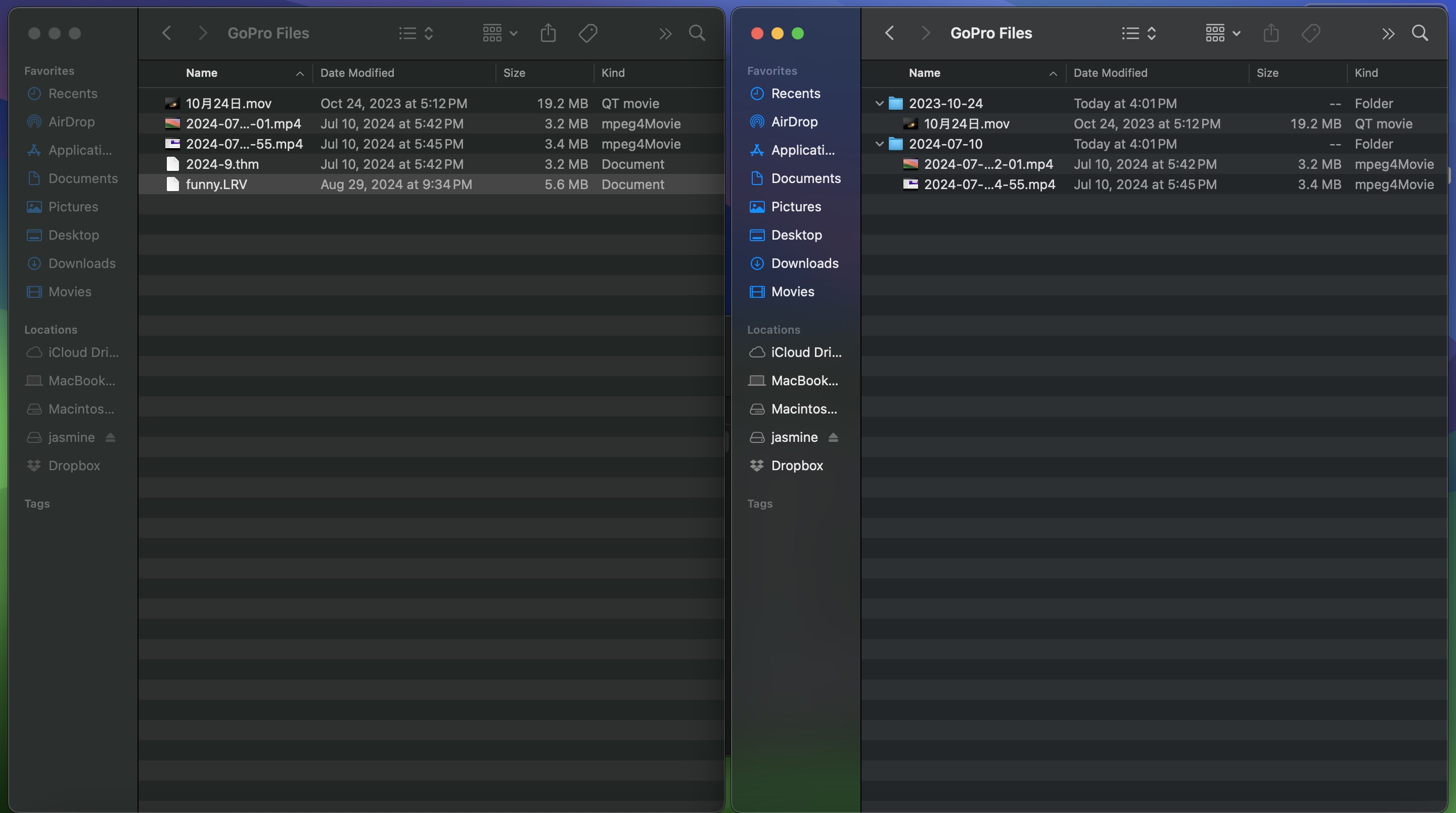
If you've ever found yourself drowned in a sea of GoPro footage, trying to make sense of scattered clips and tangled folders, then Organize GoPro Files for Windows might just become your new best friend. Designed to simplify the chaos of action camera footage management, this app aims to bring order to your adventurous memories with an intuitive touch.
Developed and published by Initially, Organize GoPro Files for Windows is a dedicated application focused on helping users streamline their GoPro media organization. The app stands out as a handy utility tailored specifically for those who regularly shoot high-definition videos and want an efficient way to categorize, preview, and manage their files seamlessly.
Key features include automated sorting of footage by date and event, quick preview capabilities without cumbersome file extraction, and easy export options to popular editing platforms. It caters to casual hobbyists, professional content creators, and anyone eager to turn mountain of clips into well-structured stories.
Imagine finally looking at that cluttered folder filled with hundreds of tiny video clips—overwhelming, right? Organize GoPro Files offers a breath of fresh air by transforming this chaos into a tidy, accessible library. Its smart interface and focused tools make the tedious task of sorting feel almost effortless.
The app's core strength lies in its ability to automatically categorize your footage based on parameters like date, location, or shooting session. For example, if you just finished mountain biking yesterday, the app recognizes the timestamp metadata and sorts these clips into a dedicated folder. This automation cuts down manually dragging files, saving precious time and reducing errors. It's like having a diligent assistant sorting your trips by adventure, instantly turning chaos into order.
Preview is crucial when sifting through hundreds of clips. Organize GoPro Files shines here by allowing users to quickly view miniatures of videos without the need to open them in a separate media player—a feature akin to having a Netflix-like browsing experience for your raw footage. Once you've identified the best clips, exporting them for editing or sharing is just a click away, with options compatible with major editing software. The entire process feels smooth and responsive, with minimal lag or hiccups.
The interface exudes a clean, modern aesthetic—think of a sleek dashboard that feels like the cockpit of a drone, providing all essential controls at your fingertips. Navigation is straightforward; even newcomers will get the hang of it within minutes. The operation flow is fluid, adding to the app's appeal as a user-friendly tool. The learning curve is gentle, making it accessible for casual users while offering enough depth for advanced users to customize sorting rules.
Compared to similar lifestyle and media management apps, Organize GoPro Files distinguishes itself with a specialized focus on GoPro videos, leveraging metadata and session data more effectively. Its emphasis on accurate categorization, combined with the responsive interface, enhances user confidence in managing their footage authentically and professionally.
If you regularly shoot with a GoPro and find yourself overwhelmed by the volume of footage, this app is worth considering. While it doesn't promise to magically turn raw clips into cinematic masterpieces, its core strengths—automatic sorting and quick previews—are genuinely useful. For those seeking a dedicated, well-structured tool to bring clarity to their chaotic media storage, Organize GoPro Files for Windows stands out as a reliable choice.
Overall, I would recommend this app with a moderate to high usage suggestion, especially for adventure junkies and content creators who need an efficient workflow. Just remember, it's most effective when complemented with editing tools—think of it as the organized garage where your creative projects can begin, rather than the final workshop itself.
User-friendly interface
Fast file organization
Supports various file formats
Batch processing capability
Integrated preview feature
Limited cloud integration
Occasional stability issues
Basic editing functions missing
Limited customization options
Requires high system resources
for Windows
 4.9
4.9

for Windows
4.8

for Windows
4.8

for Windows
4.8

for Windows
4.7

for Windows
4.2
for Windows
4.2

for Windows
4

for Windows
3

for Windows
3

for Windows
2.4

for Windows
2.3

for Windows
5

for Windows
5

for Windows
5

for Windows
5

for Windows
5

for Windows
5

for Windows
5

for Windows
5

for Windows
5

for Windows
5