Utilities & tools
Shek Lab
PC
Windows 10 version 17763.0 or higher
Chinese (Simplified), Chinese (Traditional), English (United States), Persian, Portuguese (Brazil), Russian, Spanish (Spain), Turkish
If you're a developer juggling multiple JavaScript projects or just looking for a straightforward way to run Node.js scripts seamlessly on Windows, this app from Shek Lab offers a promising solution. Designed to simplify execution and management of Node.js files, it aims to bring efficiency directly to your desktop environment without the fuss of command-line toggling. Think of it as a friendly assistant tucked into your taskbar, ready to launch your code whenever you need it.
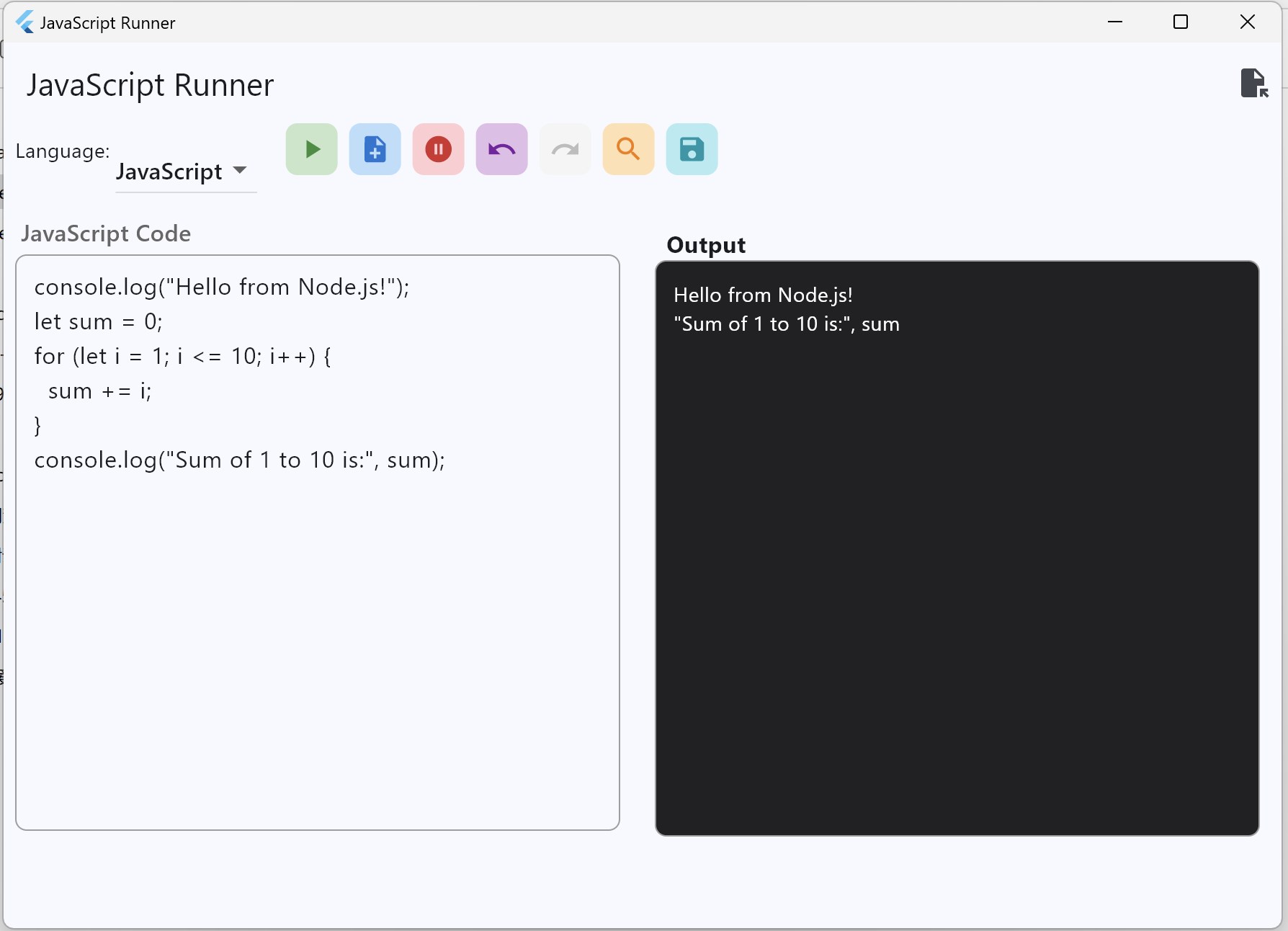
The standout feature of this app is its ability to run JavaScript and Node.js files instantly with a user-friendly interface. Unlike traditional command-line methods that can intimidate newcomers or slow down seasoned developers, this application offers a visual, click-to-run experience. Simply select your script, hit the run button, and watch your code execute in real-time, making debugging and testing more fluid and less cumbersome.
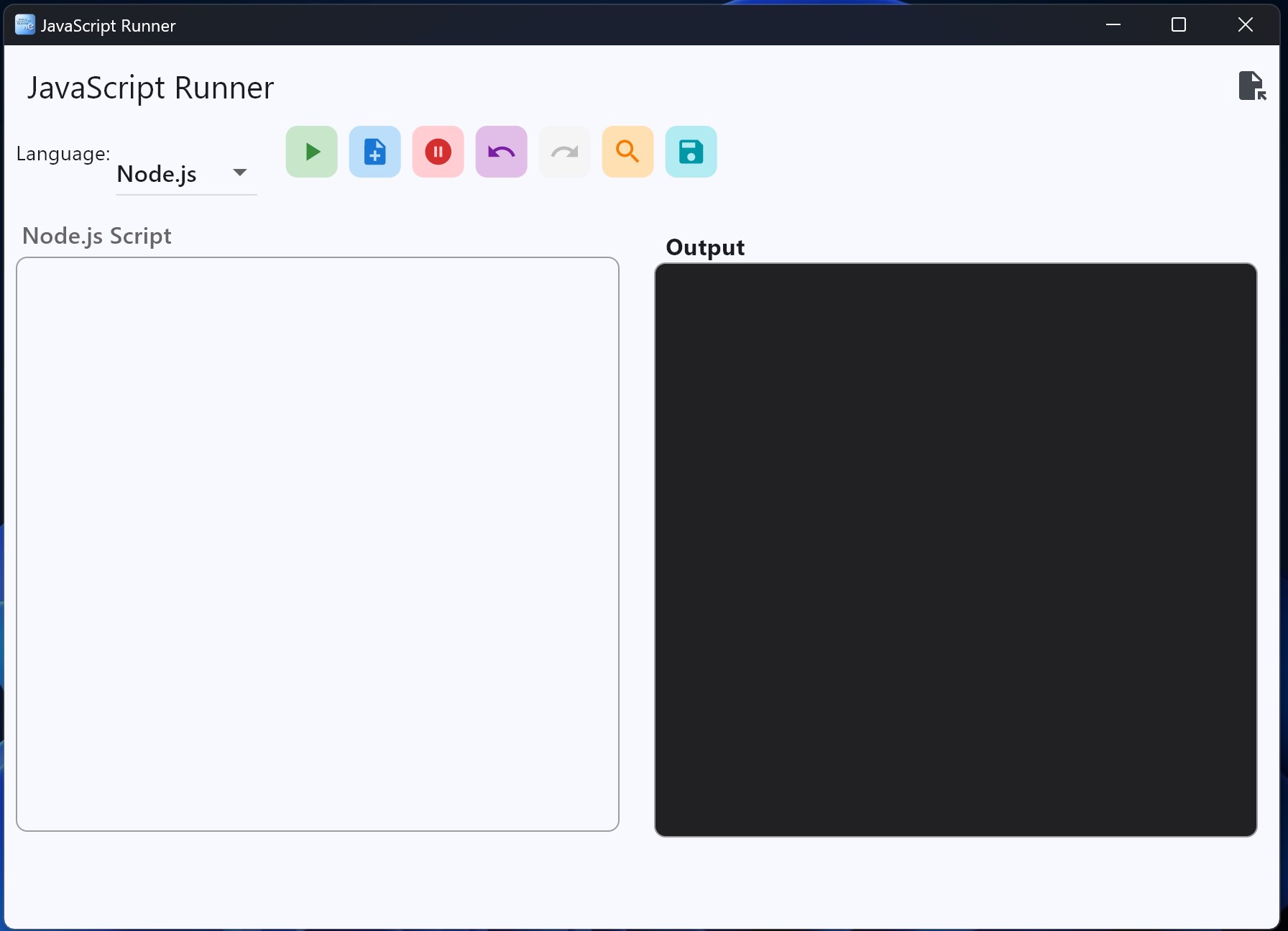
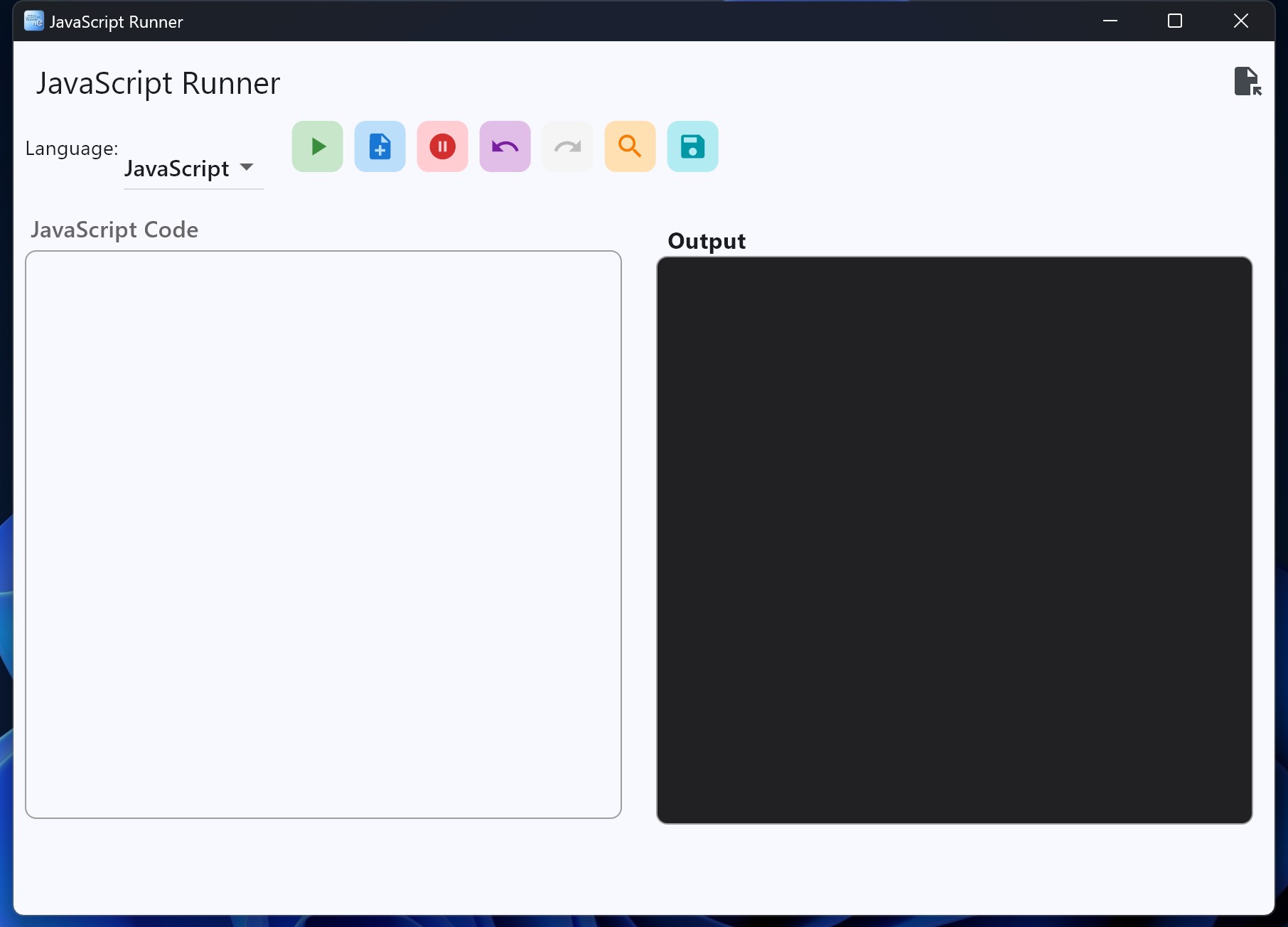
The app incorporates a lightweight, integrated environment that supports managing multiple scripts simultaneously. It provides a clean workspace with basic features like script editing, saving, and execution logs. This integration means developers no longer need to switch between multiple tools—everything is accessible from a single, organized interface. This streamlining can significantly boost productivity, especially during rapid development cycles or learning phases.
The interface is intuitive, with a navigation flow that feels natural even to newcomers. The design avoids clutter, focusing instead on straightforward functionalities. Performance-wise, the app handles script executions smoothly, with minimal lag or crashes, even when working with larger projects or multiple scripts. Its simplicity doesn't come at the expense of stability, making it a trustworthy tool for daily use.
Many tools promise quick script execution, but this app's real strength lies in its minimalistic yet powerful approach. Its core advantage is providing a dedicated, dedicated Windows environment tailored specifically for running JavaScript and Node.js scripts—something that generic code editors or online sandboxes might lack. Unlike more complex IDEs or automation tools, it emphasizes ease of use and speed, helping developers test snippets or small projects without delay. Additionally, its lightweight footprint means it won't bog down system resources, making it suitable even for older or less powerful machines.
Given its focus, this Node.js/JavaScript Runner is highly recommended for students, hobbyists, or developers seeking a quick testing ground for scripts without the overhead of full IDEs. It's ideal for prototyping, debugging small modules, or simply practicing coding snippets. For those who need an efficient, dedicated runner that minimizes setup and maximizes speed, this app can be a reliable companion. However, for large-scale projects requiring comprehensive debugging and code management features, developers might prefer more robust IDEs alongside this tool.
This Node.js/JavaScript Runner for Windows from Shek Lab stands out as a straightforward yet effective utility designed to streamline script execution. Its key advantages—instant execution with a simple click, a clean and minimal interface, and smooth performance—make it particularly appealing for quick testing and learning purposes. While it may not replace full-featured development environments, it offers a fresh, focused approach that fills a niche, making everyday coding tasks more efficient. For developers seeking a lean, dedicated tool to run Node.js scripts effortlessly, this application is certainly worth trying out.
Intuitive interface for seamless code execution
Supports multiple Node.js versions
Quick setup with minimal configuration
Includes built-in package management
Provides real-time output and debugging tools
Limited advanced debugging features compared to IDEs
Performance may decline with large scripts
Few customization options for environment settings
Occasional glitches when switching Node.js versions
Limited documentation and tutorials

for Windows
 5
5

for Windows
5

for Windows
5

for Windows
5

for Windows
5

for Windows
4.9

for Windows
4.9
for Windows
4.9

for Windows
4.9

for Windows
4.9

for Windows
4.9

for Windows
4.9

for Windows
5

for Windows
5

for Windows
5
for Windows
5

for Windows
5

for Windows
5

for Windows
5

for Windows
5

for Windows
5

for Windows
5