Utilities & tools
Null Studio Dev
PC, Mobile, Surface Hub, HoloLens
Windows 10 version 18362.0 or higher
Chinese (Simplified), English (United States)
If you're seeking a straightforward way to cast your device screens onto your Windows PC, Miracast Receiver for Windows by Null Studio Dev offers a promising solution. Think of it as turning your PC into a wireless projector—simple, flexible, and ready to enhance your viewing experience or presentations.
This application transforms your Windows device into a Miracast receiver, allowing other devices to mirror content wirelessly. Developed and published by Null Studio Dev, a team focused on utility apps, it is designed to facilitate quick and reliable screen sharing without the fuss of cables or complex setups. Key features include easy device detection, fast connection, and support for multiple screen resolutions. Its primary target audience encompasses casual users, students, professionals, and anyone in need of an affordable wireless display solution for presentations, media streaming, or remote collaboration.
Imagine sitting comfortably at your desk, eager to showcase a presentation or enjoy a movie from your smartphone on a larger screen—without the tangled mess of cables. Miracast Receiver for Windows steps in like a friendly portal, simplifying wireless display technology and making it accessible to everyone, from tech novices to seasoned users.
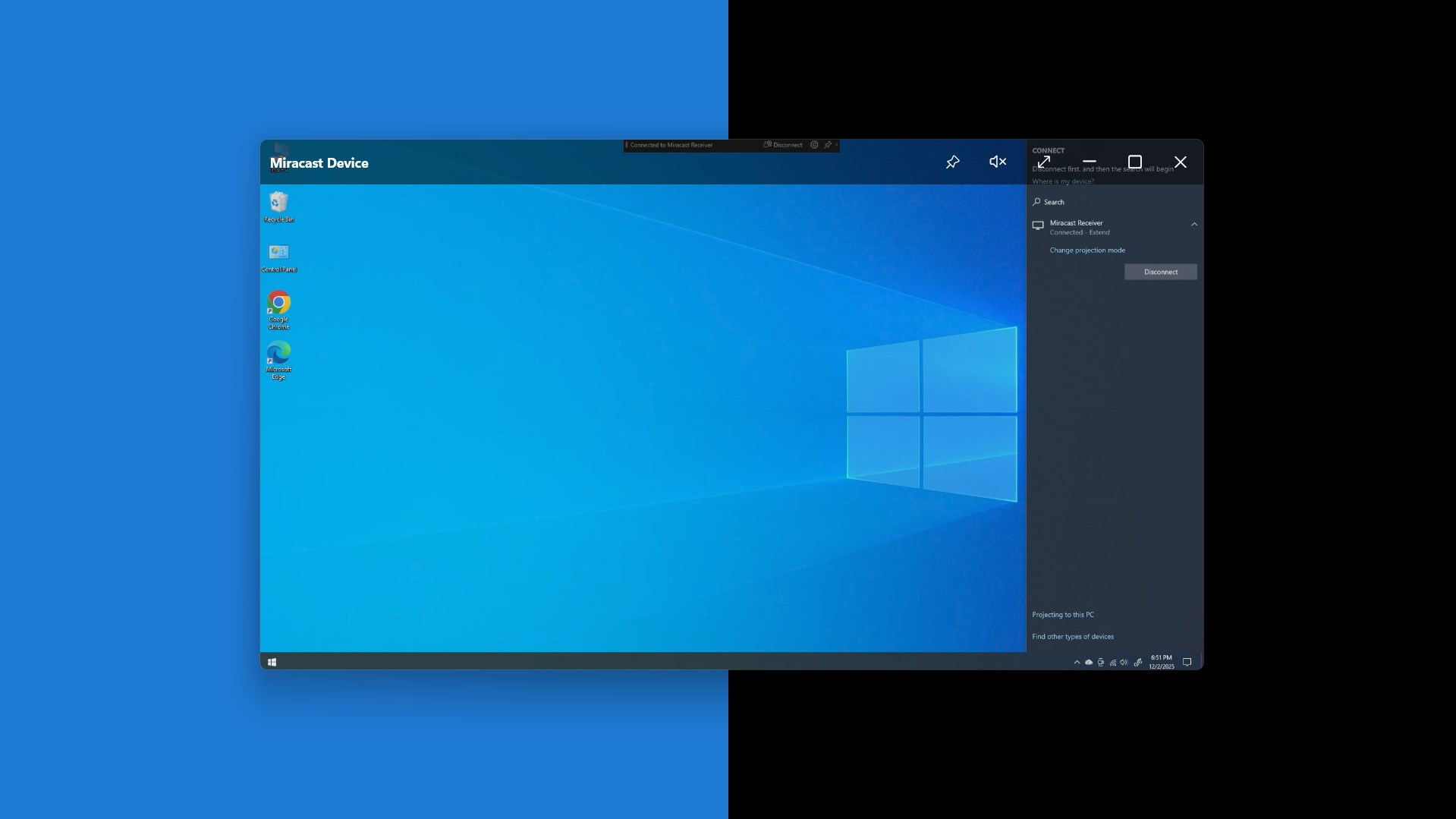
The app's standout feature is its effortless device detection. Once launched, it quickly recognizes nearby Miracast-enabled devices—be it a Windows laptop, an Android phone, or even some tablets. This automatic detection means there's no need for fiddly IP configurations or network adjustments, which often hamper other utilities. When a device appears, a simple click connects it, creating an instant wireless display session. This convenience turns your Windows PC into a central hub, perfect for spontaneous sharing or collaborative work.
The second highlight is its optimized streaming performance. Miracast Receiver for Windows ensures minimal lag and smooth video playback, simulating the sensation of wired connections—only in a more relaxed, cable-free manner. Whether it's streaming a presentation, showcasing artwork, or playing casual games from a mobile device, the app maintains high-quality visual output. Support for various resolutions ensures compatibility across different device capabilities, making the app adaptable for different use cases.
Another notable aspect is its user-friendly interface. The design leans towards simplicity—clear buttons, straightforward instructions, and minimal clutter—ensuring that even users unfamiliar with Miracast technology can get started with little effort. The app's responsiveness accelerates the entire process, reducing waiting times and enhancing the overall experience.
The interface of Miracast Receiver for Windows could be likened to a clean, organized workspace—straightforward and efficient. Beyond aesthetics, its operation feels fluid and predictable, thanks to optimized code ensuring smooth transitions from device detection to screen sharing. On the learning curve, users with basic Windows knowledge will find it immediately accessible, making setup almost automatic.
What sets this app apart from competing utilities is arguably its focus on stability and ease of use. Unlike some Miracast solutions that require network configuration or third-party drivers, this app leverages the native Miracast protocol within Windows, minimizing compatibility issues. Its robust connection management ensures reliable streaming even in environments with fluctuating Wi-Fi signals. Additionally, its rating as a free utility makes it accessible without asking for a premium upgrade, providing honest value.
Considering its straightforward setup, reliable performance, and user-centric design, Miracast Receiver for Windows earns a solid recommendation for those looking to dip into wireless mirroring. It's particularly suitable for scenarios where quick, reliable connections matter—like impromptu meetings, content sharing in classrooms, or even casual streaming at home.
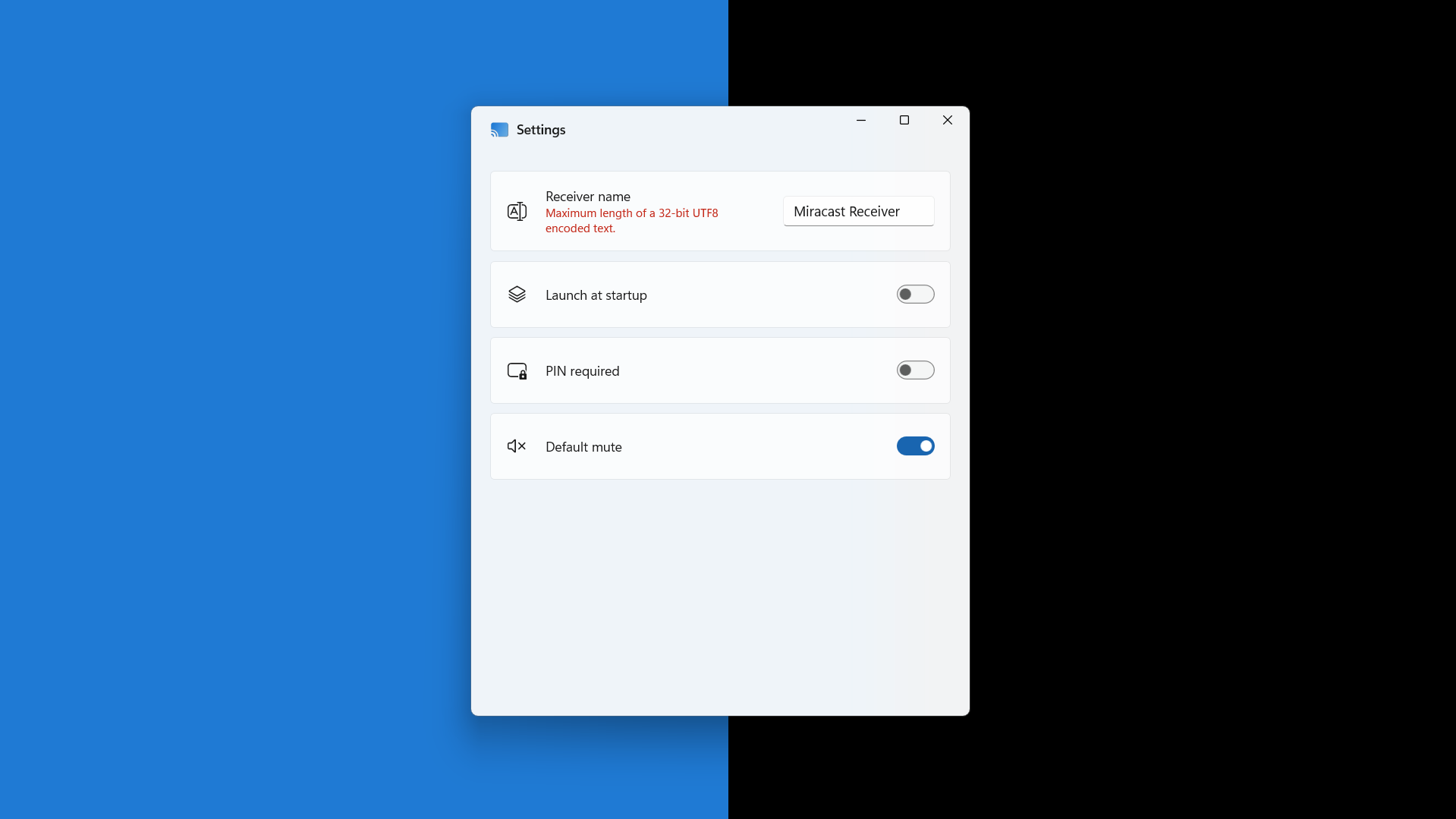
While it might not feature advanced customization options or extensive settings found in more premium solutions, it excels in doing the core job well. I suggest users who need an uncomplicated, no-fuss Miracast receiver to give this app a try—especially if you value stability and simplicity over bells and whistles.
In summary, Miracast Receiver for Windows by Null Studio Dev is like a dependable friend—ready whenever you need to share your screen wirelessly, without drama, and with a friendly smile. It's a handy tool to keep in your digital toolkit for everyday convenience.
Smooth Screen Mirroring
Easy Setup
High Compatibility
Supports HD Content
Free to Use
Limited Device Support
Occasional Connectivity Drops
Latency Issues with Video Playback
Interface Could Be More Intuitive
Limited Advanced Features

for Windows
 5
5

for Windows
5

for Windows
5

for Windows
5

for Windows
5

for Windows
4.9

for Windows
4.9

for Windows
4.9

for Windows
4.9

for Windows
4.9

for Windows
4.9

for Windows
4.9

for Windows
5

for Windows
5

for Windows
5
for Windows
5

for Windows
5

for Windows
5

for Windows
5

for Windows
5

for Windows
5

for Windows
5