Productivity
Microsoft Corporation
PC, Surface Hub
Windows 10 version 15063.0 or higher
Afrikaans, Albanian, Amharic, Arabic, Azerbaijani, Basque, Bosnian (Latin, Bosnia and Herzegovina), Bulgarian, Catalan, Chinese (Simplified), Chinese (Traditional), Croatian, Czech, Danish, Dutch, English (United Kingdom), English (United States), Estonian, Filipino, Finnish, French, French (Canada), Galician , German, Greek, Hebrew, Hindi, Hungarian, Icelandic, Indonesian, Italian, Japanese, Kannada, Kazakh, Khmer, Korean , Latvian, Lithuanian, Macedonian, Malay, Malayalam, Norwegian (Bokmål), Persian, Polish , Portuguese (Brazil), Portuguese (Portugal), Romanian, Russian, Serbian, Serbian (Latin, Serbia), Slovak, Slovenian (Slovenia), Spanish (Mexico), Spanish (Spain), Swedish, Tamil, Telugu, Thai, Turkish, Ukrainian, Vietnamese
Microsoft Whiteboard for Windows stands out as a versatile digital canvas designed to enhance team collaboration, brainstorming sessions, and visual thinking. With its seamless integration into the Microsoft ecosystem, it aims to make idea-sharing effortless and intuitive for users across different professions and settings.
Developed and published by Microsoft Corporation, this application is tailored for Windows users seeking a dynamic, interactive whiteboarding experience. Its core features include real-time collaboration, sticky notes, and embedded content support, all optimized to foster creativity and teamwork. Targeted at educators, business professionals, and students alike, Microsoft Whiteboard helps transform passive meetings into engaging, productive exchanges.
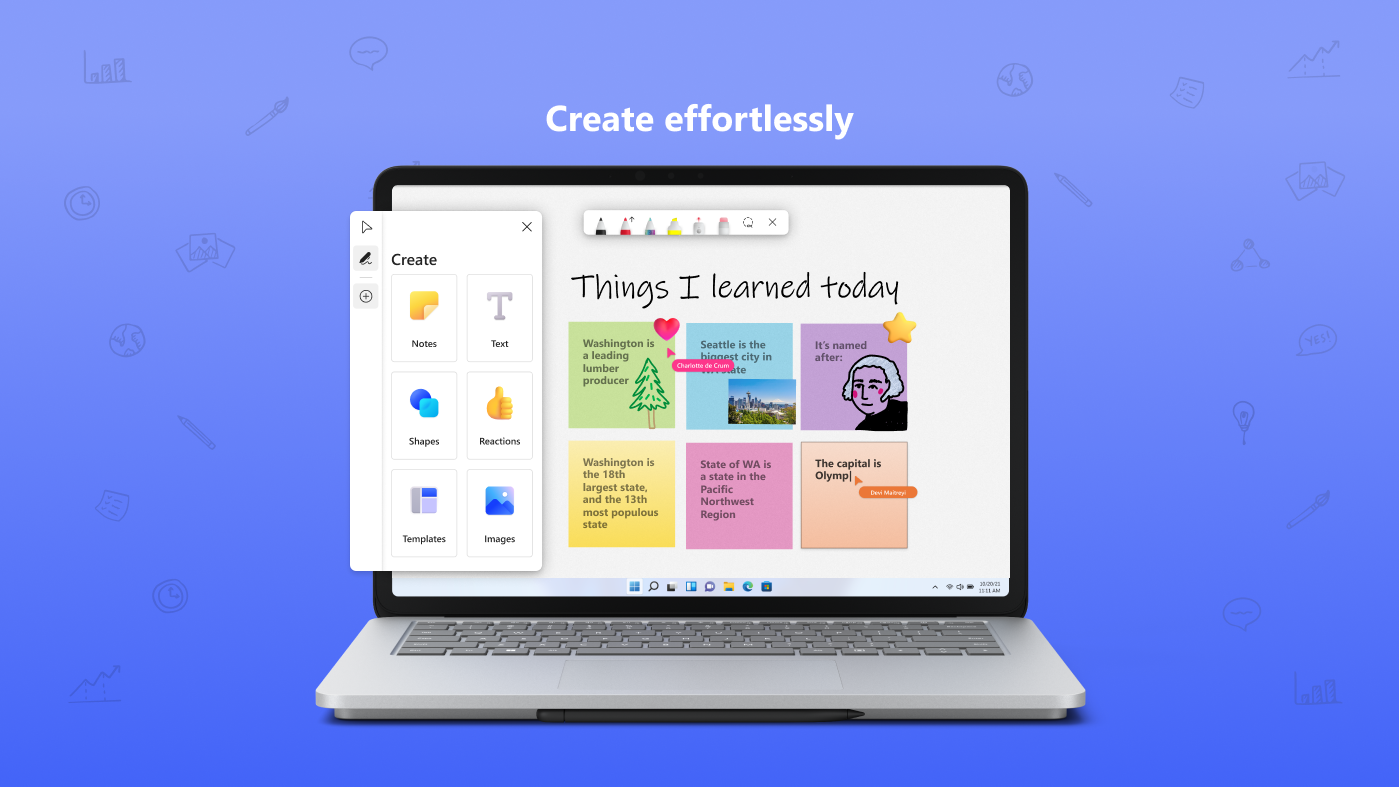
Imagine stepping into a virtual meeting room where ideas flow freely across a vast, clean canvas—Microsoft Whiteboard turns this imaginative scene into reality. It's like having a giant, portable flipchart that dynamically adapts to your workflow. The app's user-friendly design makes it feel familiar, yet packed with sophisticated tools that turn mere sketches into comprehensive projects. Whether you're sketching out a project plan or brainstorming a new marketing campaign, the Whiteboard's intuitive interface invites you to dive right in without a steep learning curve.
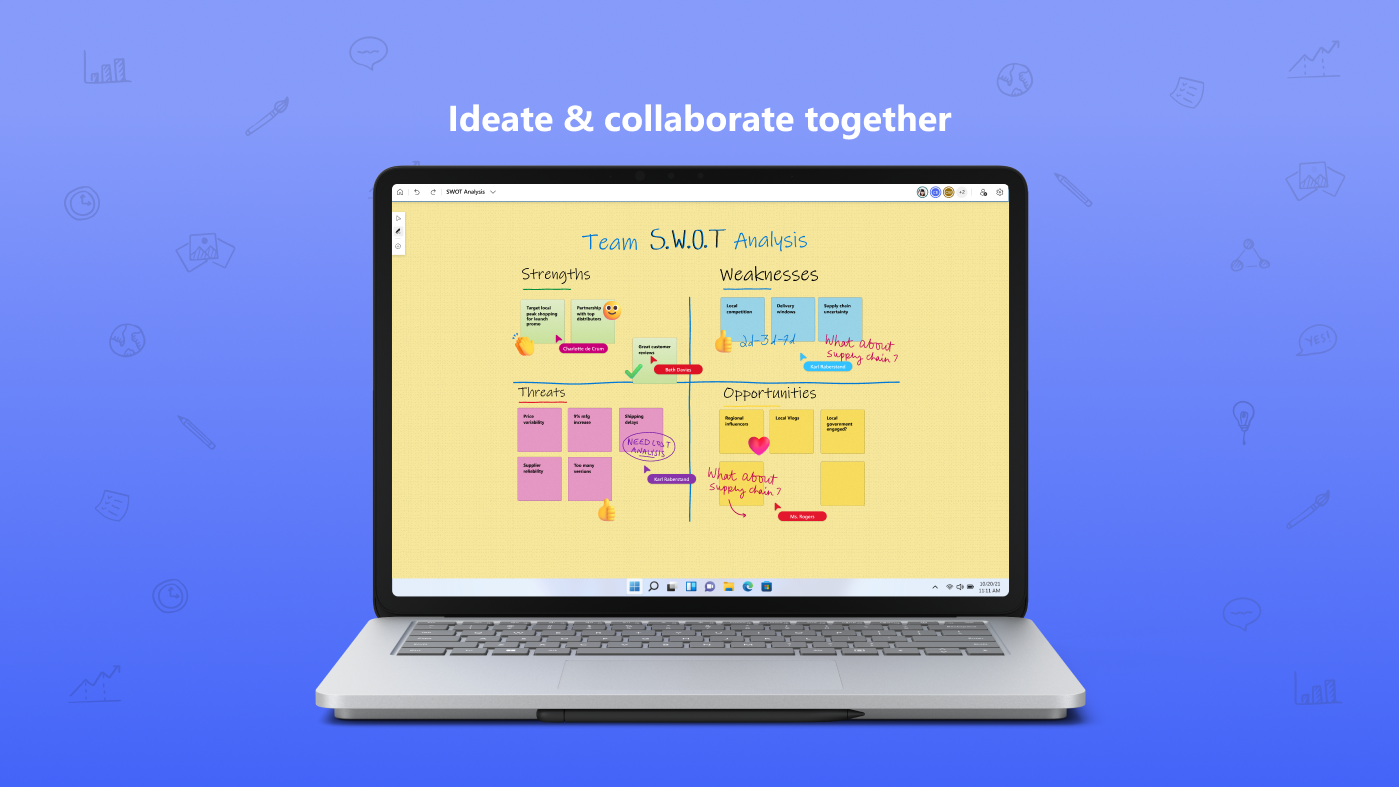
One of the app's standout features is its real-time collaborative capability. Multiple users can simultaneously draw, write, or add images on the canvas, akin to working on a shared whiteboard in a conference room—only now, it's digital and accessible from anywhere. This synchronization ensures everyone stays on the same page, reducing miscommunication. Moreover, Microsoft Whiteboard allows embedding other Office content—like Excel charts or PowerPoint slides—which effortlessly enriches the brainstorming process. While some digital whiteboards feel cluttered with excess features, Microsoft Whiteboard keeps things streamlined, enabling users to focus on ideas rather than navigating complex menus.
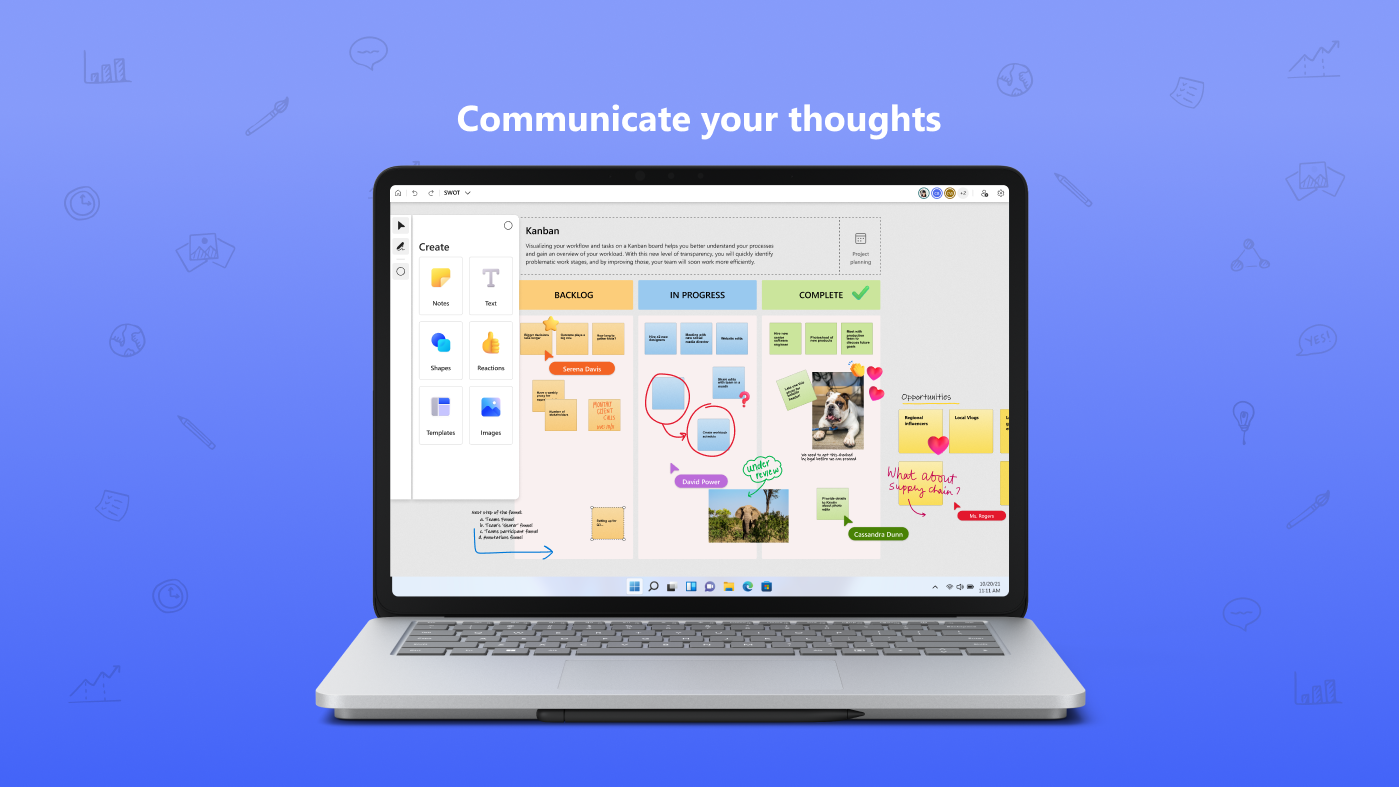
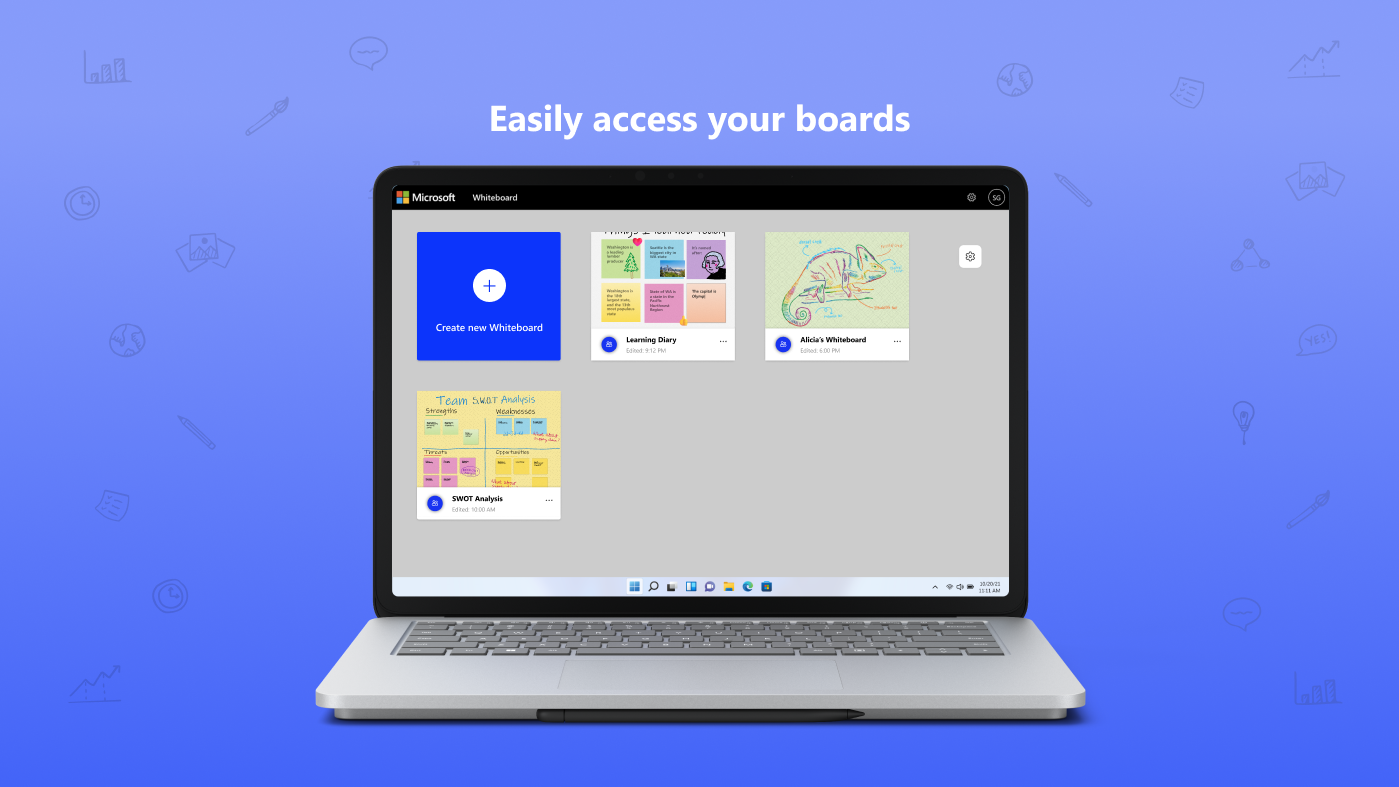
The app's interface design strikes a fine balance—it's visually clean, with a minimalistic approach that minimizes cognitive load. The toolbar is thoughtfully organized, making it easy for new users to discover essential tools without feeling overwhelmed. Operation flows smoothly; drawing and editing feel responsive, almost as if you're working on paper, but with the power of digital enhancement. Even users new to digital collaboration can quickly adapt, thanks to the app's gentle learning curve. The ability to save and share whiteboards effortlessly enhances the continuity of collaborative work outside of active sessions.
Compared to other productivity apps like Miro or Jamboard, Microsoft Whiteboard's unique strength lies in its deep integration within the Microsoft 365 ecosystem. It seamlessly interacts with Teams, Outlook, and other Office apps, turning a simple whiteboard into a natural extension of your workflow. This reduces the cognitive load typically associated with toggling between multiple platforms. Additionally, the app emphasizes reducing feature complexity to enhance workflow efficiency—its straightforward interface prevents users from feeling overwhelmed, allowing them to focus on content creation rather than tool management.
In summary, Microsoft Whiteboard for Windows is a reliable and user-friendly digital whiteboard that caters well to collaborative needs in various contexts. It's particularly recommended for organizations already embedded in the Microsoft ecosystem, seeking to streamline brainstorming and planning sessions. While it may lack some of the advanced features found in niche competitors, its ease of use, smooth operation, and excellent integration make it a practical choice for everyday collaborative work.
For those looking to enhance team synchronization without added complexity, Microsoft Whiteboard delivers a balanced, efficient solution—suitable for both quick ideation and more structured planning. Overall, it earns a strong recommendation as a primary digital whiteboard tool within the Windows environment, as long as your needs align with its collaborative and integration strengths.
Intuitive and user-friendly interface
Real-time collaboration features
Seamless integration with Microsoft Office tools
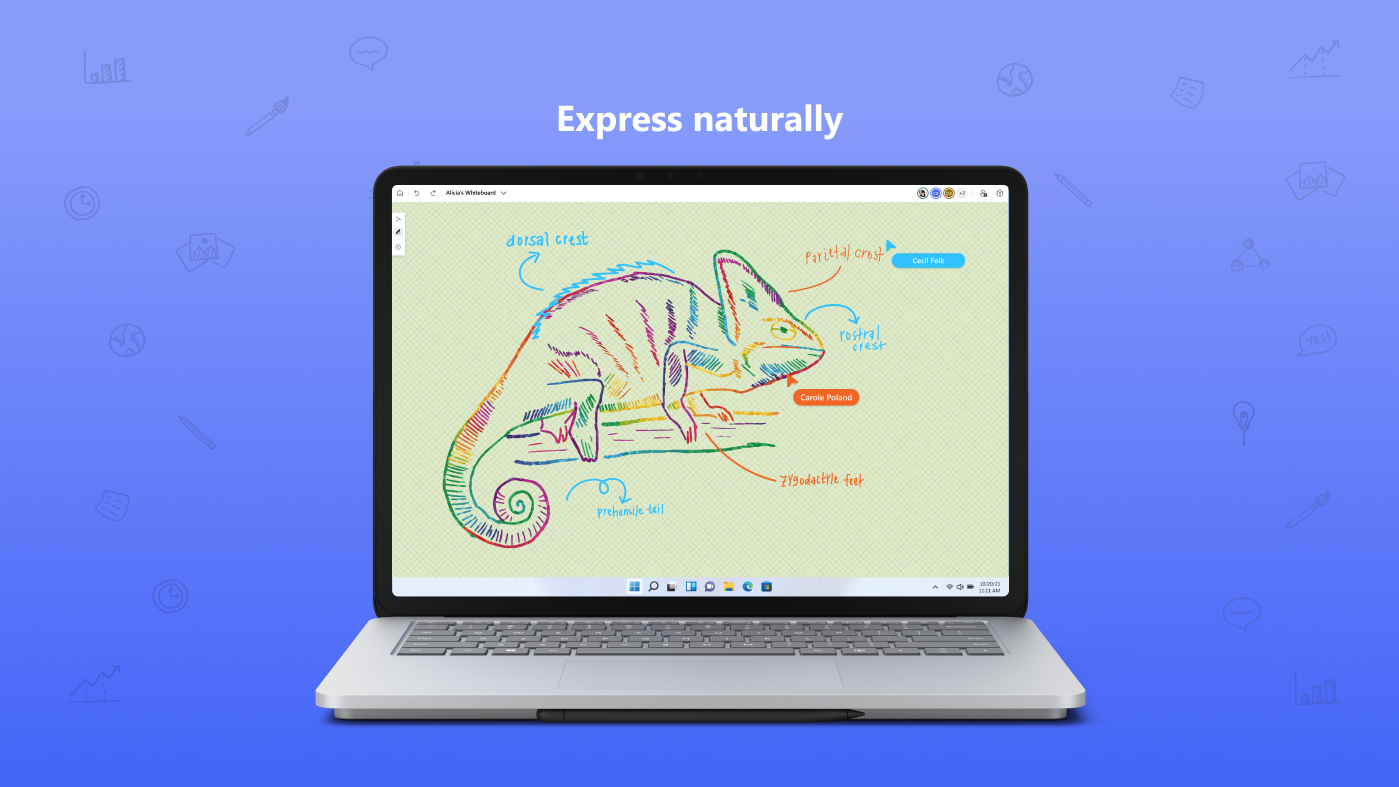
Versatile drawing and note-taking options
Cloud synchronization across devices
Limited shape and diagram tools
Occasional lag during heavy use
Some features require internet connectivity
File export options are basic
Limited customization of interface themes

for Windows
 5
5

for Windows
5

for Windows
4.9

for Windows
4.9

for Windows
4.9

for Windows
4.8

for Windows
4.8

for Windows
4.8

for Windows
4.8

for Windows
4.8

for Windows
4.8

for Windows
4.8

for Windows
5
for Windows
5

for Windows
5

for Windows
5

for Windows
5

for Windows
5

for Windows
5

for Windows
5

for Windows
5
for Windows
5