Productivity
Microsoft Corporation
PC
Windows 10 version 19041.0 or higher
Afrikaans, Albanian, Amharic, Arabic, Armenian, Assamese, Azerbaijani, Bangla (India), Basque, Bosnian (Latin, Bosnia and Herzegovina), Bulgarian, Catalan, Chinese (Simplified), Chinese (Traditional), Croatian, Czech, Danish, Dutch, English (United Kingdom), English (United States), Estonian, Filipino, Finnish, French, French (Canada), Galician , Georgian, German, Greek, Gujarati, Hebrew, Hindi, Hungarian, Icelandic, Indonesian, Irish, Italian, Japanese, Kannada, Kazakh, Khmer, Konkani, Korean , Lao, Latvian, Lithuanian, Luxembourgish, Macedonian, Malay, Malayalam, Maltese, Maori, Marathi, Nepali, Norwegian (Bokmål), Odia, Persian, Polish , Portuguese (Brazil), Portuguese (Portugal), Punjabi (India), Quechua, Romanian, Russian, Scottish Gaelic, Serbian, Serbian (Cyrillic, Bosnia and Herzegovina), Serbian (Latin, Serbia), Slovak, Slovenian (Slovenia), Spanish (Mexico), Spanish (Spain), Swedish, Tamil, Tatar, Telugu, Thai, Turkish, Ukrainian, Urdu, Uyghur, Uzbek, Valencian, Vietnamese, Welsh
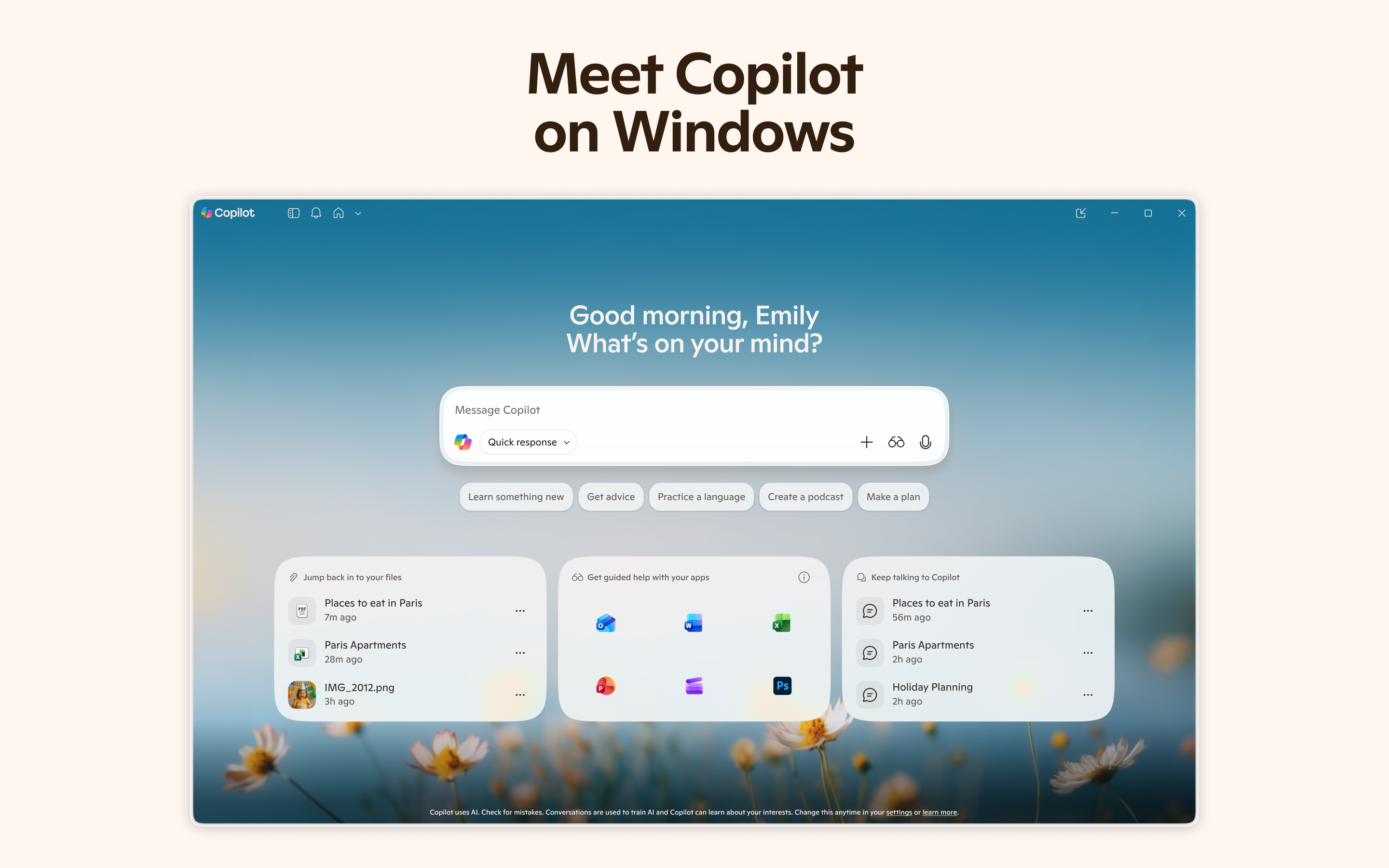
Microsoft Copilot for Windows is an AI-driven assistant seamlessly integrated into the Windows environment, designed to streamline workflows and enhance productivity through intelligent suggestions and automation.
Developed and published by Microsoft Corporation, a global leader in software innovation, this application builds on Microsoft's extensive ecosystem of productivity tools, embodying the company's commitment to intelligent assistance and user-centric design.
Imagine you're sitting at your digital desk, ready to tackle a mountain of reports. As you open your Windows environment, Microsoft Copilot quietly becomes your digital co-pilot—anticipating your needs, suggesting passages, and even automating data analyses without missing a beat. This blend of responsiveness and intelligence makes for an engaging user experience that doesn't demand steep learning curves. The interface is sleek yet unobtrusive, like a helpful assistant standing in the corner, always ready but never intrusive. Navigating between suggestions feels as smooth as gliding through familiar waters, thanks to optimized system integration.
The standout feature of Microsoft Copilot is its ability to understand the context of your work and provide relevant suggestions. Whether you're drafting emails, creating PowerPoint slides, or analyzing data sets, Copilot acts as a co-creator—offering content snippets, formatting ideas, or insights at just the right moment. Unlike traditional productivity apps that feel sterile, this AI feels more like a knowledgeable colleague whispering ideas in your ear, significantly reducing the cognitive load involved in multitasking.
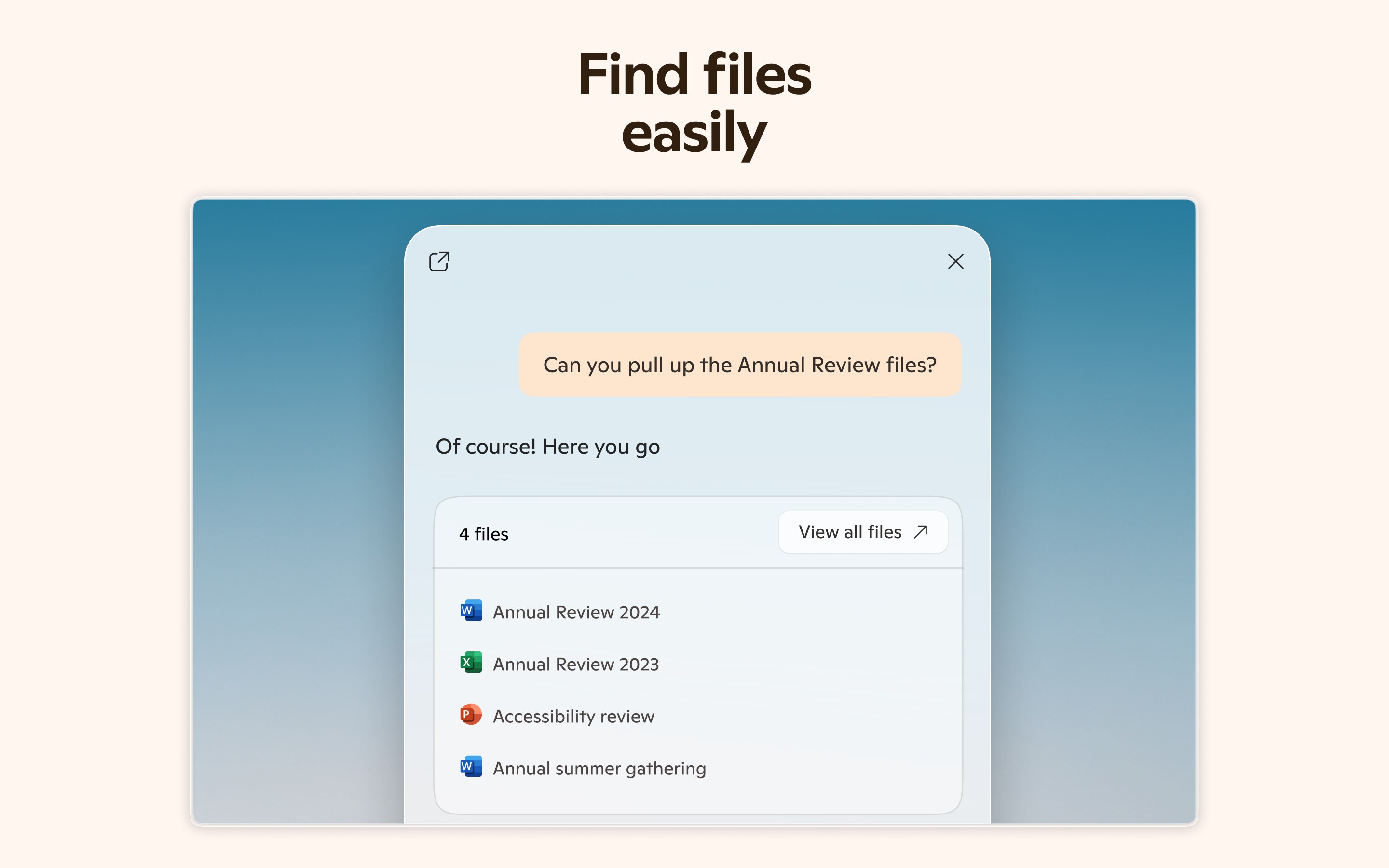
One of the app's remarkable strengths is how seamlessly it marries AI assistance with your existing workflow. From setting reminders to generating summaries, it orchestrates tasks across different Windows applications effortlessly. Imagine having a virtual assistant that not only understands your commands but also anticipates subsequent steps, thus transforming your scattered process into a harmonious workflow. This integration minimizes switching costs—saving time and mental energy—making your day more efficient and less stressful.
The interface design aligns with Microsoft's modern minimalist aesthetic—clean, clear, and unobtrusive. Operations are fluid, with prompt responses that feel almost like a natural extension of your thoughts. The learning curve is gentle; even for newcomers, understanding and leveraging key features is intuitive, akin to picking up a new gadget that immediately feels familiar. Frequent updates and personalized suggestions further ease user adaptation, fostering confidence and sustained engagement.
Compared to other productivity tools, Microsoft Copilot distinguishes itself through its stellar focus on workflow integration efficiency and cognitive load reduction. Instead of simply piling on features, it emphasizes how AI can make your existing tasks easier—like a seasoned conductor harmonizing different instruments into a smooth symphony. In particular, its ability to interpret natural language requests and embed intelligent automation within the Windows ecosystem cuts through the clutter of complex features, offering a streamlined experience that feels both powerful and simple. This contrasts with many AI assistants that often overwhelm users with options, rather making them feel more like navigating a maze than collaborating with an assistant.
I would recommend Microsoft Copilot for Windows to professionals and power users seeking to optimize their digital workspace without the hassle of managing complex setups. Its unique ability to integrate deeply into the Windows environment, coupled with natural language interactions, makes it a standout in the realm of productivity tools. While it's still evolving and might require periodic updates, its core strengths in workflow enhancement and cognitive load minimization are promising. For those invested in the Microsoft ecosystem, this app could become an indispensable partner—turning daily tasks from tedious chores into orchestrated, efficient processes.
Enhanced productivity with AI assistance
Seamless integration across Microsoft 365 suite
User-friendly interface with intuitive controls
Real-time data analysis and insights
Continuous updates and improvements from Microsoft
Limited customization options in some features
Occasional inaccuracies in AI-generated content
Requires continuous internet connection for optimal performance
Learning curve for new users unfamiliar with AI tools
Potential privacy concerns with cloud-based data processing

for Windows
 5
5

for Windows
5

for Windows
4.9

for Windows
4.9

for Windows
4.9

for Windows
4.8

for Windows
4.8

for Windows
4.8

for Windows
4.8

for Windows
4.8

for Windows
4.8

for Windows
4.8

for Windows
5
for Windows
5

for Windows
5

for Windows
5

for Windows
5

for Windows
5

for Windows
5

for Windows
5

for Windows
5
for Windows
5