Navigation & maps
Rushi
PC, Mobile, Surface Hub, HoloLens
Windows 10 version 17763.0 or higher
English (United States)
Maps for Gmaps for Windows, developed by Rushi, offers a streamlined and user-friendly way to access Google Maps features directly from your Windows device. Designed to enhance your navigation experience, this app aims to bridge the gap between desktop convenience and mobile mapping tools, making it an appealing choice for both casual travelers and everyday commuters.
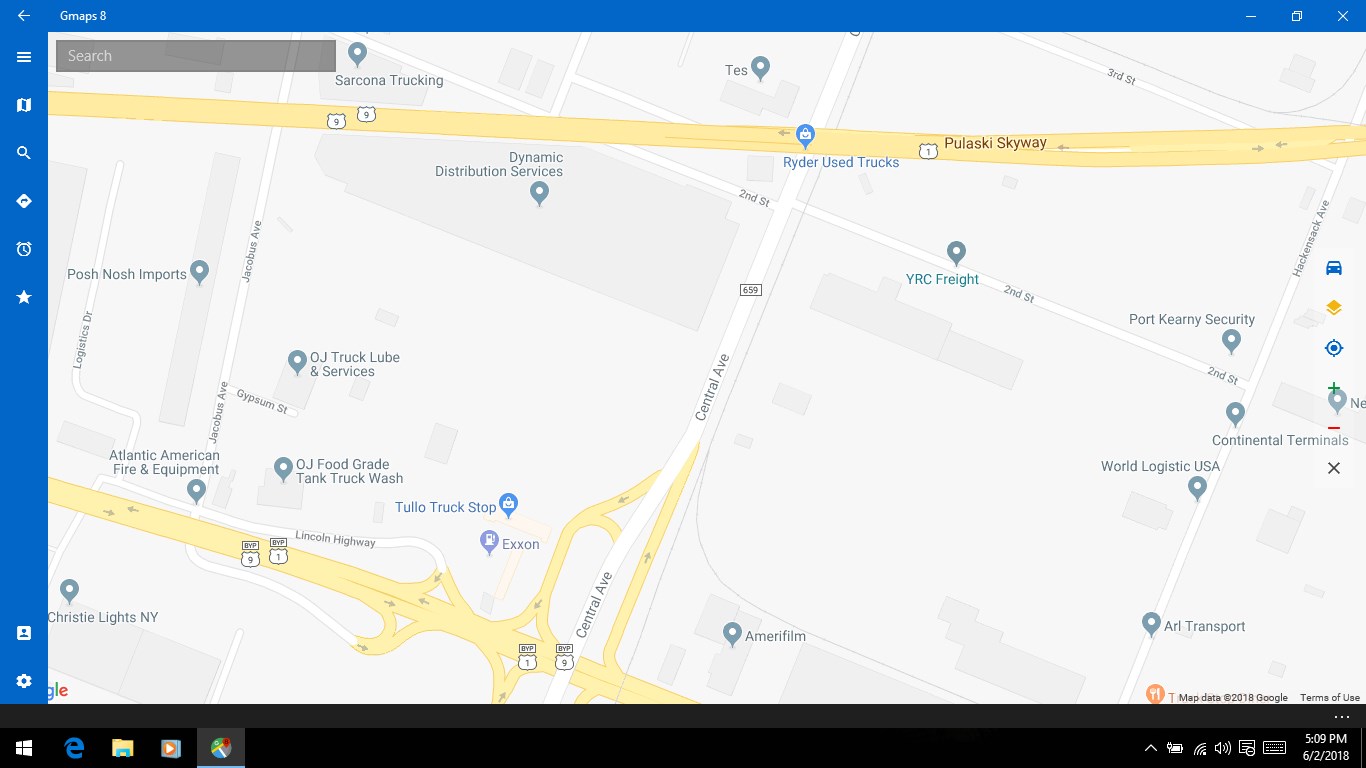
The app acts as a dedicated gateway to Google Maps, providing direct access without the need to open a browser or switch between multiple tabs. Its integration ensures that users can enjoy familiar map views, directions, and satellite imagery effortlessly on their desktops. This feature particularly benefits those who rely heavily on Google Maps for detailed route planning and local exploration.
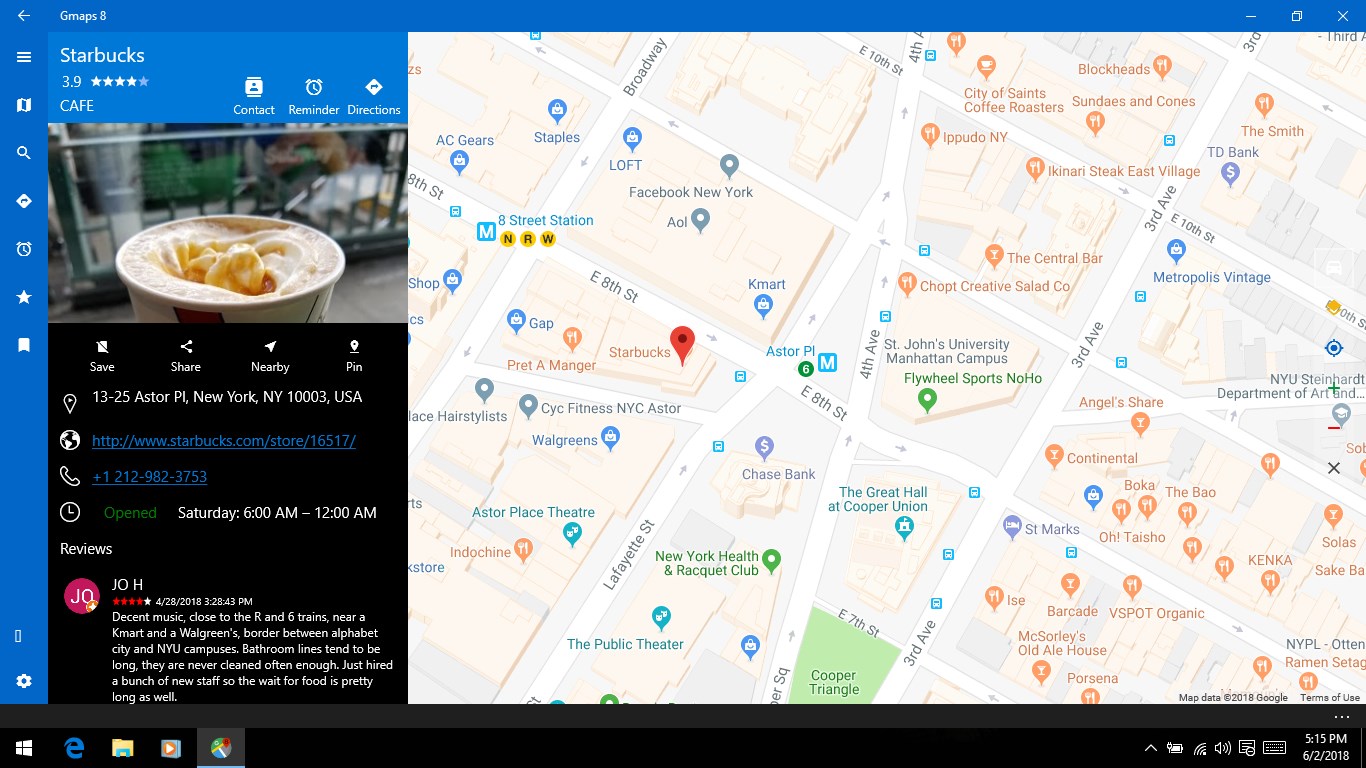
One of the standout features is the ability to access downloaded maps offline. Whether you're venturing into areas with spotty internet or want to save on data costs, this function is incredibly practical. Additionally, users can customize their map views, highlight routes, and save favorite locations, making navigation more tailored and efficient.
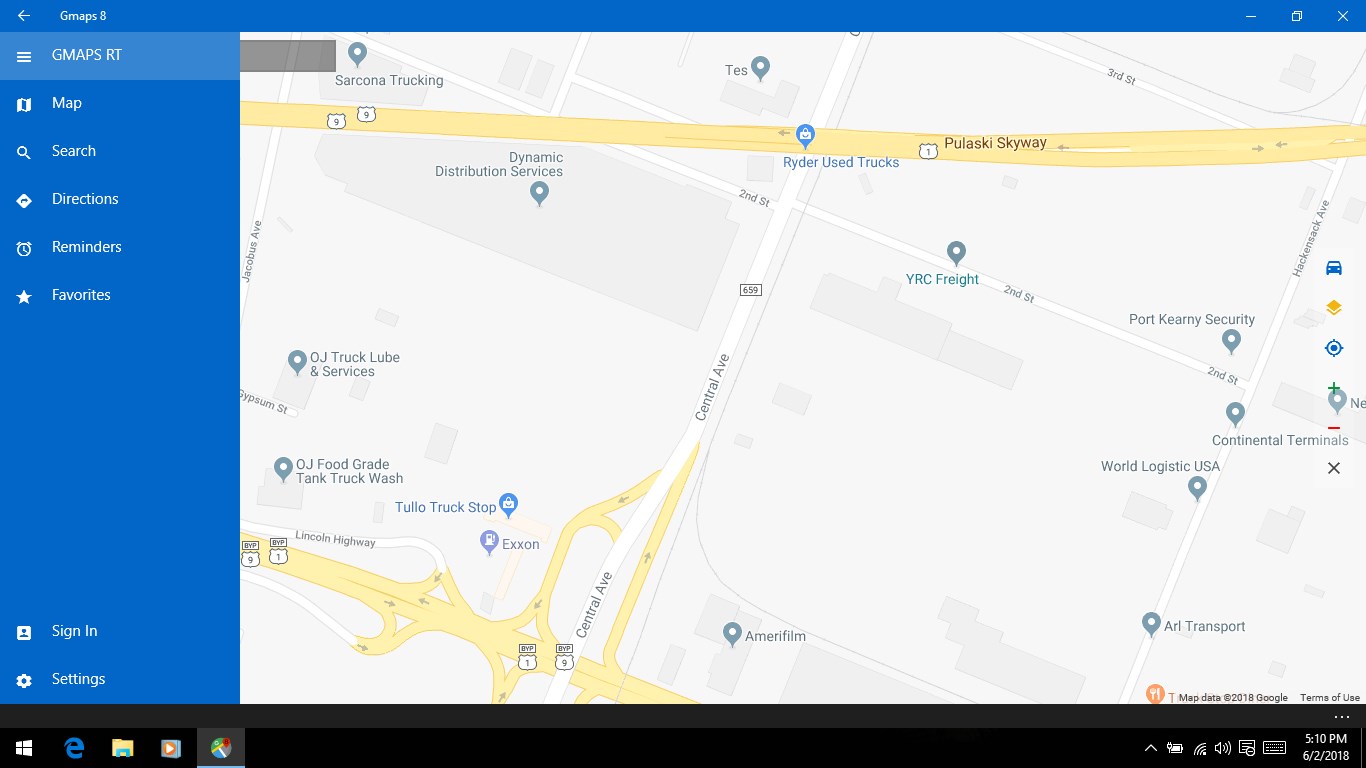
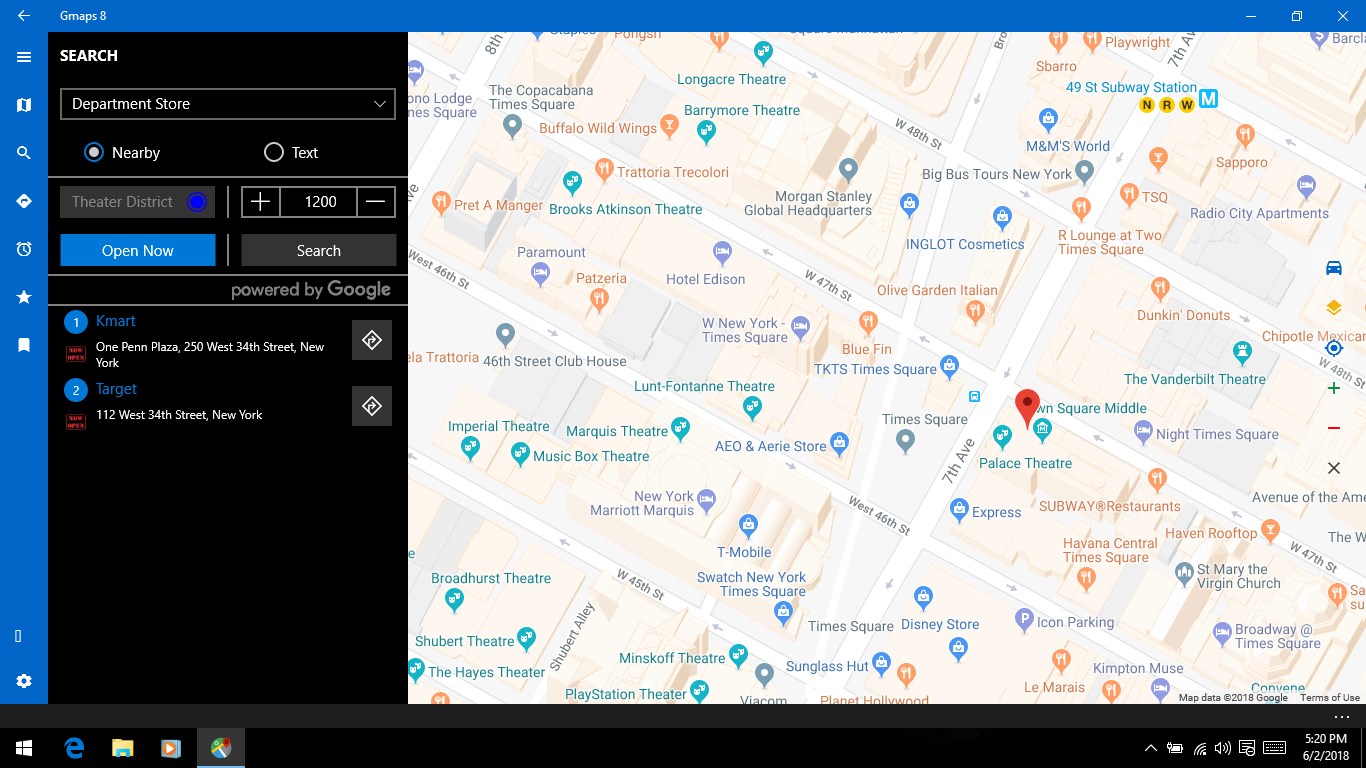
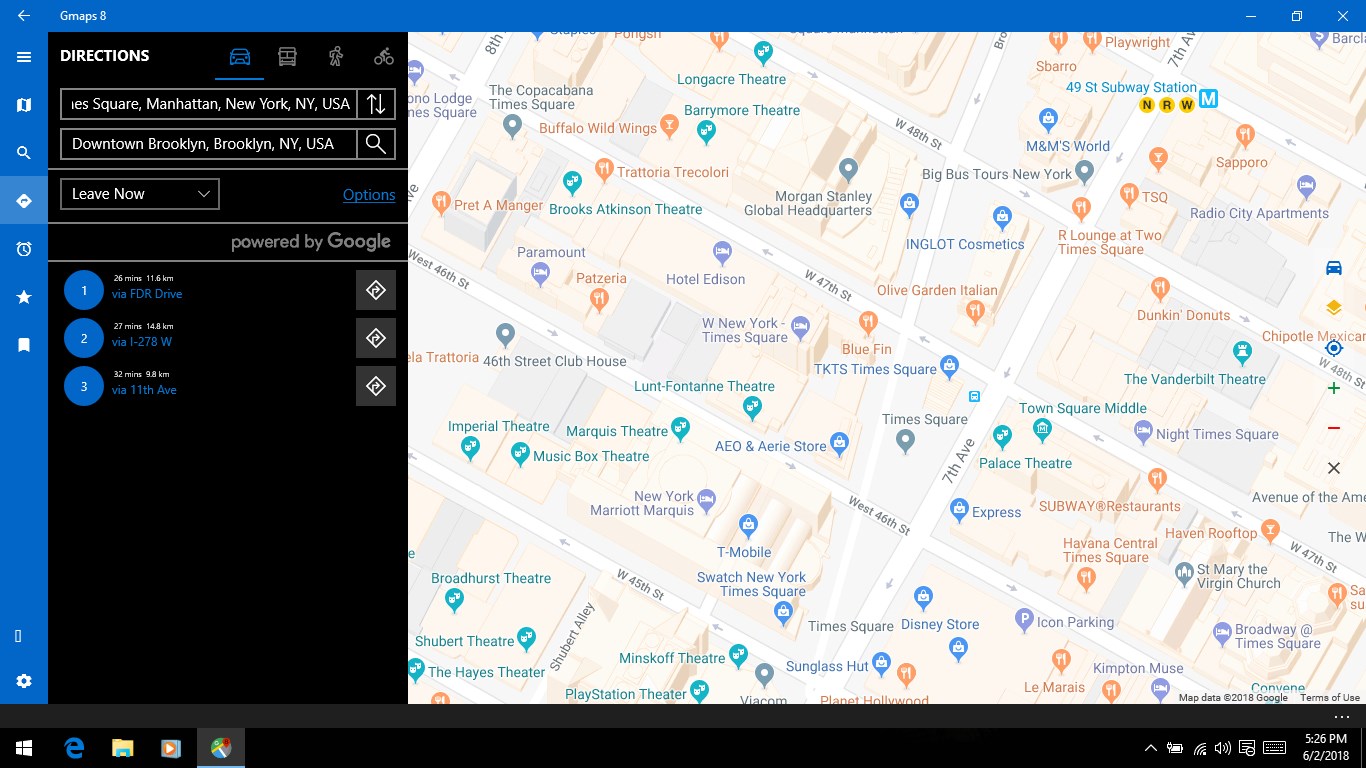
Designed with simplicity in mind, the app boasts a clean and intuitive interface reminiscent of the familiar Google Maps layout. Navigation within the app is smooth, with minimal lag, and the learning curve is gentle—perfect for users of all tech skill levels. The interface feels like a well-organized toolbox, where everything you need is just a couple of clicks away.
The interface of Maps for Gmaps for Windows feels like flipping open a sleek, digital atlas—both familiar and modern. From the moment you start, you'll notice how intuitively the app responds to inputs, with swift zooming and panning that make exploring familiar streets or new territories a pleasure rather than a chore. The app's design minimizes clutter, focusing on core navigation features, which creates a streamlined experience akin to a well-organized road trip dashboard.
In terms of learning curve, users will find it surprisingly straightforward—there's no need to fuss with complex menus or settings. Its smooth operation and logical layout mean even novice users can quickly get comfortable, much like slipping into a favorite pair of shoes. The app's responsiveness ensures that navigation commands are executed promptly, making route adjustments or searches feel natural and effortless.
Compared to other desktop mapping tools, Maps for Gmaps for Windows shines with its dedicated focus on Google Maps, offering deep integration that many generic map apps lack. Unlike standalone GPS or mapping applications that may have a limited feature set, this app capitalizes on Google's rich data, providing real-time updates, traffic conditions, and comprehensive POI searches right on your desktop. This specialization makes it an excellent companion for anyone already familiar with Google Maps, as it retains all their favorite features within a dedicated desktop environment.
Furthermore, the ability to save offline maps makes it stand out in regions with unreliable internet or during travel adventures. It essentially combines the best parts of online and offline navigation, ensuring users are always connected to their route. This hybrid approach enhances user flexibility, whether planning a trip beforehand or navigating on the go.
Overall, Maps for Gmaps for Windows is a solid entry point for Google Maps enthusiasts seeking desktop convenience. It's particularly recommended for users who frequently plan routes, explore local areas, or need offline capabilities. The app's minimalistic design, quick responsiveness, and offline features make it more than just a basic map viewer—it's a practical tool that'll feel like a trusty co-pilot on your digital journeys.
While it may not have all the advanced features of dedicated GPS units or complex navigation software, its focus on core mapping functionalities and user-friendly experience make it a standout choice for everyday navigation needs. For anyone looking to make desktop mapping more accessible and efficient, this app is definitely worth trying out.
Accurate Navigation
Offline Map Support
Real-time Traffic Updates
User-Friendly Interface
Street View Integration
Limited Customization Options
Occasional Slow Loading Times
Battery Consumption
Inconsistent Data in Remote Areas
Limited Multi-language Support

for Windows
 5
5

for Windows
5

for Windows
5

for Windows
5

for Windows
5

for Windows
5

for Windows
5

for Windows
5

for Windows
5

for Windows
5