Productivity
PC
Windows 10 version 17763.0 or higher
English (United States)
Mail for Windows by MediaFinoLabs is designed to bring a clean, efficient email experience directly to your desktop, aiming to reduce clutter and streamline communication. It's not just another mail app; it's a thoughtfully crafted tool focused on making your email management seamless.
Developed by MediaFinoLabs, a team committed to creating user-centric productivity tools, Mail for Windows emphasizes intuitive design and smart workflow integration. Its main features include consolidated inbox management, automated filtering, and quick action buttons — all geared towards minimizing cognitive load and boosting efficiency. The app targets busy professionals, students, and anyone overwhelmed with multiple email accounts, seeking an easier way to stay organized without sacrificing essential functionalities.
Imagine your email chaos transformed into a tidy, well-orchestrated workspace — that's the promise of Mail for Windows. From the moment you launch it, you'll notice its straightforward interface that feels less like navigating a digital maze and more like strolling through a well-organized library. It's a breath of fresh air in the often cluttered world of email apps, offering a calm, focused environment for your communication needs.
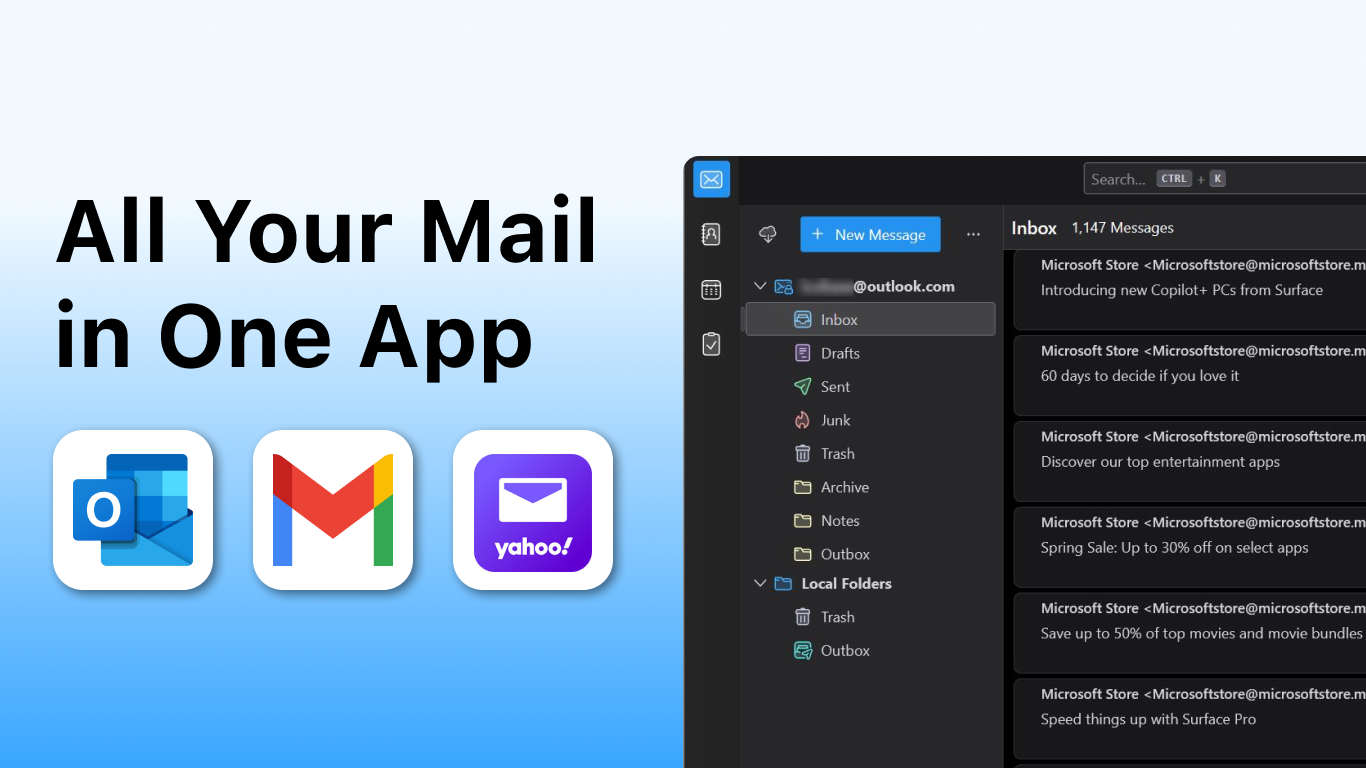
One of the app's strongest points is its minimalist yet functional interface. With a clean layout, visually distinct sections, and easy-to-access controls, users are presented with a distraction-free environment. Navigating between multiple accounts is effortless, thanks to a sidebar that neatly organizes your inboxes and labels. The responsiveness of the app — quick load times, smooth scrolling, and fluid transitions — ensures that using Mail feels natural and unhampered. Moreover, the learning curve is gentle; even first-time users find it intuitive to set up accounts and start managing emails within minutes.
The most compelling feature of Mail for Windows is its ability to unify various email accounts into a single, cohesive interface, reducing the mental juggling of multiple apps. Its automatic filtering system intelligently sorts incoming emails, prioritizing important messages and decluttering the inbox — a true game-changer for those drowning in a flood of notifications. Additionally, the app's quick action buttons—such as archive, reply, or mark as read—enable users to process emails swiftly without disrupting their workflow.
Another highlight is its integration capabilities. Mail seamlessly connects with calendar apps and task managers, allowing users to convert emails into calendar events or to-do items with minimal effort. This tight integration dramatically cuts down the steps typically required to incorporate email content into your broader productivity ecosystem, thereby enhancing overall efficiency.
What truly sets Mail for Windows apart from its competitors is its emphasis on reducing cognitive load. Unlike feature-heavy apps that may overwhelm with options and settings, this app's curated features focus on core tasks, leaving users free to concentrate. Its smart filtering reduces the mental burden of sorting through noisy inboxes, while the streamlined interface minimizes visual clutter. These design choices reflect a deep understanding of how busy individuals process email, making Mail an effective tool for those who value clarity over complexity.
Overall, Mail for Windows offers a refreshingly simple yet powerful approach to email management. It's particularly well-suited for users who prioritize workflow efficiency and prefer a distraction-free environment. For those already embracing integrated productivity tools, its seamless compatibility adds to its appeal. While it may lack some of the advanced customization options found in heftier apps, its core strengths lie in clarity, speed, and ease of use.
I recommend giving this app a try if you're seeking a clutter-free email experience that streamlines your daily routines. Ideal for professionals, students, and anyone tired of the endless toggling between multiple inboxes, Mail for Windows is a practical, thoughtful addition to your digital workspace.
User-friendly interface
Seamless integration with Microsoft services
Built-in spam filtering
Customizable notifications
Multi-account support
Limited offline functionality
Occasional sync delays
Basic customization options
Limited support for third-party plugins
Performance issues on older devices

for Windows
 5
5

for Windows
5

for Windows
4.9

for Windows
4.9

for Windows
4.9

for Windows
4.8

for Windows
4.8
for Windows
4.8

for Windows
4.8

for Windows
4.8

for Windows
4.8

for Windows
4.8

for Windows
5
for Windows
5

for Windows
5

for Windows
5

for Windows
5

for Windows
5

for Windows
5

for Windows
5

for Windows
5
for Windows
5