Productivity
PC
Windows 10 version 15063.0 or higher
Integrated Keyboard
Integrated Mouse
Arabic, Chinese (Simplified), Chinese (Traditional), Chinese (Traditional, Hong Kong SAR), Dutch, English (United Kingdom), English (United States), French, German, Greek, Italian, Japanese, Korean, Polish, Portuguese (Brazil), Portuguese (Portugal), Romanian, Russian, Slovak, Spanish
If you're tired of juggling countless passwords and worrying about online security, Keeper® Password Manager for Windows offers a streamlined solution designed to keep your digital life organized, protected, and hassle-free. With its robust features and user-friendly interface, this application aims to be your trustworthy digital vault—reducing stress and boosting productivity in your everyday workflow.
Keeper® Password Manager for Windows is a comprehensive password management tool that securely stores and auto-fills your login credentials, making online authentication effortless. Developed by Keeper Security Inc., a reputable leader in cybersecurity solutions, the app emphasizes security, ease of use, and integration.
Development Team: Keeper Security Inc., renowned for their enterprise-grade security products and user-centric approach.
Main Features Highlights:
Target User Group: Professionals, tech-savvy individuals, and anyone seeking a reliable solution for managing multiple passwords securely and efficiently on Windows platforms.
Imagine having a diligent, digital bodyguard that not only guards your passwords but also streamlines your online routines. Keeper® Password Manager for Windows isn't just about storing passwords; it's about transforming the way you interact with your digital accounts—making security feel like second nature rather than a chore. Its intuitive design and smart features work quietly in the background, giving you one less thing to worry about every day.
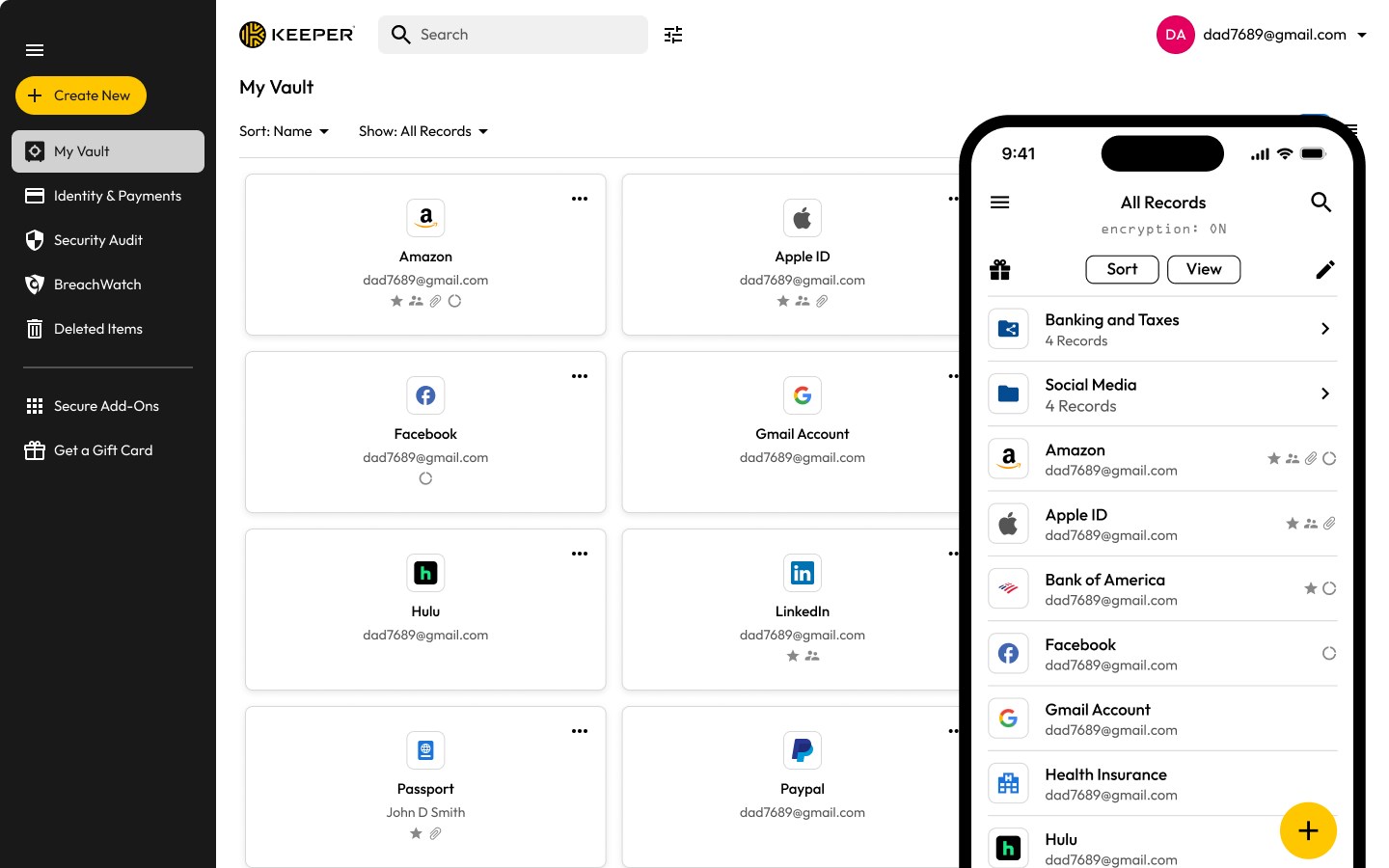
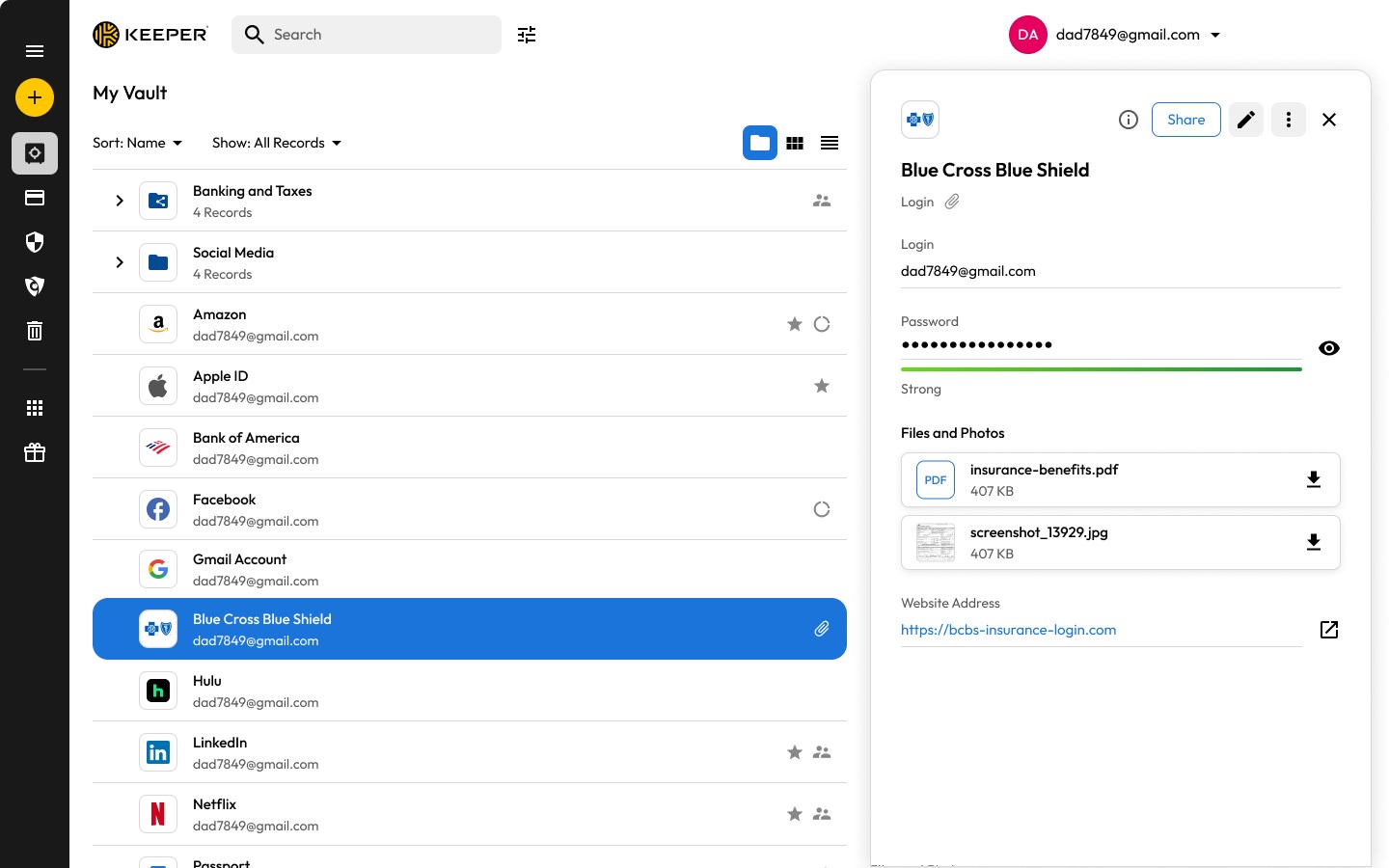
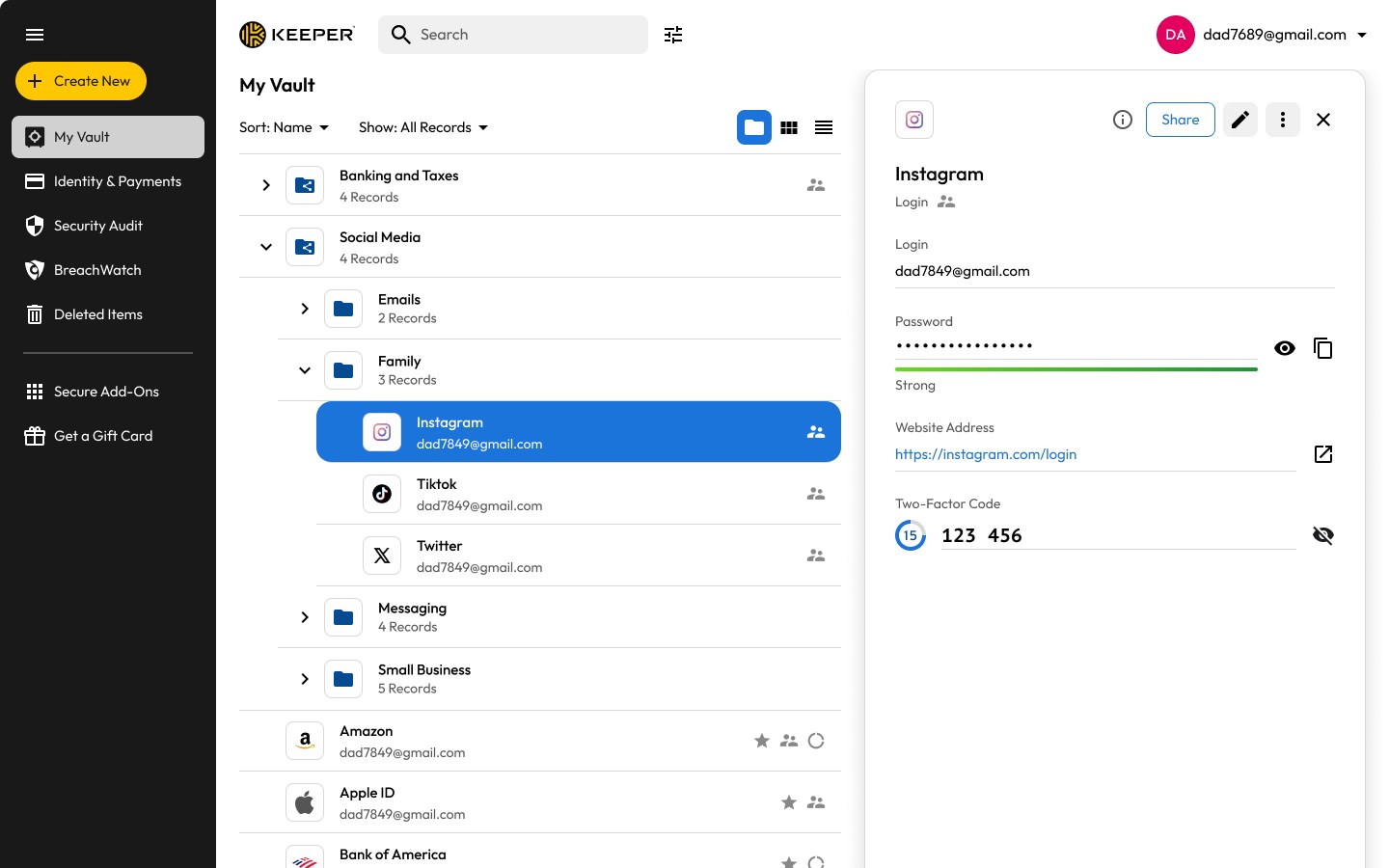
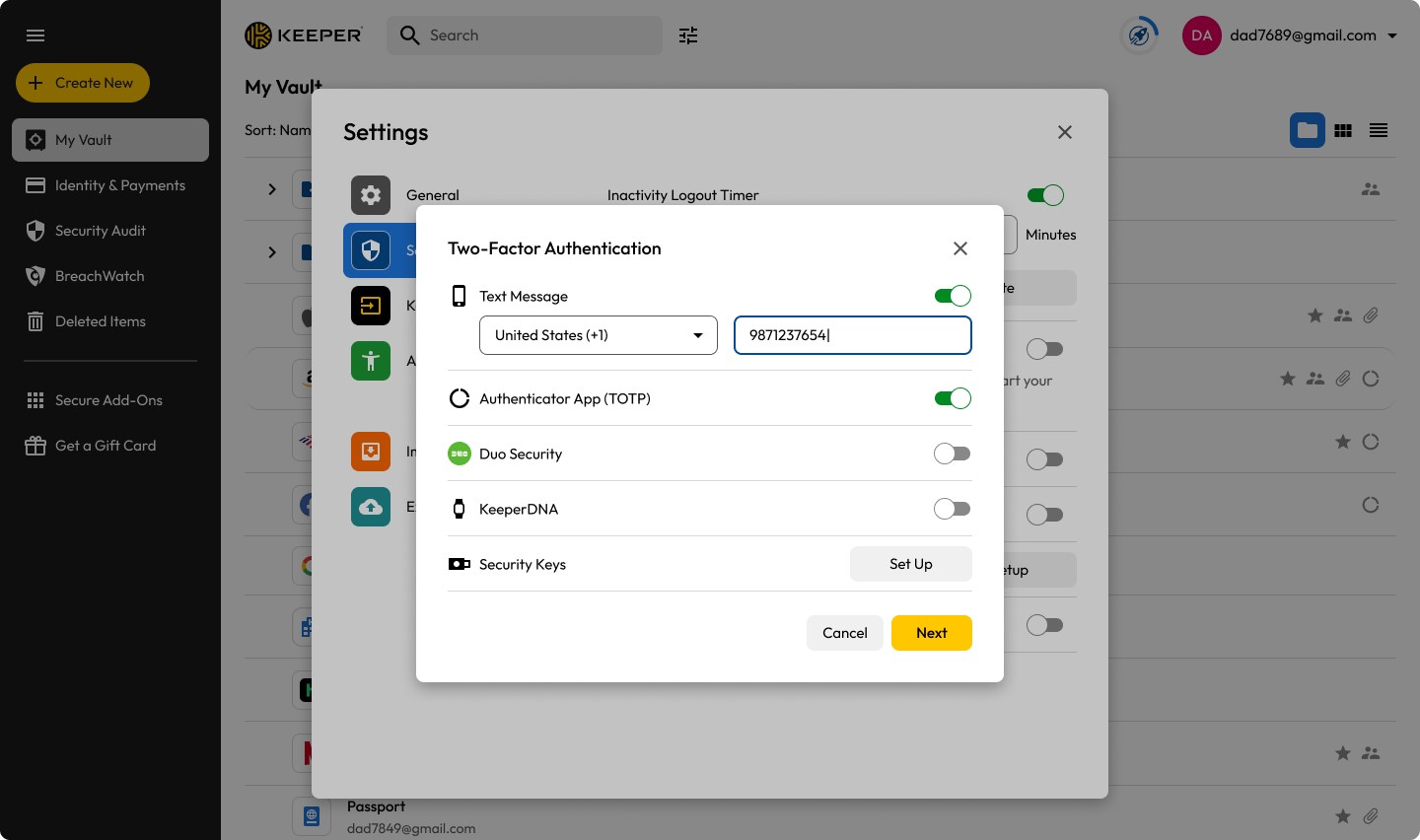
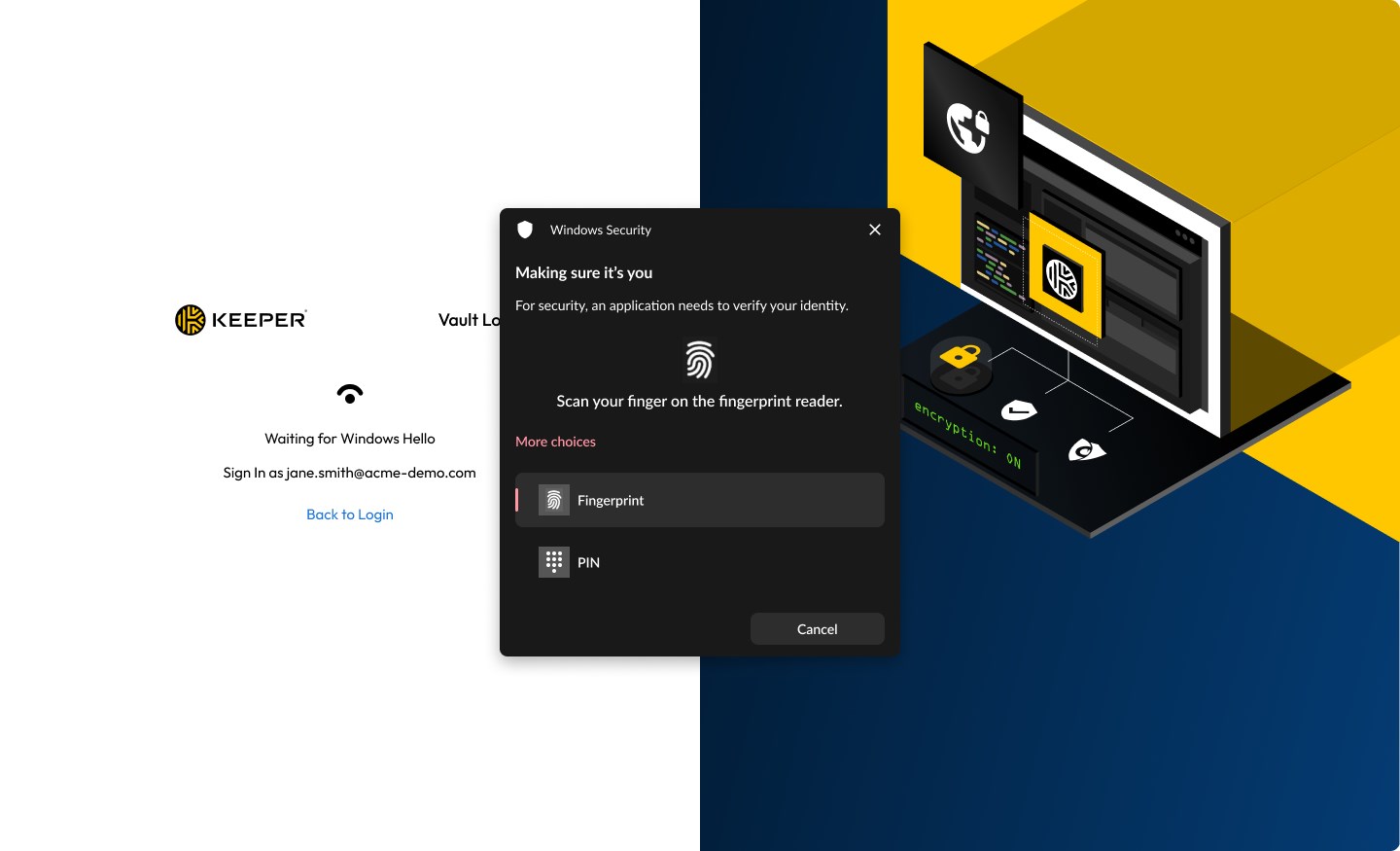
At the heart of Keeper is its secure digital vault—an impregnable safe where your passwords, credentials, and sensitive notes reside. Using military-grade encryption, the app ensures that only you can access your data. The biometric login options, such as fingerprint or Windows Hello, add an extra layer of convenience—imagine unlocking a treasure chest with just a glance or touch. The vault is designed to be accessible yet secure, with auto-lock features that protect your data when inactive.
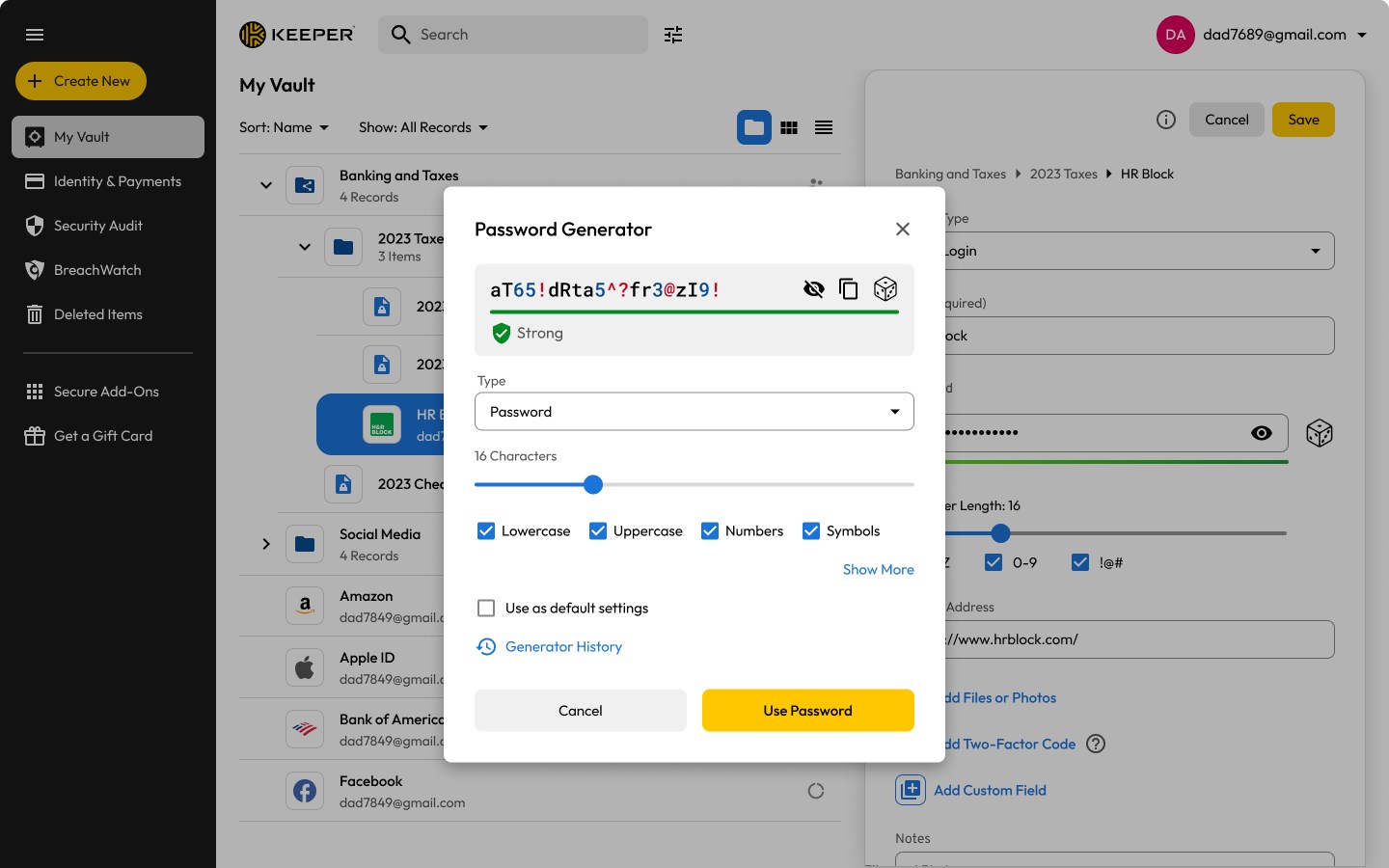
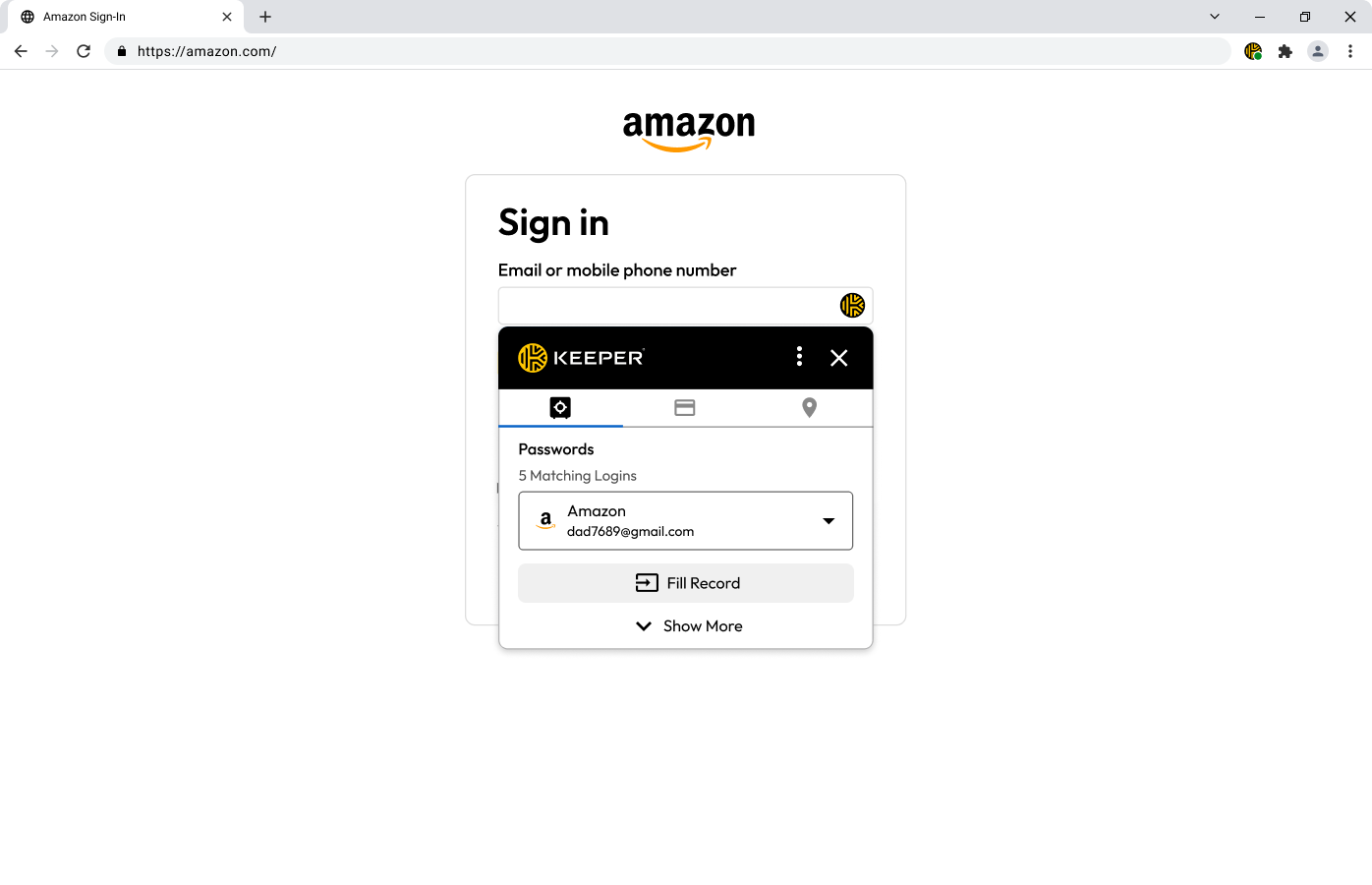
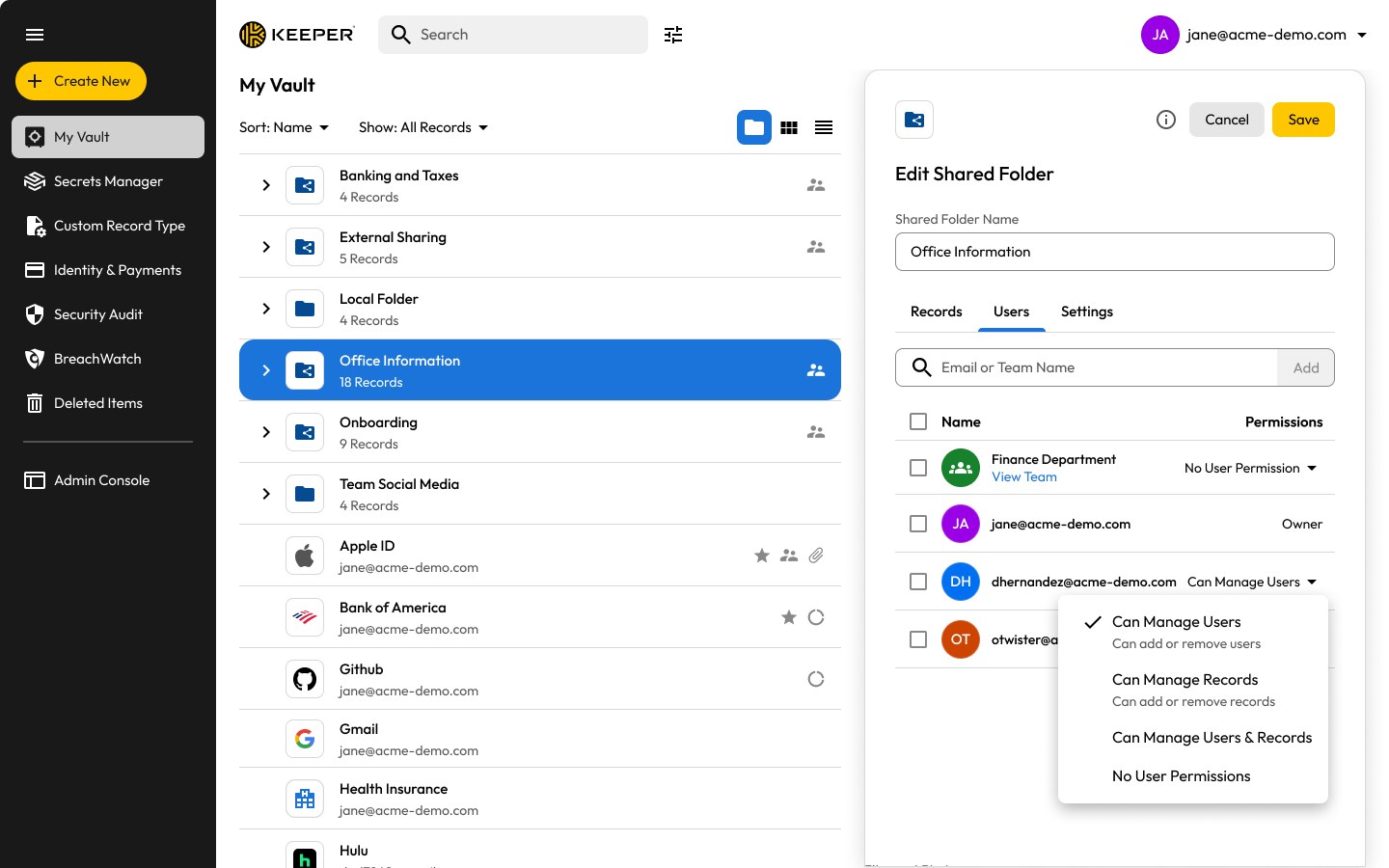
One of Keeper's standout features is its ability to automatically fill login credentials across various websites and apps—saving you from the tedious copying and pasting routine. This notably reduces cognitive load, especially for users managing dozens of accounts. Additionally, the app provides strong, randomly generated passwords during account creation—like having a personal password chef ensuring your online identities are fortified against breaches.
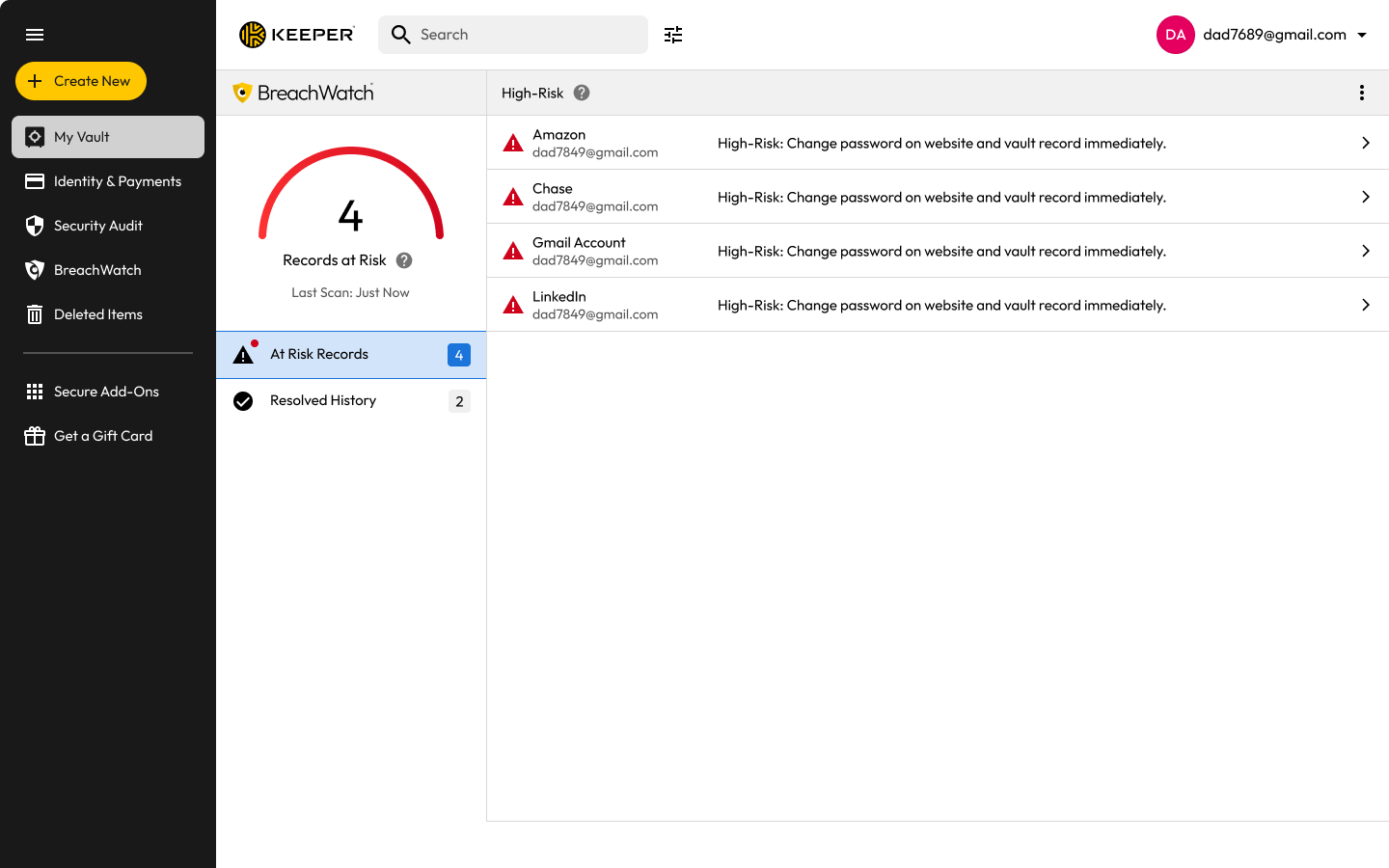
Keeper goes a step further by offering dark web monitoring. It scans the web for potential leaks involving your stored email addresses or credentials, alerting you proactively if your information appears in any breaches. This feature acts as an early warning system, allowing you to respond swiftly—like having a digital alarm system guarding your online identity before harm occurs.
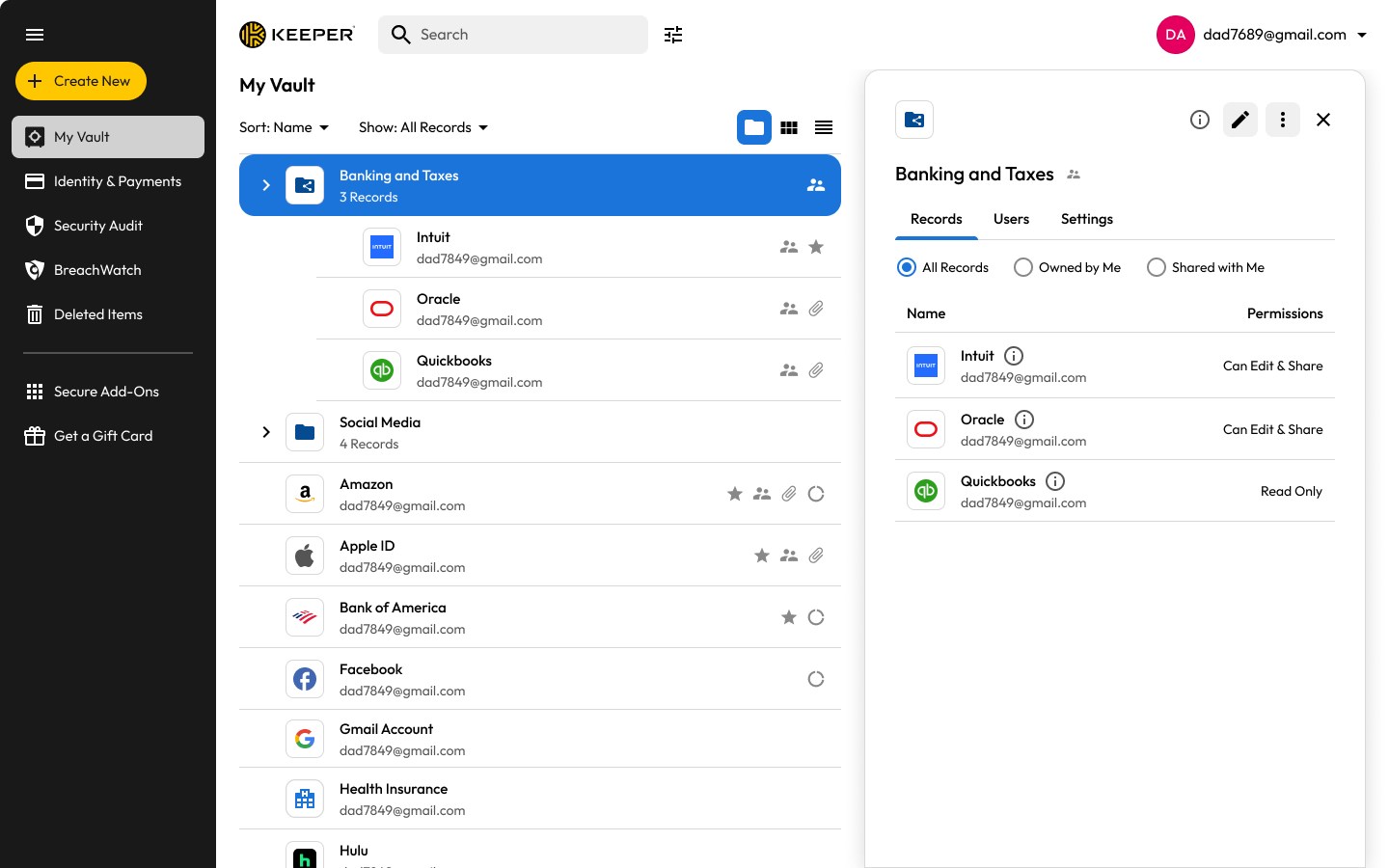
Keeper's interface strikes a commendable balance between functionality and simplicity. Its dashboard is straightforward, akin to a well-organized safety deposit box—easy to navigate, with clear labels and minimal clutter. The app's responsiveness is smooth, with rapid loading and auto-fill actions that don't make you wait or second-guess. The learning curve is gentle, even for users new to password managers, thanks to intuitive prompts and helpful onboarding tutorials.
Compared to similar tools, Keeper stands out in its focus on reducing cognitive load. While many password managers pack in features that can overwhelm users, Keeper emphasizes essential security functions in a clean, integrated workflow. Features such as biometric access and dark web scans are seamlessly woven into daily routines, making security an effortless part of your day rather than an additional task.
For individuals seeking a reliable, security-focused password manager that's easy to use and integrates well into existing workflows, Keeper® Password Manager for Windows is a solid choice. Its strongest selling points are its robust security measures and intelligent automation that minimize user effort and mental load. If you value peace of mind and efficiency over unnecessary complexity, this app is recommended.
While it might not boast every bells and whistles some enterprise solutions offer, for personal and professional use, Keeper strikes an excellent balance. It's like having a digital confidant—quiet, dependable, and always ready to help you navigate the digital world securely. For users already embedded in the Windows ecosystem, this app offers a native experience that feels natural and unobtrusive.
Strong Security Features
Easy-to-Use Interface
Cross-Platform Compatibility
Secure Password Sharing
Additional Features
Premium Plan Cost
Limited Free Features
Syncing Delays
Learning Curve for Advanced Features
Customizability Limitations

for Windows
 5
5

for Windows
5

for Windows
4.9

for Windows
4.9
for Windows
4.9
for Windows
4.8

for Windows
4.8

for Windows
4.8

for Windows
4.8

for Windows
4.8
for Windows
4.8

for Windows
4.8

for Windows
5
for Windows
5

for Windows
5

for Windows
5

for Windows
5

for Windows
5

for Windows
5

for Windows
5

for Windows
5
for Windows
5