Lifestyle
Roadkill
PC, Mobile, Surface Hub, HoloLens
Windows 10 version 14393.0 or higher
English (United States)
If you're a Blink camera enthusiast seeking a reliable way to monitor your home security footage on your Windows device, IP Cam Viewer (Blink Camera Support) by Roadkill offers a straightforward yet effective solution. Think of it as your personal surveillance command center—connecting you seamlessly with your Blink cameras from the comfort of your PC, eliminating the need to juggle multiple apps or rely solely on mobile devices.
Developed and published by Roadkill, this application aims to bridge the gap between Blink's ecosystem and Windows users. Its standout features include robust live viewing capabilities, easy playback of recorded footage, and straightforward camera management—all wrapped in an intuitive interface. Designed explicitly for Blink camera users, it ensures you stay connected with your property at all times, whether at work or home.
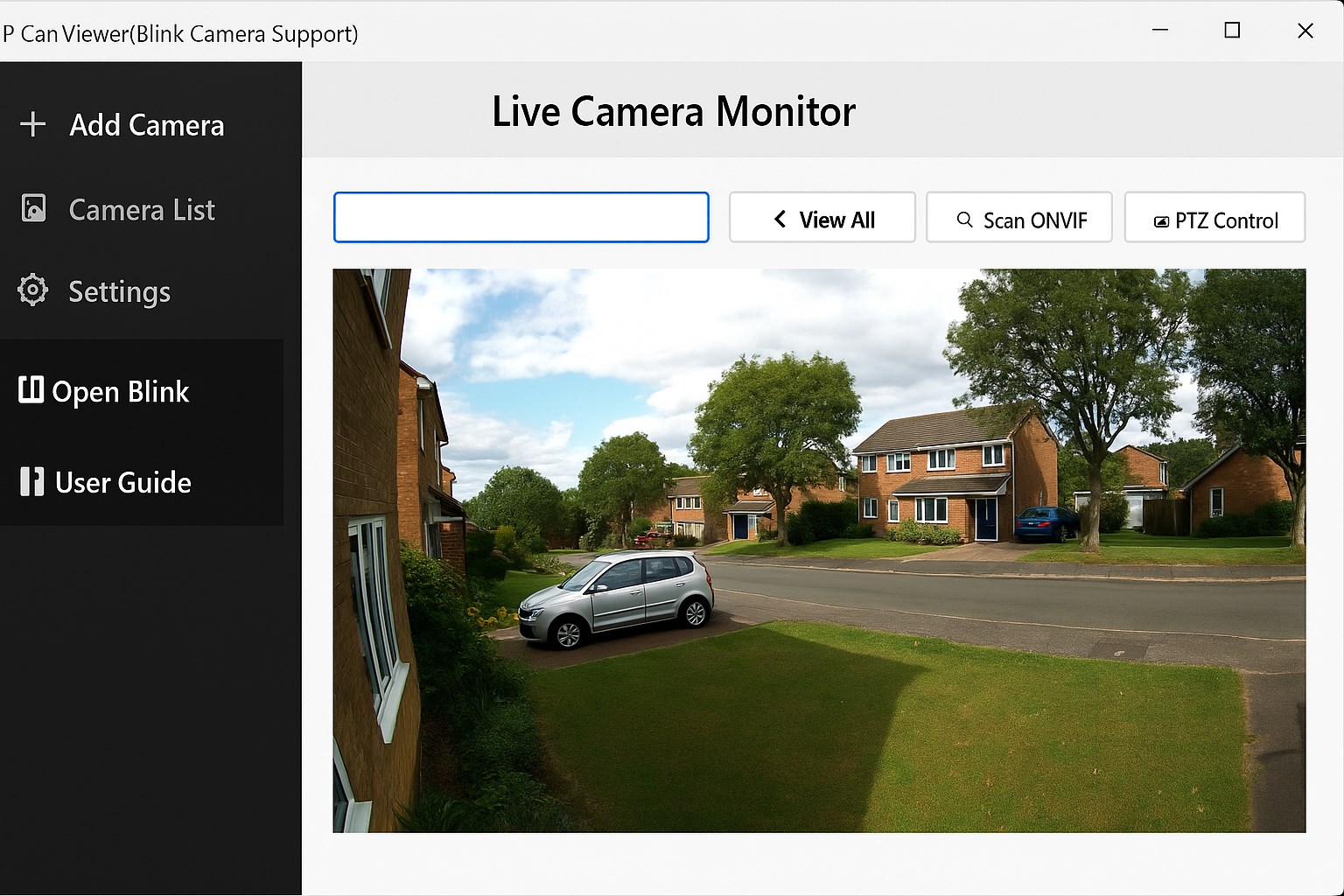
Stepping into the application feels akin to opening a control panel for your security system—clean, organized, and immediately accessible. The interface boasts a simple layout that makes locating cameras and viewing feeds a breeze. Transitioning from one camera to another is buttery smooth, with minimal loading times, making you feel like you're watching live footage through a high-definition window. The layout's logical design lowers the learning curve, inviting even less tech-savvy users to harness its full potential without frustration.
At the heart of this app is its sleek live viewing feature. It offers real-time streams from your Blink cameras, akin to having a high-powered monitor right on your desktop. The streaming quality is generally stable and clear, provided your internet connection is solid, giving users confidence in monitoring their premises. What's particularly impressive is the app's ability to handle multiple cameras simultaneously, turning your Windows device into a command hub for all your security feeds.
Beyond live feeds, the app allows users to access and review recorded footage efficiently. With a user-friendly timeline, you can quickly locate events of interest, much like flipping through pages of a security diary. This feature enhances post-event analysis and peace of mind, especially when reviewing alerts or suspicious activity. The simplicity of navigating recordings is a big plus for those who prefer straightforward solutions over convoluted management tools.
Though primarily focused on viewing, the app simplifies camera organization—adding, removing, or renaming devices is straightforward. However, it is worth noting that real-time notifications for motion events or alerts currently rely on the original Blink system; the app's role is more passive in this regard. Its strength lies in providing an easily accessible desktop interface rather than expanding Blink's native notification capabilities.
Using IP Cam Viewer for Windows feels akin to upgrading from a periscope to a dedicated security station. The application's core strength lies in its focus: delivering stable, high-quality live streams with minimal fuss. Unlike many similar lifestyle or security apps that lump security with entertainment or home automation, this tool zeroes in on footage accessibility and management, making it a niche but highly effective option for Blink users. Its design reflects attention to detail—it emphasizes content authenticity and reliability by consistently delivering actual camera feeds without excessive overlays or distractions.
Overall, I'd rate this app as a solid choice for Blink camera owners seeking a desktop viewing solution. It's best suited for users who value straightforward functionality, dependable performance, and an uncomplicated interface. For those wanting an adjustable, professional-grade monitor of their home security feeds without the complexity of dedicated security software, IP Cam Viewer (Blink Camera Support) fits the bill nicely.
While it may lack some advanced features like intelligent alerts or integrations found in more comprehensive security suites, its focus on core viewing functions makes it an invaluable tool. I recommend trying it out if you're looking for a reliable desktop companion to your Blink cameras or prefer managing your security footage from your PC rather than mobile devices.
Easy integration with Blink cameras
User-friendly interface
Real-time live view
Remote access capabilities
Notification alerts
Limited camera compatibility outside Blink
Occasional connectivity issues
Limited advanced settings
Potential battery drain during continuous use
UI could use optimization for certain devices

for Windows
 4.9
4.9

for Windows
4.8

for Windows
4.8

for Windows
4.8

for Windows
4.7

for Windows
4.2

for Windows
4.2

for Windows
4

for Windows
3

for Windows
3

for Windows
2.4
for Windows
2.3

for Windows
5

for Windows
5

for Windows
5

for Windows
5

for Windows
5

for Windows
5

for Windows
5

for Windows
5

for Windows
5

for Windows
5