Business
Intel Corporation
PC, Mobile, Surface Hub, HoloLens
Windows 10 version 17134.0 or higher
Integrated Keyboard
Integrated Mouse
Not specified
English (United States)
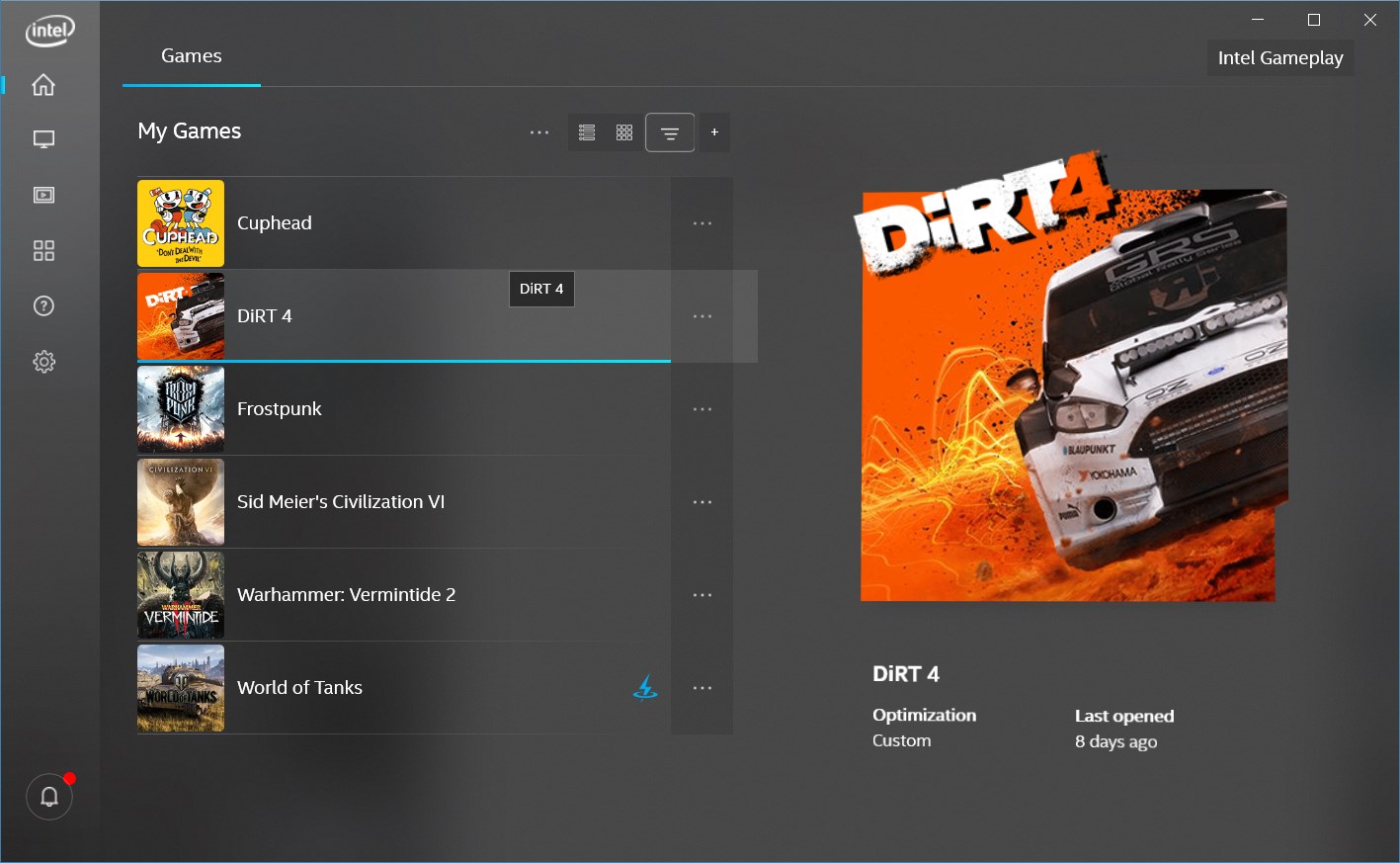
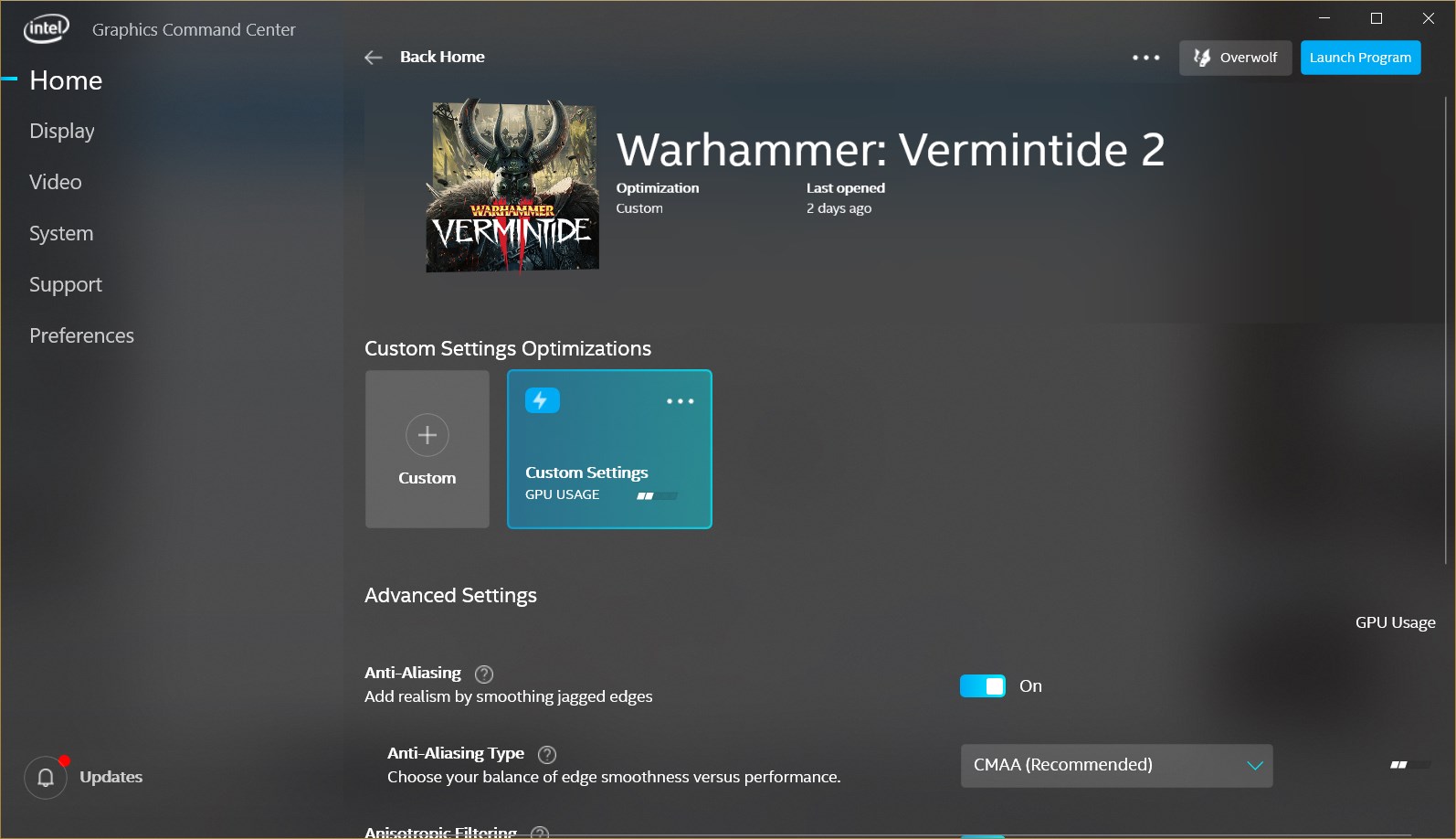
The Intel® Graphics Command Center (Beta) is an intuitive and powerful tool designed to empower users with easy control over integrated graphics settings on Windows devices. Developed by Intel Corporation, this application aims to streamline graphics management for a broad spectrum of users, from casual gamers to professional creatives, providing a centralized hub for optimizing visual performance.
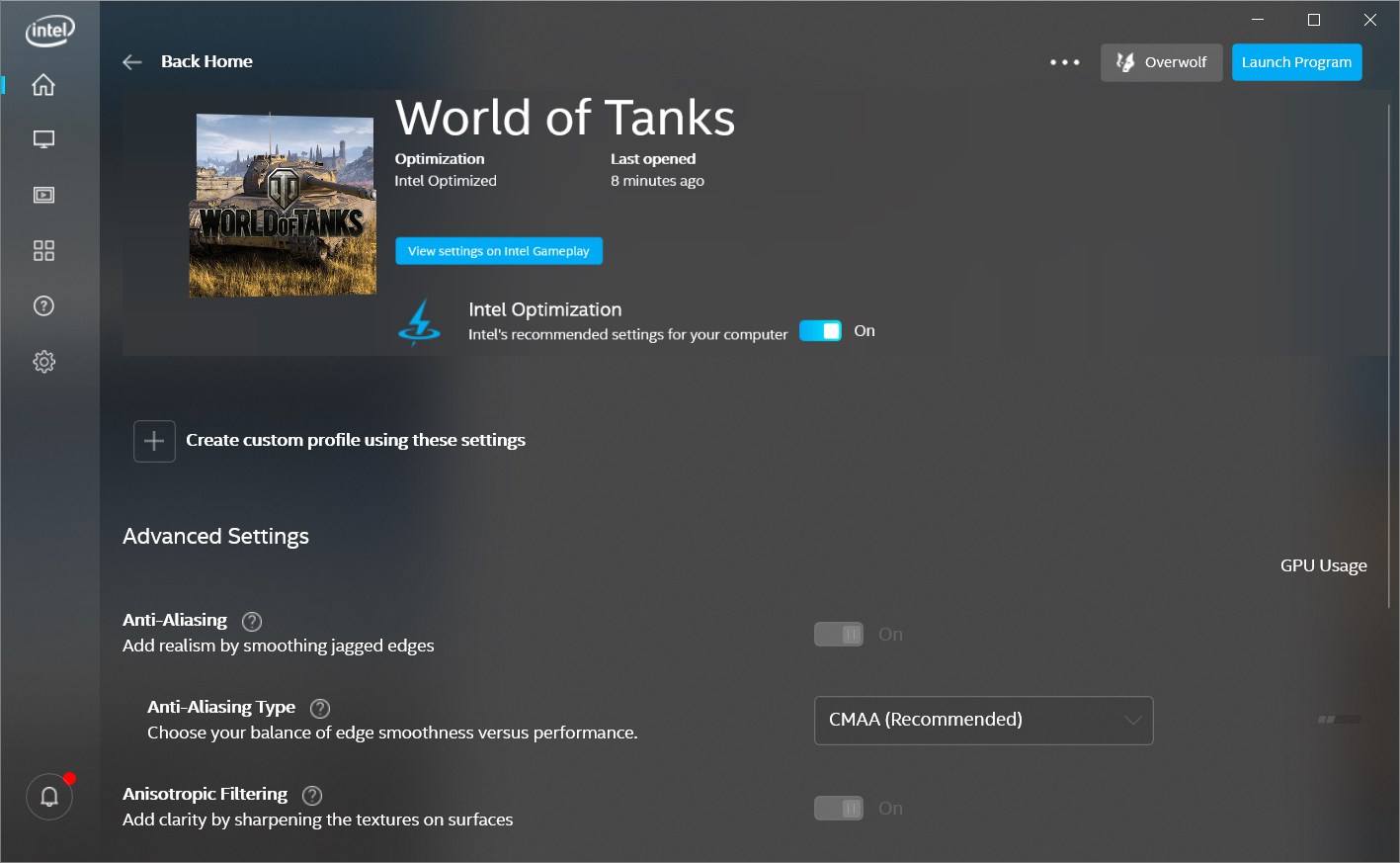
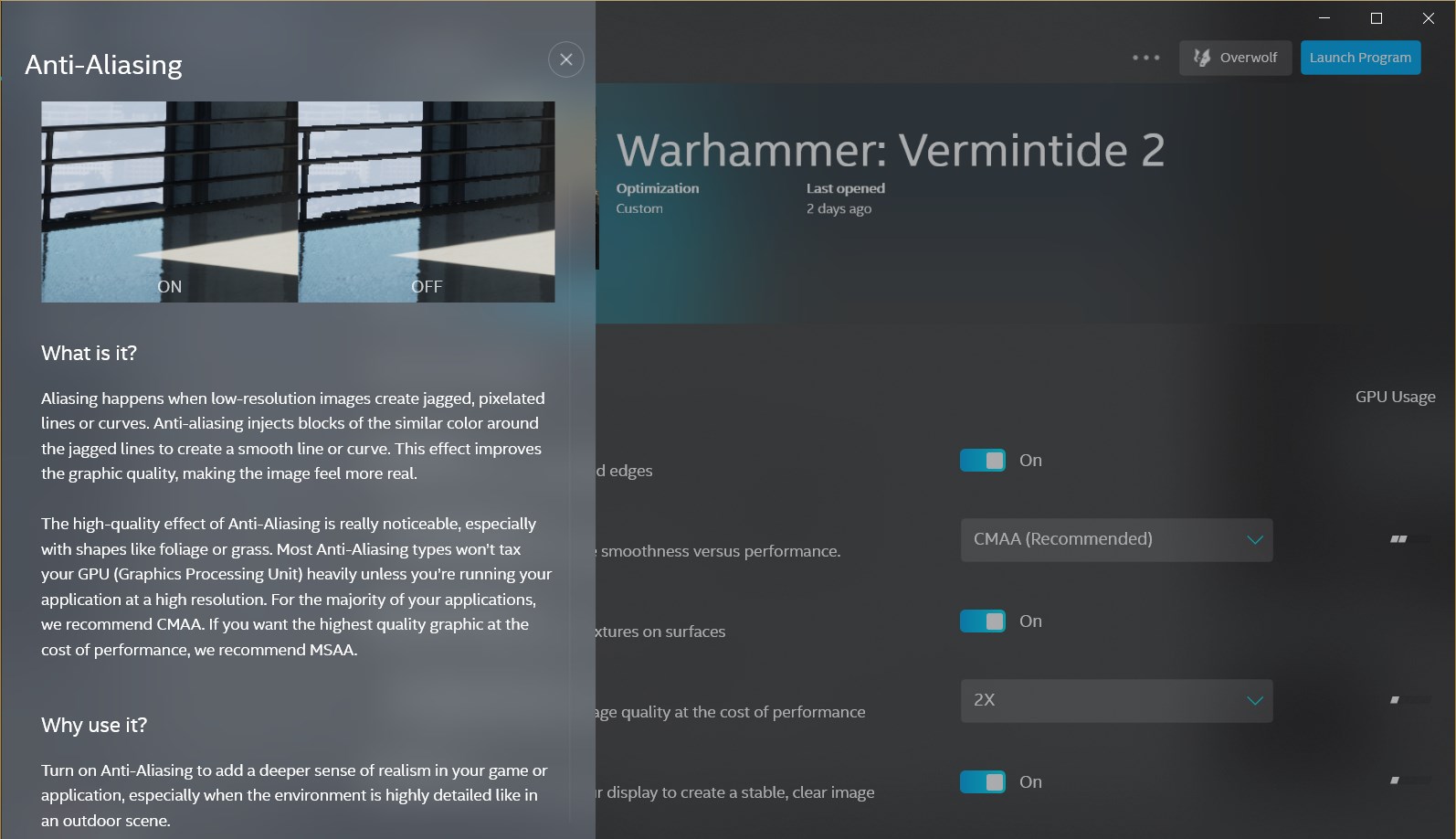
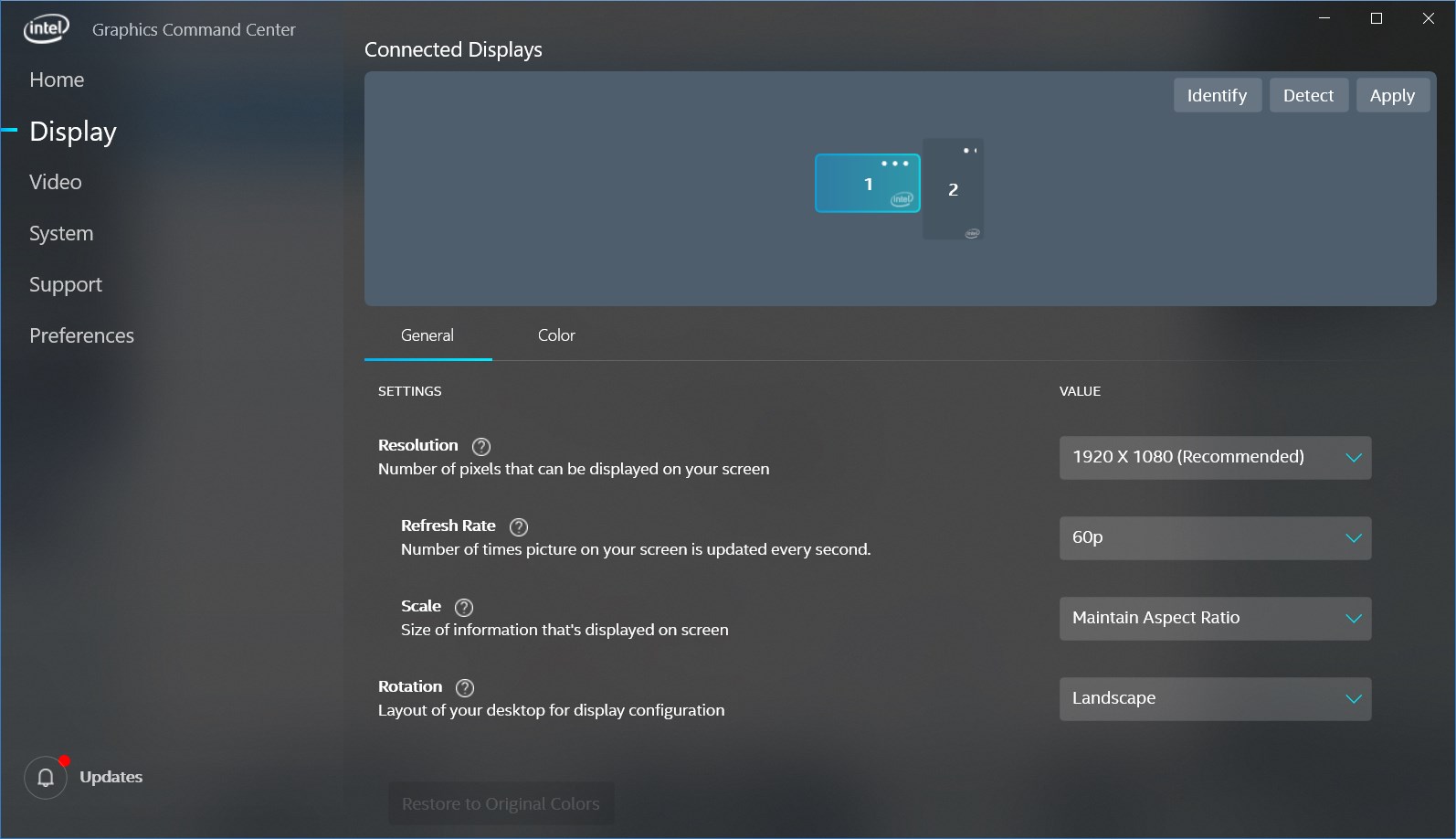
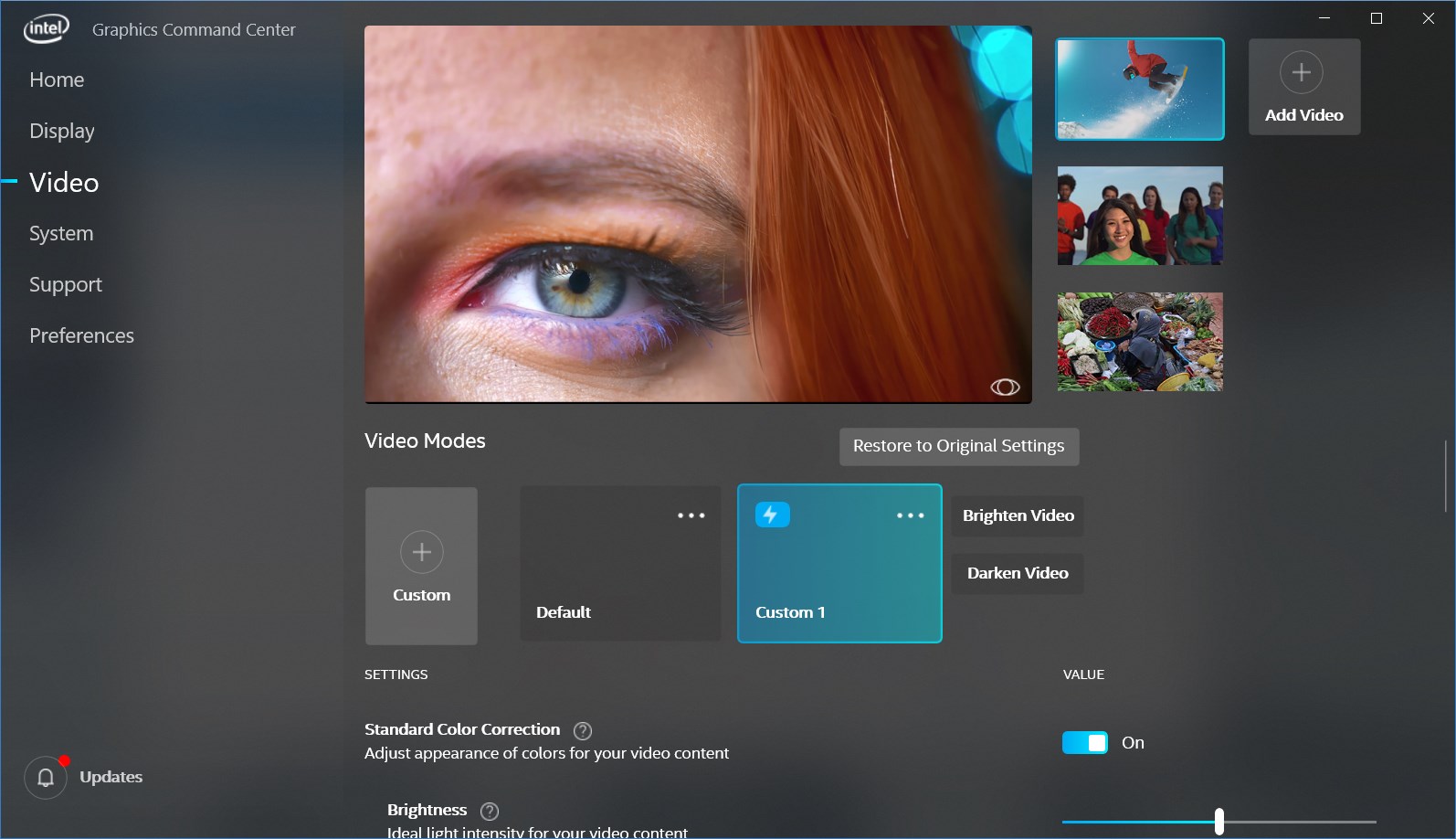
First, the application offers a comprehensive dashboard for adjusting display and graphics settings, enabling users to fine-tune color calibration, resolution, and multiple display configurations. Second, it introduces intelligent game optimization features that automatically adjust graphics settings based on the game's requirements, ensuring smooth gameplay without manual fiddling. Third, the integrated media controls and performance monitoring tools allow real-time tracking of GPU usage and temperature, helping users safeguard their hardware while enjoying multimedia content. Additionally, its beta status hints at ongoing improvements, promising exciting future enhancements.
The interface of the Intel® Graphics Command Center is clean, modern, and approachable—think of it as a sleek dashboard in a high-tech cockpit, yet user-friendly enough for beginners. Navigating through different sections feels seamless, thanks to well-organized menus and intuitive icons; even first-time users can locate essential controls with minimal effort. The app's responsiveness is commendable, with rapid updates and smooth transitions that don't interrupt workflow or entertainment sessions. While some features may initially seem dense, a gentle learning curve combined with clear tooltips makes mastery accessible for most users. The beta nature suggests that Intel is actively refining usability, promising a progressively more polished experience over time.
Compared to other graphics management applications, the Intel® Graphics Command Center sets itself apart with its focus on collaborative and task-oriented features. Its game optimization engine goes beyond manual tweaks by intelligently adjusting settings for various titles—think of it as having a personal graphics assistant rather than a manual tuning tool. Moreover, the real-time performance monitoring offers a level of transparency and control rarely seen in similar apps, enabling users to troubleshoot or optimize on the fly. Unlike generic graphics tools, this app emphasizes integration within the Windows ecosystem, benefiting users who rely on Intel integrated graphics in everyday productivity and entertainment scenarios.
I would confidently recommend the Intel® Graphics Command Center (Beta) to anyone using an Intel-powered Windows device, especially those looking to optimize their display experience without investing in dedicated graphics hardware. Gamers, multimedia enthusiasts, and even professionals doing color-sensitive work will find value here. For best results, start by exploring its recommended presets and gradually experiment with customization options to match your specific needs. Keep in mind that, as a beta, occasional bugs may surface—so providing feedback to Intel can help shape future releases. Overall, this app serves as a solid, user-friendly companion for managing your integrated graphics with an emphasis on simplicity and intelligent control.
Intuitive User Interface
Real-time Performance Monitoring
Customizable Graphics Profiles
Automatic Driver Updates
Beta Version with New Features
Limited Compatibility
Occasional Bugs and Crashes
Basic Customization Options
Lack of Detailed Analytics
Update Frequency

for Windows
 5
5

for Windows
5

for Windows
4.9

for Windows
4.9

for Windows
4.9

for Windows
4.9

for Windows
4.8

for Windows
4.8

for Windows
4.8

for Windows
4.8

for Windows
4.7

for Windows
4.7

for Windows
5

for Windows
5

for Windows
5

for Windows
5

for Windows
5

for Windows
5
for Windows
5

for Windows
5

for Windows
5

for Windows
5