Productivity
ILOVEPDF S.L.
PC
Windows 10 version 17763.0 or higher
Integrated Keyboard
Integrated Mouse
300 MB
Spanish (Spain)
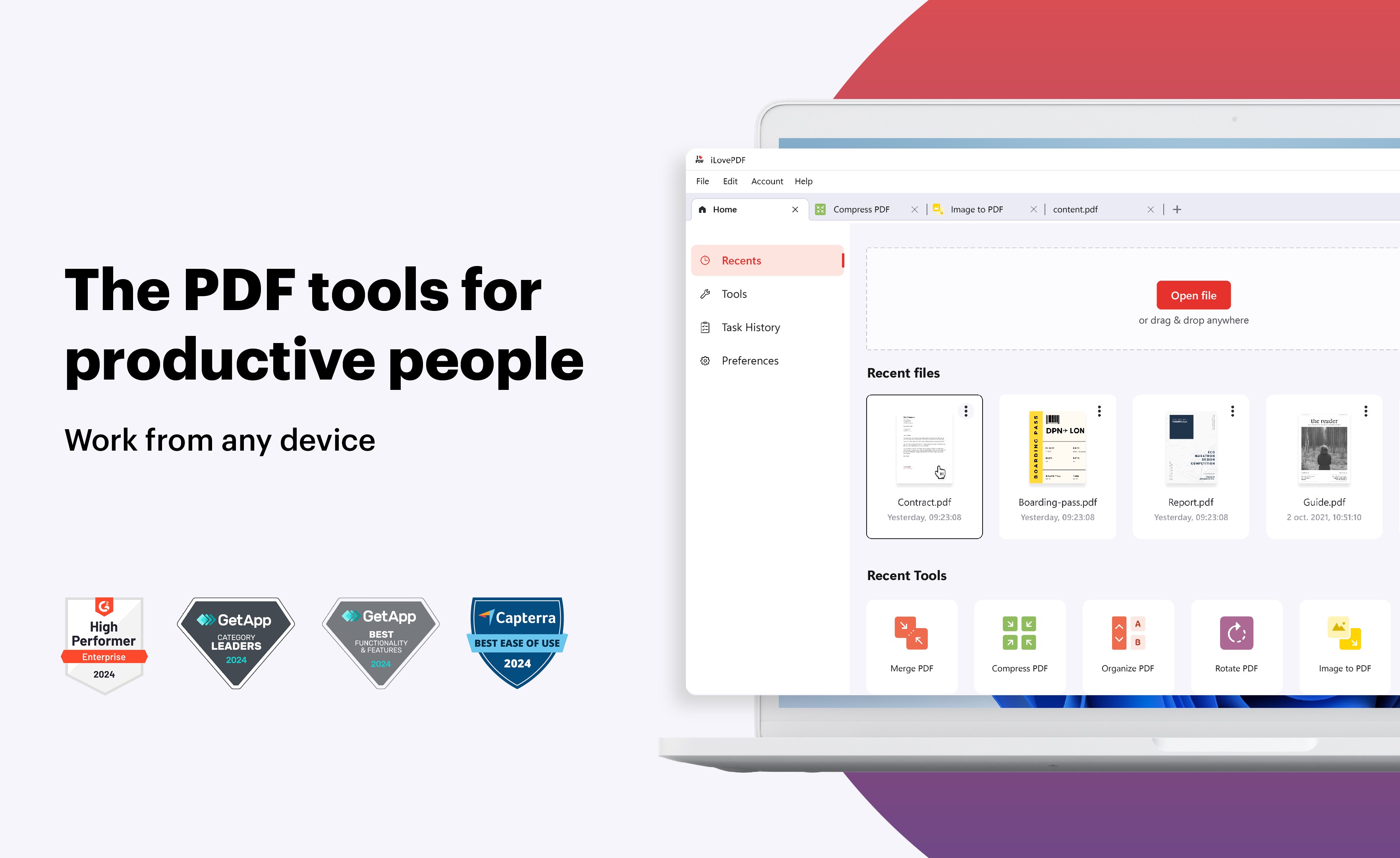
In today's digital workplace, managing PDF documents efficiently can feel like navigating a maze—fortunately, iLovePDF: PDF Reader and Editor for Windows acts as a reliable compass, simplifying your PDF workflows without the clutter of unnecessary features.
Developed by ILovePDF S.L., a dedicated team known for creating user-friendly PDF solutions, this application seamlessly integrates with their robust cloud services, bringing the power of professional PDF editing directly to your desktop environment.
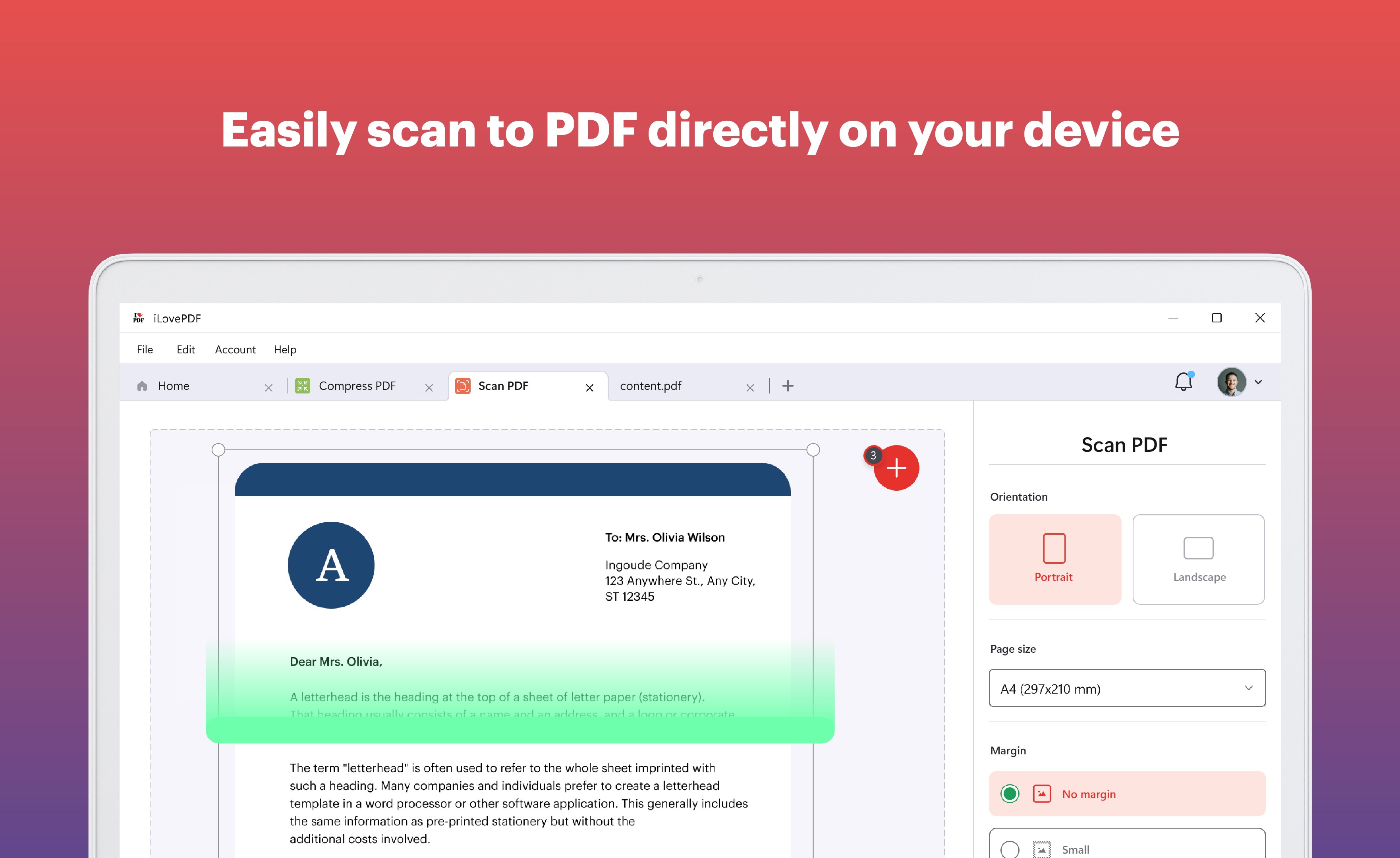
Imagine holding a highlighter that glides smoothly across a crisp sheet of paper—that's how effortless the annotation tools in iLovePDF feel. The interface is clean and intuitive, with a ribbon of familiar icons making the transition from basic viewing to editing a breeze. Whether you're a student marking up a research paper or a professional adding comments for a team, the annotation functions are straightforward yet versatile, enriching the reading experience without demanding a learning curve.
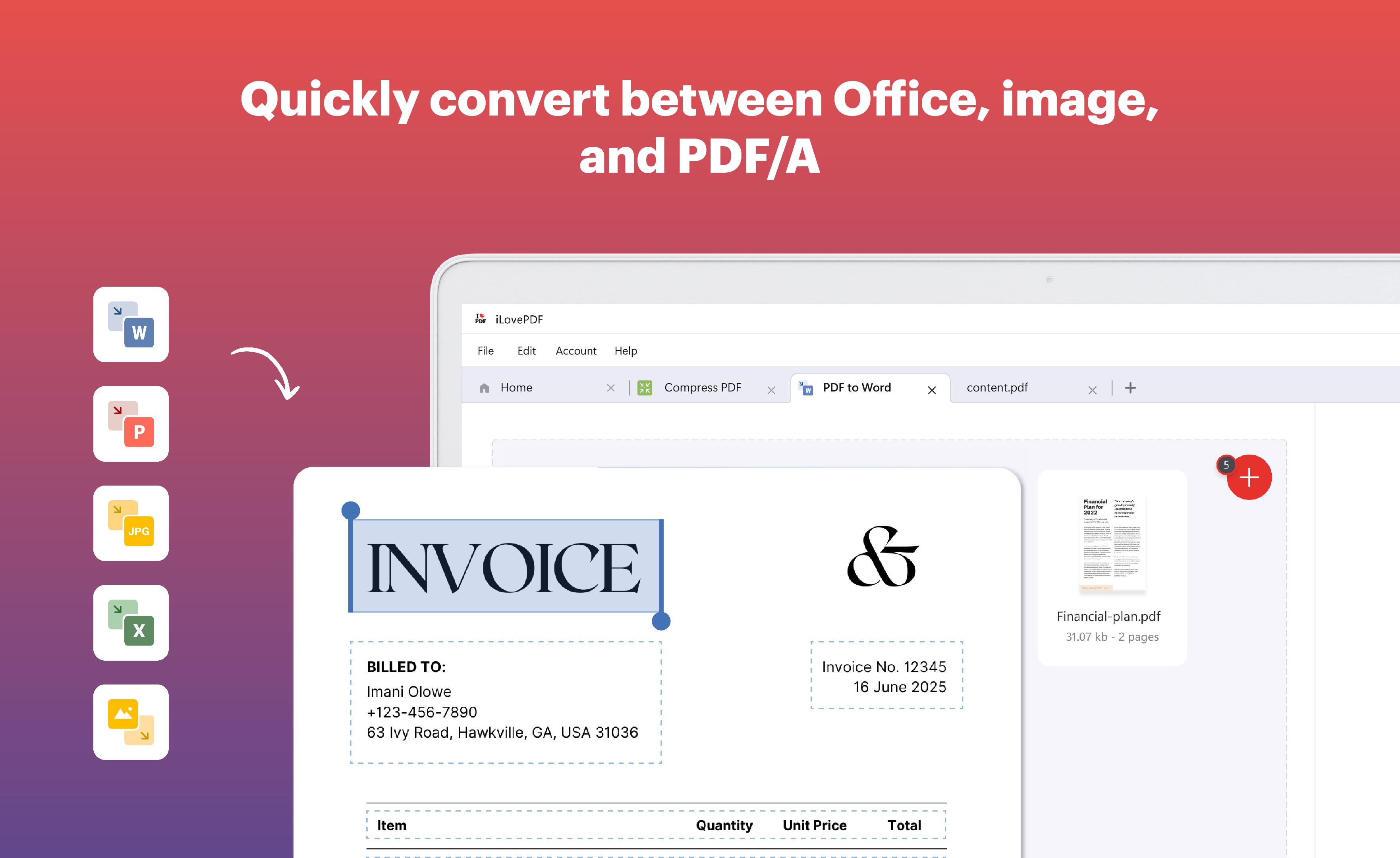
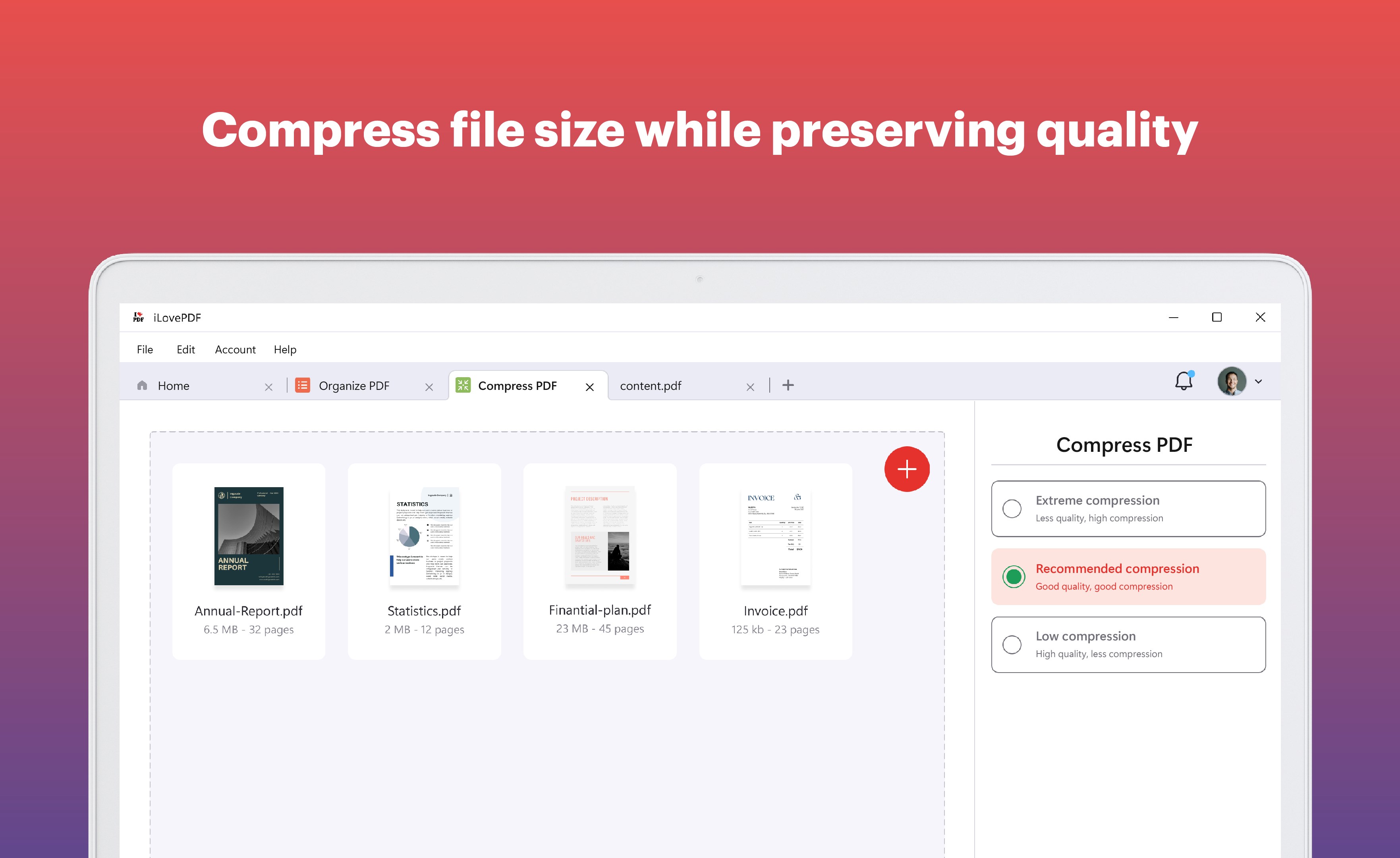
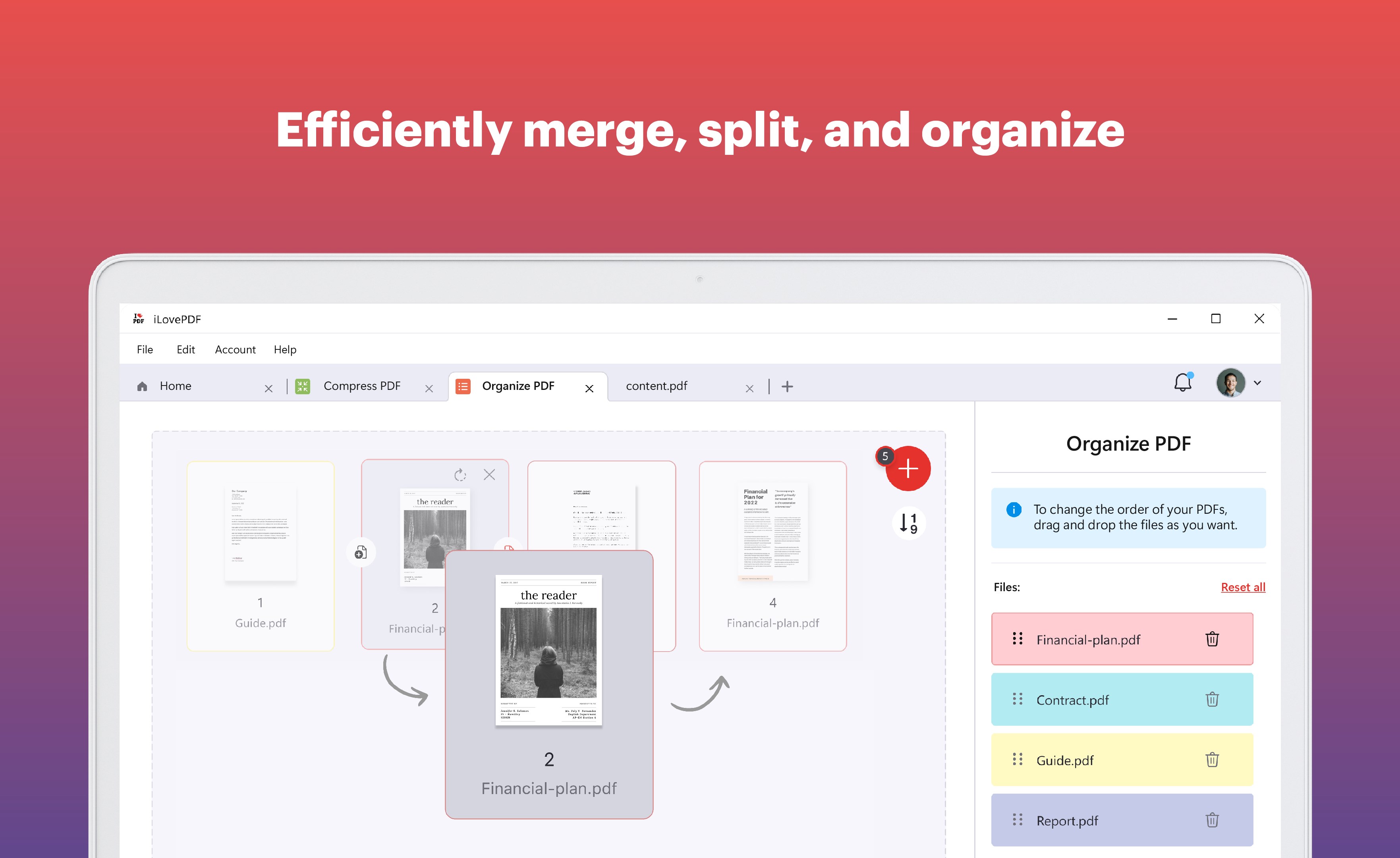
Think of merging PDFs as assembling a well-organized photo album—each page and file fits perfectly into the bigger picture. The app's drag-and-drop feature allows quick stacking of documents, and processing is optimized for speed, so you're not left twiddling your thumbs. Splitting large PDFs into smaller, digestible chunks feels just as simple—select pages, hit split, and voilà! The conversion tools further enhance productivity, letting you morph complex PDFs into editable Word documents or images with minimal fuss. The result is a workflow that feels fluid like a well-rehearsed dance, reducing mental clutter and cognitive load.
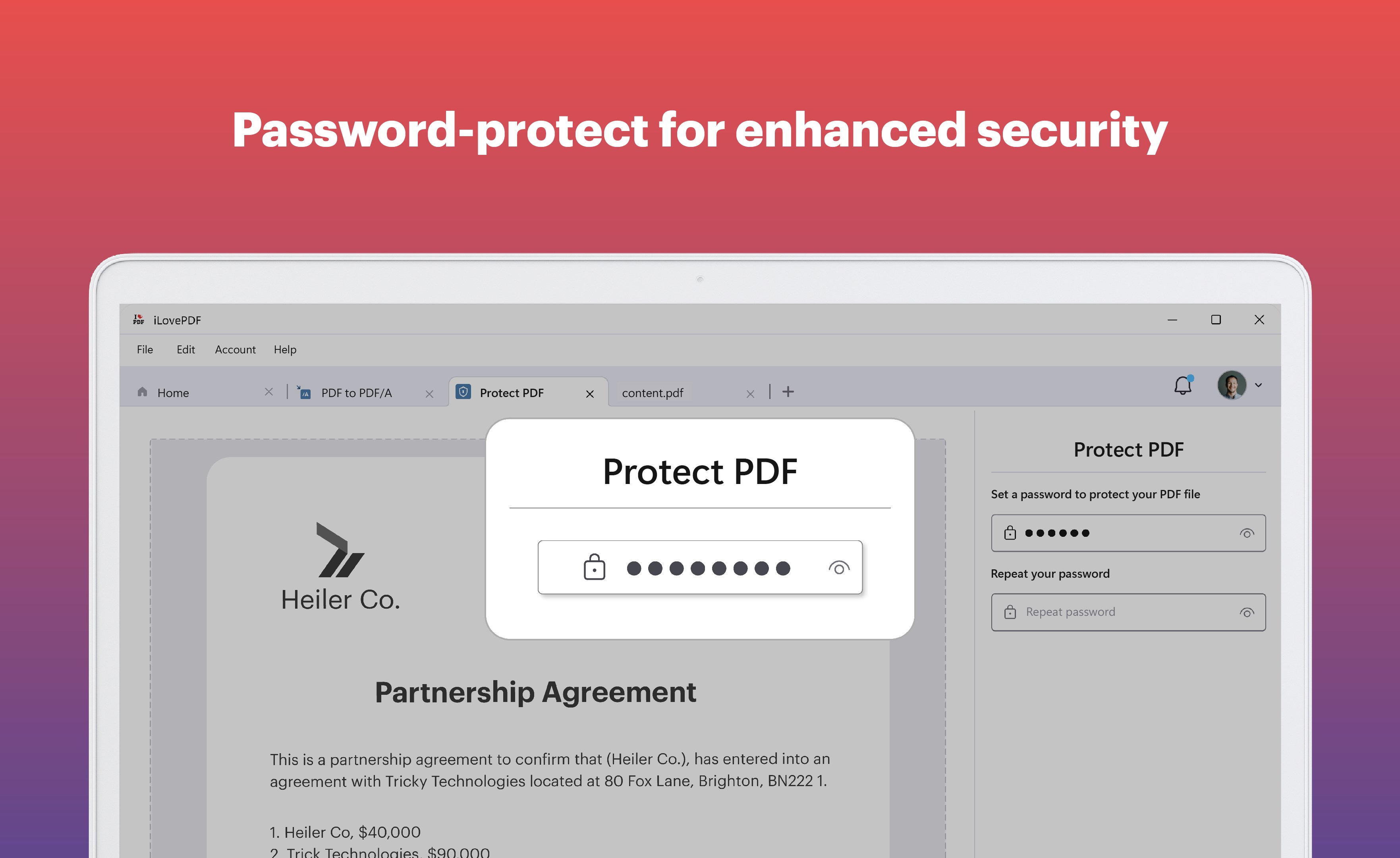
The application sports a modern, minimalist aesthetic—akin to walking into a tidy workspace. Buttons are logically placed, reducing visual strain and confusion. The app responds swiftly to user inputs, ensuring that actions like zooming, scrolling, or editing are fluid and lag-free. For newcomers, the learning curve is gentle—basic functionalities are immediately accessible, and more advanced features are logically grouped for quick discovery. This thoughtful design minimizes frustration and allows you to focus on your tasks rather than battling with the software.
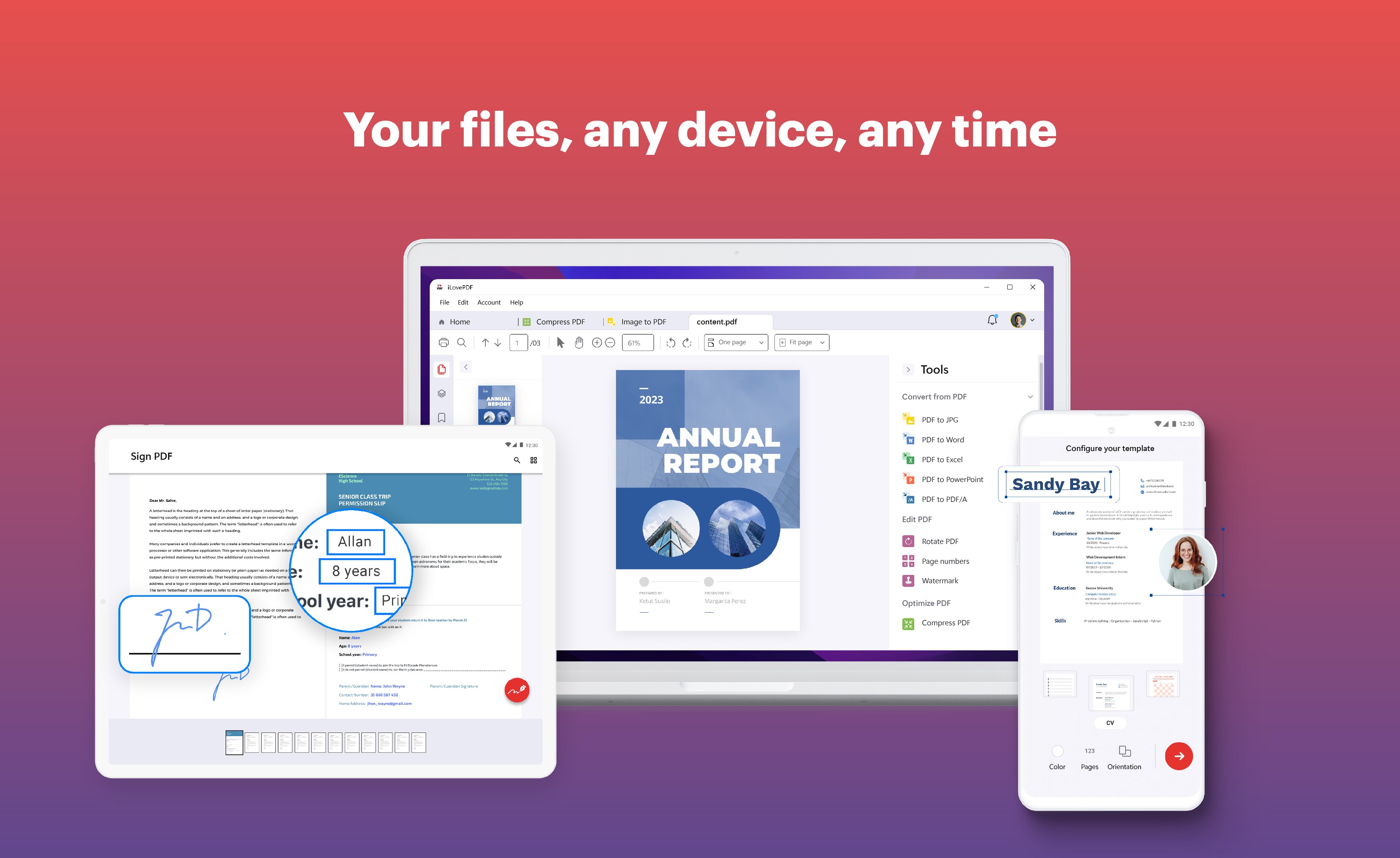
Compared with other productivity apps that burden users with feature bloat, iLovePDF for Windows excels by emphasizing workflow integration and usability. Its core strength lies in reducing cognitive load—tasks like merging, splitting, and converting are streamlined into a few steps, making complex PDF manipulations feel almost automatic. Unlike bulky tools that demand extensive tutorials, this app prioritizes core functions executed with precision and simplicity. Its cloud syncing further harmonizes document management across devices, elevating it beyond standalone editors to a truly integrated workflow partner.
I recommend this app for professionals and students seeking a straightforward, reliable PDF tool that enhances productivity without unnecessary complexity. If your daily tasks involve frequent PDF editing, annotation, or conversion, iLovePDF's Windows application is a solid candidate. For casual users or those already embedded in the cloud ecosystem, it seamlessly fits into existing workflows, offering efficiency and ease of use. While it's not designed to replace comprehensive PDF suites with advanced features, it hits a sweet spot for everyday needs, making your document handling smarter and less stressful.
Intuitive User Interface
Comprehensive PDF Editing Features
Fast Performance
Cloud Integration
Frequent Updates and Improvements
Limited Free Features
Occasional Saving Errors
Basic OCR Capabilities
Limited Customization Options
App Size and Memory Usage

for Windows
 5
5

for Windows
5

for Windows
4.9

for Windows
4.9

for Windows
4.9

for Windows
4.8

for Windows
4.8

for Windows
4.8

for Windows
4.8

for Windows
4.8
for Windows
4.8

for Windows
4.8

for Windows
5
for Windows
5

for Windows
5

for Windows
5

for Windows
5

for Windows
5

for Windows
5

for Windows
5

for Windows
5
for Windows
5