Photo & video
Duckhead Software
PC
Windows 10 version 19041.0 or higher
English (United States)
If you've ever stared at a HEIC image wondering how to open it on your Windows device without the hassle, HEIC to JPEG for Windows by Duckhead Software might just be your new best friend. Designed to simplify image format conversion, this app aims to make your photo management smoother and more accessible, all with just a few clicks.
HEIC to JPEG for Windows is a straightforward utility crafted by Duckhead Software to convert HEIC images into more universally compatible JPEG files. The app is perfect for users who frequently encounter HEIC files, often from iOS devices, and need a quick solution for viewing or editing those images on Windows.
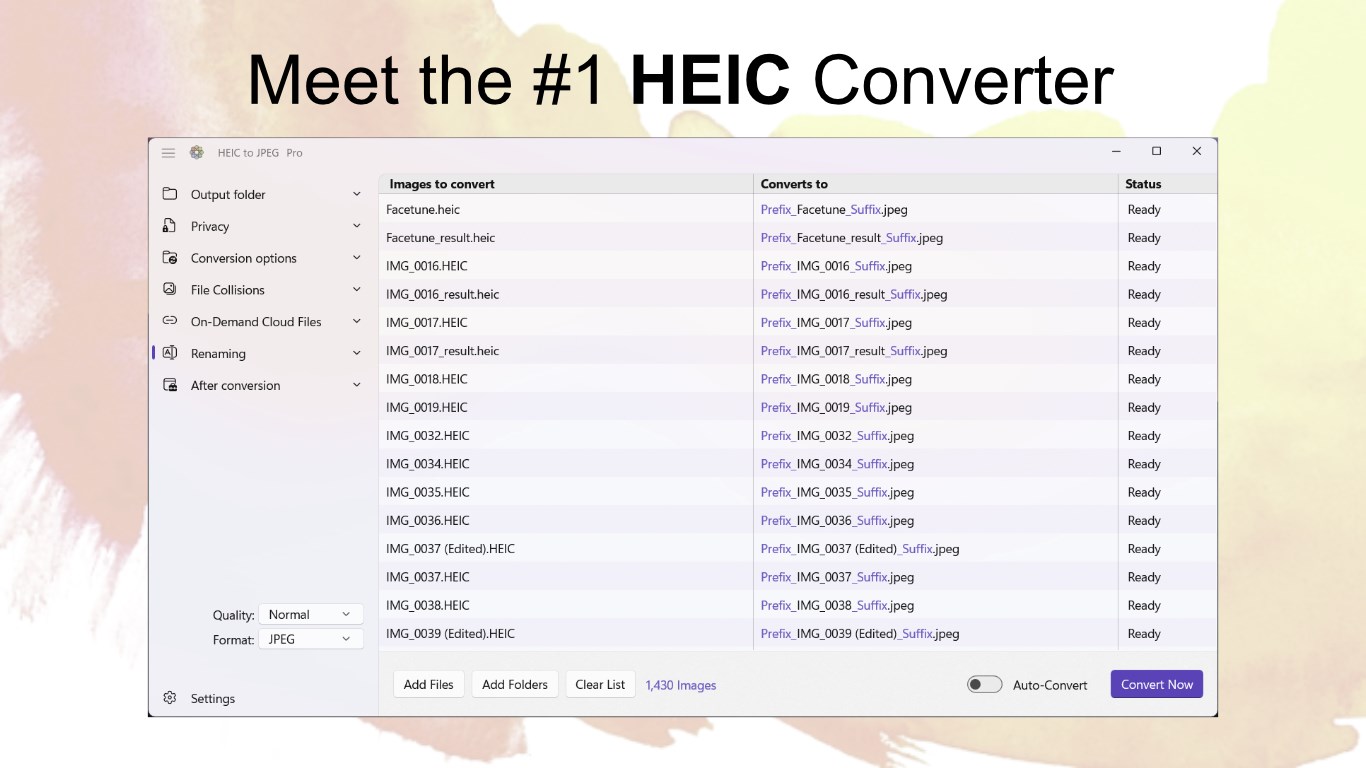
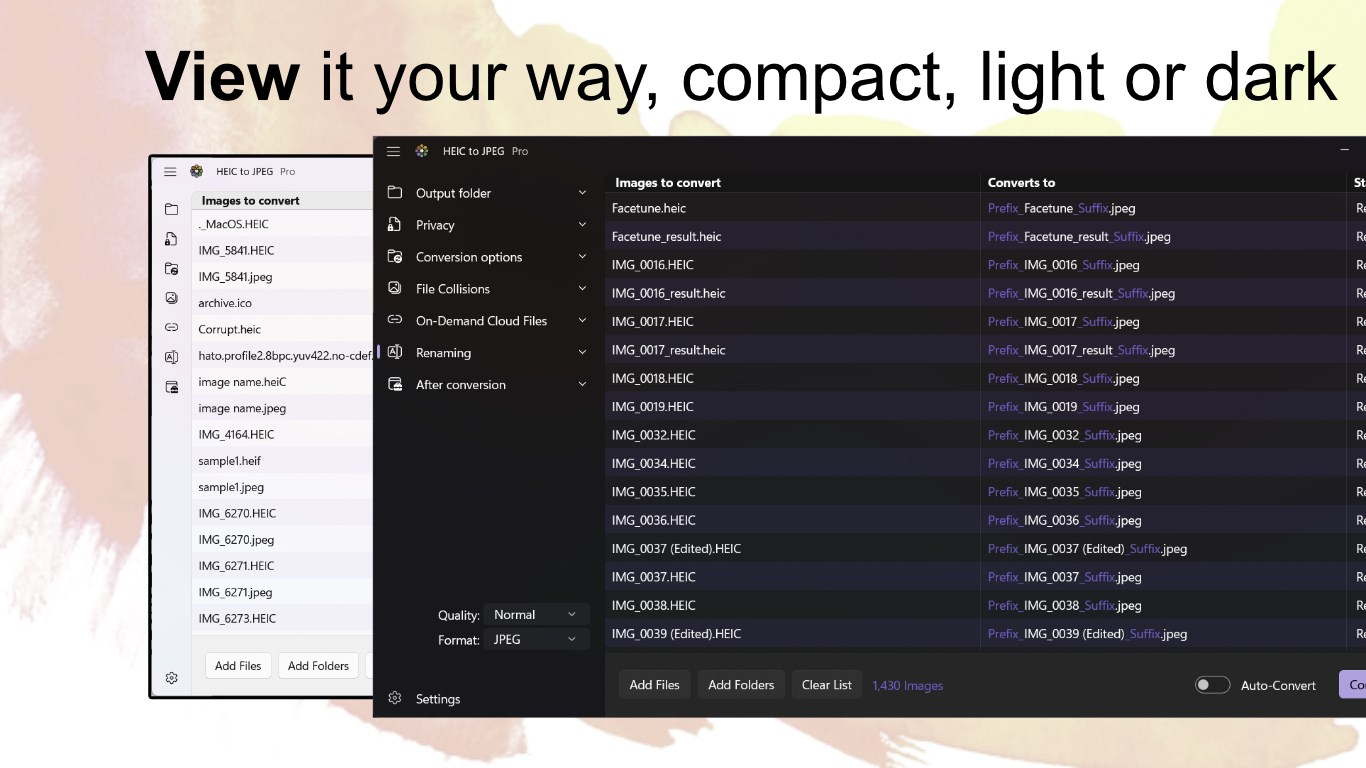
Imagine your digital photo library as a bustling city — vibrant, diverse, but sometimes fragmented by incompatible formats. HEIC to JPEG for Windows acts like a friendly translator, effortlessly converting those tricky HEIC images into a language all devices understand. Its approachability means even those new to photo management will find themselves navigating through a simple, intuitive interface that feels more like a helpful assistant than a complex software tool. From the moment you open the app, you're greeted with a clean, uncluttered workspace that invites you to start sorting your images without fuss.
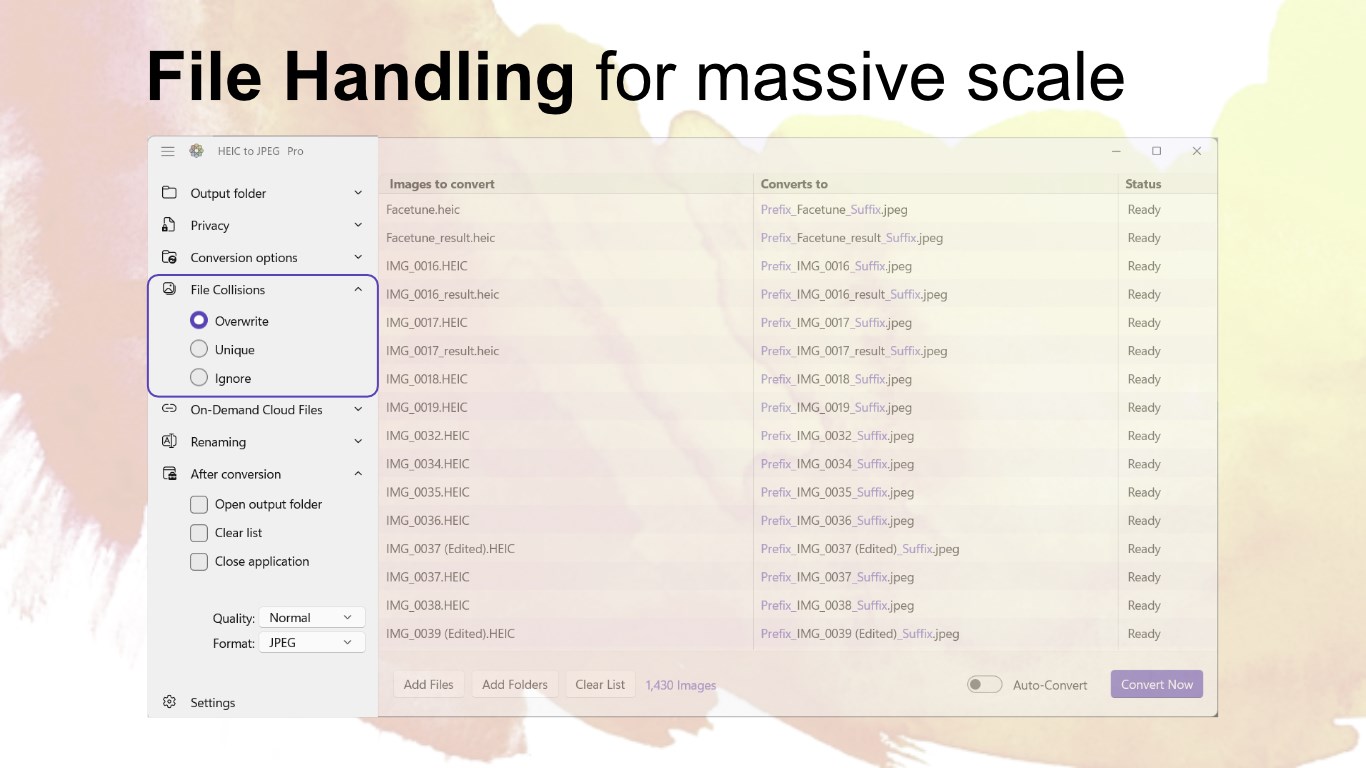
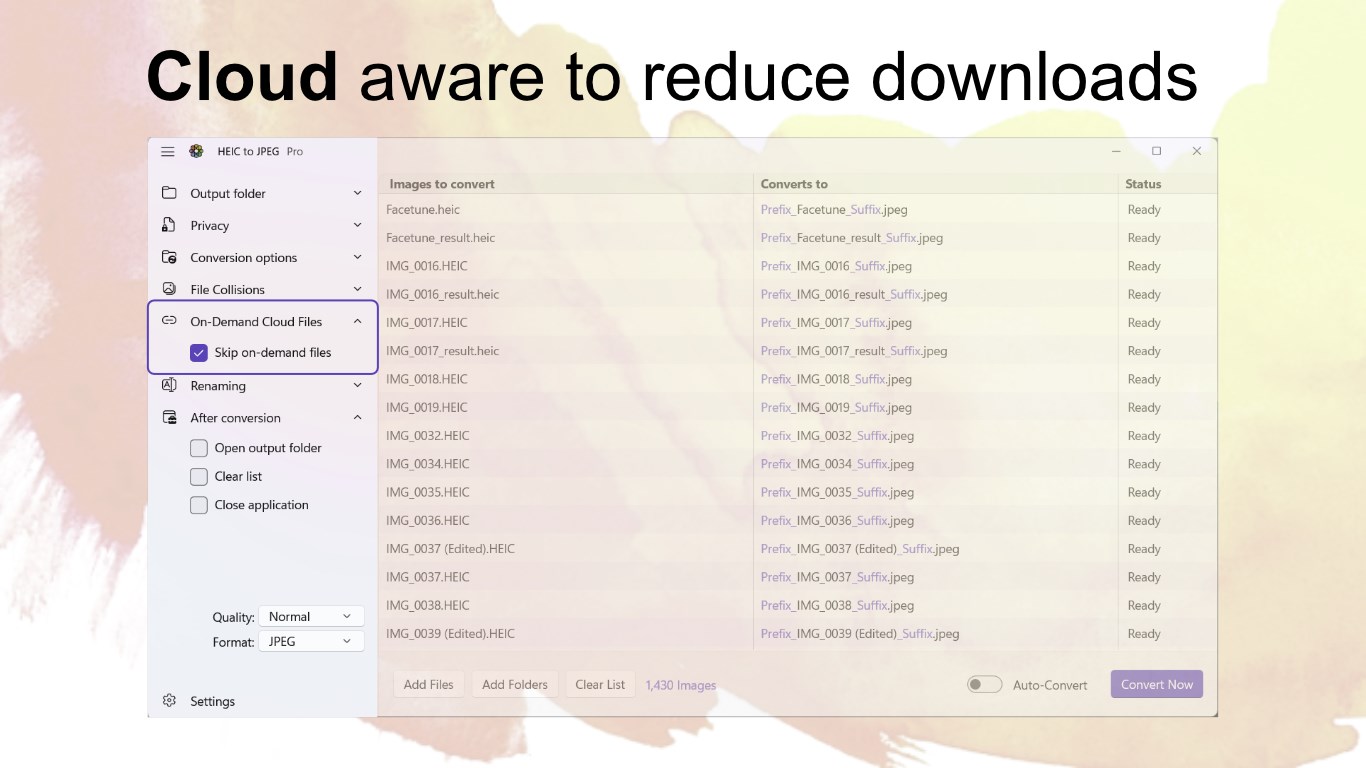
The hallmark feature is the ability to convert multiple HEIC files into JPEG simultaneously. Imagine trying to convert a folder full of holiday snaps; instead of converting photo by photo, you just drag the folder into the app, click 'Convert,' and voilà — all your images are ready for sharing or editing. This batch processing saves precious time, especially helpful for professional photographers or anyone managing large photo libraries.
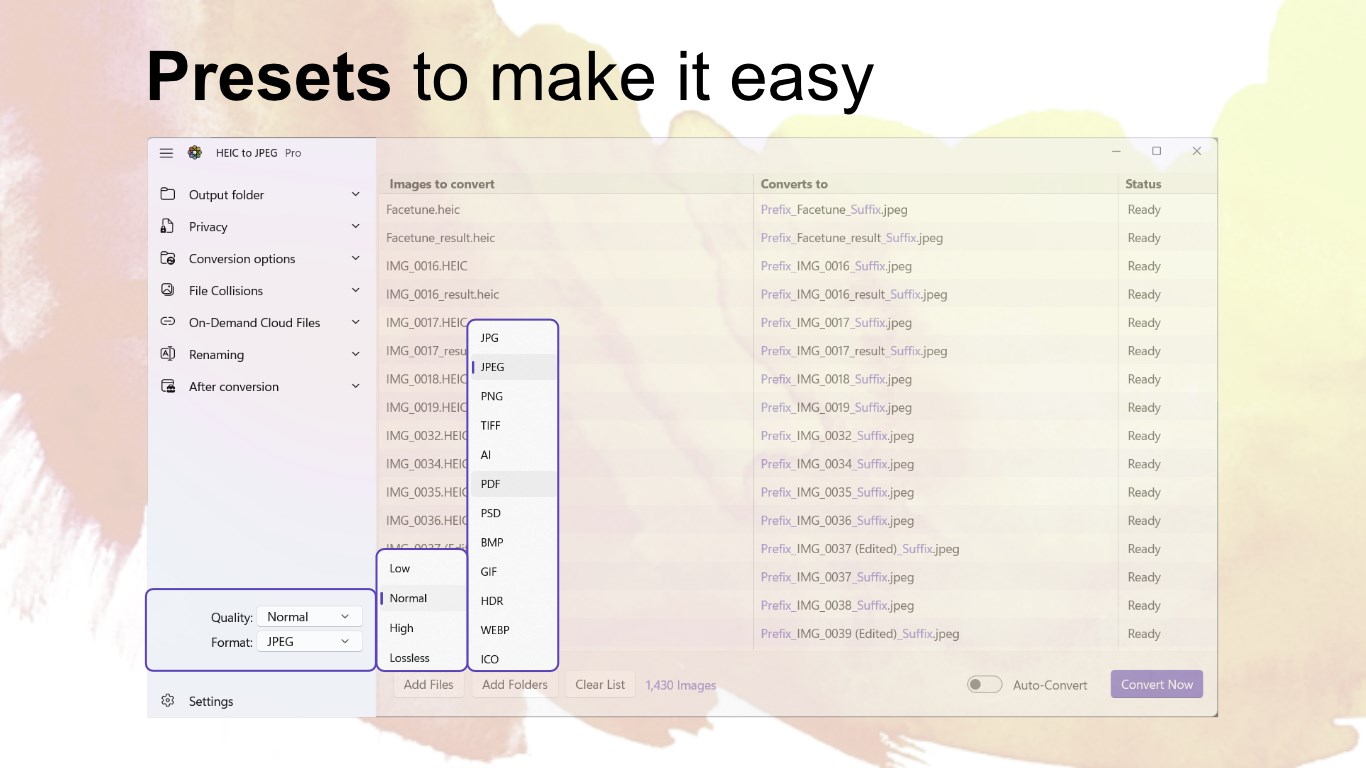
While simplicity is key, quality doesn't take a backseat. The app ensures that converted JPEGs retain the original clarity, color fidelity, and resolution. Think of it as a meticulous chef preparing a dish: the presentation (format) changes, but the core ingredients (image quality) stay pristine. This is particularly important when preparing images for print or detailed editing.
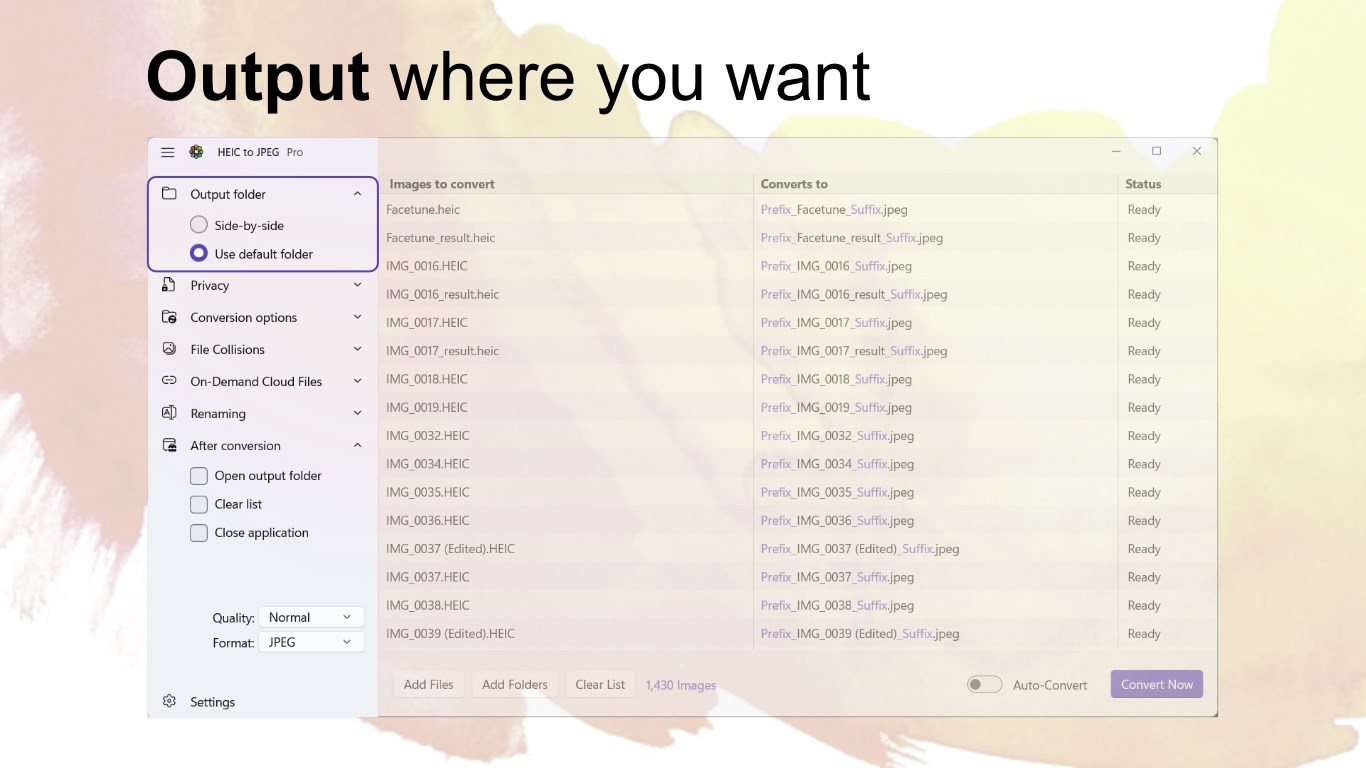
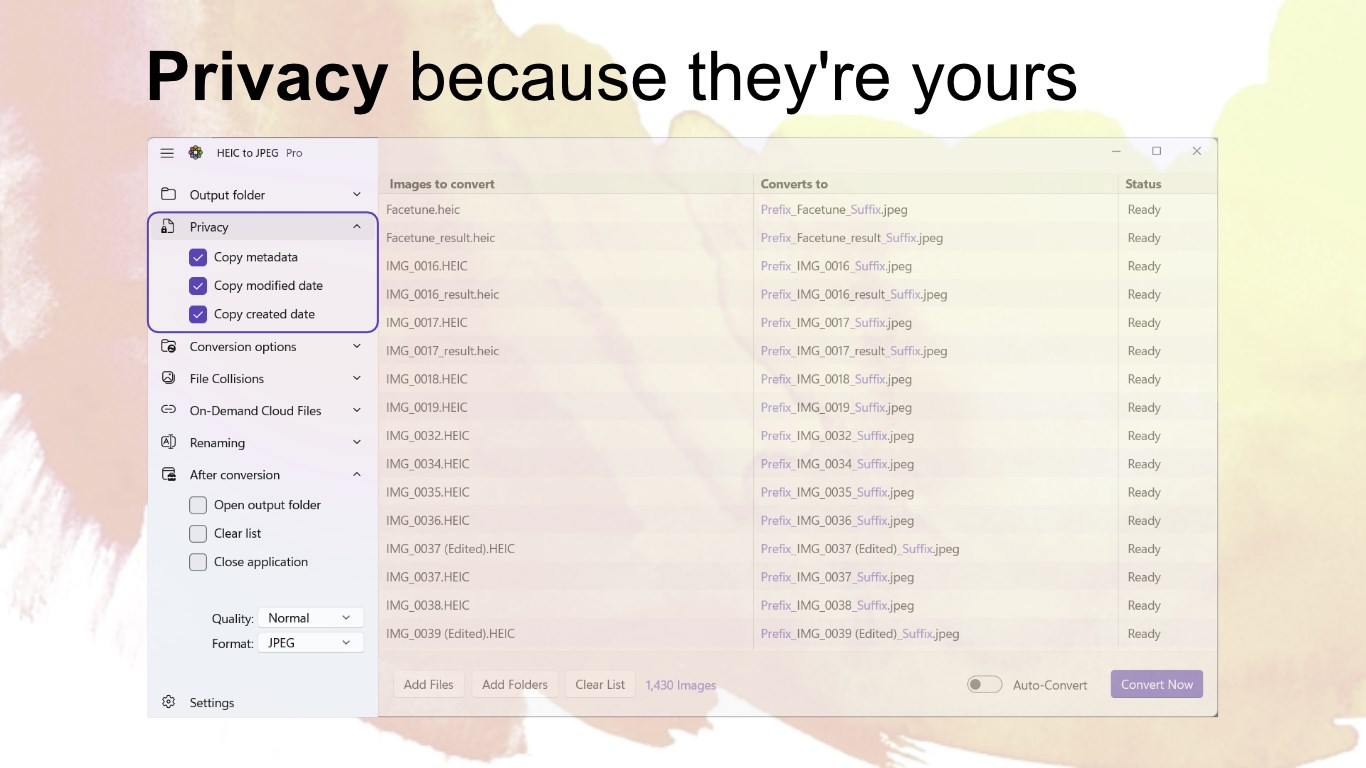
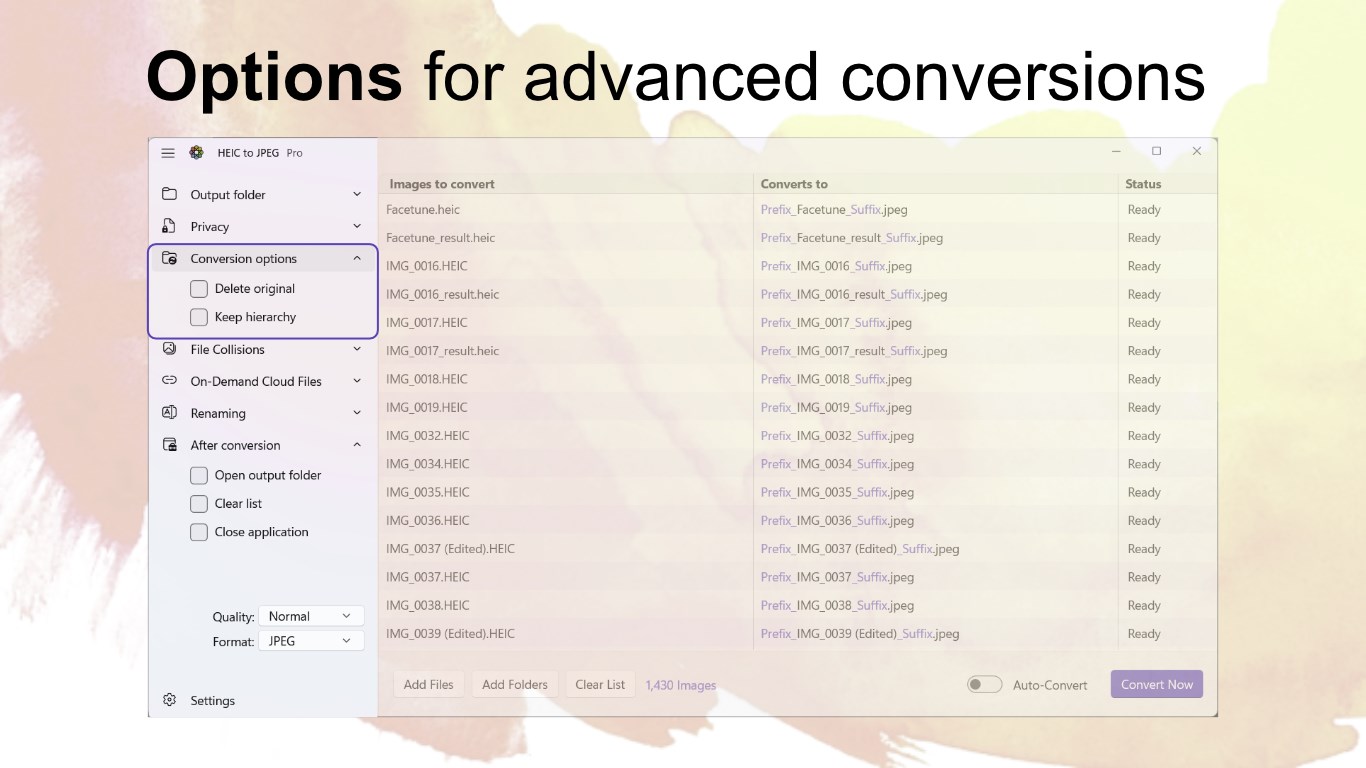
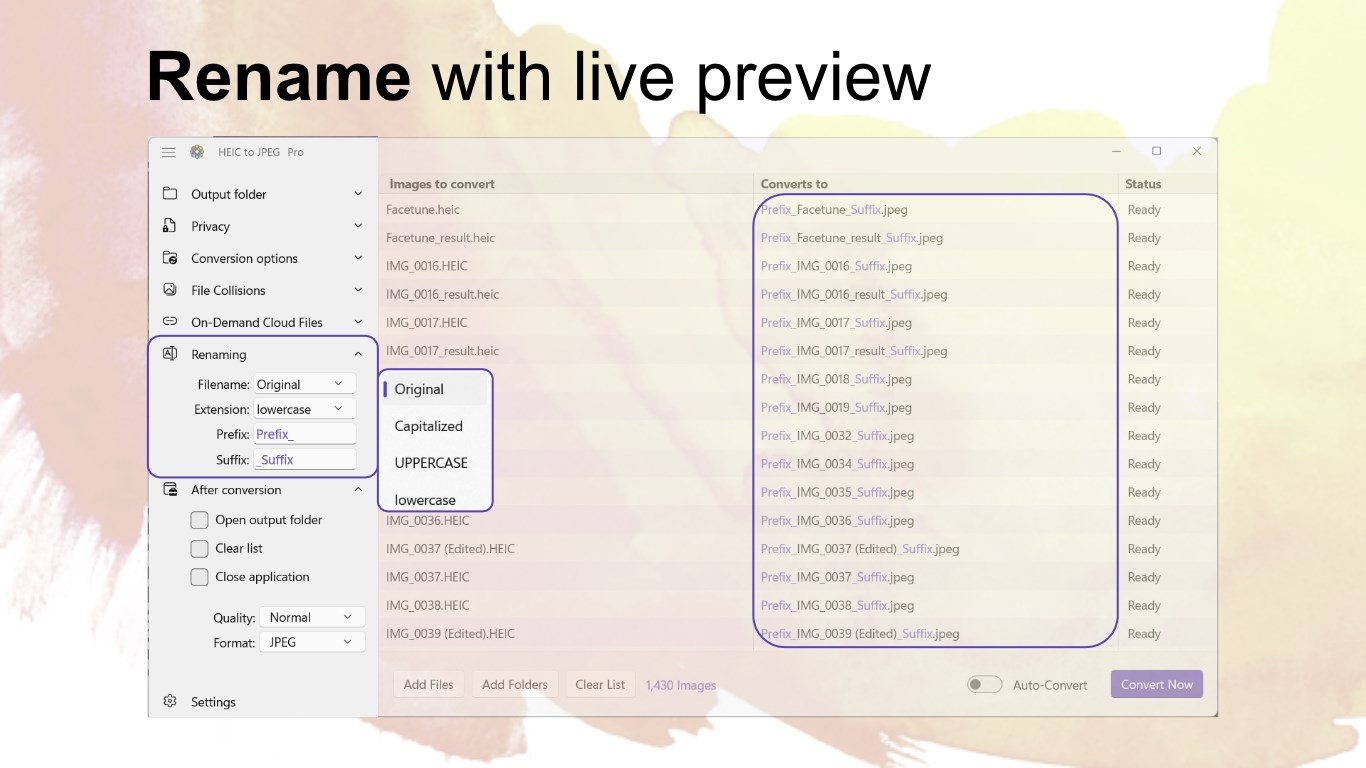
The interface resembles a friendly workspace—drag, drop, and convert. No complex settings, no confusing menus. For newcomers, this means less time learning and more time enjoying the results. Even if you're not tech-savvy, you'll find the process as natural as dropping a photo into a folder.
Compared to other photo conversion tools, HEIC to JPEG for Windows shines brightest with its ultra-simplicity and focus on batch processing without sacrificing output quality. Other apps might offer extensive editing features or intricate settings, but Duckhead Software's app specializes in one thing done well. Its ability to handle large volumes efficiently, combined with a clear, clutter-free interface, makes it a go-to choice for users who prefer a no-nonsense, reliable conversion experience.
Furthermore, while many free converters struggle with maintaining image fidelity or are riddled with ads, this application maintains a professional yet user-friendly approach, ensuring a smooth experience from start to finish.
Overall, HEIC to JPEG for Windows is recommended for anyone seeking a straightforward, reliable solution for converting HEIC images. It's especially suitable for users who deal with a large number of images regularly, valuing efficiency and quality. While it may not boast advanced editing features, its core strength lies in delivering high-quality conversions with minimal effort.
If you're tired of needing to view HEIC files or want a quick way to make your photos universally accessible, give this app a try. It's like having a friendly digital assistant that understands your photo needs and handles them without fuss. For those seeking simplicity paired with dependable results, this application is a solid choice to streamline your image workflow.
User-friendly interface
Fast conversion speed
Maintains image quality
Supports batch processing
No additional software needed
Limited customization options
No preview feature before conversion
Occasional crashes with large files
Limited export formats
No built-in editing tools

for Windows
 5
5

for Windows
4.9

for Windows
4.8

for Windows
4.8

for Windows
4.8

for Windows
4.7

for Windows
4.7
for Windows
4.7

for Windows
4.7

for Windows
4.7

for Windows
4.7
for Windows
4.7

for Windows
5

for Windows
5

for Windows
5

for Windows
5

for Windows
5

for Windows
5

for Windows
5

for Windows
5

for Windows
5

for Windows
5