Photo & video
PC
Windows 10 version 17134.0 or higher
Integrated Keyboard
Integrated Mouse
6 GB
English (United States)
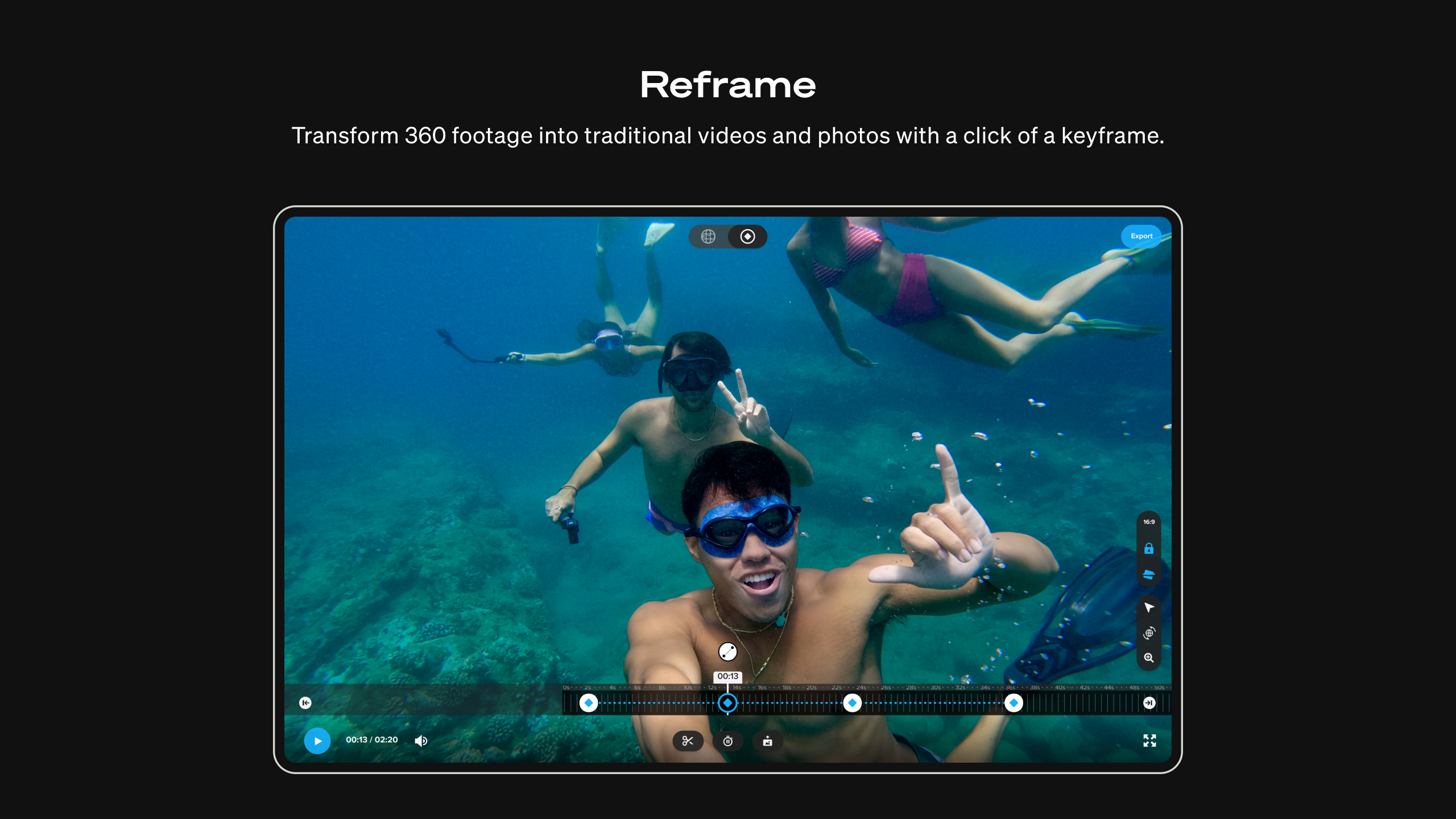
GoPro Player for Windows stands out as a dedicated tool tailored for enthusiasts and professionals alike who want to seamlessly view, edit, and enhance their action camera footage. Developed by the renowned GoPro team, this application offers a streamlined experience optimized for GoPro videos, making it a go-to solution for those looking to relive their adventures with clarity and precision.
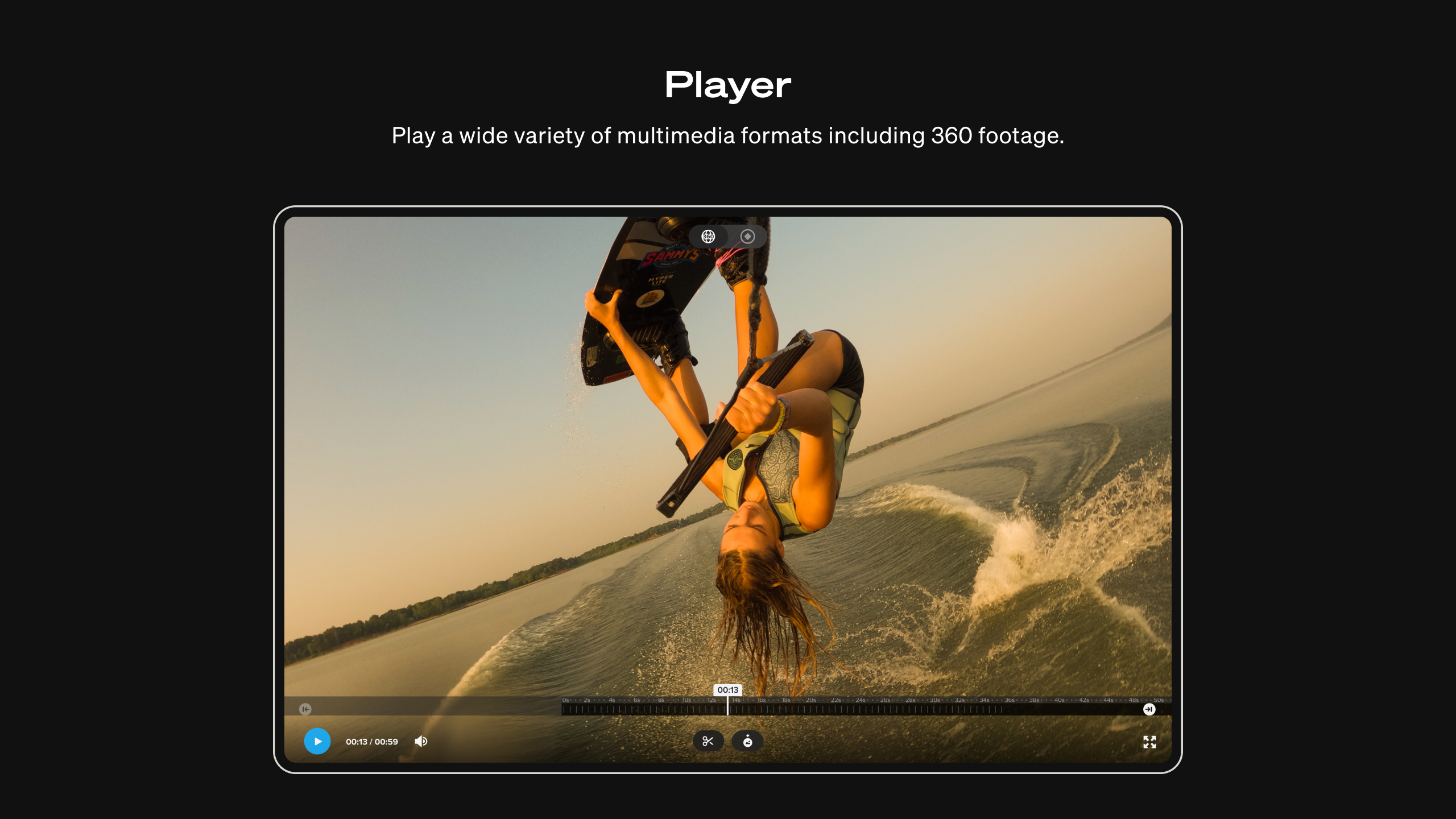
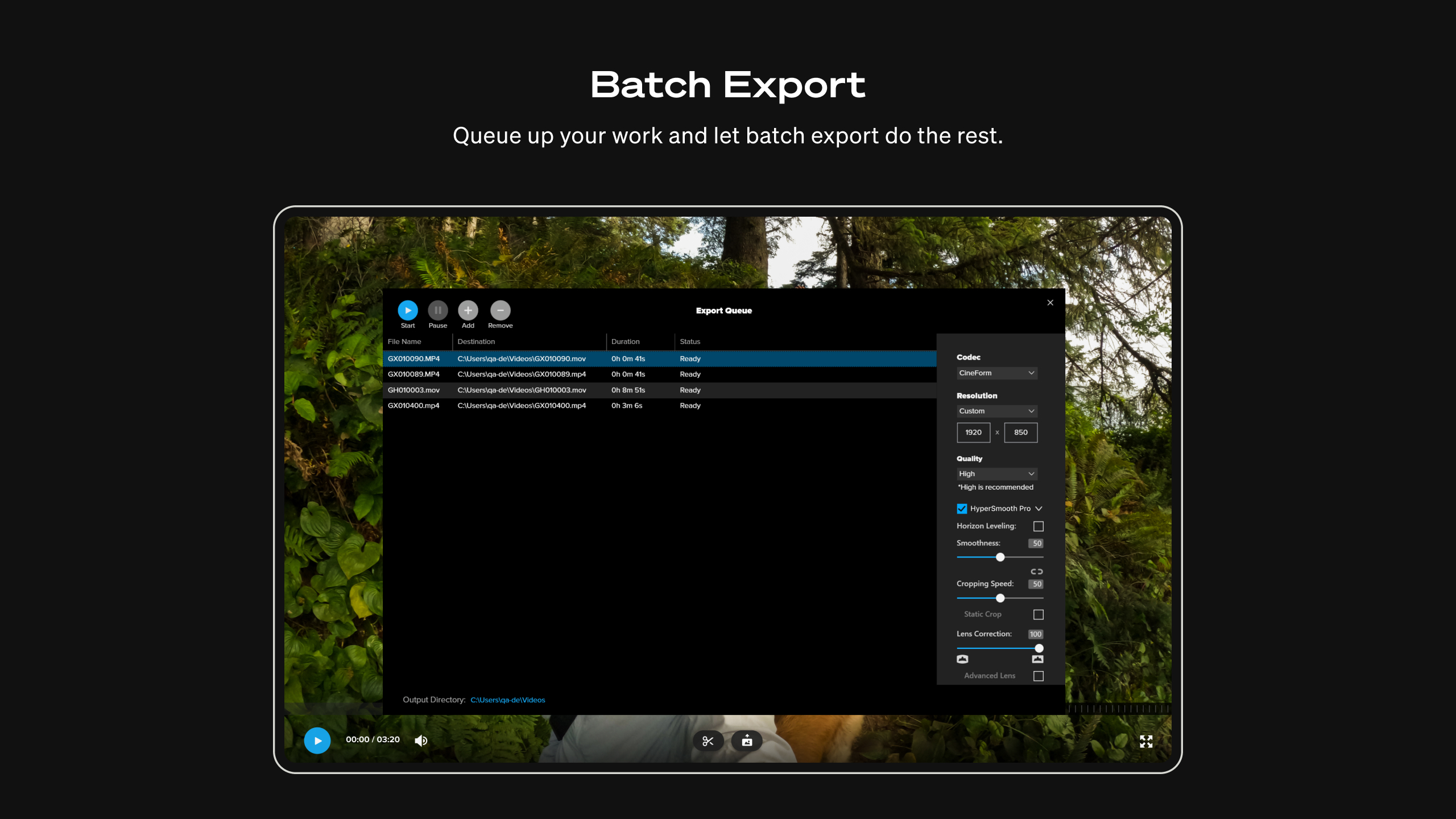
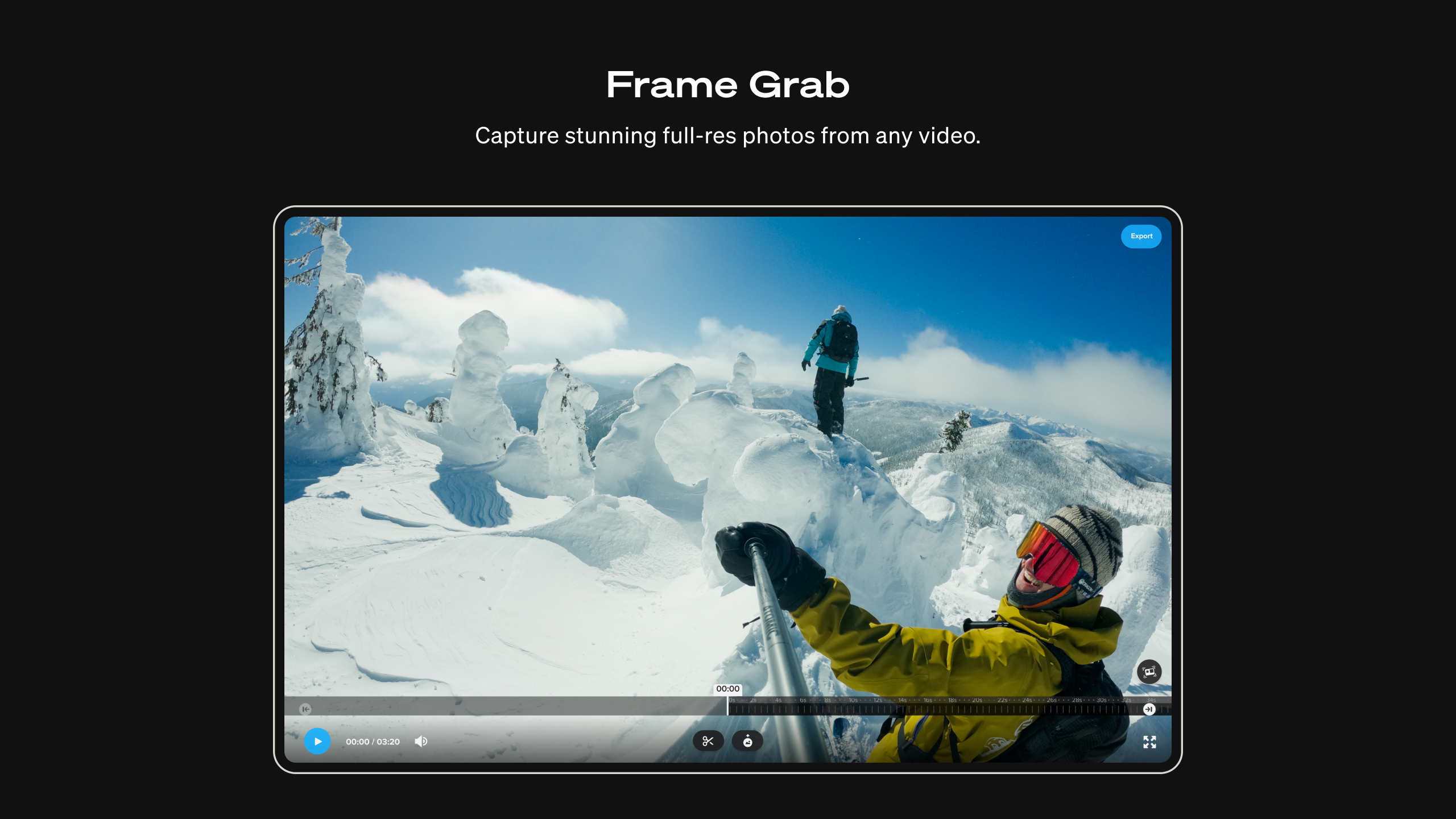
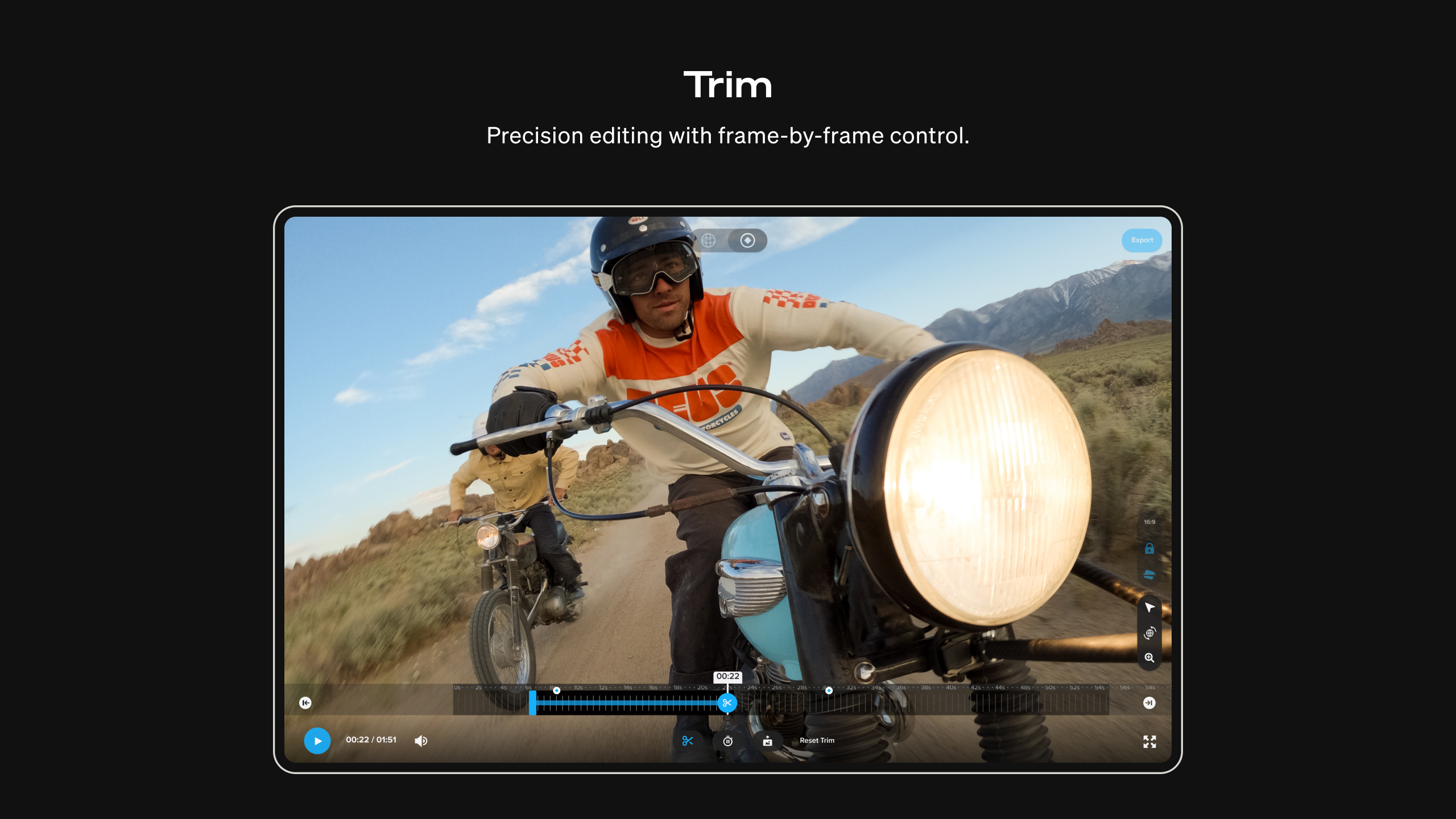
At its heart, GoPro Player excels in providing smooth playback of high-definition footage, thanks to its optimized decoding engine. Whether you're reviewing a 5K clip or a 4K timelapse, the app ensures fluid performance without lag. Additionally, it offers basic editing tools for trimming, slicing, and exporting clips, empowering users to craft their stories without needing complex software.
One of the standout features is its ability to convert GoPro footage into more universally compatible formats. This is particularly useful for sharing videos on social media or editing in other programs. The conversion process is straightforward, preserving the original quality while ensuring broad compatibility—a real time-saver for busy content creators.
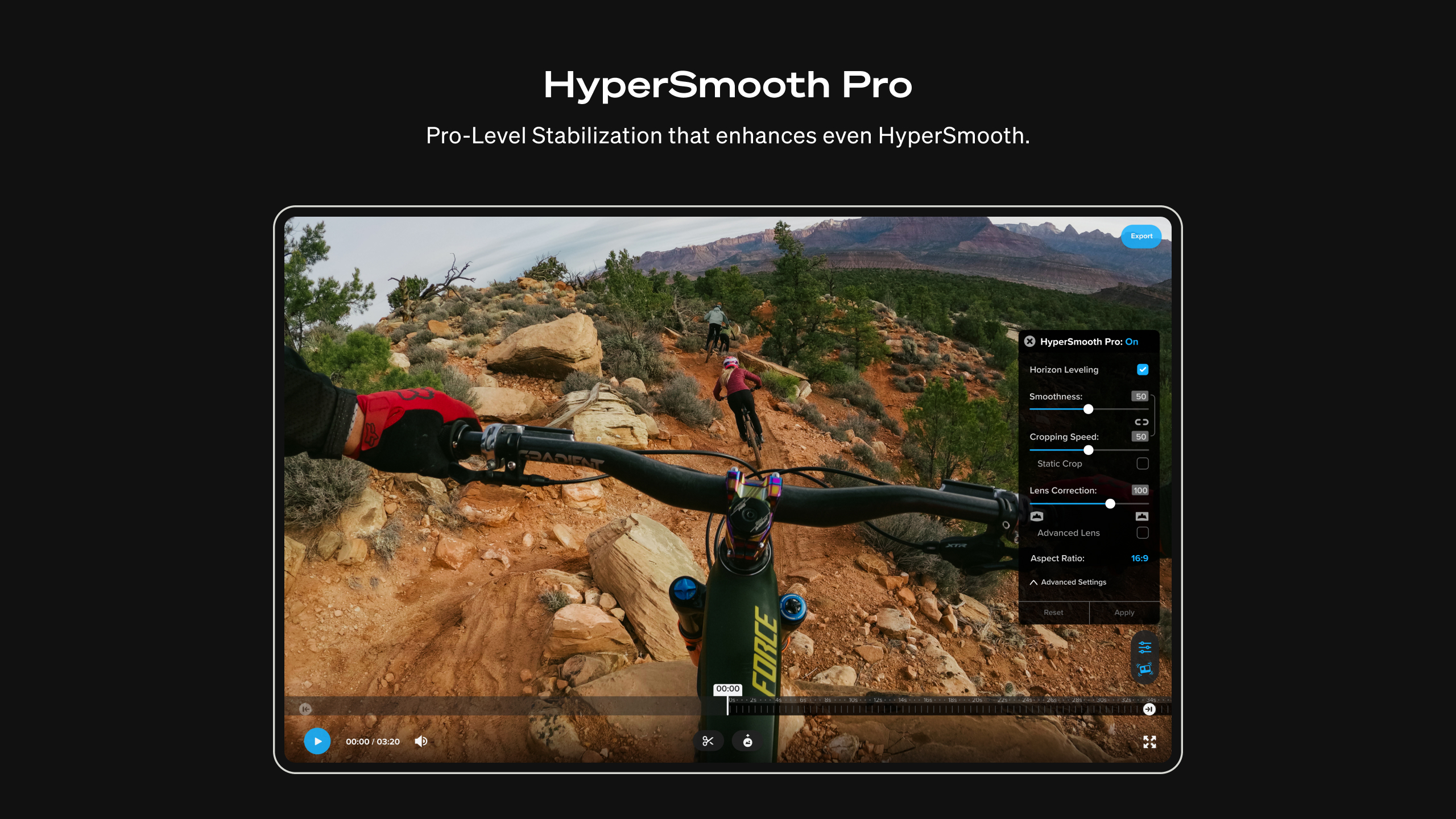
The most eye-catching feature is its HyperSmooth playback, allowing users to view stabilized footage effortlessly. This essentially offers a real-time preview of stabilization effects, giving users an idea of how their footage will look post-editing. It's like having a virtual gimbal ready to preview, which is invaluable for planning edits or sharing dynamic clips with friends.
The user interface of GoPro Player strikes a good balance between simplicity and functionality. Its clean layout, with neatly organized menus and large intuitive icons, makes navigation feel almost effortless—like flipping through a well-organized toolbox. The app runs smoothly on typical Windows devices, with no noticeable lag during playback or editing processes, which enhances confidence in its stability.
Although some advanced editing features are limited compared to heavyweight software like Adobe Premiere or DaVinci Resolve, the learning curve is remarkably gentle. First-time users can get up to speed quickly, making it suitable for hobbyists and casual users. For more experienced editors, it provides just enough to handle quick revisions and highlight reels without overwhelming.
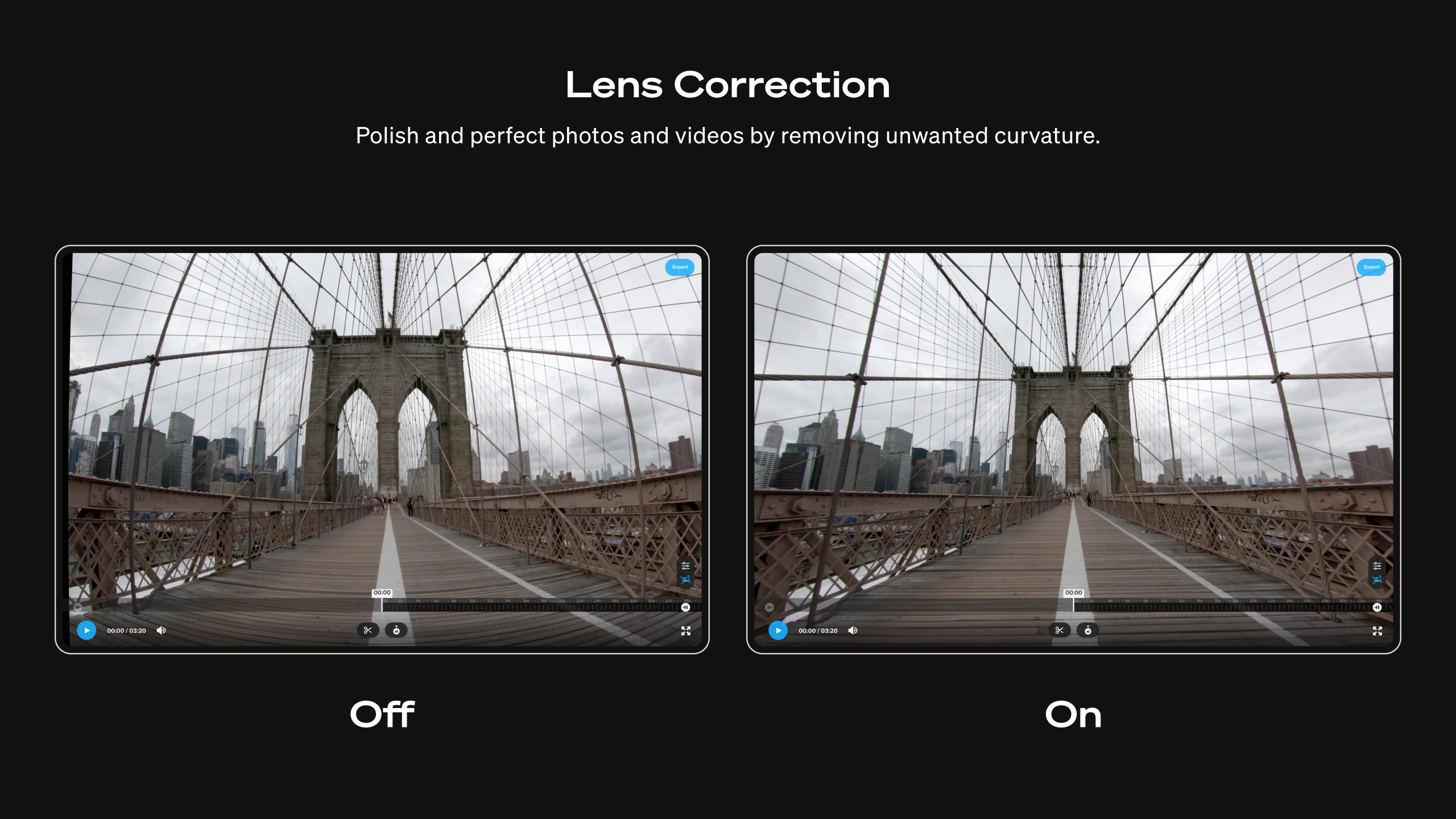
Unlike generic video players or editors, GoPro Player is highly optimized for GoPro files, delivering native support for their high-resolution, wide-angle footage. Its integrated stabilization preview—HyperSmooth playback—is a unique advantage, offering a real-time experience that other apps often only simulate after rendering. This real-time feedback loop helps creators visualize the final product during editing, reducing guesswork and accelerating workflows.
Additionally, its ability to convert videos directly within the app distinguishes it from many free players. This feature simplifies the sharing process, allowing users to quickly prepare their videos for uploading or further editing, all within a single environment.
GoPro Player for Windows is a thoughtfully designed application tailored specifically for GoPro footage. It may not replace professional-grade editing suites for complex projects, but it excels in its niche—providing fast, reliable playback, stabilization previews, and convenient format conversions. If you're a casual adventurer or a content creator eager to relive and showcase your latest adventures without hassle, this app is a solid choice.
I recommend giving it a try, especially if you frequently work with GoPro videos. Its user-friendly design and innovative features, like HyperSmooth preview, will make your editing experience more enjoyable and less technical. For those seeking deeper editing capabilities, it can serve as a quick preview or initial edit step before moving on to more comprehensive software.
Intuitive User Interface
High-Quality Video Playback
Advanced Editing Features
Seamless Import and Export
Regular Updates and Support
Limited Compatibility with Files
Occasional Crashes on Large Files
Slow Export Times
Limited Offline Features
UI Bugs Occasionally Appear

for Windows
 5
5

for Windows
4.9

for Windows
4.8

for Windows
4.8

for Windows
4.8

for Windows
4.7

for Windows
4.7

for Windows
4.7

for Windows
4.7

for Windows
4.7

for Windows
4.7

for Windows
4.7

for Windows
5

for Windows
5

for Windows
5

for Windows
5

for Windows
5

for Windows
5

for Windows
5

for Windows
5

for Windows
5

for Windows
5