Developer tools
PC
Windows 10 version 17763.0 or higher
Integrated Keyboard
Integrated Mouse
English (United States)
If you've ever yearned for a straightforward yet capable text editor that blends simplicity with functionality, gedit for Windows offers just that—like a trusty toolbox that's easy to carry around yet versatile enough to handle your daily coding or note-taking needs. As an open-source project traditionally rooted in Linux, gedit's arrival on Windows signals a welcome cross-platform push, making it accessible to a wider audience seeking a lightweight but powerful editor.
Developed by the gedit team, an experienced collective rooted in the GNOME community, this app benefits from years of polished Linux development. Known for their commitment to simplicity and transparency, the team aims to bring that same ethos to Windows users, providing a clean, distraction-free environment that prioritizes core editing features without unnecessary bloat.
What makes gedit stand out in a crowded field of text editors? Here are some of its defining functionalities:
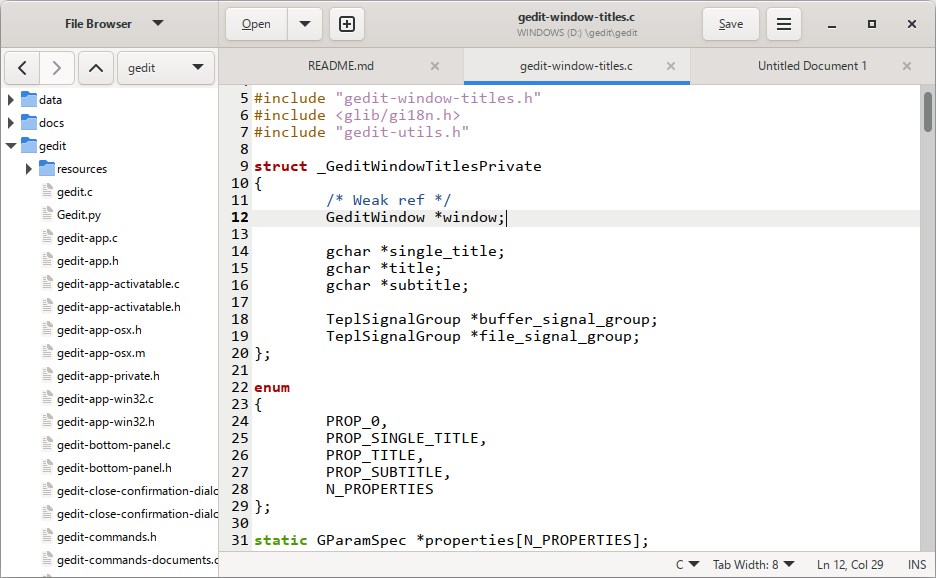
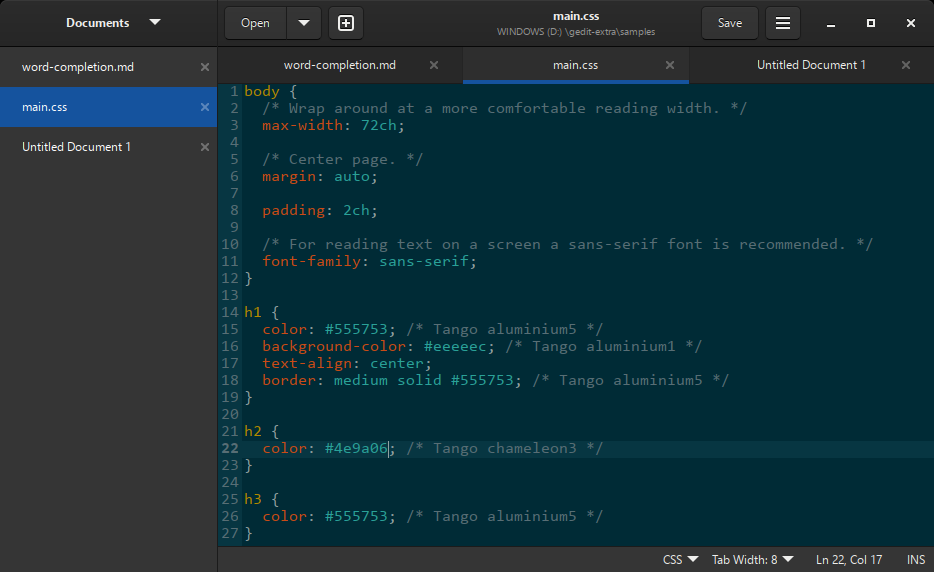
From the moment you launch gedit, it's clear that simplicity was top of mind. The interface resembles a familiar Notepad but with added layers of sophistication—think of it as a sleek, functional workspace rather than a cluttered office desk. Navigation feels intuitive; opening files, switching tabs, or applying syntax highlighting is quick and responsive, akin to flipping through well-labelled folders on a neat bookshelf.
Learning curve-wise, gedit wins points for being straightforward. New users will find the basic functions instantly accessible, while experienced coders can leverage plugins and customization options to deepen their productivity. Its responsiveness remains steady, even with larger files, ensuring a smooth editing experience comparable to gliding seamlessly on a well-paved path.
While many text editors vie for attention, gedit's core advantages revolve around its open-source ethos and tight integration with GNOME principles. Its plugin ecosystem is notably mature, allowing users to extend functionality without overloading the core app—like having a modular toolkit that grows with your needs. Unlike bulky editors that drown users in features, gedit's streamlined approach ensures you stay focused, whether writing simple notes or editing critical code snippets.
If you're searching for a lightweight, customizable, and reliable text editor for Windows that aligns with Linux-style simplicity, gedit is definitely worth considering. It's especially suitable for programmers, students, and writers who prefer a clutter-free environment but don't want to sacrifice power or flexibility. Not recommended if you seek extensive project management features—this isn't IDE territory but rather a refined tool for focused editing tasks.
In conclusion, gedit for Windows emerges as a modest yet effective companion for everyday text editing. Its combination of ease of use, extendability, and clean design makes it a strong contender in the realm of lightweight editors. Think of it as a trusty Swiss Army knife—compact, versatile, and ready to assist with your writing and coding needs.
User-friendly interface
Lightweight and fast
Supports multiple programming languages
Extensible with plugins
Open-source and free
Limited advanced features
Basic search and replace
Minimal code completion assistance
Limited cross-platform integrations
UI design slightly outdated

for Windows
 5
5

for Windows
4.6
for Windows
4.6

for Windows
4.6

for Windows
4.5

for Windows
4.4

for Windows
4.4

for Windows
4.3
for Windows
4.3

for Windows
4.3

for Windows
4.3

for Windows
4.2

for Windows
5

for Windows
5
for Windows
5

for Windows
5

for Windows
5

for Windows
5

for Windows
5

for Windows
5

for Windows
5

for Windows
5