Developer tools
Tim Kosse and Business Follows
PC
Windows 10 version 17763.0 or higher
Integrated Keyboard
Integrated Mouse
300 MB
English (United States)
FileZilla Pro for Windows stands out as a robust and versatile FTP client, designed to streamline the process of managing files across various cloud and FTP servers. Whether you're a developer, system administrator, or a power user, this application promises a seamless experience, combining powerful features with an intuitive interface. Developed by Tim Kosse and Business Follows, it aims to make complex file transfers feel more accessible and organized.
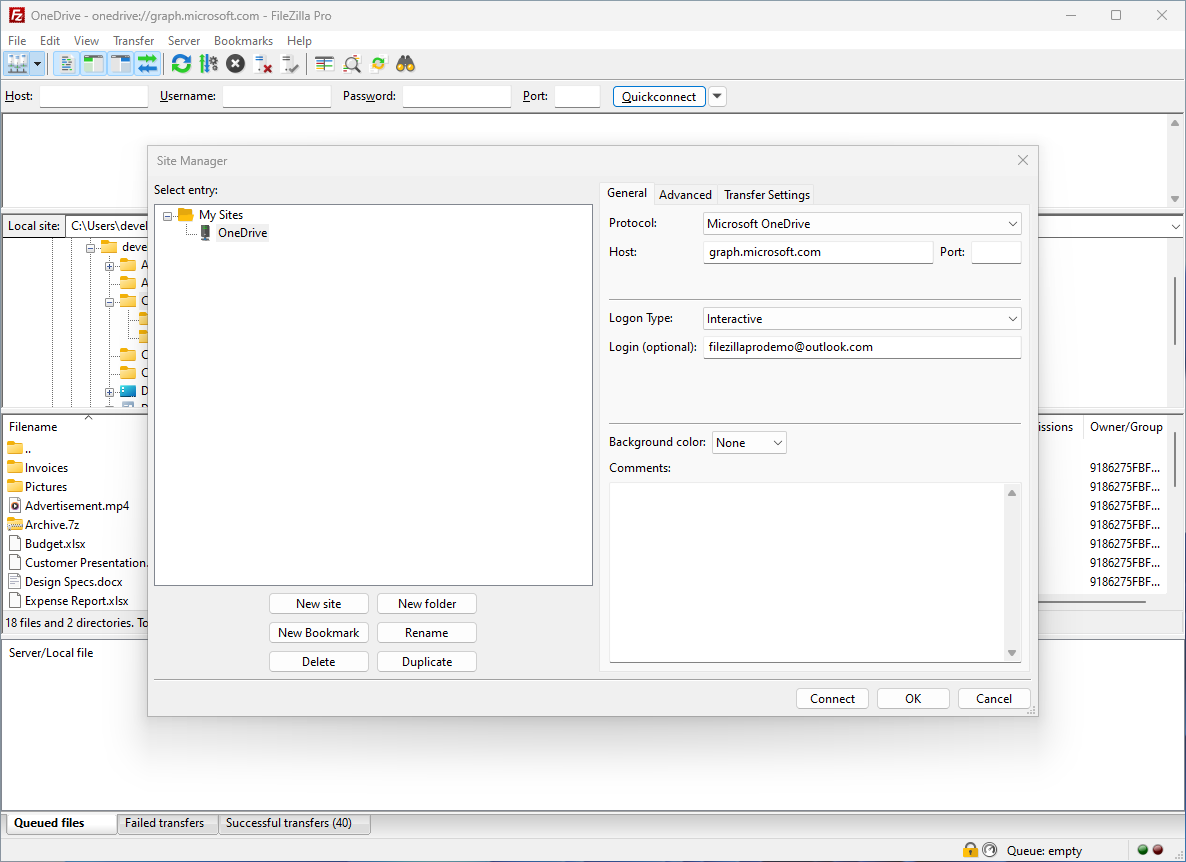
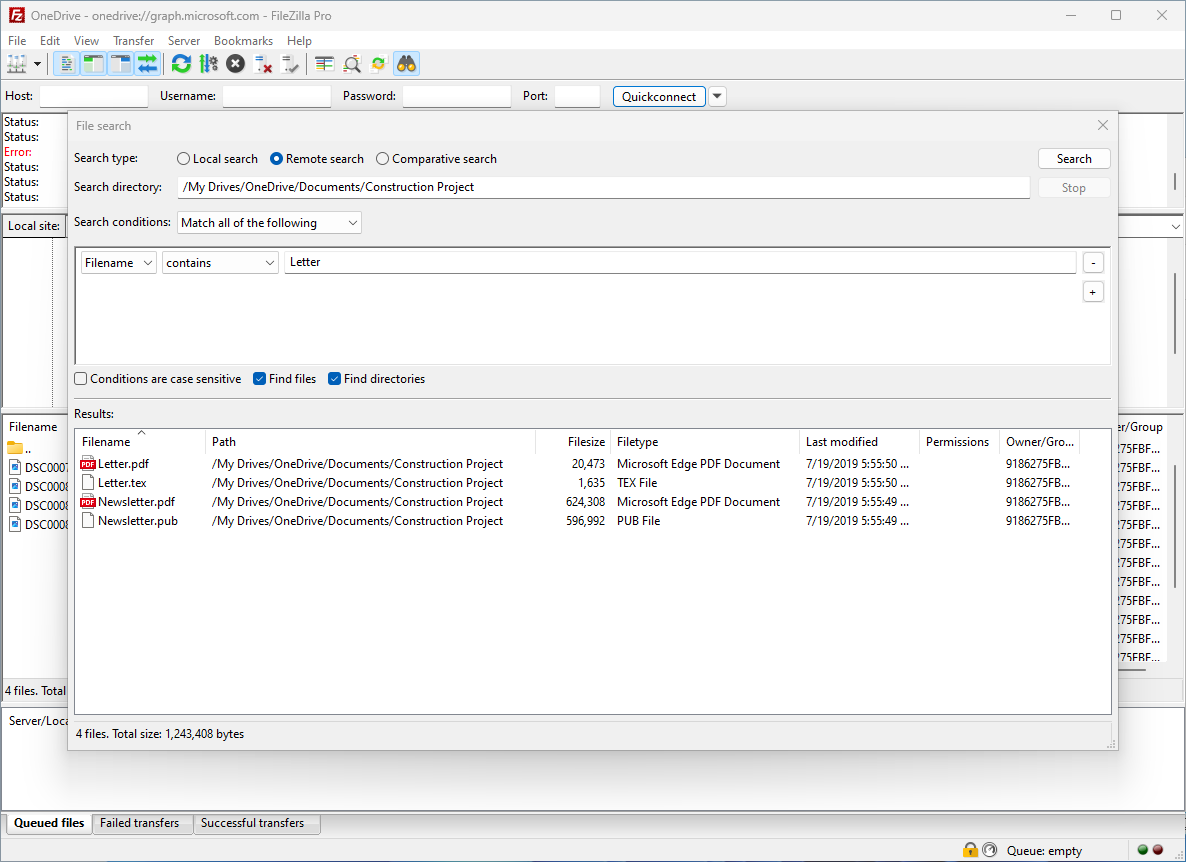
One of FileZilla Pro's standout qualities is its ability to connect to a wide array of servers—from traditional FTP and FTPS to modern cloud storage services like Amazon S3, Google Drive, and Dropbox. This multi-protocol support acts like a universal remote, enabling users to handle various storage solutions within a single app. This versatility is especially beneficial for professionals juggling multiple platforms, eliminating the hassle of switching tools or interfaces.
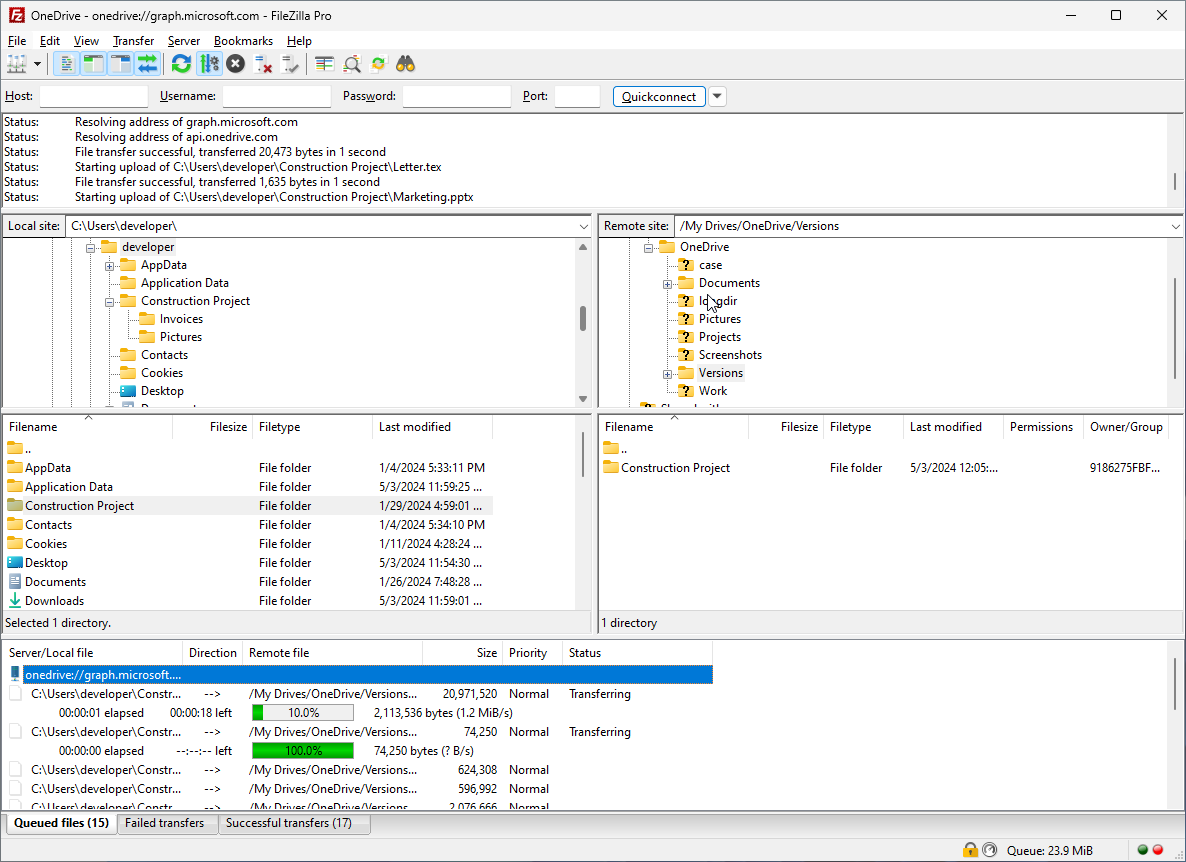
The application excels in user-friendliness by offering drag-and-drop functionality, making file uploads and downloads as straightforward as a casual desk move. Furthermore, batch transfer capabilities enable users to queue multiple files or folders, boosting efficiency when managing large sets of data. This feature is akin to assembling a convoy—large payloads move cohesively, saving time and reducing errors.
Security is paramount when transferring sensitive data. FileZilla Pro incorporates robust encryption protocols such as FTPS and SFTP, ensuring safe file movements. It also supports background transfers, allowing users to initiate a transfer and continue working without interruption, like a diligent courier working behind the scenes. This combination of security and convenience makes it suitable for enterprise use.
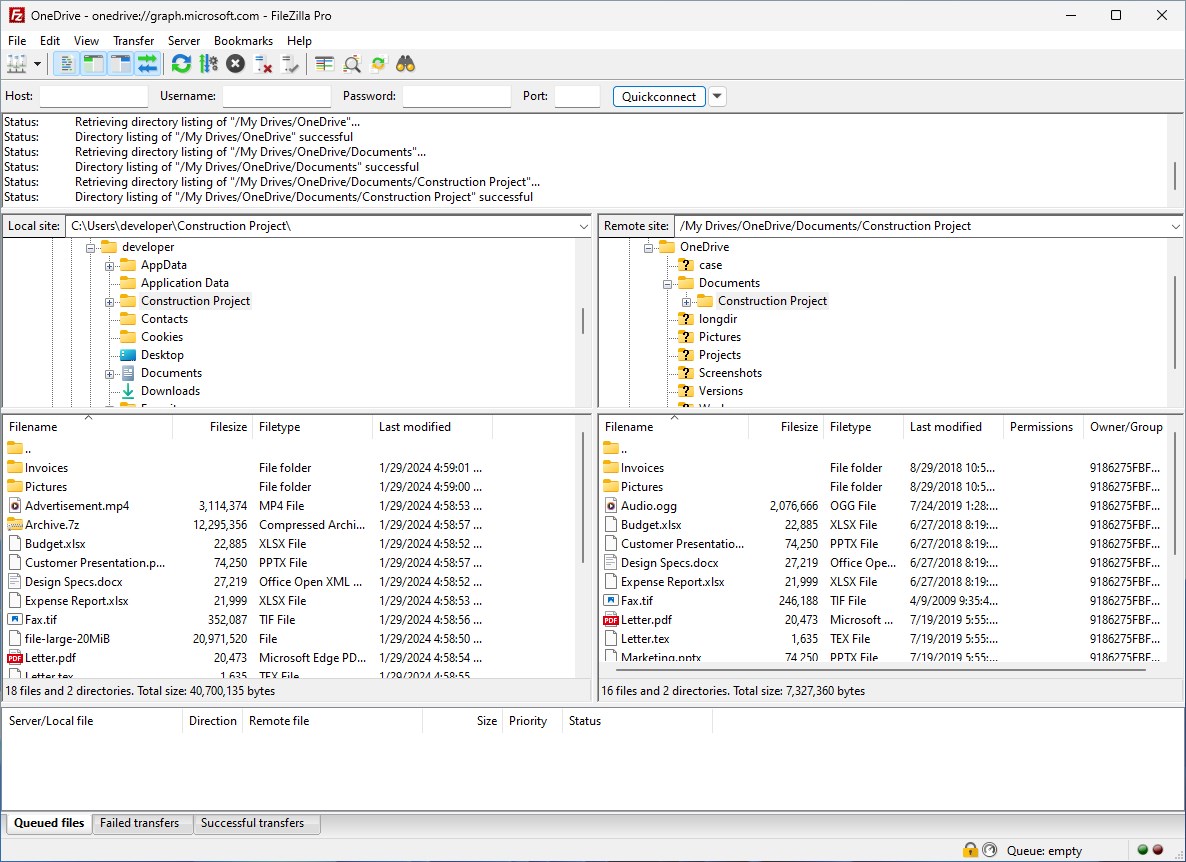
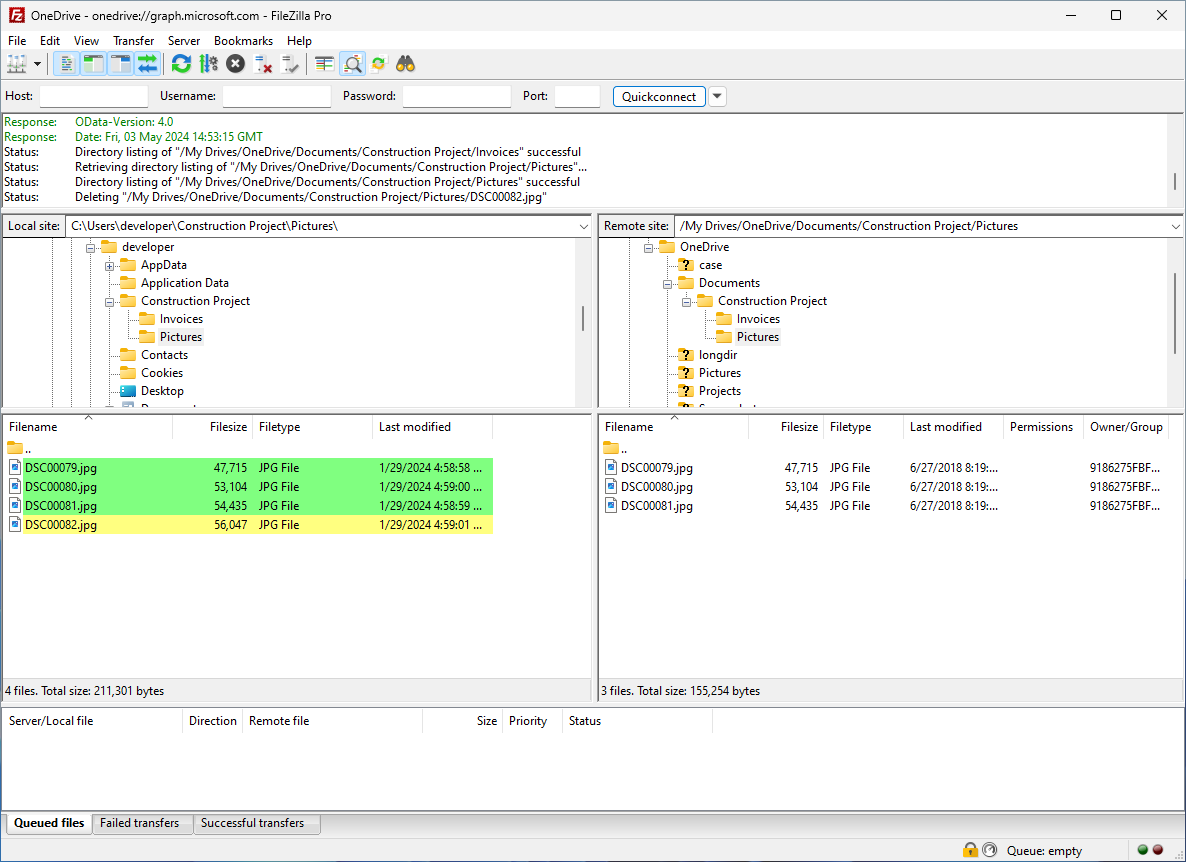
Upon launching FileZilla Pro, users are greeted with a clean, organized interface that resembles a well-sorted digital workspace—think of a tidy desk with neatly labeled drawers. The dual-pane layout simplifies navigation: local files on one side, remote files on the other, facilitating quick visual comparisons. The interface's straightforward design reduces the learning curve, making it accessible for newcomers without sacrificing depth for power users.
Operation is smooth and responsive, with drag-and-drop actions feeling natural, akin to sliding a folder into place. Menus and options are logically arranged, allowing users to find advanced features like queued transfers or server management quickly. Overall, it offers a balanced blend of simplicity and sophistication, making complex tasks feel manageable and even enjoyable.
While many traditional FTP clients focus solely on file transfer protocols, FileZilla Pro's standout trait is its deep integration with cloud storage services. This feature essentially makes it a one-stop platform for managing files across local, FTP, and cloud environments—think of it as upgrading from a simple bicycle to a versatile multi-tool. This integration reduces the need for multiple apps, streamlining workflows for users who work extensively with cloud-based assets.
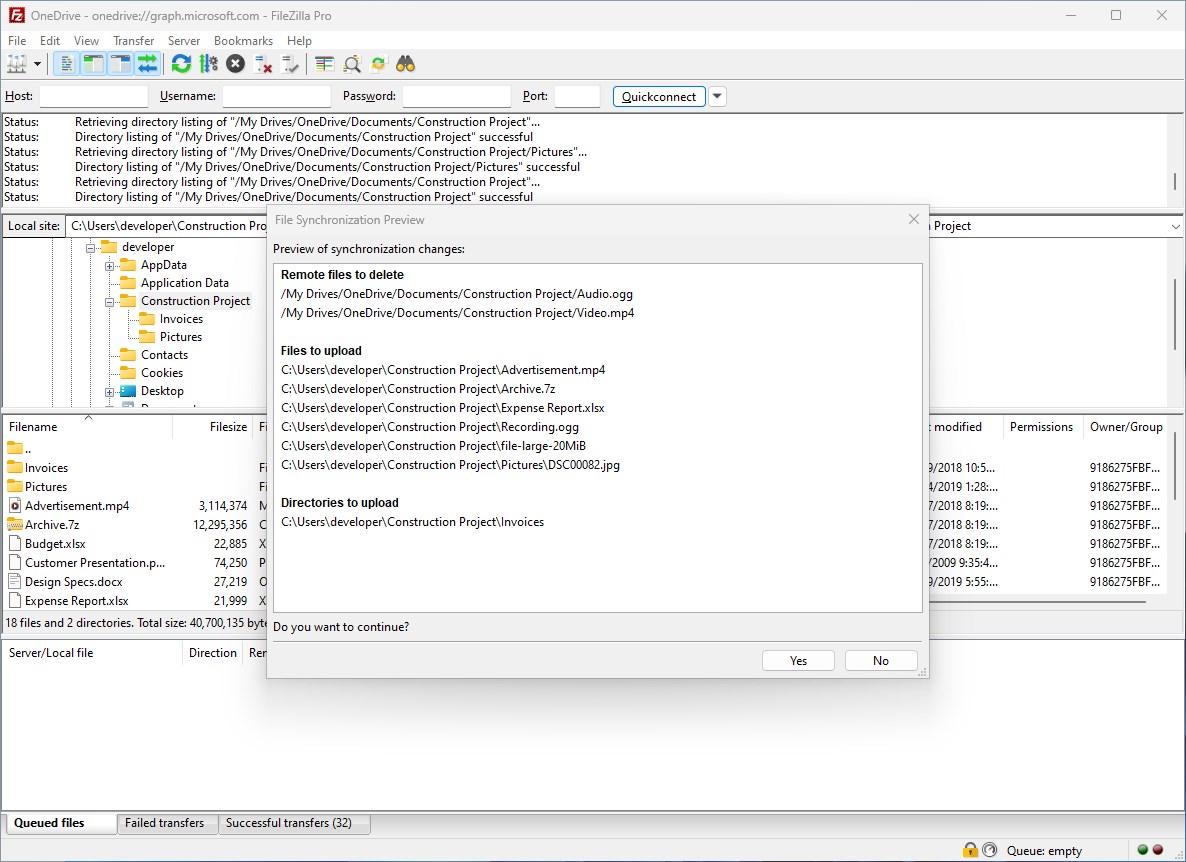
Although our review centers on the Windows version, FileZilla Pro's consistent experience across various platforms ensures familiarity and reliability in multi-device workflows. Its ability to synchronize local files with remote servers smoothly is a significant advantage, providing peace of mind that your data stays current across environments. This kind of synchronization feels like having a smart assistant keeping your files neatly in sync, wherever you are.
In summary, FileZilla Pro for Windows is a thoughtfully designed, highly capable FTP client that caters to both casual users and advanced professionals. Its multi-protocol support and cloud integration are particularly noteworthy, making it a unique offering in a crowded field. I recommend it to anyone needing a reliable, secure, and versatile tool for file transfers—especially those managing diverse cloud and server environments.
For best results, spend some time exploring its batch transfer features and security options. While the learning curve is gentle, mastering these advanced features can significantly enhance productivity.
All in all, FileZilla Pro is a strong contender worth considering when seeking a comprehensive file transfer solution. Whether you're maintaining website assets, backing up data, or managing cloud content, this app delivers a professional-grade experience wrapped in an accessible package, like having a capable colleague by your side for all your file-handling needs.
User-friendly interface
Broad protocol support
Powerful transfer features
Secure connections
Platform compatibility
Cluttered interface for new users
Occasional lag during large transfers
Limited free features in trial version
Complex setup for cloud integrations
Resource usage on older systems

for Windows
 5
5

for Windows
4.6

for Windows
4.6

for Windows
4.6

for Windows
4.5

for Windows
4.4

for Windows
4.4

for Windows
4.3
for Windows
4.3

for Windows
4.3

for Windows
4.3

for Windows
4.2

for Windows
5

for Windows
5
for Windows
5

for Windows
5

for Windows
5

for Windows
5

for Windows
5

for Windows
5

for Windows
5

for Windows
5