Business
PC
Windows 10 version 17763.0 or higher
English (United States)
Imagine having a miniature globe spun right onto your computer screen, inviting you to explore the world's streets with a simple click—that's exactly what Earth 3D Maps & Street View aims to deliver. Whether you're a curious traveler, a student, or a professional needing detailed geographic visuals, this app offers an intriguing window into our planet's diverse locations.
Hung APP, a dedicated team of developers specializing in geographic and mapping solutions, brings this application to life. Their focus appears to be on creating accessible, richly detailed street-level visuals combined with interactive 3D mapping, designed to meet both casual users and professionals' needs.
Stepping into Earth 3D Maps & Street View feels akin to embarking on a virtual globe-trotting adventure from your desktop—no passport required, just a curious mind and a desire to explore. The app combines realism with ease of use, making exploration both educational and fun.
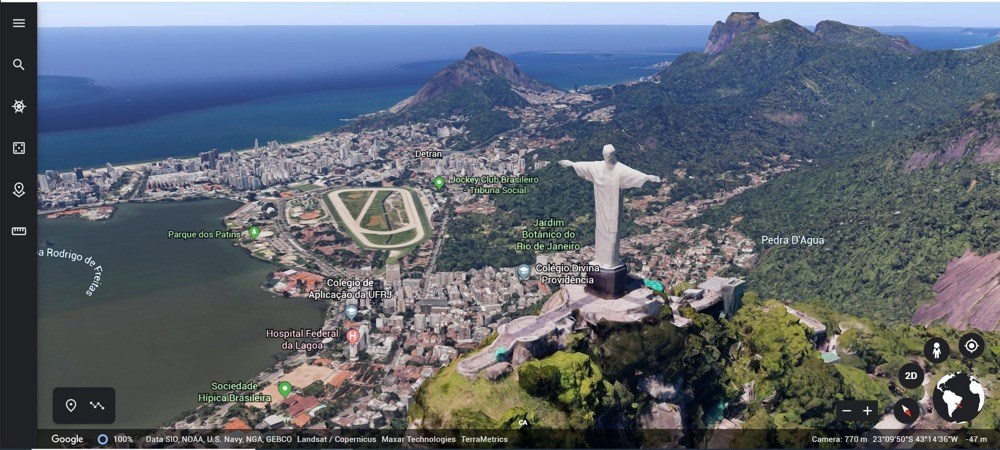
The standout feature, perhaps the app's **most special**, is its ability to let users hop onto street view imagery. Unlike traditional map apps that rely predominantly on flat projections, Earth 3D Maps offers a layered, three-dimensional experience. Clicking on a location pin or searching for a place brings up immersive panoramic views, allowing users to virtually stroll through iconic boulevards or hidden alleys. Transitioning from aerial map views to street-level imagery is smooth and intuitive, providing an engaging sense of presence and scale.
Beyond static images, the app's 3D globe navigation is a delight. Users can rotate, tilt, and zoom, exploring the terrain as if inspecting a tangible model. The interface is designed with clarity—toolbar icons are straightforward, enabling quick access to different viewpoints or layers. The rendering is crisp and responsive, even during rapid movements, which keeps the experience fluid and satisfying.
The interface adopts a minimalist aesthetic, with controls intuitively placed, reminiscent of modern mapping tools but adjusted for better accessibility on Windows platforms. Navigating through the globe or streets is akin to playing with a digital marble—smooth, natural, almost organic. For users already familiar with map apps, the learning curve is minimal; newcomers will find it to be quite friendly, aided by simple tutorials or prompts embedded within the app.
While many mapping tools provide basic street view or 3D globe functionalities, Earth 3D Maps & Street View distinguishes itself with its seamless integration of immersive street-level imagery combined with a full 3D environment. Its **most particularly unique feature** is the ability to switch effortlessly between a realistic 3D globe and detailed street views—almost like having a globe with instant street-level access. This dual-layered approach allows for collaborative exploration—imagine a team planning a trip or giving a virtual walkthrough, all within an interactive 3D platform, enhancing collaborative work and task planning that typical apps might lack.
Earth 3D Maps & Street View is a solid choice for users craving a richer cartographic experience on their Windows PCs. It excels in delivering detailed street imagery within an engaging 3D environment, making geographic exploration vibrant and accessible. While it may not replace professional GIS tools, its user-friendly design and immersive features make it highly appealing for educational and casual exploration purposes.
We recommend this app particularly to geography enthusiasts, educators, or teams seeking an interactive, visual-centric way to explore our planet or plan real-world travels collaboratively. Its intuitive interface, combined with standout features like smooth globe navigation and integrated street view, makes it worthy of a try for anyone interested in seeing the world from a new perspective.
Immersive 3D Earth Visualization
Street View Integration
User-Friendly Interface
Regular Content Updates
Additional Features
Limited Offline Functionality
Occasional Imagery Refresh Delays
Performance on Older Devices
Limited Customization Options
Navigation Features Could Be Enhanced

for Windows
 5
5
for Windows
5

for Windows
4.9

for Windows
4.9

for Windows
4.9

for Windows
4.9

for Windows
4.8

for Windows
4.8

for Windows
4.8

for Windows
4.8

for Windows
4.7

for Windows
4.7

for Windows
5

for Windows
5

for Windows
5

for Windows
5

for Windows
5

for Windows
5
for Windows
5

for Windows
5

for Windows
5

for Windows
5