Productivity
Drawboard
PC, Surface Hub
Windows 10 version 18362.0 or higher
Chinese (Simplified), English (United States), French, German, Japanese, Korean , Spanish (Spain)
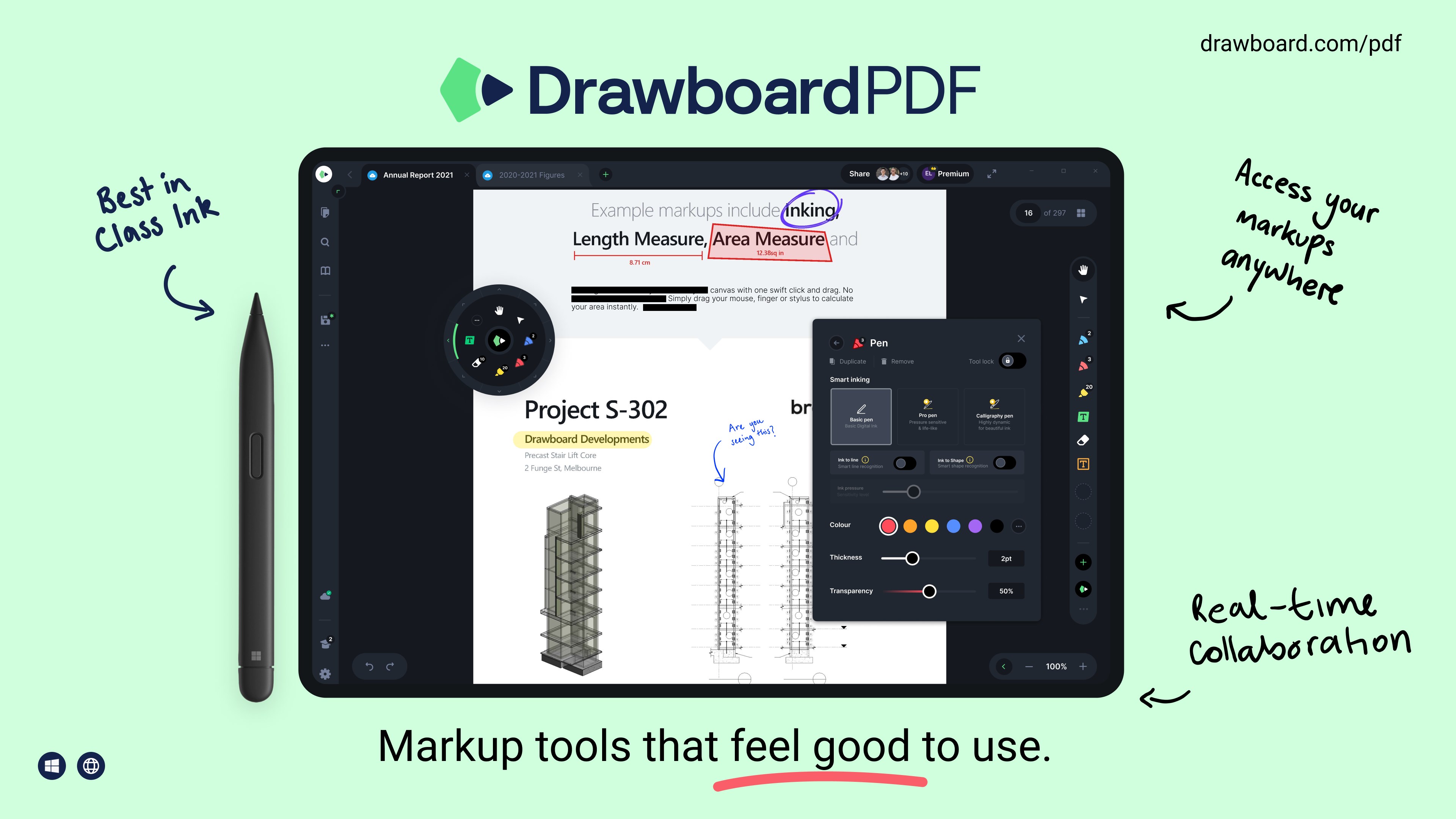
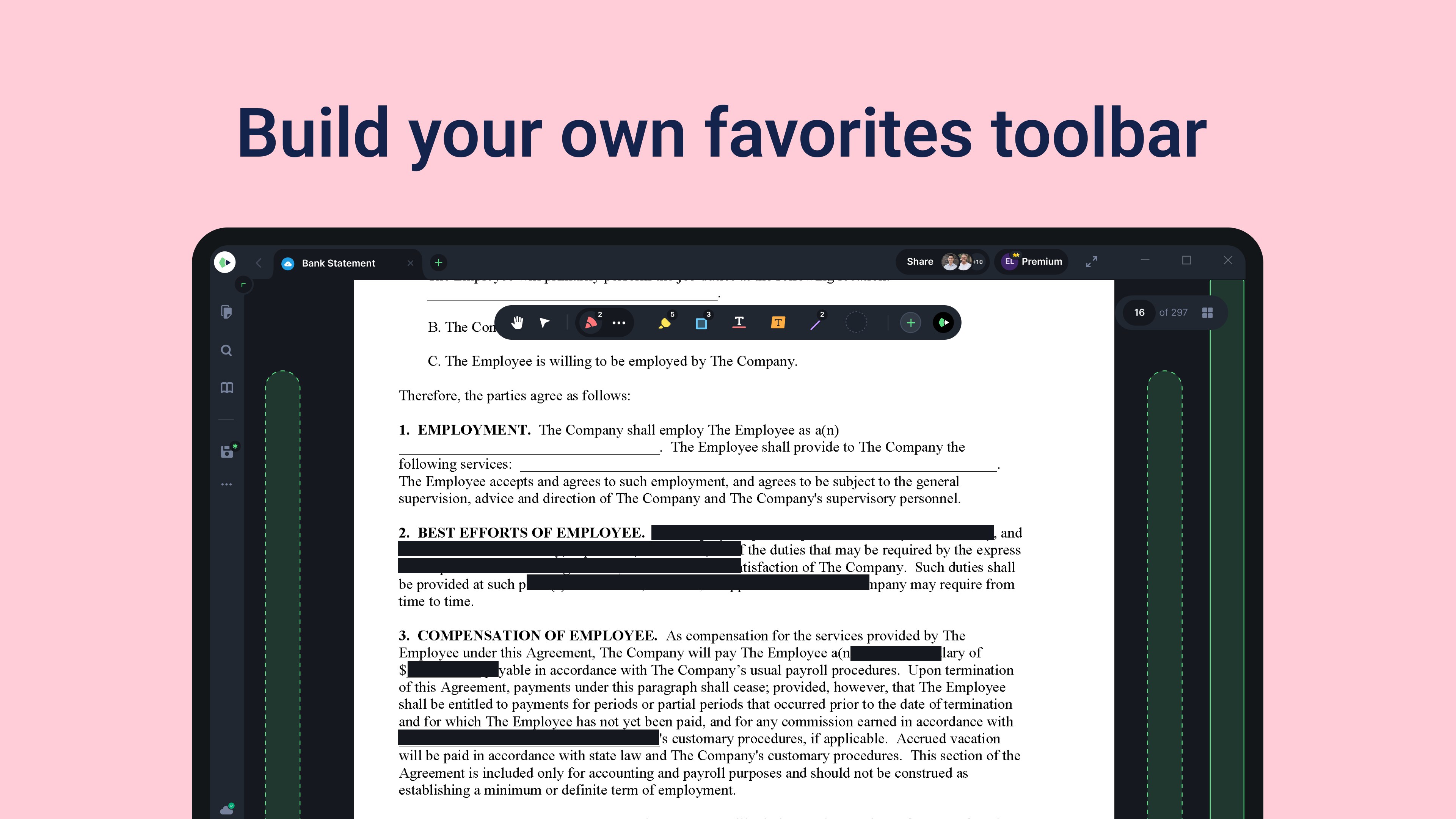
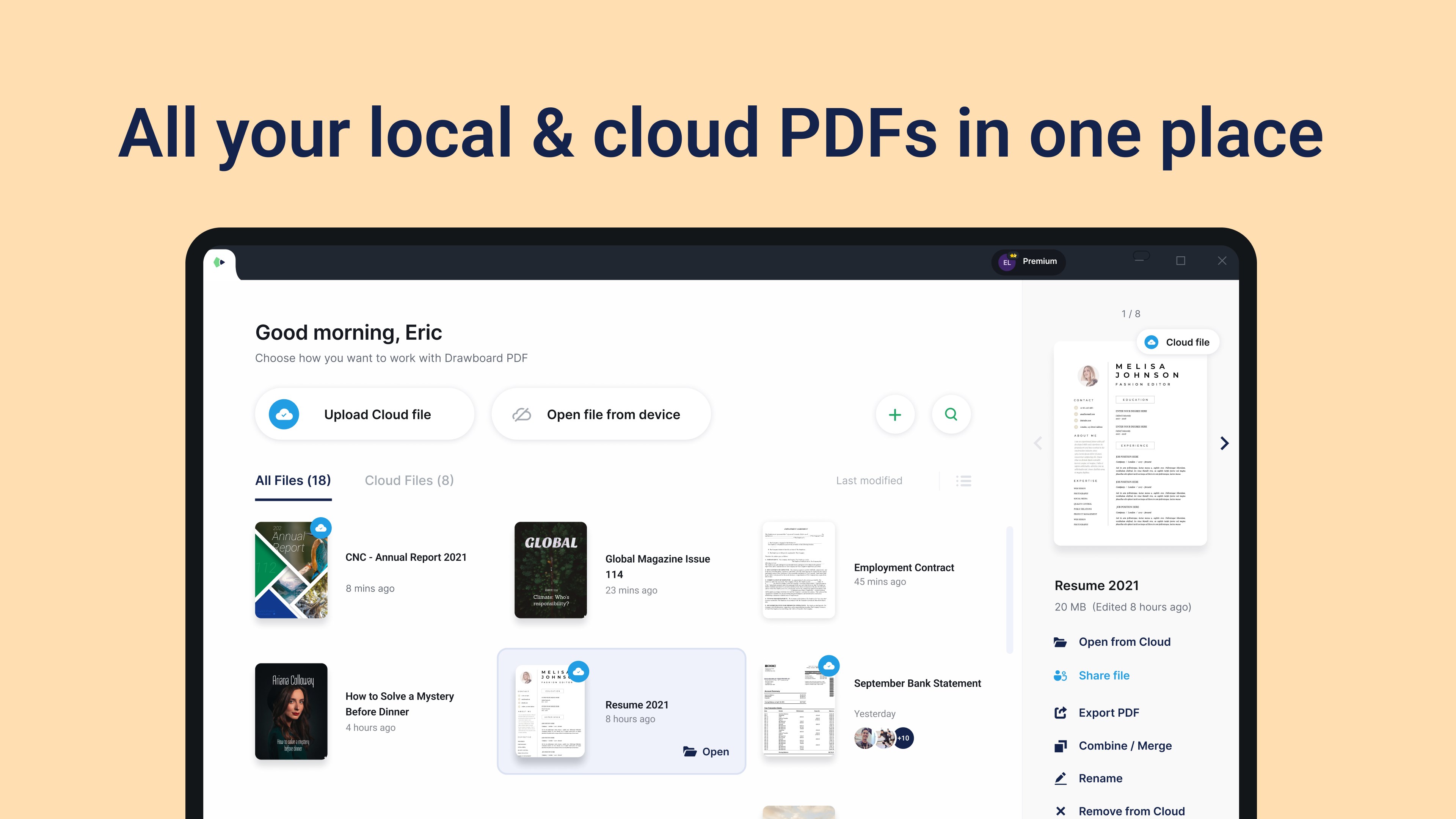
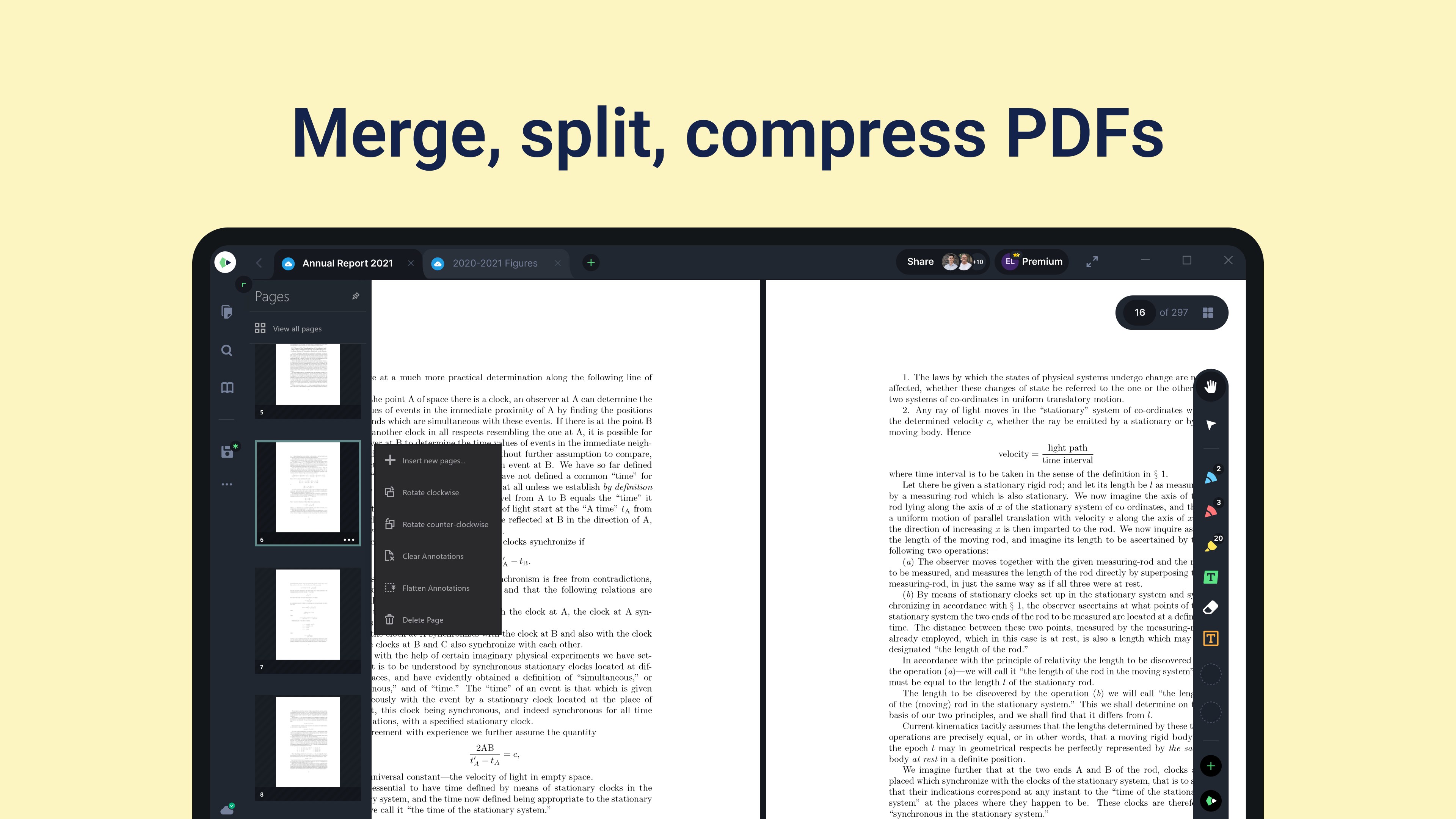
Drawboard PDF + Notes is a versatile application designed to enhance your PDF interaction by seamlessly integrating annotation and note-taking functionalities within a user-friendly interface. It aims to bridge the gap between reading and active engagement, making your document workflows more efficient.
Developed and published by Drawboard, a company renowned for creating intuitive digital document tools, this app builds on their legacy of empowering users to work smarter with PDFs.
The app is tailored for students, researchers, professionals, and anyone who seeks an efficient way to annotate and annotate PDFs without switching between multiple apps or losing context.
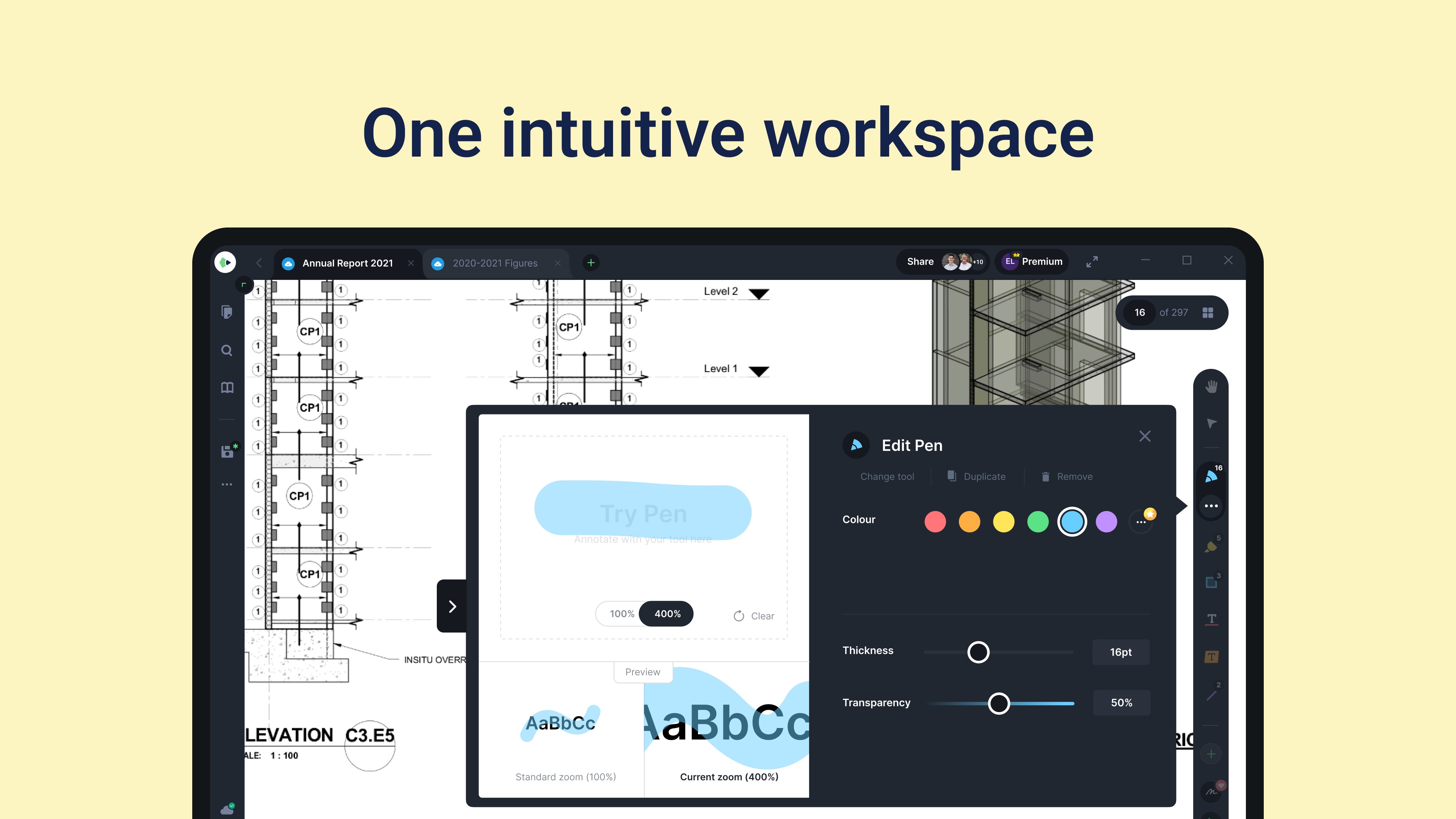
Imagine flipping through a well-organized notebook—Drawboard PDF + Notes offers that familiar feeling but in a digital realm that preserves the flexibility of pen on paper while leveraging the power of modern computing. Its interface embodies a clean, minimalistic design, reducing visual clutter and letting you focus on your content. Navigating between tools feels intuitive—like the app subtly anticipates your next move.
The operation is notably smooth; scrolling through lengthy documents or switching between annotation and note panels happens seamlessly, with minimal lag. From a learning perspective, new users can grasp essential features within minutes. The toolbars and menus are logically structured, minimizing cognitive load and enhancing overall productivity.
What truly sets Drawboard PDF + Notes apart from typical PDF editors is its deliberate focus on reducing cognitive effort while maintaining rich functionality. While many apps overload users with excessive tools that can feel overwhelming, Drawboard strikes a better balance by prioritizing essential features that integrate smoothly into your workflow.
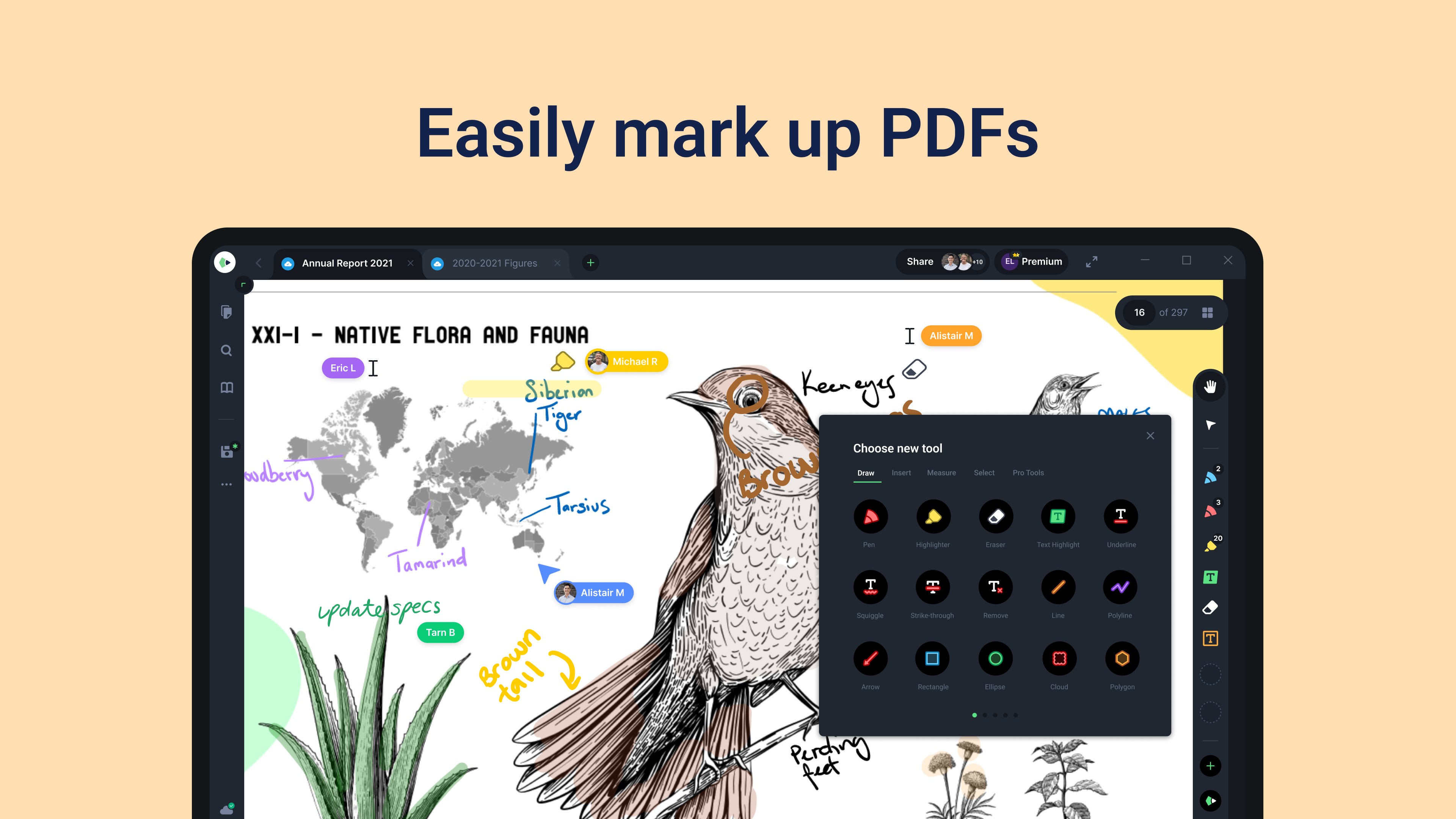
Its highlight is the dual-mode approach—allowing users to annotate with various pens and highlighters, then effortlessly switch to note-taking. This fluidity minimizes context switching and accelerates task completion. Additionally, the app's tight synchronization and file organization system reduce the mental clutter of managing multiple files or versions, leading to a clearer, more focused cognitive load profile.
For those seeking a straightforward yet powerful PDF companion that enhances your review, brainstorming, or learning sessions, Drawboard PDF + Notes is highly recommended. It's particularly effective for students who annotate lecture materials, researchers who review lengthy papers, or professionals handling contract reviews and project documentation.
While it excels at streamlining workflows, users accustomed to overly complex feature sets might find some tools simplified. That said, this restraint is intentional, prioritizing ease of use over feature bloat.
In summary, if you value an app that reduces mental strain, consolidates your annotations and notes, and integrates seamlessly into your Windows environment, Drawboard PDF + Notes is certainly worth exploring. Think of it as your efficient digital notebook—ready to help you focus on what truly matters, without unnecessary distractions.
Intuitive annotation tools
Excellent PDF rendering quality
Smooth note-taking experience
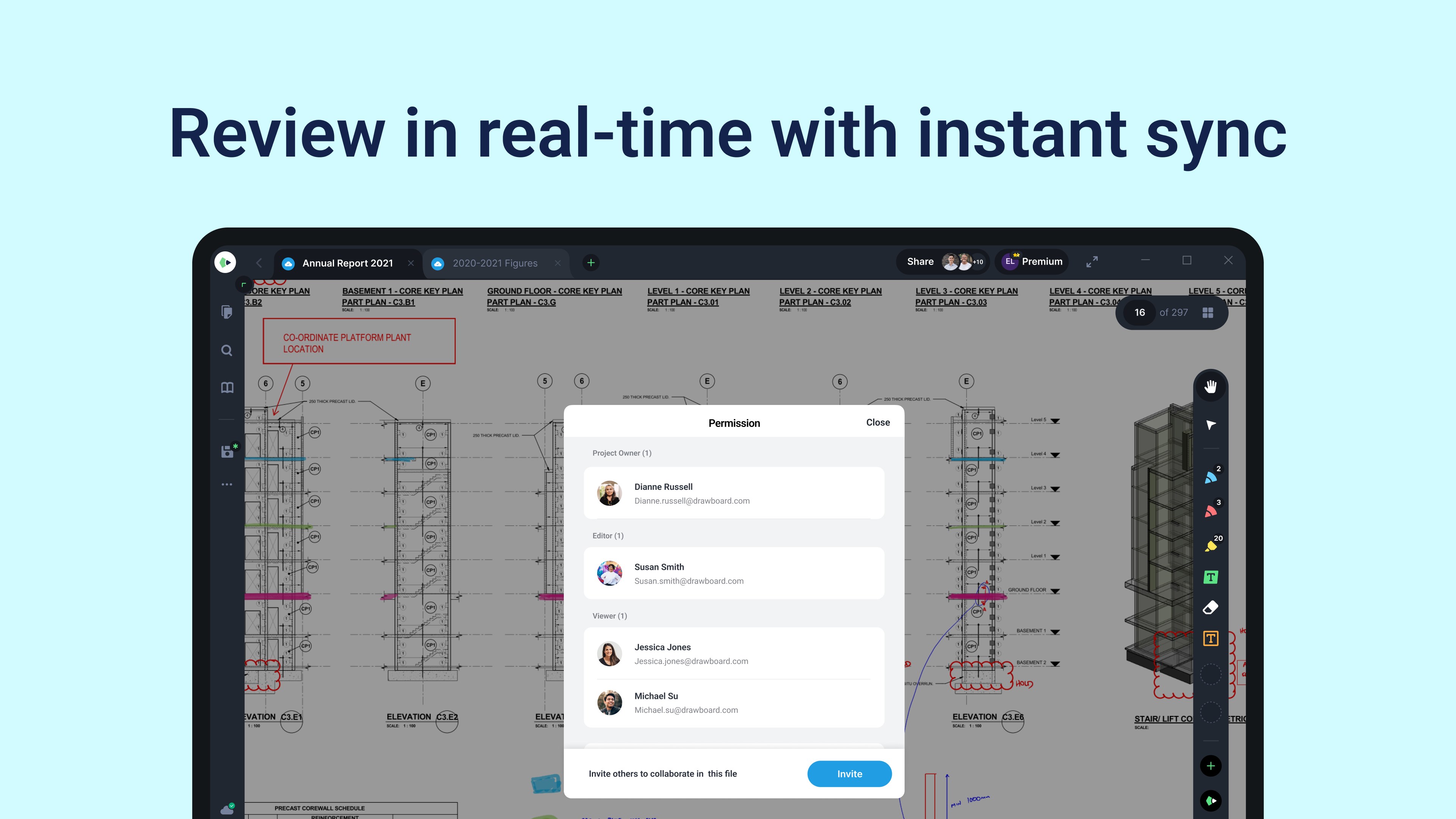
Robust synchronization features
Customizable interface
Occasional app crashes during intense editing
Limited export options for notes
Requires a fairly powerful device for optimal performance
Inconsistencies in handwriting recognition accuracy
Some advanced features are only available via subscription

for Windows
 5
5

for Windows
5

for Windows
4.9

for Windows
4.9

for Windows
4.9
for Windows
4.8

for Windows
4.8

for Windows
4.8

for Windows
4.8

for Windows
4.8
for Windows
4.8

for Windows
4.8

for Windows
5
for Windows
5

for Windows
5

for Windows
5

for Windows
5

for Windows
5

for Windows
5

for Windows
5

for Windows
5
for Windows
5