Social
PC
Windows 10 version 0.0 or higher
Integrated Keyboard
Integrated Mouse
2 GB
Bulgarian, Chinese (Simplified), Chinese (Traditional), Croatian, Czech, Danish, Dutch, English, English (United Kingdom), English (United States), Finnish, French, German, Greek, Hindi, Hungarian, Italian, Japanese, Korean, Lithuanian, Norwegian, Polish, Portuguese (Brazil), Romanian, Russian, Spanish, Swedish, Thai, Turkish, Ukrainian, Vietnamese
If you're a gamer, content creator, or community enthusiast seeking a reliable and feature-rich communication platform, Discord for Windows offers a compelling solution. With its user-friendly interface and robust capabilities, it continues to be a go-to choice for connecting with friends and like-minded communities. Today, we'll explore what makes this app stand out and whether it's worth incorporating into your digital life.
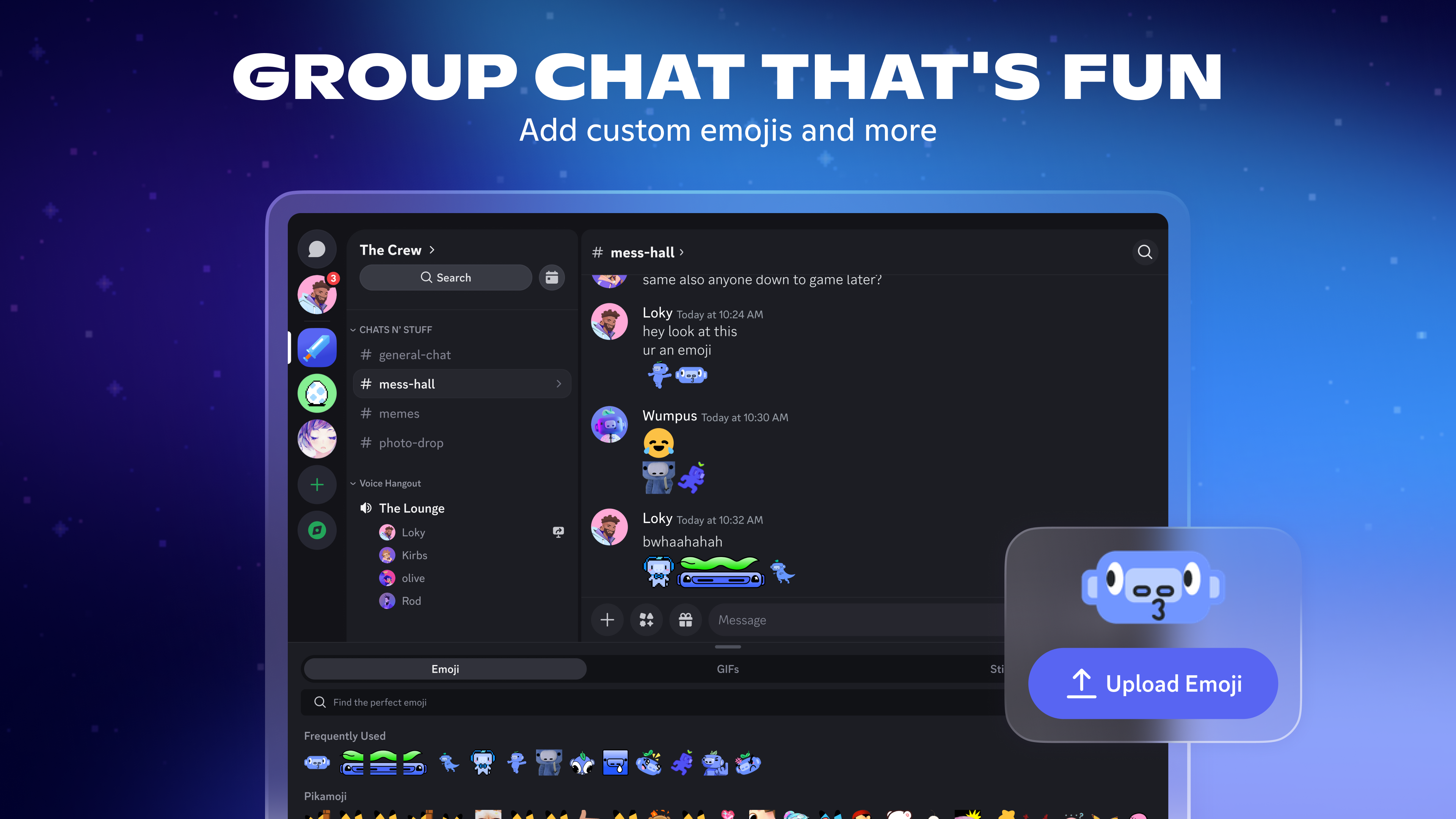
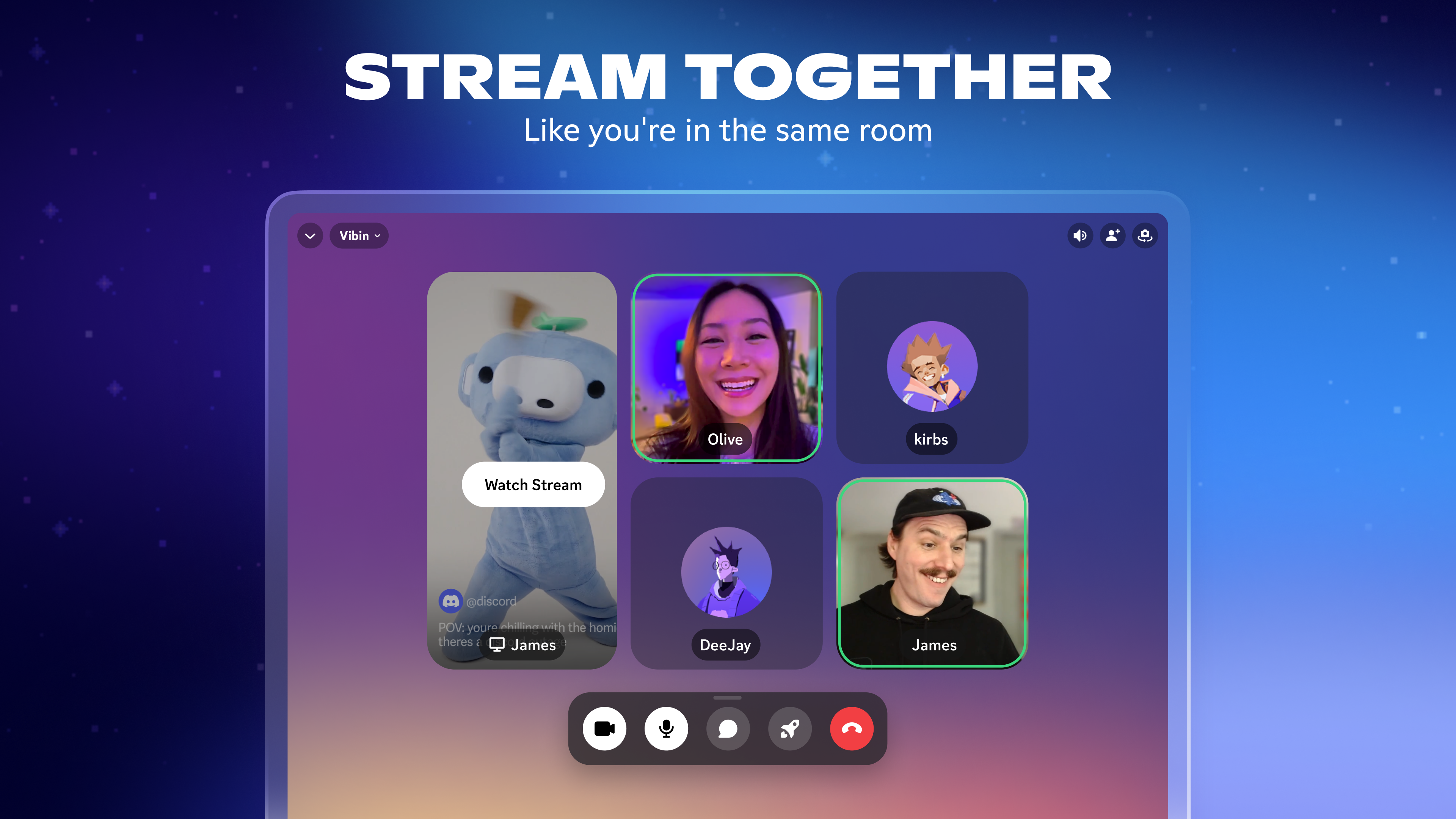
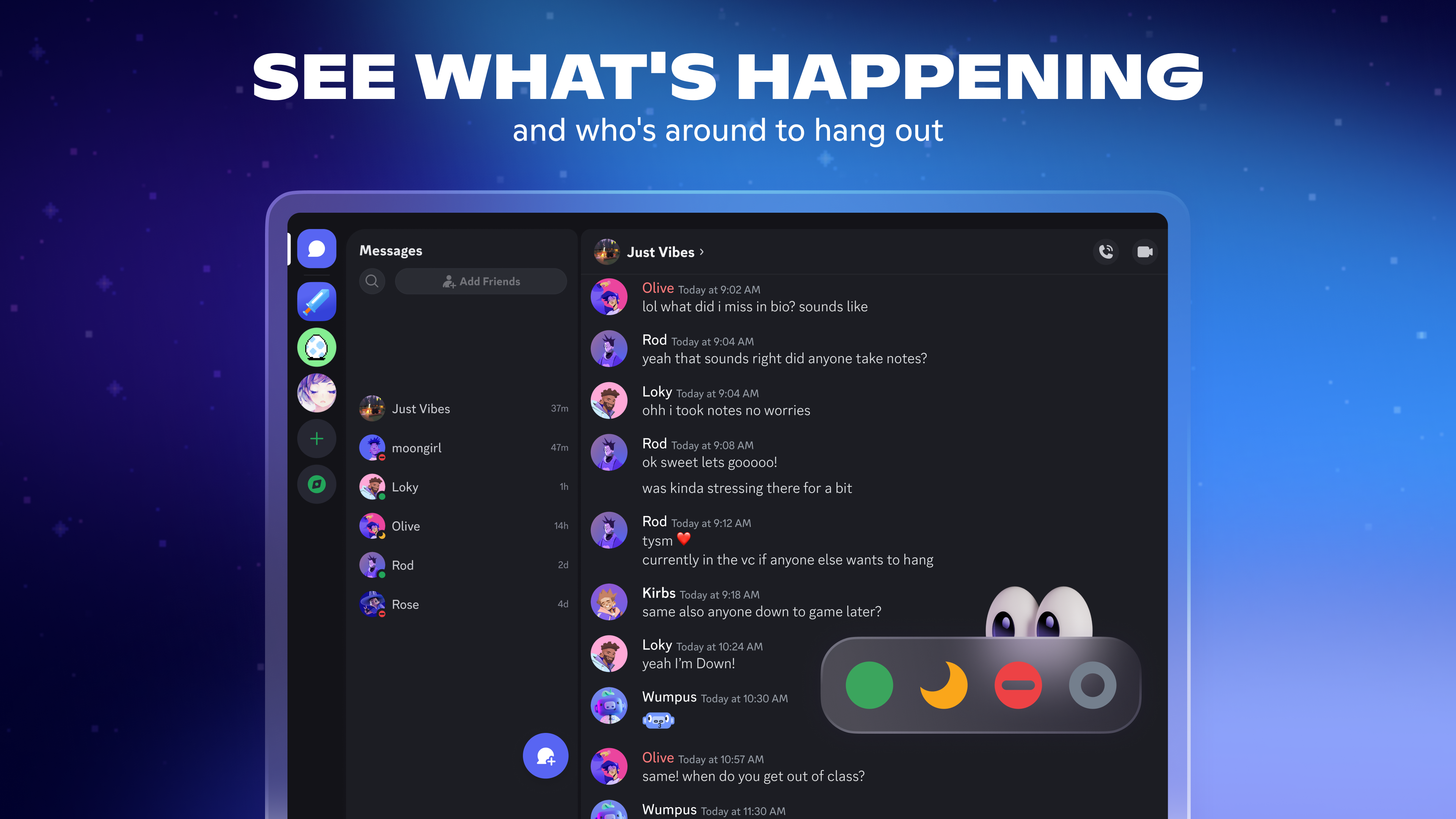
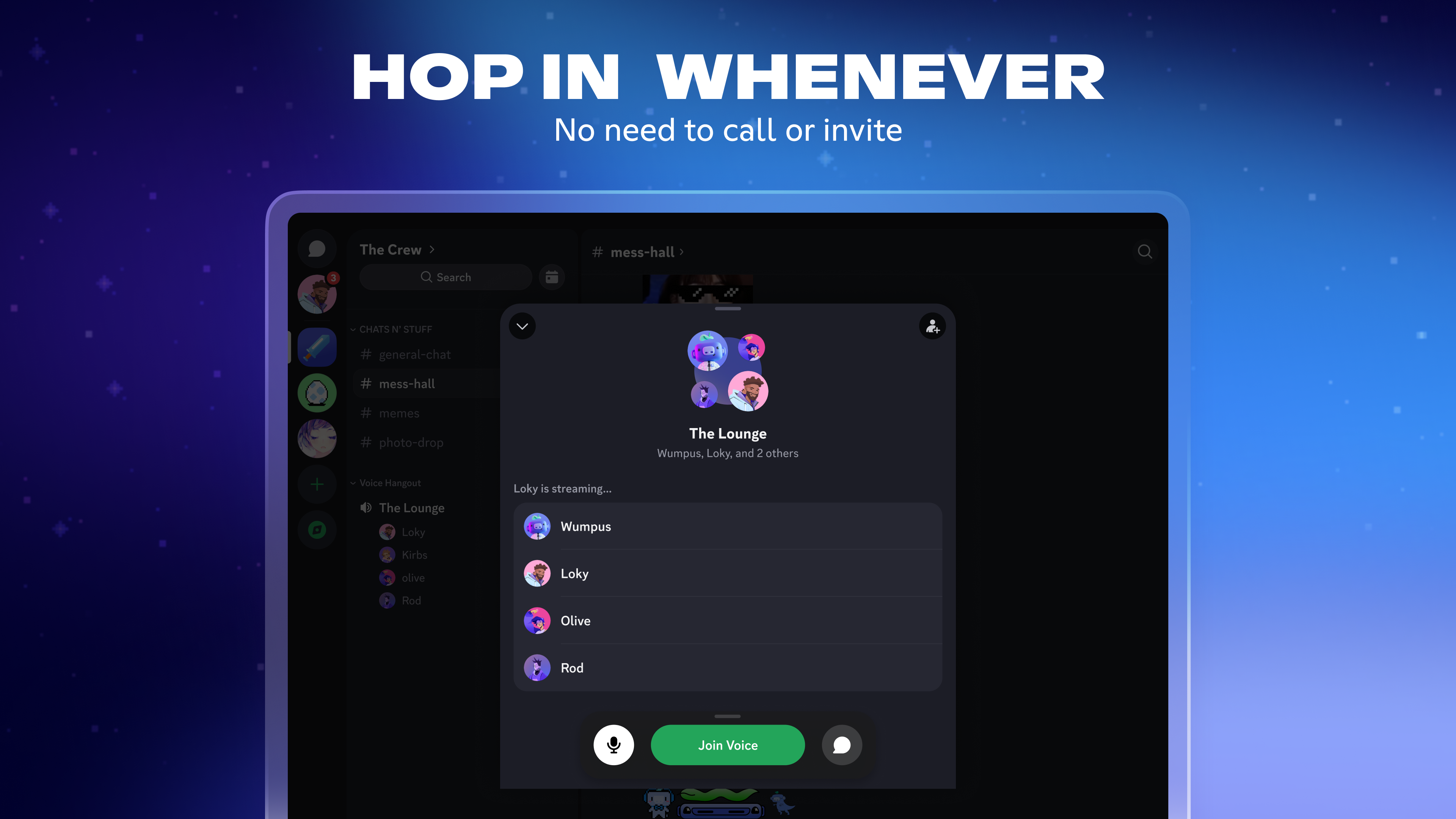
Designed as a versatile communication app, Discord for Windows seamlessly blends text, voice, and video chat into one unified platform. Developed by Discord, Inc., the company behind the world's most popular community spaces, this app caters primarily to gamers, content creators, and online communities, but its utility extends far beyond that. Key features include high-quality voice channels, extensive server customization, and reliable connection discovery, which together foster engaging and authentic interactions. The app targets users ranging from casual chatters to professional streamers who need a dependable digital hub for their conversations.
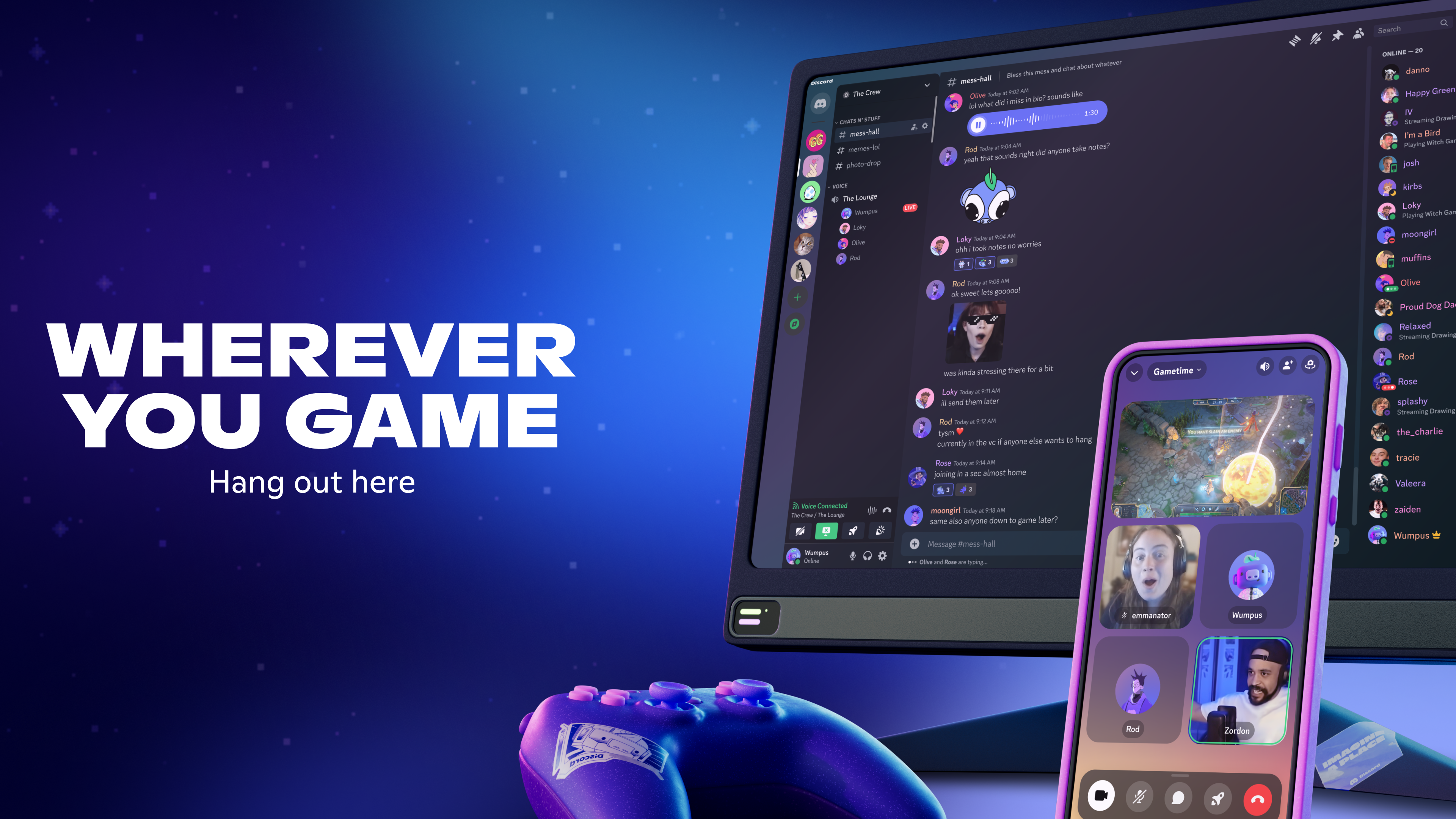
From the moment you open Discord for Windows, its intuitive design feels like walking into a cozy digital lounge. The onboarding process is straightforward, making it easy for newcomers to navigate. The app's interface resembles a familiar chat client but is sleek and modern, with a sidebar listing your servers and channels, akin to a well-organized digital library. Operation is impressively smooth; messages load swiftly, voice channels connect without jitter, and video calls provide crisp visuals. For users familiar with other social apps, learning curve is minimal, thanks to clear icons and logical workflows.
One of Discord's standout features is its robust community customization, allowing server owners to design unique environments. You can set roles, permissions, and even integrate bots to automate moderation or enhance engagement. Plus, the platform emphasizes authenticity verification, providing mechanisms to confirm user identities—crucial for professional communities or content creators aiming for trustworthy interactions. This focus on personalized profiles and verified identities helps foster a sense of real connection, setting Discord apart in a crowded social landscape.
The connection discovery feature is another highlight. Discord's algorithms suggest servers and communities based on your interests, enabling you to find like-minded groups easily. Whether you're a budding gamer, a hobbyist, or a professional seeking collaboration, this discovery tool ensures you're not confined to your existing circles. It's akin to having a personal matchmaker for digital communities, broadening your social horizons efficiently—a feature particularly valued in today's interconnected world.
Overall, Discord for Windows delivers a delightful user experience characterized by its seamless operation and thoughtful design. The app feels like a digital clubhouse where all tools are at your fingertips—simple enough for beginners yet powerful enough for advanced users. Its focus on community customization and authenticity verification offers a layered engagement that few competitors provide, making it especially appealing for those who value genuine interactions and personalized spaces.
Considering its well-rounded feature set and user-centric design, I confidently recommend Discord for Windows to anyone seeking a flexible communication platform. Whether you're managing a gaming clan, running a hobby group, or building a professional network, this app can serve as your central hub. For best results, explore its community customization options and connectivity features to tailor your experience. It's a dependable tool that encourages authentic, engaging interactions—definitely worth a spot on your desktop.
Robust voice and video communication
User-friendly interface
Customizable server options
Extensive integration features
Cross-platform accessibility
Occasional voice lag or echo
Battery drain on mobile devices
Limited customization for notifications
Occasional app crashes or freezes
File sharing limitations on free version

for Windows
 5
5

for Windows
4.9

for Windows
4.8

for Windows
4.7

for Windows
4.7

for Windows
4.6

for Windows
4.6
for Windows
4.5

for Windows
4.5

for Windows
4.5

for Windows
4.5

for Windows
4.4

for Windows
5

for Windows
5

for Windows
5

for Windows
5

for Windows
5
for Windows
5

for Windows
5

for Windows
5

for Windows
5

for Windows
5