Developer tools
OpenAI
PC
Windows 10 version 19041.0 or higher
Integrated Keyboard
Not specified
English (United States)
Codex for Windows, crafted by OpenAI, stands out as a versatile AI-powered coding assistant designed to streamline programming workflows and inspire innovation across diverse applications. Whether you're a seasoned developer, a student, or someone curious about AI-driven tools, this app seeks to elevate your coding experience with intelligent support.
At its core, Codex for Windows serves as an intelligent coding assistant that leverages advanced AI to help generate, complete, and optimize code snippets directly within your Windows environment.
Developed and published by OpenAI, the same team behind renowned AI models, ensuring quality, innovation, and a user-centric approach.
This application is tailored for developers, coding students, technical writers, and AI enthusiasts keen on exploring AI-assisted coding solutions within a Windows setting.
Imagine having an AI coding buddy sitting right beside you, ready to suggest the next line of code or troubleshoot an obscure bug—sounds like science fiction? Not anymore. Codex for Windows transforms this fantasy into a tangible workspace companion, making coding more intuitive and less daunting.
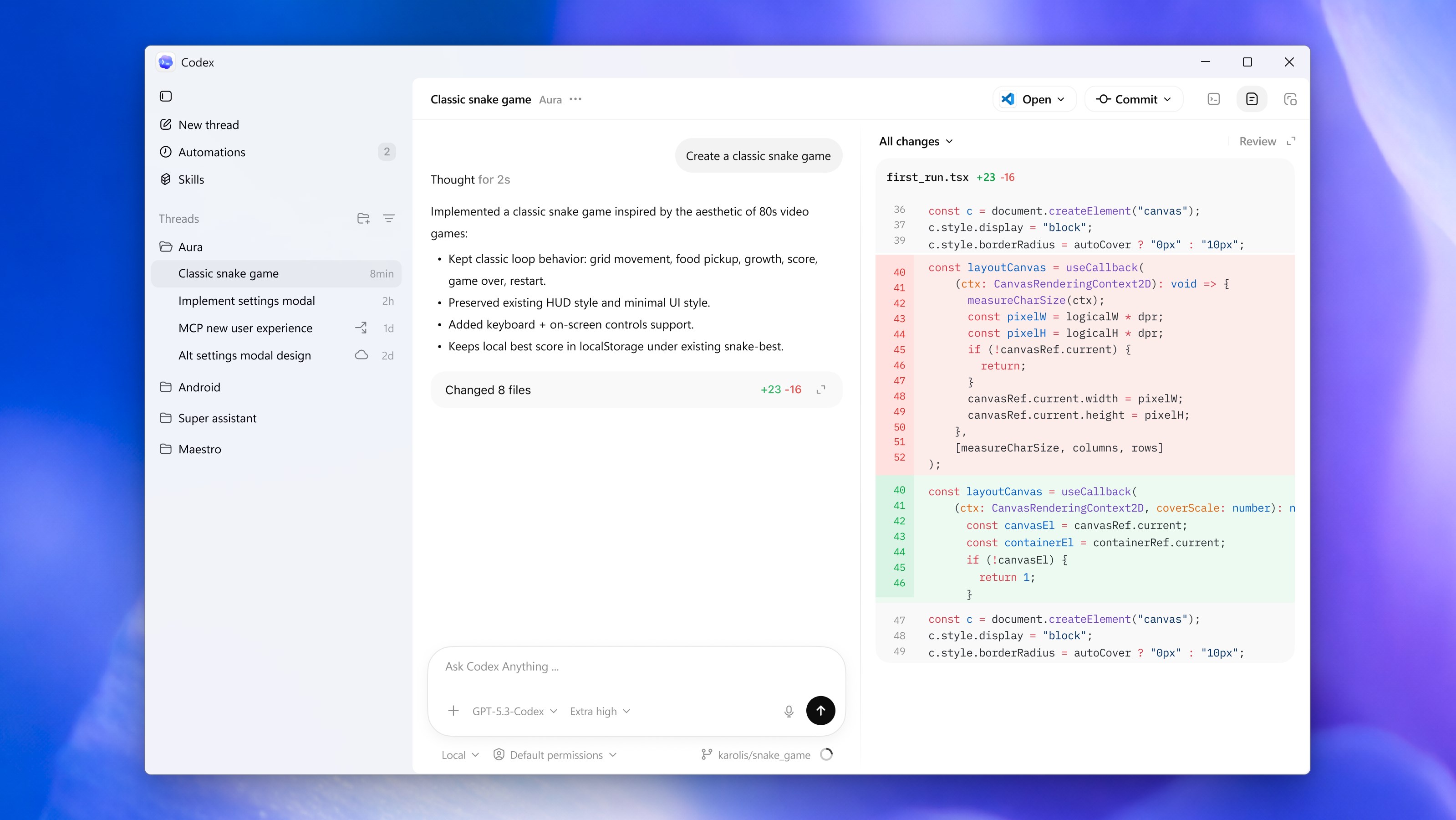
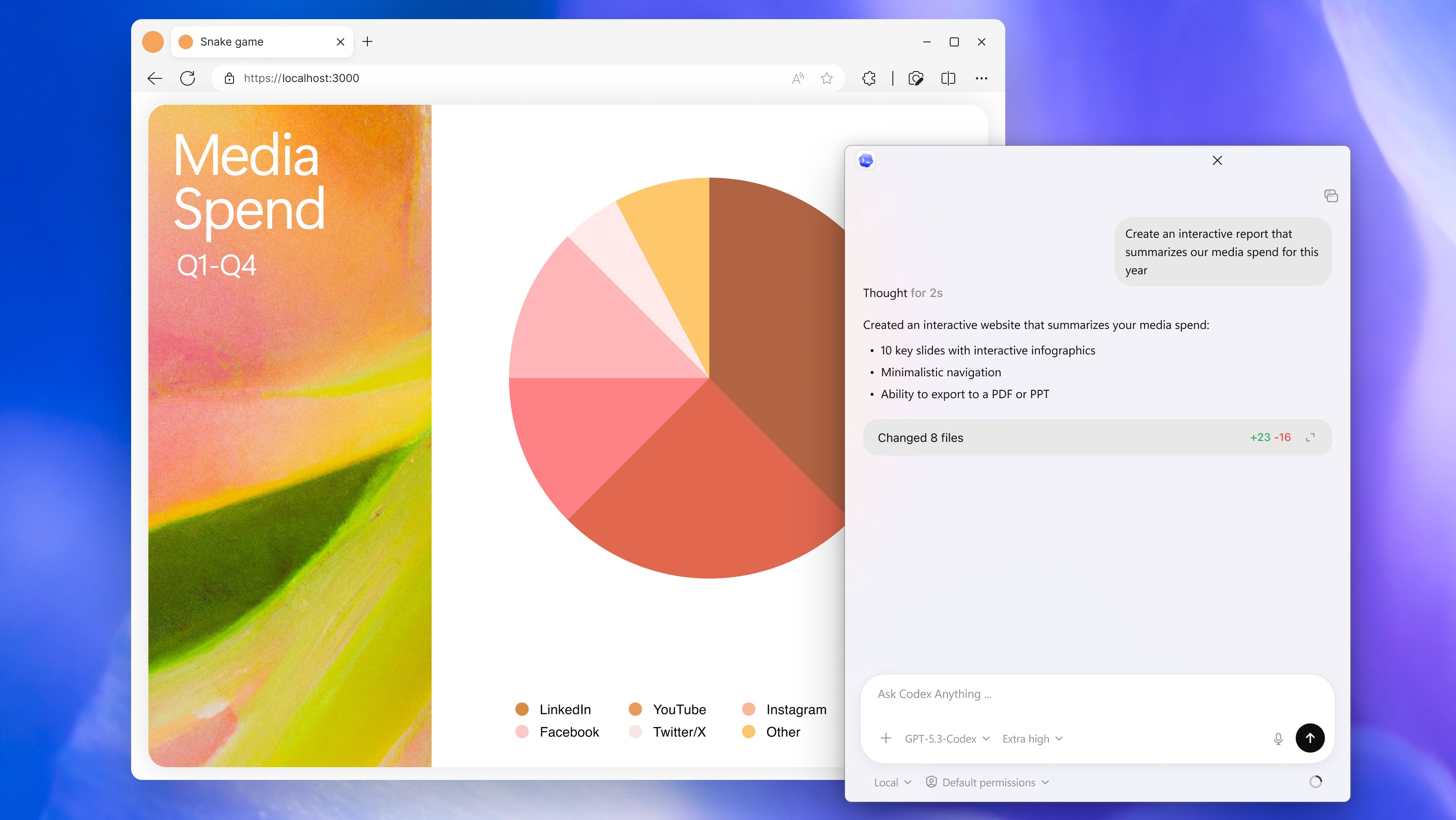
The most standout feature of Codex is its capability to interpret natural language prompts and translate them into functional code snippets. Suppose you're working on a Python project to analyze data; simply describe your goal—“Create a function to calculate the median”—and watch as the AI generates a ready-to-use code segment. This feature accelerates learning curves, reduces repetitive typing, and sparks creativity by freeing up time for conceptual thinking. Its real-time suggestions are context-aware, ensuring relevance whether you're writing SQL queries, Java functions, or JavaScript snippets.
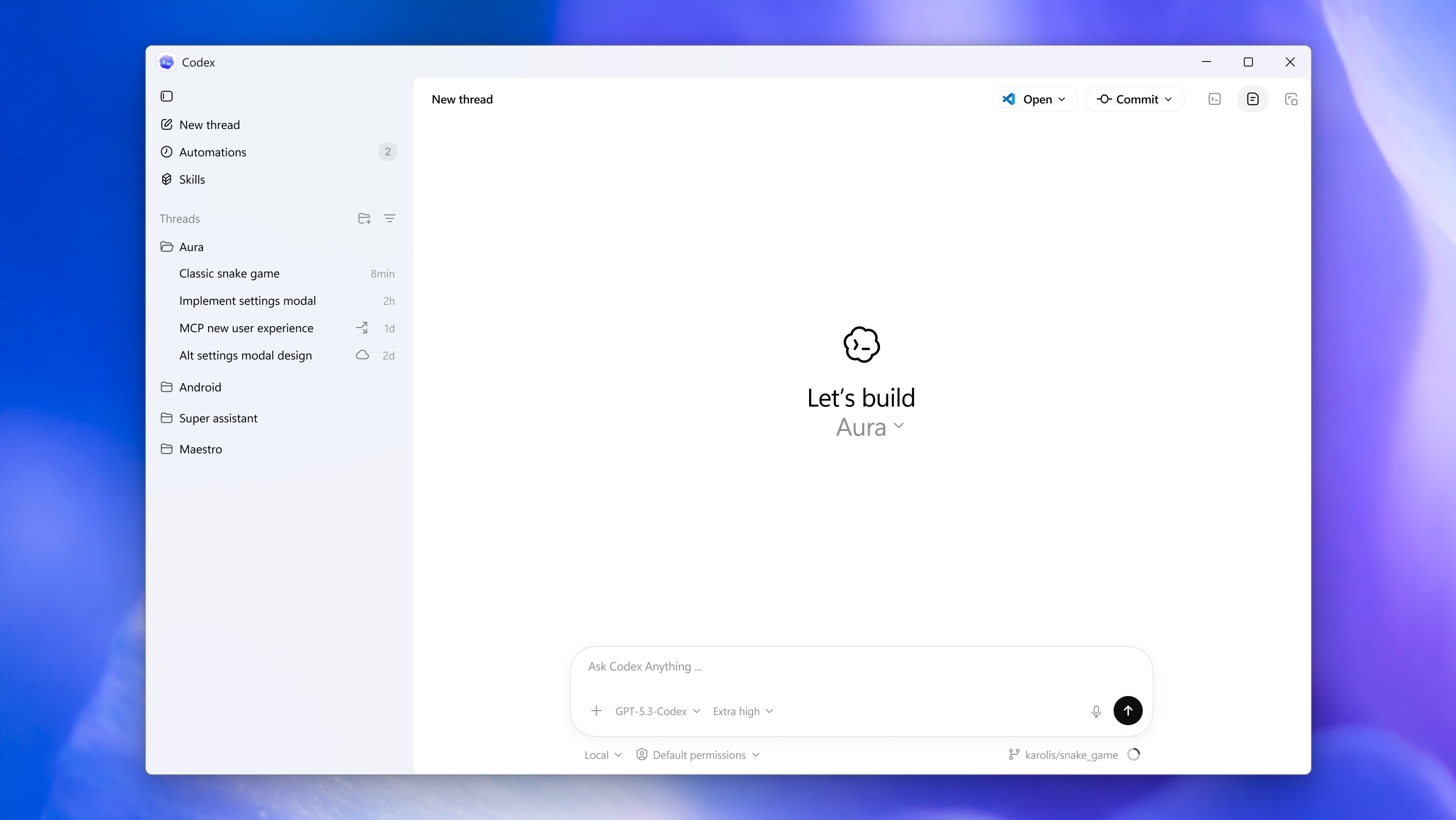
The interface is clean, intuitive, and thoughtfully designed—think of it as a sleek dashboard that doesn't overwhelm but invites exploration. Navigating through features feels akin to flipping through a well-organized notebook. The app performs smoothly, with minimal lag, ensuring that your focus remains on coding rather than troubleshooting the tool itself. Learning how to harness its capabilities is straightforward, thanks to built-in tutorials and a gentle onboarding process. It's like having a helpful guide that eases you into a new language without the frustration.
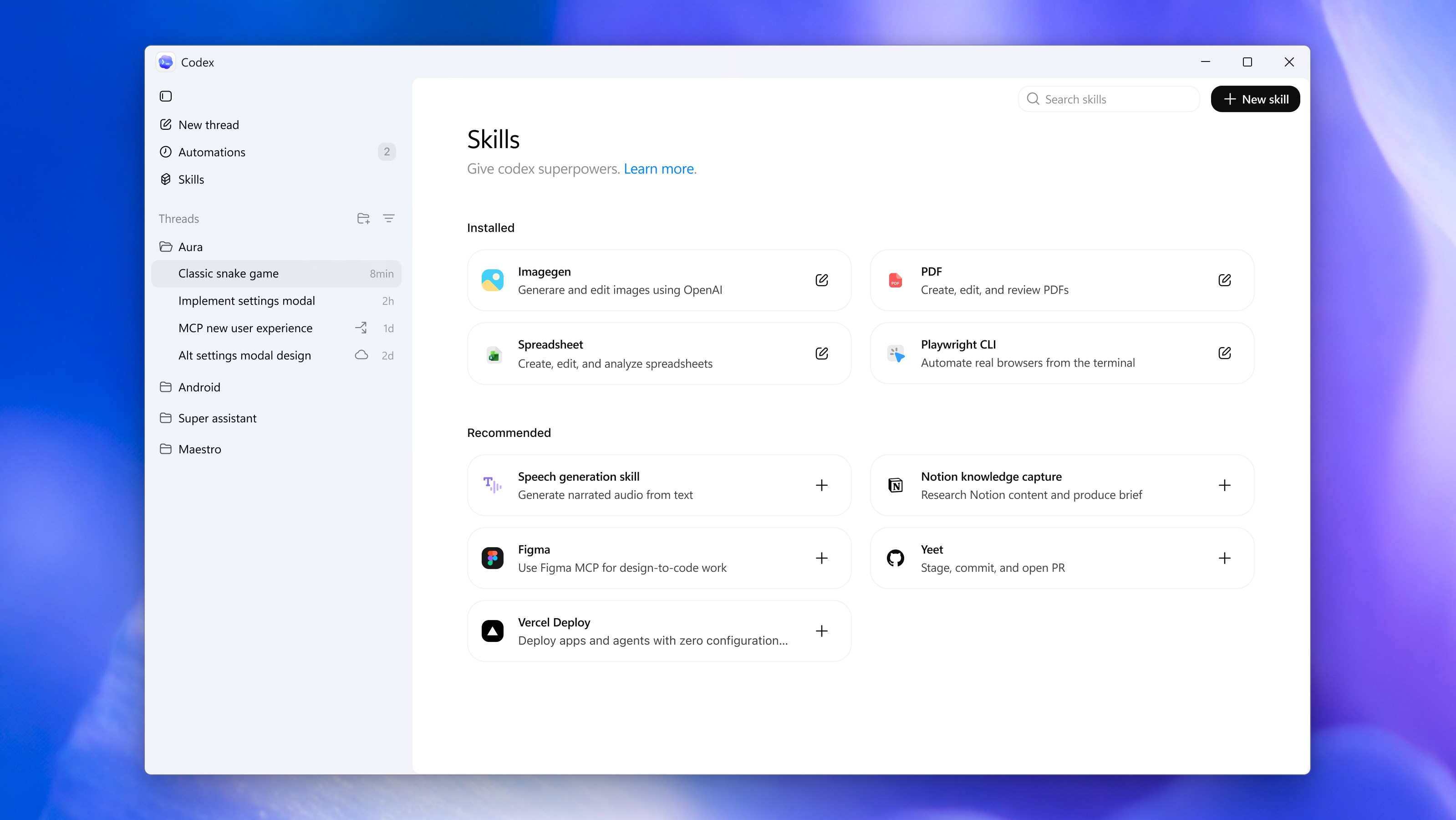
Compared to similar developer tools, Codex for Windows's most compelling advantage lies in its deep integration with OpenAI's cutting-edge language models, providing not just syntax completion but logic-based code generation. Unlike traditional autocomplete tools that rely solely on language syntax, Codex understands intent at a conceptual level—making it remarkably adept at producing contextually accurate, functional code snippets that often require minimal editing. Additionally, its multi-language support sets it apart, catering to diverse programming needs within a single interface. These aspects make it not just a tool but a strategic partner in your development process.
Overall, Codex for Windows is a promising add-on for developers seeking to enhance productivity while exploring AI-assisted coding. It's especially recommended for those who regularly work across multiple languages or wish to use AI as a brainstorming partner. While it's not a complete replacement for thoughtful debugging and design, it significantly complements traditional workflows.
For anyone interested in demystifying AI's role in software development or looking for a reliable, intelligent code companion, this app deserves a spot in your toolkit. Just remember: like any advanced tool, the true magic happens when you combine its suggestions with your own expertise and judgment.
Intuitive User Interface
Fast Performance
Accurate Code Generation
Wide Language Support
Regular Updates
Limited Offline Access
Occasional Inaccuracy in Complex Tasks
Learning Curve for Beginners
Limited Customization Options
Occasional Delays in Response Time

for Windows
 5
5

for Windows
4.6

for Windows
4.6

for Windows
4.6

for Windows
4.5

for Windows
4.4

for Windows
4.4

for Windows
4.3

for Windows
4.3
for Windows
4.3

for Windows
4.3

for Windows
4.2

for Windows
5

for Windows
5
for Windows
5

for Windows
5

for Windows
5

for Windows
5

for Windows
5

for Windows
5

for Windows
5

for Windows
5