Photo & video
Reincubate
PC
Windows 10 version 19041.0 or higher
Not specified
Arabic, Basque, Bulgarian, Catalan, Chinese (Simplified), Chinese (Traditional), Croatian, Czech, Danish, Dutch, English (United Kingdom), English (United States), Estonian, Finnish, French, Galician, German, Greek, Hebrew, Hindi, Hungarian, Italian, Japanese, Korean, Latvian, Lithuanian, Norwegian (Bokmål), Polish, Portuguese, Portuguese (Brazil), Romanian, Russian, Serbian (Cyrillic), Serbian (Latin), Slovak, Slovenian, Spanish, Swedish, Thai, Turkish, Ukrainian
Camo Studio for Windows is a powerful tool that bridges the gap between your smartphone camera and your desktop, enabling seamless, high-quality video capture directly from your phone with professional editing capabilities.
Developed by Reincubate, a reputable company renowned for innovative mobile-device management and video technology solutions, Camo Studio exemplifies their commitment to enhancing content creation workflows.
This combination of features makes Camo Studio a versatile hub for content creators, professionals, and hobbyists alike who crave studio-quality video with minimal fuss.
Imagine transforming your everyday smartphone into a professional-grade camera—like turning a humble point-and-shoot into a cinematicLens. That's exactly what Camo Studio promises. Whether you're a streamer aiming for crystal-clear visuals or a vlogger looking to elevate your production, this app places high-end video capabilities right at your fingertips. Its prompt and stable connection transforms your phone into a wireless or wired webcam that rivals dedicated equipment, all from an intuitively crafted interface that feels less like a tech tool and more like a creative companion.
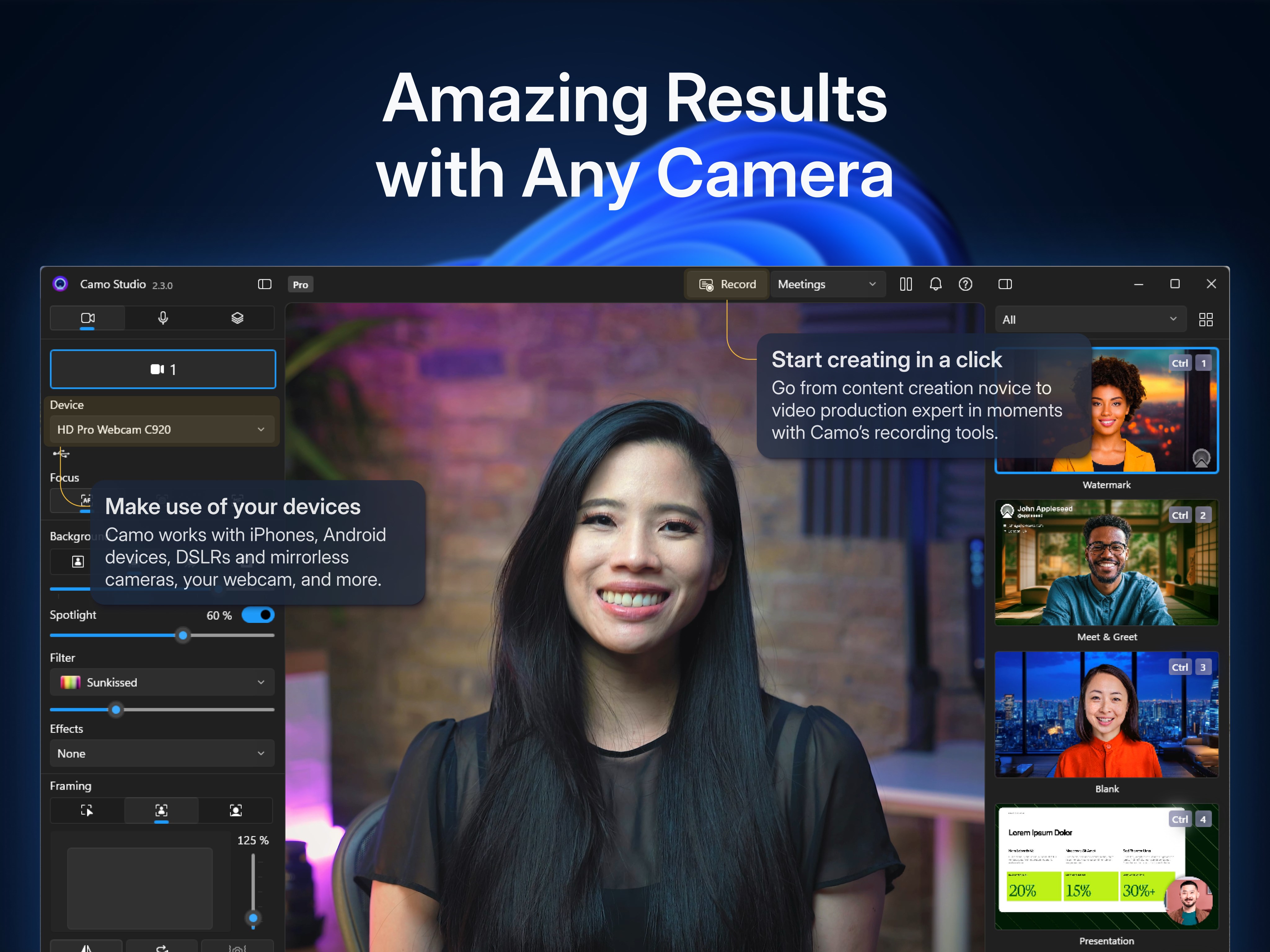
The backbone of Camo Studio is its ability to deliver high-resolution video streams from your phone to your computer. The setup process is straightforward: plug in via USB or connect over local Wi-Fi, and almost instantly, your phone's camera transforms into a professional video source. The app intelligently manages bandwidth and latency to ensure a smooth, real-time feed—crucial for live streaming or virtual meetings. Moreover, support for resolutions up to 4K in the paid version ensures crisp visuals that stand out on any platform.
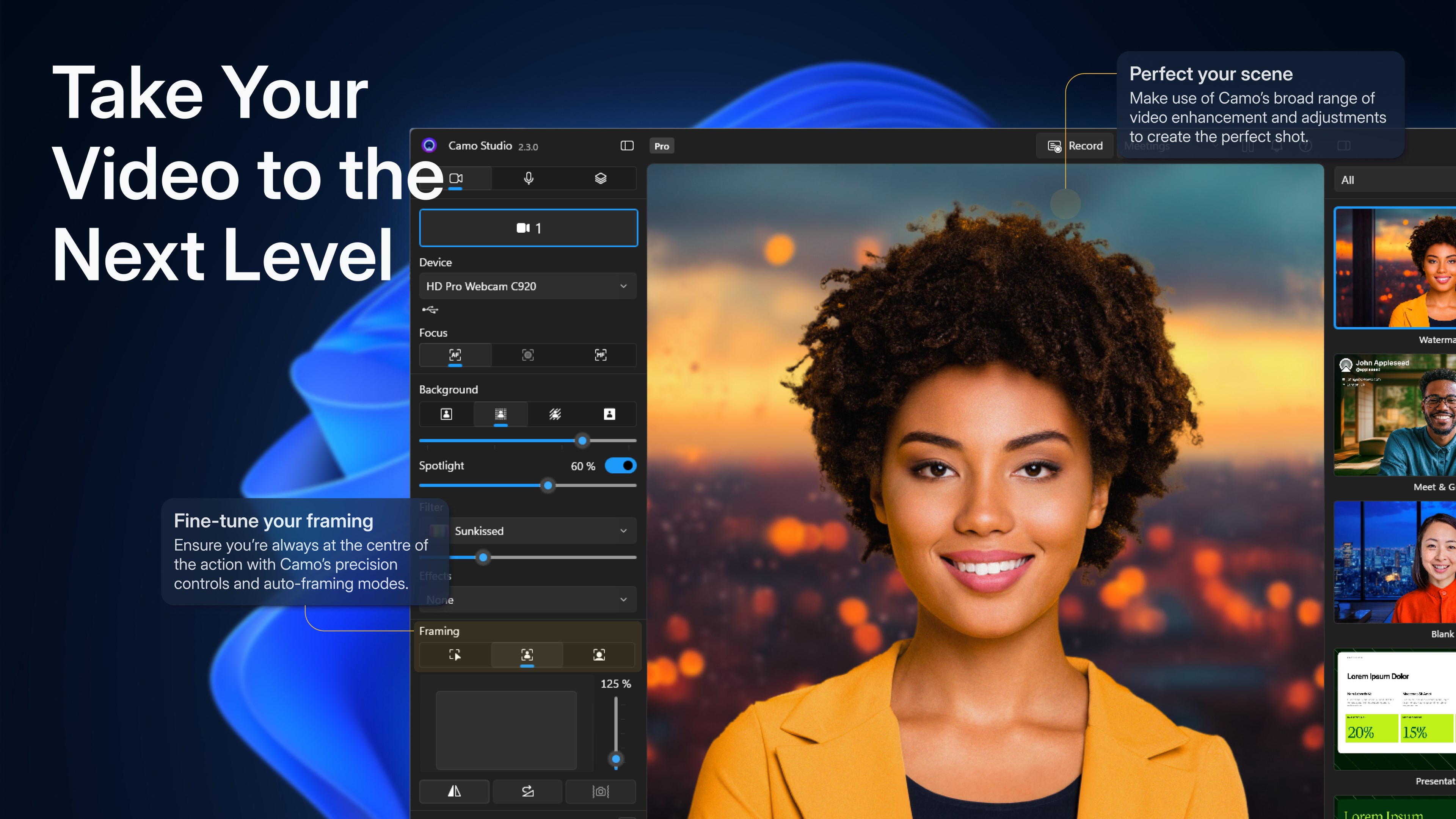
This is where Camo Studio shines brightest—allowing users to take control of their video quality without fuss. You can manually adjust focus, exposure, white balance, and ISO settings, giving your video a polished, professional look akin to adjusting settings on a dedicated camera. The interface visually mirrors professional camera controls, making it accessible yet powerful. When used with the app's live filters and overlays, creators can craft visually engaging content effortlessly, without complex post-production edits.
The app's design is both sleek and pragmatic—user-friendly enough for beginners yet full of advanced features for seasoned creators. The layout is uncluttered, with controls logically arranged for quick adjustments. Connection stability is a highlight; once set up, the app remains steady, offering a smooth stream that minimizes lag or hiccups. Learning curve? Minimal—just connect, configure, and start capturing or streaming. This simplicity, paired with powerful customization, creates an experience that feels more like a creative extension than a complex tool.
Compared to standard webcam apps or basic camera apps, Camo Studio stands out with its professional-grade controls, ultra-high-definition streaming, and versatile connectivity. Many competing apps lack the depth of manual adjustments, limiting users to auto settings that often produce lackluster results. Camo Studio's ability to deliver 4K streams and its broad compatibility with different devices makes it a preferred choice for serious content creators and professionals who desire studio-quality video without investing in expensive equipment.
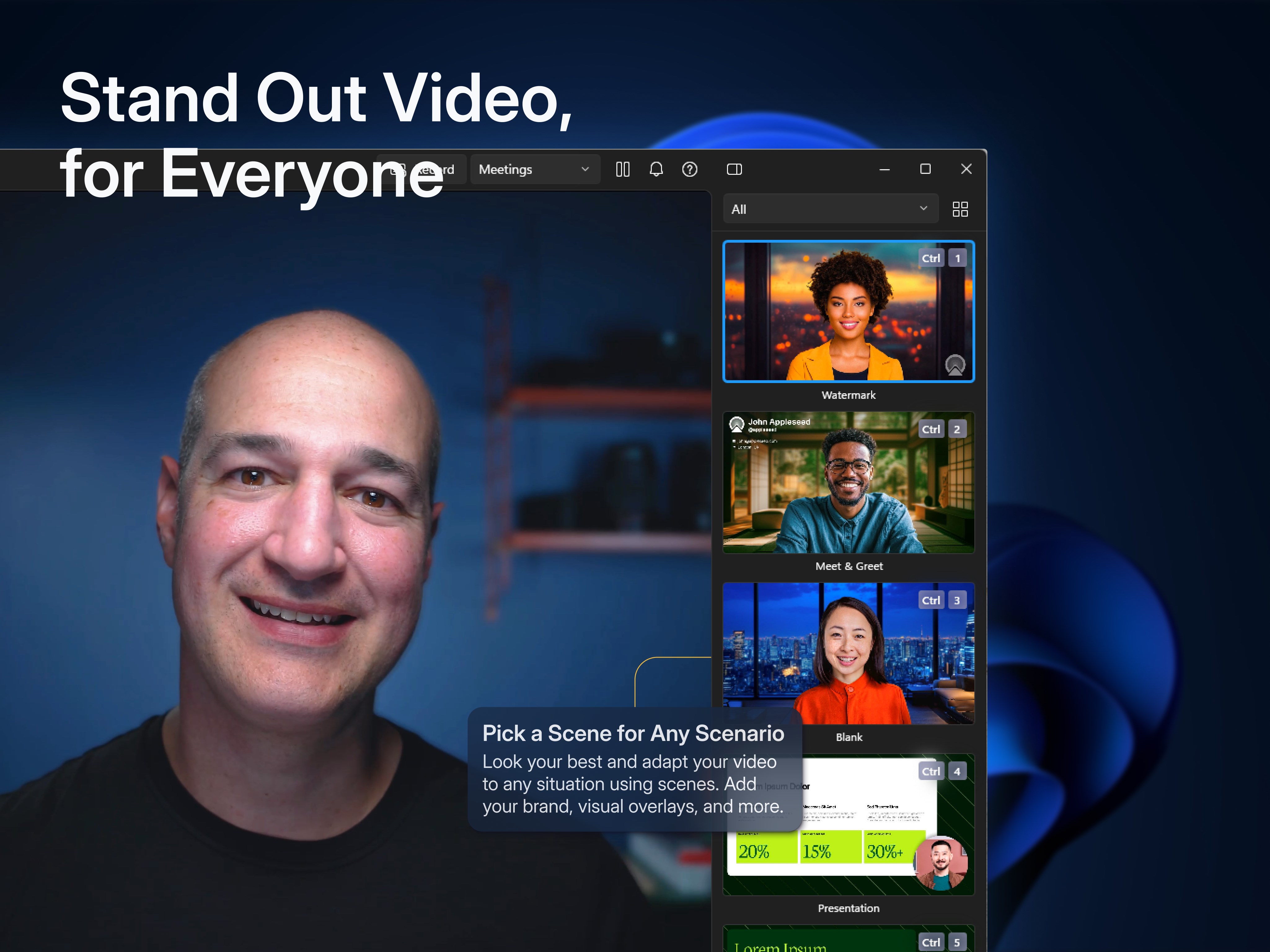
Additionally, its integration with desktop editing workflows and the ability to add overlays in real time lend a creative edge that distinguishes it from more generic applications. This tool essentially transforms your phone into a mini studio, giving you the creative freedom to produce high-quality videos with ease.
In summary, Camo Studio for Windows is highly recommended for anyone seeking a reliable, high-quality mobile camera solution that integrates seamlessly with their desktop setup. It's particularly suited for streamers, remote presenters, and content creators who value flexibility and professional control. While there's a learning curve for mastering all features, its intuitive design and stability make it accessible from day one. If you're looking to upgrade your video quality without cumbersome hardware, this app is definitely worth a try—think of it as your phone's new secret weapon for polished, studio-level content.
High-quality AR overlay
User-friendly interface
Wide device compatibility
Customizable backgrounds and presets
Regular updates and improvements
Occasional lag during high-motion scenes
Limited free features
Complex setup for new users
Occasional connectivity issues with camera hardware
Limited customization options for some overlays

for Windows
 5
5

for Windows
4.9

for Windows
4.8

for Windows
4.8

for Windows
4.8

for Windows
4.7

for Windows
4.7

for Windows
4.7

for Windows
4.7
for Windows
4.7
for Windows
4.7
for Windows
4.7

for Windows
5

for Windows
5

for Windows
5

for Windows
5

for Windows
5

for Windows
5

for Windows
5

for Windows
5

for Windows
5

for Windows
5