Utilities & tools
PC
Windows 10 version 14316.0 or higher
English (United States)
CAD Design Software for Windows by iDreamMoon Studio emerges as a versatile and user-friendly application tailored for engineers, architects, and hobbyists seeking efficient design solutions. Streamlining complex drafting tasks into an accessible interface, it aims to bridge the gap between professional-grade functionality and beginner usability.
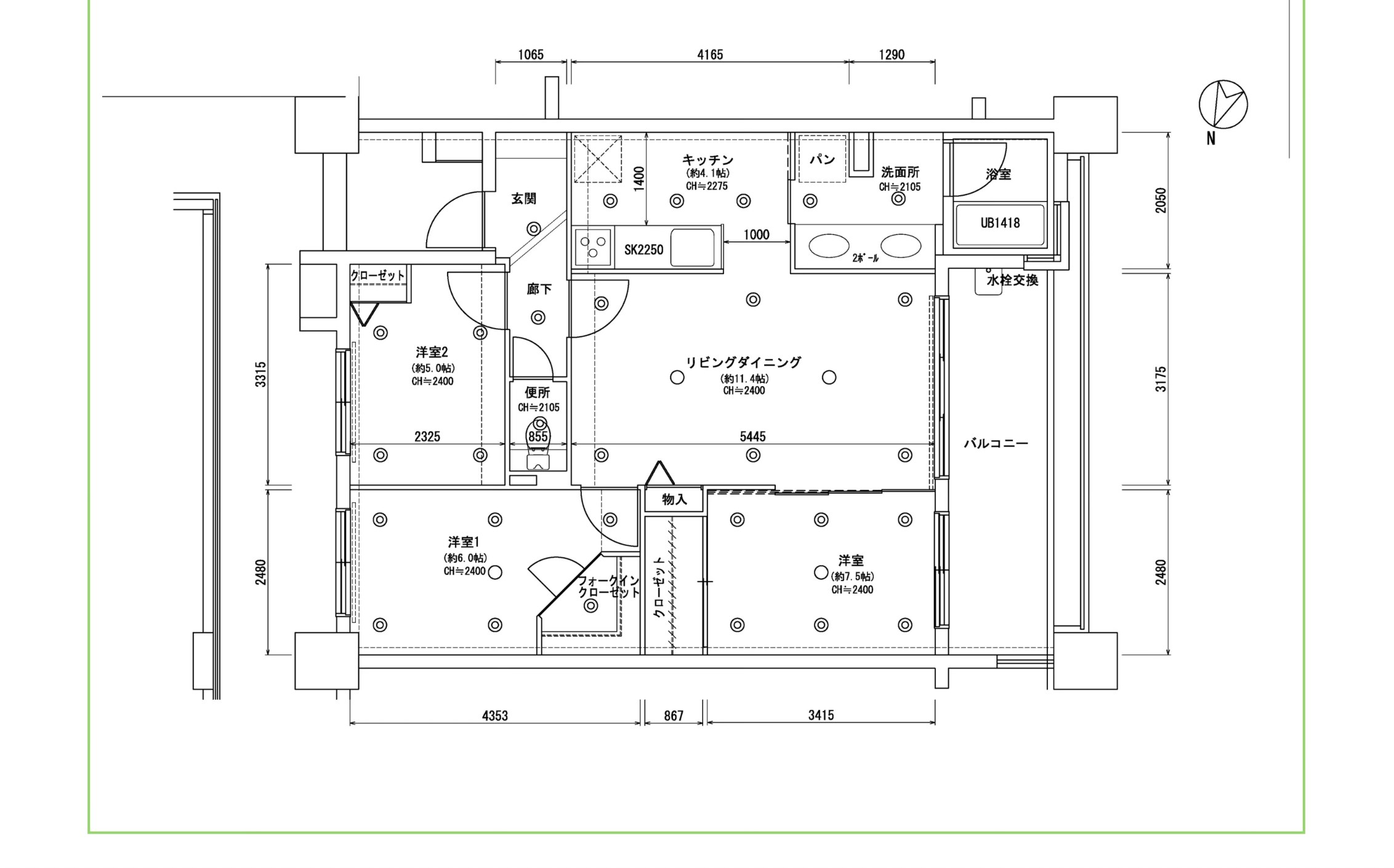
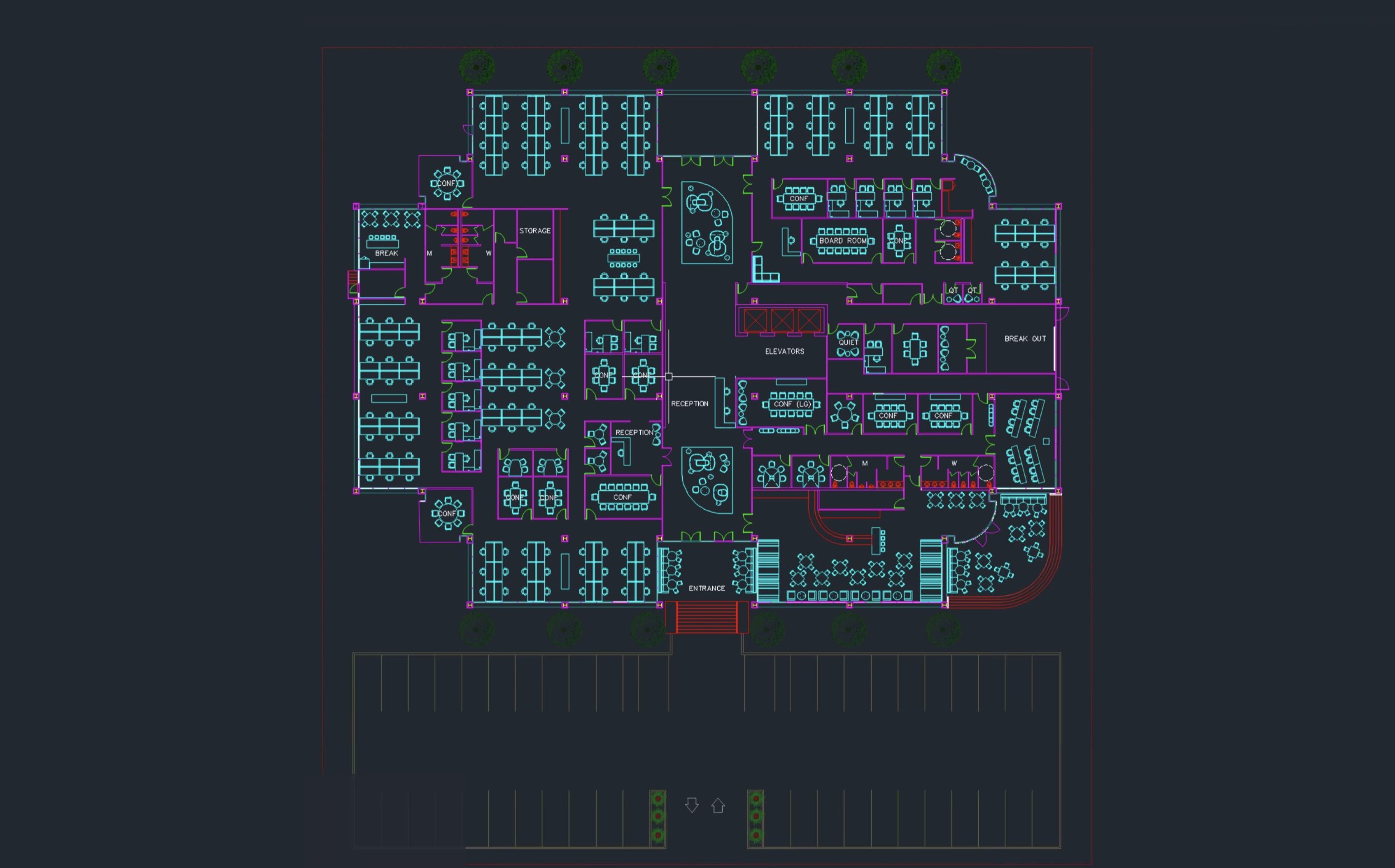
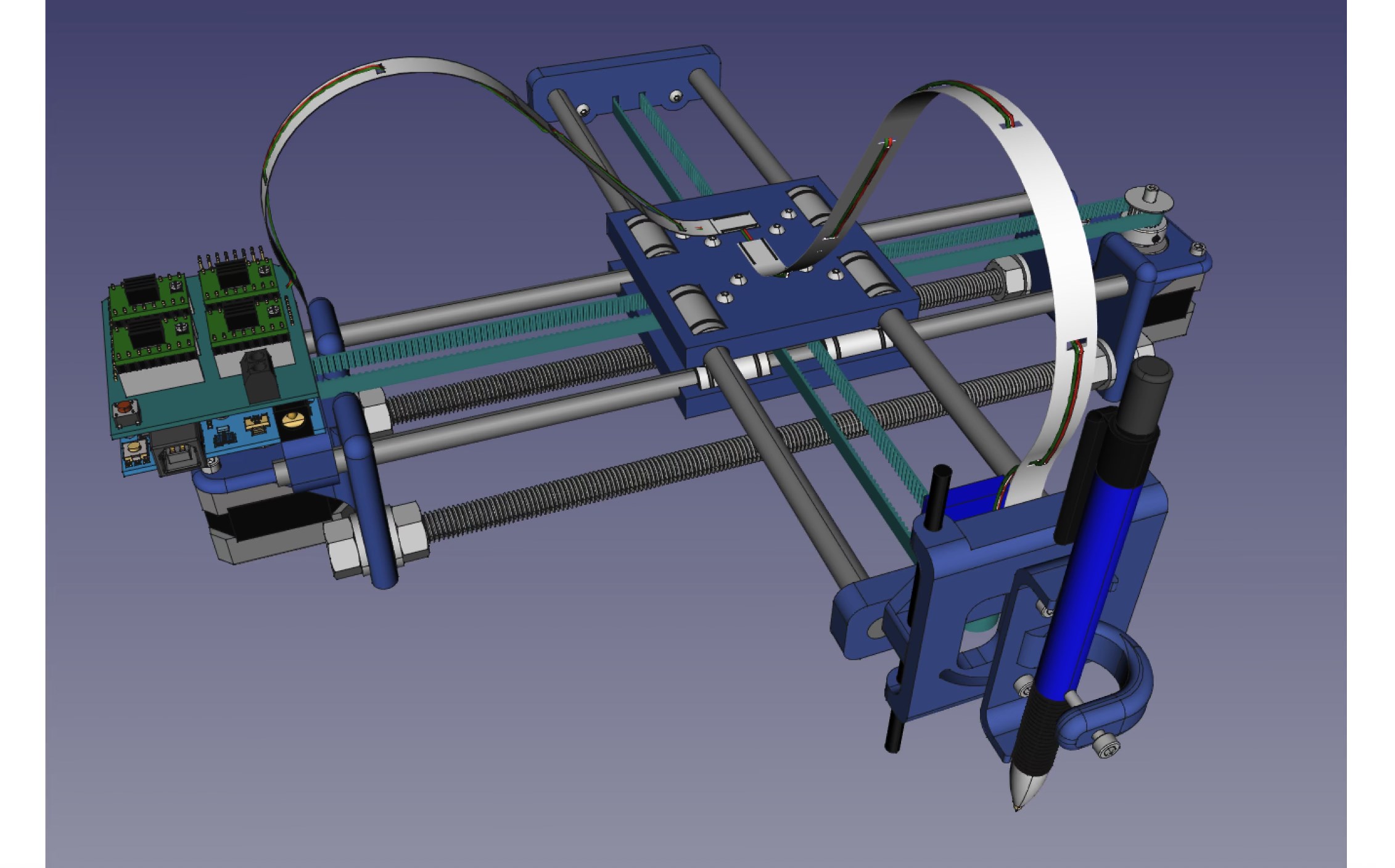
The software provides a suite of drawing tools that allow users to craft detailed 2D sketches and 3D models with relative ease. Its smart snapping and alignment features help maintain precision, making the design process feel like assembling a well-orchestrated puzzle. Whether you're drafting architectural plans or mechanical parts, these tools adapt to your workflow, reducing frustration and increasing productivity.
One of the application's strongest points is its seamless compatibility with various file formats, including DWG, DXF, and STL. This flexibility facilitates collaboration by allowing users to easily exchange designs with other CAD tools or 3D printing platforms. The software also supports direct cloud storage integration, promoting a smoother workflow in today's increasingly remote work environment.
Managing complex projects is made simpler with the software's intelligent layering system. Users can organize different components of their designs into manageable layers, toggle visibility, and lock or lock them as needed. This feature is particularly beneficial for those working on large-scale projects, helping maintain clarity and control over intricate assemblies.
From the moment you open CAD Design Software for Windows, you're greeted with a clean, minimalistic interface that resembles a well-organized workshop—intuitive, accessible, and inviting. Navigating through menus feels like flipping through a well-indexed blueprint, where every tool is logically placed. The learning curve is modest; even newcomers can start experimenting within minutes, though mastering complex features may require some practice.
Operation fluency is impressive—dragging, zooming, and editing are smooth without noticeable lag, vital for creative minds who prefer fluidity over interruption. The interface's color schemes and iconography are designed to reduce eye strain, making extended work sessions comfortable rather than fatiguing.
While many CAD tools on the market offer similar core functionalities, what makes this application unique is its emphasis on accessibility coupled with powerful features. Unlike bulky, resource-intensive programs, it performs well on moderate hardware, opening up professional design abilities to more users. The most remarkable aspect is its "Smart Layer Management"—automatic layer suggestions based on your work patterns, which significantly accelerates organizing complex projects. Moreover, its cloud integration ensures your files are always backed up and accessible across devices, a trick that's not common among basic CAD utilities.
If you're seeking a CAD solution that balances straightforward usability with comprehensive features, this software deserves serious consideration. Its intuitive design makes it suitable for beginners eager to learn, while advanced tools empower experienced users to execute detailed projects. For those who often collaborate or switch devices, the seamless cloud support is an undeniable bonus.
Overall, I rate this application as a solid "Recommended" for hobbyists, students, and professionals who need a dependable yet accessible CAD tool. For detailed modeling, drafting, and project management, it certainly holds the promise of being a daily creative companion—so give it a try and see how it transforms your design workflow.
Intuitive user interface
Comprehensive CAD tools
Regular updates and bug fixes
Good compatibility with various file formats
Cloud integration features
Occasional lag with large files
Limited offline functionalities
Steep learning curve for advanced features
Occasional compatibility issues with specific file formats
Memory consumption can be high during intensive tasks

for Windows
 5
5

for Windows
5
for Windows
5

for Windows
5

for Windows
5

for Windows
4.9

for Windows
4.9

for Windows
4.9

for Windows
4.9

for Windows
4.9

for Windows
4.9

for Windows
4.9

for Windows
5

for Windows
5

for Windows
5
for Windows
5

for Windows
5

for Windows
5

for Windows
5

for Windows
5

for Windows
5

for Windows
5