Developer tools
PC, Mobile, Surface Hub, HoloLens
Windows 10 version 14393.0 or higher
Chinese (Simplified), English (United States)
If you've ever felt the urge to see a Windows blue screen of death (BSOD) just for fun or troubleshooting, the Blue Screen Emulator for Windows by KS.STUDIO might be just what you need. It's a tool that allows users to simulate the classic Windows crash screen seamlessly, making it both a playful and utility-driven application. Whether for tech presentations, troubleshooting practice, or just satisfying curiosity, this app offers a straightforward way to generate realistic BSOD visuals without risking actual system stability.
First, let's highlight the key features that define the app's appeal. The Blue Screen Emulator is designed to be simple yet effective, focusing on authenticity and customization:
Imagine you're preparing for a tech demo, and you want to add a dash of realism by showing a system crash screen. The Blue Screen Emulator for Windows feels like having a mini production studio in your hands—no complex configurations needed, just intuitive controls that get you from zero to BSOD in seconds.
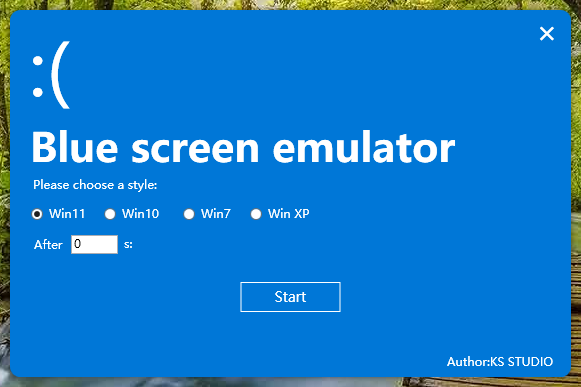
The interface resembles a familiar Windows environment—a simple window with options to customize error details. It feels as approachable as adjusting the settings on a familiar gadget. The app's design is clean, with logical navigation so even first-time users can produce a convincing blue screen without a steep learning curve. The process is straightforward: select or input your error details, then click a button to generate the screen—simple, effective, and efficient.
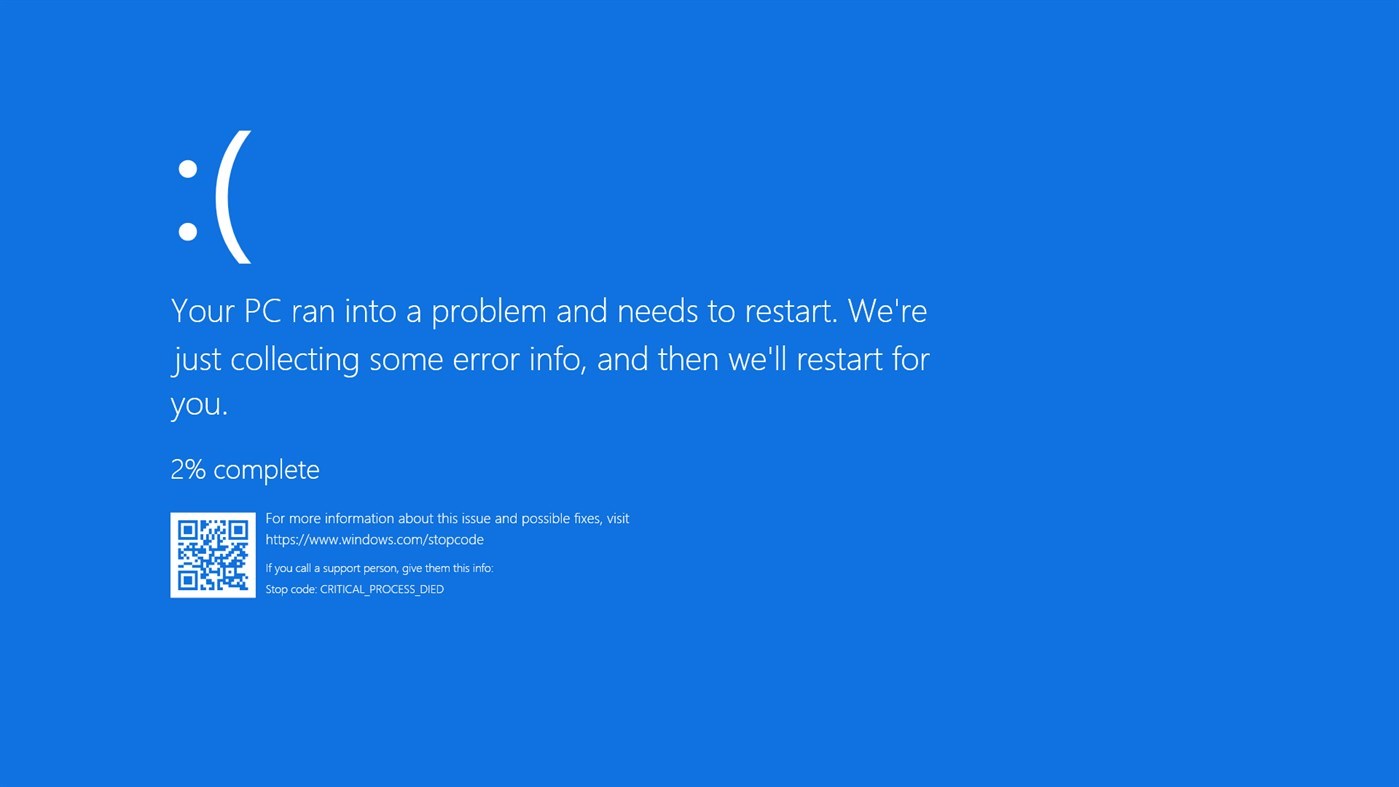
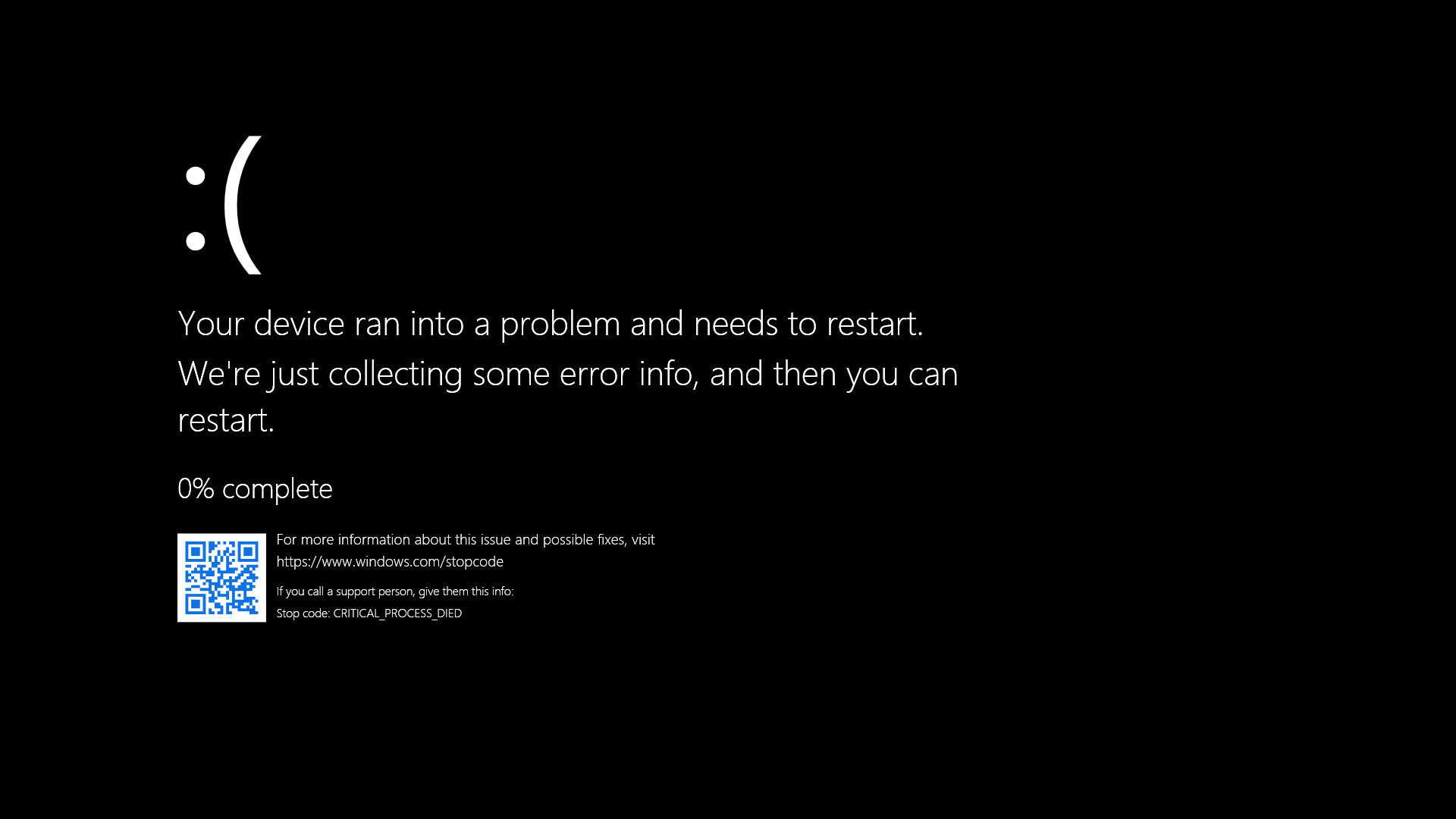
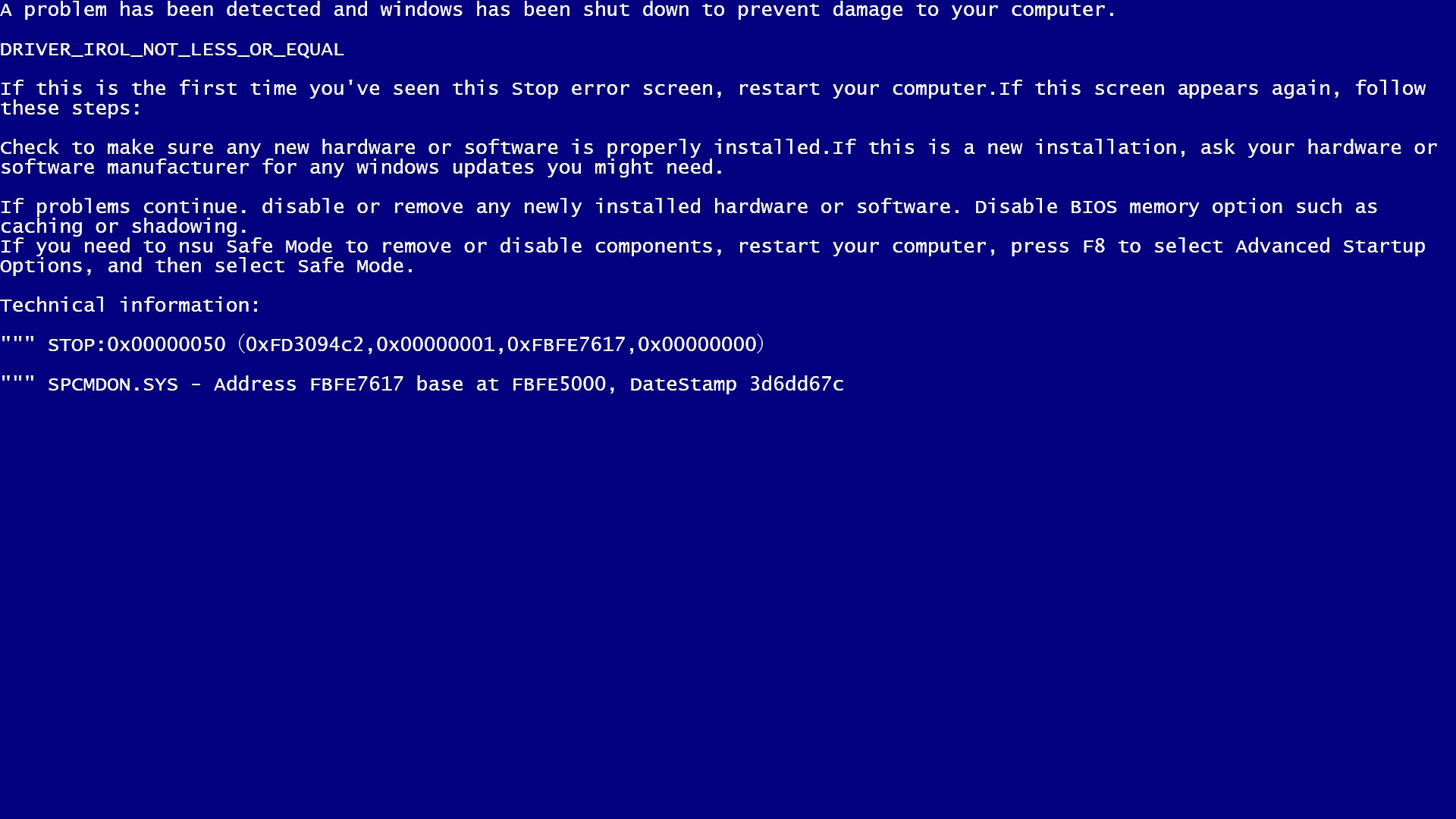
Switching from interface to the simulated blue screen is fluid—there's no lag, stuttering, or confusing steps. The generated BSOD looks authentic, with accurate fonts, color schemes, and layout. It's akin to flipping a switch and instantly transforming your desktop into a Windows crash scene—making it a fun and practical tool for quick demonstrations or pranks among friends. Moreover, the app is lightweight, so it doesn't hog system resources and can run alongside other tasks effortlessly.
While there are other BSOD simulators out there, KS.STUDIO's Blue Screen Emulator brings notable advantages. Its biggest strength lies in its high degree of authenticity combined with customization — you're not limited to canned messages but can craft precise crash scenarios suited for different contexts. Its simplicity and speed are also key differentiators, making it accessible even for users without technical backgrounds. Unlike more complex debugging tools or developer-centric applications, this emulator is about quick, believable simulations—serving a niche for entertainment, education, or client presentations.
All in all, the Blue Screen Emulator for Windows is a straightforward yet effective application tailored for users who want quick, believable Windows BSOD simulations. Its realistic design and customization options make it a handy tool for tech demos, troubleshooting drills, or even playful pranks. If you need a simple, reliable way to mimic system crashes without risking stability, this app is definitely worth a try.
Recommended for IT professionals, educators, or enthusiasts who value ease of use combined with authenticity. Just keep in mind that its primary function is simulation—not system diagnostics or recovery—so it's best used for visual effects rather than troubleshooting actual system issues. Overall, consider this emulator a useful addition to your toolkit for making any tech scenario more dramatic or instructive.
Realistic blue screen simulation
User-friendly interface
Customizable error messages
Lightweight and fast
Useful for training and demos
Limited to visual simulation only
Lacks additional customization options
Not suitable for testing system stability
Some users report occasional glitches
Limited support documents

for Windows
 5
5

for Windows
4.6

for Windows
4.6

for Windows
4.6

for Windows
4.5

for Windows
4.4

for Windows
4.4

for Windows
4.3

for Windows
4.3

for Windows
4.3

for Windows
4.3
for Windows
4.2

for Windows
5

for Windows
5
for Windows
5

for Windows
5

for Windows
5

for Windows
5

for Windows
5

for Windows
5

for Windows
5

for Windows
5