Productivity
Playsaurus
PC
Windows 10 version 17763.0 or higher
Integrated Keyboard
Integrated Mouse
750 MB
English (United States)
Auto-Clicker for Windows, developed and published by Playsaurus, is a streamlined tool designed to automate repetitive mouse actions, enabling users to save time and reduce manual effort. Whether you're gaming, testing, or performing routine tasks, this application aims to simplify automation without the complexity often associated with scripting tools.
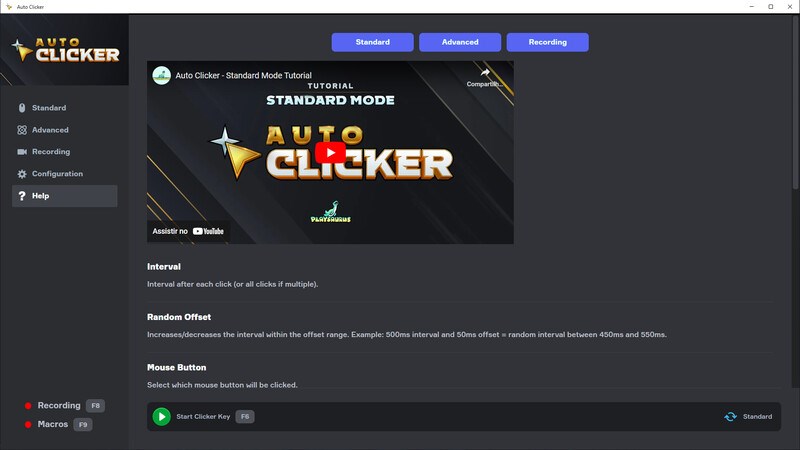
At its heart, Auto-Clicker offers users an intuitive point-and-click interface to set up automated clicking tasks. Unlike traditional scripting-heavy tools, this app emphasizes simplicity—users select a screen area or coordinate where clicks should occur, and the software takes care of the rest. This feature makes automating repetitive clicks as effortless as telling a friend where to tap, removing the need for coding knowledge.
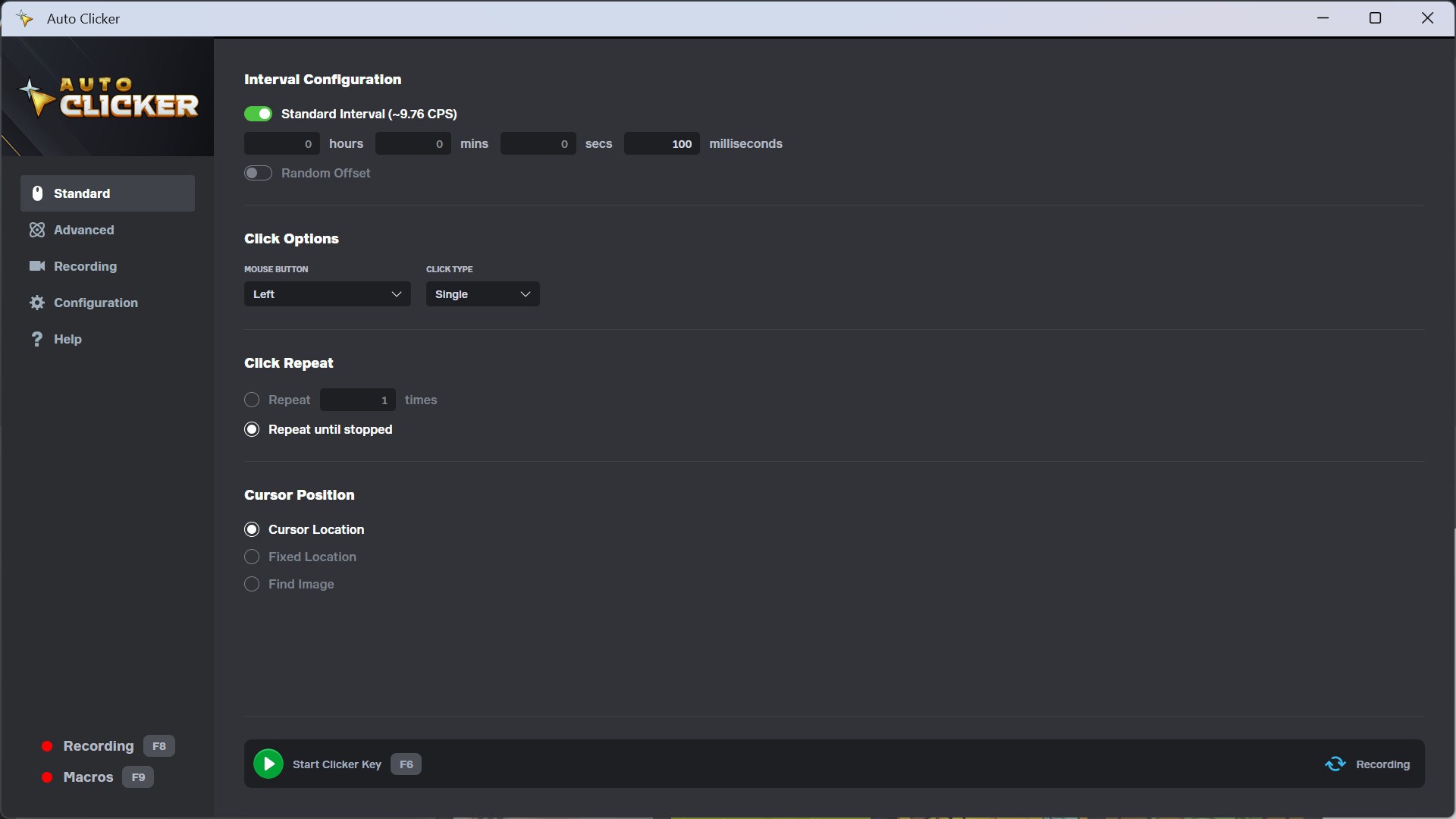
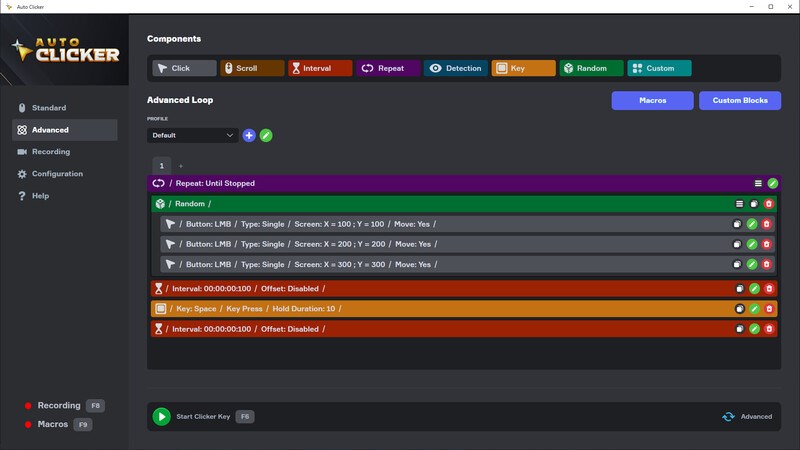
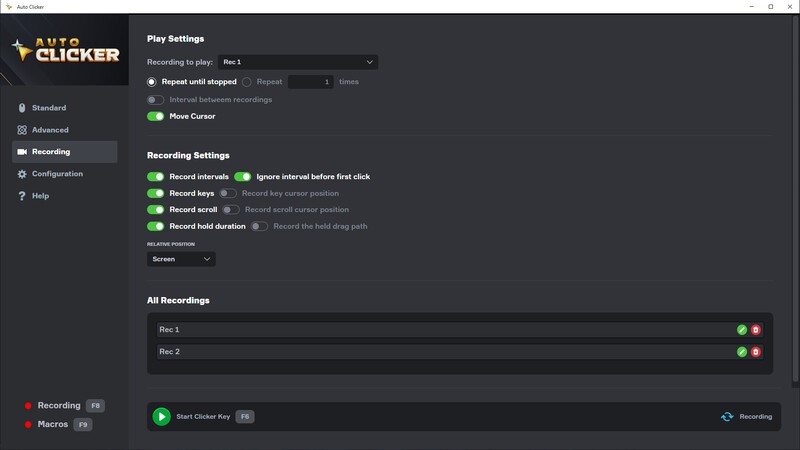
The app allows users to customize click intervals, durations, and repetition patterns—making it suitable for a diverse range of tasks from simple micro-automations to complex sequences. Whether you want a quick burst of clicks every few seconds or sustained clicking over extended periods, the scheduling options are both robust and easy to configure.
The design philosophy centers on clarity and accessibility. The interface resembles a minimal workspace with drag-and-drop setup, status indicators, and real-time control buttons. When in use, the operation feels smooth, with no noticeable lag or hiccups—ensuring that your automation runs seamlessly, like a well-oiled machine. Beginners will appreciate the gentle learning curve, while seasoned users can quickly set up intricate routines.
From the moment you launch Auto-Clicker, it's clear that ease of use was a priority. The interface adopts a clean, non-cluttered layout, almost like a digital robot assistant ready to handle repetitive chores. Setting up a click point is as simple as dragging a crosshair to the desired spot, then specifying the click interval—no convoluted menus or confusing options. During operation, the software exhibits remarkable smoothness, with responsive controls that feel almost instinctive.
One standout feature is the application's ability to reduce cognitive load. Unlike more complex macro tools that bombard you with settings, Auto-Clicker keeps things straightforward, allowing users to focus on their primary task rather than wrestling with configurations. This makes it suitable not only for tech-savvy users but also for newcomers seeking quick automation solutions.
Compared to other productivity automation applications, Auto-Clicker's main strength lies in its effortless workflow integration. It acts as a silent assistant, executing precise clicking tasks in the background without demanding attention or extensive setup—like an automatic faucet that keeps your workflow flowing. Its focus on minimizing feature complexity while maintaining core functionality means users aren't overwhelmed, unlike some macro tools that pack numerous options at the expense of intuitiveness.
Furthermore, its ability to target specific screen locations and schedule clicks with high precision offers a level of control that aligns well with tasks requiring accuracy, such as repetitive data entry or gaming routines. These qualities make it a practical choice for users who prioritize task automation efficiency over elaborate scripting or configuration.
Auto-Clicker for Windows deserves a solid recommendation for anyone seeking straightforward automation for repetitive mouse tasks. Its intuitive design, combined with reliable, smooth operation, makes it a valuable tool for gamers, testers, or anyone tired of monotonous clicking. While it may not feature advanced scripting capabilities, its focus on ease of use and workflow efficiency gives it a distinctive edge over more convoluted macro software.
If you're looking for a simple yet powerful solution to automate clicks without the time investment of learning complex scripting languages, this app is worth trying out. Perfect for quick setups and seamless operation, Auto-Clicker can help you reclaim time and reduce fatigue—making repetitive tasks almost feel like second nature.
User-friendly interface
High customization options
Lightweight and fast
Supports multiple click modes
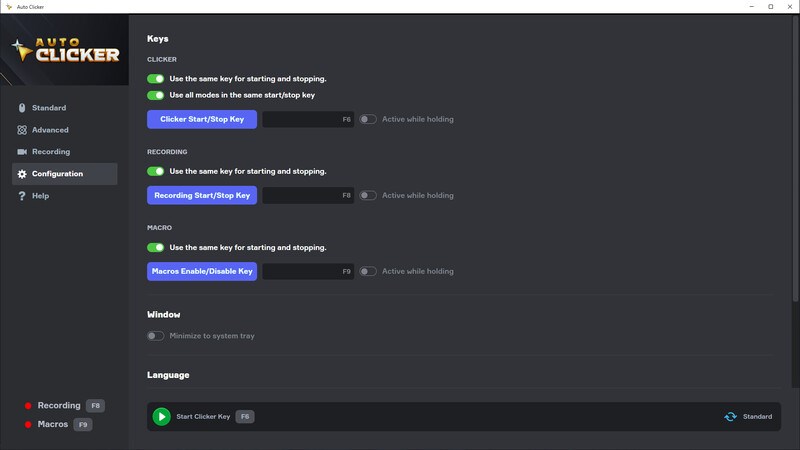
Easy to start and stop
Limited platform compatibility
Basic logging features
No advanced scheduling options
Potential for accidental clicks
Limited customization for click patterns

for Windows
 5
5

for Windows
5

for Windows
4.9

for Windows
4.9

for Windows
4.9

for Windows
4.8

for Windows
4.8

for Windows
4.8

for Windows
4.8

for Windows
4.8

for Windows
4.8

for Windows
4.8

for Windows
5
for Windows
5

for Windows
5

for Windows
5

for Windows
5

for Windows
5

for Windows
5

for Windows
5

for Windows
5
for Windows
5