Productivity
Adobe Inc.
PC
Windows 10 version 0.0 or higher
Integrated Keyboard
Integrated Mouse
4 GB
Chinese (Simplified), Chinese (Traditional Chinese), Czech, Danish, Dutch, English, Finnish, French, German, Hungarian, Italian, Japanese, Korean, Norwegian, Polish, Portuguese (Brazil), Russian, Slovak, Slovenian, Spanish, Swedish, Turkish, Ukrainian
In the world of digital documents, Acrobat Reader DC serves as the trusted companion that turns static PDFs into interactive experiences—think of it as your friendly guide through the maze of digital paperwork, combining simplicity with powerful capabilities.
Developed by Adobe Inc., a pioneer renowned worldwide for its creative and document management solutions, Acrobat Reader DC is part of Adobe's extensive ecosystem designed to streamline document workflows and enhance productivity. Its publisher, ADOBE INC., ensures consistent updates and user-focused features grounded in decades of experience.
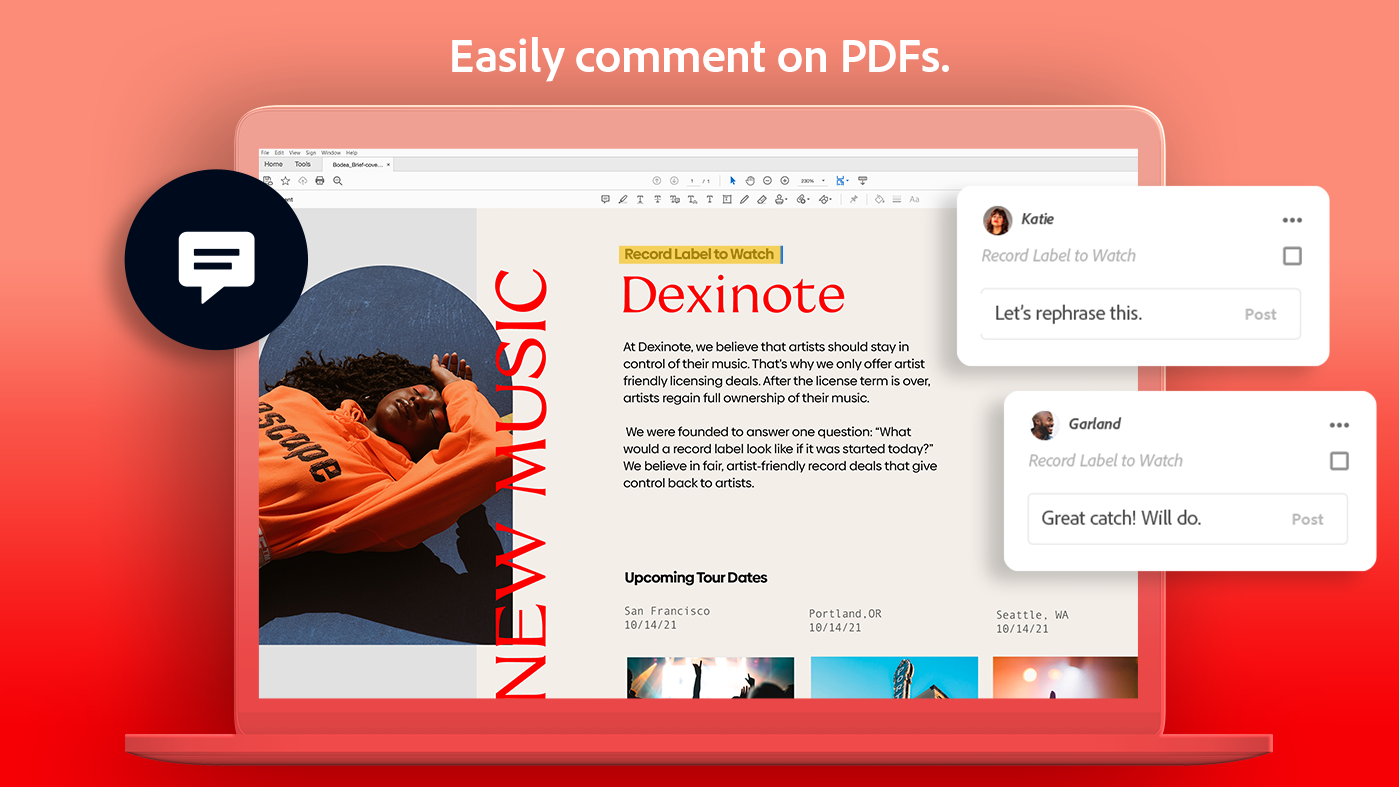
Jumping into Acrobat Reader DC feels like opening a well-organized digital filing cabinet—everything is at your fingertips, yet uncluttered. Its interface is clean and intuitive, much like a neatly laid-out workshop. You can instantly access tools for viewing, commenting, or signing documents without a steep learning curve. The application's operation is smooth, with fluid zoom and scroll functions that make browsing lengthy PDFs a breeze, akin to flipping through a well-crafted book with ease.
On the learning curve front, new users will find that most features are self-explanatory—prominent icons and logical workflow ensure that even first-time users can quickly become proficient. The app's design emphasizes reducing cognitive load; instead of overwhelming users with a plethora of options, it highlights core functions, making PDF management feel less like deciphering hieroglyphs and more like having a friendly conversation.
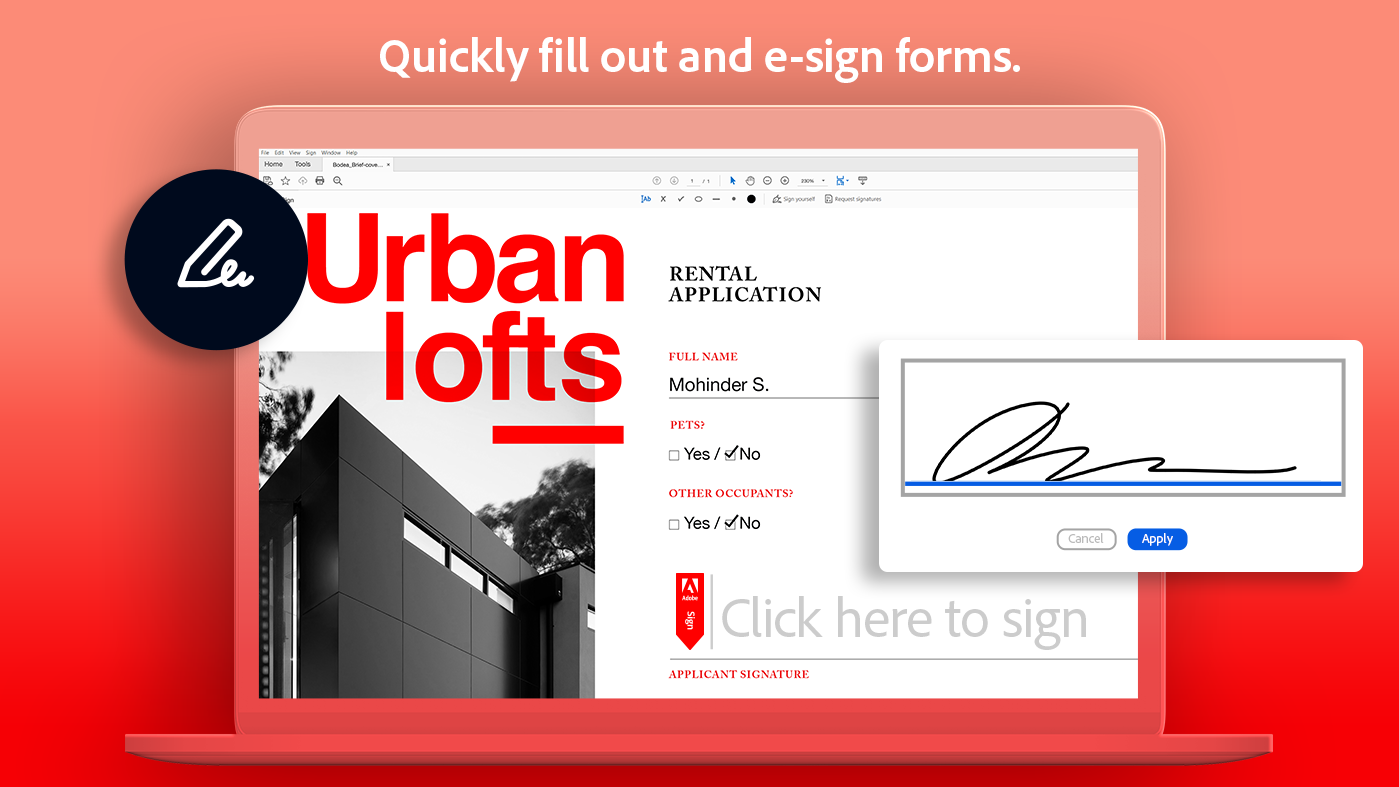
Compared to other productivity tools, Acrobat Reader DC's standout quality is its deep integration with workflow processes. For instance, the seamless synchronization with Adobe Document Cloud means you can start reviewing a PDF on your tablet during commute and finish editing on your desktop—no fuss, no reinvented wheels. Its annotation and e-signature capabilities are so streamlined that they minimize interruptions, acting as an invisible assistant that keeps your work flowing smoothly.
Moreover, while many PDF readers are feature-heavy and sometimes overwhelming, Acrobat Reader strikes a balance: it offers essential tools that reduce users' cognitive load. You won't need to spend hours deciphering complex menus—this app focuses on what truly matters in efficient document review and signing tasks, making it ideal for busy professionals.
Considering its professional-grade features, ease of use, and focus on workflow integration, Adobe Acrobat Reader DC earns a solid recommendation for both casual and business users. It's especially valuable if your daily routine involves handling PDF documents—annotating reports, filling forms, or securing signatures—since it simplifies these tasks into straightforward actions. For teams or individuals seeking a reliable, user-friendly solution that complements their existing workflow without adding unnecessary complexity, this app is a commendable choice.
While it might not replace premium editing tools for intensive PDF modifications, its strengths lie in viewing, annotating, signing, and sharing—cornerstones of everyday document work. So, if you're looking for a trustworthy, efficient PDF companion that minimizes fuss and maximizes productivity, Acrobat Reader DC is worth your consideration.
User-friendly interface
Comprehensive PDF tools
Cloud integration
Fast performance
Regular updates
Limited free features
Occasional crashes during large file processing
Watermarks on exported documents in free version
Limited OCR capabilities in free plan
Occasional synchronization delays with cloud storage

for Windows
 5
5

for Windows
5

for Windows
4.9

for Windows
4.9

for Windows
4.9

for Windows
4.8

for Windows
4.8

for Windows
4.8

for Windows
4.8

for Windows
4.8
for Windows
4.8

for Windows
4.8

for Windows
5
for Windows
5

for Windows
5

for Windows
5

for Windows
5

for Windows
5

for Windows
5

for Windows
5

for Windows
5
for Windows
5