Security
Adguard Software Limited
PC
Windows 10 version 0.0 or higher
Integrated Keyboard
Integrated Mouse
English, Finnish, French, German, Greek, Hebrew, Hungarian, Danish, Dutch, Czech, Croatian, Chinese (Simplified), Chinese, Bulgarian, Belarusian, Armenian, Arabic, Indonesian, Italian, Japanese, Korean, Macedonian, Norwegian, Persian/Farsi, Polish, Portuguese (Brazil), Portuguese (Portugal), Romanian, Russian, Serbian, Slovenian, Slovak, Spanish, Swedish, Turkish, Ukrainian, Vietnamese
AdGuard for Windows is a dedicated ad blocker and privacy protection tool designed to enhance your online experience by blocking intrusive ads and safeguarding your personal data. It aims to create a cleaner, faster, and safer browsing environment with minimal effort.
Produced by Adguard Software Limited, a well-established company specializing in digital security and privacy solutions, AdGuard offers a comprehensive suite of tools aimed at improving your web browsing while respecting user privacy.
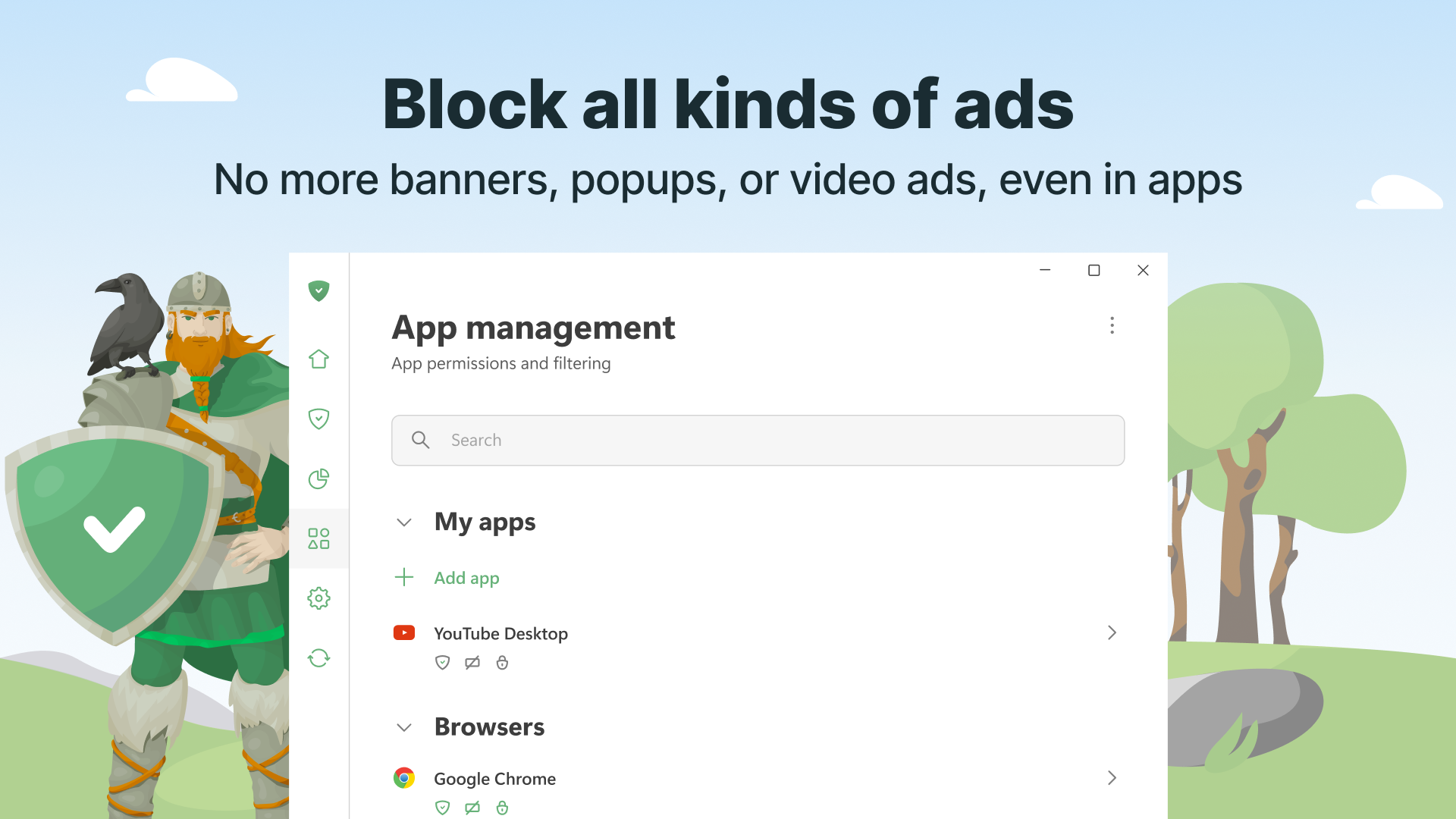
Imagine browsing the web and suddenly being freed from the visual clutter of ads—AdGuard's ad blocking capabilities feel like spring cleaning for your browser. The setup is straightforward; once installed, it seamlessly integrates into your system, quietly working in the background. Its filter algorithms are regularly updated, ensuring that even new ad formats are caught before they reach your screen. Unlike some ad blockers that require constant fine-tuning, AdGuard's intelligent filtering minimizes false positives, allowing genuine content to shine through.
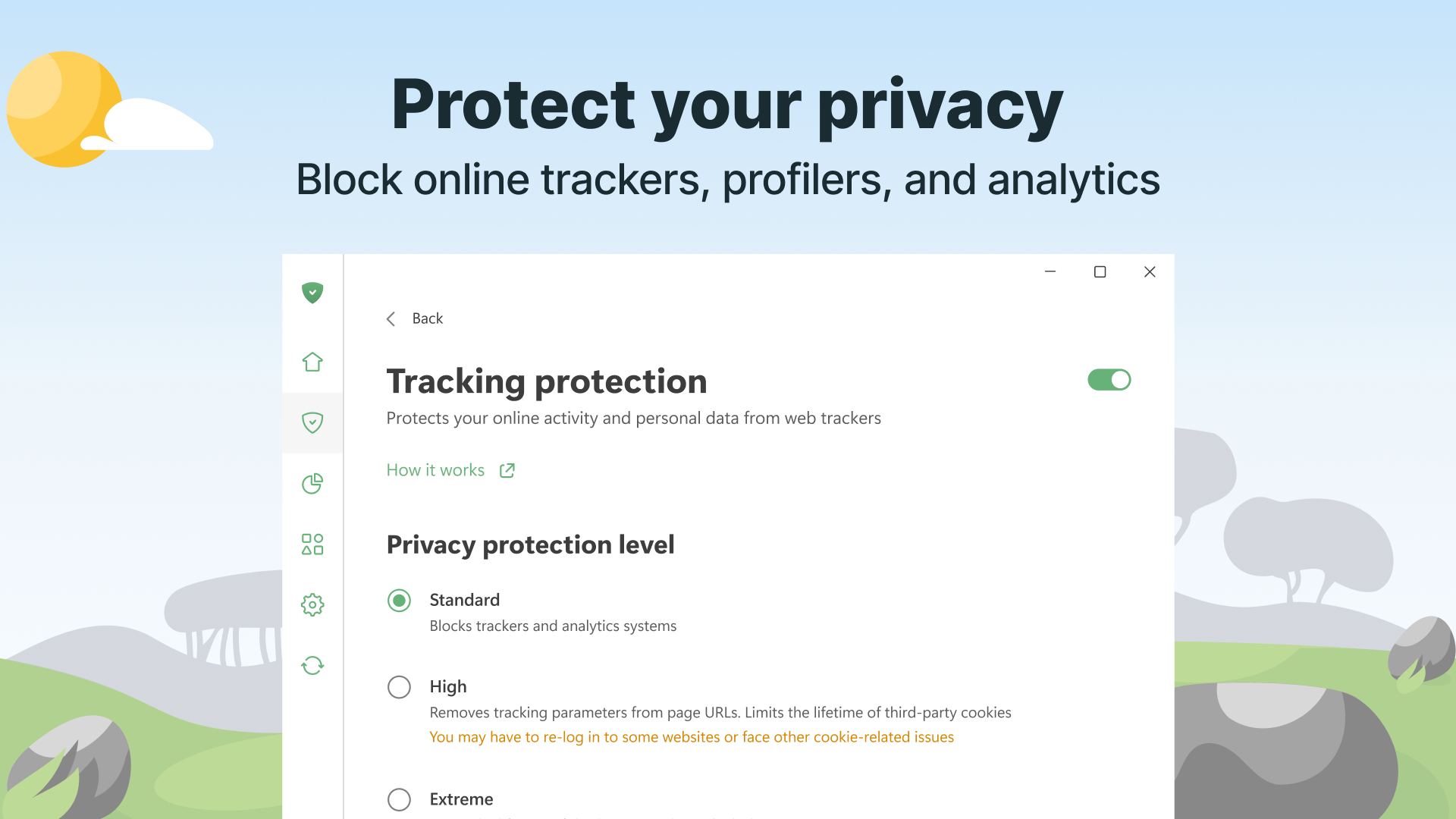
Think of your online activity as a conversation; without protection, outsiders might eavesdrop on your digital chatter. AdGuard's anti-tracking features act like a diligent security guard, blocking hidden trackers and malicious domains that attempt to follow you across websites. The privacy settings are intuitively organized, making it easier for users to enable or customize features without resorting to technical jargon. The system's ability to prevent unwanted data collection helps maintain your anonymity and control over your personal information.
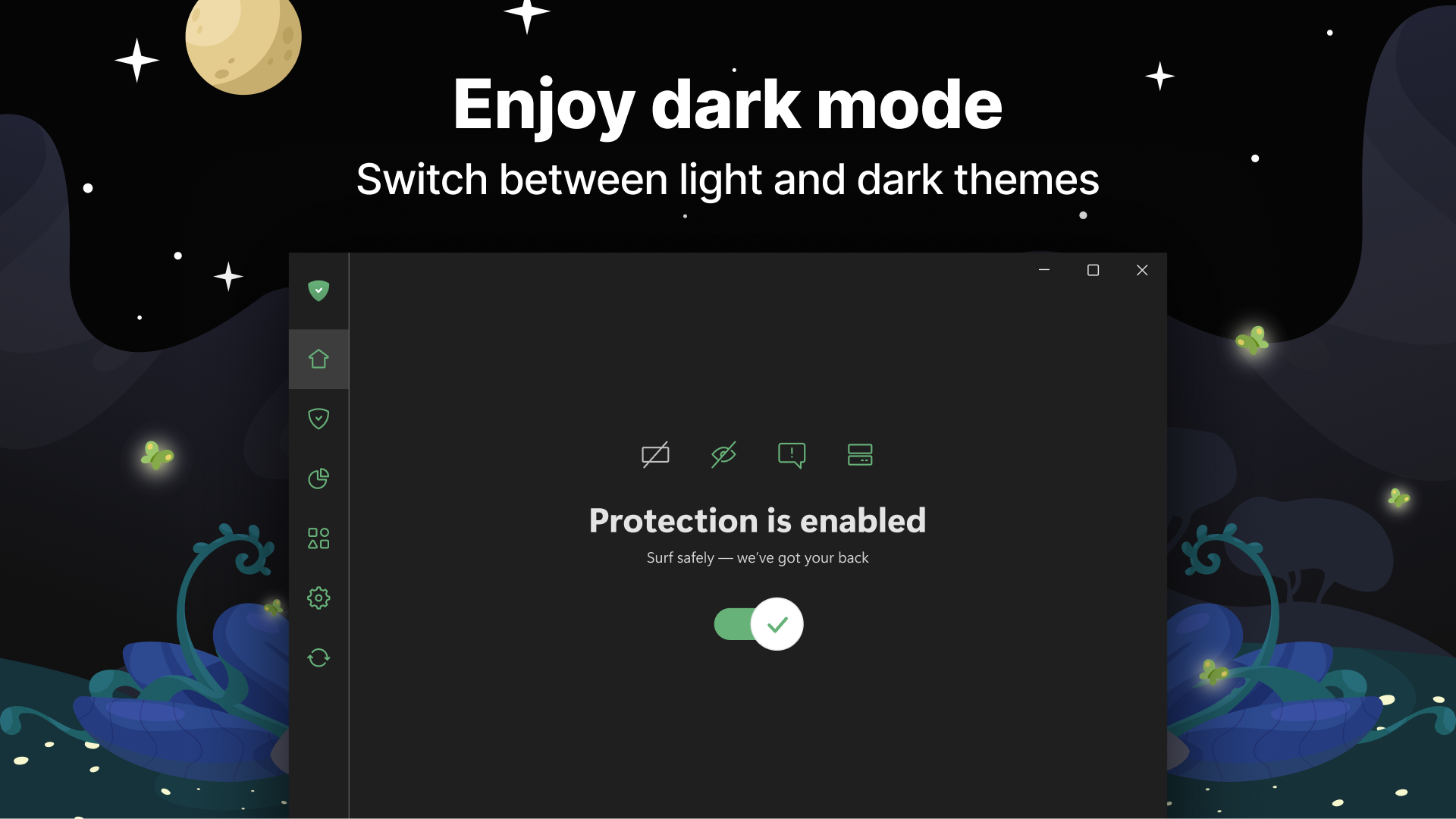
AdGuard's interface feels like chatting with a well-informed friend—simple, approachable, and uncluttered. The layout is clean, with easy-to-navigate sections for toggling features or adjusting filters. Operation speed is impressive; the application runs smoothly without noticeable lag, even when filtering large amounts of data in real-time. The learning curve is gentle; most users can understand and customize settings within minutes, making it accessible for both tech-savvy users and novices. The application's unobtrusive nature means you can focus on browsing, gaming, or working without interruptions.
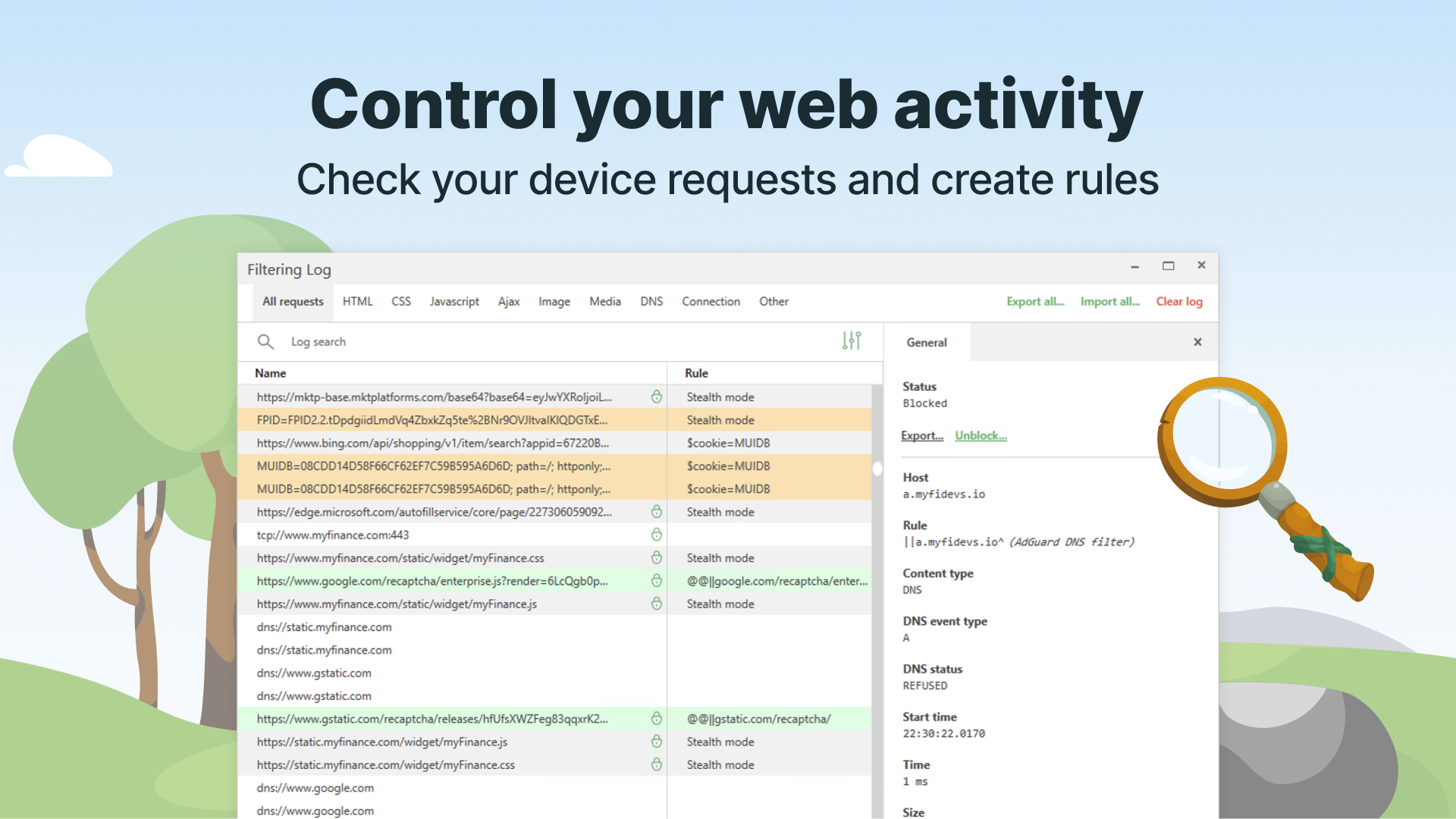
While many security suites and ad blockers exist, AdGuard's unique strength lies in its combined approach to ad blocking and privacy protection, all managed through an intuitive interface that doesn't drown users with complexity. Unlike some tools that rely solely on pre-set filter lists, AdGuard allows deep customization, enabling experienced users to craft precise rules, while newcomers can benefit from its automatic filtering. Its seamless integration with Windows, along with minimal resource consumption, means it operates quietly in the background, respecting your device's performance. This balanced focus on usability and functionality distinguishes AdGuard from many of its competitors.
AdGuard — adblock&privacy for Windows deserves a solid recommendation, especially for users seeking a reliable, easy-to-use tool that enhances privacy and reduces unwanted ads without complicating their digital life. Its standout features, particularly its intelligent filtering and privacy safeguards, make it a valuable addition for anyone eager to enjoy a cleaner, safer online environment. Whether you're a casual user or someone deeply concerned about digital privacy, AdGuard offers a balanced and effective solution worth trying out.
Effective ad blocking
Strong privacy protection
User-friendly interface
Customizable filters
Compatibility with multiple platforms
Limited free features
Occasional false positives
Performance impact on low-spec devices
Initial setup may be complex for some users
Delayed update of filter lists

for Windows
 4.8
4.8

for Windows
4.7

for Windows
4.7

for Windows
4.7

for Windows
4.6

for Windows
4.6

for Windows
4.5

for Windows
4.4

for Windows
4.4

for Windows
4.3

for Windows
4.3

for Windows
4.3

for Windows
5

for Windows
5

for Windows
5

for Windows
5

for Windows
5

for Windows
5

for Windows
5

for Windows
5

for Windows
5

for Windows
5