Productivity
PC
Windows 10 version 17763.0 or higher
300 MB
Chinese (Simplified), Czech, Dutch, English, English (United Kingdom), French, German, Italian, Polish, Portuguese (Brazil), Russian, Turkish
Imagine effortlessly managing all your calls, meetings, and messages through a single desktop app that integrates smoothly with your existing workflow—this is what 3CX for Windows aims to deliver. Developed by 3CX Software DMCC, this application transforms your Windows environment into a comprehensive communication hub, designed for busy professionals seeking efficiency and clarity in their daily interactions.
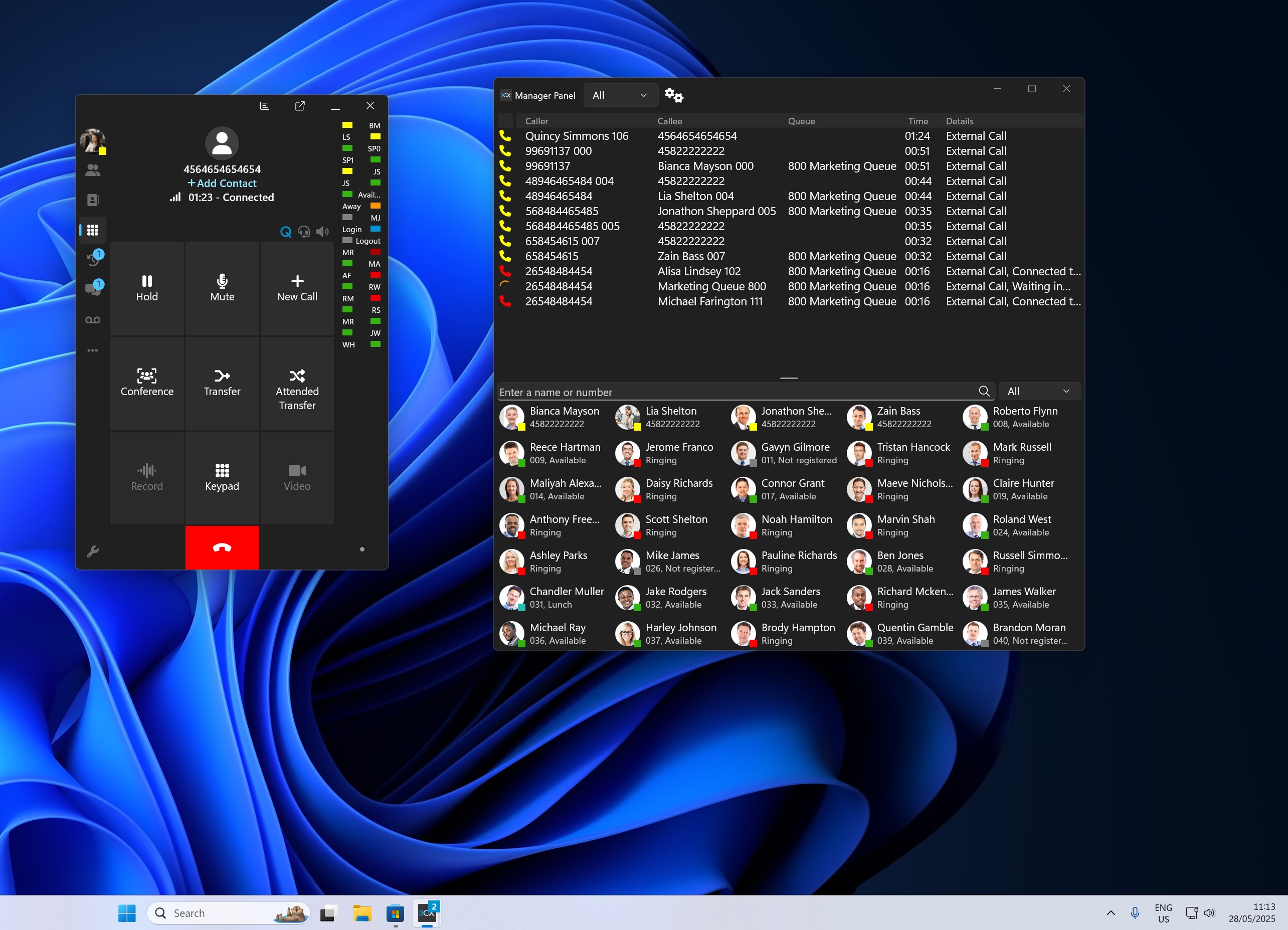
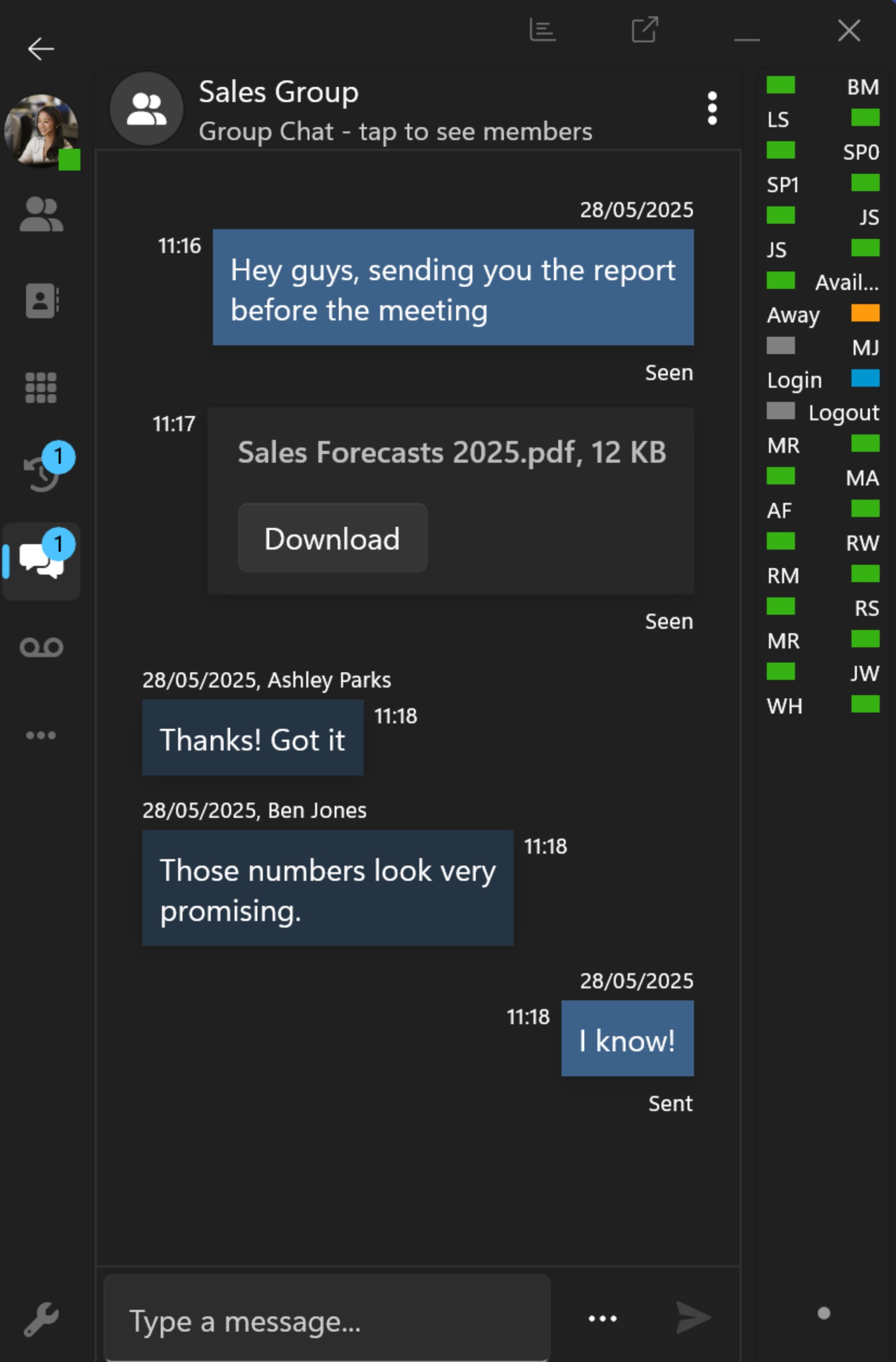
At its heart, 3CX for Windows consolidates voice calls, video conferences, instant messaging, and presence status into one streamlined interface. Whether you're in a quick chat or a detailed video meeting, everything is accessible without juggling multiple apps. This unification reduces the cognitive load and simplifies your workspace, much like having a well-organized control tower for all your communication needs.
The application boasts advanced call handling features such as automated call distribution, customizable IVR systems, and click-to-call capabilities. These tools optimize your call flow, ensuring that clients and colleagues are connected efficiently, reducing wait times and missed calls. It's like having an intelligent traffic controller for your communications, ensuring everything flows smoothly without requiring manual intervention.
One of its standout features is seamless integration with popular CRM systems, Outlook, and other productivity tools. This tight coupling means you can initiate calls from contact lists, log interactions, and schedule meetings directly from your desktop. The result? A significant reduction in context-switching and a boost in your overall productivity—think of it as your digital workplace assistant that anticipates your needs and works in harmony with your existing tools.
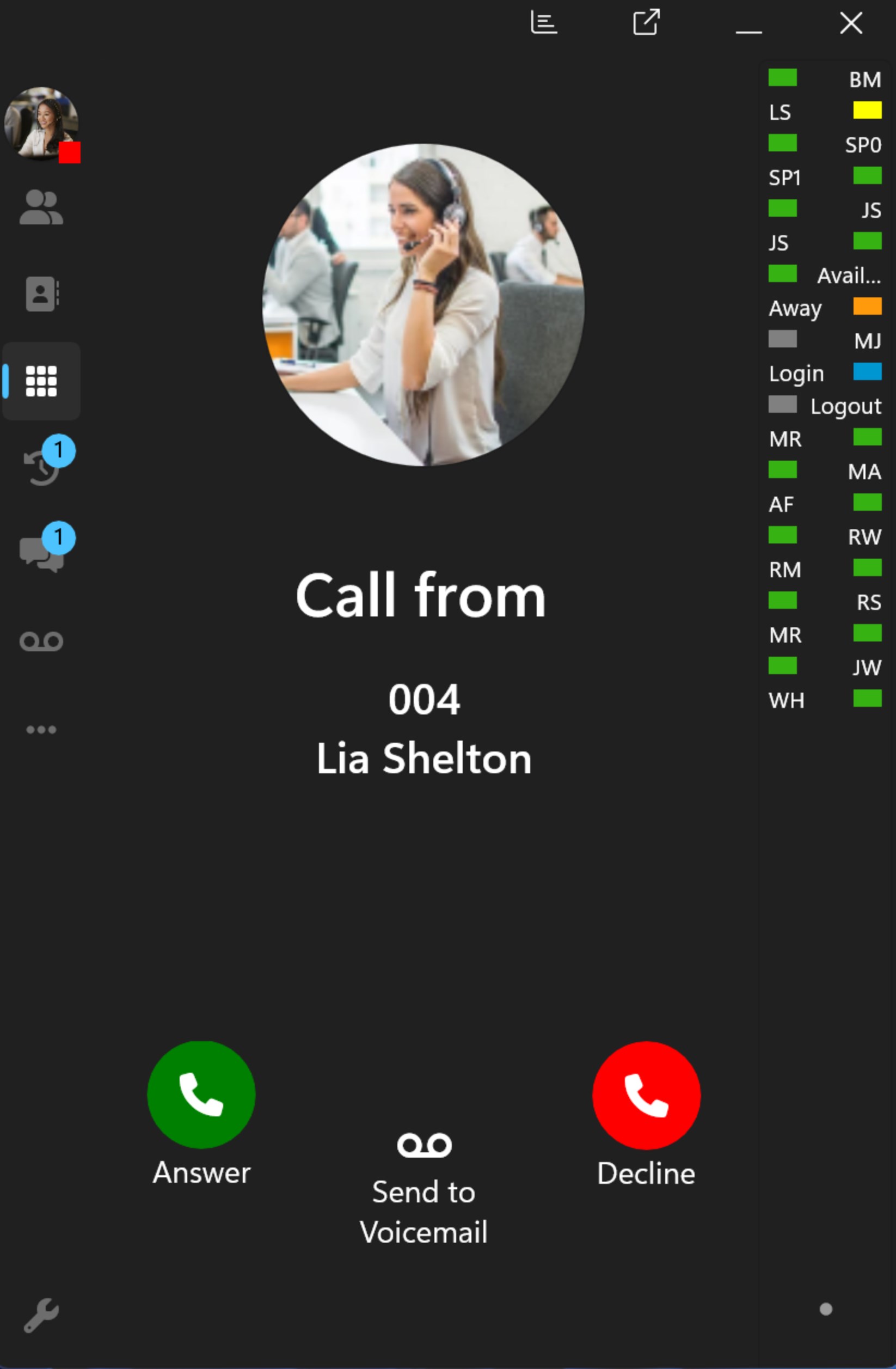
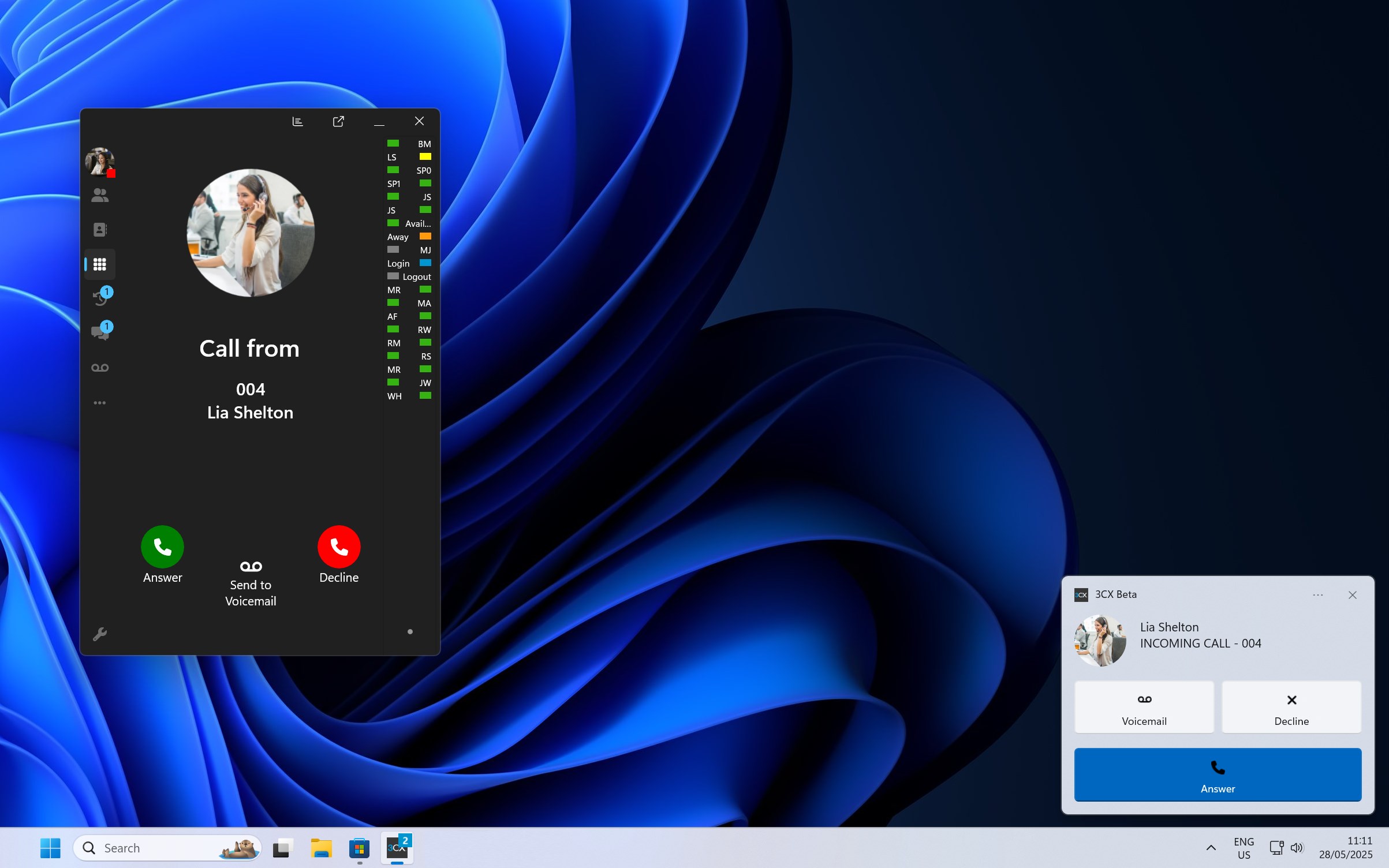
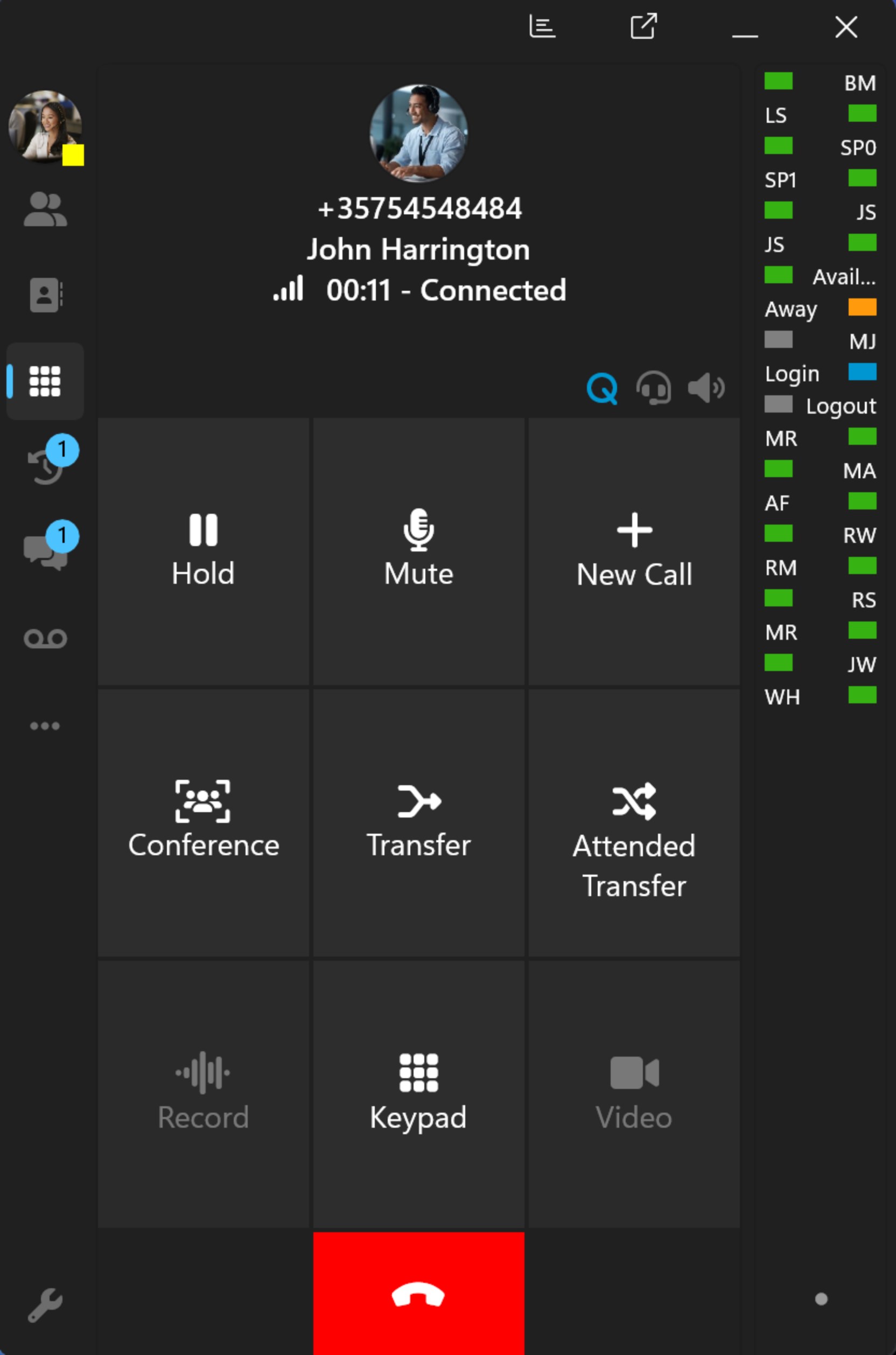
The interface of 3CX for Windows is intuitive and straightforward, resembling a familiar workspace that doesn't require an intensive learning curve. Its clean layout and logical navigation are like a well-organized desk—everything you need is within reach and arranged in a way that makes sense. Operations are smooth, with minimal lag or stutter, even during high-volume call sessions. This fluidity ensures that users, whether tech-savvy or beginners, can operate confidently without feeling overwhelmed.
Additionally, the app's lightweight design minimizes resource consumption, making it compatible with a wide range of Windows systems. The GUI adapts well to different screen sizes, ensuring clarity whether you're on a laptop or a larger monitor. Users report that onboarding feels less like a tech tutorial and more like discovering a well-kept secret—simple yet powerful.
Compared to other productivity tools, 3CX's focus on workflow integration is a key differentiator. Unlike standalone VoIP or video conferencing apps, 3CX is engineered to embed itself into your everyday routine, effectively reducing mental clutter. Its ability to unify multiple communication channels under one roof streamlines processes that would otherwise require juggling multiple apps, thus decreasing cognitive load.
Furthermore, its feature set balances complexity and usability; while it offers robust options like advanced call routing and integration, these do not overwhelm the user. Instead, they serve as strategic enhancements that improve efficiency without complicating the experience—this balance makes it ideal for organizations seeking power without adding complication.
Overall, 3CX for Windows is a solid choice for professionals, SMBs, and remote teams aiming to enhance their communication workflows. For teams already using CRM or Outlook extensively, this app offers tangible productivity benefits. I recommend it especially if you value having all your communication channels consolidated into one intuitive interface. Just ensure your team takes some time to familiarize themselves with its features to maximize its potential.
In summary, if seamless integration, reduced cognitive load, and efficient workflow management are your priorities, 3CX for Windows is worth considering. It's like upgrading from a cluttered desk to a well-organized workspace—clear, efficient, and tailored for productivity.
Intuitive user interface
High-quality voice and video calls
Seamless integration with Microsoft ecosystem
Robust security features
Multiple device support
Occasional connectivity issues
Limited customization options
Battery consumption on mobile devices
Sync delays with contacts
Initial setup complexity

for Windows
 5
5

for Windows
5

for Windows
4.9

for Windows
4.9

for Windows
4.9

for Windows
4.8

for Windows
4.8

for Windows
4.8

for Windows
4.8

for Windows
4.8

for Windows
4.8

for Windows
4.8

for Windows
5
for Windows
5

for Windows
5

for Windows
5

for Windows
5

for Windows
5

for Windows
5

for Windows
5

for Windows
5
for Windows
5