Security
AgileBits, Inc. dba 1Password
PC
Windows 10 version 19041.0 or higher
English (United States)
1Password for Windows is a robust password management tool designed to simplify and secure your digital life by storing and autofilling passwords, payment details, and secure notes with ease.
Created by AgileBits, Inc., 1Password boasts years of experience in crafting secure password solutions, continuously refining its features to meet user needs.
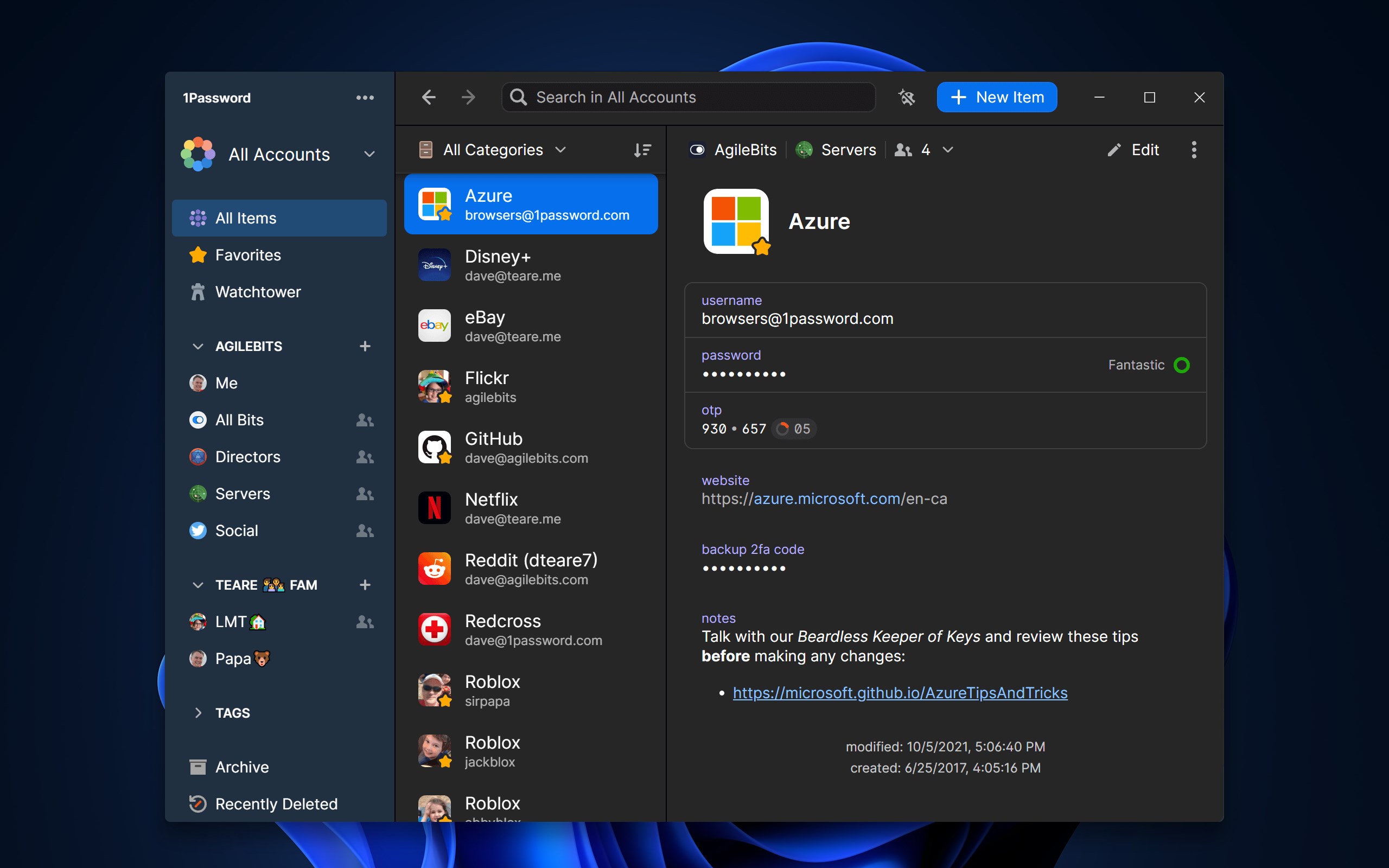
Launching 1Password for Windows feels akin to stepping into a well-organized vault—everything in place, intuitive, and ready to serve. The interface's clean lines and logical layout lower the barrier typically associated with security tools, making it approachable even for newcomers. Navigating through categories like Favorite vaults, Security Audit, and Password Generator feels as smooth as gliding over silk, thanks to optimized responsiveness and minimal lag. The onboarding process, with guided tutorials, helps users quickly grasp core functionalities, ensuring a gentle learning curve rather than a steep climb.
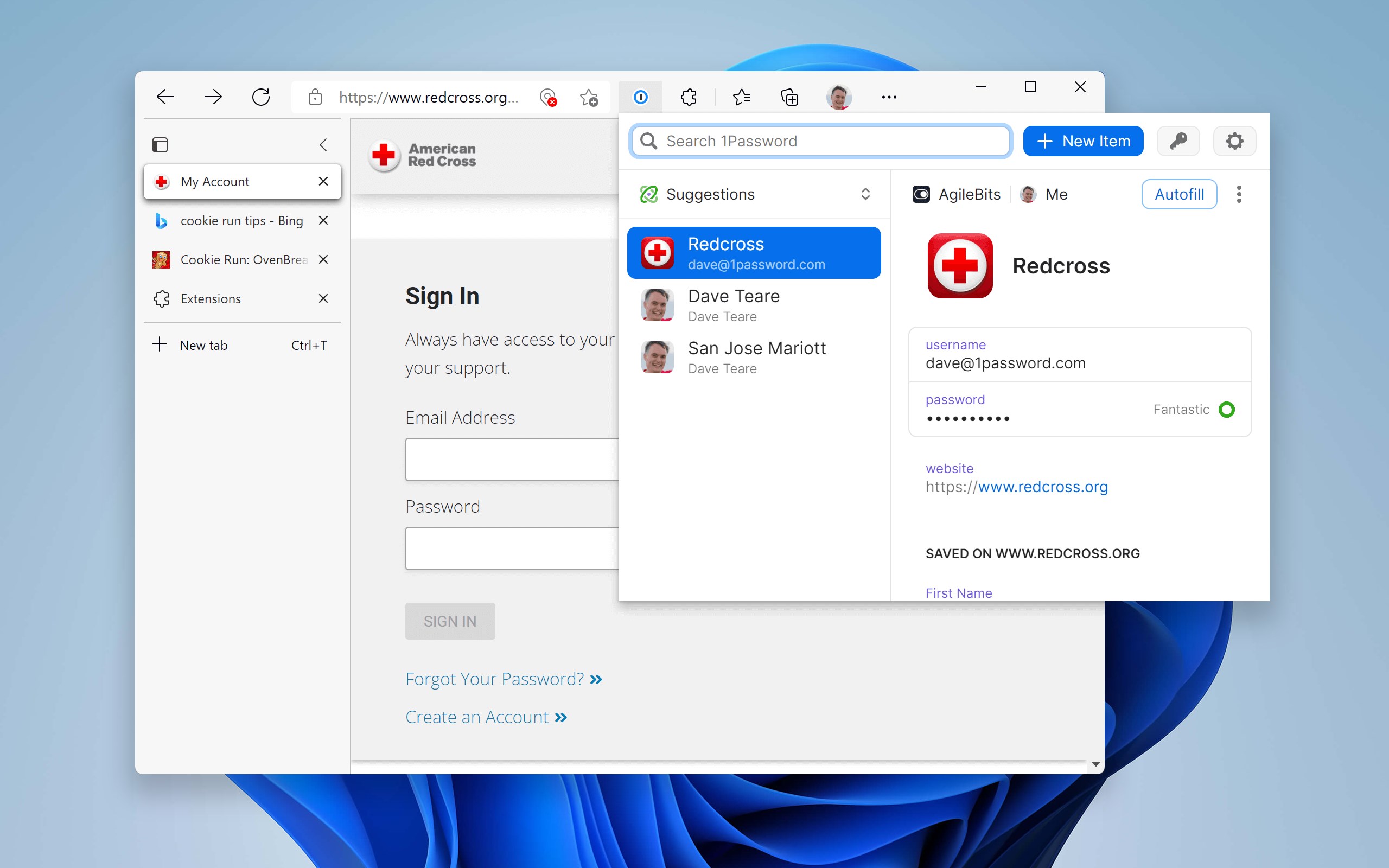
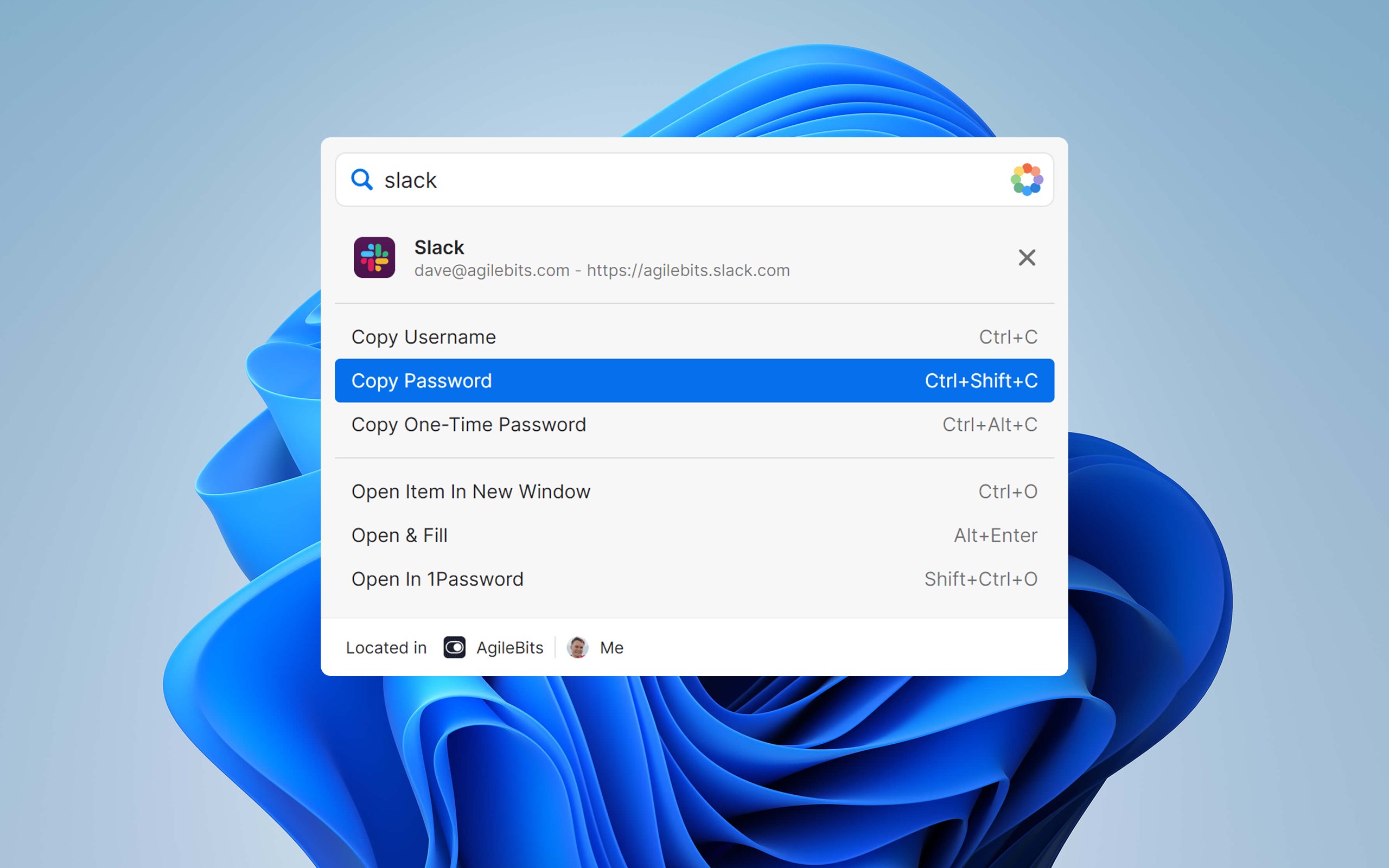
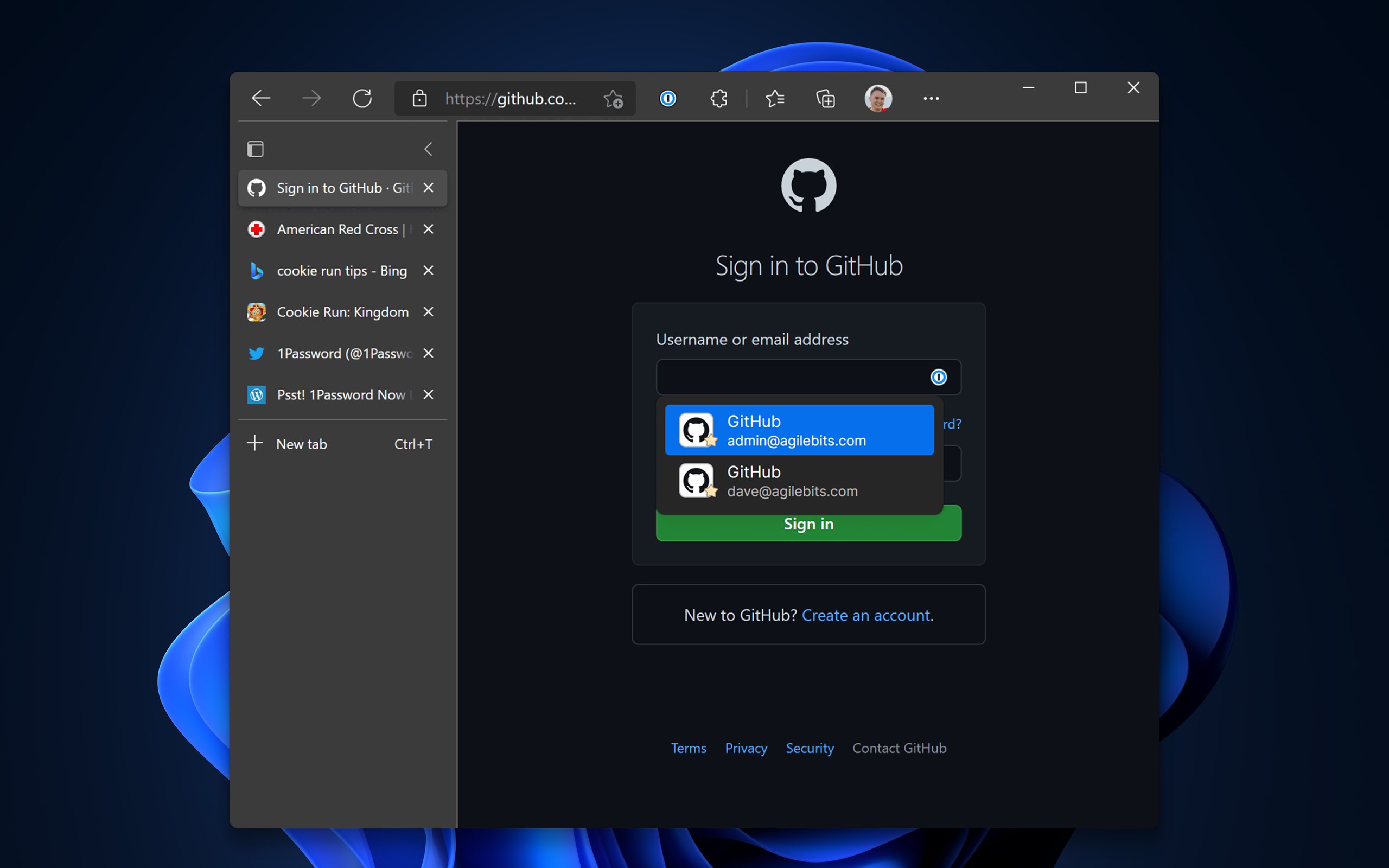
The heart of 1Password is its encrypted vault, where all your sensitive data resides. The app's password generator is a standout feature—it doesn't just create arbitrary strings but allows customizable options for length, complexity, and character sets. Autofill capabilities extend beyond browsers to Windows applications, bridging gaps that often plague lesser password managers. Additionally, the “Watchtower” security audit scans your stored passwords for vulnerabilities, such as weak or reused passwords, presenting actionable insights to bolster your defenses.
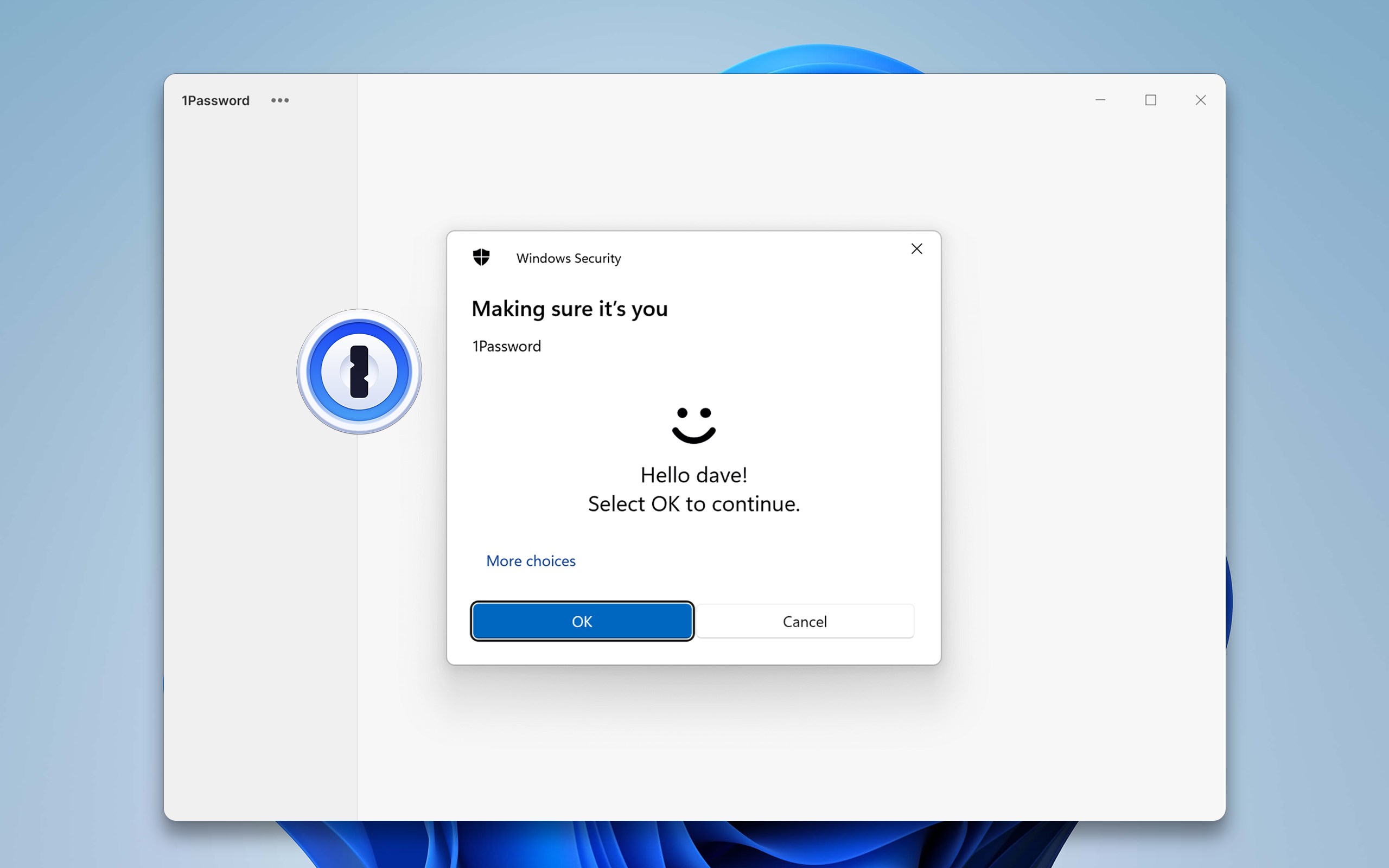
In our interconnected world, a password manager isn't very useful if it doesn't sync across devices. 1Password shines here, employing end-to-end encryption to sync your data via their secure Cloud service. Whether you're working on a desktop at home or on a tablet during commute, your passwords are just a click away. The synchronization process is smooth—automatic and reliable—ensuring you're never locked out or forced to remember complex passwords manually. Plus, with biometric login support (like Windows Hello), accessing your vault feels as quick as a wink.
While many password managers emphasize features like cross-platform compatibility or security, 1Password's standout trait is its comprehensive approach to usability and security integration. Its “Travel Mode” feature, for example, allows users to temporarily hide sensitive data when crossing borders, then restore it seamlessly once safe. This focus on nuanced practical scenarios gives it an edge for travel-savvy professionals. Moreover, its intuitive interface combined with a powerful security backbone makes it not only a tool for tech enthusiasts but also accessible for everyday users who prioritize peace of mind over complexity.
Based on its combination of ease of use, security features, and unique optional tools like Travel Mode, 1Password for Windows earns a strong recommendation. It's particularly suitable for users seeking a trustworthy, straightforward password manager that integrates well into their daily workflows. For those who manage multiple accounts, value security, and prefer a polished, user-friendly experience, this app is well worth the investment. As with any security tool, regular updates and mindful usage are essential—but with 1Password, you're in capable hands.
Strong security features
User-friendly interface
Cross-platform compatibility
Password generator
Secure sharing options
Pricing structure
Syncing delays
Limited browser extensions
Initial setup complexity
Offline access limitations

for Windows
 4.8
4.8

for Windows
4.7

for Windows
4.7

for Windows
4.7

for Windows
4.6

for Windows
4.6

for Windows
4.5

for Windows
4.4

for Windows
4.4

for Windows
4.3

for Windows
4.3

for Windows
4.3

for Windows
5

for Windows
5

for Windows
5

for Windows
5

for Windows
5

for Windows
5

for Windows
5

for Windows
5

for Windows
5

for Windows
5