Photo & video
Dreamoji
PC
Windows 10 version 19041.0 or higher
Afrikaans, Albanian, Amharic, Arabic, Armenian, Bangla, Basque, Belarusian, Bulgarian, Chinese (Simplified), Chinese (Traditional), Croatian, Czech, Danish, Dutch, English (United States), Estonian, Filipino, French, Galician, Georgian, German, Greek, Gujarati, Hebrew, Hindi, Hungarian, Icelandic, Irish, Italian, Japanese, Kannada, Kazakh, Khmer, Kinyarwanda, Korean, Latvian, Lithuanian, lo, Luxembourgish, Macedonian, Malayalam, Maltese, Maori, Marathi, Nepali, Norwegian, Odia, Polish, Portuguese, Punjabi, Romanian, Russian, Sinhala, Slovak, Slovenian, Spanish, Swedish, Tamil, Telugu, Thai, Ukrainian, Urdu, Vietnamese, Welsh
If you're someone who treasures their digital photos but finds existing tools either too complex or too limited, 123 Photos might just become your new best friend. Designed with simplicity and efficiency in mind, this Windows application promises to streamline viewing, editing, and converting images—all in one neat package that balances power and user-friendliness.
Developed by Dreamoji, a team committed to creating accessible multimedia tools, 123 Photos aims to empower users of all skill levels to manage their photo collections effortlessly. Its primary highlights include an intuitive photo viewer optimized for quick browsing, a versatile editing suite for touch-ups and enhancements, and robust conversion capabilities that support various image formats. Whether you're a casual photographer or a hobbyist looking to maintain organized digital albums, this app caters to your needs.
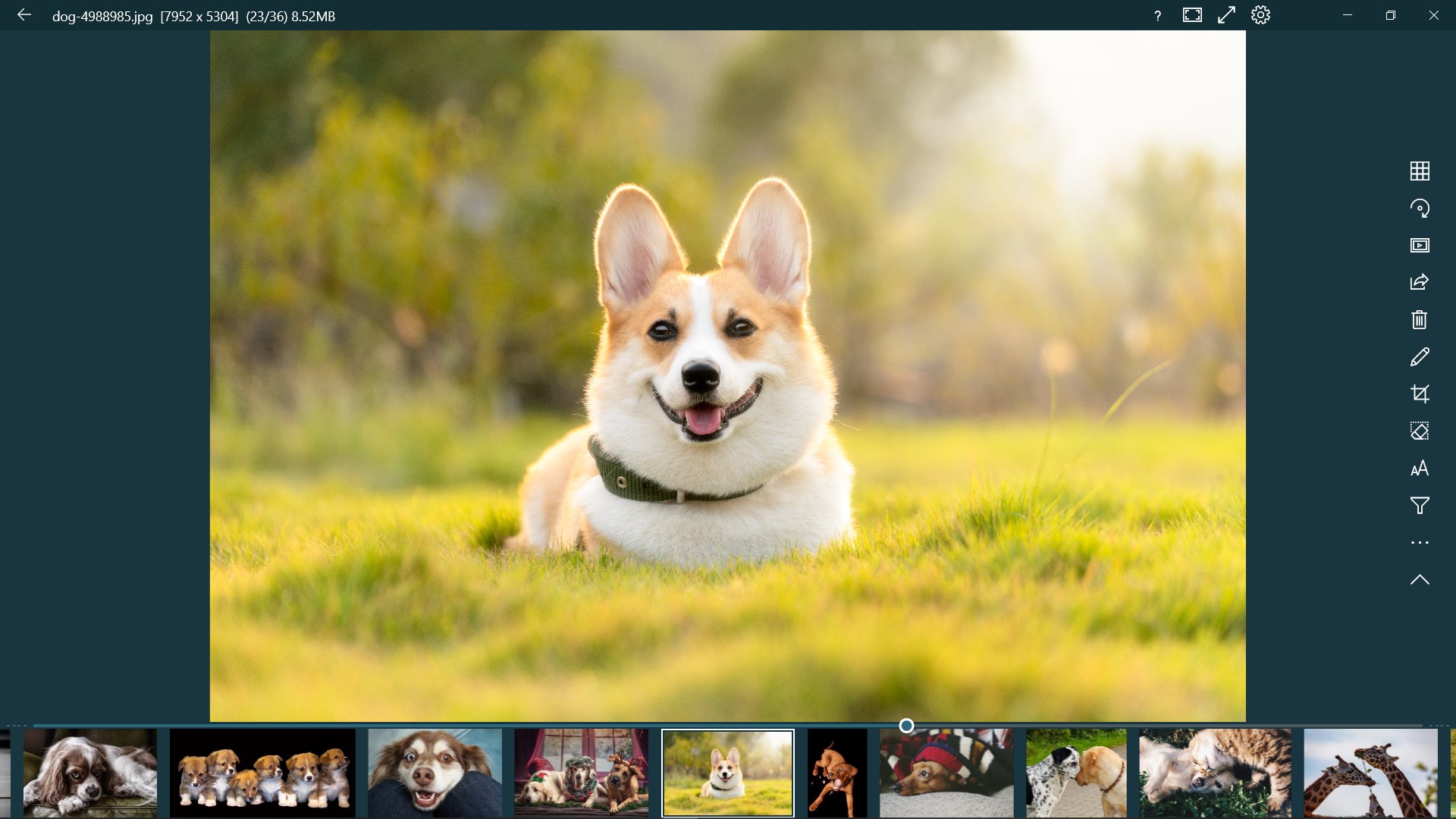
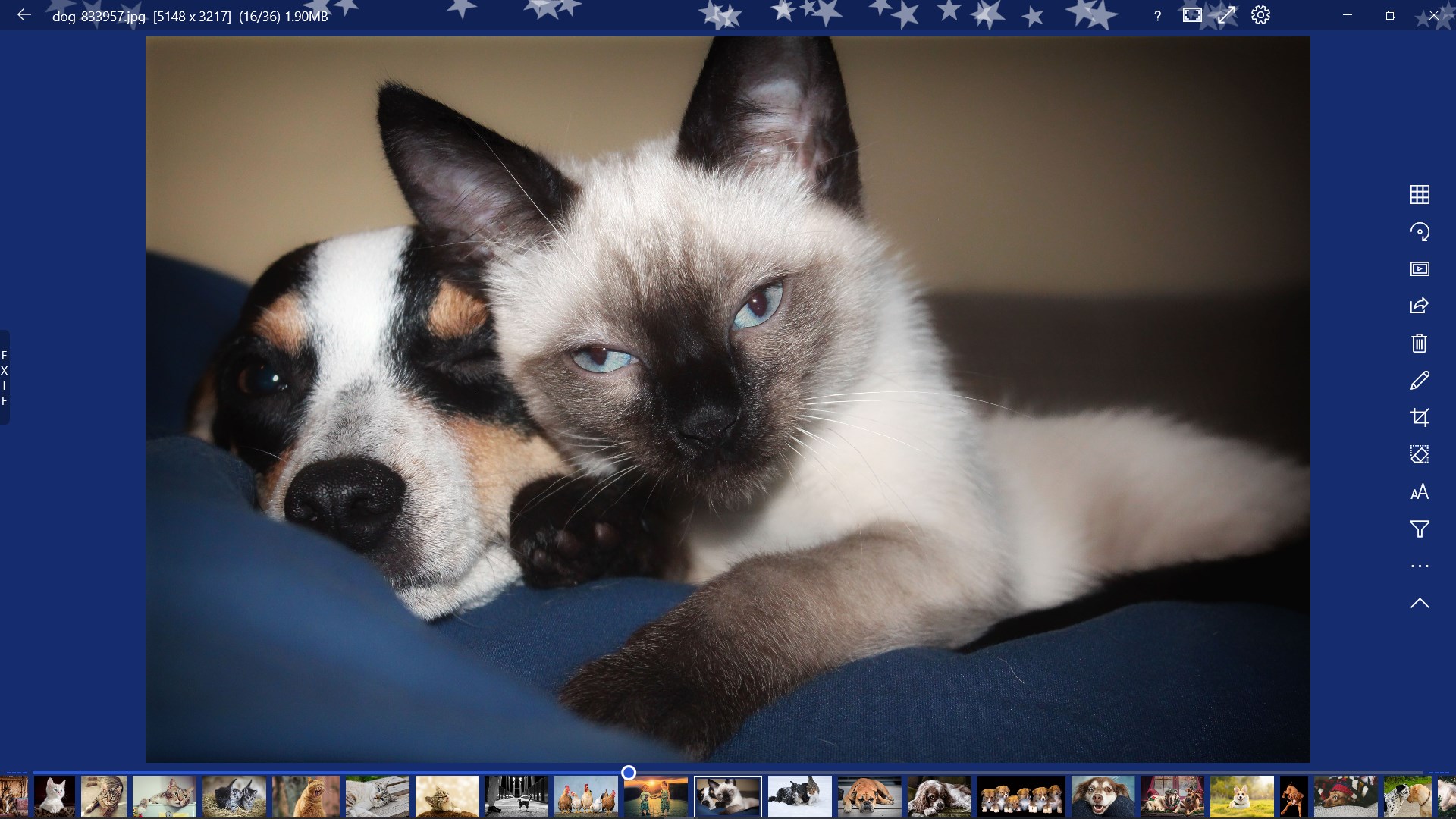
Imagine opening an app that feels like flipping through a well-organized photo album—bright, responsive, and surprisingly straightforward. That's the initial impression of 123 Photos. The interface strikes a delicate balance: minimal yet functional, it welcomes users with clean lines and familiar icons that make navigation feel second nature. Dragging and dropping images, scrolling through galleries, and applying edits is fluid and responsive—as smooth as sliding a photo out of a crowded album into the spotlight. For those wary of complex settings, the learning curve is gentle; even beginners can quickly grasp its essentials without feeling overwhelmed.
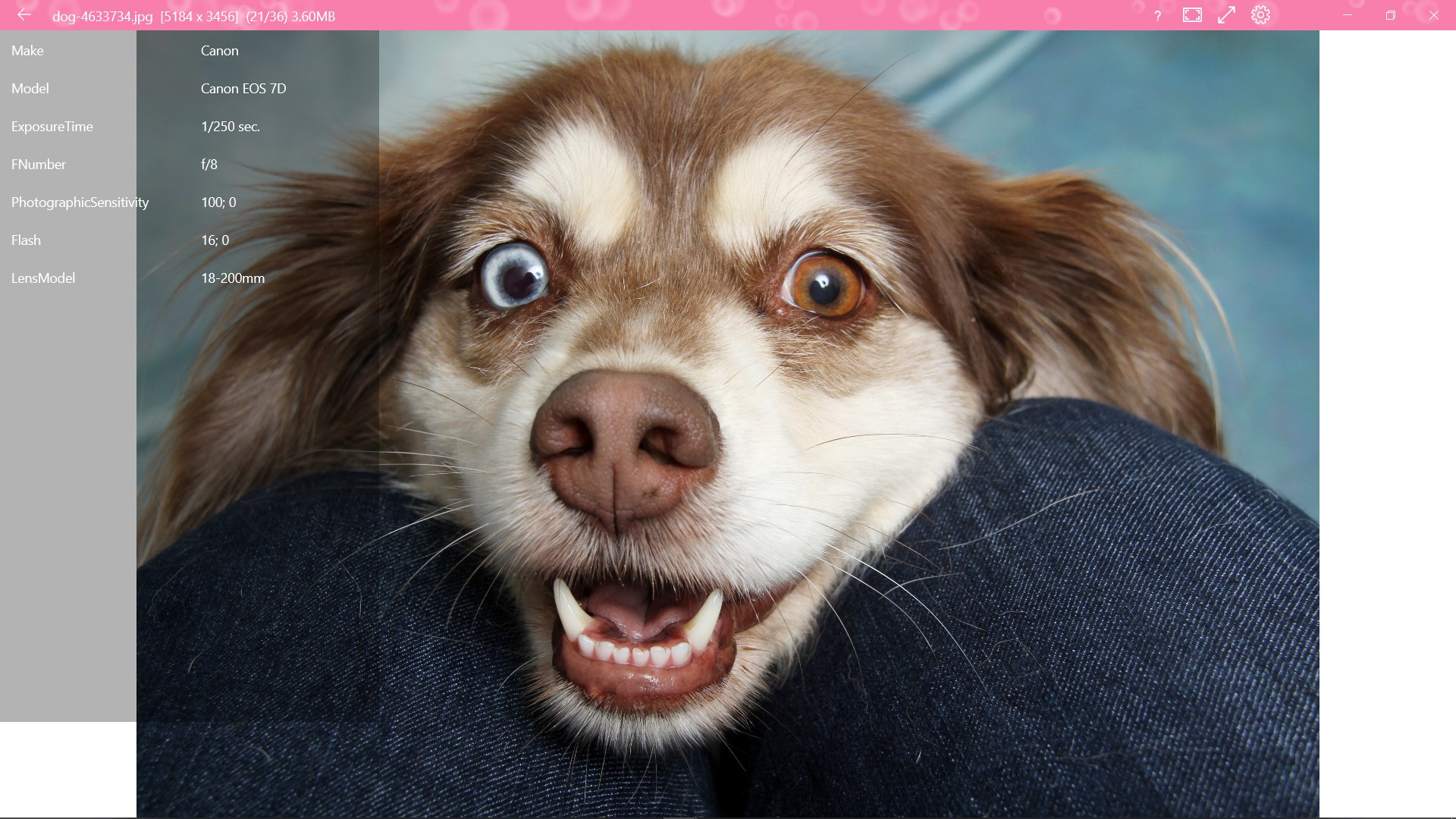
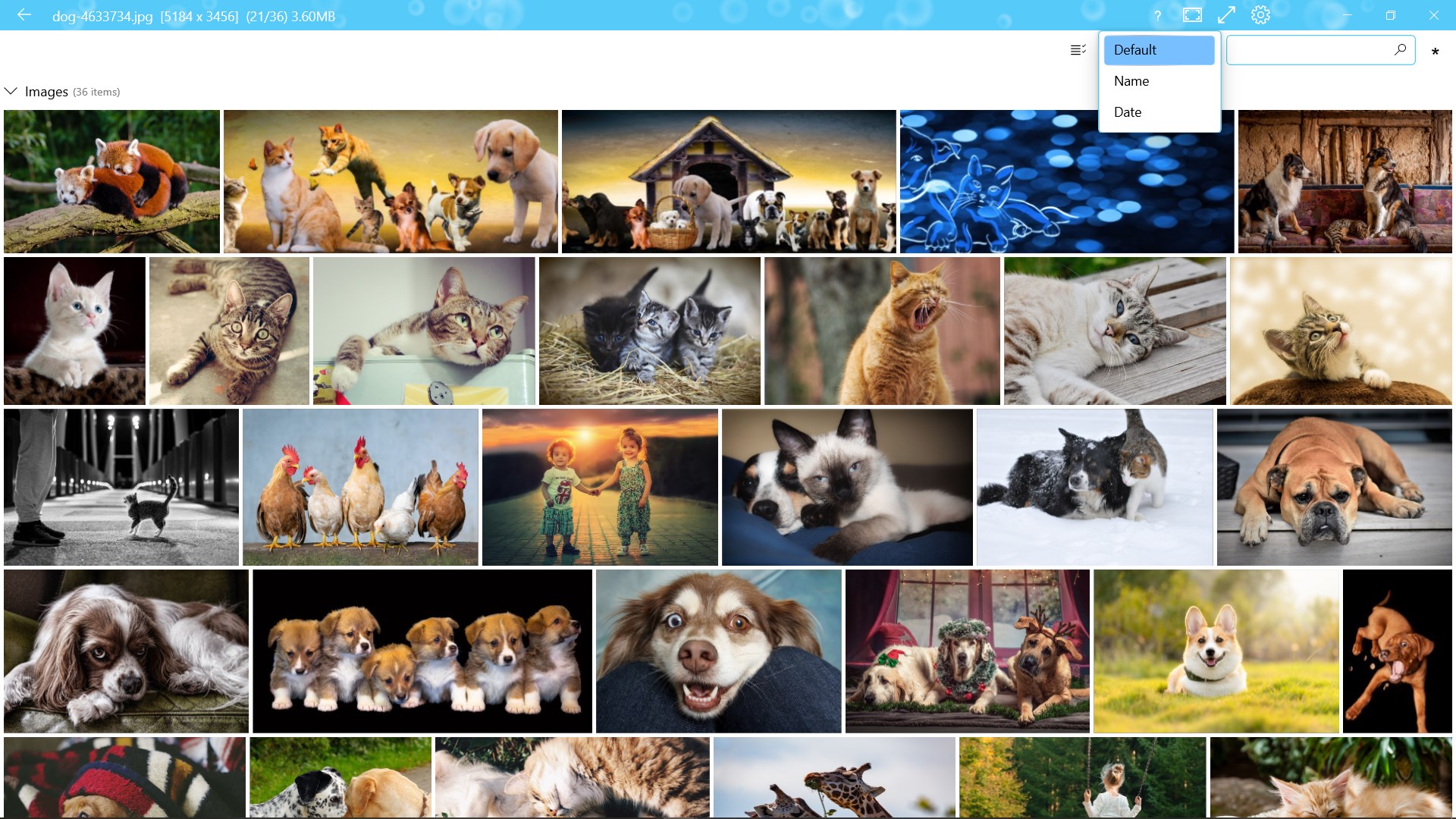
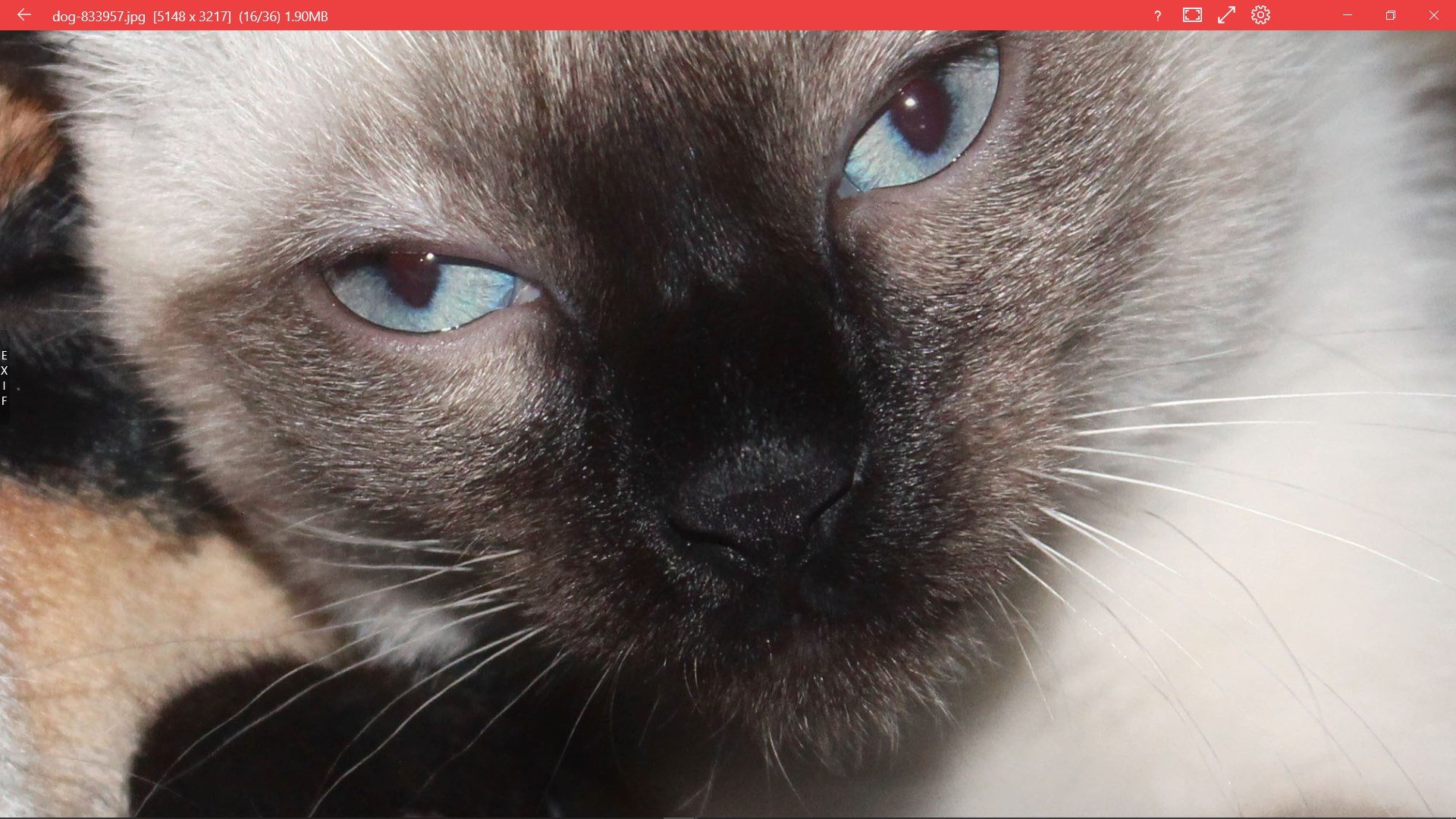
At its core, 123 Photos excels in its primary purpose—displaying images. The app handles large photo libraries with ease, offering thumbnail previews and quick loading times. The preview window adjusts smoothly as you browse through folders, and zooming capabilities enable detailed inspections without lag. Unique to many similar tools, it offers a convenient slideshow mode and quick tagging options, making organizing your collection a breeze.
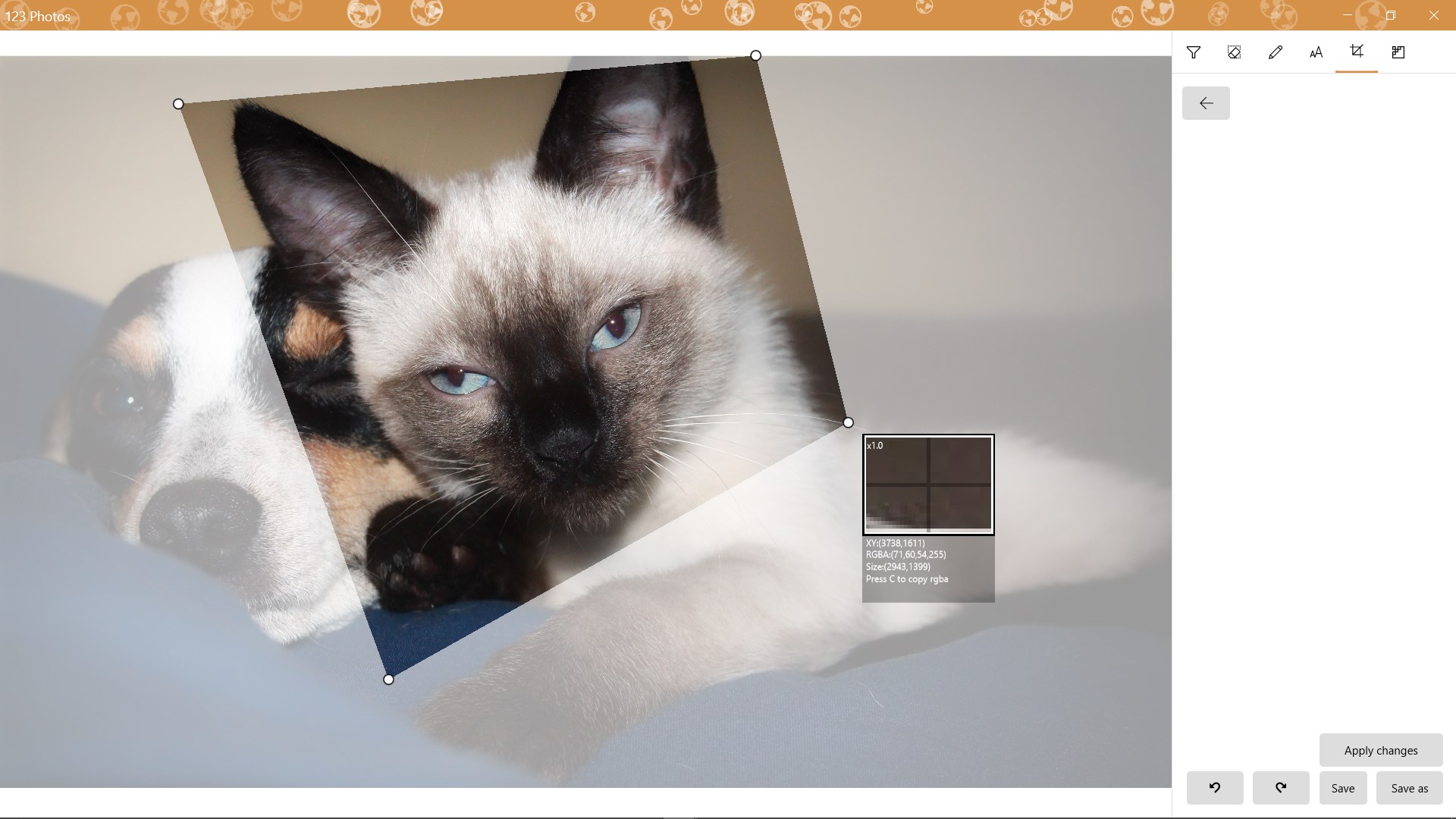
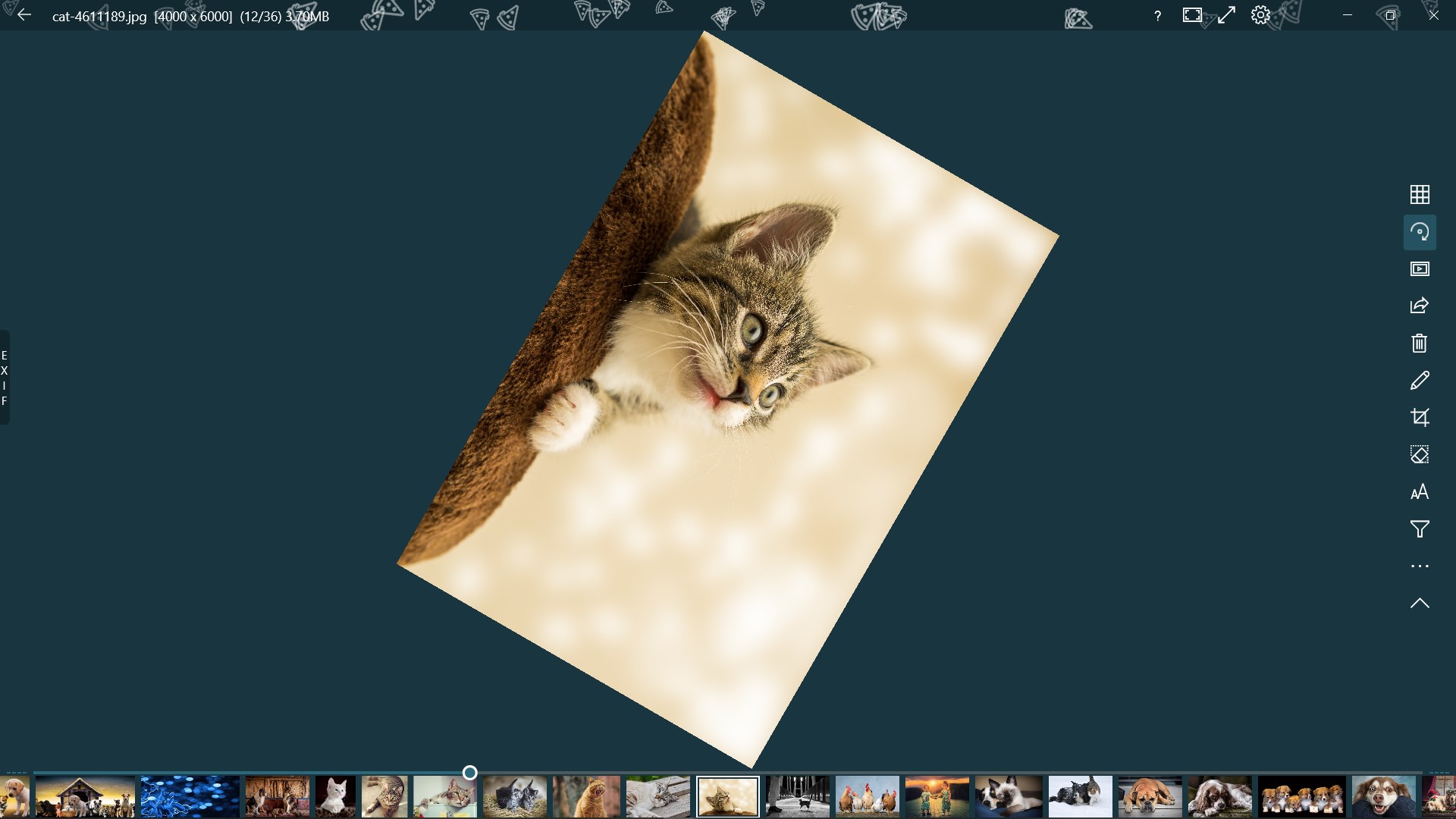
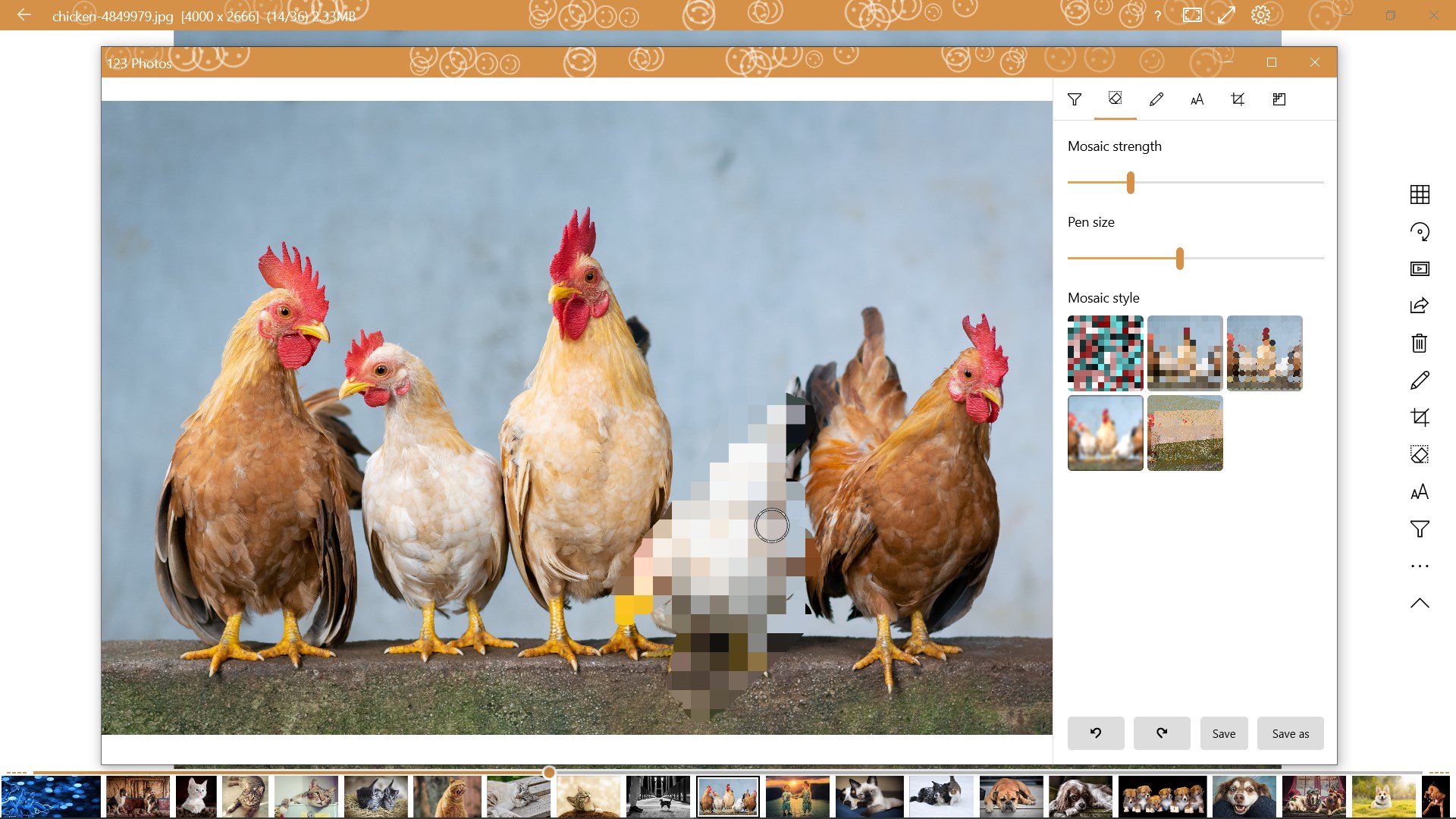
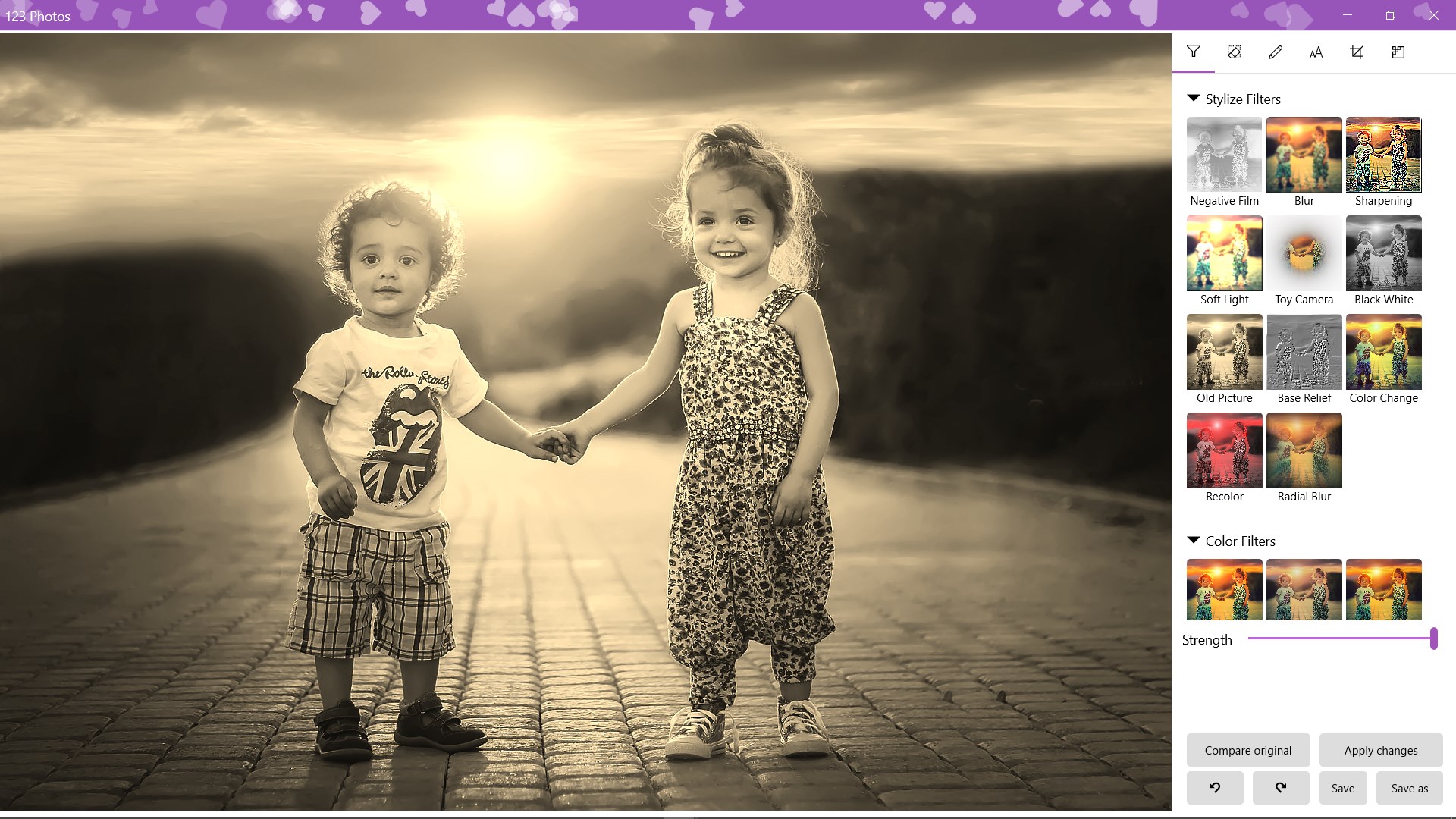
Once your photo is in view, the editing suite shines as a particularly strong feature. Unlike overly complicated editors, 123 Photos provides essential adjustments—crop, rotate, resize, or enhance brightness and contrast—accessible via intuitive controls. The app's filters and correction options are cleverly designed to produce professional-looking results without needing specialist knowledge. This focus on user-friendly editing stands out amidst more convoluted photo editors, enabling users to quickly improve their images before sharing or archiving.
One of 123 Photos' most compelling features is its ability to convert images between multiple formats effortlessly. Whether you need to reformat a photo for social media, print, or storage efficiency, the app handles conversions swiftly, maintaining high quality. Supporting formats like JPEG, PNG, BMP, TIFF, and more, it saves users from juggling multiple tools. This versatility is particularly useful for photographers and designers needing quick format swaps without complicated workflows.
The app's interface is uncluttered, with a focus on fluid interaction—think of it as the dashboard of a modern car: everything you need is within reach, and the ride is smooth. Responsiveness is consistent, even with large batches of images, which is crucial for productivity. Its learning curve is friendly; a beginner can start editing or converting within minutes, while power users will appreciate the speed and underlying efficiency.
Where 123 Photos truly stands out compared to others on the market is its blend of simplicity and comprehensive functionality. The most distinctive offering is its combined viewing, editing, and converting capabilities bundled into a single, lightweight application. While many tools specialize in one area, this app's unified approach reduces the hassle of switching between multiple programs, saving time and workflow confusion.
I would recommend 123 Photos to anyone seeking an accessible, reliable tool to handle multiple aspects of photo management without the bloat of overly complex features. It's particularly suitable for casual users and small projects, where speed and ease of use are more valuable than advanced editing. For professionals or those with more demanding needs, it can still serve as a handy auxiliary app for quick tasks and conversions.
All in all, Dreamoji's creation offers a balanced package—simple enough to avoid overwhelm, yet capable enough to meet everyday photo needs. If you value efficiency and clarity without sacrificing essential functionalities, give 123 Photos a shot; it might just become your go-to photo utility.
User-friendly interface
Versatile editing tools
Fast photo conversion
Seamless integration with Windows
Lightweight application
Limited advanced editing features
Occasional slow processing with large images
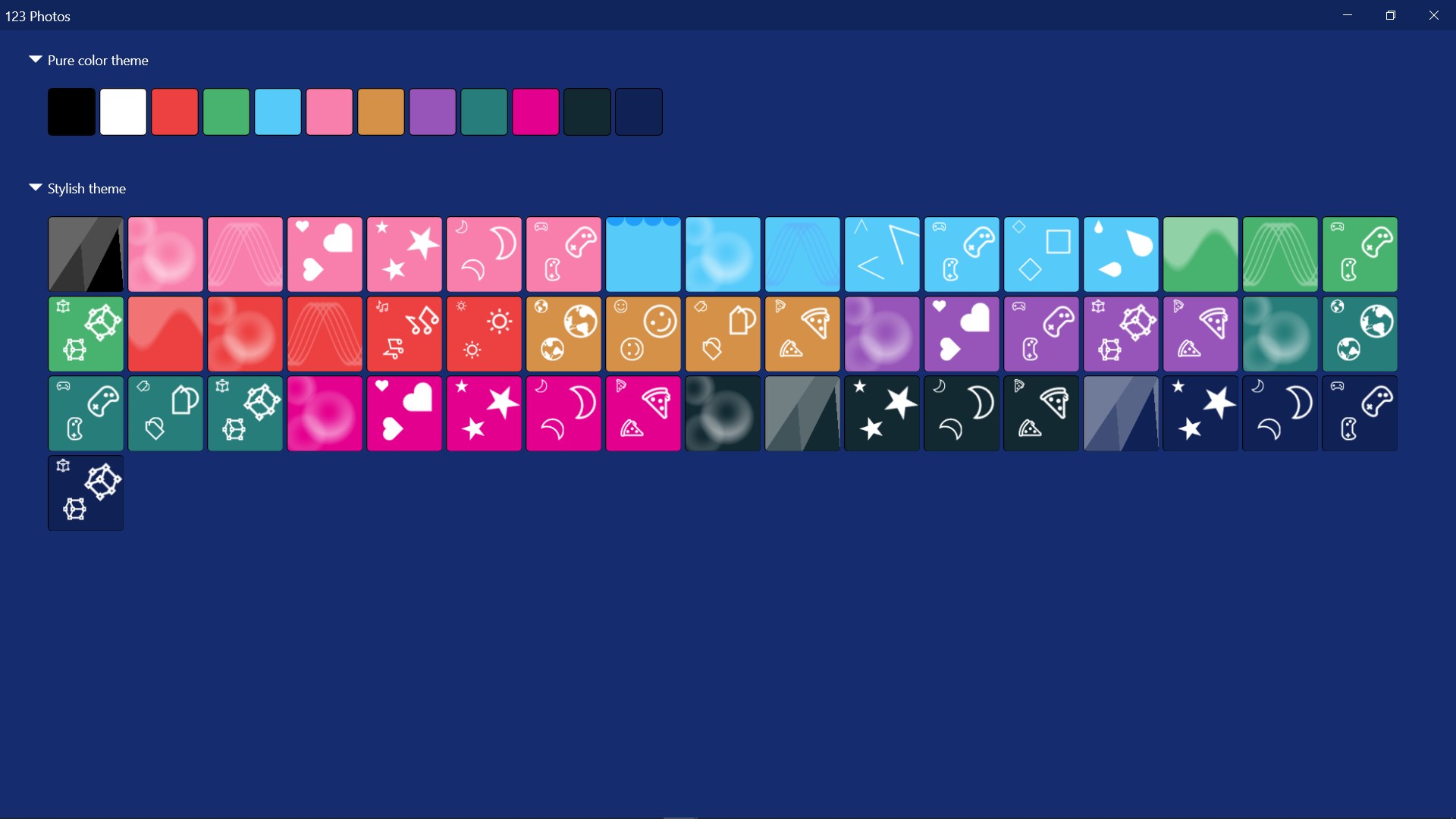
Basic interface customization options
Limited export formats
Occasional bugs in batch processing

for Windows
 5
5

for Windows
4.9

for Windows
4.8

for Windows
4.8

for Windows
4.8

for Windows
4.7

for Windows
4.7

for Windows
4.7

for Windows
4.7

for Windows
4.7

for Windows
4.7

for Windows
4.7

for Windows
5

for Windows
5

for Windows
5

for Windows
5

for Windows
5

for Windows
5

for Windows
5

for Windows
5

for Windows
5

for Windows
5