Card & board
PC
Windows 10 version 17763.0 or higher
English, English (United States)
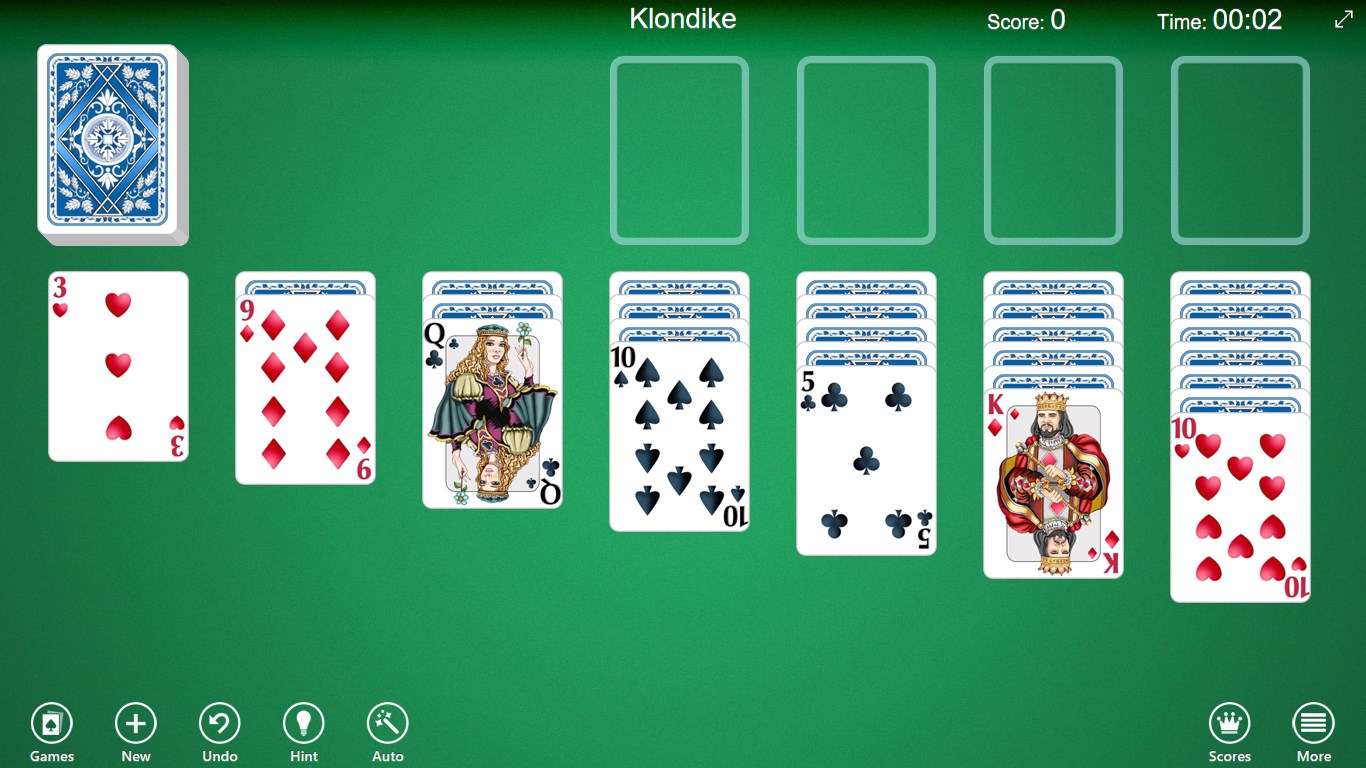
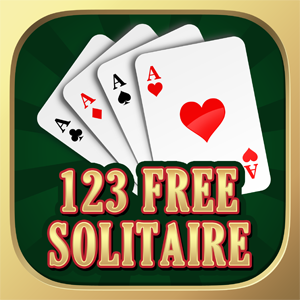
Imagine a digital version of your favorite classic card game, perfected to provide a seamless and relaxing experience—this is precisely what 123 Free Solitaire offers. Developed by TreeCardGames, this freeware aims to bring the timeless charm of traditional Solitaire directly to your Windows desktop, with an emphasis on simplicity, accessibility, and a touch of polish.
TreeCardGames is a dedicated developer specializing in casual card and puzzle games. Their focus is on creating straightforward yet engaging experiences that appeal to players of all ages looking for an easy-to-play pastime.
Designed for casual players and Solitaire enthusiasts alike, the app's target audience ranges from newcomers to experienced players seeking a relaxing digital escape during breaks or leisurely hours.
Right from launching the app, you're greeted with a crisp, uncluttered layout reminiscent of a tidy card table. The interface's color palette is gentle on the eyes, inviting you to sit back and focus on stacking those cards. Navigating through options is intuitive, with large, responsive buttons that resemble real card handles—making the digital experience feel familiar and comfortable. Transitioning between games or settings is seamless, with no lag or confusing menus, which makes it perfect for quick plays or longer sessions.
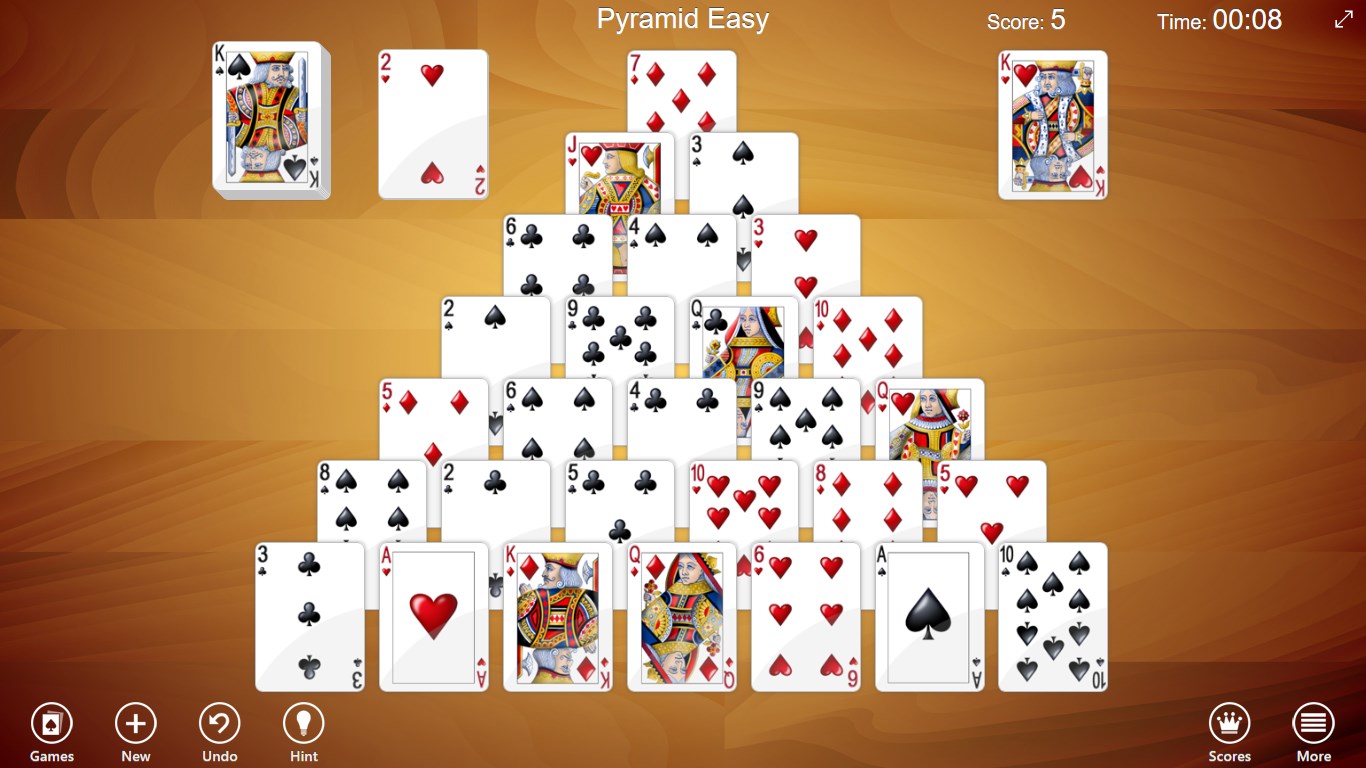
The app faithfully captures the essence of classic Solitaire, with easy drag-and-drop actions and clear feedback, akin to shuffling and dealing cards on a desk. The rules are straightforward but also provide enough challenge to keep you engaged. One particularly noteworthy feature is the intelligent autoflow option, which suggests moves or automatically completes certain actions, easing beginners into the game while still offering enough manual control for seasoned players. The smooth animations and responsive controls ensure that each move feels immediate and satisfying, much like handling real cards.
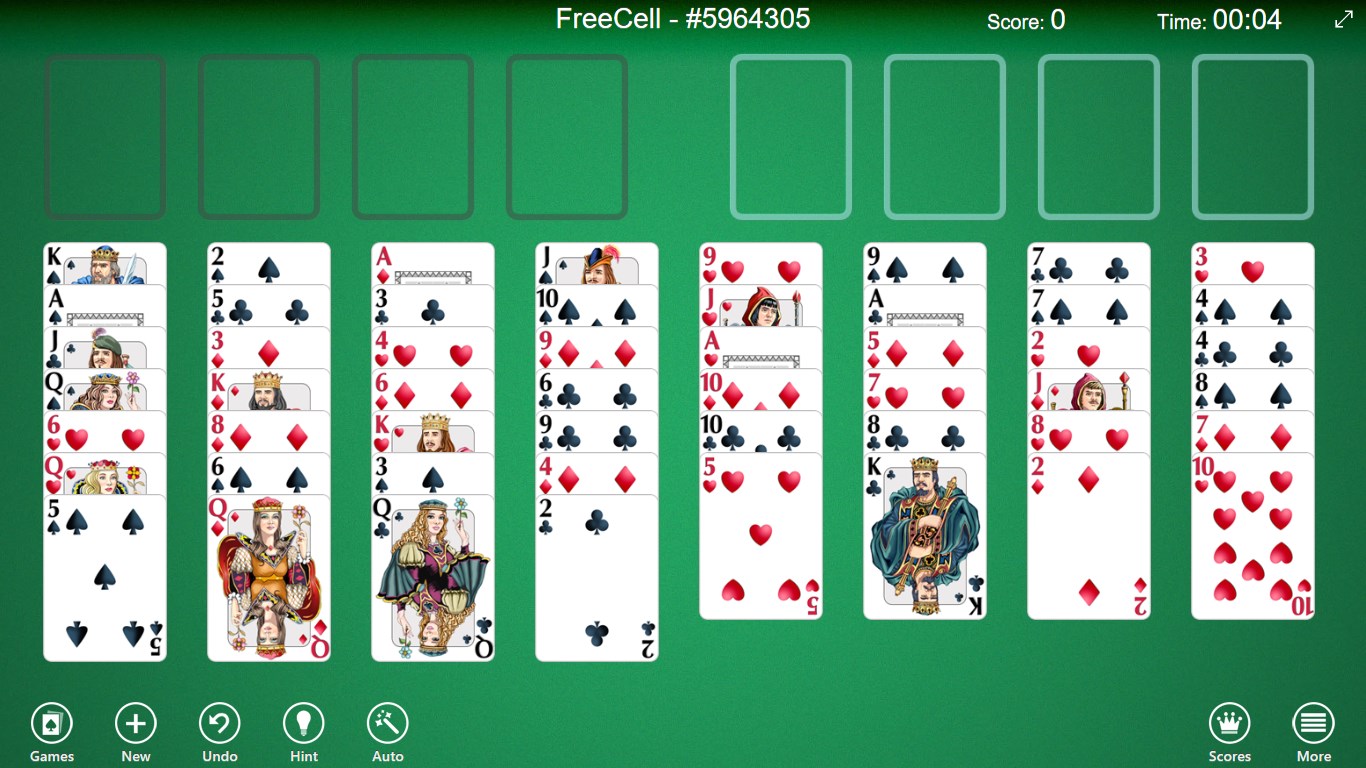
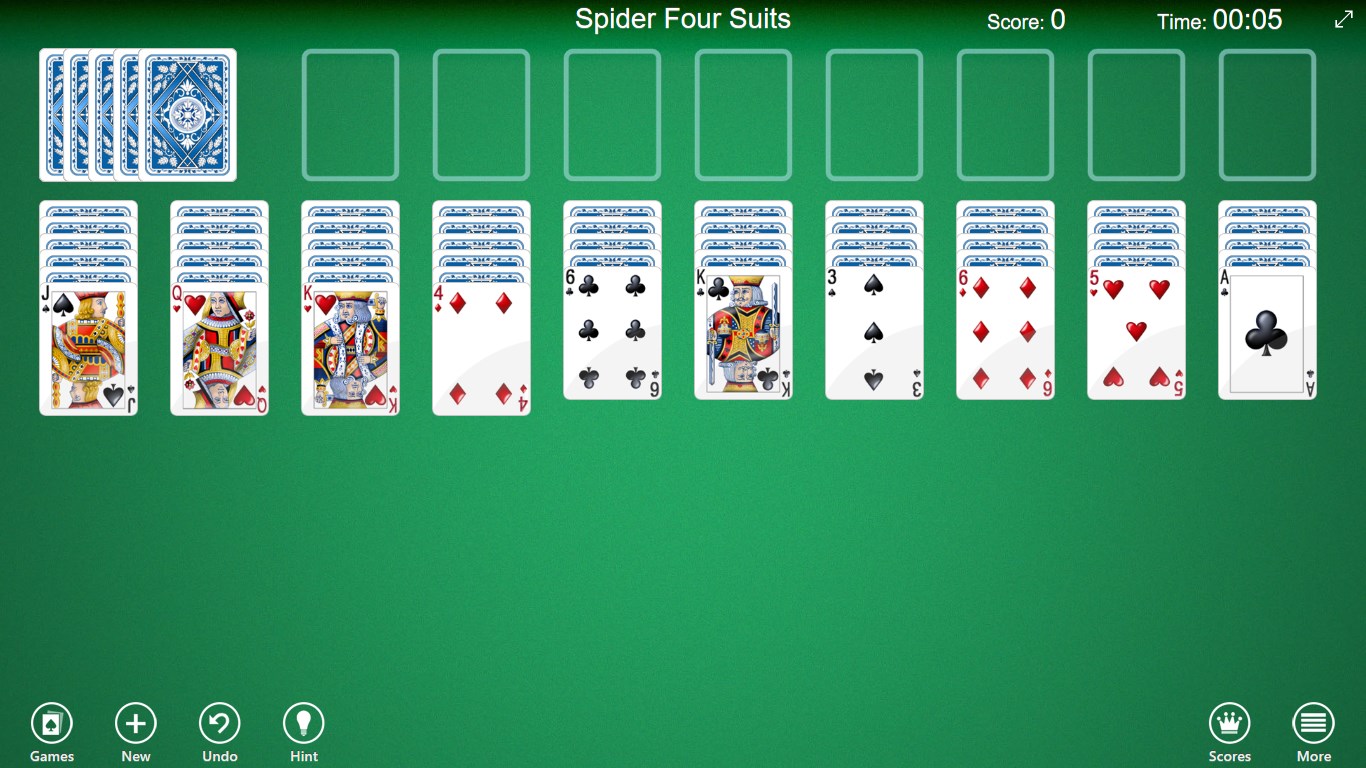
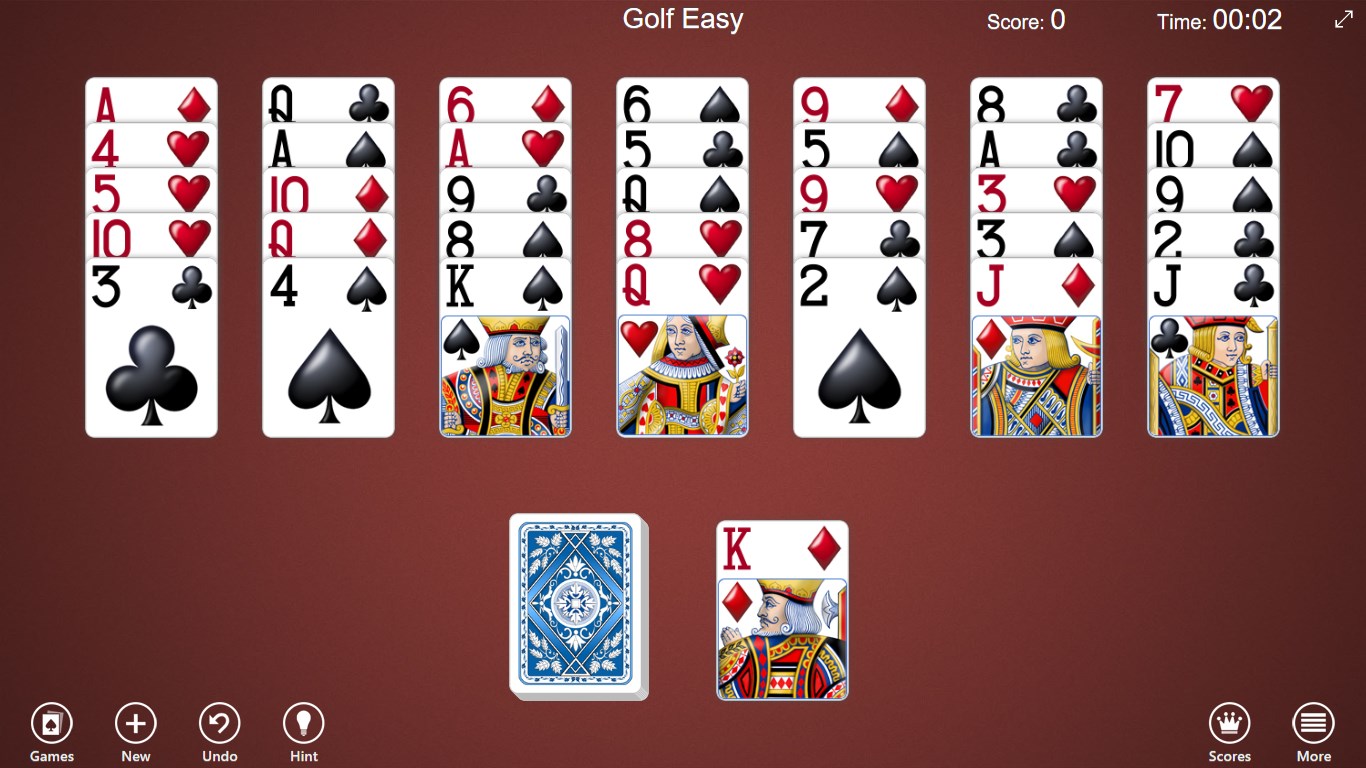
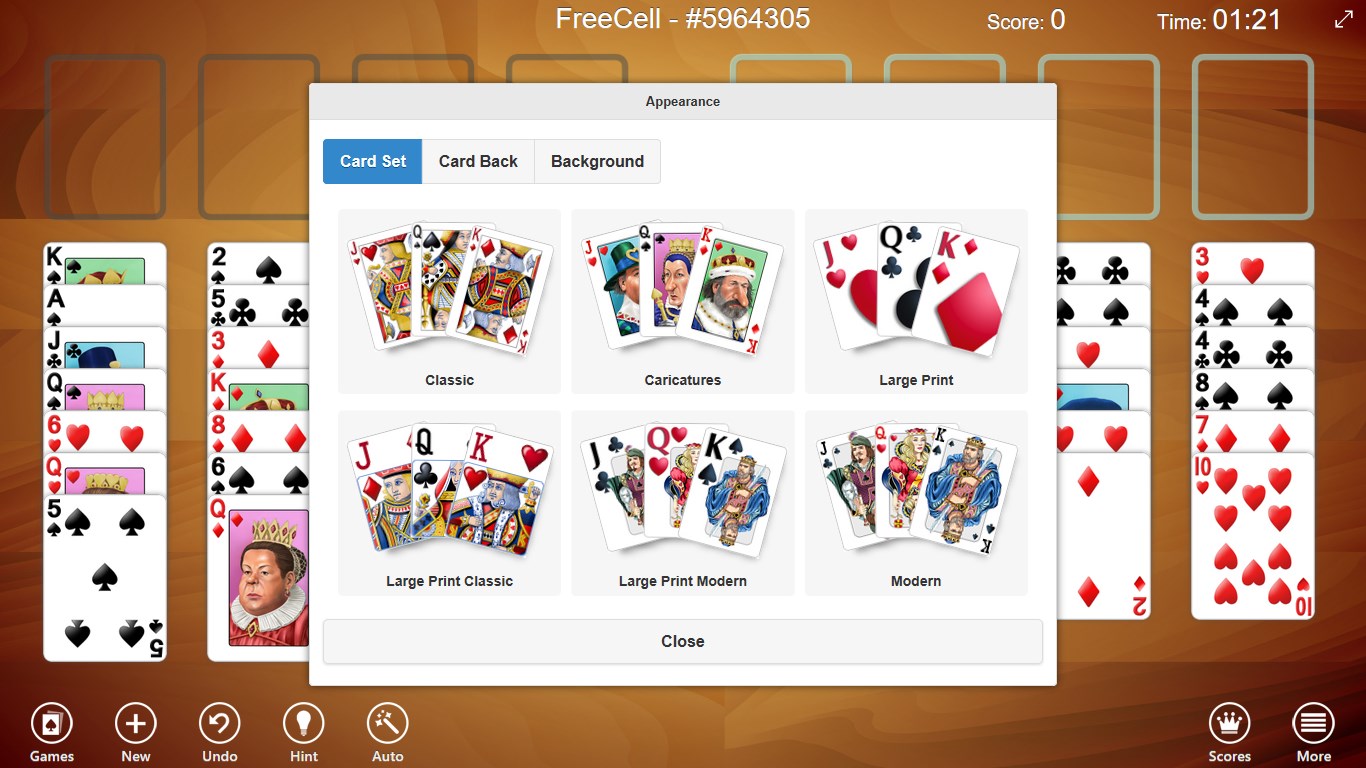
While many Solitaire apps for Windows tend to focus on flashy graphics or experimental variants, 123 Free Solitaire champions simplicity and elegance. Its standout feature lies in its minimalist approach combined with high customization: players can choose from different card themes, background images, and even adjust the card movement speed. This level of personalization, paired with a clutter-free environment, makes it a zen-like experience—like pulling out a classic deck after a long day and finding comfort in the familiar. Its ad-free, free-to-play structure ensures no interruptions, setting it apart from many freemium competitors that often bombard users with ads between hands.
I'd confidently recommend 123 Free Solitaire to anyone seeking a straightforward, reliable, and distraction-free version of a beloved classic. Whether you're relaxing during a coffee break or looking for a calm activity before bed, this app's polished interface and genuine gameplay make it a worthy companion. While it doesn't boast fancy features or multiple game modes, its focus on quality and user comfort earns it a solid spot on your Windows game library. For players eager for an authentic, no-nonsense Solitaire experience that feels like a well-played deck in the palm of your hand, this app is an excellent choice.
User-Friendly Interface
Free Access with No Ads
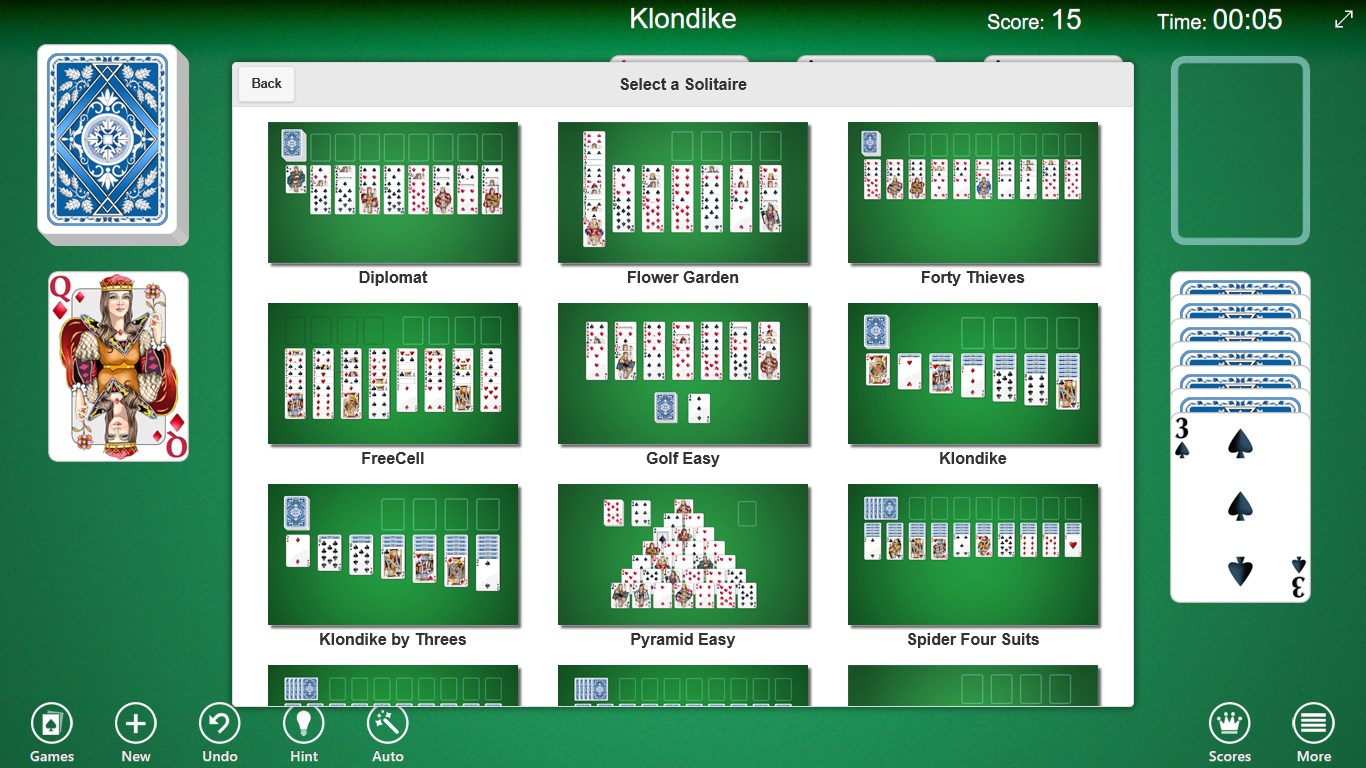
Multiple Solitaire Variants
Smooth Performance
Simple Touch Controls
Limited Customization Options
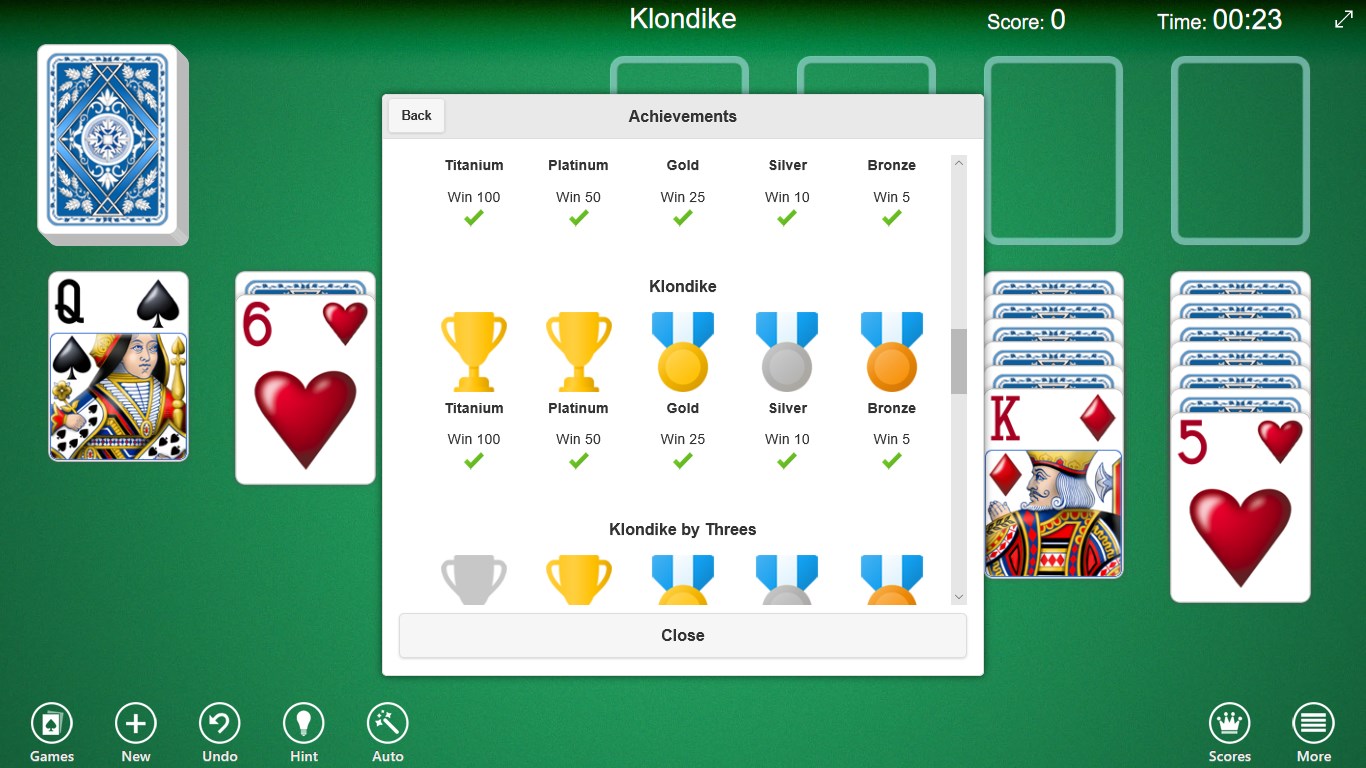
Lack of Daily Challenges or Achievements
Minimal Sound Effects
No Multiplayer Support
Basic Graphics Design
for Windows
 4.9
4.9

for Windows
4.8
for Windows
4.8

for Windows
4.8

for Windows
4.8

for Windows
4.8
for Windows
4.8
for Windows
4.7
for Windows
4.7

for Windows
4.7

for Windows
4.7

for Windows
4.7

for Windows
5

for Windows
5

for Windows
5

for Windows
5

for Windows
5

for Windows
5

for Windows
5

for Windows
5

for Windows
5

for Windows
5